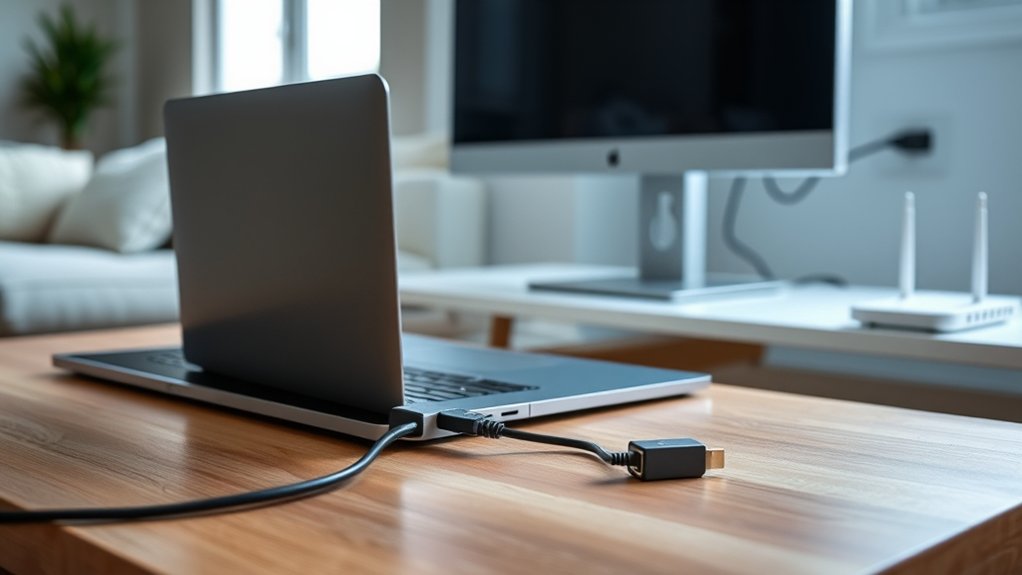
A laptop without a built-in Ethernet port can use a USB-to-Ethernet adapter, but a physical Ethernet cable is still required to reach a router or switch. A USB 3.0 or USB-C adapter with 1 Gbps support, OS compatibility, and link LEDs is typically preferred. Cat 5e supports 1 Gbps, while Cat 6 or 6a supports higher rates. If detection fails, install the correct driver and verify link lights, port seating, and cable integrity for setup details.
How to Add Ethernet to a Laptop
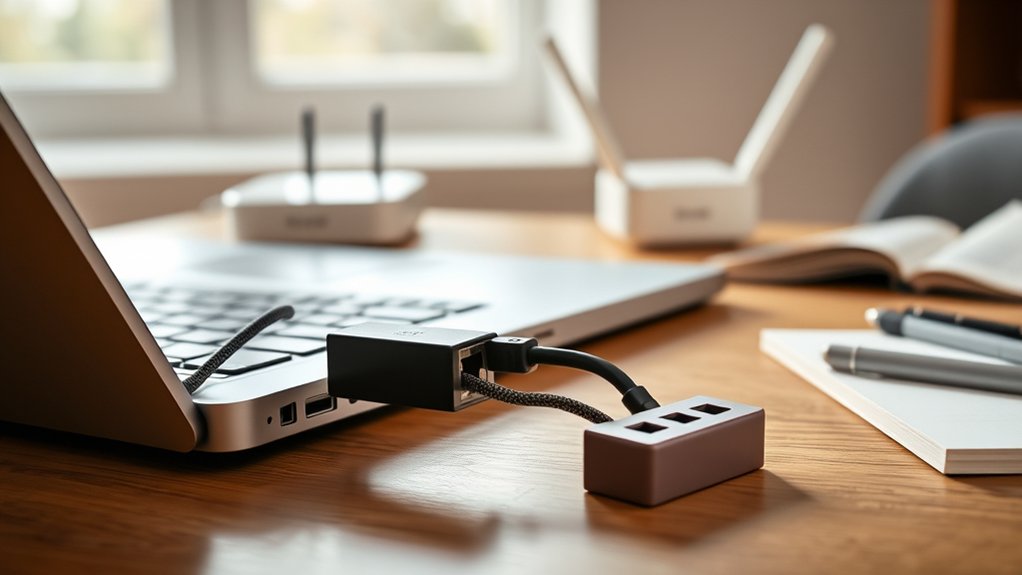
To add Ethernet to a laptop that lacks a built-in RJ45 port, a USB to Ethernet adapter is the standard solution. It attaches to an available USB port and exposes an Ethernet interface for wired network access.
This method enables users who need to connect, reliably and independently, without dependence on unstable wireless conditions. An Ethernet cable is also required; it links the adapter to the router or switch and establishes the physical network path.
After connection, the adapter should present link or activity lights that indicate carrier detection and traffic status. Those indicators provide a basic hardware-level confirmation that the interface is operational.
If the operating system does not recognize the device, the required driver should be obtained from the manufacturer’s support site, for example by entering the adapter ID on startech.com to locate the correct package.
Once functioning, Ethernet typically delivers higher throughput, lower latency, and greater stability for streaming, gaming, and other demanding workloads.
Choose the Right USB-to-Ethernet Adapter
Several selection criteria determine whether a USB-to-Ethernet adapter will integrate cleanly with a laptop and deliver expected network performance.
Operating-system support remains fundamental: an adapter should explicitly support the target environment, including Windows or macOS, to prevent driver instability and administrative friction.
For throughput, USB 3.0 is a practical baseline, enabling faster host transfer and supporting adapters rated up to 1 Gbps. This specification helps preserve responsive internet access and avoids unnecessary bottlenecks in mobile workstations.
Useful adapter features also include integrated LED indicators, which provide immediate status visibility for link activity and fault isolation without intrusive diagnostics.
Physical design matters when autonomy and movement are priorities; compact, lightweight models suit travel-oriented systems such as the MacBook Air, expanding portability options without adding excessive bulk.
Finally, disciplined evaluation of user reviews and ratings can identify dependable manufacturers, stronger warranty terms, and customer support that reduces downtime and protects independent, self-directed connectivity.
Check Adapter Compatibility and Speed
Adapter selection should first confirm a correct port and operating system match, including USB version support and verified compatibility with the target laptop platform.
Ethernet speed ratings should then be checked against the adapter specification, with common limits ranging from 100 Mbps to 1 Gbps and higher throughput generally associated with USB 3.0 or later.
Driver support should also be verified through certification status, vendor documentation, and user-reported performance to reduce installation faults and unstable network operation.
Port And OS Match
A proper port and OS match determines whether a USB-to-Ethernet adapter will deliver its rated performance. Selection should begin with USB version compatibility: the laptop port and adapter interface must align, such as USB 3.0 or USB-C, to prevent throughput constraints.
Next, Ethernet standard support should match the intended network environment, including Fast Ethernet or Gigabit Ethernet, so the adapter can interoperate correctly with existing infrastructure.
Operating system requirements are equally decisive. The adapter should explicitly support the installed platform, whether Windows or macOS, to avoid driver conflicts and unstable enumeration.
Users seeking freedom from avoidable limitations should verify vendor documentation, then consult the manufacturer website for current drivers or firmware. This standards-based check reduces installation friction and preserves the adapter’s specified transfer capability under real deployment conditions.
Ethernet Speed Ratings
Most Ethernet links operate within standardized speed classes from 10 Mbps legacy modes to 10 Gbps modern implementations, so adapter compatibility should be checked against the target network’s rated throughput. This allows a more self-directed, constraint-free connection path without unnecessary bottlenecks.
- Cat 5e supports up to 1 Gbps across typical runs.
- Cat 6 can reach 10 Gbps over shorter distances.
- Cat 6a sustains 10 Gbps across longer cable lengths.
- IEEE 802.3 compliance preserves interoperability with existing infrastructure.
When evaluating USB to Ethernet adapters, the adapter should match or exceed router speed.
Ethernet cable types remain critical, because cable quality influences signal loss and achievable throughput. Among key network performance factors, cable grade, run length, and standards alignment determine real-world results.
Speed testing tools can confirm negotiated link rates.
Adapter Driver Support
Beyond cable category and negotiated link rate, USB to Ethernet performance also depends on driver support and host compatibility. A standards-minded user should verify operating-system support on the manufacturer’s site, confirming chipset drivers, release notes, and stated throughput capability before purchase. This protects autonomy from avoidable bottlenecks and unsupported configurations.
Proper driver installation tips include selecting the exact adapter model, installing signed drivers, and rebooting when required to expose full features and stable link negotiation. The adapter should also explicitly support the target speed, such as 10, 100, or 1000 Mbps, so the interface aligns with actual bandwidth needs.
Driver update importance is ongoing: current packages preserve compatibility and security. When faults appear, manufacturer documentation should guide adapter troubleshooting methods, including diagnostics, speed checks, and host compatibility validation procedures.
Connect the Adapter to Your Router
The adapter should first be inserted fully into the laptop’s USB port to guarantee a stable physical interface.
An Ethernet cable should then be connected from the adapter’s RJ45 port to an available LAN port on the router, with Cat 6 or higher preferred for gigabit-capable service.
Link LEDs on the adapter should be checked to verify successful link establishment and active data transmission.
Insert Adapter Properly
Insert the USB to Ethernet adapter fully into an available USB port on the laptop, then connect an Ethernet cable from the adapter’s RJ45 port to an open Ethernet port on the router.
- Seat the adapter firmly; incomplete insertion can prevent enumeration.
- Connect the cable straight, avoiding strain on the RJ45 latch.
- Verify link LEDs on the adapter illuminate after attachment.
- Check manufacturer support, such as startech.com, for required drivers.
Across common adapter types, correct mechanical fit and standards-compliant cabling establish a reliable physical layer without dependence on unstable wireless paths.
These installation tips support autonomous, high-bandwidth use cases by reducing latency and preserving throughput.
If link lights remain dark, initial troubleshooting steps include reseating the adapter, confirming the router port is available, and installing vendor drivers where required.
Plug In Ethernet
Connect the USB to Ethernet adapter to the laptop, then attach one end of the Ethernet cable to the adapter and the other to an available LAN port on the router. This establishes a direct physical path compliant with standard Ethernet interfaces and prepares the system for deterministic network access without wireless dependency.
For users seeking autonomy from congested radio environments, the Ethernet benefits are clear: lower latency, higher throughput, and stronger session stability for gaming, streaming, and other sustained bandwidth workloads.
As practical troubleshooting tips, the adapter should be confirmed by the operating system; if not detected, the correct driver package should be obtained from the manufacturer, including sources such as startech.com.
Among cable alternatives, this adapter-based method enables wired performance on laptops lacking native Ethernet ports and expands deployment flexibility.
Check Link Lights
Inspect the adapter’s status LEDs after the USB to Ethernet adapter and cable are attached to the laptop and router. This confirms physical-layer readiness and clarifies link light significance before software configuration begins.
A solid green LED generally indicates a stable Ethernet link; a blinking LED usually reflects active frame transmission. These adapter indicators help verify liberated, cable-based network access without ambiguity.
- Confirm the Ethernet plug clicks firmly into both adapter and router.
- Observe whether the link LED is solid, blinking, or dark.
- Check additional power or activity LEDs for supporting status detail.
- If dark, apply troubleshooting steps and test another router port.
When no LEDs illuminate, the detached assessment remains simple: reseat both ends, inspect cable integrity, and try a different router port.
Consistent illumination indicates successful attachment to the local network.
Install USB Ethernet Drivers on Mac
Locate the exact USB Ethernet adapter model on startech.com and download the matching macOS driver package, such as the driver listed for a USB 31 3S adapter. This method supports device autonomy through verified files. Apply driver installation tips by selecting the macOS zip, extracting contents, and running the installer. This addresses common macOS compatibility issues and avoids troubleshooting installation errors caused by generic packages.
| Step | Action | Verification |
|---|---|---|
| 1 | Identify adapter model | Model matches label |
| 2 | Download macOS zip | File version is correct |
| 3 | Extract archive | Installer becomes available |
| 4 | Run installer | Setup completes normally |
After installation, attach the adapter to an available USB port and connect Ethernet to the router. Because some adapters are not plug-and-play on macOS, driver installation remains mandatory. Confirm physical link status by checking adapter link lights, which indicate a successful network connection and proper operational readiness overall.
Fix Ethernet That’s Slow or Not Working
Begin troubleshooting by verifying the physical link and adapter software state. Slow or failed Ethernet often results from basic faults that constrain device autonomy rather than advanced protocol errors. A secure cable connection at both router and endpoint should be confirmed first, followed by validation that the USB to Ethernet adapter driver is current and correctly installed.
- Confirm the Ethernet plug is fully seated on both ends to eliminate common connectivity issues.
- Replace the cable or change router ports to isolate damaged conductors, port failure, or negotiation faults.
- Run a network speed test and compare measured throughput against the subscribed service tier.
- Restart the router and laptop to clear transient faults and reinitialize link parameters cleanly.
These network troubleshooting tips support disciplined Ethernet performance optimization. If throughput remains below expectation after cable, port, driver, and reboot checks, the limitation may reside upstream with the service provider or within router hardware itself under sustained load conditions.
Frequently Asked Questions
Is There a Way to Use Ethernet Without Cable?
Yes; Ethernet can be functionally extended without direct cabling through Wireless alternatives, powerline, MoCA, or Ethernet adapters. Such methods preserve useful Network performance, granting users greater deployment freedom while avoiding new cable runs entirely.
What Is the 5 4 3 Rule of Ethernet?
The 5-4-3 rule in Ethernet standards permits five segments, four repeaters, and three populated segments within a Network topology, limiting path length to reduce Signal degradation and collisions, enabling more reliable, unconstrained communication on legacy coaxial networks.
How to Set up Internet on PC Without Ethernet Cable?
A PC connects without Ethernet by enabling Wi Fi alternatives through built-in radios or Wireless adapters, joining a secured WLAN, or using Internet sharing from another device, thereby achieving standards-compliant network access independent of cabling constraints.
How to Manually Set up Ethernet?
To manually set up Ethernet, one connects adapter and cable, verifies drivers, then configures Network and Internet settings, IP parameters, and link status. Ethernet configuration tips, Network troubleshooting techniques, and Wireless alternatives comparison support autonomous connectivity.
Conclusion
In the grand tradition of solving “wireless Ethernet,” the process remains gloriously terrestrial: select a standards-compliant USB-to-Ethernet adapter, verify interface speed and OS support, install the correct drivers, and test link negotiation at the router. If throughput collapses or connectivity vanishes, diagnostics—not superstition—apply. IEEE specs, chipset compatibility, and proper cabling still govern outcomes. Remarkably, adding Ethernet without a built-in port requires exactly what engineering has always demanded: the right hardware, correctly configured.

