When an Apple Messages group text splits into separate conversations, it becomes hard to tell where everyone should reply. This can happen after a phone change, a change in group members, or a switch in how messages are sent. The right fix depends on whether you have an iMessage, RCS, MMS, or SMS group.
Quick Answer
A split group text usually means the participants, their phone numbers or email addresses, or the messaging service no longer match. Check both chats’ recipient lists, confirm your iMessage phone number under Send & Receive, and check RCS or MMS support for mixed-device groups. You may need to start one new group chat; old histories may remain separate.
Key Takeaways
- Blue bubbles mean iMessage. Green bubbles can mean RCS, MMS, or SMS, so color alone cannot identify the exact service.
- Group SMS sends replies as individual messages; group MMS and RCS can keep replies visible to the group.
- After changing phones or SIMs, confirm that Messages uses your intended phone number, not an old number or unexpected email address.
- Linking duplicate contacts organizes the address book. It does not combine the message history of separate conversations.
Check Whether the Group Uses iMessage, RCS, MMS, or SMS
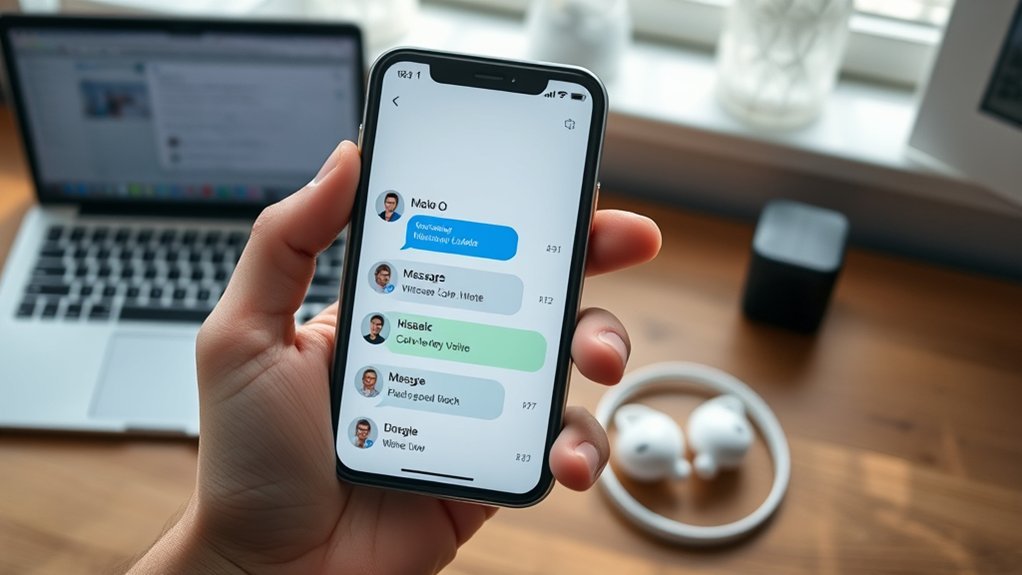
Blue bubbles show iMessage, Apple’s internet-based messaging service. Green bubbles show one of three carrier-based services: RCS, MMS, or SMS. A green chat is not automatically a broken chat, and it does not necessarily use basic SMS.
According to Apple’s explanation of iMessage, RCS, and SMS/MMS, iMessage works over Wi-Fi or cellular data, while RCS adds features such as read receipts and better-quality media when the carrier supports it. SMS can work over a cellular network without a mobile-data connection.
- iMessage: Blue bubbles and group features when every participant uses iMessage.
- RCS: Green bubbles, with shared group replies and richer media when service and devices support RCS.
- MMS: Green bubbles, with group replies and media when the carrier supports group MMS.
- SMS: Green bubbles, but a group SMS reply arrives as an individual text rather than a shared group reply.
To check the type more closely, open the conversation and look at the recipient list and available messaging features. If you see green bubbles, check the RCS and MMS options described below instead of assuming iMessage has failed.
Why Your Apple Messages Group Splits
Group conversations can separate when the same people are contacted through different services or identifiers. Compare the participants shown at the top of both chats before changing any settings. Three situations deserve attention.
Mixed-Device Threads
A group containing both iPhone and Android users cannot be an all-iMessage conversation. Messages may use RCS, MMS, or SMS instead, depending on carrier support, device settings, and connectivity.
Group RCS and MMS can keep participants’ replies together, but group SMS returns replies individually. This distinction explains why a conversation may look fragmented even though the messages are being delivered. Apple’s guide to group message types describes the differences.
Also check whether someone changed phones or whether a participant was added using a different number. When group membership changes, an updated conversation may appear separately from the old one.
iMessage Setting Changes
Turning iMessage off, switching an active phone line, or starting messages from a different address can change how replies are routed. This is particularly relevant after setting up a new iPhone or changing SIM cards.
- Open Settings > Apps > Messages and make sure iMessage is on.
- Tap Send & Receive and confirm the phone number you want to use is selected.
- If the issue began after a new-device setup, turn iMessage off and back on, then select the intended number again.
- If you have Dual SIM, open Settings > Cellular and check that the intended phone line is enabled.
Apple specifically recommends these checks when conversations appear as separate threads after setting up a device. Review the same settings on any other Apple device that receives your iMessages.
Contact Address Mismatches
One person may have an old number, a new number, and an Apple Account email address. Two conversations can look like they contain the same people while actually addressing different destinations.
| Cause | Result |
|---|---|
| Old phone number | Replies may follow an older thread |
| Different email address | A second iMessage conversation may appear |
| iPhone and Android mix | The group uses RCS, MMS, or SMS instead of iMessage |
| Updated contact details | A newly addressed group may appear separately |
| Matching active addresses | Less chance of starting another group by mistake |
Open each conversation, tap the participant names at the top, and compare every listed number and email address. Correct any outdated contact entry. The display names may be identical even when the actual addresses are not.
Turn On MMS and Group Messaging When Available
For a mixed iPhone and Android group, the carrier’s messaging features matter as much as iMessage. RCS can support shared group chats; MMS can also keep group replies together. A basic group SMS cannot provide the same experience.
- Go to Settings > Apps > Messages on your iPhone. On older iOS versions, Messages may be listed directly in Settings.
- If RCS Messaging appears, open it and make sure it is enabled for supported cross-platform chats.
- If MMS Messaging or Group Messaging appears, enable the option needed for your carrier’s group texts.
- Check Send as Text Message if you want SMS fallback when iMessage is unavailable.
- If an option is missing or messages still arrive separately, ask your carrier whether your plan supports RCS and group MMS.
Not every carrier or region shows the same switches. Do not assume the phone is faulty because Group Messaging or MMS Messaging is missing; the carrier may control those features. Turning on a setting also does not combine old message threads.
Try These Quick Fixes First
Start with checks that do not remove messages or change saved networks. Their purpose is to fix future delivery and stop additional duplicate chats from appearing, not to promise that existing threads will combine.
- Check the recipient lists: Verify that each chat contains the same active numbers or email addresses.
- Test the connection: Try Wi-Fi or cellular data for iMessage and RCS, and check cellular service for SMS.
- Choose one active conversation: Ask participants to reply there. If that still creates separate threads, start a fresh group with the correct addresses.
Force Close Messages if It Is Frozen
Force closing Messages is useful when the app stops responding or displays an obvious temporary error. It is not a reliable method of merging two separate conversations.
On an iPhone with Face ID, swipe up from the bottom and pause to open the App Switcher. On an iPhone with a Home button, double-press it. Swipe the Messages preview upward, then reopen Messages. Apple’s app-closing instructions recommend this when an app is unresponsive.
Restart and Update Your iPhone
If messages are failing to send or the app is behaving strangely, restart your iPhone and check for an iOS update under Settings > General > Software Update. Restarting or updating may fix software issues, but it cannot change who is included in an existing conversation.
If there is a genuine network problem after the simpler checks, Reset Network Settings is a later option: Settings > General > Transfer or Reset iPhone > Reset > Reset Network Settings. Apple’s network troubleshooting guide advises saving this step for unresolved connectivity problems.
Warning: Reset Network Settings removes saved Wi-Fi networks and passwords, along with cellular, VPN, and APN settings. Do not use it just to tidy up duplicate conversations.
Clean Up Contact Details for Everyone
Accurate contact cards make it easier to choose the right recipient, especially when someone has changed numbers or uses both a phone number and an Apple Account email. They do not control whether Messages displays one combined conversation.
- Open Contacts and inspect each group member’s active phone number and email address.
- If Contacts offers View Duplicates, review the suggested cards before choosing to merge them.
- For two entries that should appear together, open one card, tap Edit > Link Contacts, and select the other card.
- Check the same details on devices that sync your contacts, then use the intended address when composing the group.
Apple’s instructions for linking duplicate contact cards explain that linked entries appear as one contact. This is address-book cleanup, not a message-thread merge.
Handle iPhone and Android Group Texts
Mixed-device groups can work as shared conversations when RCS or group MMS is supported. There is no need to exclude Android users just to have one group thread. The key is that the participants use compatible messaging services and the correct phone numbers.
If a reply arrives as a one-to-one message, check whether the group fell back to SMS. Also ask whether the Android participant has changed numbers or disabled RCS. A green bubble alone cannot tell you which of these happened.
When adding a non-iMessage participant to an existing iMessage-only group, you may need to make a new group. Apple explains the limits of adding and removing people in group texts. Before starting again, confirm everyone’s active number and tell participants which new thread to use.
Prevent Split Group Texts in Apple Messages
Most future mix-ups can be reduced by keeping recipient addresses consistent and checking the service the group uses. A useful habit is to review the participant list after someone changes phones, numbers, or messaging settings.
| Check | Why it matters | Action |
|---|---|---|
| iMessage and Send & Receive | Keeps the intended iPhone identity active | Select the correct phone number |
| RCS or group MMS support | Allows shared replies in mixed-device chats | Check settings and carrier support |
| Participant addresses and iOS | Reduces accidental new chats and software problems | Review contacts and install updates |
Keep older threads until you know the new conversation works. If two chats persist, use one clearly agreed thread for new replies rather than repeatedly switching between them.
Frequently Asked Questions
Why Do I Have Two iMessage Conversations With the Same Person?
You may be sending to the person’s phone number in one chat and their Apple Account email in the other. Open both conversations and compare the recipient details. Check Settings > Apps > Messages > Send & Receive, then use the intended address for new messages.
Why Is iMessage Splitting Group Conversations?
The group may no longer have identical participants or may be using different message services. This often happens after a number, device, or iMessage setting changes. Check both participant lists and your sending address before asking everyone to use one new group thread.
How to Unmerge Messages on iPhone?
There is no built-in command that divides a conversation’s existing history into new chats. To keep future messages separate, start a new conversation with the recipients you want. Leaving a group is only available for eligible conversations; creating a new chat does not move earlier messages.
Why Do I Have Two Chats With the Same Person?
One chat may use iMessage while the other uses a different address or a carrier-based message route. A phone or SIM change can also affect the sender identity. Compare both chats’ addresses before deleting anything, because matching contact names do not guarantee matching recipients.
Can I Merge Two Group Text Threads on iPhone?
Apple Messages does not provide a manual merge button for two separate group histories. You can correct the numbers and settings that caused the split, then use one existing thread or create a new one for future replies. Keep old chats if you need their messages.
Why Are Group Text Replies Coming Separately?
The conversation may be using group SMS, which sends replies to individuals instead of the full group. A group MMS or RCS conversation can keep replies visible to everyone when devices and carriers support it. Check the group type and ask your carrier about supported features.
Conclusion
When a group text splits, check who the messages are addressed to and which service delivers them before trying more drastic fixes. The right iMessage, RCS, or MMS settings may prevent further splits. If the old threads stay separate, agree on one active conversation and preserve older messages until you no longer need them.
Sources
- Apple Support, “What is the difference between iMessage, RCS, and SMS/MMS?”: explains message types and bubble colors (linked above).
- Apple Support, “Send a group text message on your iPhone or iPad”: covers group SMS, MMS, RCS, and iMessage (linked above).
- Apple Support, “If you can’t send or receive messages on your iPhone or iPad”: covers separate threads after new-device setup and Send & Receive settings (linked above).
- Apple Support, “Close an app on your iPhone or iPod touch”: explains when and how to force close Messages (linked above).
- Apple Support, “If you can’t connect to Wi-Fi on your iPhone or iPad”: explains network reset and its effects (linked above).
- Apple iPhone User Guide, “Get rid of duplicate contacts on iPhone”: explains linked contact cards (linked above).
- Apple Support, “Add and remove people in group text messages”: explains adding non-iMessage participants (linked above).

