A laptop temperature of 68°C is considered very good under gaming or other sustained loads. Most gaming laptops idle around 30–50°C and commonly run at 70–85°C during gameplay. Brief spikes to 90°C can be normal, but sustained temperatures above 85°C suggest cooling limitations, while 95–100°C requires immediate attention. Proper airflow, clean vents, hard-surface placement, and monitoring with tools like HWMonitor or MSI Afterburner help maintain safe thermals. More specific setup guidance follows.
What Gaming Laptop Temperatures Are Normal?
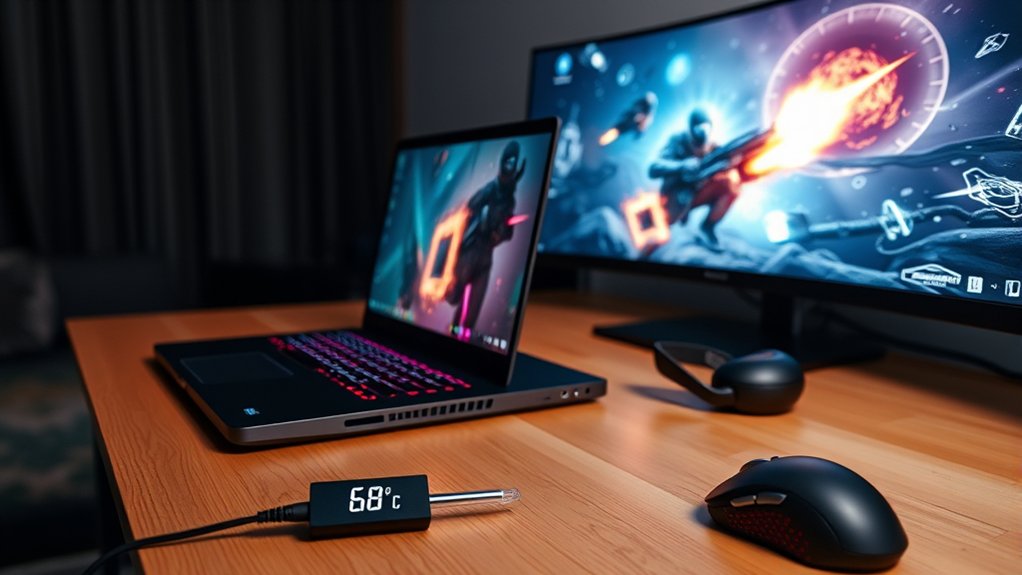
What temperatures are considered normal for a gaming laptop depends primarily on workload and cooling design. In data-driven terms, normal laptop CPU temperature at idle commonly sits between 30°C and 50°C, while sustained gaming loads usually place the CPU in the 70°C to 85°C band. Brief excursions toward 90°C are generally tolerated by modern silicon, especially in high-end systems engineered for aggressive boost behavior.
For performance freedom without instability, safe temperature ranges should remain below 85°C when possible, even though some CPU and GPU packages are validated up to roughly 95°C. Once temperatures stay above 90°C for extended periods, thermal throttling becomes increasingly likely, reducing clock speed and undermining the machine’s intended output.
Effective cooling solutions consequently matter materially: vapor chambers, larger heat pipes, and intelligent fan curves all improve thermal control. Regular maintenance, including cleaning dust from vents and periodic thermal paste replacement, supports lower temperatures, sustained efficiency, and component longevity over time.
Is 68°C a Good Laptop Temperature?
A laptop temperature of 68°C is generally considered safe under heavy load, particularly for gaming, because it sits below the common 70–85°C operating range and far from the approximate 95°C thermal throttling threshold.
This reading typically indicates effective cooling performance and a low immediate risk of heat-related performance loss or component stress. Concern generally increases only if temperatures trend upward during sustained sessions, making routine monitoring and proper ventilation important.
Safe Under Load
For most laptops under sustained load, 68°C is a safe and efficient operating temperature that typically allows full performance without triggering thermal throttling.
In Laptop workloads, especially gaming, this CPU temperature sits comfortably below the 85°C range many modern systems tolerate during intensive use. That margin indicates effective cooling, stable clocks, and preserved performance under pressure.
Data points suggest 68°C reflects an efficient thermal balance rather than a constraint. It is far from the zone where overheating becomes likely, so the system remains free to execute demanding tasks without imposed slowdowns.
Regular maintenance, including clearing vents and fans, helps sustain this result over time. Monitoring utilities such as HWMonitor provide direct visibility into thermal behavior, allowing users to verify that the laptop remains within safe operating limits during prolonged sessions.
When To Worry
When concern becomes justified depends less on a single 68°C reading and more on whether temperatures trend toward critical thresholds under similar load conditions. For a gaming laptop, that temperature remains efficient and safely below the typical 70-85°C CPU range during sustained demand.
Worry begins when regular monitoring shows repeated operation above 85°C, suggesting the cooling system is losing effectiveness or airflow is constrained by ambient conditions.
If the device often reaches 90°C or higher, thermal throttling becomes likely, reducing performance and accelerating component wear. Liberation from avoidable heat stress comes through evidence-based intervention: inspect vents, remove dust, verify fan response, reassess power settings, and consider thermal paste renewal.
Stable results across changing ambient conditions indicate control; persistent escalation indicates corrective action is required soon to preserve reliability.
When Is Laptop Heat Too High?
Laptop heat is generally considered too high when sustained temperatures reach about 85°C, where thermal throttling commonly begins, or exceed 90°C, which may indicate a cooling system fault.
At 100°C, the risk shifts from reduced performance to potential hardware damage, including component failure, weakened screen adhesive, or battery swelling.
Regular temperature monitoring under load provides the clearest basis for deciding when corrective action, such as improving ventilation or servicing the cooling system, is necessary.
Warning Temperature Thresholds
Although acceptable operating ranges vary by model, sustained temperatures above 85°C generally indicate elevated thermal stress that can reduce system stability and shorten component lifespan. These warning temperature thresholds define when intervention becomes necessary for preserving laptop stability and user autonomy.
- Above 85°C: regular monitoring is advised, because high temperatures begin degrading lifespan, stability, and cooling efficiency.
- Above 90°C: persistent readings suggest possible cooling system failure; immediate corrective measures, including cleaning vents or adding a cooling pad, are justified.
- Above 95°C to 100°C: thermal throttling commonly begins beyond 95°C, while 100°C may trigger protective shutdowns. Sustained exposure near 90°C can also soften display adhesives and accelerate physical deterioration.
Data indicates ventilation, maintenance, and temperature tracking are practical safeguards against avoidable hardware constraint and failure.
Overheating Performance Signs
Because overheating typically manifests through measurable performance changes before hardware failure occurs, the practical threshold for excessive laptop heat is reached when sustained temperatures rise above 90°C and system behavior begins to degrade. At this level, overheating is no longer theoretical; it appears as falling benchmark scores, input lag, and unstable frame pacing across performance modes.
When CPU and GPU sensors exceed roughly 95°C, thermal throttling commonly activates, reducing clock speeds to preserve silicon integrity. Observable signs include abrupt frame rate dips, slower exports, and inconsistent application responsiveness.
As temperatures approach 100°C, emergency shutdown risk increases through firmware safeguards. Elevated fan speed and persistent acoustic load indicate cooling saturation, while localized chassis hot spots suggest concentrated thermal stress. Such indicators reveal constrained airflow, compromised stability, and possible dependence on external aids such as a cooling pad.
When To Take Action
When should action be taken? Intervention becomes necessary when laptop thermals exceed normal idle temperature trends and remain above 90°C under sustained CPU or GPU load. At that threshold, elevated power draw and inadequate heat dissipation suggest cooling system failure, not harmless variance.
- If thermal throttling appears, such as abrupt frame-rate decline during gaming, overheating is already limiting performance and autonomy.
- If temperatures approach 100°C or unexpected shutdowns occur, immediate mitigation is required to avoid catastrophic failure; a cooling pad and reduced workload are appropriate first steps.
- If fans become unusually loud or surface hot spots develop, airflow is insufficient. Cleaning vents, checking fan function, and improving ventilation should follow promptly.
These indicators define the boundary between acceptable heat and actionable risk for users seeking reliable control.
Why Do Gaming Laptops Get Hot Fast?
A gaming laptop can heat up rapidly as its CPU and GPU draw high power under load, converting a substantial share of that energy into heat during rendering, physics simulation, and high-frame-rate gameplay.
A gaming laptop CPU and discrete GPU routinely run hot because compact chassis limit heatsink mass, fan size, and overall air flow compared with desktops.
Thermal density rises further when users push uncapped frame rates, ultra settings, or overclocked profiles, all of which increase wattage and heat output.
Restricted intake also matters: placing the machine on soft surfaces like beds can obstruct vents, trap warm exhaust, and accelerate temperature spikes. In hot rooms, reduced temperature gradients make dissipation less efficient.
Without disciplined upkeep, dust accumulation and degraded thermal paste raise resistance between silicon and cooling hardware, increasing the risk of thermal throttling.
To preserve sustained performance and reclaim control over operating conditions, many users clean vents regularly and use a cooling pad effectively.
How Can You Check Laptop Temperature?
How can laptop temperature be verified with minimal guesswork? A disciplined check relies on instrumented data, not touch or fan noise. Users seeking freedom from uncertainty can monitor thermal behavior through firmware, operating-system utilities, and in-game overlays. Each method offers different visibility, update speed, and convenience.
Basic BIOS or UEFI screens expose idle thermal values during boot, useful for a baseline. Inside Windows, tools such as HWMonitor and Core Temp provide real-time CPU and GPU readings under active workloads. For gaming sessions, MSI Afterburner paired with RivaTuner displays thermal metrics directly on screen.
- Firmware check: BIOS/UEFI reports core temperature before the OS loads.
- Software monitor: HWMonitor, Core Temp, and manufacturer apps track sensors continuously.
- Overlay monitor: MSI Afterburner shows real-time values during gameplay.
Many vendor utilities also combine temperature data with performance profiles. Configurable alerts strengthen control by warning when predefined thresholds are exceeded, enabling earlier intervention decisions.
How Can You Lower Gaming Laptop Temperature?
Effective temperature reduction in a gaming laptop depends on improving airflow, lowering component power draw, and maintaining unobstructed heat dissipation. A quality cooling pad can reduce surface and internal temperatures by approximately 5-10°C by increasing intake airflow, which helps prevent thermal throttling during sustained gaming loads and supports stable clocks.
Maintenance and tuning deliver further control. Users should clean fans and heat sinks every 3-6 months, since dust accumulation restricts fin efficiency and elevates core temperatures.
In firmware or vendor utilities, adjusted fan curves can raise fan response earlier under load, improving heat rejection before hotspots escalate. Software such as MSI Afterburner can undervolt CPU and GPU voltage, cutting heat output with minimal frame-rate loss.
Proper ventilation also matters: hard surfaces preserve intake clearance, while cooler ambient rooms improve delta-T across the cooling system. Together, these measures free the hardware to boost performance more consistently and improve long-term reliability under stress.
Frequently Asked Questions
Is 70 Degrees Celsius Too Hot for a Laptop?
No, 70°C is generally not too hot for a laptop under load; Laptop cooling and Thermal management remain adequate, minimizing Performance impact through effective Heat dissipation, supporting Component lifespan, provided User awareness guarantees temperatures stay below throttling thresholds.
What Temperature Is Good for a Laptop?
A laptop’s ideal temperature is an inferno tamed: 30–50°C idle, 70–85°C under load. This supports peak performance through thermal management, laptop cooling, controlled fan noise, efficient heat dissipation, and disciplined user settings freedom.
Is 80 Degrees Too Hot for a Laptop CPU?
80°C is warm, not excessively hot, for a laptop CPU under load. Thermal paste, fan speed, and cooling solutions improve heat management, protect internal components, and reduce performance impact, enabling more autonomous sustained operation.
Is 72 C Too Hot for CPU?
No; 72°C is generally safe for CPUs under load, with thermal throttling effects typically emerging above 85°C. Cooling solutions comparison, laptop fan types, ambient temperature impact, CPU performance metrics, and overclocking risks determine sustainable operational freedom.
Conclusion
A sustained 68°C operating temperature is generally excellent for a gaming laptop, remaining well below the 85–95°C range where thermal throttling and long-term component stress become more likely. Although some users assume any noticeably warm chassis signals a problem, sensor-based CPU and GPU readings—not surface feel—determine actual thermal safety. With proper monitoring, airflow management, fan tuning, and periodic cleaning, a gaming laptop can maintain stable temperatures, preserve performance consistency, and reduce avoidable thermal wear over time.

