Testing a laptop fan and CPU temperature helps you find cooling problems before they cause slowdowns or shutdowns. A noisy fan does not always mean something is wrong, and a quiet fan is not necessarily broken. The most reliable approach is to compare temperature, airflow, and fan behavior during light and heavier workloads.
Quick Answer
To test your laptop fan and CPU temperature, monitor processor heat with HWiNFO or Core Temp, listen for fan noise, and check airflow during normal use. Run the manufacturer’s built-in fan diagnostic when available. Compare idle and loaded readings. Persistent overheating, grinding noises, or failed diagnostics may indicate a cooling problem.
At a Glance
| Difficulty | Beginner-friendly for monitoring and external cleaning; advanced for internal repair |
| Tools Needed | HWiNFO or Core Temp, manufacturer diagnostics, and compressed air for cleaning |
How to Test Laptop Fan Speed and Noise
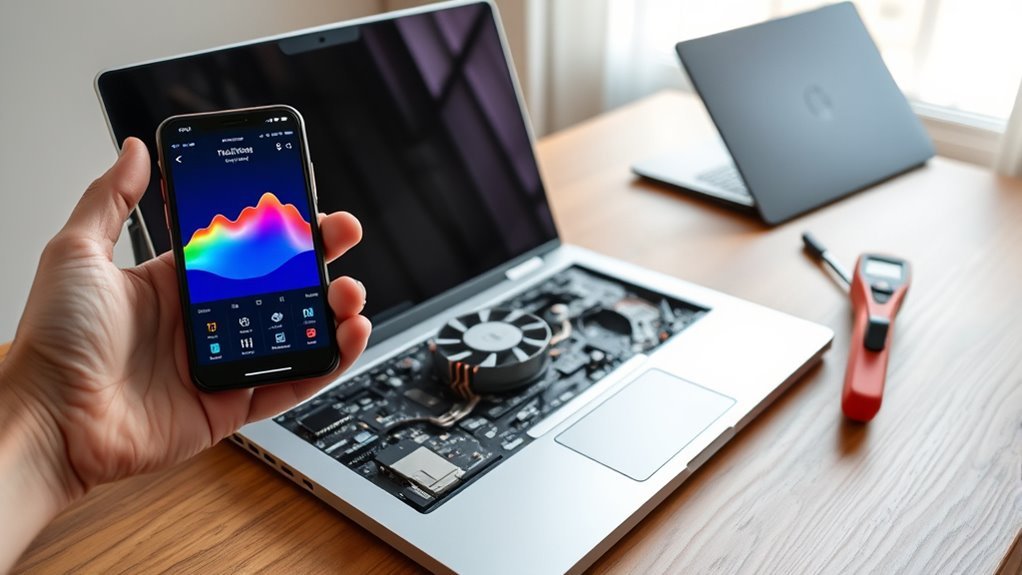
You can test a laptop fan by checking its airflow, listening for unusual sounds, and monitoring fan speed if the laptop exposes that information. A healthy fan should respond to rising heat, although some models intentionally stop or slow their fans during light use.
For a reliable test, observe the laptop under normal conditions before checking its behavior during a more demanding task.
Steps to Check Laptop Fan Operation
- Place the laptop on a hard surface. Keep intake and exhaust vents clear so blocked airflow does not affect the results.
- Restart the laptop. Listen for fan activity during startup. Some models briefly increase fan speed, while others remain quiet until temperatures rise.
- Open a monitoring tool. Use HWiNFO or compatible manufacturer software to check available fan-speed readings.
- Check the fan RPM. RPM means revolutions per minute. If the laptop provides this sensor, record the current speed.
- Run a familiar workload. Open a game, video editor, or another task you normally use. Observe whether temperatures rise and the fan responds.
- Listen for unusual sounds. Grinding, scraping, repeated clicking, or rattling may indicate dust, an obstruction, or worn fan bearings.
- Check exhaust airflow. Place your hand near the exhaust without covering it. Airflow should generally increase as the cooling system works harder.
The official HWiNFO monitoring utility provides real-time hardware sensor readings and logging. When supported, it can display fan RPM alongside CPU and GPU temperatures.
A missing fan-speed reading does not automatically mean the fan has failed. Some laptops do not expose fan telemetry to Windows applications. Likewise, a temporary 0 RPM reading may reflect an intentional fan-stop mode.
SpeedFan is another monitoring program mentioned in older laptop guides. However, its hardware support is limited on many modern systems. Core Temp and RealTemp primarily focus on processor temperature rather than providing universal laptop fan-speed controls.
Run a Built-In Laptop Fan Diagnostic
Manufacturer diagnostics can provide stronger evidence of a fan problem than sound or RPM alone. They may test whether the fan starts, reaches an expected speed, and responds correctly.
For Dell laptops:
- Restart the computer.
- Press F12 when the Dell logo appears.
- Select Diagnostics from the startup menu.
- Allow the initial test to begin.
- If available, select Advanced Test and choose the fan tests.
- Run the thorough fan test and record any error and validation codes.
Dell explains this procedure in its official fan troubleshooting guide. Fans may run loudly during the diagnostic because the test exercises the cooling hardware.
For supported HP laptops:
- Turn off the laptop.
- Turn it on and repeatedly press Esc.
- Press F2 to open HP PC Hardware Diagnostics UEFI.
- Choose Component Tests.
- Select the Fan Test if your model provides it.
- Review the result and save any failure ID.
The HP hardware diagnostics instructions describe Fan Speed and Fan Thermal tests on supported computers.
If a diagnostic fails, record the exact error before replacing components. A passing test does not rule out every cooling problem, but it makes a completely failed fan less likely.
How to Check Laptop CPU Temperature
The easiest way to check laptop CPU temperature is to use a monitoring application that reads the processor’s built-in thermal sensors. You can then compare idle and loaded temperatures without opening the computer.
Some BIOS or UEFI menus also display CPU temperature, but this feature is not available on every laptop.
Check CPU Temperature in Windows
- Install a trusted temperature monitor. Choose HWiNFO or Core Temp from its official website.
- Open the sensor display. In HWiNFO, select its sensor-monitoring view. Core Temp displays processor temperatures directly.
- Find the CPU reading. Look for CPU Package, CPU Temperature, or individual core temperatures.
- Check the idle temperature. Leave demanding applications closed and allow the system to settle before recording the reading.
- Run a normal workload. Watch the temperature while gaming, editing video, or running another familiar application.
- Compare the results. Look at current and maximum temperatures, fan behavior, and any slowdown or thermal-throttling indication.
The official Core Temp utility reports temperatures from individual processor cores. It is useful for identifying heat increases during demanding tasks.
HWiNFO provides broader monitoring and may show fan RPM, processor power, clock speeds, and thermal-limit indicators when the hardware supports them.
Do not confuse CPU temperature with GPU temperature. Gaming laptops often contain a separate graphics processor, and its cooling behavior can affect the entire system.
Check CPU Temperature in BIOS or UEFI
BIOS or UEFI provides hardware information before Windows loads. Some systems include a Hardware Monitor, Thermal, or System Health page that displays CPU temperature.
- Restart the laptop.
- Press the manufacturer’s BIOS setup key during startup.
- Look for hardware monitoring or thermal information.
- Record the temperature if the option is available.
- Exit without changing unfamiliar settings.
Common BIOS access keys include F2, Delete, and Esc, but the correct key depends on the laptop model.
A BIOS temperature reading is only a snapshot. It does not measure gaming performance or full Windows workloads, and BIOS power behavior may differ from ordinary idle use.
If no temperature appears in BIOS, use a compatible monitoring tool instead. Missing BIOS temperature information does not mean the processor lacks thermal sensors.
Safe CPU Temperature Ranges for Laptops
Safe laptop CPU temperatures depend on the exact processor, workload, cooling system, and room temperature. Many laptops operate around 40°C–65°C during light use and 70°C–80°C under heavier workloads, but these are general observations rather than universal safety limits.
Modern processors can operate above these ranges without immediately suffering damage. The key is whether the temperature approaches the processor’s specified thermal limit or causes persistent throttling.
| CPU temperature | Status |
|---|---|
| 40°C–65°C | Common during idle or light workloads, depending on laptop design |
| 70°C–80°C | Often normal during gaming, editing, or other demanding tasks |
| 80°C–85°C | May be acceptable under load; monitor cooling response and performance |
| Above 85°C | Check sustained temperatures, throttling, and the processor’s actual limit |
| At or near CPU Tjmax | Thermal protection may reduce processor power and clock speeds |
Why 80°C Is Not a Universal Critical Temperature
The processor’s maximum junction temperature, commonly called Tjmax, determines when internal thermal protection becomes important.
According to Intel’s processor temperature guidance, many Intel processors have maximum junction temperatures between 100°C and 110°C. The exact value varies by model and system configuration.
AMD processors also have model-specific limits. For example, the AMD Ryzen 7 7840U specifications list a maximum operating temperature of 100°C.
These limits are not ideal target temperatures. They describe operating boundaries and thermal protection behavior, not the temperature every laptop should maintain.
A brief spike toward a processor’s thermal ceiling may occur during a demanding task. Repeated throttling, poor performance, or shutdowns deserve investigation.
When a processor reaches its protection threshold, it can lower clock speed and power consumption. If that is insufficient, the system may shut down to protect the hardware.
For routine monitoring, focus on the temperature trend, workload, and actual processor specification rather than a single universal number.
Common Causes of Laptop Overheating
Laptop overheating commonly results from restricted airflow, demanding processor workloads, cooling hardware problems, or incorrect thermal-management behavior. Finding the cause matters because replacing a fan will not fix every overheating issue.
Start by checking ventilation and CPU usage before moving to firmware changes or internal repairs.
Dust and Blocked Vents
Dust buildup can block laptop intake vents, exhaust openings, and cooling fins. This reduces airflow and makes the fan work harder to remove heat.
As dust collects, you may notice louder fan noise, higher temperatures, and reduced performance during tasks that previously ran normally.
Common airflow problems include:
- Dust trapped around the fan and heat-sink fins.
- Blocked vents along the bottom or sides of the laptop.
- Soft surfaces covering intake openings.
- Objects placed too close to exhaust vents.
- Internal debris touching rotating fan blades.
Routine cleaning helps prevent these problems. Annual inspection is a practical starting point, although dusty environments may require more frequent attention.
Compressed-air cleaning can restore airflow and may resolve fan noise caused by accumulated debris. However, cleaning cannot repair worn bearings, damaged blades, or a failed fan motor.
Heavy CPU Workloads
Heavy CPU workloads raise processor power consumption and heat output. Gaming, rendering, video editing, large software projects, and other demanding activities can make laptop fans run faster and louder.
Temperatures around 158–176°F (70–80°C) may be normal during sustained work. Some high-performance laptops operate hotter because their cooling systems are designed around higher processor power levels.
Several conditions can increase the heat further:
- Overclocking or aggressive performance settings.
- Long gaming or rendering sessions.
- Dust restricting cooling airflow.
- Soft surfaces blocking ventilation.
- High room temperatures.
- Multiple background applications using the CPU.
To identify a demanding application in Windows, press Ctrl + Shift + Esc to open Task Manager. Check the Processes tab for high CPU usage.
Close unnecessary applications and compare temperatures again. Do not stop unfamiliar system processes simply because they appear in Task Manager.
Other Cooling Problems Worth Checking
Overheating may continue even when vents are clean and CPU usage is reasonable. In that case, look beyond dust.
- Failing fan: A damaged motor or worn bearing may prevent normal airflow.
- Degraded thermal paste: Poor contact between the processor and heat sink can reduce heat transfer.
- Loose or damaged heat sink: Improper contact can prevent heat from reaching the cooling fins.
- Firmware or driver issues: Incorrect thermal-control behavior may affect fan response.
- Sensor reporting problems: Incorrect or unavailable readings can make the cooling system harder to assess.
These causes require different solutions. Confirm the likely fault before replacing hardware or applying new thermal paste.
How to Clean Laptop Fans and Improve Airflow
Cleaning laptop vents is often the simplest way to improve cooling. Removing dust helps the fan move air through the heat sink without unnecessary resistance.
You can perform basic external vent cleaning without opening many laptops. Internal cleaning requires greater care and should follow the manufacturer’s service instructions.
Warning: Turn off and unplug the laptop before cleaning. Do not insert a metal paperclip or another conductive object through ventilation openings. Never spray liquid cleaners into the cooling system. Follow the manufacturer’s instructions before opening the case or handling internal fan blades.
Fan Cleaning Steps
Begin with external cleaning before attempting any internal work. Dust around ventilation openings can often be removed without disconnecting cables or removing the cooling assembly.
- Shut down the laptop. Unplug the AC adapter and allow the computer to cool.
- Remove a detachable battery if instructed. Do not attempt to remove a built-in battery without following the service manual.
- Locate the vents. Check the sides, bottom, and rear of the laptop.
- Use compressed air. Hold the can upright and apply short, controlled bursts as directed by the laptop manufacturer.
- Clear loose dust. Make sure the intake and exhaust openings are not obstructed.
- Reconnect power. Start the laptop after cleaning and check the fan’s sound and airflow.
- Retest temperatures. Compare CPU readings during the same type of workload used before cleaning.
The HP laptop cooling maintenance guide explains external vent cleaning with compressed air and does not require opening the computer for routine vent maintenance.
If internal cleaning is necessary, follow the specific laptop service manual. When the fan is accessible, keep the blades from spinning freely while cleaning around them, using a suitable nonconductive tool and avoiding pressure on the blades.
A soft brush may help remove loose debris from accessible parts, but avoid pushing dust deeper into the heat sink or touching sensitive electrical components.
Some older troubleshooting procedures recommend holding the power button for 20–30 seconds as part of a hard reset. That is not normally required after routine vent cleaning. Use the manufacturer’s reset procedure only when troubleshooting a separate power or controller issue.
Boosting Airflow Tips
Improving airflow does not always require extra hardware. Proper laptop placement and clear ventilation can make a noticeable difference, especially during long workloads.
Use these measures to support normal cooling:
- Keep the laptop on a hard, flat surface.
- Leave sufficient clearance around its ventilation openings.
- Avoid placing it directly on blankets, pillows, or other soft materials.
- Use a suitable laptop stand when it improves bottom ventilation.
- Consider a cooling pad for demanding workloads if it improves airflow.
- Check fan behavior after cleaning or changing the laptop’s position.
| Action | Effect | Risk |
|---|---|---|
| Clean vents | Restores airflow through blocked openings | Overheating if dust remains |
| Hold blades | Prevents unwanted fan rotation during authorized internal cleaning | Fan or component damage if done improperly |
| Use flat surface | Keeps intake openings unobstructed | Heat buildup on soft surfaces |
| Add cooling pad | May improve airflow and cooling | Limited benefit if poorly matched to vent placement |
| Check fan speeds | Helps confirm the cooling response when RPM is available | Missed faults if temperature and noise are ignored |
A cooling pad helps only when it provides useful airflow. It cannot replace a failed internal fan or correct poor contact between the CPU and its heat sink.
Pro Tip: After cleaning, repeat the same application or workload under similar conditions. Compare sustained CPU temperature, fan noise, and performance. This gives you a more useful result than comparing unrelated temperature readings.
When a BIOS or Thermal Driver Update Fixes Fan Issues
A BIOS or thermal-management driver update may fix irregular laptop fan behavior when the problem comes from firmware or power-control software. These updates can change how the system manages processor power, fan response, and thermal limits.
They are less likely to help when the fan is physically damaged or the cooling fins are blocked with dust.
BIOS or UEFI firmware controls important hardware functions. Some systems also use platform-specific thermal drivers, including Intel Dynamic Platform and Thermal Framework or Intel Dynamic Tuning components.
When compatible updates address a known thermal problem, they may improve fan response or reduce unnecessary fan activity.
Steps to Update Laptop Thermal Software Safely
- Identify the exact laptop model. Use its model information to find compatible manufacturer support files.
- Check available BIOS updates. Read the release notes for thermal, fan-control, stability, or power-management fixes.
- Back up important data. Firmware changes can create recovery problems if interrupted or unsuccessful.
- Connect AC power. Ensure the battery meets the manufacturer’s required charge level.
- Review drive-encryption precautions. Follow the manufacturer’s instructions for BitLocker or other security features before updating.
- Install the correct firmware. Use the official update procedure and do not interrupt it.
- Check thermal drivers. Install compatible platform or thermal-management updates when recommended.
- Run another fan test. Compare temperatures and fan behavior after restarting.
The Dell BIOS update instructions specify a minimum battery charge of 10% for supported Dell laptop updates and require the computer to remain connected to AC power.
Other manufacturers may impose different requirements. Always follow the exact procedure for your laptop rather than assuming the Dell threshold applies to every device.
Warning: Do not interrupt a BIOS update by switching off the laptop or disconnecting its power source. Follow all manufacturer instructions, including any drive-encryption precautions. If the laptop has a confirmed cooling hardware failure, address that fault before attempting demanding maintenance procedures.
After updating, check whether the fan starts normally, responds to workload changes, and passes available diagnostics.
If the symptoms remain unchanged, investigate physical cooling problems rather than repeatedly reinstalling firmware.
When to Run Diagnostics or Replace a Fan
Run laptop fan diagnostics when you notice repeated overheating, unusual fan noise, poor airflow, or sudden shutdowns. Replace the fan only when testing and inspection provide convincing evidence that the cooling hardware has failed.
A high CPU temperature alone does not prove the fan needs replacement. The cause may be blocked vents, heavy CPU activity, degraded thermal paste, or another cooling component.
Signs That a Laptop Fan May Be Failing
- Grinding or scraping sounds continue after external cleaning.
- The fan does not respond when cooling demand increases.
- Airflow remains weak despite clear vents.
- The laptop repeatedly overheats or shuts down during ordinary workloads.
- Manufacturer diagnostics report a fan failure.
- Visible fan damage or an obstruction is confirmed during authorized inspection.
Fan diagnostics provide especially useful evidence because they test the hardware outside an ordinary workload.
What Does a Laptop Fan Error Code Mean?
Fan error codes are manufacturer-specific. A code reported by one brand should not be interpreted using another brand’s diagnostic definitions.
For example, System Fan (90B) is an HP warning associated with a cooling fan that is not operating correctly.
HP describes this warning in its official system fan error documentation. Related HP codes include 90A and 90F.
Dell’s preboot diagnostics use their own error and validation codes. A Dell fan test may report a hardware fault even when no HP-style 90B message appears.
Record the complete code, laptop model, and symptoms before contacting support.
When Fan Replacement Is the Right Fix
Fan replacement becomes reasonable when the fan fails an appropriate diagnostic test, suffers confirmed mechanical damage, or cannot provide adequate airflow despite cleaning and proper operation of other cooling components.
Before replacing it, confirm that:
- Intake and exhaust vents are clear.
- High CPU usage is not the main cause of the temperature increase.
- Fan diagnostics have been run when available.
- Compatible firmware and thermal-management settings have been checked.
- The problem persists during repeatable workloads.
If the fan passes testing but CPU temperatures remain unusually high, the heat sink or thermal interface may need inspection instead.
Replacing a fan requires a compatible part and careful handling of internal cables, connectors, and cooling components. Some laptop designs require substantial disassembly.
Note: If overheating continues after basic checks, or the repair requires removing internal cooling components, consider a qualified laptop technician. Professional inspection is particularly useful when you cannot distinguish a faulty fan from a heat-sink or motherboard problem.
How to Confirm That the Cooling Problem Is Fixed
After cleaning, updating software, or completing a repair, repeat the original temperature and fan checks.
A successful result generally includes:
- A passing fan diagnostic, where supported.
- Consistent airflow during demanding tasks.
- No recurring grinding or scraping sounds.
- No unexpected overheating shutdowns.
- Stable performance without persistent thermal throttling.
- Temperatures that remain appropriate for the laptop’s processor and workload.
The goal is not to achieve the lowest possible CPU temperature. It is to confirm that the cooling system can manage normal workloads without repeated faults.
Key Takeaways
- Not every laptop exposes fan RPM to monitoring software. Missing readings or temporary fan-stop behavior do not automatically indicate failure.
- CPU temperatures of 70°C–80°C can be normal during heavy workloads. The processor’s actual thermal limit matters more than a universal 80°C warning.
- Dell and HP provide separate hardware diagnostic tools. HP’s 90B error should not be confused with Dell diagnostic codes.
- Blocked vents, heavy background tasks, and poor heat transfer can cause overheating even when the fan still works.
- External vent cleaning is the first maintenance step. Internal cleaning and fan replacement require model-specific instructions.
- Use diagnostic results, airflow, temperature trends, and system stability together before deciding that a fan needs replacement.
Frequently Asked Questions
How to Test a Laptop CPU Fan?
You can test a laptop CPU fan by checking exhaust airflow, listening under a normal workload, and reading RPM if your laptop exposes it. Run the manufacturer’s preboot fan diagnostic for stronger evidence. A missing RPM field by itself does not prove the fan is broken.
How to Check Processor Temperature in Laptop?
Open Core Temp or HWiNFO and read the current CPU package or core temperature. Record the value after the laptop settles at idle, then compare it during a familiar task. Some BIOS/UEFI menus show a temperature, but not all laptops offer that screen.
How to Check if a Laptop CPU Fan Is Working or Not?
A working laptop fan typically increases airflow as the system gets hotter, but some models keep it off during light use. Check for warm air at the exhaust, reasonable temperatures, and a passing built-in fan test. Grinding, repeated shutdowns, or a failed test calls for service.
How Can I Tell if My CPU Is Overheating?
Signs of overheating include unexpected shutdowns, major slowdowns under load, and temperatures repeatedly near your CPU’s specified thermal limit. A single reading above 80°C is not enough to diagnose overheating. Check CPU usage, fan response, blocked vents, and any reported thermal-throttling warning.
Conclusion
Testing a laptop fan and processor temperature is most useful when you compare several signs rather than relying on one reading. Fan airflow, CPU temperature trends, noise, and diagnostic results reveal whether the cooling system is working as intended.
Start with software monitoring and safe vent cleaning. If overheating or abnormal fan behavior continues, run manufacturer diagnostics and investigate the cooling hardware before replacing parts.
Sources
- HWiNFO Official Website: Hardware monitoring, sensor readings, and reporting capabilities.
- Core Temp Official Website: Real-time processor core temperature monitoring.
- Dell Support — Fan Troubleshooting: Preboot fan diagnostics, fan noise, airflow problems, and diagnostic codes.
- HP Support — Testing for Hardware Failures: HP PC Hardware Diagnostics UEFI and supported fan tests.
- Intel — Processor Temperature Information: Processor-specific thermal limits, throttling, and protective shutdown behavior.
- AMD — Ryzen 7 7840U Specifications: Example of an official processor maximum operating temperature.
- HP Support — Reducing Laptop Heat: Vent cleaning, airflow maintenance, and overheating prevention.
- Dell — BIOS and UEFI Update Guide: Firmware update procedures, battery requirements, and safety precautions.
- HP Support — System Fan Error Codes: Interpretation of HP fan warnings, including error 90B.

