If you are setting up Ray-Ban Meta Wayfarer smart glasses for the first time, this guide walks you through the full experience from opening the box to pairing, charging, privacy settings, basic controls, and everyday use. You will also learn what to check before buying, how the Meta AI app fits into setup, and how to use the glasses responsibly.

Affiliate disclosure: As an Amazon Associate, we may earn from qualifying purchases at no extra cost to you.
Quick Answer
Ray-Ban Meta Wayfarer smart glasses combine a classic Ray-Ban frame with hands-free photo and video capture, open-ear audio, voice controls, notifications, and Meta AI features through the Meta AI app. Setup usually involves charging the case, removing the protective tab, pairing by Bluetooth, installing updates, and adjusting privacy settings.
Key Takeaways
- The Ray-Ban Meta Wayfarer keeps the familiar Wayfarer look while adding smart features through the Meta AI app.
- You need the charging case, Bluetooth access, a Meta account, and the Meta AI app to complete setup.
- Pairing starts by placing the glasses in the case and holding the case button until the LED blinks blue.
- Privacy settings matter, especially voice controls, location access, data preferences, and the capture indicator light.
- Transitions® lenses can make the glasses more practical for daily indoor and outdoor use.
At a Glance
| Time Required | About 10 to 20 minutes for unboxing, pairing, permissions, and firmware checks |
| Difficulty | Easy for most smartphone users |
| Tools Needed | Ray-Ban Meta Wayfarer glasses, charging case, smartphone, Meta AI app, Meta account, Bluetooth, and internet access |
| Cost | Varies by frame, lens option, prescription option, retailer, and availability |
If you’ve been curious about smart glasses that blend style with useful everyday technology, the Ray-Ban Meta Wayfarer may be what you’re looking for. These smart glasses combine the classic Ray-Ban Wayfarer design with Meta-powered features for photos, videos, audio, notifications, and voice assistance.
In this guide, you’ll go through the unboxing experience, the setup process, pairing steps, charging details, privacy options, and a closer look at the glasses’ core features. Whether you’re a tech enthusiast or simply want stylish eyewear with modern functions, this walkthrough will help you understand what to expect before you start using them.
📦 Unboxing the Ray-Ban Meta Wayfarer
Let’s start with the excitement of unboxing the Ray-Ban Meta Wayfarer. The packaging is sleek and minimal, with a secure seal that helps protect the glasses during shipping. Once you pull the seal and open the box, you’ll find the glasses placed inside a classic Ray-Ban case that feels both protective and stylish.
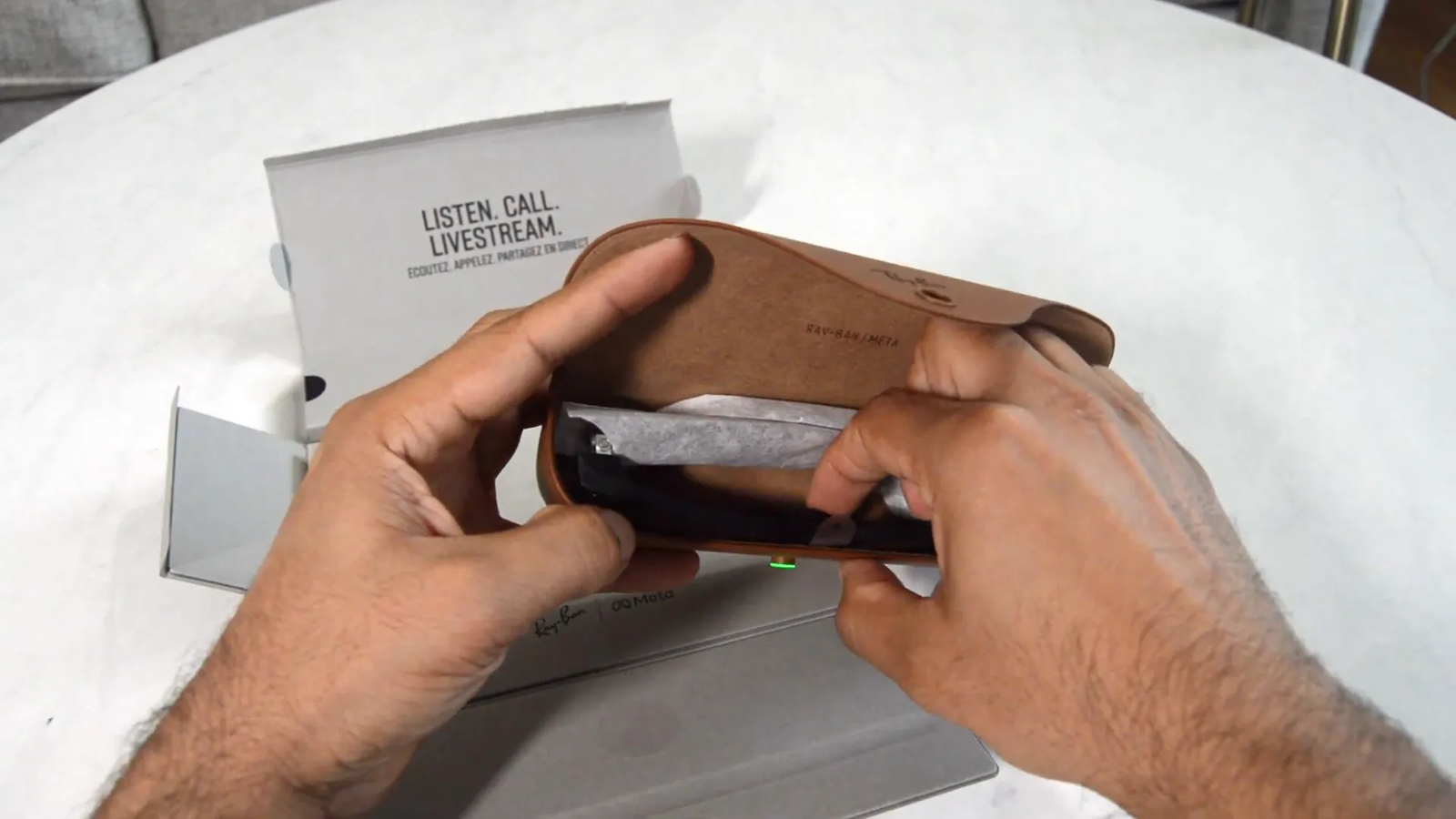
The case is more than storage. It also works as the charging case for the glasses, so it plays a major role in daily use. Before pairing anything, check that the glasses, case, charging contacts, and included paperwork are all present and undamaged.
One of the first things you’ll notice is the USB-C charging port located at the bottom of the case. This port powers the case, and the case charges the glasses through two metallic contact points inside.
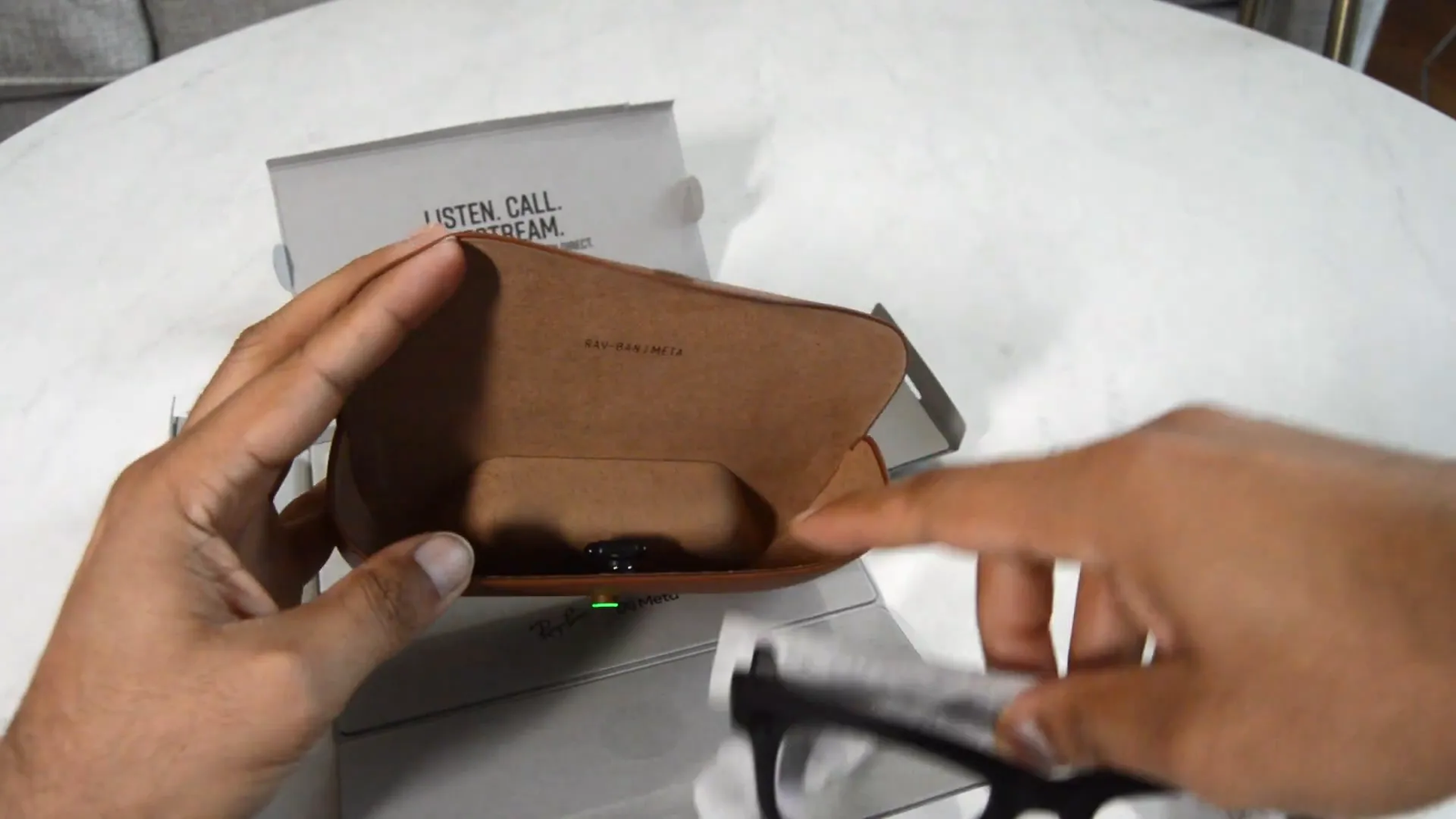
Inside the box, alongside the glasses, you’ll find a small tab attached to the frame. This tab acts as a protective barrier during shipping and must be removed before setup. You’ll also find instruction booklets that explain the basic controls, charging process, and safety information.
The specific model shown here is the Wayfarer RW4006, featuring a black frame and Transitions® lenses in graphite green. These lenses appear clearer indoors and darken outdoors when exposed to sunlight, giving you a practical mix of regular eyewear and sunglass-style comfort.
If you prefer non-transition lenses, other lens options may be available depending on the retailer, frame size, and prescription needs. You can also check the latest price for Ray-Ban Meta Wayfarer smart glasses on Amazon and compare available lens options before buying.
Note: Availability, lens colors, prescription support, and feature access can vary by region, retailer, phone model, and app version. Always check the current product listing before ordering.
📲 Setting Up Your Smart Glasses with the Meta AI App
Once you’ve unboxed your Ray-Ban Meta Wayfarer, the next step is setup. The key to unlocking the glasses’ smart features is the Meta AI app (formerly “Meta View”), which you can download by scanning the barcode inside the box or searching for the app on your phone.
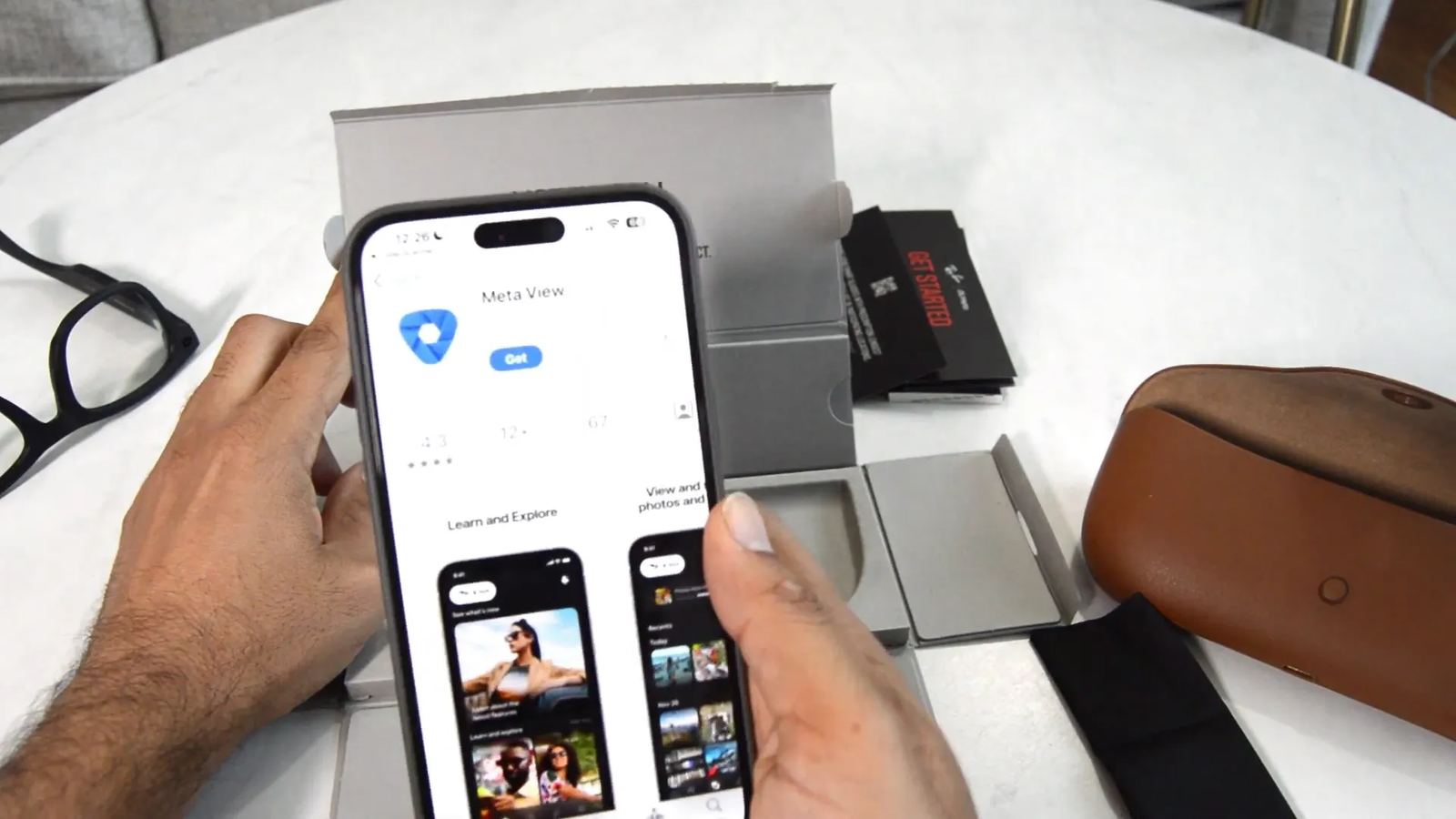
After downloading and opening the app, you’ll see a simple setup flow that prompts you to get started. The app requires you to sign in with a Meta account or create one in-app before you can pair and manage the glasses.
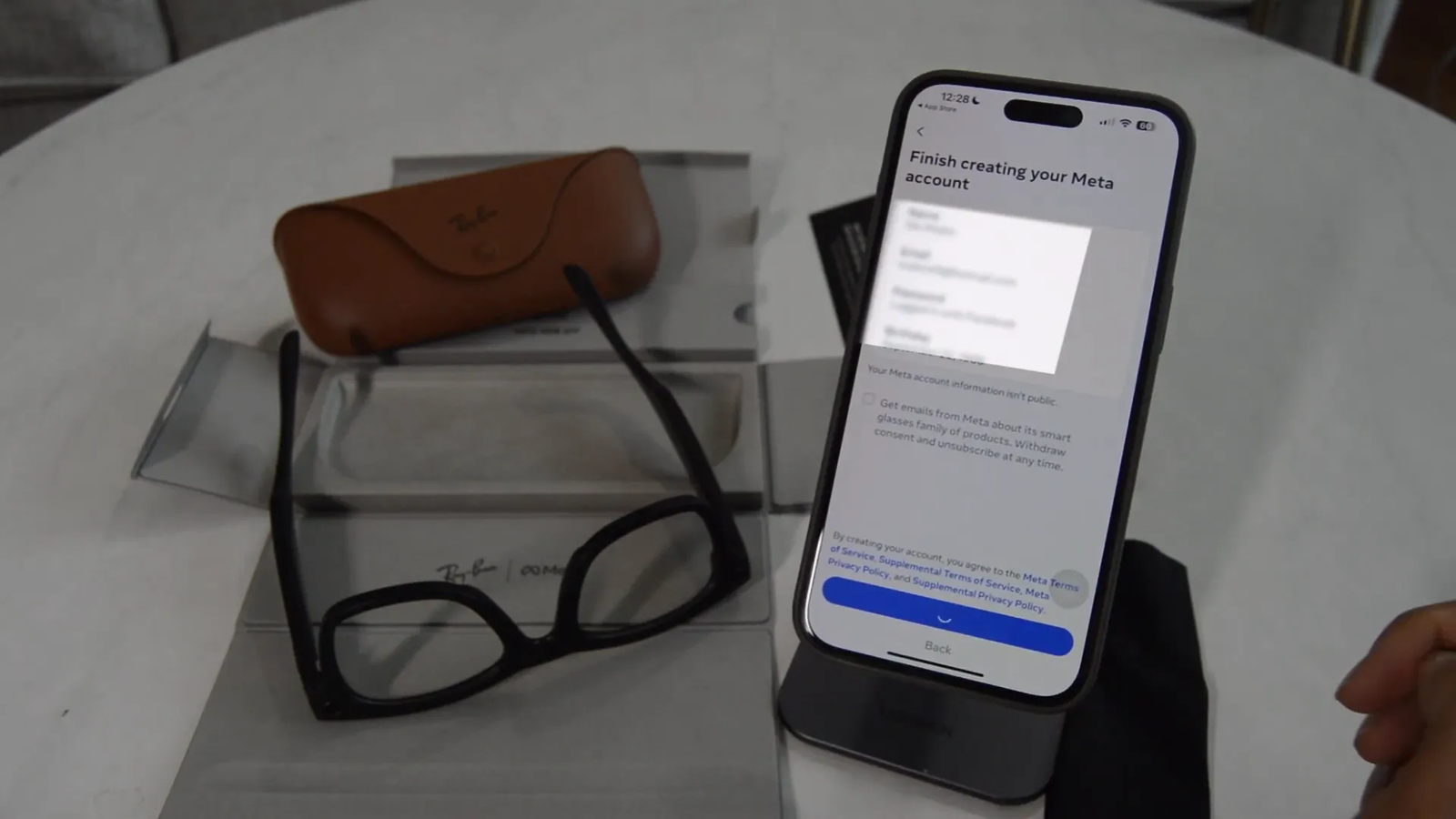
Once you are logged in, the app will ask for permission to access Bluetooth. Bluetooth is required because your phone needs to discover and pair with the glasses. After you grant Bluetooth access, choose the Ray-Ban Meta model when the app asks you to select your device.
The app then guides you to prepare your glasses for pairing. This involves removing the protective tab from the glasses, making sure the glasses have enough charge, and placing the glasses back inside the case.
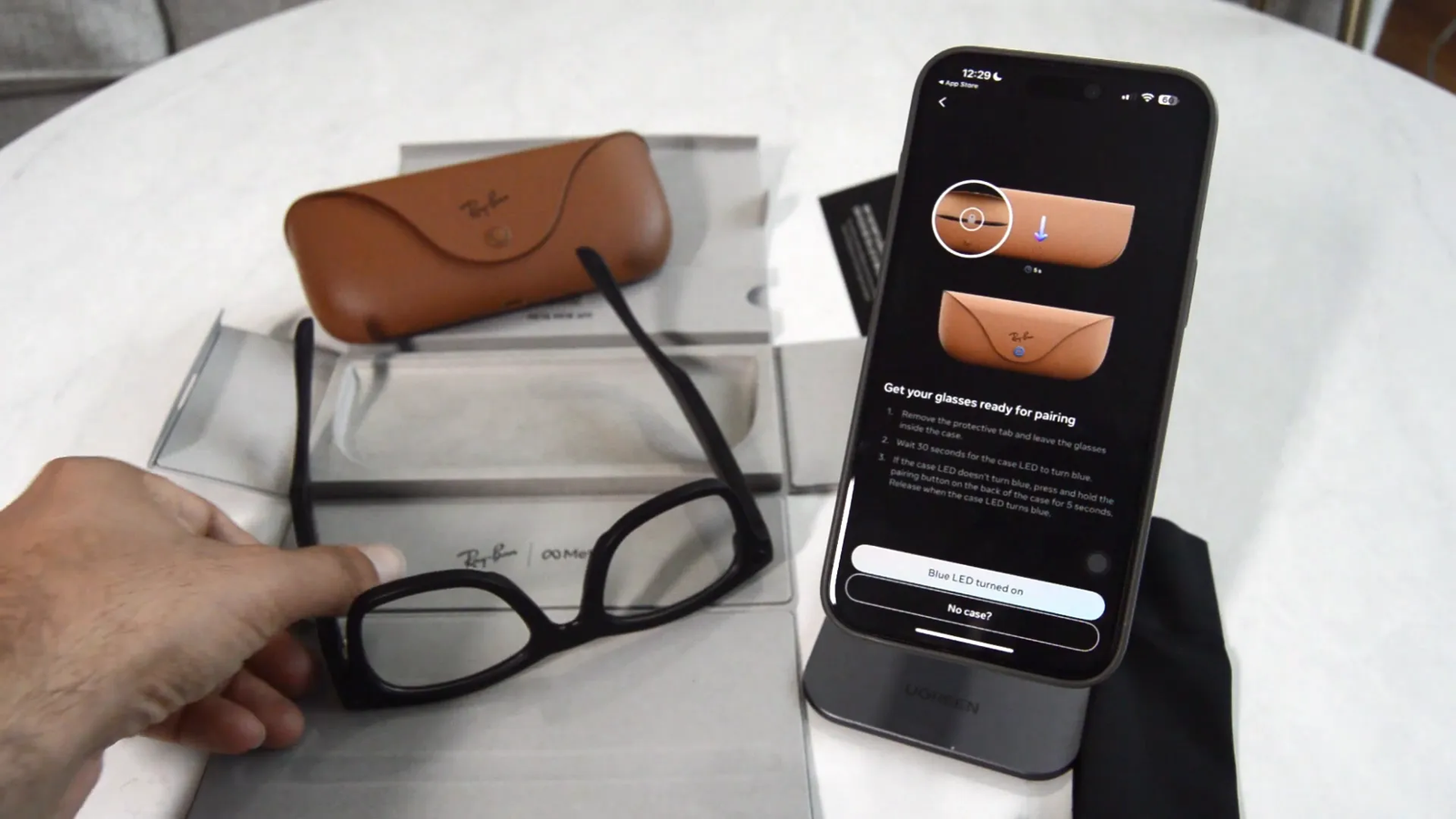
Pro Tip: Charge the case before setup if the app cannot find the glasses. A low battery can interrupt pairing, updates, or media import.
🔵 Pairing and Charging Your Ray-Ban Meta Wayfarer
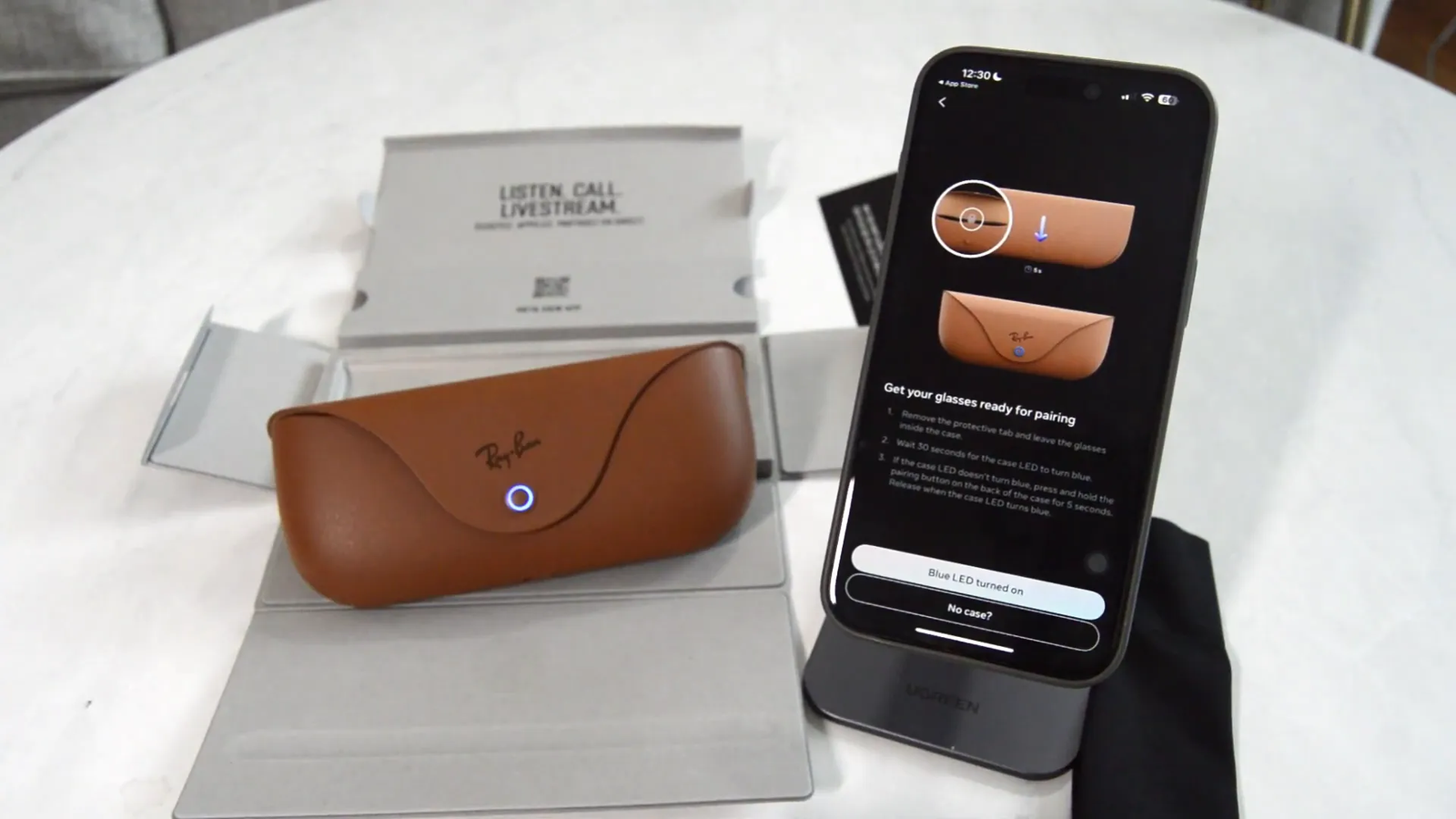
With the glasses inside the case, the next step is to activate pairing mode. To do this, press and hold the button on the back of the case for at least five seconds until the LED starts blinking blue. The blue blinking light means the glasses are discoverable by your smartphone.
You can also fold both arms and hold the capture button on the frames for about 12 seconds until the frame LED blinks blue. This alternate method can help if you need to restart pairing or connect the glasses again later.
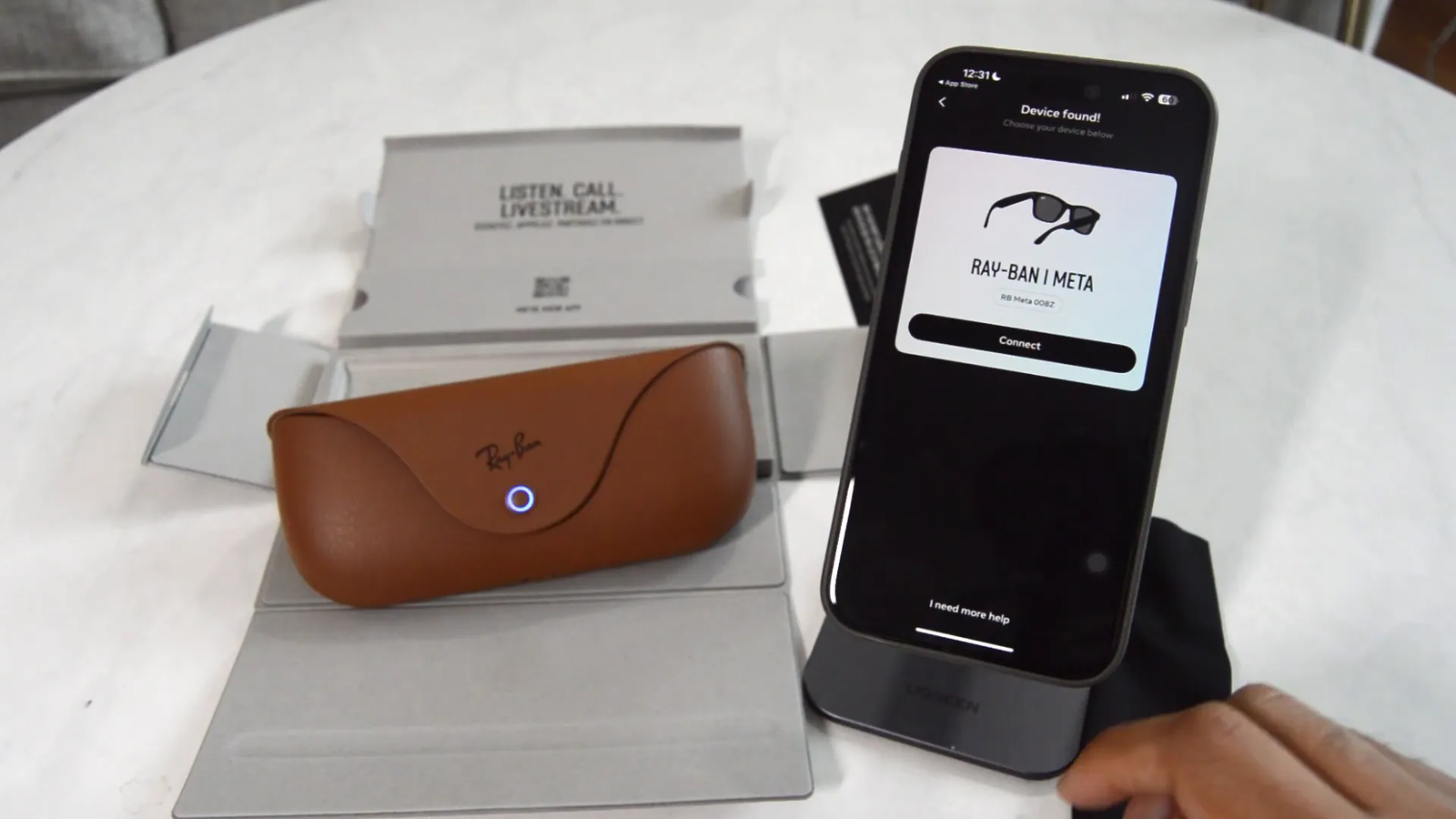
The Meta AI app will then search for the smart glasses. Once the glasses appear, tap “Connect” to start the pairing process. Your phone may also show a system-level Bluetooth prompt asking you to confirm pairing. Tap “Pair” to finish the connection.
After pairing, the app checks for firmware updates. This step helps ensure your glasses have the latest available features, fixes, and security updates. You’ll need internet access, and the app may connect to the glasses’ temporary Wi-Fi network during updates or media imports.
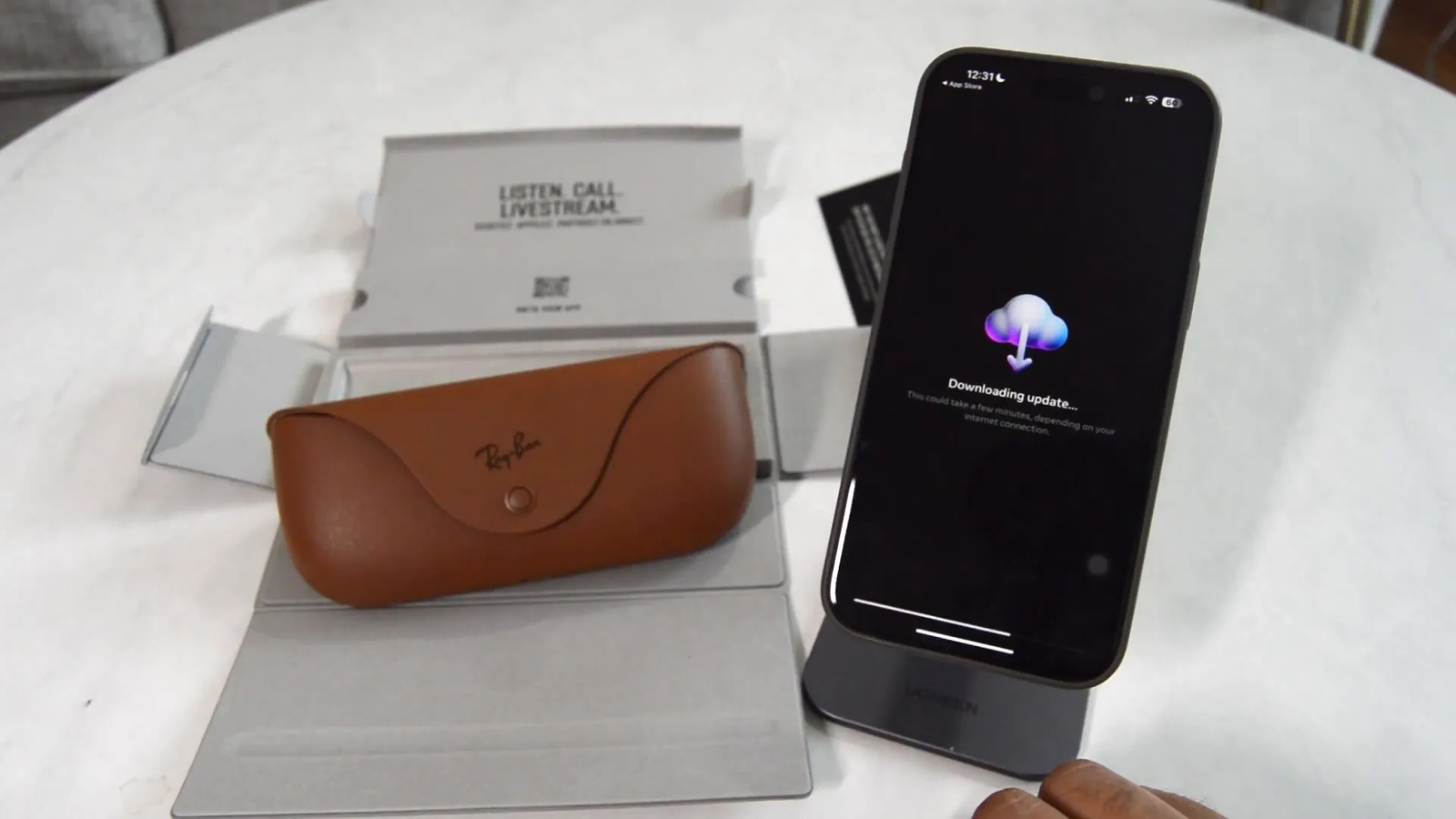
Once the update finishes, the app confirms that your glasses are up to date. Keep the glasses near your phone and avoid closing the app during updates, since interruptions can slow the process or require you to restart the setup flow.
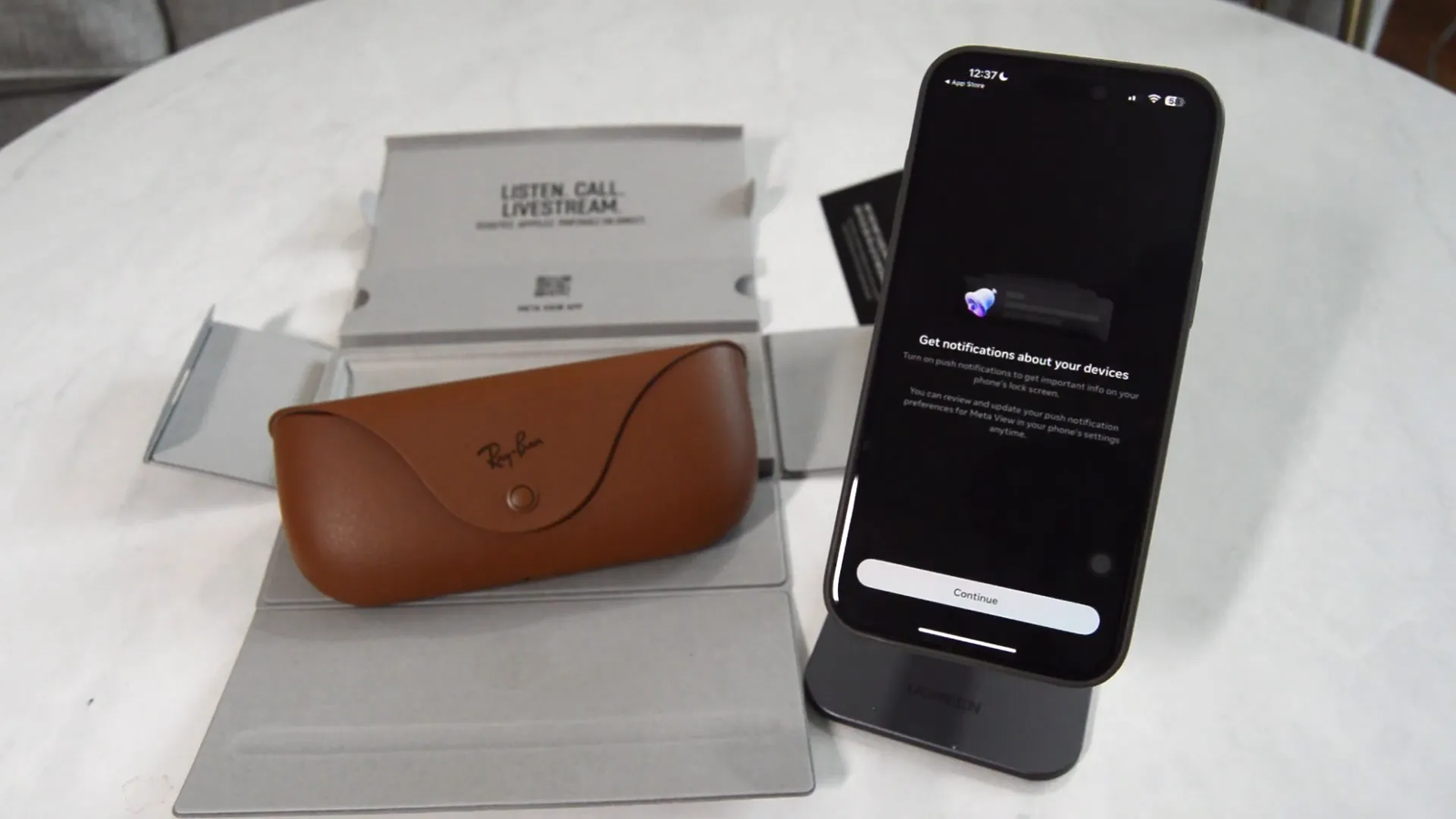
🔔 Notifications and Tutorial Walkthrough 📚
After updating, the Meta AI app asks if you want to enable notifications. These notifications can alert you about incoming messages, calls, or other app alerts through the glasses. You can customize these settings later, so you do not need to enable every notification right away.
The app then instructs you to put on your glasses and checks when they are being worn. Next, it walks you through a short tutorial on the basic controls. For example, pressing the capture button once takes a photo, while pressing and holding records video.
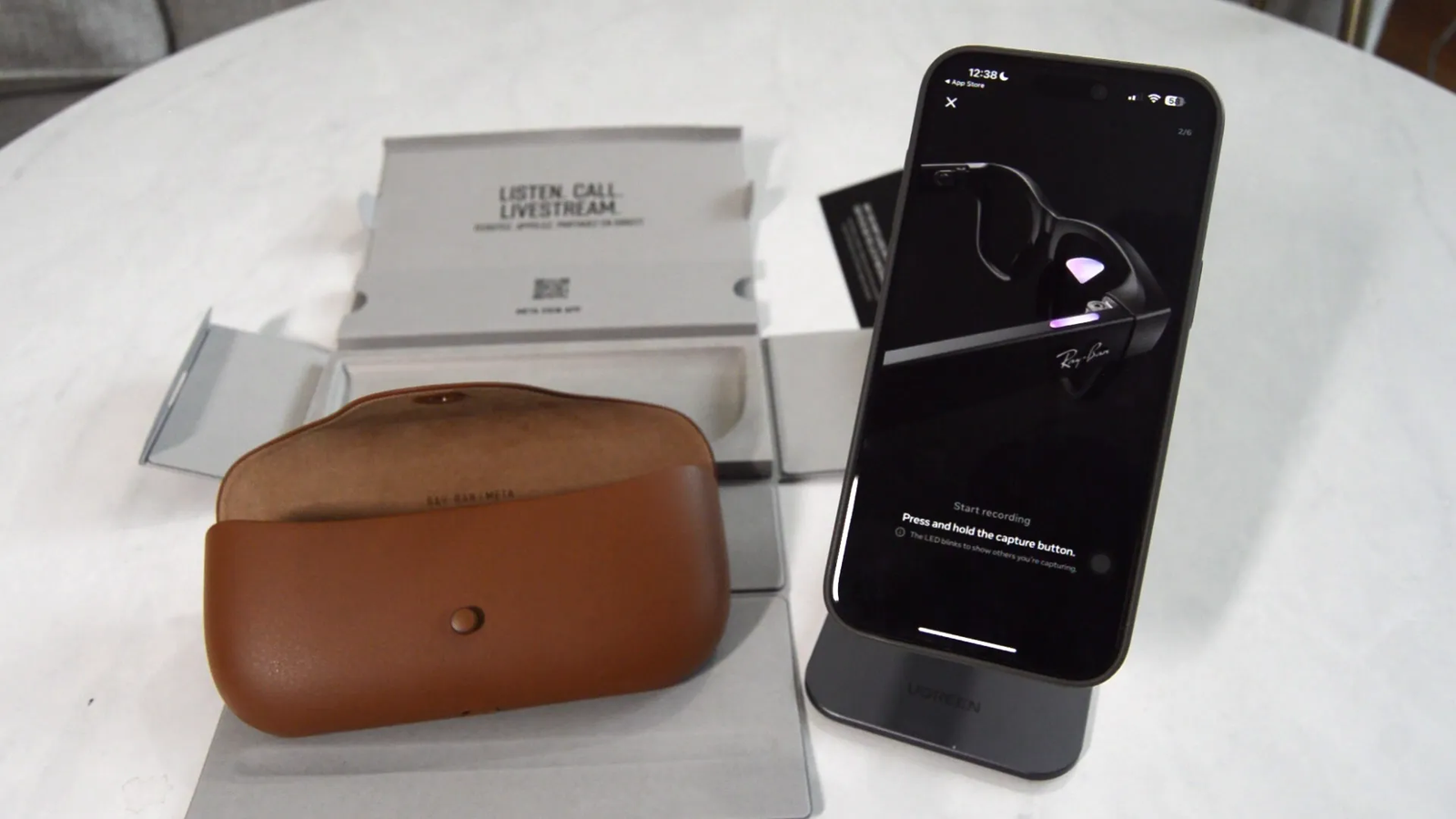
The tutorial is helpful because the glasses do not work like a regular pair of sunglasses. You’ll need to learn how the capture button, touchpad, voice controls, and app controls work together. Taking a few minutes to complete the walkthrough can prevent confusion later.
🤖 Enabling Meta AI and Privacy Settings
One standout feature of the Ray-Ban Meta Wayfarer is Meta AI integration, which adds smart assistance features to the glasses. You can enable or disable voice controls based on your comfort level. Feature availability can vary by country, language, and app version, so your setup screen may not look exactly the same as someone else’s.
During setup, the app asks you to choose data storage and privacy preferences. Pick the settings you are comfortable with, and consider allowing location access only while using the app if you want tighter control. You can also review voice, media, import, and privacy settings later in the app.
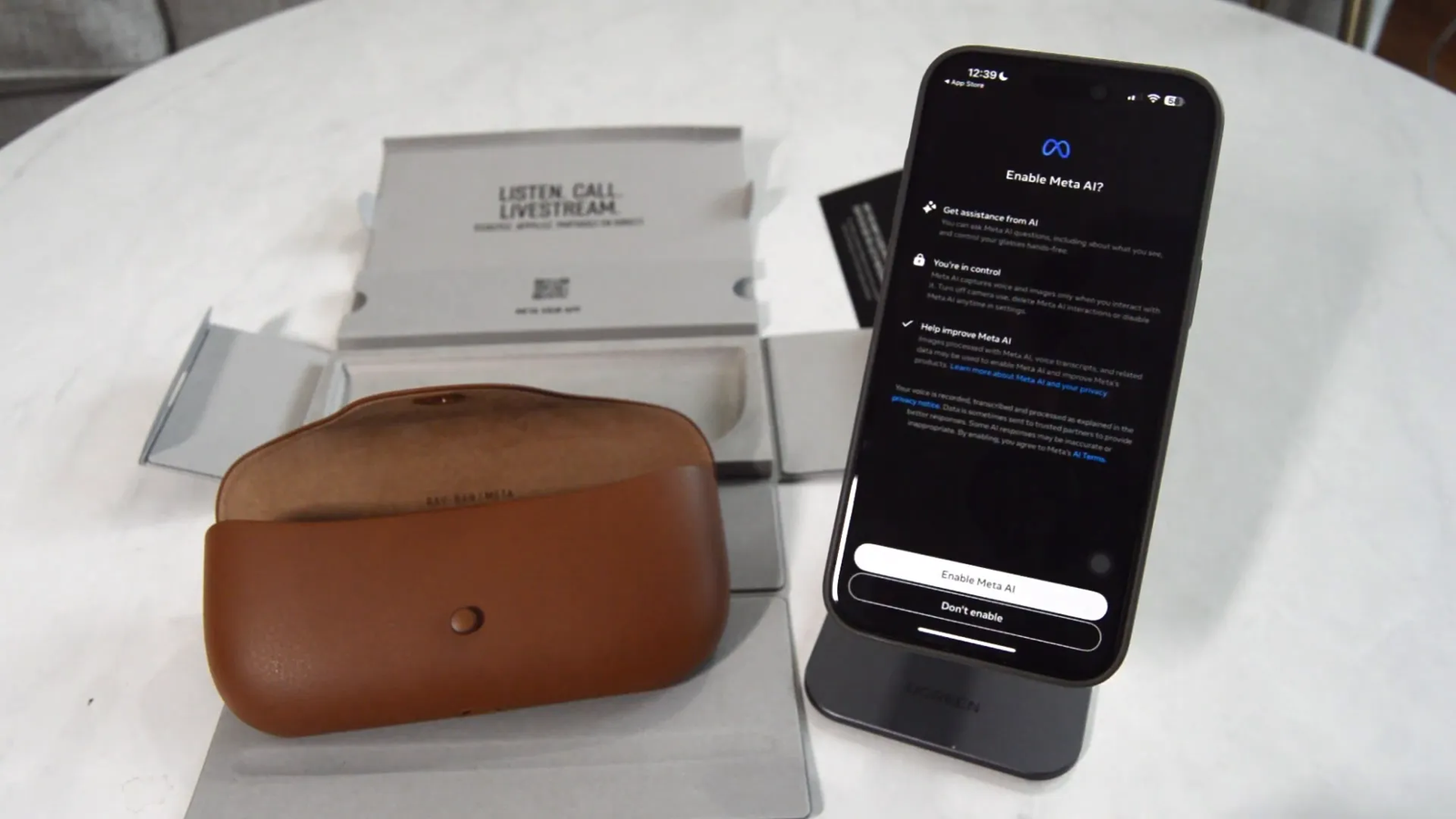
Warning: The capture indicator light is designed to alert others when you take photos or record video. Do not tamper with it or cover it, and always follow local laws, venue policies, and personal privacy expectations.
Privacy should be part of your setup, not an afterthought. Before using the glasses in public, at work, around children, or inside private venues, make sure you understand when the camera, microphone, and AI features are active.
🎥 Sample Footage and Features Overview
Once fully set up, the Ray-Ban Meta Wayfarer smart glasses offer several useful everyday features. You can capture photos and videos hands-free using the button on the frame, which makes the glasses helpful for quick moments when pulling out your phone feels awkward.
The Transitions® lenses provide a stylish look while adapting to sunlight, making them practical for casual indoor and outdoor wear. They are especially useful if you want one pair of smart glasses that can work across different lighting conditions.
The glasses’ integration with the Meta AI app allows you to view captured content, manage notifications, import media, check updates, and control settings from your smartphone. This blend of fashion and tech makes the Ray-Ban Meta Wayfarer a strong choice for users who want smart eyewear without a bulky gadget look.
Whether you’re recording a quick video, snapping a photo, listening to audio, or receiving notifications discreetly, these glasses offer a new level of hands-free convenience and connectivity.
👓 Style Meets Function: Why Choose Ray-Ban Meta Wayfarer?
The Ray-Ban Meta Wayfarer is not just a tech gadget. It is also a fashion statement. The classic Wayfarer design has been popular for decades, and Meta’s technology fits into the frame without making the glasses look overly futuristic.
The Transitions® lenses add versatility by shifting from clear to a subtle graphite green tint outdoors. That makes them easier to wear through different parts of the day, especially if you move between indoor spaces and sunlight often.
From a functional standpoint, the smart glasses provide quick access to digital tools without needing to pull out your phone. Whether you’re on the go, in a meeting, taking a walk, or capturing a point-of-view moment, the Ray-Ban Meta Wayfarer keeps your hands free while helping you stay connected.
For those interested in purchasing, you can check the latest price for Ray-Ban Meta Wayfarer smart glasses here and compare the current lens and frame options.
🔧 Tips for Getting the Most Out of Your Smart Glasses
- Keep the glasses charged: Use the USB-C port on the case to recharge your glasses regularly, so they are ready when you need them.
- Use the Meta AI app: The app is essential for managing device settings, checking for updates, importing media, and accessing captured content.
- Experiment with notifications: Customize which notifications you want to receive through the glasses to avoid distractions.
- Explore Meta AI carefully: Try the AI features, but review privacy settings and regional availability before relying on them.
- Protect your glasses: Use the included case when the glasses are not in use to help prevent scratches, drops, and charging issues.
- Clean the lenses gently: Use a microfiber cloth and avoid harsh cleaners that may damage lens coatings.
- Check permissions often: Review Bluetooth, location, camera, microphone, and notification permissions after app updates.
- Respect recording boundaries: Ask permission when needed and avoid recording in private or restricted spaces.
Common Setup Problems and Simple Fixes
If setup does not work the first time, do not panic. Most problems come from low battery, Bluetooth conflicts, app permissions, or skipped pairing steps.
- The app cannot find the glasses: Place the glasses inside the case, keep the case open, hold the case button until the LED blinks blue, and keep your phone nearby.
- Bluetooth pairing fails: Turn Bluetooth off and on, restart the Meta AI app, and remove old Ray-Ban Meta entries from your phone’s Bluetooth list before trying again.
- The update gets stuck: Keep your phone close to the glasses, stay connected to the internet, and avoid closing the app while the update runs.
- Media will not import: Check that the app has the needed permissions and that your phone can connect to the glasses’ temporary Wi-Fi network when prompted.
- Notifications feel distracting: Open notification settings in the app and allow only the alerts you actually want on your glasses.
Note: If the glasses still will not pair after several attempts, check the official support instructions in the app or reset the pairing process before contacting support.
Buying Checklist Before You Order
Before you buy Ray-Ban Meta Wayfarer smart glasses, check the details that affect comfort, everyday use, and long-term satisfaction.
- Frame size: Make sure the Wayfarer size fits your face comfortably.
- Lens type: Compare clear, sun, polarized, prescription, and Transitions® lens options where available.
- Phone compatibility: Confirm that your phone supports the Meta AI app and required Bluetooth features.
- Feature availability: Some AI and voice features may vary by country or language.
- Return policy: Review the retailer’s return window in case the fit, lens color, or smart features do not meet your expectations.
- Privacy comfort: Decide whether you are comfortable wearing camera-enabled glasses in your daily routine.
👉 Click here to check the latest price and buy now
📅 Final Thoughts
The Ray-Ban Meta Wayfarer smart glasses are a polished fusion of iconic style and wearable technology. The unboxing experience feels premium, and the setup process is simple enough for most users who are comfortable installing an app and pairing Bluetooth devices.
With features like Transitions® lenses, Meta AI support, hands-free photo and video capture, notifications, and smartphone integration, these glasses represent a practical step forward in smart eyewear. They work best for people who want useful tech in a frame that still looks like regular Ray-Ban eyewear.
They are not for everyone, though. If you rarely capture photos, dislike app-based setup, or feel uncomfortable with camera-enabled glasses, you may prefer traditional eyewear. But if you want a stylish pair of smart glasses that can document your day and keep you connected, the Ray-Ban Meta Wayfarer is a compelling option.
Ready to upgrade your eyewear? You can check the latest price for Ray-Ban Meta Wayfarer smart glasses here and see whether the current model, lens option, and fit match your needs.
Sources
- Meta AI app on the Apple App Store — supports the app reference used during setup.
- USB-C overview — explains the USB-C charging connector mentioned in the unboxing section.
- Photochromic lens overview — explains the lens-darkening concept behind Transitions®-style lenses.