You can control who sees your iPhone location by using Apple’s built-in privacy settings, Find My controls, Family Sharing settings, app permissions, Airplane Mode, private browsing, and a trusted VPN. These tools help you reduce tracking, limit app access, and protect your privacy without changing your whole phone setup.
This guide walks you through practical ways to manage location privacy on your iPhone. You will learn what each method does, when to use it, and what limits to expect so you can make safer choices.
Before you change anything, remember that some location-sharing features may show a status change inside Apple services such as Find My. Use these settings for legitimate privacy, personal safety, and account control.
Quick Answer
To hide or limit your iPhone location, go to Settings > Privacy & Security > Location Services and turn off access for apps you do not trust. For Find My, adjust Location Sharing under your Apple ID or Family Sharing settings. Airplane Mode, VPNs, and Safari Private Browsing can help in specific situations.
Key Takeaways
- Location Services controls which apps can access your GPS, Bluetooth, Wi-Fi, and nearby network location data.
- Find My and Family Sharing settings control whether selected people can see your shared location.
- Airplane Mode can temporarily stop network-based updates, but it also disables calls, cellular data, and other connections.
- A VPN can hide your IP-based location from websites, but it does not change your iPhone’s GPS location.
- Review app permissions regularly because apps may request location access again after updates or reinstalling.
At a Glance
| Time Required | 5 to 15 minutes |
| Difficulty | Easy |
| Tools Needed | Your iPhone, Apple ID access, and Settings app |
| Cost | Free, unless you choose a paid VPN or third-party privacy tool |
Credit: www.tuneskit.com
Turning Off Location Services
Turning off Location Services on your iPhone is one of the most direct ways to limit location tracking. It can stop apps from using your precise location, reduce background tracking, and give you more control over your personal data.
You do not always need to turn Location Services off for your whole phone. In many cases, it is smarter to limit access app by app. That way, important features such as maps, weather, emergency services, and device recovery can still work when you need them.
Accessing Location Settings
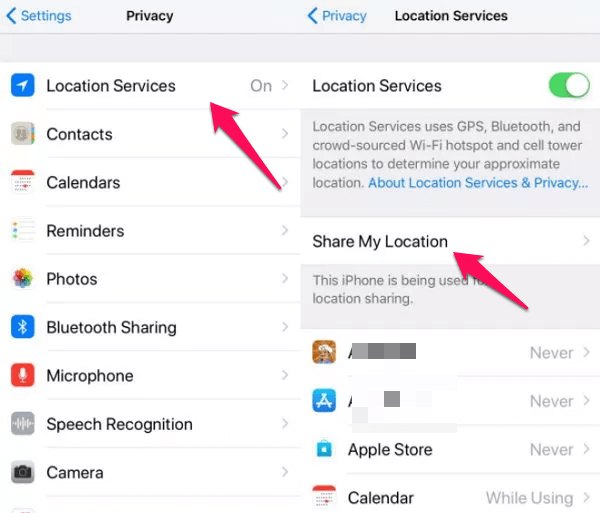
Open the Settings app on your iPhone. Tap Privacy & Security, then tap Location Services. This screen shows whether Location Services is on and which apps have asked to use your location.
From here, you can choose how much location access each app receives. Common choices include Never, Ask Next Time Or When I Share, While Using the App, and sometimes Always. You may also see a Precise Location toggle for apps that do not need your exact position.
Disabling Location Access for Specific Apps
Once you are in Location Services, tap the app you want to review. If the app does not need your location, choose Never. If the app only needs location while open, choose While Using the App.
This method helps you protect your privacy without breaking useful iPhone features. For example, a navigation app may need your precise location while you drive, but a shopping app may not need constant access in the background.
Pro Tip: If an app works fine without your exact position, turn off Precise Location. The app can still get an approximate area, but it will not receive your exact spot.
Have you ever wondered why some apps request your location so often? Many apps use location data for local recommendations, ads, analytics, or background features. Reviewing these permissions lets you decide which apps truly deserve access.
Credit: www.magfone.com
Using Airplane Mode
Airplane Mode is a quick way to temporarily disconnect your iPhone from cellular service and other wireless connections. This can stop many apps from updating your location because your device loses its normal network connection.
This method is best for short breaks from tracking, not long-term privacy management. It can interrupt calls, texts, mobile data, and app updates, so use it only when those limits make sense.
Activating Airplane Mode
To activate Airplane Mode, swipe down from the top-right corner of the screen to open Control Center. On iPhones with a Home button, swipe up from the bottom. Tap the airplane icon. Your iPhone will disconnect from cellular service.
You can also open Settings and turn on Airplane Mode from the top of the settings list. When it is on, your iPhone shows an airplane icon in the status bar.
Limitations of Airplane Mode
Airplane Mode has important limits. You cannot use cellular calls, cellular data, or standard SMS while it is active. Wi-Fi and Bluetooth may turn off at first, although you can manually turn them back on.
Some apps may not work correctly while your phone is disconnected. Messaging apps may fail to send messages, maps may stop updating, and Find My may show your last known location instead of a live location.
Warning: Airplane Mode can affect emergency contact, navigation, and safety features. Do not rely on it if you need calls, alerts, or real-time directions.
Using a VPN
A VPN can help hide your IP-based location from websites, advertisers, and some online services. It routes your internet traffic through another server, which can make your browsing activity appear to come from a different city, region, or country.
However, a VPN does not change your iPhone’s GPS location. Apps with Location Services permission may still access your real device location. Use a VPN for web privacy, not as a full replacement for iPhone location settings.
Choosing the Right VPN
Select a VPN carefully. Look for strong encryption, clear privacy policies, independent security audits when available, and a no-logs policy written in plain language. Avoid unknown VPN apps that ask for unnecessary permissions or make unrealistic promises.
Speed also matters. A slow VPN can make browsing, streaming, and app updates frustrating. A VPN with multiple server locations gives you more flexibility when choosing a virtual location.
Setting Up a VPN on iPhone
To set up a VPN, download a trusted VPN app from the App Store. Open the app, sign in, and follow the setup steps. iOS may ask you to allow the VPN configuration. Review the prompt carefully before approving it.
After setup, choose a server location and tap connect. Keep the VPN active while browsing if you want IP-based privacy. You can also check VPN status in the iPhone status area or inside the VPN app.
Note: A VPN can hide your IP address, but it will not stop GPS tracking from apps that have Location Services permission.
Spoofing Your Location
Spoofing your location means making an app or service believe your device is somewhere else. Some people use this for privacy testing, app development, games, or location-based features. Still, it comes with real risks.
Before using any spoofing tool, think carefully about the reason. Some apps ban accounts for fake location use, and some tools may require risky device changes. Safer privacy settings are usually better for everyday use.
Location Spoofing Apps
Location spoofing apps and desktop tools claim to change or simulate an iPhone location. Some tools let you set a virtual location so certain apps think you are somewhere else. Examples often mentioned online include tools such as iTools or AnyTo.
Before choosing any app, review its privacy policy, App Store rating, support history, and device requirements. Avoid tools that ask you to jailbreak your iPhone, disable security features, or install unknown profiles from untrusted websites.
Risks of Spoofing
Spoofing your location can break app rules. Games, delivery apps, dating apps, and financial apps may restrict accounts that use fake location data. Some services may lock your account, remove features, or require verification.
There is also a privacy risk. A suspicious spoofing app could collect your data, track your device, or install unsafe configuration profiles. If your goal is privacy, start with iPhone’s built-in settings before using third-party tools.
Always prioritize safety, legality, and consent when hiding or changing your location. Privacy controls should protect you, not create new security problems.
Disabling Location-based Alerts
Many iPhone users value privacy, and location-based alerts can reveal how often apps use location information. These alerts and prompts help you understand which apps request your location and when they do it.
You can reduce location-based activity by managing permissions in Settings. This helps you control which apps can trigger alerts, recommendations, reminders, or location-based features.
Managing Alerts in Settings
Open Settings on your iPhone. Tap Privacy & Security, then tap Location Services. Review the list of apps and system services that can use location data.
Tap each app and choose the right permission level. To stop an app from using location entirely, choose Never. To limit access, choose While Using the App and turn off Precise Location if exact tracking is not needed.
Impact on Applications
Disabling location access can affect how some apps work. Navigation apps need location for directions. Weather apps may need it for local forecasts. Ride-share, delivery, and fitness apps may also need location to function correctly.
Consider each app’s purpose before blocking access. Keep location enabled for apps that truly need it, and remove it from apps that do not provide clear value.
Using Private Browsing
Private Browsing in Safari helps reduce browser-based tracking on your iPhone. It does not save your browsing history in the same way as regular browsing, and it limits some cookies and website data during private sessions.
This helps protect your web activity from people who use the same device. It can also reduce website tracking, but it does not hide your GPS location from apps with location permission.
Enabling Private Mode in Safari
Open Safari on your iPhone. Tap the tabs button. Then choose Private or open a new private tab, depending on your iOS version.
Once Private Browsing is active, Safari will not save that private session in your regular browsing history. It also separates private tabs from normal tabs, which helps keep browsing activity more private on shared devices.
Benefits of Private Browsing
Private Browsing helps keep searches, visited pages, and session cookies from staying visible in your normal Safari history. This can be useful when checking sensitive topics, logging into accounts on a shared device, or limiting website tracking.
Private Browsing does not make you invisible online. Your internet provider, network administrator, websites you log into, and apps with separate tracking tools may still collect some information. Pair it with strong app permissions and a trusted VPN for better privacy.
Managing App Permissions
Managing app permissions is one of the most important steps for iPhone privacy. Many apps request location access, but not all of them need it. Regular reviews help you reduce background tracking and protect your personal information.
Reviewing App Permissions
Start by opening Settings. Tap Privacy & Security, then tap Location Services. You will see a list of apps and their current location access levels.
Look for apps set to Always. These apps may access location in the background. Ask yourself whether each app truly needs that level of access. If not, switch it to While Using the App or Never.
Restricting Location Access
After reviewing permissions, tap each app and choose the lowest access level that still lets the app work. Select Never for apps that do not need location. Select While Using the App for apps that only need location when open.
Also review the Precise Location toggle. Turning it off gives an app a less exact location, which may be enough for weather, local content, or general recommendations.
Check these settings regularly. Apps may request location again after updates, reinstalling, or enabling new features.
Credit: www.imyfone.com
Utilizing Family Sharing Settings
Family Sharing settings on iPhone let you manage whether family group members can see your location. This is useful when you want privacy from specific people while still using other Apple family features.
These settings mainly affect Apple’s location-sharing tools, such as Find My and Family Sharing. They do not automatically block location access for every app on your phone.
Configuring Family Sharing
Open Settings and tap your name at the top. Select Family or Family Sharing, depending on your iOS version. Then look for Location Sharing.
If you are already part of a family group, you can review who can see your location. If you manage the family group, you may also control family settings for other members, depending on age, account type, and permissions.
Controlling Location Sharing
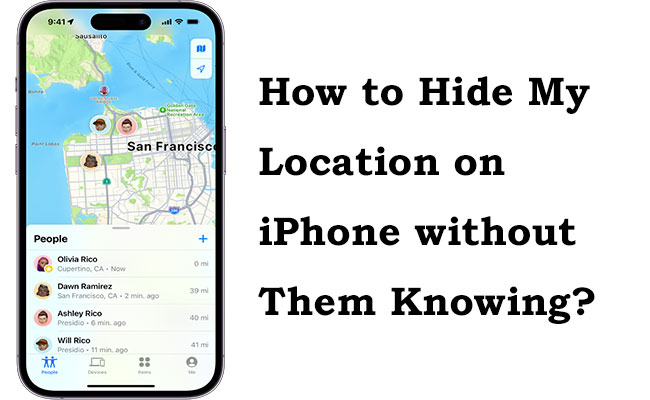
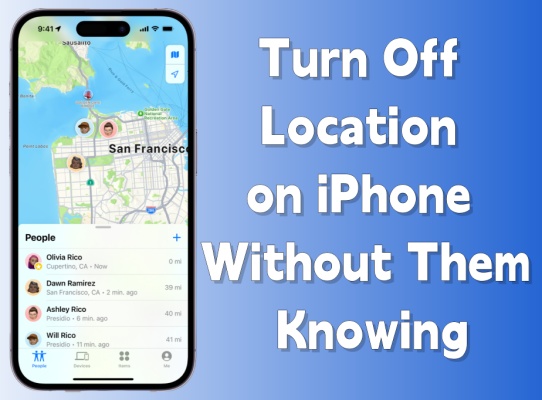
Inside Location Sharing, turn off sharing if you do not want family members to see your location. You may also be able to stop sharing with specific people through Find My.
To manage this in Find My, open the Find My app, tap People, choose a person, and review the available sharing controls. Depending on your setup, the other person may not receive a separate alert, but they may notice that your location is no longer available.
Note: If personal safety is a concern, review Apple’s Safety Check feature as well. It can help you quickly review sharing, app access, and account security from one place.
With these settings, you can manage who sees your location while keeping useful Apple features active. This gives you better control without needing to turn off every privacy feature on your iPhone.
Frequently Asked Questions
How do I stop someone from seeing my location on my iPhone without them knowing?
Open Settings, tap your name, and review Find My or Family Sharing location settings. You can also open the Find My app, choose the person, and stop sharing when the option is available. They may not receive a separate notification, but they may see that your location is unavailable.
How do I hide my location on my iPhone without turning it off completely?
Limit location access app by app. Go to Settings > Privacy & Security > Location Services, then choose Never or While Using the App for apps that do not need constant access. You can also turn off Precise Location for apps that only need an approximate area.
How do I freeze my location on Find My iPhone without them knowing?
Find My may show your last known location when your iPhone goes offline, but that is not a reliable or recommended privacy method. A safer approach is to manage location sharing directly in Find My, Family Sharing, or Safety Check so you control who can view your location.
Can I disguise my location on my iPhone?
You can hide your IP-based location with a VPN and reduce app tracking through Location Services. GPS spoofing tools may claim to disguise your device location, but they can break app rules, risk account bans, and create security problems. Built-in iPhone privacy controls are safer for most users.
Does a VPN hide my iPhone location from Find My?
No. A VPN can change the IP address websites see, but it does not change your GPS location or Find My location sharing. To manage Find My, use your Apple ID, Find My, Family Sharing, or Safety Check settings.
Will turning off Location Services affect emergency calls?
Some emergency and safety features may still use location when needed, depending on your region, carrier, and iPhone settings. Do not disable important safety features unless you understand the tradeoff. Review Apple’s privacy and safety settings before making major changes.
Conclusion
Hiding or limiting your location on an iPhone is simple when you know which settings matter. Start with Location Services, then review Find My, Family Sharing, app permissions, and Precise Location controls.
Use Airplane Mode for short offline breaks, Safari Private Browsing for local browser privacy, and a trusted VPN for IP-based privacy. Avoid risky spoofing tools unless you fully understand the security and account consequences.
Your privacy matters. Review these settings regularly, remove access from apps that do not need it, and keep location sharing limited to people and services you trust.
Sources
- Apple Support: Control the location information you share on iPhone — supports Location Services, app permissions, and location-sharing controls.
- Apple Support: Share your location in Find My on iPhone — supports Find My location sharing and people-based controls.
- Apple Personal Safety User Guide: Use Safety Check to stop sharing — supports safety-focused sharing reviews and privacy controls.
- Apple Support: Browse the web privately in Safari on iPhone — supports Private Browsing guidance.

