
You can check a laptop’s internal temperature in a few minutes, but the best method depends on whether you use Windows or macOS. Windows usually needs a sensor-monitoring utility for CPU temperature, while Task Manager may show the temperature of a supported dedicated GPU. On a Mac, Activity Monitor helps find CPU-heavy apps, while a compatible sensor app can display exposed internal temperatures. The important part is comparing the reading with your exact processor’s thermal limit instead of relying on one universal “safe” number.
Quick Answer
To check laptop temperature, use HWMonitor, HWiNFO, or Core Temp on Windows and a compatible sensor monitor such as iStat Menus on macOS. Watch the CPU Package or hottest-core reading during your normal workload. Do not treat 85°C as a universal danger point; compare sustained temperatures with your processor manufacturer’s maximum specification and watch for throttling or shutdowns.
Key Takeaways
Key Takeaways
- Windows Task Manager normally shows CPU usage rather than CPU temperature, although supported dedicated GPUs can display a temperature reading.
- Use a maintained sensor tool such as HWMonitor, HWiNFO, or Core Temp for real-time Windows CPU readings.
- Activity Monitor on a Mac identifies CPU-heavy processes but does not provide a normal CPU-temperature field.
- There is no single 85°C or 90°C danger limit for every laptop CPU; check the specification for your exact processor.
- Persistent throttling, unexpected shutdowns, blocked vents, or temperatures repeatedly approaching the processor’s limit deserve troubleshooting.
At a Glance
| Time Required | About 2–5 minutes for a basic check |
| Difficulty | Easy |
| Tools Needed | Task Manager or Activity Monitor for workload clues; optional CPU sensor-monitoring software for exact internal readings |
| Cost | Free with built-in or free monitoring tools; some macOS monitoring apps are paid |
How to Check Laptop Temperature Right Now
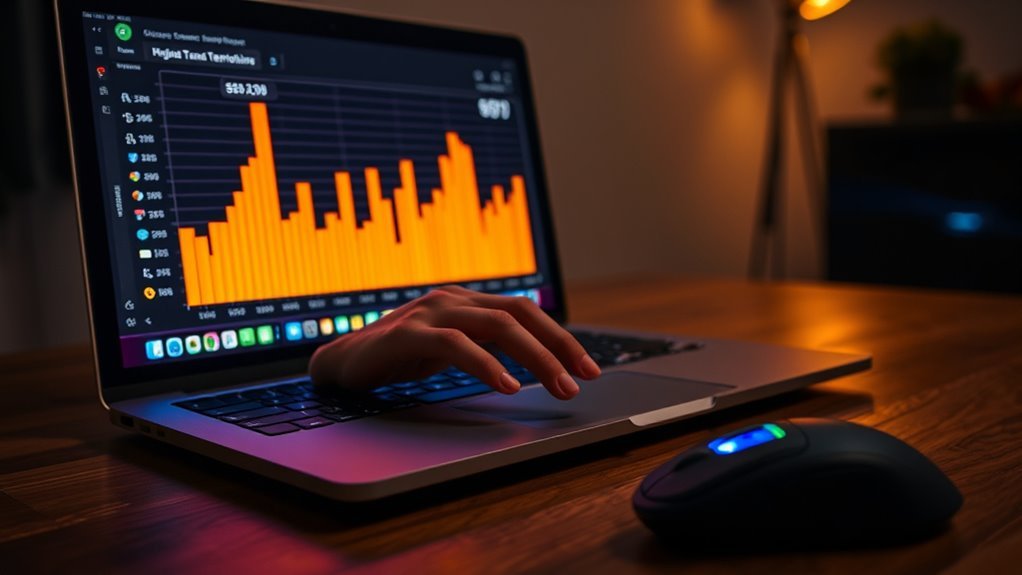
The fastest useful temperature check is not simply reading one number. Measure the laptop while it is idle and again while performing the task that normally makes it hot. This shows whether the cooling system can control temperature as workload increases.
- Identify what you want to measure. CPU Package or Core Max is usually the most useful CPU reading. GPU Temperature or GPU Hot Spot applies to graphics hardware and can have a different limit.
- Open a monitoring tool. On Windows, use a current utility such as HWMonitor, HWiNFO, or Core Temp. On macOS, use Activity Monitor to identify heavy processes and a compatible sensor monitor if you need an exposed internal temperature reading.
- Record the idle reading. Let the laptop sit for several minutes with no demanding apps running.
- Run your normal workload. Play the game, render the video, join the video call, or perform the task that causes the heat problem while watching temperature and clock speed.
- Compare the result with the processor’s specification. Pay particular attention to temperatures that remain close to the manufacturer’s maximum, falling clock speeds, repeated stutters, or shutdowns.
Note: The temperature reported by an internal CPU or GPU sensor is not the same as the temperature of the laptop case. A laptop can feel very warm while its internal components are still operating within their designed limits.
Best Tools to Monitor Laptop Temperature
A dedicated sensor utility gives a much clearer picture than CPU-usage data alone. The best choice depends on how much detail you want.
| Tool | Platform | Best Use |
|---|---|---|
| HWMonitor | Windows | CPU, GPU, storage, voltage, fan, and other sensor readings |
| HWiNFO | Windows | Detailed sensor monitoring, maximum values, clocks, and throttling indicators |
| Core Temp | Windows | Simple CPU-focused temperature monitoring |
| iStat Menus | macOS | Available Mac temperature, fan, CPU, GPU, battery, and other sensor data |
For Windows users who want broad hardware data, HWMonitor and HWiNFO are better current choices than older fan-control utilities. Core Temp is useful when you primarily want a straightforward CPU reading.
Note: SpeedFan can read temperatures and control some fans on compatible older hardware, but its official release remains version 4.52 and it is not a preferred default for modern Windows 11 laptops. The original Open Hardware Monitor concept also has newer alternatives; use actively maintained software that recognizes your processor and laptop correctly.
How to Check Laptop Temperature on Windows and Mac
Check CPU Temperature on Windows
Windows does not normally provide a CPU-temperature field in Task Manager. For a real-time CPU reading, open HWMonitor, HWiNFO, Core Temp, or a monitoring application supplied by the laptop manufacturer.
In a sensor utility, look for labels such as CPU Package, Core Temperatures, or Core Max. If the program displays current, minimum, maximum, and average values, the maximum column is particularly useful after gaming, rendering, or another heavy workload.
Task Manager is still useful for identifying what is creating the load. Press Ctrl + Shift + Esc, open the Processes or Performance view, and look for unusually high CPU usage. On supported systems with a dedicated GPU, Task Manager may also show GPU temperature. Microsoft documents that this feature requires appropriate graphics hardware and a compatible WDDM driver.
Check Laptop Temperature in BIOS or UEFI
Many PCs can show CPU temperature in BIOS or UEFI firmware. Restart the laptop and use the manufacturer’s setup key, which is often F2, Delete, F10, Esc, or another model-specific key.
Look for a menu named Hardware Monitor, System Health, Thermal, or a similar term. The exact location varies by manufacturer.
BIOS/UEFI is useful as a quick baseline but not as the main overheating test. Your normal operating system, games, browser tabs, and productivity applications are not running there, so the CPU is under a very different workload.
Check Temperature on a Mac
Apple’s Activity Monitor is useful for finding apps and processes that are creating high CPU demand. Open Applications > Utilities > Activity Monitor, select the CPU tab, and check which processes are consuming the most CPU time.
Activity Monitor itself does not provide a standard CPU-temperature field. If you specifically need internal sensor values, use a monitoring application that supports your Mac and macOS version, such as iStat Menus.
Avoid depending on one copied Terminal command for every Mac. The available sensor data and command output can differ between Intel Macs, Apple silicon Macs, and macOS versions.
Pro Tip: Take one reading while the laptop is nearly idle and another after 10–15 minutes of your normal heavy workload. Comparing the two is more useful than judging the computer from a single momentary spike.
What Laptop Temperature Is Too Hot?
There is no universal temperature at which every laptop becomes “too hot.” The meaningful limit is the thermal specification for the exact CPU or GPU inside the machine.
Intel explains that the maximum junction temperature varies by processor and is commonly in the 100°C to 110°C range for its processors. The laptop manufacturer may also configure power and cooling behavior around the specific chassis.
A temperature number only makes sense in context: compare it with workload, clock speed, throttling behavior, and the maximum specification for your exact processor.
| Reading or Behavior | How to Interpret It |
|---|---|
| 70°C under a meaningful workload | Usually not concerning by itself for a modern laptop CPU. |
| Around 80°C under heavy load | Can be normal on thin, gaming, and high-performance laptops. Check whether clocks remain stable. |
| Around 90°C | Hot, but not automatically unsafe. Compare it with the processor limit and watch for sustained throttling. |
| Repeatedly approaching Tjunction/TjMax | Investigate workload, airflow, dust, fan operation, power settings, and cooling-system condition. |
| Throttling, freezes, or thermal shutdowns | Strong evidence that thermal conditions or cooling performance need attention. |
A brief spike is less informative than a temperature that remains high throughout a workload. Modern processors contain thermal-control mechanisms that can reduce power and clock speed as the chip approaches its limit.
How to Lower Laptop Temperature Fast
If the laptop is running hotter than usual, start with reversible fixes before opening the chassis.
| Action | Effect |
|---|---|
| Close unnecessary heavy software | Reduces CPU and GPU power demand |
| Use a hard, flat surface | Helps keep bottom and side air intakes unobstructed |
| Switch to a balanced or lower-power mode | Can reduce processor power and heat output |
| Clean external vents | Restores airflow when dust or lint is restricting cooling |
| Use a cooling pad when appropriate | May improve airflow, especially on laptops with bottom air intakes |
Dell’s overheating guidance recommends keeping laptop vents unobstructed and using the computer on a hard, sturdy surface. Dust and lint can restrict airflow and force cooling fans to work harder.
For vent cleaning, shut the laptop down, disconnect external power, and follow the manufacturer’s service instructions. Canned compressed air may be appropriate for external vents. Avoid household vacuum cleaners or powerful blowers around electronics because static electricity or excessive force can damage components.
Warning: Do not open the laptop, disconnect an internal battery, remove the cooling assembly, or replace thermal paste unless the model’s service documentation permits the procedure and you are comfortable working around delicate electronics and lithium-ion batteries. Professional service is the safer choice when major disassembly is required.
Replacing old or poorly applied thermal compound can sometimes improve heat transfer, but it is not the first fix for every hot laptop. Check software load, vents, airflow, fan operation, BIOS/firmware updates, and power settings first.
Signs Your Laptop May Actually Be Overheating
A hot case or loud fan alone does not prove that the laptop is malfunctioning. Stronger signs include:
- CPU or GPU temperature repeatedly reaching the hardware’s specified limit during ordinary workloads.
- Clock speeds falling sharply while the processor remains heavily loaded.
- Severe stuttering that begins as the machine heats up.
- Fans running at high speed even when CPU usage is low.
- Unexpected sleep, restart, or shutdown events during demanding tasks.
- A fan that no longer spins or produces normal airflow.
- Temperatures that are substantially higher than the same laptop previously reached during the same workload and room conditions.
On a Mac, Apple recommends checking Activity Monitor for processes consuming excessive CPU when the computer becomes unusually warm or its fans run for a long time. Apple also recommends using a stable work surface with good ventilation and keeping Mac laptops within the specified ambient operating range.
If temperatures remain abnormal after software load, airflow, vents, updates, and power settings have been checked, run the laptop manufacturer’s hardware diagnostics or arrange service.
Frequently Asked Questions
Is 80°C too hot for a laptop CPU?
Not necessarily. Around 80°C can occur during gaming, rendering, compiling, or other heavy workloads, especially in thin laptops. Check the processor’s maximum junction temperature and watch whether the laptop is throttling, shutting down, or continuing to get hotter.
Is 70°C hot for a CPU?
A CPU temperature of 70°C is generally not concerning during a meaningful workload on a modern laptop. What matters is the workload, the processor’s own thermal specification, ambient temperature, and whether the temperature continues climbing.
Is 120°F hot for a CPU?
120°F is about 49°C. For an internal CPU sensor, that is normally well below the thermal limit of a modern laptop processor. Keep in mind that CPU sensor temperature and external case temperature are different measurements.
Is 90°C too hot for a CPU?
90°C is hot, but it is not automatically unsafe for every laptop CPU. Some high-performance processors can operate in this range during short or sustained heavy loads. Compare the reading with the exact processor’s Tjunction or maximum operating-temperature specification and check for thermal throttling.
Can Task Manager show CPU temperature?
Windows Task Manager does not normally provide a CPU-temperature readout. It can show CPU utilization and clock information, and supported dedicated GPUs may display GPU temperature. Use a sensor-monitoring utility for CPU temperature.
Does Activity Monitor show Mac CPU temperature?
No standard CPU-temperature field is provided in Activity Monitor. Use Activity Monitor to identify CPU-intensive processes that may be creating heat. If you need an exposed internal temperature sensor reading, use a compatible monitoring application.
Sources
- Intel — Information about Temperature for Intel Processors — processor-specific thermal limits and thermal-control behavior.
- Microsoft — GPU Temperature in Task Manager — Task Manager GPU-temperature support and hardware/driver requirements.
- Apple — Keep Your Mac Laptop Within Acceptable Operating Temperatures — ventilation, Activity Monitor, ambient-temperature, and troubleshooting guidance.
- Dell — Troubleshoot Computer and Laptop Overheating — airflow, vent cleaning, and thermal troubleshooting.
- CPUID — HWMonitor — current Windows hardware sensor-monitoring capabilities.
- Bjango — iStat Menus — temperature, fan, and other supported Mac sensor monitoring.
Conclusion
Checking laptop temperature is most useful when you measure the CPU or GPU during a repeatable workload and compare the result with the hardware’s actual thermal specification. Do not assume that 80°C, 85°C, or 90°C automatically means failure. Instead, look for sustained operation near the processor limit, thermal throttling, unusual fan behavior, instability, or shutdowns. If closing heavy apps, restoring airflow, cleaning vents, and using appropriate power settings do not improve the situation, run the manufacturer’s diagnostics or have the cooling system inspected.

