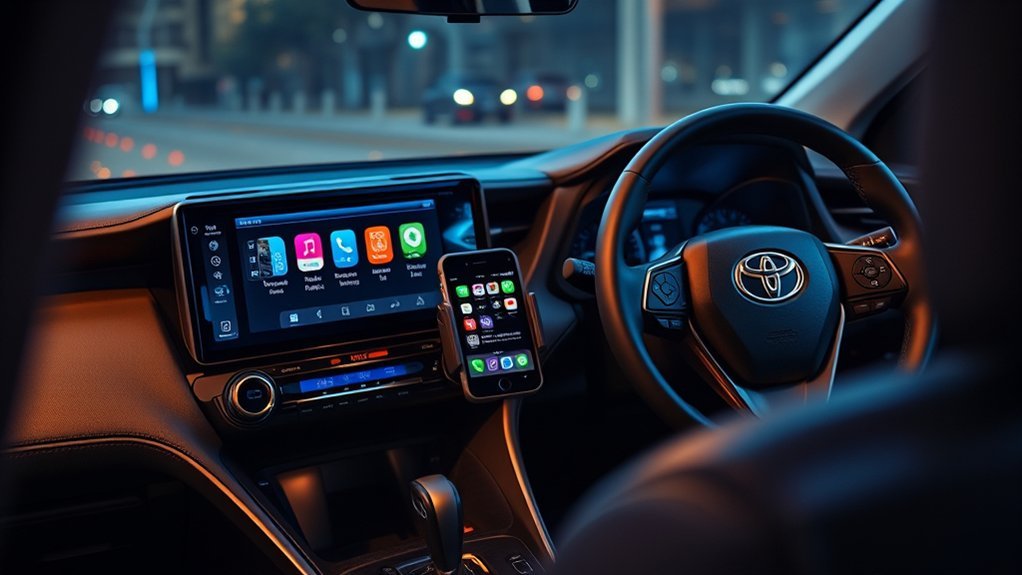
Phone projection in a Toyota RAV4 lets you use compatible navigation, calling, messaging, and audio apps through the vehicle’s center display. The exact setup depends on the RAV4’s model year and multimedia system: many older equipped models use a USB data connection, while U.S.-spec 2023 and newer RAV4 models support wireless Apple CarPlay and Android Auto. Menu names can also differ, so use the steps below together with your vehicle’s owner’s manual.
Quick Answer
To use phone projection in a Toyota RAV4, park the vehicle, confirm that your model year supports Apple CarPlay or Android Auto, and connect by USB or wireless pairing. Accept the phone and vehicle prompts, enable Siri or Android voice services, and select the projection icon on the Toyota multimedia display.
Key Takeaways
- Connection methods vary by model year, market, trim, and multimedia unit.
- U.S.-spec 2023 and newer RAV4 models have standard wireless Apple CarPlay and Android Auto compatibility.
- For a wired connection, use the multimedia USB data port and a high-quality data cable, not a charge-only port or cable.
- For wireless setup, keep Bluetooth and Wi-Fi enabled; Android Auto also works best with Location Services enabled.
- Complete pairing, permission changes, keyboard entry, and troubleshooting while the RAV4 is safely parked.
At a Glance
| Time Required | About 5–10 minutes for first-time setup |
| Difficulty | Easy |
| Tools Needed | Compatible smartphone and, for wired use, a short high-quality USB data cable |
| Cost | No separate projection fee; mobile data, paid apps, streaming subscriptions, or Toyota Connected Services may cost extra |
Warning: Put the RAV4 in Park before pairing a phone, accepting permissions, entering an address, changing connection settings, or troubleshooting. While driving, use voice controls and the vehicle’s supported controls rather than handling the phone.
Setting Up Your Device for Phone Projection

Start by confirming which projection methods your RAV4 supports. Toyota introduced its newer Audio Multimedia system across the U.S. RAV4 lineup for the 2023 model year, including standard wireless Apple CarPlay and Android Auto compatibility. The 2026 RAV4 also uses a newer Toyota Audio Multimedia generation with standard wireless projection. Earlier RAV4 systems may support wired CarPlay, wired Android Auto, both systems, or neither, depending on model year, market, trim, and equipment.
Check the multimedia section of your vehicle’s owner’s manual or Toyota’s vehicle-specific support information before assuming that a USB port or Bluetooth connection supports projection. Apple’s current compatibility list includes the RAV4 beginning with the 2019 model year, but equipment and regional availability can still differ.
Apple CarPlay Requirements
- Use an iPhone that supports Apple CarPlay and install the latest iOS version available for that phone.
- Turn on Siri before beginning setup.
- For wireless CarPlay, turn on both Bluetooth and Wi-Fi.
- For wired CarPlay, use a direct USB data cable that matches the iPhone and vehicle ports.
- Unlock the iPhone and approve the CarPlay prompts during first-time setup.
Apple’s current instructions cover both wired and wireless CarPlay setup. Avoid relying on an old minimum-iOS figure because current compatibility depends on the iPhone, its supported software, the vehicle, and the connection method.
Android Auto Requirements
- For wired Android Auto, Google currently requires a compatible phone running Android 9 or later, an active data plan, and a high-quality USB data cable.
- For wireless Android Auto, the phone generally needs Android 11 or later, 5 GHz Wi-Fi support, and compatibility with wireless Android Auto.
- Keep Bluetooth, Wi-Fi, and Location Services enabled during wireless setup.
- Install the latest Android system updates and update Google Maps, messaging, media, and other apps you plan to use.
- Android Auto is integrated into supported Android phones; a separate Android Auto app download is not normally required.
Google maintains the current Android Auto phone and connection requirements. Android Go edition devices are not supported for Android Auto on a vehicle display.
Note: Projection apps depend on your phone’s mobile-data connection for live traffic, searches, streaming, and many voice features. Some navigation apps let you download offline maps before a trip, but offline functionality varies by app.
Connecting Your Device to the Toyota RAV4
Before connecting, start the RAV4, leave it in Park, turn on the multimedia system, and unlock the phone. The vehicle’s settings may label the feature as Apple CarPlay, Android Auto, Projection, Bluetooth & Devices, or Smartphone Connection.
How to Connect Apple CarPlay With USB
- Enable Siri on the iPhone.
- Connect the iPhone directly to the RAV4’s multimedia USB data port using a compatible data cable.
- Unlock the iPhone if prompted.
- Approve the request to use CarPlay while the phone is locked.
- On the Toyota display, select Apple CarPlay or approve the connection prompt.
- Choose the appropriate option if the system asks whether to enable CarPlay once or automatically on future drives.
The correct USB port may display a smartphone, data, or CarPlay symbol. Other console ports may be intended only for charging.
How to Connect Apple CarPlay Wirelessly
- Turn on Siri, Bluetooth, and Wi-Fi on the iPhone.
- On the Toyota display, open the Bluetooth or device settings and choose the option to add a device.
- Select the RAV4 from the iPhone’s Bluetooth menu, or select the iPhone from the Toyota device list.
- Confirm that the pairing code shown on both screens matches.
- Approve contacts, favorites, messages, and CarPlay permissions as desired.
- Select Apple CarPlay when the Toyota display asks which service to use.
- Allow the iPhone to join the vehicle’s CarPlay Wi-Fi connection.
On some systems that support both wired and wireless CarPlay, the first USB connection may offer to enable wireless CarPlay for future drives.
How to Connect Android Auto With USB
- Connect the Android phone directly to the RAV4’s multimedia USB data port with a high-quality data cable.
- Unlock the phone and review the Android Auto prompts.
- Approve access to calls, contacts, messages, notifications, location, and media according to your preferences.
- Accept the vehicle’s Android Auto prompt or select Android Auto on the multimedia display.
- Wait for the Android Auto launcher, navigation screen, or dashboard to appear.
If the phone begins charging but Android Auto does not appear, the phone has received power but may not have established a data connection. Try the designated data port and another known-good cable.
How to Connect Android Auto Wirelessly
- Turn on Bluetooth, Wi-Fi, and Location Services on the Android phone.
- Open the RAV4’s Bluetooth or device settings and choose the option to add a phone.
- Select the phone from the Toyota display or the RAV4 from the phone’s Bluetooth menu.
- Confirm the matching pairing code.
- Approve the requested phone and Android Auto permissions.
- Select Android Auto as the preferred projection service when prompted.
- Wait several seconds for the initial wireless connection to complete.
Google’s official Android Auto setup instructions explain that initial wireless setup uses Bluetooth pairing and that Bluetooth, Wi-Fi, and Location Services should remain on during the process.
Pro Tip: For a wired connection, use a short cable that supports both charging and data. Avoid USB hubs, extension cables, magnetic adapters, and long adapter chains. A cable can charge the phone normally while still being unable to carry the data required for CarPlay or Android Auto.
Key Features of Apple CarPlay and Android Auto

Apple CarPlay and Android Auto place a simplified selection of compatible phone apps on the RAV4’s center display. They do not mirror every app or every phone function. Unsupported apps remain unavailable to reduce distraction and comply with the projection platform’s requirements.
Navigation, Calls, Messaging, and Media
Depending on the phone and installed apps, projection can provide access to:
- Apple Maps, Google Maps, Waze, and other supported navigation apps
- Phone calls, contacts, recent calls, and voicemail controls
- Supported text and messaging services
- Music, podcasts, audiobooks, radio, and streaming apps
- Calendar destinations and suggested routes
Live traffic, destination searches, streaming, and cloud-based voice features generally use the phone’s data plan. Downloading playlists, podcasts, or offline maps before leaving can reduce data use and improve reliability in areas with weak cellular service.
Voice Command Functionality
With Apple CarPlay, use Siri by pressing and holding the steering-wheel voice button, touching and holding the CarPlay home or dashboard control, or using “Hey Siri” when supported and enabled.
With Android Auto, voice control may use Gemini or Google Assistant, depending on the phone, account, language, and current rollout. Start it by saying “Hey Google,” selecting the microphone, or pressing and holding the steering-wheel voice button.
Voice controls can start navigation, make calls, send supported messages, play media, and answer basic questions without requiring you to type on the screen.
Set the destination and choose your audio before moving. During the drive, rely on voice commands and the RAV4’s built-in controls whenever possible.
Navigation and Mapping Features
Apple CarPlay and Android Auto can provide turn-by-turn directions, estimated arrival times, live traffic, route alternatives, lane guidance, and voice-guided navigation when supported by the selected app.
The projected map normally appears on the center multimedia display. Whether route prompts also appear in the digital gauge cluster or head-up display depends on the RAV4’s model year, trim, multimedia generation, navigation source, and app. Consult the vehicle-specific manual rather than assuming that every RAV4 displays projection directions in the same places.
Typing and some search functions may be restricted while the vehicle is moving. Enter the destination while parked or use the supported voice assistant.
How to Use the CarPlay and Android Auto Interfaces

After projection starts, use the RAV4 touchscreen, steering-wheel controls, voice button, and any physical multimedia controls supported by the vehicle. The projected interface temporarily becomes the main source for compatible navigation, calls, messages, and media, but it does not disable the RAV4’s essential vehicle controls.
Return to the Toyota Multimedia System
The method varies by multimedia generation:
- Select the Toyota icon from the Android Auto app launcher when it is available.
- Use the Toyota, Home, or Menu control on the multimedia display.
- On the 2026 Toyota Audio Multimedia system, use the persistent on-screen home control.
- Reopen Apple CarPlay or Android Auto from the Toyota home screen when you want to return to projection.
Older systems may temporarily route phone audio through CarPlay or Android Auto rather than through a separate Bluetooth Audio source. Newer systems may also keep a second phone connected for limited Bluetooth functions, but only one projection interface can occupy the main display at a time.
Customize the Apple CarPlay App Layout
- On the iPhone, open Settings.
- Select General, then CarPlay.
- Select the RAV4.
- Choose Customize.
- Add, remove, or drag supported apps into the preferred order.
Only apps designed to work with CarPlay will appear. Apple provides the current customization procedure in its CarPlay support guide.
Customize the Android Auto App Launcher
On the Android phone, open the Android Auto settings and select the launcher-customization option. Depending on the phone manufacturer and Android version, this may appear under Settings > Connected devices > Connection preferences > Android Auto. Choose which compatible apps appear and adjust their order.
Exact menu names vary among Samsung, Google Pixel, Motorola, and other Android devices, so use the phone’s Settings search field for “Android Auto” when the menu is difficult to locate.
Switch Between Saved Phones
- Park the RAV4.
- Open the Toyota multimedia device or Bluetooth settings.
- Select the phone you want to use.
- Choose Apple CarPlay or Android Auto as the preferred connection service if the system asks.
- Disconnect projection from the first phone before activating projection from the second.
If the wrong phone reconnects automatically, temporarily disable Bluetooth or Wi-Fi on that phone, change its connection priority in the Toyota device settings, or remove it from the saved-device list.
Troubleshooting Common Connection Issues
Work through the following checks in order. Test the connection after each step so you can identify what solved the problem.
- Confirm compatibility. Verify that the RAV4’s exact model year and multimedia unit support the requested wired or wireless projection method.
- Put the vehicle in Park. Some setup prompts and keyboard functions remain unavailable while moving.
- Unlock the phone. Approve any pending CarPlay, Android Auto, Bluetooth, contacts, notification, location, or USB permissions.
- Check the correct USB port. Use the port intended for multimedia data rather than a rear-seat or console charging-only port.
- Replace the cable. Use a short, high-quality data cable connected directly between the phone and RAV4.
- Check wireless settings. Turn on Bluetooth and Wi-Fi. For wireless Android Auto, also enable Location Services during setup.
- Restart both systems. Restart the phone and restart the Toyota multimedia system using the procedure in the owner’s manual.
- Forget and reconnect the vehicle. Remove the RAV4 from the phone’s CarPlay, Android Auto, and Bluetooth lists, remove the phone from the Toyota device list, and pair again.
- Remove competing connections. Temporarily disable nearby saved phones, personal hotspots, VPN connections, or wireless accessories that may interfere.
- Install updates. Update iOS or Android, navigation and media apps, and the Toyota multimedia software when an update is available.
- Test another phone. This helps determine whether the problem is associated with the vehicle, cable, USB port, or original phone.
- Seek service if necessary. Contact Toyota or a dealer if multiple compatible phones and cables fail in the correct port.
| Symptom | Likely Cause | What to Try |
|---|---|---|
| Phone charges, but projection does not start | Charge-only port, power-only cable, missing permission, or unsupported system | Use the multimedia data port, try another data cable, unlock the phone, and verify compatibility |
| Bluetooth calls work, but wireless projection does not | Wi-Fi or projection permission is disabled | Enable Wi-Fi, reselect CarPlay or Android Auto in the Toyota device settings, and pair again |
| Connection drops repeatedly | Damaged cable, loose port, wireless interference, overheating, or outdated software | Replace the cable, remove the phone case if it traps heat, restart both systems, and install updates |
| Maps show the wrong location | Location permission, weak GPS reception, battery restrictions, or phone software issue | Enable precise location, remove battery restrictions for the map app, and restart navigation |
| Interface appears but no sound plays | Wrong audio source, muted media, call-volume setting, or app issue | Select the projected audio source, raise media volume, close and reopen the app, and test another app |
| Display freezes or remains black | Temporary phone or multimedia software fault | Disconnect safely, restart the phone and multimedia system, forget the connection, and pair again |
Google recommends a high-quality USB cable shorter than approximately 3 feet, without hubs or extension cables, when diagnosing wired Android Auto problems. Its official Android Auto troubleshooting guide also recommends restarting the vehicle’s infotainment system and forgetting previously connected cars when necessary.
Toyota owners can check the manufacturer’s Audio Multimedia software-update portal for eligible U.S.-market vehicles. The required update method depends on the multimedia unit, and some updates may need dealer assistance.
Maximizing Your Driving Experience With Apple CarPlay and Android Auto
Phone projection works best when it is configured before the drive rather than adjusted on the road. Save home and work addresses, arrange the most-used apps near the front of the launcher, download offline maps or media when appropriate, and choose which notifications may be announced.
- Set navigation before moving: Enter the destination while parked or use the voice assistant.
- Use voice controls: Call contacts, request directions, reply to supported messages, and choose audio without handling the phone.
- Manage battery use: A wired connection normally charges the phone, although a weak USB port may not keep pace with navigation and streaming. Wireless projection can use more battery and create additional heat, so use a suitable charger on longer trips.
- Reduce notification clutter: Allow only the messaging and communication alerts you need while driving.
- Protect privacy: Review contact, message, microphone, location, and notification permissions before sharing a vehicle or returning a rental phone connection.
- Keep software current: Update the phone, compatible apps, and Toyota multimedia software to improve stability and security.
Note: Apple CarPlay and Android Auto do not require a separate monthly projection subscription. Charges can still apply for mobile data, premium navigation or media apps, streaming subscriptions, Wi-Fi service, and optional Toyota Connected Services.
Related Guides
Frequently Asked Questions
Can I use Apple CarPlay and Android Auto simultaneously?
No. A RAV4 may save several phones and newer systems may maintain more than one Bluetooth connection, but only one Apple CarPlay or Android Auto projection session can occupy the main display at a time. Disconnect or switch the active phone through the Toyota device settings.
Is there a monthly fee for Apple CarPlay or Android Auto?
There is no separate monthly fee simply to use Apple CarPlay or Android Auto. Your mobile carrier may charge for data, and individual music, audiobook, parking, navigation, or streaming apps may require subscriptions. Optional Toyota Connected Services are separate from phone projection.
Will phone projection drain my phone’s battery quickly?
Wireless projection can increase battery use and phone temperature because navigation, mobile data, Bluetooth, and Wi-Fi operate together. Wired projection normally charges the phone, although a low-output port may not charge quickly enough to offset heavy navigation and streaming use.
Can I customize the app layout in CarPlay or Android Auto?
Yes. For CarPlay, open Settings > General > CarPlay on the iPhone, select the RAV4, and choose Customize. For Android Auto, open the Android Auto settings on the phone and select the launcher-customization option. Only compatible driving apps can appear.
What should I do if my phone disconnects while driving?
Keep your attention on the road and continue using the vehicle safely. Do not handle the phone or work through connection menus while moving. Pull over in a safe, legal location before reconnecting the cable, restarting the phone, changing wireless settings, or pairing again.
Does every Toyota RAV4 support phone projection?
No. Support depends on the model year, market, trim, installed multimedia unit, and phone platform. Some older vehicles support only CarPlay, some support wired CarPlay and Android Auto, and newer systems may support both wirelessly. Check the vehicle-specific multimedia manual.
Why does my phone charge without opening CarPlay or Android Auto?
Charging confirms that the phone is receiving power, but it does not confirm a data connection. You may be using a charge-only USB port, a power-only or damaged cable, an unsupported phone, or a disabled projection setting. Try the designated multimedia port and another data-capable cable.
Can I use regular Bluetooth without Apple CarPlay or Android Auto?
Yes, when the RAV4’s multimedia system supports Bluetooth calling or audio. Bluetooth alone usually provides fewer apps and a different interface than phone projection, but it can be useful when you only need calls or audio playback.
Conclusion
Using phone projection in a Toyota RAV4 is straightforward once you identify the vehicle’s supported connection method. Older equipped systems may require the multimedia USB data port, while newer Toyota Audio Multimedia systems can pair wirelessly. Prepare the phone, approve the required permissions while parked, and confirm that the CarPlay or Android Auto interface appears rather than relying on charging alone as proof of connection.
For the most reliable experience, use a high-quality cable when wired, keep Bluetooth and Wi-Fi enabled when wireless, install current phone and multimedia updates, and set navigation or media before driving. If problems continue with several compatible phones and cables, consult the vehicle-specific manual or ask a Toyota dealer to inspect the multimedia system and USB data port.
Sources
- Toyota: 2023 RAV4 Audio Multimedia update — confirms standard wireless Apple CarPlay and Android Auto on the U.S. 2023 RAV4 lineup.
- Toyota: All-new 2026 RAV4 — confirms the newer multimedia generation and standard wireless phone projection.
- Apple Support: Use CarPlay with your iPhone — supports wired and wireless setup, Siri use, and app customization.
- Google: Get started with Android Auto — supports current phone, operating-system, data, cable, and wireless requirements.
- Google: Set up Android Auto — supports wired and wireless pairing procedures and parked-vehicle guidance.
- Toyota Audio Multimedia software updates — provides the official update-checking portal for eligible U.S. vehicles.
