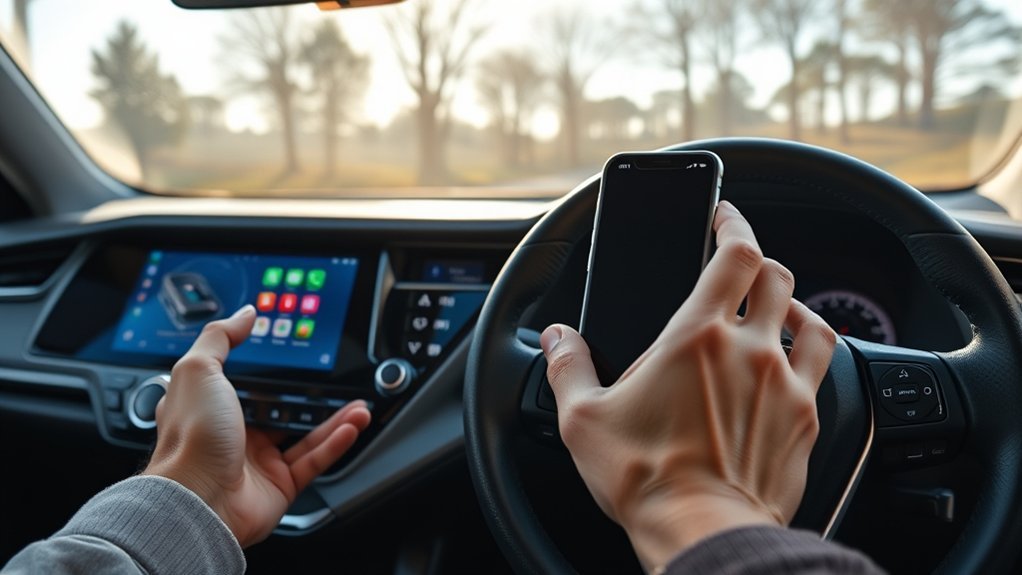
You can connect an iPhone to a 2025 Toyota RAV4 without a cable using wireless Apple CarPlay. It puts compatible navigation, calling, messaging, and music apps on the Toyota screen. If you only need calls or audio, standard Bluetooth pairing is another wireless option.
Quick Answer
On your iPhone, turn on Siri, Bluetooth, and Wi-Fi. In your 2025 RAV4, open Settings > Bluetooth & Devices > Add another device > Search for devices. Select your iPhone, match the PIN, and choose Yes when asked to enable Apple CarPlay. You do not need a USB cable for this wireless setup.
At a Glance
| Tools Needed | Compatible iPhone and 2025 RAV4 multimedia system; no cable required |
| Cost | No Toyota subscription needed for Apple CarPlay itself |
Check if Your RAV4 Supports Wireless CarPlay
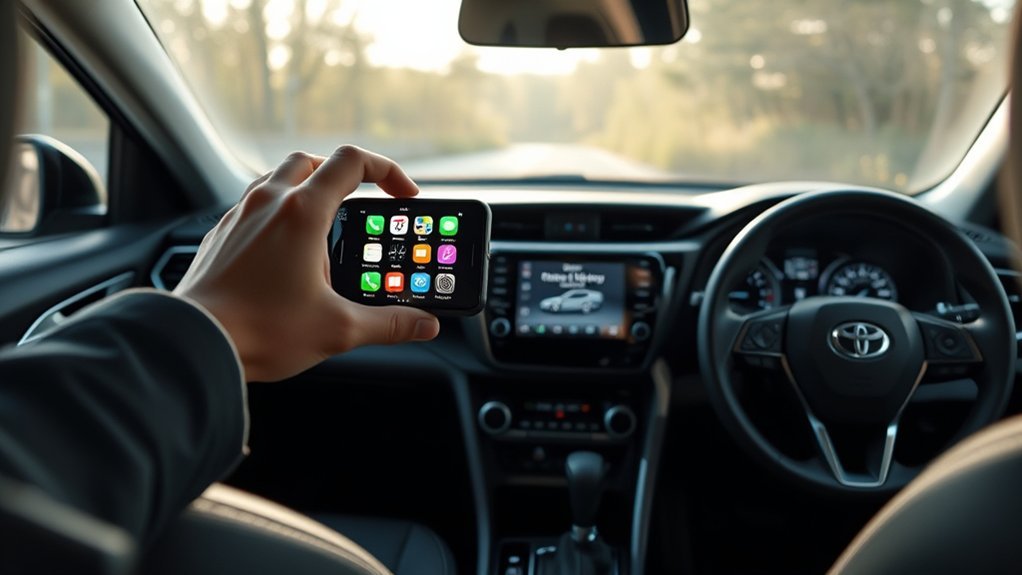
Wireless Apple CarPlay is standard on U.S.-market 2025 Toyota RAV4 models, including the gas and hybrid lineups. Toyota identifies it as a standard feature, not one reserved for upper trims or optional audio packages. See Toyota’s 2025 RAV4 feature announcement.
The standard Toyota Audio Multimedia screen may be 8 or 10.5 inches, depending on trim; both support wireless CarPlay. If your RAV4 was imported from another region or has an aftermarket stereo, check that particular system’s documentation before following the steps below.
CarPlay and ordinary Bluetooth are different. Bluetooth alone handles phone calls and music, while CarPlay also displays compatible iPhone apps on the vehicle screen.
Get Your iPhone Ready for RAV4 CarPlay
Prepare your iPhone before opening the Toyota pairing menu. Wireless CarPlay uses Bluetooth to begin connecting and Wi-Fi for the CarPlay connection, so both radios must be available.
Enable Siri and CarPlay
Open your iPhone’s Settings and make sure Siri is enabled. The Siri menu name and available switches vary by iOS version. If CarPlay is blocked by Screen Time restrictions, allow it under Settings > Screen Time > Content & Privacy Restrictions > Allowed Apps.
You can manage connected vehicles under Settings > General > CarPlay. Your RAV4 normally appears here after you begin or complete pairing; an empty list before setup does not mean the car is incompatible.
Update iPhone Settings
Open Settings > Bluetooth and Settings > Wi-Fi to confirm both are on. Install available iOS updates if you have had connection problems, then keep the iPhone unlocked during initial pairing so you can accept the prompts.
For a previously paired RAV4, check the car’s entry under General > CarPlay. Apple’s iPhone CarPlay connection guide also explains the wireless connection and Wi-Fi Auto-Join setting.
Pair Your iPhone to RAV4 Wirelessly
The 2025 RAV4 lets you register a new iPhone directly through its touchscreen. Follow Toyota’s wireless Apple CarPlay instructions while the vehicle is safely parked.
- Start the vehicle and leave the multimedia display on.
- Tap the Settings gear on the Toyota screen.
- Select Bluetooth & Devices.
- Choose Add another device, then Search for devices. If no phones have been registered, the search screen may open automatically.
- Choose your iPhone from the device list.
- Check that the PIN on the Toyota display matches the one on your iPhone, then approve the pairing prompts.
- When the vehicle asks whether to use Apple CarPlay, tap Yes. Accept any related permission prompts on your phone.
The CarPlay home screen should appear after the connection completes. If you only receive a Bluetooth connection, check the CarPlay setting for your registered device in the next section.
Enable Wireless CarPlay on Your RAV4
If your iPhone is already paired for calls but CarPlay does not open, it may not be enabled for that phone. In the RAV4’s Settings > Bluetooth & Devices menu, select the registered iPhone and switch on Use for Apple CarPlay if it is off.
Follow any connection prompts. If CarPlay does not appear automatically, select the CarPlay icon on the vehicle display. Once connected, you can use supported apps for directions, messages, calls, and music.
A Lightning cable is not required for the first wireless pairing. A compatible USB data cable is an optional way to use wired CarPlay or help diagnose a connection issue. Choose a cable that matches your iPhone’s connector; newer iPhones may use USB-C instead of Lightning.
Toyota states that Apple CarPlay needs no Toyota subscription or registration. A streaming app or mobile data plan may have its own charges.
Fix RAV4 Wireless CarPlay Connection Problems
If the RAV4 finds your iPhone but wireless CarPlay will not start, check the settings in order. Test the connection after each fix so you can identify what caused the problem.
- Confirm the CarPlay toggle: On the RAV4, open Bluetooth & Devices, select your iPhone, and check Use for Apple CarPlay.
- Check Wi-Fi: On the iPhone, make sure Wi-Fi is on. If a CarPlay network appears under Wi-Fi settings, check that Auto-Join is enabled.
- Check Siri and restrictions: Siri must be on, and CarPlay must be allowed under Screen Time’s Allowed Apps.
- Restart both systems: Restart your iPhone and turn the vehicle off and back on safely.
- Check iPhone permissions: Under Settings > General > CarPlay, select your RAV4 and review the connection settings shown.
- Re-pair if needed: Select Forget This Car on the iPhone, remove the saved iPhone from the Toyota’s Bluetooth device list, and repeat the wireless setup. This deletes the previous pairing.
- Review software updates: Check the RAV4’s software-update menu or ask a Toyota dealer to confirm whether a multimedia update applies to your vehicle.
These checks follow Apple’s CarPlay troubleshooting guidance. If several compatible iPhones fail in the same RAV4, the multimedia system may need dealer diagnosis.
Stop RAV4 CarPlay From Taking Over Audio
When CarPlay connects, audio from an iPhone app may interrupt your preferred radio or other source. Open the Toyota multimedia Sources menu and select the station or input you want. You can also pause playback in the iPhone app.
Switching sources does not always prevent future playback interruptions. If you want Bluetooth calling or audio without CarPlay launching, open Bluetooth & Devices, choose the iPhone, and turn off Use for Apple CarPlay while keeping the phone or media functions enabled.
On your iPhone, Settings > General > CarPlay > Forget This Car removes the CarPlay pairing entirely. Use that option when you want to set up the car again, not merely to change the audio source. Do not turn off iPhone Wi-Fi to control CarPlay audio; the wireless connection depends on it.
Use Bluetooth if RAV4 Wireless CarPlay Fails
Regular Bluetooth is a useful fallback when CarPlay is unavailable. It supports hands-free calls and audio streaming, but it does not display Apple Maps or other CarPlay apps on the RAV4 screen.
- In the RAV4’s Bluetooth & Devices menu, select your already paired iPhone. If it is missing, register it using the pairing procedure above.
- Turn on the phone and media functions for that device, and turn off Use for Apple CarPlay if you want Bluetooth-only operation.
- Choose Bluetooth audio from the Toyota Sources menu, or make a hands-free test call to confirm the connection.
If Bluetooth pairing also fails after you clear the old pairing on both sides, try a second phone. That helps identify whether the fault is with the iPhone or the vehicle.
Make RAV4 CarPlay Reconnect Automatically
After successful pairing, the RAV4 should normally reconnect to your iPhone at startup without another setup session. Keep Bluetooth and Wi-Fi enabled on the phone, and leave Use for Apple CarPlay active for the saved device.
If the car connects to another saved phone instead, review the primary and secondary device settings in the Toyota Bluetooth menu. On the iPhone, check the saved RAV4 entry under Settings > General > CarPlay and the CarPlay network’s Wi-Fi Auto-Join option if shown.
You do not need to hold the steering-wheel voice button every time you drive. That control is primarily used for Siri once CarPlay is running. If automatic reconnection stops working, repeat the troubleshooting steps before deleting the pairing.
Key Takeaways
- A Bluetooth connection alone does not provide the CarPlay app interface. Approve Apple CarPlay separately when the Toyota prompts you.
- If the phone pairs but CarPlay stays off, check Use for Apple CarPlay in the vehicle device settings.
- If the connection stops working after an update, review iPhone permissions before deleting the saved pairing.
- For unwanted audio switching, change the Toyota source or turn off CarPlay for that device rather than disabling iPhone Wi-Fi.
Frequently Asked Questions
How to Hook up iPhone to RAV4?
Turn on your iPhone’s Siri, Bluetooth, and Wi-Fi. In the 2025 RAV4, go to Settings, then Bluetooth & Devices, and search for your iPhone. Confirm the matching PIN and approve Apple CarPlay. You can then use compatible apps through the Toyota display without plugging in a cable.
How Do I Connect My Phone to My Car Without a Cord?
Use wireless CarPlay for iPhone apps on a compatible vehicle screen, or standard Bluetooth for calls and music. On the 2025 RAV4, both begin in the Bluetooth & Devices menu. CarPlay also needs iPhone Wi-Fi and Siri enabled. Follow the phone and vehicle prompts to approve the connection.
Why Won’t My Toyota RAV4 Connect to My Phone?
A saved pairing, disabled Bluetooth, or a connection setting can stop your RAV4 from finding the phone. Check that the vehicle’s phone or CarPlay function is enabled and restart both devices. If that fails, delete the old pairing on both sides and register the phone again.
Why Can’t I Connect My iPhone to My Toyota?
Your iPhone may be paired for Bluetooth audio but not authorized for Apple CarPlay. Check Use for Apple CarPlay in the Toyota device settings. Also confirm that Siri, Bluetooth, and Wi-Fi are enabled and that Screen Time does not block CarPlay. Update software if the issue continues.
Do I Need a USB Cable for Wireless CarPlay in a 2025 RAV4?
No. The U.S.-spec 2025 RAV4 supports direct wireless CarPlay registration from its Bluetooth & Devices menu. You may use a compatible data cable for wired CarPlay, but a first-time USB connection is not a requirement for wireless setup. Pair and approve CarPlay through the vehicle display instead.
Does Wireless Apple CarPlay Require a Toyota Subscription?
No. Toyota says Apple CarPlay itself does not require a subscription or Toyota account registration. You can use its supported phone functions without buying a Toyota Wi-Fi Connect plan. Cellular data use and subscriptions for apps such as music streaming are separate from the CarPlay feature.
Conclusion
For a U.S.-market 2025 RAV4, wireless CarPlay is built in. Start in Bluetooth & Devices, approve the PIN and CarPlay prompts, and keep Siri, Bluetooth, and Wi-Fi enabled. If CarPlay will not connect, check its device toggle and iPhone permissions first; regular Bluetooth can still handle calls and music while you troubleshoot.
Sources
- Toyota USA: 2025 RAV4 feature announcement: Standard wireless Apple CarPlay and multimedia equipment.
- Toyota: 2025 RAV4 multimedia manual: Direct wireless pairing and confirmation steps.
- Apple: Connect iPhone to CarPlay: iPhone connection and Wi-Fi requirements.
- Apple: If you need help with CarPlay: Permissions, reconnection, and troubleshooting.
- Toyota: Apple CarPlay overview: Features and subscription requirement.

