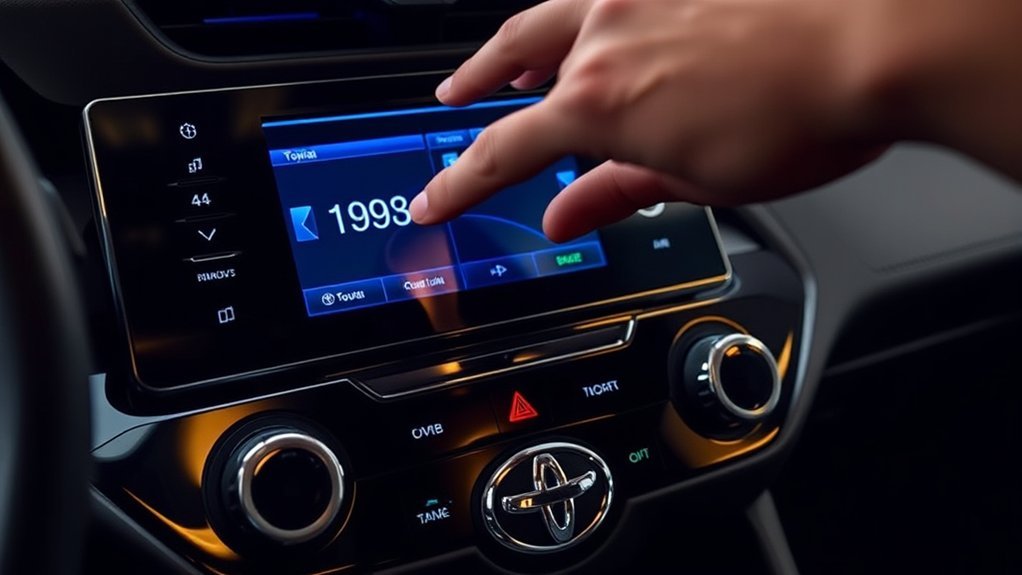
Changing the time on a Toyota RAV4 takes only a few minutes, but the exact menu depends on the model year and multimedia system. On a 2026 RAV4, use Settings > General > Date & Time and leave Set date and time automatically on for automatic updates. On 2023–2025 Toyota Audio Multimedia systems, the comparable setting is Set date & time by GPS. Many 2019–2022 RAV4s use MENU > Setup > General > Clock, while some older models use separate H and M buttons.
Last updated: September 19, 2026
Quick Answer
To change the time on a 2026 Toyota RAV4, park the vehicle, touch the Settings gear, select General, then Date & Time. Keep Set date and time automatically on for automatic GPS-based time. For manual control, turn it off; if Set time automatically appears, turn that off too, then use Set time manually. On 2023–2025 systems, the top automatic setting is usually labeled Set date & time by GPS.
Key Takeaways
- 2026 RAV4 systems use Settings > General > Date & Time, with a top-level Set date and time automatically control.
- 2023–2025 Toyota Audio Multimedia systems use the same general path but commonly label the top automatic setting Set date & time by GPS.
- Many 2019–2022 RAV4s use MENU > Setup > General > Clock.
- If the clock is exactly one hour wrong, check the time zone and daylight saving setting before changing the minutes.
- Some older RAV4s use physical H and M buttons for a separate dashboard clock.
At a Glance
| Time Required | 2–5 minutes |
| Difficulty | Easy |
| Tools Needed | None |
| Cost | $0 |
Warning: Park the vehicle before opening clock or multimedia settings. Do not make touchscreen adjustments while driving.
Choose the Correct RAV4 Clock-Setting Method
Toyota has used several clock controls across RAV4 generations. The 2026 RAV4 also introduced an updated multimedia interface, so it is useful to identify your system before following a clock-setting procedure.
| System | How to Recognize It | Clock Menu |
| 2026 RAV4 Multimedia | Updated Toyota Audio Multimedia interface with a Settings gear and configurable home/quick-control layout. | Settings > General > Date & Time |
| 2023–2025 Toyota Audio Multimedia | A Settings gear appears on the touchscreen’s main menu. | Settings > General > Date & Time |
| 2019–2022 Entune-Based System | A physical MENU button sits beside the touchscreen. | MENU > Setup > General > Clock |
| Older Separate Dashboard Clock | H and M buttons appear beside or below the clock. | Use H for hours and M for minutes. |
How to Change the Time on a 2026 Toyota RAV4
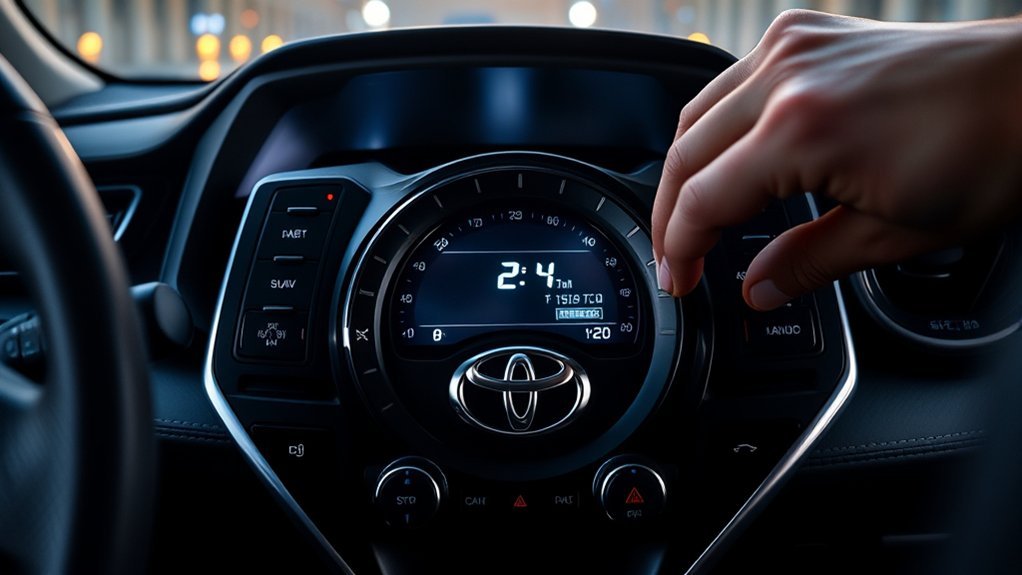
The 2026 RAV4 uses an updated version of Toyota Audio Multimedia. Its clock menu is still under Settings > General > Date & Time, but Toyota changed the main automatic-time label to Set date and time automatically.
- Park the RAV4 and switch the vehicle to ON mode so the multimedia display is active.
- Touch the Settings gear on the main menu.
- Select General.
- Select Date & Time or Date and time.
- Leave Set date and time automatically on if you want the system to use GPS information and map data to set the clock.
- For manual control, turn Set date and time automatically off.
- If Set time automatically is available, turn it off to enable Set time manually.
- Set the hour and minutes, then check the time zone, daylight saving setting, and 12- or 24-hour format as needed.
- Return to the home screen and confirm that the vehicle clock shows the correct time.
Pro Tip: On the 2026 multimedia system, touching the current time in the quick-control area can open the date-and-time settings screen directly.
How to Change the Time on a 2023–2025 RAV4
RAV4s with the previous Toyota Audio Multimedia interface also use the Settings gear and Date & Time menu, but the main automatic setting is labeled Set date & time by GPS.
- Park the vehicle and switch the ignition or power system on so the multimedia display is active.
- Touch the Settings gear.
- Select General.
- Select Date & Time.
- Leave Set date & time by GPS on for automatic updates based on GPS and map data.
- To set the clock yourself, turn Set date & time by GPS off. Then turn Set time automatically off if that option appears.
- Use Set time manually, then verify the time zone, daylight saving setting, and 12- or 24-hour format.
Why an Accurate RAV4 Clock Matters
An accurate clock helps you read the correct local time and understand arrival times shown by navigation. It also prevents confusion when you cross a time-zone boundary or switch between standard time and daylight saving time.
Changing the dashboard clock does not normally change the route selected by navigation. However, an incorrect vehicle time or time-zone setting can make the displayed local or arrival time appear wrong.
GPS Time Versus Manual Time
The best setting depends on your RAV4’s multimedia generation. Automatic GPS-based time is usually the simplest choice, while manual time gives you direct control when the automatic setting is unavailable or incorrect.
- 2026 — Set date and time automatically: Uses GPS information and map data to set the clock. Turning it off enables manual time-zone and time controls.
- 2023–2025 — Set date & time by GPS: Uses GPS information and map data to set the clock. Turning it off enables manual controls.
- Set time automatically: On systems that show this secondary setting, it can continue using GPS for the time after the main date-and-time automatic setting is turned off.
- Time zone: Controls the local offset. A wrong zone can make the clock one or more hours incorrect.
- Daylight saving: Applies the seasonal one-hour adjustment. Choices may include Automatic or Auto, On, and Off.
- Set time manually: Becomes available after the relevant automatic-time setting is turned off.
- 24-hour time: Changes the display format but does not change the actual time.
Note: Menu names and available settings vary by multimedia equipment, trim, model year, and sales market. Use the owner’s or multimedia manual for your exact RAV4 when the labels do not match.
How to Set Daylight Saving Time Correctly
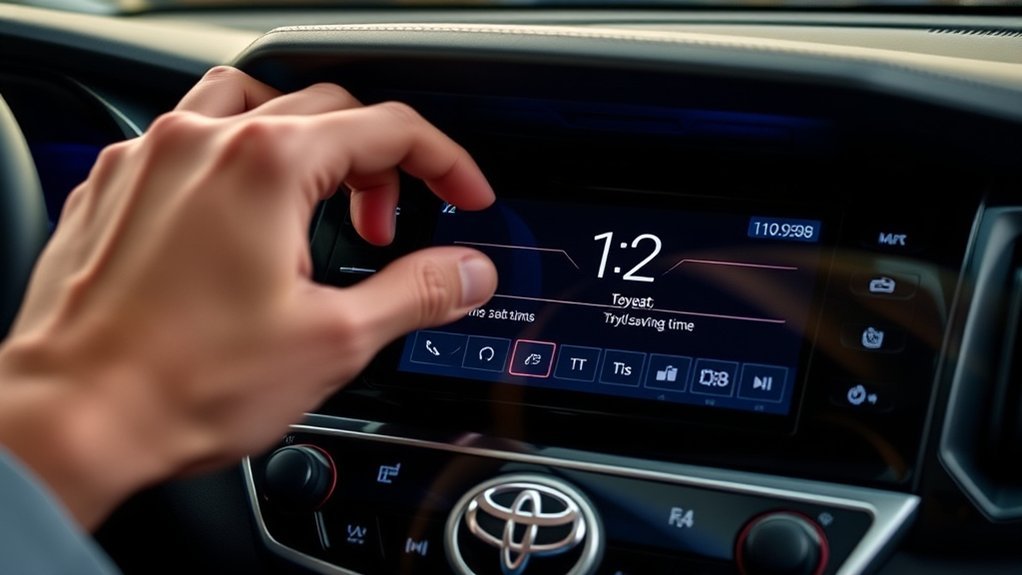
Do not automatically turn the daylight saving option off whenever the clock is wrong. The correct selection depends on the season, your location, and whether the RAV4 offers an Automatic or Auto setting.
- Automatic or Auto: Select this when available and when you want the system to apply the seasonal change automatically.
- On: Use this during daylight saving time when you are managing the setting manually.
- Off: Use this during standard time or in a location that does not observe daylight saving time.
In most of the United States, daylight saving time starts at 2 a.m. on the second Sunday in March and ends at 2 a.m. on the first Sunday in November. Hawaii and most of Arizona do not observe it; the Navajo Nation in Arizona is an exception and does observe daylight saving time. Other countries and regions use different rules.
A clock that is exactly one hour wrong usually points to the daylight saving or time-zone setting, not a problem with the clock itself.
How to Change the Clock on a 2019–2022 RAV4
Many U.S.-market RAV4s from this period use an Entune-based multimedia system with a physical MENU button next to the display.
- Park the vehicle and turn the ignition to ACCESSORY or ON.
- Press the physical MENU button beside the touchscreen.
- Select Setup.
- Select General if the General settings screen is not already displayed.
- Select Clock.
- Choose the correct time zone and daylight saving setting.
- Leave Auto Adjust by GPS on for automatic time, or turn it off for manual adjustment.
- For manual time, use the on-screen hour and minute controls, then select the 12- or 24-hour display format if available.
On these systems, the reliable menu path is MENU > Setup > General > Clock. Equipment can still vary by trim and market, so use the multimedia manual for your exact RAV4 if the labels differ.
How to Set the Clock on an Older RAV4
Some older RAV4s have a separate digital clock in the dashboard with physical buttons. Toyota’s 2015 RAV4 quick reference guide, for example, identifies H as the hour control and M as the minute control.
- Press or hold H to advance the hour.
- Press or hold M to advance the minutes.
- Check the AM or PM position if the clock uses a 12-hour format.
Older RAV4 multimedia packages are not all identical. If your vehicle does not have H and M buttons, look for Setup, Apps, or General menus and then a Clock setting. Match the procedure to the controls actually installed in the vehicle.
What to Do If the RAV4 Clock Is Still Wrong
| Problem | Likely Cause | What to Try |
| Clock is one hour wrong | Wrong daylight saving or time-zone setting | Check the time zone first, then select Automatic/Auto, On, or Off for daylight saving time. |
| Manual controls are unavailable | Automatic date/time or GPS time is enabled | Turn off the main automatic date/time setting. On systems that also show Set time automatically, turn that off too. |
| Manual time changes back | An automatic setting is overriding the entry | Reopen Date & Time or Clock and confirm that every automatic-time control is off before entering the time manually. |
| Automatic time is wrong | Wrong time zone or automatic-time setting | Verify the time zone and automatic-time setting, then allow the system to refresh. If needed, switch to manual time temporarily. |
| Clock menu is missing | Different multimedia generation or trim | Look for Settings, MENU, Setup, General, Date & Time, Clock, or physical H/M buttons. |
| Clock changed after battery service | Stored settings may have been lost or reset | Recheck the time, time zone, automatic-time, and daylight saving settings. |
If the clock remains incorrect after you verify these settings, restart the multimedia system or vehicle and check again. Consult the Toyota manual for your exact model year before performing a full system reset because a reset may remove saved preferences or connected devices.
Frequently Asked Questions
How do I change the time on a 2026 Toyota RAV4?
Park the vehicle and open Settings > General > Date & Time. Leave Set date and time automatically on for GPS-based time. To set the time yourself, turn that setting off, then turn off Set time automatically if it appears and use Set time manually.
Why can’t I change the RAV4 time manually?
An automatic-time setting is probably still enabled. Turn off Set date and time automatically or Set date & time by GPS. If the system also shows Set time automatically, turn that off before selecting the manual-time control.
Can I change the RAV4 time without using the audio system?
Yes, on some older RAV4s. A separate dashboard clock may have H and M buttons for the hour and minutes. Newer models normally place clock controls in the multimedia system.
Does disconnecting the battery reset the RAV4 clock?
It may. The result depends on the model year, multimedia unit, and how long power was disconnected. Check the clock, time zone, automatic-time, and daylight saving settings after battery service.
Why can’t I find a Date & Time menu?
Your RAV4 may use an older multimedia system. On many 2019–2022 models, press MENU and open Setup > General > Clock. If the vehicle has a separate digital clock, look for H and M buttons near the display.
Will changing the clock affect the navigation system?
Changing the clock may correct the local or arrival time displayed by navigation, but it does not normally change the route itself. GPS-equipped systems may also use location information to set the vehicle clock.
Why is the Toyota RAV4 clock exactly one hour fast or slow?
An exact one-hour error usually means the daylight saving option or time zone is wrong. Verify the time zone, then select Automatic or Auto where available, or choose On or Off for the current season and location.
Conclusion
To change the time on a 2026 Toyota RAV4, open Settings > General > Date & Time. Keep Set date and time automatically on for the simplest setup, or turn off the automatic controls to enter the time manually. On 2023–2025 systems, look for Set date & time by GPS. Many 2019–2022 models use MENU > Setup > General > Clock, while some older RAV4s use H and M buttons.
If the clock is one hour wrong, check the time zone and daylight saving setting first. If the manual controls are unavailable, disable the relevant automatic-time setting before trying to enter the hour and minutes.
Sources
- Toyota 2026 RAV4 Multimedia Owner’s Manual — 2026 Date & Time menu, automatic-time labels, manual-time controls, and quick-control shortcut.
- Toyota USA Newsroom: Latest Evolution of Toyota Audio Multimedia — confirms the enhanced multimedia generation debuted with the 2026 RAV4.
- Toyota 2024 RAV4 Quick Reference Guide — Settings, General, Date & Time path and GPS-time recommendation.
- Toyota 2022 RAV4 Quick Reference Guide — time zone, daylight saving, GPS adjustment, and manual-clock options.
- Toyota 2019 RAV4 Hybrid Quick Reference Guide — MENU, Setup, General, and Clock instructions for Entune systems.
- Toyota 2015 RAV4 Quick Reference Guide — H and M controls for the separate dashboard clock.
- NIST Local Time FAQs — official U.S. daylight saving start and end rules and regional exceptions.

