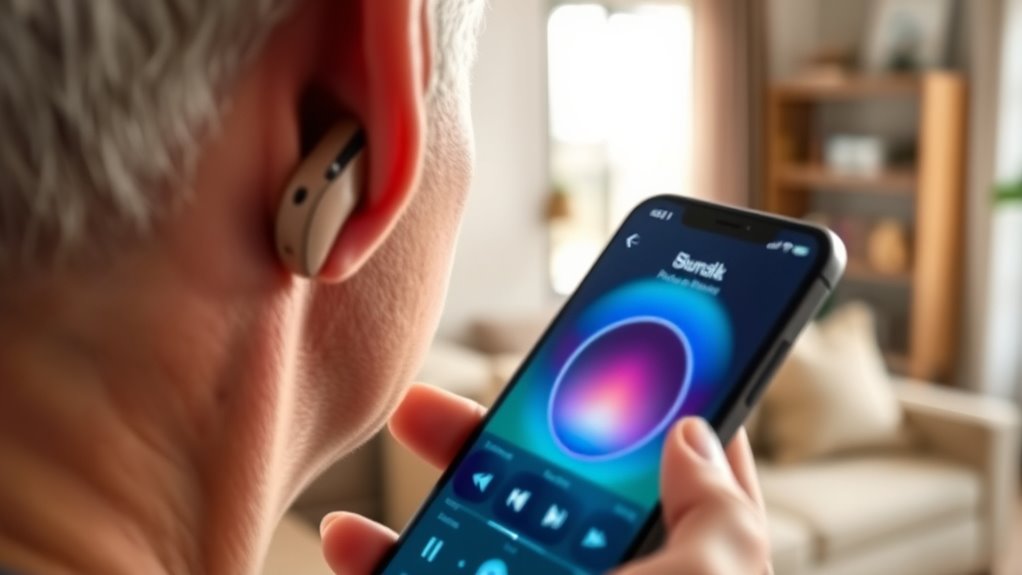
Phonak Bolero hearing aids can stream audio from an iPhone once Bluetooth pairing is completed correctly. Bluetooth should be enabled on the iPhone first. Rechargeable models enter pairing mode after 10 seconds in the charger, while battery models pair after opening and closing the battery doors. The myPhonak app can confirm device detection and manage settings. If pairing fails, restart both devices, verify battery status, and repeat setup. Further details clarify common connection faults and corrections.
Key Takeaways
- Turn on Bluetooth on the iPhone and make sure the Bolero hearing aids are charged and ready to pair.
- For rechargeable models, place them in the charger for about 10 seconds to enter pairing mode.
- For battery-powered models, open the battery doors for 5 seconds, then close them to start pairing mode.
- Open the myPhonak app, follow the pairing prompts, and approve requests for streaming and control access.
- If pairing fails, restart the iPhone and hearing aids, check battery levels, and reinstall the app if needed.
Turn On Bluetooth on Your iPhone
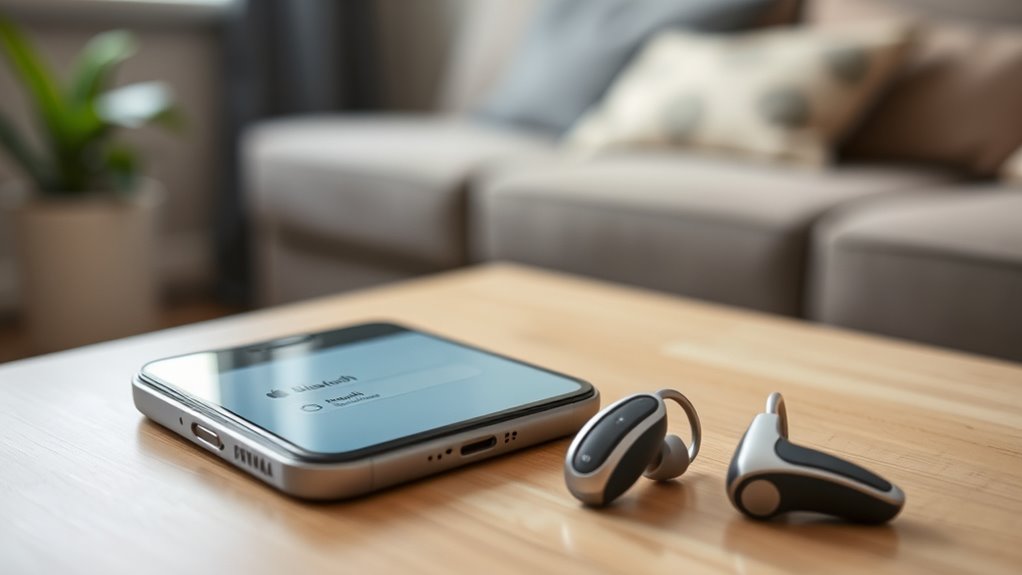
To activate Bluetooth on the iPhone, the user should open the Home Screen, tap the Settings icon, and select Bluetooth from the menu.
In Settings, the Bluetooth option appears in the list; it should be selected to proceed. The Bluetooth switch is then moved to the on position to enable Bluetooth.
Once active, the iPhone can detect nearby Bluetooth devices more reliably. For a liberation-oriented workflow, this step removes dependence on wired constraints and prepares the system for wireless access.
The hearing aids should remain charged and already in pairing mode before connection attempts begin. After Bluetooth is enabled, the iPhone should be checked for discoverable status by reviewing the Bluetooth devices list for nearby devices.
If the devices are not visible, the user should confirm that Bluetooth remains on and that the hearing aids are prepared for pairing. This establishes the necessary conditions for subsequent streaming setup.
Put Phonak Hearing Aids in Pairing Mode
With Bluetooth already enabled on the iPhone, the next step is to place the Phonak hearing aids into pairing mode so they can be detected by nearby devices.
For rechargeable hearing aids, put Phonak hearing aids in pairing mode by placing each unit in its charger for at least 10 seconds, then removing it; a green blink confirms readiness.
For models using a battery, open the battery doors for 5 seconds, then close them to trigger pairing automatically. After restart, the aids remain discoverable for up to 3 minutes, supporting rapid, controlled pairing.
During this interval, the iPhone should be checked in the Settings menu under Bluetooth, where an R-Phonak hearing aid or L-Phonak device may appear. Selecting the correct entry completes the connection, after which the aid is connected and usable.
The myPhonak app may also confirm status, while the auto-on feature preserves immediate responsiveness and user autonomy.
Pair Rechargeable Phonak Hearing Aids
Rechargeable Phonak Bolero hearing aids should be placed in the charger for at least 10 seconds, then removed to initiate pairing mode, confirmed by a green blinking indicator.
The charger must remain connected to power, or the internal battery must be sufficiently charged, to support this process.
Once active, the iPhone Bluetooth menu can be used to locate the devices and confirm connection by the audible pairing beep.
Enter Pairing Mode
A brief charge-cycle activation is required before rechargeable Phonak hearing aids can enter Bluetooth pairing mode: place both devices in the charger for at least 10 seconds, with the charger connected to power or holding sufficient battery, then remove them. This pairing process frees the user to accept an iPhone Bluetooth pairing request for audio streaming. If needed, restart hearing aids by pressing the lower button until red, then again until green. A blinking green light signals readiness, and the rechargeable hearing aids remain discoverable for 3 minutes.
| Indicator | Meaning |
|---|---|
| Green blink | enter pairing mode |
| Red blink | restart hearing aids |
| Three minutes | limited pairing window |
| Charger connected | pairing process enabled |
| iPhone ready | Bluetooth pairing request awaited |
Confirm iPhone Connection
Once the rechargeable Phonak hearing aids are charged and blinking green in pairing mode, the iPhone connection can be verified through the Bluetooth menu.
The user should open iPhone settings, select Bluetooth, and confirm that Bluetooth is on. In the device list, the hearing aids may appear as R-Phonak or L-Phonak.
When the devices are paired, a beep is emitted, and the status changes to connected. At that point, streaming can proceed without interruption.
If the Phonak units do not appear, the recharge cycle should be checked, then pairing repeated. The app may also reflect the connection state, but Bluetooth settings remain the primary verification point.
This procedure restores direct access, enabling controlled hearing support with minimal dependence on outside assistance.
Pair Battery-Powered Phonak Hearing Aids
Battery-powered Phonak hearing aids are placed into pairing mode by opening the battery doors for 5 seconds and then closing them.
With Bluetooth enabled on the iPhone, the devices should appear in the Bluetooth list after a brief delay.
The user then selects the entries labeled R-Phonak and L-Phonak to complete pairing.
Open Battery Doors
To initiate pairing of battery-powered Phonak hearing aids with an iPhone, the battery doors should be opened for at least 5 seconds to reset the devices, then closed to place them in pairing mode.
This reset allows the pair Phonak hearing aids procedure to proceed efficiently. With the open battery doors action completed, the iPhone for Bluetooth should scan nearby Bluetooth devices while the hearing aids will automatically remain discoverable for several seconds.
Their hearing aid names, commonly R-Phonak or L-Phonak, should appear in the device list so the user can detect them. The operator should tap on the Bluetooth entry corresponding to each aid and allow the connection to finalize.
A brief beep from the instruments serves to confirm successful pairing and restored wireless access.
Select Phonak In Bluetooth
With Bluetooth enabled on the iPhone under Settings > Bluetooth, the user should wait a few seconds for the hearing aids to appear in the device list, typically as “R-Phonak” or “L-Phonak.” The appropriate Phonak entry should then be selected to initiate pairing; in many cases, only one aid must be connected for audio streaming to both devices.
| Action | Expected result |
|---|---|
| Select Phonak | Pair request begins |
| Listen for beep | Pairing is confirmed |
| Stream media | Calls and audio reach both hearing aids |
After selection, the iPhone should confirm the connection without delay. A beep from the hearing aids indicates successful pairing and operational readiness. Once linked, the user gains direct audio streaming from calls, media, and other devices through the Phonak system. This configuration supports controlled access to sound, reducing dependence on external intermediary equipment and enabling clearer, more liberated listening.
Connect Phonak Hearing Aids to myPhonak
The myPhonak app is installed from the Apple App Store, and the iPhone Bluetooth function is enabled before initiating pairing. With the myPhonak app open, the user follows prompts to the Pair Device screen for Bluetooth pairing of hearing aids to iPhone.
Phonak hearing aids must then be restarted to enter pairing mode, allowing detection within the app.
- Tap Pair Device when the hearing aids appear.
- Confirm both units are identified as Le_R and Le_L.
- Approve any pairing requests shown on the iPhone.
- Verify successful pairing before proceeding.
After successful pairing, the connection supports audio streaming and direct access to personalized adjustments.
The myPhonak app then serves as the control interface for Phonak hearing aids, enabling discreet management of listening parameters.
This process establishes user autonomy through a precise, low-friction setup, reducing dependence on external handling.
The resulting link between hearing aids and iPhone is stable when the pairing sequence is completed in order and without interruption.
Fix Pairing and Audio Problems
When pairing or streaming fails, the first variable to verify is Bluetooth status on the iPhone and whether the hearing aids are still within their 3-minute pairing window after restarting or after 10 seconds in the charger. Confirm pairing mode remains active, then inspect the audio output device settings. | Check | Action |
| — | — |
|---|---|
| Bluetooth | Enable on iPhone |
| Hearing aids | Confirm pairing mode |
| Audio output device | Select hearing aids |
| Battery levels | Replace or recharge |
| myPhonak app | Verify detection |
A restart of both the iPhone and hearing aids frequently clears transient connection issues and restores audio streaming. Low battery levels can degrade synchronization; disposable models should receive fresh cells. In the myPhonak app, both hearing aids should appear paired and detected. If not, remove the app and reinstall it before repeating setup. Each step supports user autonomy by eliminating avoidable barriers to hearing aids access. Persistent faults usually indicate a configuration mismatch rather than hardware failure.
Frequently Asked Questions
How Do I Stream Music on myPhonak Hearing Aid?
Enable Bluetooth, pair the iPhone with the myPhonak hearing aid, and open a music app; audio should route automatically. Hearing aid compatibility, streaming app options, and sound customization features support audio quality improvement and troubleshooting connectivity issues.
How Do I Watch TV on My Bluetooth Hearing Aid?
He pairs the hearing aids to a TV or transmitter, then streams audio directly. Bluetooth compatibility issues, audio quality concerns, and troubleshooting connectivity problems often improve with hearing aid accessories, app features overview, and sound balance adjustments.
What iPhone Settings Affect Hearing Aid Use?
Bluetooth, accessibility, and routing determine performance; 71% of users report better clarity with iPhone accessibility features. He notes Bluetooth pairing process, hearing aid compatibility, sound quality adjustments, hearing aid app, notifications settings, audio routing options, volume control methods, device battery management, iPhone software updates.
Why Is myPhonak Hearing Aid Not Connecting to Bluetooth?
Bluetooth connection may fail due to common connection issues, outdated software, or pairing errors. Effective Bluetooth troubleshooting tips include software updates importance, resetting hearing aids, checking Hearing aid compatibility, Battery life considerations, and support resources available.
Conclusion
In conclusion, Phonak Bolero iPhone Bluetooth streaming depends on correct activation, pairing, and app integration. Once Bluetooth is enabled on the iPhone and the hearing aids are placed in pairing mode, the connection process is usually straightforward for both rechargeable and battery-powered models. Linking the devices to myPhonak adds further control. If problems arise, systematic troubleshooting restores function. When configured properly, the system operates like a calibrated bridge between speech and hearing.
