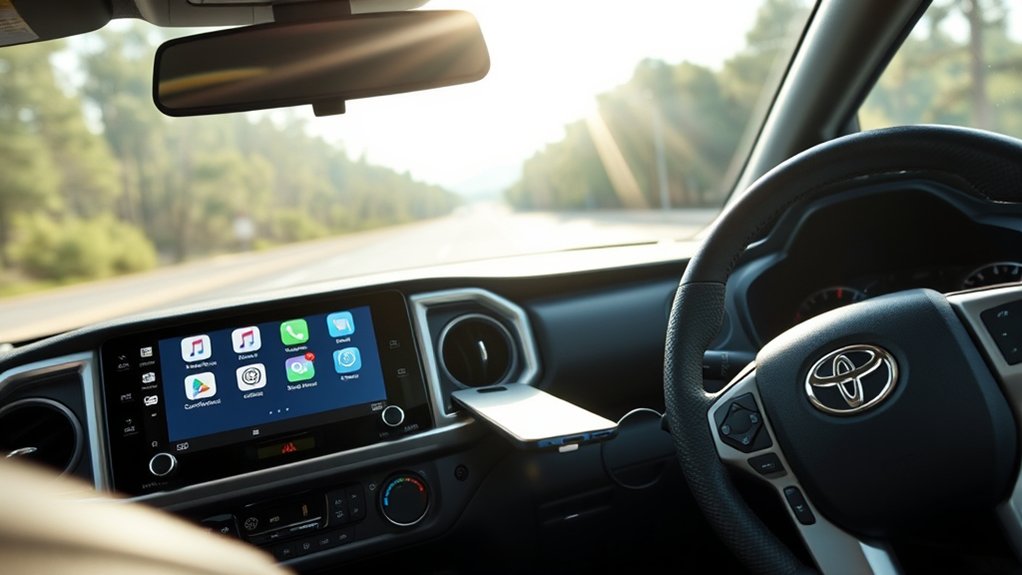
Connecting a Samsung phone to a 2018 Toyota Tacoma through Bluetooth lets you make hands-free calls and play music without a cable. However, the factory receiver has limits, especially when several phones have been paired. This guide explains the correct setup, how automatic reconnection works, and what to do when your Samsung Galaxy connects to the wrong device or stops playing audio.
Quick Answer
To connect a Samsung Galaxy to a 2018 Toyota Tacoma, enable Bluetooth on your phone, open the truck’s Bluetooth setup menu, and select Add Device or Add. Choose the Toyota receiver on your phone and confirm pairing. The factory system supports calls and music streaming, but not Android Auto or Apple CarPlay.
Last checked: October 23, 2026. Dates and figures were verified against official sources.
At a Glance
| Difficulty | Easy |
| Tools Needed | Samsung Galaxy phone and Tacoma factory Bluetooth receiver |
| Cost | Free using built-in Bluetooth |
How to Connect a Samsung to a 2018 Tacoma
The 2018 Toyota Tacoma uses its Entune multimedia system to pair compatible Samsung phones. The process requires Bluetooth to be enabled on both devices. Menu labels vary slightly between the standard Entune Audio receiver and the available Audio Plus or Premium Audio systems.
)
Warning: Park the truck before pairing your phone. Toyota states that Bluetooth registration must not be performed while driving. Finish setup and test the connection before entering traffic.
Step-by-Step Samsung Bluetooth Pairing
- Turn on the Tacoma’s multimedia system. With the truck parked, switch the ignition to ACC or ON so the receiver is operating.
- Enable Bluetooth on your Samsung. Open Settings, select Connections, and tap Bluetooth. Turn it on and leave the Bluetooth settings screen open.
- Open Bluetooth setup in the Tacoma. On standard Entune Audio, press SETUP and select Bluetooth. On Audio Plus or Premium Audio, use the APPS button, then Setup and Bluetooth, or the corresponding Home screen controls.
- Select Add Device or Add. The receiver displays its Bluetooth device name and begins the registration process.
- Find the Tacoma on your Samsung. Look under Available devices and select the name shown on the truck’s screen.
- Confirm the pairing request. Check that the displayed codes match, or enter the provided PIN if requested. Phones using Secure Simple Pairing may not require manual PIN entry.
- Allow the connection to finish. Wait until the Tacoma reports Connected. Approve contacts and call permissions on the Samsung if you want hands-free calling and phonebook access.
The truck should now recognize your phone. Toyota’s 2018 Tacoma Quick Reference Guide illustrates the original Android Bluetooth pairing process, including the receiver controls and confirmation screens.
Samsung also provides Galaxy-to-car Bluetooth pairing instructions for phones with different Android interface versions.
How to Confirm the Connection Worked
Once the system shows Connected, test both calling and audio playback. These are separate Bluetooth functions, so one may work even when the other does not.
- Calling: Open the Tacoma’s phone screen and check that your Samsung appears as the connected phone.
- Music: Press AUDIO, select the source menu, and choose Bluetooth Audio. Start playback on your Samsung.
- Contacts: If you allowed contact access, check whether the truck can display the phonebook.
- Automatic reconnection: After finishing setup, restart the receiver and check whether it reconnects to your Samsung.
If the phone is paired but music plays only through its own speaker, verify that the Tacoma is selected as the audio output and that Media audio is enabled in Samsung Bluetooth settings.
What Works on the 2018 Tacoma Receiver?
The factory 2018 Tacoma receiver supports hands-free phone calls, Bluetooth music streaming, and compatible phonebook functions. Depending on the equipped multimedia system and phone, additional voice and messaging features may be available. However, Bluetooth pairing alone does not display Samsung applications on the dashboard.
Features Available Through Bluetooth
- Hands-free calling: Place or answer calls using compatible dashboard or steering-wheel controls.
- Music and podcasts: Stream audio from your Samsung through the truck’s speakers.
- Phonebook access: Transfer supported contacts after approving the relevant phone permissions.
- Audio controls: Adjust volume and use supported playback controls through the receiver or steering-wheel buttons.
- Navigation voice prompts: Listen to directions from a phone navigation app through Bluetooth audio when the audio routing supports it.
Does the Factory Receiver Support Android Auto?
No. The original 2018 Toyota Tacoma receiver does not include Android Auto or Apple CarPlay. Toyota introduced those features with the updated multimedia system for the 2020 Tacoma.
Toyota confirmed this change in its official 2020 Tacoma multimedia announcement.
This distinction matters because Bluetooth can transmit music and calls without providing smartphone screen mirroring. Pairing a Samsung Galaxy does not make Google Maps, Android Auto, or other phone applications appear on the factory 2018 display.
On a factory-equipped 2018 Tacoma, Bluetooth supports phone calls and audio streaming. Android Auto and Apple CarPlay require compatible additional hardware.
What About Toyota Entune Navigation Apps?
Some 2018 Tacoma configurations included integrated Toyota navigation or connected navigation features. These should not be confused with Android Auto or Google Maps screen mirroring.
Toyota also ended support for several older connected applications, including Scout GPS Link, on October 30, 2023. Its App Suite retirement notice explains the affected services and confirms that ordinary Bluetooth pairing and audio functionality can continue.
If your Tacoma has built-in navigation, it operates separately from Bluetooth smartphone mirroring. Otherwise, you can use navigation on your Samsung phone and listen to supported voice directions through the speakers.
Why the 2018 Tacoma Connects to the Wrong Phone
The 2018 Tacoma can reconnect to an unintended phone when several registered devices are nearby. According to Toyota’s multimedia documentation, the receiver generally attempts to reconnect to the last connected device when it becomes available. This is different from always choosing the most recently paired phone.
For example, imagine you and another driver both use Samsung Galaxy phones. If the second driver’s phone was the last connected device, the Tacoma may reconnect to it the next time both phones are nearby.
The receiver can remember up to five Bluetooth devices, but storing several devices does not mean it can actively use every phone for calls and music at the same time.
How Automatic Reconnection Works
With Bluetooth Power enabled, the Tacoma searches for a previously registered device when the ignition enters ACC or ON mode. When the last connected phone is available, the system normally attempts to reconnect to it.
The 2018 Tacoma owner’s and multimedia manuals explain this automatic connection behavior and the available manual device-selection controls.
Connection trouble can also occur when:
- Another paired phone is closer or connects before the preferred device.
- Bluetooth has been disabled on the Samsung or the truck.
- Old pairing records remain on one device after being deleted from the other.
- The Galaxy is connected for calls but not Bluetooth audio.
- Two registered phones have similar device names, making selection confusing.
If two Galaxy phones have the same name, use their device information to distinguish them. On supported Toyota screens, the Bluetooth device address can help identify registrations that share a name.
The factory 2018 system does not offer the same preferred-device priority controls found on certain newer Toyota receivers. Do not assume that moving a phone to the top of a displayed list will change automatic connection priority.
How to Make Your Samsung Connect First
The most practical approach is to make your Samsung the last successfully connected phone and prevent other registered phones from competing during startup. This does not create a permanent priority rule, but it can improve reconnection behavior without deleting every stored device.
Method 1: Manually Select Your Samsung
- Park the Tacoma and turn on its multimedia system.
- Temporarily disable Bluetooth on other paired phones nearby.
- Open the Tacoma’s Setup menu and select Bluetooth.
- Choose your Samsung Galaxy from the list of registered devices.
- Select the available phone or audio connection function and wait for confirmation.
- Leave the Samsung connected when you finish using the truck.
On the next startup, the receiver should attempt to reconnect to the last connected device if it remains available. However, results can still depend on nearby devices and connection conditions.
Method 2: Remove Competing Phones
If the Tacoma repeatedly selects another driver’s phone, removing that stored registration can stop the conflict. This is more dependable than repeatedly changing pairing order without knowing which device the receiver is selecting.
- Open the Tacoma’s Bluetooth settings.
- Select the registered device you no longer want the truck to use.
- Choose Remove or the equivalent device-deletion option.
- Confirm the deletion.
- Reconnect your Samsung Galaxy manually if necessary.
Removing a Bluetooth phone from the Tacoma can also delete its stored contact data from the receiver. It does not erase the contacts stored on the Samsung itself.
If your household shares the truck, avoid removing other drivers’ phones unless they agree. Manual device selection may be sufficient when both phones need to remain registered.
Method 3: Check Bluetooth Power
The Tacoma’s Bluetooth Power setting controls whether the receiver attempts automatic connections. If it is disabled, a correctly paired Samsung may not reconnect when the truck starts.
Open the Bluetooth system’s detailed settings and verify that Bluetooth Power is enabled. The exact screen layout depends on the original receiver type.
Once automatic connection is enabled, turn the system off and on during a parked test to see whether the preferred Galaxy reconnects.
What to Try If Tacoma Bluetooth Still Fails
If your Samsung still will not connect, first identify whether the problem involves pairing, calls, audio playback, or automatic reconnection. Each symptom points to a different setting. Start with the simplest checks before deleting registrations or resetting connection settings.
| Action | Purpose | Expected Effect |
|---|---|---|
| Remove old devices | Clear outdated registrations and conflicts | Fewer competing connections |
| Re-pair the preferred phone | Refresh pairing information | Restore phone recognition |
| Select Samsung manually | Choose the intended device | Connect to the correct phone |
| Enable Media audio | Allow Bluetooth music playback | Restore sound through truck speakers |
| Enable Bluetooth Power | Allow automatic connection attempts | Improve startup reconnection |
| Check phone permissions | Allow supported contact and call functions | Restore phonebook or calling features |
Fix 1: Remove Pairing Records From Both Devices
If the Tacoma appears on your Samsung but pairing repeatedly fails, remove the stored connection from both the phone and the truck. This addresses mismatched pairing information that can remain after an interrupted setup.
- On the Samsung, open Settings, then Connections, then Bluetooth.
- Tap the settings icon beside the Toyota connection.
- Select Unpair.
- On the Tacoma, open Bluetooth settings and remove the corresponding Samsung registration.
- Restart the Galaxy and repeat the original pairing process.
Use the Tacoma’s Add Device or Add function rather than simply waiting for the previously deleted connection to reappear.
Fix 2: Calls Work, but Music Does Not Play
A Samsung phone can connect for calls while media playback remains disabled. Check the Galaxy’s Bluetooth device settings before changing anything else.
- Open Settings, Connections, and Bluetooth on your Samsung.
- Tap the settings icon next to the paired Tacoma receiver.
- Make sure Media audio is enabled.
- On the Tacoma, select Bluetooth Audio as the audio source.
- Play a song or podcast and adjust the truck’s audio volume.
Samsung’s Bluetooth car audio troubleshooting guide specifically recommends enabling Media audio when calls work but music does not.
Fix 3: Contacts or Calls Are Missing
If music streams normally but the phonebook is empty, check the contact-sharing permission on your Samsung. Toyota’s hands-free system requires a compatible Bluetooth phone and permission to transfer the supported contact information.
Open the paired Tacoma connection settings on your Galaxy and review the available Calls and contact-sharing options. Reconnect after approving the relevant permissions.
Some contact and messaging features also depend on the Samsung model, Android version, and supported Bluetooth profiles. Pairing alone does not guarantee that every messaging feature will work.
Fix 4: Reset Bluetooth Settings on Your Samsung
If normal troubleshooting fails, Samsung provides an option to reset saved Wi-Fi and Bluetooth connection settings. Use this only after simpler fixes because it can remove other stored connections.
Warning: Resetting Wi-Fi and Bluetooth settings can remove saved wireless networks and paired Bluetooth devices. You may need to reconnect other accessories and enter Wi-Fi passwords again.
- Open Settings on your Samsung Galaxy.
- Select General management.
- Tap Reset.
- Select Reset Wi-Fi and Bluetooth settings, if available.
- Confirm the reset.
- Restart the phone and pair it with the Tacoma again.
These steps follow Samsung’s official Bluetooth reconnection instructions. Menu wording may differ on older Galaxy phones.
Fix 5: Check for Tacoma Multimedia Software Issues
If multiple compatible phones fail to connect, the problem may involve the truck’s multimedia system rather than your Samsung. Restart the receiver and check whether other Bluetooth devices can pair successfully.
A Toyota dealer can determine whether an applicable multimedia software update or service procedure is available for your specific receiver. Software updates may address certain connection problems, but they do not automatically add Android Auto or Apple CarPlay to a factory 2018 Tacoma.
If the receiver still cannot pair with any compatible phone after appropriate troubleshooting, professional diagnosis may be necessary.
Frequently Asked Questions
Does the 2018 Toyota Tacoma Have Android Auto?
No. The original 2018 Toyota Tacoma infotainment system does not support Android Auto. Toyota introduced Android Auto and Apple CarPlay on the 2020 Tacoma. Bluetooth still lets you make calls and stream audio on a stock 2018 receiver.
How Do I Connect My Samsung Galaxy to My Toyota?
Open Settings, then Connections, then Bluetooth on your Galaxy. On the parked Tacoma, open Setup and Bluetooth, then select Add Device or Add. Select the Toyota entry on the phone, confirm the code, and approve contact sharing if wanted.
How to Get CarPlay for a 2018 Tacoma?
The factory 2018 Tacoma receiver cannot run Apple CarPlay. To use it, you need a compatible replacement head unit or a professionally installed integration system designed for that vehicle. A basic wireless CarPlay adapter does not add CarPlay to a factory radio that lacks it.
Why Is My Phone Not Connecting to My Toyota Tacoma?
Your phone may be connected to another device, Bluetooth Power may be off, or the truck may be reconnecting to a different paired phone. Select the Galaxy manually. If pairing still fails, remove the old Toyota pairing from the phone and the stored phone from the Tacoma, then pair again.
Can I Display Google Maps on a 2018 Tacoma Screen?
No. Standard Bluetooth on a stock 2018 Tacoma carries audio and calls but does not mirror Google Maps on the dashboard. You can listen to navigation prompts through Bluetooth audio while viewing the map on a securely mounted phone. Built-in Toyota navigation is separate, if equipped.
How Do I Play Samsung Music Through My Tacoma Bluetooth?
After pairing, choose the Tacoma’s Bluetooth audio source and start playback on your Samsung phone. On the Galaxy, open the car’s paired-device settings and enable Media audio. If calls work but music does not, that setting and the selected source are the first things to check.
Conclusion
A Samsung Galaxy can work well with the 2018 Toyota Tacoma’s factory Bluetooth system for calls and music. The key is understanding that automatic reconnection normally favors the last connected phone, not necessarily the driver’s preferred device.
Start with the correct pairing procedure, select your Samsung manually when necessary, and check Media audio if music fails. If problems continue, remove outdated pairing records from both devices before considering a broader reset. These steps address common Bluetooth issues without requiring an unnecessary multimedia upgrade.
Sources
- Toyota 2018 Tacoma Quick Reference Guide: Factory Bluetooth pairing steps, controls, and connection confirmation.
- Samsung: Unable to Connect Galaxy Phone to a Car: Samsung phone pairing and connection troubleshooting.
- Toyota: 2020 Tacoma Multimedia Announcement: Introduction of Android Auto and Apple CarPlay with the updated Tacoma multimedia system.
- Toyota: App Suite Retirement: Discontinuation of supported connected apps, including Scout GPS Link.
- Toyota: 2018 Tacoma Manuals: Original receiver documentation covering Bluetooth registrations, connection behavior, and system settings.
- Samsung: Bluetooth Car Stereo Media Audio Troubleshooting: Media audio settings and music playback fixes.
- Samsung: Bluetooth Device Reconnection Troubleshooting: Removing saved pairings and resetting Bluetooth settings.