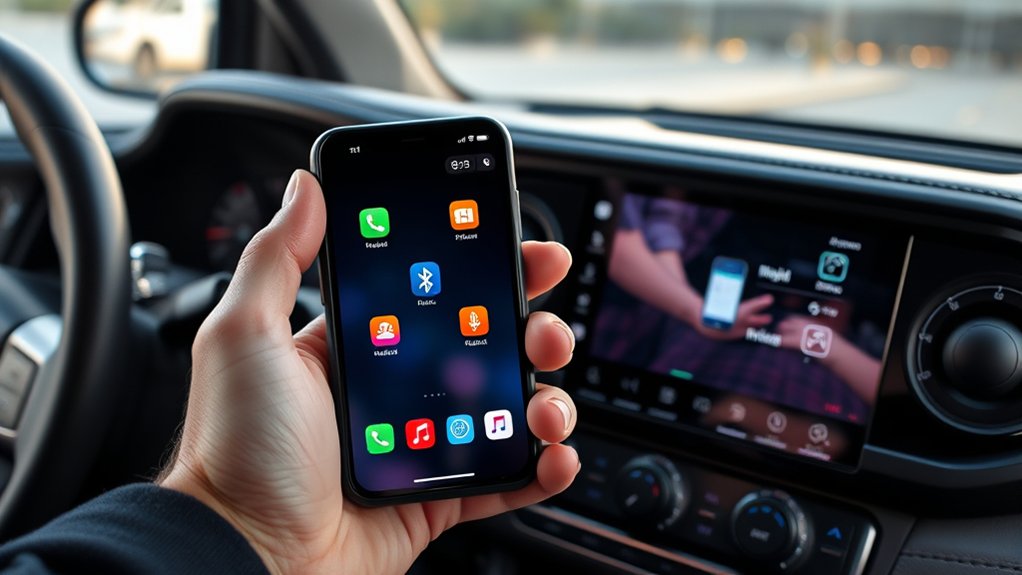
Connecting your phone to the 2026 Toyota Tacoma screen is simple once you choose the right method. The truck supports wireless Apple CarPlay, wireless Android Auto, and standard Bluetooth phone connections. You can also use a compatible USB-C data cable. The steps below explain how to connect your phone, switch devices, and fix common problems.
Quick Answer
To connect a phone to your 2026 Toyota Tacoma screen, park the truck and enable Bluetooth and Wi-Fi on your phone. Open Settings > Bluetooth & Devices on the touchscreen, choose Add another device, and select your phone. Confirm the pairing code, then approve Apple CarPlay or Android Auto when prompted.
At a Glance
| Tools Needed | Compatible iPhone or Android phone; USB-C data cable if using a wired connection |
| Cost | No additional adapter required for factory wireless CarPlay or Android Auto; mobile data charges may apply |
Check If Your 2026 Tacoma Supports CarPlay
)
The US-market 2026 Toyota Tacoma includes wireless Apple CarPlay and Android Auto compatibility through its factory Toyota Audio Multimedia system. The standard touchscreen measures 8 inches, while a larger 14-inch display is available on select configurations.
Both screen sizes provide supported smartphone integration. According to Toyota’s official Tacoma specifications, the available 14-inch display supports wireless Apple CarPlay and Android Auto.
That means you do not need a separate wireless CarPlay adapter simply to connect a compatible phone.
However, Apple CarPlay and Android Auto do not display everything on your phone. They show supported applications, such as navigation, music, calling, and messaging tools, through a driving-friendly interface.
Before connecting, make sure:
- Your phone supports Apple CarPlay or Android Auto.
- Bluetooth and Wi-Fi are enabled for wireless pairing.
- Siri is enabled if you use an iPhone.
- Your phone has compatible, reasonably current software.
- The Tacoma is parked before you begin setup.
You can choose between three connection methods:
| Method | What You Get | Best Use |
|---|---|---|
| Bluetooth | Hands-free calling and audio playback | Basic phone and music access |
| Wireless CarPlay or Android Auto | Compatible phone apps on the touchscreen | Everyday navigation and entertainment |
| USB-C CarPlay or Android Auto | Supported apps with a direct wired connection | A wired alternative when wireless pairing fails |
Pair Your Phone to the Tacoma Screen
You can pair a new phone directly through the Tacoma’s touchscreen. Toyota uses the Bluetooth & Devices menu to register phones and enable smartphone projection.
Follow these steps while the truck is parked:
- Turn on the Tacoma’s multimedia system.
- Enable Bluetooth on your iPhone or Android phone.
- Enable Wi-Fi if you want wireless CarPlay or Android Auto.
- Tap the Settings gear icon on the Tacoma display.
- Select Bluetooth & Devices.
- Choose Add another device, if another phone is already registered.
- Tap Search for devices.
- Select your phone from the available devices.
- Check that the pairing code matches on both screens and confirm it.
- Approve Apple CarPlay or Android Auto when the system asks whether to enable it.
If no devices have been registered, the Tacoma may open the device search screen automatically.
The process is documented in the 2026 Tacoma multimedia owner’s manual, including the Bluetooth registration and smartphone connection sections.
Once pairing succeeds, you should see the connected phone or its CarPlay or Android Auto interface on the Tacoma screen.
Enable Bluetooth and Wi-Fi
Wireless smartphone projection uses Bluetooth during connection setup and Wi-Fi for the main wireless link. Both should remain enabled on your phone.
On an iPhone, open Settings and turn on Bluetooth and Wi-Fi. On an Android phone, enable both functions through Settings or the phone’s quick controls.
You do not normally need to connect manually to a separate public Wi-Fi network. The Tacoma and phone manage the connection through their pairing process.
Also, the Tacoma’s Wi-Fi hotspot service is different from wireless CarPlay or Android Auto. You do not need to purchase a hotspot subscription just to use compatible factory wireless smartphone projection.
Connect Through CarPlay
After pairing an iPhone, the Tacoma may ask whether you want to enable Apple CarPlay. Select Yes to allow the phone’s supported apps to appear on the display.
Follow any additional permission messages on the iPhone. If CarPlay does not open automatically, select its icon on the multimedia screen.
The interface provides access to supported applications, including Apple Maps, compatible navigation apps, Music, Messages, and calling functions.
For a wired connection, use an appropriate USB data cable connected to the truck’s multimedia-capable USB-C port. Modern iPhones with USB-C connectors use a USB-C data cable, while older Lightning-equipped models need a suitable compatible cable.
Fix Pairing Problems
If your phone does not appear during the first pairing attempt, start with the Bluetooth connection. Problems often come from disabled wireless settings, an old registration, or a temporary phone error.
- Confirm that Bluetooth is turned on and the phone is available for pairing.
- Keep the phone close to the Tacoma touchscreen.
- Cancel the failed attempt and search for devices again.
- Restart the phone if the Tacoma still cannot find it.
- Remove an obsolete pairing from both devices before attempting a fresh connection.
If Bluetooth works but CarPlay or Android Auto does not launch, the problem may be with smartphone projection settings rather than basic pairing.
Set Up Apple CarPlay in the Tacoma
The 2026 Tacoma supports Apple CarPlay through wireless pairing or a compatible USB data connection. Wireless setup is convenient for everyday driving, while a cable provides another way to establish the connection.
To set up wireless Apple CarPlay:
- Enable Siri, Bluetooth, and Wi-Fi on your iPhone.
- Open Settings > Bluetooth & Devices on the Tacoma touchscreen.
- Select your iPhone from the device list or register it as a new device.
- Approve the matching pairing code.
- Select Yes when the Tacoma asks to enable Apple CarPlay.
- Accept the requested permissions on your iPhone.
- Open the CarPlay interface if it does not appear automatically.
Toyota also provides an official CarPlay and Android Auto setup guide showing how to enable these services during Bluetooth registration.
If you previously paired the iPhone only for calls, return to Bluetooth & Devices, select the phone, and enable Use for Apple CarPlay.
For wired setup, connect the iPhone to the correct USB-C data port. Accept the prompts on both screens to complete registration.
You can also manage CarPlay through the iPhone’s Settings > General > CarPlay menu. Apple’s CarPlay connection instructions explain the wired and wireless methods.
After connection, you can use Siri to handle supported tasks such as directions, calls, and messages. This reduces the need to touch the phone while driving.
Set Up Android Auto in the Tacoma
Android Auto connects a compatible Android phone to the 2026 Tacoma touchscreen. Like Apple CarPlay, it supports wireless operation and a direct USB-C connection.
Android Auto is built into supported modern Android phones, so a separate app download is normally unnecessary.
Google’s current Android Auto setup requirements list Android 11 or newer for standard supported setup, along with 5 GHz Wi-Fi support for wireless projection. Some older configurations may have different compatibility requirements.
For wireless Android Auto:
- Turn on Bluetooth and Wi-Fi on your Android phone.
- Start the Tacoma’s multimedia system while parked.
- Open Settings > Bluetooth & Devices.
- Select Add another device and Search for devices.
- Choose your Android phone.
- Confirm the matching pairing code.
- Approve Android Auto on the truck and phone.
- Open Android Auto if its home screen does not appear automatically.
If your phone was paired before, select it from Bluetooth & Devices and switch on Use for Android Auto.
For a wired connection, plug a suitable USB-C data cable into the correct multimedia port. Follow the phone’s permission prompts.
Android Auto supports compatible navigation apps, music services, calls, and messages. You can also use supported voice commands through the vehicle’s steering-wheel controls.
Some features require an internet connection and an active mobile data plan.
Manage Multiple Phones on the Tacoma
The 2026 Toyota Tacoma can remember several paired phones, so you do not need to repeat the entire setup each time another driver uses the truck.
According to Toyota’s multimedia manual, the system supports up to five registered Bluetooth devices. With a configured driver profile, it can connect up to two hands-free phones and one audio device automatically.
Without a driver profile, the system normally connects one hands-free phone and one audio device.
However, only one phone can use Apple CarPlay or Android Auto projection at a time.
To switch between registered phones:
- Open Settings > Bluetooth & Devices.
- Select the phone you want to use.
- Enable its required phone, audio, CarPlay, or Android Auto function.
- Disconnect the active projection session if another phone is using it.
- Open the preferred phone’s projection interface.
You can also assign a preferred device through the driver’s profile settings. Toyota uses primary and secondary device priorities to manage automatic reconnection.
To remove a phone you no longer use, select it from Bluetooth & Devices and choose Forget. Confirm the removal when prompted.
Remember that deleting a device means you must register it again if you want to reconnect later.
Fix Bluetooth, CarPlay, and Android Auto Issues
If your 2026 Tacoma phone connection stops working, identify whether the problem affects Bluetooth, wireless projection, or USB. Each connection method has different possible faults.
Start with the simplest checks before deleting devices or resetting multimedia settings.
| Problem | Likely Cause | What to Try |
|---|---|---|
| Phone not detected | Bluetooth disabled or pairing failed | Enable Bluetooth and repeat device search |
| CarPlay does not launch | CarPlay disabled, Siri disabled, or connection fault | Check CarPlay permissions and Siri settings |
| Android Auto does not open | Unsupported phone or projection disabled | Check compatibility and Android Auto permissions |
| USB connection fails | Charging-only cable or incorrect USB port | Use a data cable and the multimedia USB-C port |
| Audio drops or switches | Device conflict or incorrect audio source | Select the preferred phone and audio source |
If these checks do not solve the problem, restart the phone and the vehicle’s multimedia system. You can then investigate device registrations and software updates.
CarPlay Connection Fixes
When Apple CarPlay will not start, confirm that the Tacoma has permission to use CarPlay with your iPhone. Bluetooth pairing alone does not guarantee that projection is enabled.
- Check that Siri is enabled on the iPhone.
- Verify that Bluetooth and Wi-Fi are active for wireless use.
- Open the Tacoma’s Bluetooth & Devices menu and confirm Use for Apple CarPlay is enabled.
- For USB problems, try a different compatible data cable.
- On the iPhone, open Settings > General > CarPlay and select the Tacoma.
- If necessary, choose Forget This Car and set up the connection again.
Apple’s official CarPlay troubleshooting instructions also recommend checking Screen Time restrictions, restarting the phone and car, and confirming current system software.
Use a direct USB connection rather than an extension or charging-only cable when testing wired CarPlay.
Bluetooth Pairing Problems
If Bluetooth pairing fails repeatedly, the stored connection information may no longer match between the phone and Tacoma.
Open the truck’s Bluetooth & Devices menu, select the affected phone, and choose Forget. Remove the Tacoma from the phone’s saved Bluetooth devices as well.
Then restart the phone and register it again through the Tacoma.
If another Bluetooth device is connected, disconnect it temporarily while testing the affected phone.
When problems continue with several compatible phones, inspect the multimedia system’s software information and available updates. A Toyota service department can help investigate faults that persist after software and device checks.
Stop CarPlay and Bluetooth Disconnects
Repeated wireless disconnects may involve phone settings, device switching, software behavior, or interference. A systematic test helps identify whether the problem follows the phone or the truck.
Try this sequence:
- Set your everyday phone as the preferred device when using a driver profile.
- Disconnect other phones temporarily and test one connection.
- Check whether the phone disconnects during ordinary playback or only when certain apps open.
- Test a compatible USB-C data connection to compare wired and wireless operation.
- Check available software updates for the phone and Tacoma multimedia system.
Also observe whether a disconnect happens after using remote start. If the phone fails to reconnect after the vehicle is fully started, select it manually in Bluetooth & Devices.
If wireless CarPlay disconnects but wired CarPlay works normally, concentrate on wireless settings and nearby interference rather than assuming the touchscreen is defective.
A third-party adapter is not automatically a solution. The 2026 Tacoma already supports wireless smartphone projection, and an additional device can introduce another possible connection failure.
Play Video on the Tacoma Screen Safely
The factory 2026 Toyota Tacoma screen does not support unrestricted phone screen mirroring through standard Apple CarPlay or Android Auto. These systems display approved applications rather than duplicating everything on the phone.
In fact, Toyota’s multimedia manual explains that when video is played during a standard CarPlay or Android Auto connection, the screen may withhold the picture while audio continues. That is normal behavior, not a connection fault.
Some aftermarket multimedia boxes advertise additional video and streaming features. However, these are separate products and are not equivalent to factory CarPlay or Android Auto.
Warning: Do not watch videos or interact with distracting entertainment applications while driving. Any aftermarket video setup should be used only when the truck is safely parked, with local rules and vehicle safety restrictions respected.
The MMB Carplay Box 2.0 mentioned in the original article is an aftermarket product rather than a Toyota feature. Its compatibility must be confirmed for the exact 2026 Tacoma multimedia configuration.
Even when a box advertises streaming or mirroring, performance depends on supported hardware, firmware, and connectivity. A phone hotspot may also be needed to supply internet access for certain streaming applications.
Choose a Tacoma Video Adapter That Works
Before buying an aftermarket video adapter, confirm whether it supports the Tacoma’s factory CarPlay system. The presence of wireless CarPlay does not guarantee that every third-party USB multimedia box will work.
Two product options mentioned in the original article are the MMB Carplay Box 2.0 and CarlinKit 8+128G.
- MMB Carplay Box 2.0: The original draft quoted a price of $71.99. That price is not verified as current. The product’s compatibility and functions depend on its exact version.
- CarlinKit 8+128G: The original draft quoted approximately $200 and listed 8 GB RAM with 128 GB storage. The exact variant, current price, and 2026 Tacoma compatibility require confirmation.
According to MMB’s compatibility guidance, some products are designed for factory wired CarPlay, while others support factory wireless systems. A wired-only adapter may not work with a wireless-only factory setup.
Similarly, the CarlinKit 8 GB/128 GB product information specifies factory wired CarPlay or Android Auto as a requirement for that particular device.
Before selecting any adapter, verify these details:
- Whether the exact 2026 Tacoma model is supported.
- Whether the device requires factory wired CarPlay.
- Whether it supports the factory multimedia USB-C interface.
- Whether video apps are actually supported by that model.
- Whether it needs a phone hotspot or another internet connection.
- Whether the seller offers firmware updates and compatibility support.
For ordinary maps, calls, music, and messaging, stick with the Tacoma’s built-in CarPlay or Android Auto. Additional hardware is unnecessary for those functions.
Key Takeaways
- Both factory Tacoma touchscreen sizes support wireless smartphone integration.
- Use the multimedia-capable USB-C port and a data cable for wired connections; charging-only ports will not work for projection.
- The system can register five Bluetooth devices and support two hands-free phones with a configured driver profile.
- Only one CarPlay or Android Auto projection session can be active at a time.
- Factory CarPlay and Android Auto are not unrestricted video-mirroring systems.
Frequently Asked Questions
How Do I Project My Phone on My Toyota Screen?
Use Apple CarPlay for a compatible iPhone or Android Auto for a compatible Android phone. On the 2026 Tacoma, open Settings > Bluetooth & Devices, pair your phone, and enable the appropriate projection service. You can also use the multimedia USB-C data port. Only supported applications appear on the screen.
The 2026 Toyota Tacoma offers features such as wireless smartphone integration, an available digital rearview mirror, an available Multi-Terrain Monitor, and Wi-Fi hotspot capability. Certain configurations also offer a larger multimedia screen and advanced audio equipment. Feature availability depends on trim, equipment packages, and subscriptions where applicable.
How to Mirror iPhone to Tacoma Screen?
Connect your iPhone through Apple CarPlay to display supported apps on the Tacoma touchscreen. Standard CarPlay does not mirror the entire iPhone display or show unrestricted video. Additional mirroring would require compatible third-party hardware, which must be verified for the specific multimedia system and used only when safely parked.
How Do I Add a Phone to a Toyota Tacoma?
Open Settings > Bluetooth & Devices on the Tacoma screen. Select Add another device, search for your phone, and confirm the matching pairing code. Then approve Apple CarPlay or Android Auto if desired. The Tacoma saves the registration so the phone can reconnect on later drives.
Does the 2026 Tacoma Have Wireless Apple CarPlay?
Yes. The US-market 2026 Toyota Tacoma offers factory wireless Apple CarPlay compatibility on its standard 8-inch and available 14-inch multimedia systems. You can connect a compatible iPhone without purchasing an aftermarket wireless adapter. Enable Bluetooth, Wi-Fi, and Siri before completing the pairing process.
Why Is My Phone Charging but Not Showing on the Tacoma Screen?
Your phone may be connected to a charging-only USB port or cable. Use the Tacoma’s multimedia-capable USB-C port with a cable that supports data transfer. Also confirm that CarPlay or Android Auto is enabled for your phone. Wireless charging by itself does not establish a smartphone projection connection.
Conclusion
Connecting a phone to the 2026 Toyota Tacoma screen requires only a compatible smartphone and the correct factory settings. Wireless Apple CarPlay and Android Auto provide convenient access to navigation, calls, messages, and music without an aftermarket adapter.
If your phone does not connect, start with Bluetooth & Devices, check the projection settings, and test the multimedia USB-C port with a data cable. For video mirroring, understand the factory system’s restrictions before considering additional hardware.
Sources
- Toyota — 2026 Tacoma: Factory multimedia display options and wireless smartphone compatibility.
- Toyota — 2026 Tacoma Multimedia Owner’s Manual: Bluetooth pairing, USB-C connection, device management, wireless projection, and video limitations.
- Toyota — Apple CarPlay and Android Auto How-To Guide: Smartphone registration and projection activation.
- Apple Support — Connect iPhone to CarPlay: Wired and wireless iPhone connection procedures.
- Google — Get Started With Android Auto: Android compatibility, wireless requirements, and built-in Android Auto functionality.
- Apple Support — If You Need Help With CarPlay: Connection troubleshooting, Siri settings, USB checks, and device registration fixes.
- MMB — Compatibility FAQs: Differences between adapters intended for factory wired and wireless CarPlay systems.
- CarlinKit — 8 GB/128 GB Adapter Information: Product specifications and factory wired CarPlay compatibility requirements.