Last updated: September 22, 2026
To turn on Caps Lock on a Chromebook, press Alt + Search or Alt + Launcher. On supported Chromebook keyboards with a Quick Insert key, you can also press Fn + Quick Insert. Use the same shortcut again to turn Caps Lock off.
Most Chromebook keyboards replace the traditional Caps Lock key with Search or Launcher, so the correct method depends on which keyboard layout you have. This guide shows you how to identify the right key, confirm Caps Lock is active, remap a key for permanent Caps Lock access, use an external keyboard, and troubleshoot a shortcut that is not working.
Quick Answer
Press Alt + Search or Alt + Launcher to turn Caps Lock on or off. If your Chromebook keyboard has a Quick Insert key, Fn + Quick Insert is another supported Caps Lock toggle. Type a few letters to confirm the setting changed.
Key Takeaways
- Alt + Search or Alt + Launcher is the standard Chromebook Caps Lock shortcut.
- Supported keyboards with a Quick Insert key can also use Fn + Quick Insert.
- Search or Launcher is usually positioned where Caps Lock appears on a traditional laptop keyboard.
- You can remap a supported Chromebook key if you want one key to act as Caps Lock.
- A standard external keyboard may already include a physical Caps Lock key.
At a Glance
| Main Shortcut | Alt + Search or Alt + Launcher |
| Quick Insert Keyboard | Fn + Quick Insert |
| Time Required | Less than 1 minute |
| Difficulty | Easy |
| Tools Needed | Your Chromebook keyboard |
| Cost | Free |
Where Is the Search or Launcher Key on a Chromebook?
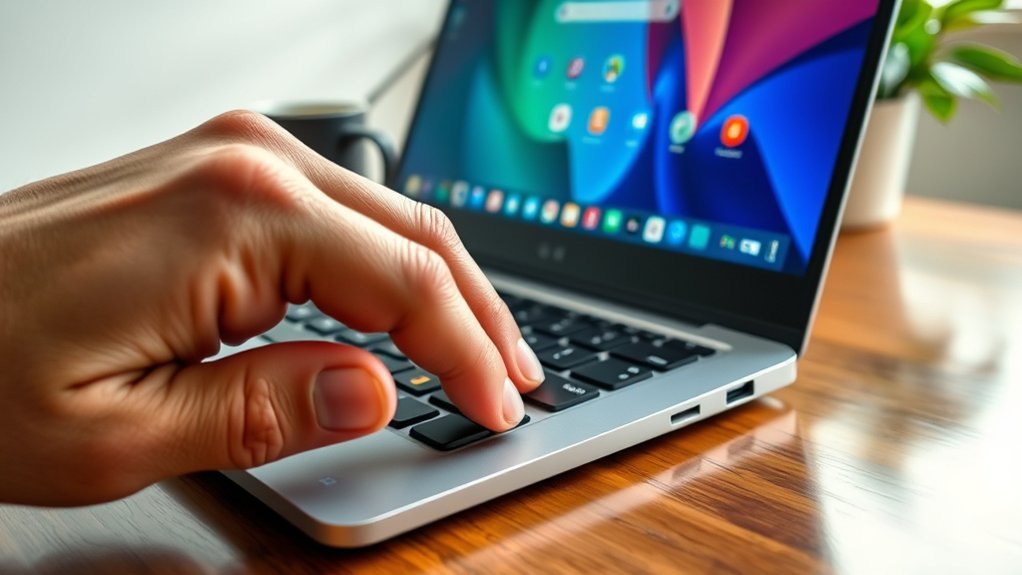
First, look on the left side of your Chromebook keyboard for the Search or Launcher key. It usually occupies the position where a Caps Lock key appears on a traditional Windows keyboard.
The Search key may show a magnifying-glass icon, while a Launcher key may use a circle-style icon. Google uses both names in its current Chromebook documentation, and either key can be used with Alt to toggle Caps Lock.
Some supported Chromebook keyboards also include a Quick Insert key. Google documents Fn + Quick Insert as another way to turn Caps Lock on or off. You can confirm the current shortcuts in Google’s Chromebook keyboard help.
Note: If your Chromebook or external keyboard has a dedicated Caps Lock key, you can normally use that physical key directly. Most traditional Chromebook built-in layouts instead use Search or Launcher.
How Do You Turn On Caps Lock on a Chromebook?
For a Chromebook with a Search or Launcher key, hold Alt and press Search or Launcher once. You do not need to press the Search key twice.
If your Chromebook keyboard includes a Quick Insert key, press Fn + Quick Insert instead. Both methods toggle Caps Lock, so the same shortcut can be used again when you are ready to turn it off.
Pro Tip: If pressing Search or Launcher by itself opens the app launcher, that does not mean the key is broken. Use it together with Alt for the Caps Lock command.
How Do You Know If Caps Lock Is On?
After using the shortcut, type a few letters in a document, search field, email draft, or other text box. If letters appear in uppercase without holding Shift, Caps Lock is active.
ChromeOS may also show a Caps Lock notification or indicator when the setting changes. The typing test is the simplest confirmation because it works even if the notification disappears quickly.
If the letters remain lowercase, repeat the shortcut carefully and make sure you are using the correct Search, Launcher, or Quick Insert method for your keyboard.
How Do You Type in All Caps?
Once Caps Lock is active, type normally and alphabetic characters will remain uppercase until you toggle Caps Lock off. This is useful for acronyms, headings, labels, and other short sections where repeated Shift-key presses would be inconvenient.
Warning: Check the Caps Lock state before entering a password. Password fields often hide the characters you type, so unintended uppercase letters can cause failed sign-ins.
How Do You Turn Off Caps Lock on a Chromebook?
Use the same method that turned Caps Lock on. Press Alt + Search or Alt + Launcher again. On a supported keyboard using Quick Insert, press Fn + Quick Insert again.
Type a few letters afterward. If they appear in lowercase without holding Shift, Caps Lock is off. You can still use Shift whenever you need a single capital letter.
Can You Use a Physical Caps Lock Key on an External Keyboard?
Yes. Many standard USB and Bluetooth keyboards include a dedicated Caps Lock key, so you can use that key normally when the keyboard is connected to your Chromebook.
ChromeOS also adapts Chromebook shortcuts for Windows and Mac keyboards. When a Chromebook shortcut calls for Search or Launcher, Google says a Windows keyboard can use the Windows key and a Mac keyboard can use the Command key in its place.
If an external keyboard behaves differently from the built-in keyboard, test both. That quickly tells you whether the problem is specific to the external keyboard or to your ChromeOS keyboard configuration.
How Do You Remap a Chromebook Key to Caps Lock?
If you use Caps Lock frequently, ChromeOS can let you change the function of supported keyboard keys. Open Settings, go to Device, then open Keyboard or Keyboard and inputs, depending on your ChromeOS version.
Under your built-in keyboard settings, look for Remap keyboard keys. Choose the key you want to change and select Caps Lock as its new action if that option is available.
For example, you can make the Search or Launcher key behave as Caps Lock with a single press. The tradeoff is that remapping it changes its normal Search/Launcher behavior, so consider whether you use that function frequently before changing it.
Why Is Caps Lock Not Working on My Chromebook?
If Caps Lock does not turn on, check the shortcut before assuming there is a keyboard problem. On a standard Chromebook layout, use Alt + Search or Alt + Launcher. If your keyboard has Quick Insert, try Fn + Quick Insert.
Next, test the built-in Chromebook keyboard if you were using an external keyboard. If the built-in shortcut works but the external keyboard does not, review the external keyboard’s ChromeOS mapping or test its physical Caps Lock key.
Then open your Chromebook keyboard settings and check whether Search, Launcher, Alt, or another relevant key has been remapped. A customized key can change how the default shortcut behaves.
You can also review ChromeOS keyboard shortcuts from Settings → Device → Keyboard and inputs. On supported layouts, Ctrl + Search + S or Ctrl + Launcher + S opens the keyboard-shortcuts view.
If the shortcut still fails in multiple text fields after checking the mapping, restart the Chromebook and test again. If one physical key does not respond anywhere, the issue may be with that key or keyboard rather than Caps Lock itself.
Related Guides
Frequently Asked Questions
What is the shortcut for Caps Lock on a Chromebook?
Press Alt + Search or Alt + Launcher to turn Caps Lock on or off. Press the same shortcut again when you want to return to normal lowercase typing.
Can I use Quick Insert to turn on Caps Lock?
Yes, on supported Chromebook keyboards with a Quick Insert key. Press Fn + Quick Insert to toggle Caps Lock on or off.
Can I make the Search key work as Caps Lock?
Yes. Open Settings, go to Device, open Keyboard or Keyboard and inputs, then find the key-remapping controls. If Caps Lock is available as an action, assign it to the Search or Launcher key you want to use.
How do I know if Caps Lock is on?
Type a few letters in a text field. If they appear in uppercase without holding Shift, Caps Lock is active. ChromeOS may also display a notification or indicator when the setting changes.
Does a normal external keyboard’s Caps Lock key work on a Chromebook?
A standard USB or Bluetooth keyboard may include a physical Caps Lock key that you can use directly. For Chromebook shortcuts that normally use Search or Launcher, ChromeOS can use the Windows key on a Windows keyboard or Command on a Mac keyboard instead.
Why does my Chromebook not have a Caps Lock key?
Most standard Chromebook keyboards use a Search or Launcher key where a traditional laptop often has Caps Lock. ChromeOS keeps Caps Lock available through a keyboard shortcut or key remapping instead.
What should I do if Alt + Search does not turn on Caps Lock?
Try Alt + Launcher if that is how your key is labeled, or Fn + Quick Insert if your keyboard supports it. Then check whether the keys have been remapped, test the built-in keyboard instead of an external one, and restart the Chromebook if the shortcut still fails.
Conclusion
The fastest way to turn on Caps Lock on a Chromebook is Alt + Search or Alt + Launcher. On supported keyboards with Quick Insert, Fn + Quick Insert provides another Caps Lock toggle.
Use the same shortcut again to turn Caps Lock off. If you use uppercase frequently, remapping a supported key can give you a more traditional one-key Caps Lock setup. If the shortcut does not work, check your keyboard mapping and test the built-in keyboard before assuming there is a hardware problem.
