
Pairing Bluetooth earbuds with a Chromebook usually takes only a few minutes. The main steps are to turn on Bluetooth, put the earbuds in pairing mode, select them from the Chromebook’s device list, and confirm that they are being used for audio. If they do not connect or no sound comes through, a few Chromebook settings can usually identify the problem.
Quick Answer
To connect earbuds to a Chromebook, select the time at the bottom right, open Bluetooth, turn it on, and choose Pair new device. Put the earbuds in pairing mode, select their name, and follow any on-screen instructions. After pairing, check that the earbuds appear under Currently connected.
Key Takeaways
- Turn on Bluetooth on the Chromebook before searching for the earbuds.
- Use the earbud manufacturer’s pairing procedure because button and LED behavior varies by model.
- After pairing, check the Chromebook’s Audio settings if the earbuds connect but sound still plays through the speakers.
- For connection problems, update ChromeOS, toggle Bluetooth off and on, restart both devices, and forget and re-pair the earbuds if needed.
- Pair only with Bluetooth devices you recognize and trust.
At a Glance
| Time Required | About 2–5 minutes |
| Difficulty | Easy |
| Tools Needed | Chromebook and charged Bluetooth earbuds |
| Cost | $0 if you already own both devices |
Connect Earbuds to a Chromebook
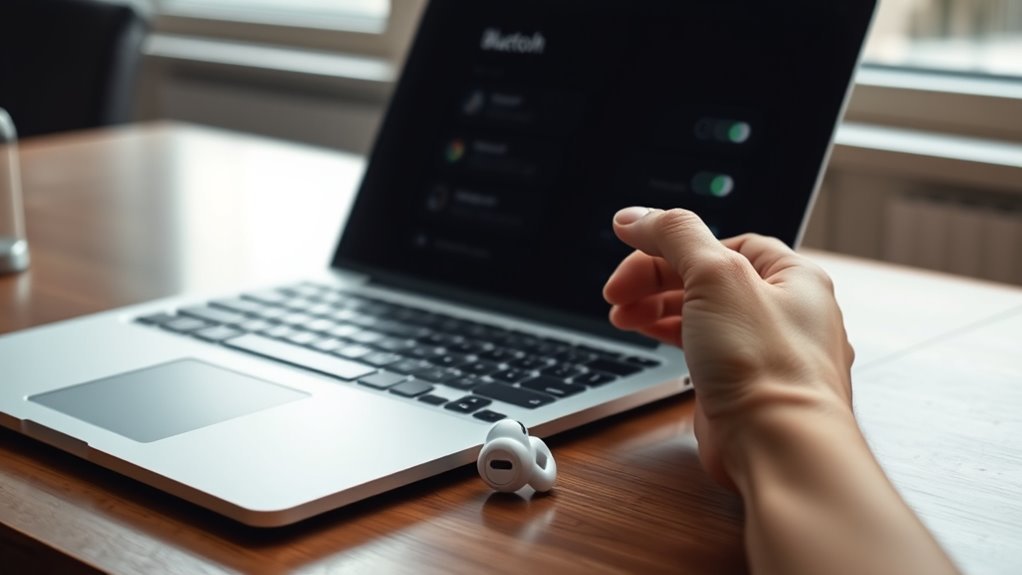
To connect earbuds to a Chromebook, start by making sure Bluetooth is available and turned on. Select the time in the bottom-right corner of the Chromebook screen, then open the Bluetooth controls.
Google’s current Chromebook instructions use the following pairing process:
- Select the time at the bottom right of the screen.
- Select Bluetooth and turn Bluetooth on if it is disabled.
- Put the earbuds into pairing mode.
- Select Pair new device.
- Wait for the Chromebook to find nearby Bluetooth devices.
- Select the name of your earbuds.
- Follow any PIN, confirmation, or other on-screen instructions that appear.
- Open Bluetooth again and check for the earbuds under Currently connected.
Google documents these steps in its Chromebook Bluetooth setup guide.
Warning: Pair your Chromebook only with Bluetooth devices you recognize and trust. A paired device can remain saved on the Chromebook until you remove it.
Once the connection is complete, the Chromebook will normally make the earbuds available as an audio output. If sound still comes from the Chromebook speakers, check the Audio settings as described below.
Put Your Earbuds in Pairing Mode
Before pairing, charge the earbuds and make sure they are powered on. The exact method for entering pairing mode varies by brand and model.
Charge the earbuds, follow the manufacturer’s pairing procedure, and wait for the model’s pairing indicator before searching from the Chromebook.
- Some earbuds use a button on the charging case.
- Some models require holding a power or Bluetooth button for several seconds.
- Other earbuds may enter pairing mode automatically when removed from the case.
- A flashing or pulsing LED often indicates pairing mode, but the color and pattern vary by manufacturer.
- If the earbuds immediately reconnect to a phone or tablet, temporarily disconnect them from that device before trying the Chromebook.
Because pairing controls differ, the earbud manual or manufacturer’s support page is the most reliable guide for the exact button sequence.
For example, Google’s current Pixel Buds instructions tell users to leave the earbuds in the open case and hold the case pairing button until its light begins blinking before connecting them to a computer.
Note: If your earbuds do not appear under Pair new device, confirm that they are actually in pairing mode rather than simply powered on.
Check the Bluetooth Connection
To check whether the earbuds are connected, select the time in the bottom-right corner and open the Chromebook’s Bluetooth controls. Google lists active devices under Currently connected.
| Checkpoint | What to Look For |
|---|---|
| Quick Settings | Select the time at the bottom right |
| Bluetooth | Bluetooth is available and turned on |
| Currently connected | The earbud name appears in the active-device list |
| Earbuds | Powered on, charged, and within normal Bluetooth range |
If the earbuds are listed as connected, the Bluetooth link is active. If they are missing, put them back into pairing mode and try Pair new device again.
Choose the Earbuds as the Audio Output
Sometimes earbuds pair successfully but the Chromebook continues playing sound through its built-in speakers. In that situation, check the active audio output rather than repeating the entire pairing process.
- Select the time at the bottom right.
- Next to the volume slider, open Audio settings.
- Look under Output.
- Select the earbuds if another speaker or audio device is currently active.
- Play a short video or audio clip to confirm that sound now comes through the earbuds.
Google explains that the currently selected output is identified in the Chromebook’s Audio settings.
Pro Tip: If Bluetooth says “connected” but you hear nothing, check Audio > Output before forgetting the earbuds. The connection may be working while the Chromebook is simply using another speaker.
Manage Earbuds in Chromebook Settings
Once the earbuds are connected, Chromebook settings let you disconnect, reconnect, rename, or forget the saved Bluetooth device.
Open the bottom-right system area, select Bluetooth, and review the devices shown under Currently connected and Previously connected.
- Check Currently connected to confirm that the earbuds remain linked.
- Select the earbuds to open available device options.
- Use Change device name if you want a clearer label.
- Use Forget when you want to remove the saved pairing.
- Reconnect a previously paired device from the Previously connected list when available.
Renaming can be useful when several similar Bluetooth devices are saved. Forgetting a device removes its saved pairing so it can be paired again from the beginning.
Use the Bluetooth device list to confirm the connection, reconnect saved earbuds, rename them, or forget an old pairing.
Use Fast Pair When Your Earbuds Support It
ChromeOS also supports Fast Pair with compatible Bluetooth accessories. When a Fast Pair-enabled device is placed in pairing mode near the Chromebook, ChromeOS may detect it automatically and offer a Connect option.
If automatic Fast Pair does not work, use the standard Bluetooth method instead: open Settings, choose Bluetooth, select Pair new device, and follow the on-screen instructions.
Fast Pair support depends on the accessory, so the normal manual pairing method remains useful for earbuds that do not support it.
Fix Chromebook Bluetooth Problems
If the earbuds do not connect, work through the following checks in order. These steps cover the most common Chromebook Bluetooth problems without jumping immediately to more disruptive resets.
1. Make Sure the Earbuds Are Charged and in Pairing Mode
Confirm that the earbuds or their charging case have enough power and that the earbuds are in the manufacturer’s actual pairing mode. Simply turning earbuds on may not make them discoverable.
2. Turn Chromebook Bluetooth Off and Back On
Select the time at the bottom right, open Bluetooth, turn it off, wait a few seconds, and turn it back on. Google recommends this as a basic Bluetooth troubleshooting step.
3. Move the Devices Closer Together
Bring the earbuds closer to the Chromebook while pairing. If an existing Bluetooth connection keeps dropping, move the earbuds and Chromebook closer together and move them away from other wireless equipment or appliances that may add interference.
4. Restart the Chromebook and Earbuds
Turn the earbuds off and back on according to their manufacturer instructions. Restart the Chromebook as well. Temporary Bluetooth or operating-system faults can clear after a restart.
5. Check for ChromeOS Updates
ChromeOS normally checks for updates automatically, but you can check manually:
- Select the time at the bottom right.
- Open Settings.
- Select About ChromeOS.
- Select Check for updates if the option is available.
- Restart the Chromebook if an update has downloaded and requires it.
Google’s current instructions are available in its Chromebook update guide.
6. Forget the Earbuds and Pair Them Again
If the earbuds appear in Bluetooth settings but will not reconnect correctly, select the device and choose Forget. Then put the earbuds back into pairing mode and use Pair new device to create a fresh connection.
This removes the saved Chromebook pairing information and lets the connection start again from the beginning.
7. Check Audio Output If They Connect but Have No Sound
If Bluetooth reports that the earbuds are connected, open Audio settings and make sure the earbuds are selected under Output. Also confirm that neither the Chromebook nor the earbuds are muted and that their volume is high enough to hear.
8. Reduce Wireless Interference if Bluetooth Keeps Dropping
If the connection repeatedly disconnects, keep the earbuds close to the Chromebook and move away from unnecessary wireless devices or appliances. Google also recommends closing browser tabs and apps you are not using when investigating repeated Bluetooth drops.
9. Consider a Chromebook Hardware Reset Only After Simpler Fixes Fail
Google lists a Chromebook hardware reset as a later troubleshooting option. A hardware reset restarts Chromebook hardware and is different from a factory reset or Powerwash.
Warning: Google recommends trying a hardware reset only after simpler troubleshooting has failed, and notes that it may delete some files from the Downloads folder on some devices. Do not confuse a hardware reset with a factory reset.
For most Chromebooks, Google’s standard hardware-reset procedure is to shut down the Chromebook, hold Refresh, tap Power, and release Refresh when the Chromebook starts. Some models use different procedures, so check Google’s hardware reset instructions before using this step.
If Bluetooth still fails after these checks, contact the earbud manufacturer or Chromebook manufacturer for device-specific support.
Frequently Asked Questions
What Does Ctrl+Alt+Z Do on a Chromebook?
Ctrl+Alt+Z turns ChromeVox on or off. ChromeVox is ChromeOS’s built-in screen reader. It is not the Select-to-Speak shortcut. Select-to-Speak is a separate accessibility feature that can read selected text aloud after it has been enabled in Accessibility settings.
Why Aren’t My Earbuds Working on My Chromebook?
Check that the earbuds are charged, in pairing mode, and close to the Chromebook. Turn Bluetooth off and back on, restart both devices, and check for ChromeOS updates. If the earbuds are saved but will not reconnect, forget them and pair them again. If they show as connected but produce no sound, select them under Audio settings > Output.
How Do I Put My Earbuds in Pairing Mode?
The pairing process depends on the earbud model. Some use a charging-case button, some use a power or Bluetooth button, and others enter pairing mode automatically. Charge the earbuds, disconnect them from other devices if necessary, and follow the manufacturer’s instructions until the appropriate pairing indicator appears.
Are Earbuds Compatible With Chromebooks?
Most standard Bluetooth earbuds can work as audio devices with a Bluetooth-capable Chromebook. Exact features can vary by Chromebook and earbud model, so check the manufacturer’s compatibility information if you need specific functions such as microphone controls, firmware management, or special audio features.
Why Are My Earbuds Connected to My Chromebook but There Is No Sound?
Open the Chromebook’s Audio settings and check the device listed under Output. Select the earbuds if the Chromebook speakers or another device are active. Also check the volume and mute controls on both the Chromebook and the earbuds.
Why Can’t My Chromebook Find My Bluetooth Earbuds?
The earbuds may not be in discoverable pairing mode, may already be connected to another device, or may be too far from the Chromebook. Put them back into pairing mode, temporarily disconnect nearby phones or tablets that automatically reconnect to them, move the earbuds closer, and try Pair new device again.
Conclusion
Pairing earbuds with a Chromebook is usually straightforward: turn on Bluetooth, put the earbuds in pairing mode, choose Pair new device, and select the earbuds. Afterward, check Currently connected and confirm the earbuds are selected under Audio settings if necessary.
If pairing fails, work through the simple fixes first—charge the earbuds, toggle Bluetooth, restart the devices, update ChromeOS, reduce interference, and forget and re-pair the earbuds. More disruptive troubleshooting, such as a Chromebook hardware reset, should be reserved for problems that remain after those basic checks.
Sources
- Google Chromebook Help: Connect Chromebook to Bluetooth devices — Bluetooth support, pairing, Fast Pair, currently connected devices, renaming, and forgetting devices.
- Google Chromebook Help: Fix hardware and system problems — Bluetooth connection and connection-drop troubleshooting.
- Google Chromebook Help: Adjust the volume on your Chromebook — audio output selection and speaker/headphone settings.
- Google Chromebook Help: Update your Chromebook — checking for and installing ChromeOS updates.
- Google Chromebook Help: Use the built-in screen reader — confirms that Ctrl+Alt+Z toggles ChromeVox.
- Google Chromebook Help: Reset your Chromebook hardware — hardware-reset procedure and cautions.

