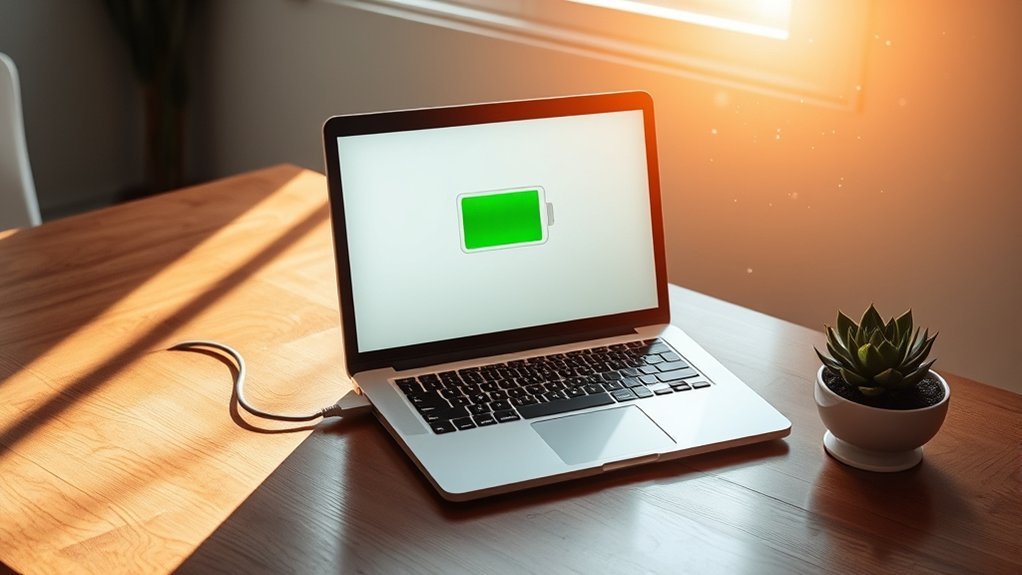
Yes—keeping a modern laptop plugged in is generally safe. The bigger long-term battery concerns are heat and spending prolonged periods at a very high state of charge. Modern charging systems manage the battery so it is not simply “overcharged” after reaching full capacity. However, lithium-ion batteries still age faster under unfavorable conditions, especially when they remain hot and near 100% for long periods.
Last updated: September 21, 2026
Quick Answer
Leaving your laptop plugged in is usually fine. For long-term battery health, focus on keeping the laptop cool and reducing unnecessary time at a very high state of charge. Roughly 20% to 80% is a useful daily range when practical, but you do not need to manually chase those numbers. If your laptop has Smart charging, Optimized Battery Charging, Conservation Mode, Battery Health Charging, or another charge-limit feature, use that instead.
Key Takeaways
- Keeping a modern laptop plugged in is generally safe because its charging system manages the battery rather than continuously forcing charge into it.
- Heat and long periods at a very high state of charge can accelerate lithium-ion battery aging.
- Microsoft recommends avoiding frequent deep discharges and keeping lithium-ion batteries in a moderate range, roughly 20% to 80%, when practical.
- Built-in charge-management modes are usually easier and more reliable than manually unplugging at an exact percentage.
- Swelling, physical deformation, abnormal heat, rapid drain, and sudden shutdowns are reasons to inspect the battery and seek service.
At a Glance
| Mostly Desk Use | Stay plugged in if convenient and enable your laptop’s charge-limit or battery-health feature. |
| Need Maximum Runtime | Charge to 100% before travel, school, meetings, or a long period away from power. |
| Gaming or Rendering | Plugged-in use is normal; focus on airflow and temperature because heavy workloads generate more heat. |
| Long-Term Storage | Store the laptop cool and dry at roughly 40% to 60% charge rather than completely full or empty. |
| Best Simple Habit | Use the manufacturer’s battery-health or charge-limit feature instead of repeatedly plugging and unplugging by hand. |
Understanding Lithium-Ion Batteries
Most modern laptops use rechargeable lithium-ion or lithium-polymer batteries. They provide high energy density, recharge quickly, and do not need the routine full-discharge cycles associated with older nickel-cadmium batteries.
Inside the battery, lithium ions move between electrodes during charging and discharging. This reversible chemical process lets the battery store and release energy, but the chemistry gradually ages. Even a well-maintained battery eventually loses some usable capacity.
Battery aging depends on more than calendar age. Temperature history, charging patterns, time spent at high charge levels, power demand, storage conditions, and accumulated use all affect long-term capacity. Apple and Microsoft both describe lithium-ion battery lifespan in terms of chemical aging rather than age alone.
Frequent deep discharges are not required for modern lithium-ion batteries. Microsoft recommends avoiding repeated deep discharge and keeping the battery within a moderate range, roughly 20% to 80%, when practical. That is a useful guideline, not a requirement to unplug the charger every time the percentage reaches exactly 80%.
The Impact of Constant Charging
Keeping a laptop connected to power is not the same thing as continuously overcharging its battery. Modern laptops use charging controllers to manage charging, but remaining at a high state of charge for long periods can still accelerate chemical aging, especially when the battery is also hot.
Keeping a laptop plugged in is usually safe. For long-term battery health, manage heat and use a charge limit when your laptop provides one.
Here are four practical effects to consider:
- Higher heat exposure: Gaming, rendering, video editing, charging, and poor airflow can increase internal temperature. Excessive heat speeds lithium-ion battery deterioration.
- More time at a high state of charge: A battery kept near full charge for long periods experiences more chemical stress than one spending more time at a moderate charge level.
- Gradual capacity loss: As the battery chemically ages, it stores less energy and provides fewer hours of unplugged runtime.
- Hidden battery decline: A laptop used almost exclusively on AC power can develop noticeably shorter battery runtime before the owner realizes capacity has fallen.
Microsoft specifically warns that keeping a lithium-ion battery at 100% all the time can accelerate deterioration, while Apple says temperature history and charging pattern contribute to chemical aging. If your laptop provides an automatic charge-management feature, it is normally more convenient than manually unplugging and reconnecting throughout the day.
Myths About Laptop Battery Maintenance
Much conflicting battery advice comes from older battery technologies. Modern lithium-ion batteries behave differently, so rules such as deliberately draining to zero before every recharge are no longer appropriate.
| Myth | Truth |
|---|---|
| Overcharging damages the battery. | Modern charging systems manage the battery automatically, but prolonged high charge plus heat can still accelerate aging. |
| You must fully discharge before charging. | No. Frequent deep discharges are unnecessary and should generally be avoided. |
| Extreme heat is harmless. | No. Excessive heat accelerates lithium-ion battery deterioration. |
| Every battery needs routine calibration. | Do not deep-discharge a battery on a schedule just for calibration. Follow your laptop maker’s diagnostic or calibration guidance if the charge reading appears inaccurate. |
| Keeping a laptop plugged in is always bad. | No. It can be a sensible way to use a desk-bound laptop, especially with a supported charge-limit or battery-health mode enabled. |
Note: “Plugged in” does not mean the battery is being continuously forced to accept charge. Modern laptops use charging controllers to manage the battery. Exact charging and power-path behavior varies by model.
Optimal Charging Practices
The simplest battery-care strategy is to use the laptop normally, avoid unnecessary heat and deep discharge, and enable the manufacturer’s charging optimization when available. You do not need to obsess over every percentage point.
- Use a moderate range when practical: Roughly 20% to 80% is a useful guideline for everyday use, but it does not need to be followed perfectly.
- Avoid frequent deep discharges: Do not deliberately run the battery to 0% as a routine charging habit.
- Use battery-health settings: Look for Smart charging, Optimized Battery Charging, Charge Limit, Conservation Mode, Battery Health Manager, Battery Care Mode, or similar controls.
- Use the correct charger: Use the charger specified by your laptop maker or a compatible charger and cable that meet the device’s required wattage and charging standard.
- Keep vents clear: Charge and use the laptop on a hard, stable surface rather than bedding, cushions, or other surfaces that block airflow.
- Store it partially charged: For long-term storage, roughly 40% to 60% is a practical target. Store the laptop in a cool, dry location and periodically check the battery so it does not become deeply discharged.
If your laptop spends most of its time on a desk, a built-in charge cap can be one of the easiest ways to reduce time spent near 100%. The ideal cap is not identical on every machine: supported manufacturer modes range from about 60% to 80% on some models, while others adapt automatically to your usage.
Pro Tip: Search your laptop’s manufacturer app, BIOS/UEFI, or battery settings for “charge limit,” “battery health,” “conservation,” “battery care,” or “Smart charging.” Feature names and availability vary by model.
Temperature and Battery Health
Heat is one of the most important battery-aging factors you can control. Microsoft and major laptop manufacturers warn that prolonged exposure to elevated temperatures can accelerate lithium-ion battery deterioration.
Heavy workloads can raise temperature while the laptop is plugged in. Gaming, 3D rendering, video encoding, blocked vents, direct sunlight, and a hot room can all add thermal stress. The practical goal is not to keep the laptop cold; it is to prevent avoidable overheating.
Cold creates a different problem. Battery performance and available power can fall temporarily at low temperatures. Let a very cold laptop return to a normal indoor temperature before charging or demanding heavy performance.
Use the laptop on a hard surface, keep its cooling openings clear, and do not leave it charging under blankets or pillows. If the computer becomes abnormally hot during ordinary use, reduce the workload and investigate blocked vents, cooling problems, the charger, or battery condition.
Warning: If the battery swells or deforms the chassis, stop using the laptop and disconnect it from AC power. Do not press, bend, crush, or puncture a swollen battery. Arrange professional inspection or replacement.
Signs of a Failing Battery
A declining battery usually shows up as reduced usable runtime, abnormal charging behavior, unexpected shutdowns, or physical deformation. Shorter battery life by itself does not necessarily mean the rest of the laptop is failing.
Before buying a replacement, separate actual battery wear from high power consumption. Background software, display brightness, demanding applications, network conditions, and attached accessories can all shorten runtime even when the battery is healthy.
Signs of Reduced Battery Capacity
Watch for these indicators:
- Rapid discharge: Runtime is much shorter than it used to be under a similar workload.
- Abnormal heat: The battery area becomes unusually hot during ordinary use or charging.
- Swelling or deformation: The chassis, keyboard, touchpad, or bottom cover begins to bulge.
- Unexpected shutdowns: The laptop turns off even though the battery indicator still shows charge remaining.
- Charging errors: The laptop repeatedly fails to charge or recognize the adapter after obvious charger and connection problems have been ruled out.
If swelling appears, stop using the device instead of treating the problem as ordinary battery wear. Microsoft advises stopping use when an expanding battery moves beyond the device enclosure.
When More Frequent Charging Signals Capacity Loss
Needing to recharge much more frequently than before can indicate reduced usable capacity, but charging frequency alone is not a diagnosis. Compare runtime under a similar workload and check the operating system or manufacturer battery-health report.
| What You Notice | What to Check |
|---|---|
| Battery drains quickly | Battery capacity, background activity, display brightness, and workload |
| Laptop gets unusually hot | System load, blocked vents, cooling performance, charger, and battery condition |
| Swelling or physical deformation | Stop use and arrange battery inspection or replacement |
Also check for software causes before replacing the battery. A stuck background application, many browser tabs, high display brightness, demanding extensions, or another power-hungry process can shorten runtime. If a battery-health report also shows substantial capacity loss, replacement becomes more reasonable.
Managing Power Settings for Longevity
Power-saving settings mainly improve runtime and can indirectly help by reducing power consumption and heat. They are different from charge-limit features, which control how full the battery is allowed to become.
On Windows, for example, Energy Saver or Battery Saver reduces power use, while Smart charging on supported hardware manages charging behavior. Do not assume that enabling a runtime-saving mode automatically creates an 80% charge cap.
Optimize Battery Usage
For longer runtime away from an outlet:
- Adjust brightness: Use the lowest comfortable screen brightness.
- Close unused applications: Background software can consume CPU time, memory, network activity, and power.
- Use an energy-saving mode: Enable your operating system’s efficiency or energy-saving profile when maximum performance is unnecessary.
- Manage connectivity: Disable radios you genuinely do not need, especially when trying to stretch the remaining charge.
- Check battery usage reports: Identify applications responsible for unusually high energy consumption.
Adjust Sleep Settings
A sensible sleep timer prevents the laptop from remaining fully awake and generating unnecessary heat while you are away. The best interval depends on how often you pause your work, so treat the following values as starting points rather than fixed rules.
| Situation | Practical Starting Point |
|---|---|
| On battery, short breaks | About 5 minutes before sleep if that fits your workflow |
| On battery, frequent interruptions | About 10–15 minutes |
| Plugged in | Use a longer interval if convenience matters more than energy savings |
| Long absence | Sleep, hibernate, or shut down instead of leaving the laptop active |
A shorter timer on battery and a more relaxed timer while plugged in usually provide a practical balance between energy savings and convenience.
Enable Power Saving Mode
An energy-saving mode helps when you need more runtime from the current charge. It usually reduces background work, display power consumption, or peak performance. It does not replace a battery charge-limit feature.
- Reduce display power: Lower brightness and shorten display-off time when practical.
- Limit background activity: Close unnecessary applications and processes.
- Use an efficiency-focused power profile: Prefer balanced or energy-saving settings when maximum performance is not needed.
- Reduce unnecessary connected devices: External drives, phones, hubs, and lighting accessories can consume laptop power.
- Review high-use applications: Check which programs are responsible for unusually high battery consumption.
When to Disconnect the Charger
You do not need to unplug a modern laptop every time it reaches 100%. If the computer is mostly desk-bound, staying connected to AC power is reasonable—especially when a manufacturer charge-limit or optimized-charging feature is enabled.
If your laptop has no charge-management feature and you want to reduce time spent near full charge, unplugging when convenient is reasonable. Do not turn battery care into constant manual micromanagement or deliberately create deep discharge cycles just to avoid 100%.
Here’s a practical reference:
| Battery Level (%) | Practical Guidance |
|---|---|
| 100 | Fine when you need maximum runtime; avoid unnecessary prolonged storage at full charge in high heat |
| 80 | A common longevity-oriented upper limit on supported devices, but not a universal requirement |
| 40–60 | Useful range for long-term storage |
| 20 | A sensible point to recharge during ordinary use |
| 0 | Avoid intentionally reaching this level as a routine habit |
If you need maximum runtime for travel, school, meetings, field work, or a possible power outage, charge to 100%. Battery longevity should support how you use the laptop, not prevent you from using its full capacity when you actually need it.
Tips for Extending Battery Life
After you have adjusted the basic power settings, a few broader habits can help preserve runtime and reduce unnecessary heat without duplicating your charging routine.
- Reduce browser load: Close unused tabs and remove extensions that constantly consume CPU or network resources.
- Keep software and firmware updated: Updates can fix abnormal power use, sleep problems, charging behavior, and hardware-control bugs.
- Use sleep, hibernate, or shutdown appropriately: Do not leave the laptop fully active for long periods when you are not using it.
- Disconnect unnecessary accessories: External storage, phones, USB devices, and lighting can draw power.
- Check for abnormal background activity: Unexpected CPU or network use can look like battery failure when the real cause is software.
- Keep cooling paths clean: Dust and blocked vents can increase fan activity and temperature.
You do not need perfect battery habits. Using the laptop’s built-in battery-management tools, avoiding unnecessary heat, and preventing repeated deep discharge will usually matter more than constantly watching the percentage indicator.
Battery Health Settings by Laptop Type
Many current laptops include a feature specifically designed for people who stay connected to AC power. Names, limits, and availability vary by model, BIOS version, operating system, and manufacturer utility.
| Laptop Type | Setting to Look For | Current Guidance |
|---|---|---|
| MacBook | Optimized Battery Charging / Charge Limit | Optimized charging can delay charging past 80%. Apple-silicon Macs with macOS Tahoe 26.4 or later can set a Charge Limit from 80% to 100%. |
| Windows laptops | Smart charging | Supported devices may automatically hold the battery below 100%. Availability and controls depend on the device manufacturer. |
| Lenovo laptops | Conservation Mode | Supported current models may hold charge around 75%–80% for systems that remain plugged in. |
| Dell laptops | Primarily AC Use / Adaptive / Custom | Supported models can lower the charging threshold or let you select custom start and stop behavior. |
| HP laptops | Battery Health Manager / Adaptive Battery Optimizer | Supported commercial models can limit maximum charge to 80%; select consumer and gaming models use Adaptive Battery Optimizer. |
| ASUS laptops | Battery Health Charging / Battery Care Mode | Supported modes include an 80% Balanced limit and a 60% Maximum Lifespan limit on applicable systems. |
| Acer laptops | Battery Charge Limit | Many supported notebooks provide an 80% charge limit through Acer software. |
If you cannot find the setting, check the manufacturer’s support application, BIOS/UEFI settings, or documentation for your exact model. Do not assume every laptop from the same brand supports the same charging mode.
[Amazon Products Picked for You]

POWER SPECS - Output Max: 19.5V 3.33A 65W (also compatible with 19.5V 2.30A 45W) Input Volt Range: 110-240V /(Blue Tip Size: 4.5 x 3.0mm) Compatible with HP Laptop Power Supply AC Adapter Charger Cord

65W Fast Charging for Laptop : JUOVI Laptop power bank Support up to 65W fast charging, compatible with Macbook, Dell, Thinkpad and other laptop.Break free from the outlet. With 65W mobile fast charging, unlock true mobility so your productivity and creativity never have to pause

Applicable to the following models: LR44,CR44,SR44,357,SR44W,AG13,G13,A76,A-76,PX76,675,1166a,LR44H,V13GA,GP76A,L1154,L1154F,RW82B,EPX76,SR44SW,303,SR44,S303,S357,SP303,SR44SW
Should You Remove the Battery While Plugged In?
For most modern laptops, no. Internal batteries are not designed to be removed for routine desk use. Opening the chassis merely to disconnect the battery can damage connectors, affect warranty coverage, or create unnecessary risk.
If you have an older laptop with a genuinely user-removable battery, follow that model’s manufacturer instructions. If a removable battery is stored for an extended period, keep it partially charged in a cool, dry location rather than completely full or empty.
How to Check Your Laptop Battery Health
A battery-health report helps distinguish ordinary power drain from actual capacity loss. Compare present capacity with the battery’s original or design capacity when your system provides those figures.
[Amazon Products Picked for You]

Package Contents and Policies: HT03XL Battery, 2 Screwdrivers, User Manual for L11119-855 battery. For assistance with the HTO3XL Hp Laptop Battery or the hp ht03xl rechargeable li-ion battery, please visit our product detail page. Note: Both HT03XL and HW03XL are compatible with HP Pavilion 15 17 Series. But HT03XL Battery is not compatible with HW03XL

Voltage: 14.8V Cells: 4-cell Grade A cells ensure fast charges and low power consumption; Built-in circuit protection ensures both safety and stability.

Detail:Voltage: 11.4V || Capacity: 41Wh || Cells: 3-cell II Compatible with HP Pavilion 14-CE0000 14-CF0000 14-CK0000 14-CM0000 14-DF0000 14-DH0000 14M-DH 14-DK0000 14-DQ0000 14-FQ0000 14-MA0000 14Q-CS 14S-CF0000 14S-CR0000 15-CS0000 15-CW0000 15-DA0000 15-DB0000 15-DW0000 15-DY0000 15-EF0000 15Q-DS0000 15S-FQ0000 17-BY0000 17-CA0000;compatible with HP Pavilion 240 G7,245 G7,250 G7,255 G7,340 G5,348 G5;15-ef0022nr 15-ef1023dx ef1013dx ef1040nr ef0025wm ef0021nr ef1073od ef1001ds ef1072wm 14-fq1021nr 14-ce00252u 15-ef2099nr 14-dq0040nr
Check Battery Health on Windows 11
Microsoft provides a built-in battery report in Windows 11. Open Command Prompt with administrator privileges and run:
powercfg /batteryreportWindows saves an HTML report and displays its file location. Review sections such as the installed battery information, recent usage, battery usage, and available capacity information. If current full-charge capacity is substantially below the original design capacity, the battery has lost usable capacity.
Check Battery Health on macOS
On macOS, open System Settings and select Battery. Depending on the Mac and macOS version, you can inspect battery condition and settings such as Optimized Battery Charging or Charge Limit. If macOS displays “Service Recommended,” use Apple’s battery-service guidance rather than relying only on a third-party utility.
Check Brand-Specific Tools
Laptop makers may also provide model-specific diagnostics and charging controls. Examples include Lenovo Vantage, Dell power-management tools, HP battery-health features, MyASUS, and Acer utilities. Use the utility supplied for your exact model because feature availability changes between product lines.
When to Replace Your Laptop Battery
Replace a laptop battery based on condition and usefulness rather than age alone. A replacement becomes reasonable when the laptop still meets your needs but battery capacity has fallen enough that unplugged runtime no longer does.
Common replacement signs include severely shortened runtime, repeated unexpected shutdowns, persistent charging failures, a manufacturer battery-health warning, or physical swelling. If the battery is swollen, stop using the laptop and arrange service instead of continuing to charge it.
Use a replacement that is approved for or correctly matched to your exact laptop model. For laptops with internal batteries, professional service is often the safest option if you are not trained to replace the pack.
[Amazon Products Picked for You]
Battery Model: HT03XL ,Battery Type: Polymer. Voltage: 11.55V Capacity: 41.9WH ; Cells: 3-cell; Color: Black, Packages includes: 1x HT03XL battery , with two auxiliary installation tool and user manual;ht03xl for l11119-855 hp battery,for hp spare l11119-855 battery,for hp pavilion 15 battery replacement

SAFE AND RELIABLE: LiCB Since 2006,Specialize in Battery 12 Years. CR1632 Button Coin Cell Tested under Strict Quality Control Standards. CE and ROHS Certified. Grade A cells CR 1632 Car Remote Batteries Ensure Longer Battery Life and Long Lasting Power.

♣Battery type: Li-ion; Capacity: 2200mAh/33WH; Cells: 4-cell; Voltage: 14.8V. The battery is durable and has overcurrent protection, anti-overcharge, anti-overdischarge and temperature control functions.
Frequently Asked Questions
Does leaving a laptop plugged in affect its performance?
Being plugged in does not normally reduce performance by itself. Many high-performance laptops actually need AC power to deliver their maximum CPU and GPU performance. The bigger concern is excess heat during demanding workloads, so keep vents clear and investigate abnormal temperatures.
Can I use my laptop while it is charging?
Yes. Using a laptop while it is charging is normal. During demanding work such as gaming or rendering, focus on ventilation and temperature because the computer may generate considerably more heat.
Is it safe to charge a laptop overnight?
For a normally functioning modern laptop with the correct charger, overnight charging is generally normal use. If the laptop offers optimized charging or a charge limit, enabling it can reduce the amount of time the battery spends near 100%.
How often should I fully discharge my laptop battery?
Do not fully discharge a lithium-ion laptop battery on a routine schedule. Frequent deep discharge is unnecessary. If the charge percentage appears inaccurate, use your laptop manufacturer’s diagnostic or calibration instructions rather than repeatedly draining the battery to zero.
What is the lifespan of a laptop battery?
There is no single lifespan that applies to every laptop battery. Capacity gradually declines as the battery chemically ages, and temperature history, charging pattern, workload, and usage all affect the rate. Judge replacement by battery-health readings, usable runtime, charging behavior, physical condition, and manufacturer service warnings rather than age alone.
Is 80% charging really better for laptop batteries?
Keeping a lithium-ion battery at a moderate charge can reduce the time it spends at a high state of charge. Microsoft recommends roughly 20% to 80% when practical, and several laptop makers provide charge limits around 60% to 80%. However, 80% is a useful guideline rather than a mandatory cutoff for every laptop.
Should I keep my laptop plugged in while gaming?
Usually, yes. Gaming laptops commonly require AC power to deliver their intended CPU and GPU performance. The battery-health concern is mainly heat, so use the laptop on a hard surface, keep its cooling system unobstructed, and enable a manufacturer charge limit if the machine spends most of its life plugged in.
Is it bad to let my laptop battery reach 0%?
Occasionally reaching a very low charge is not automatically a battery failure, but deliberately running a lithium-ion battery to 0% as a routine habit is unnecessary. Recharge before deep discharge when practical, and never store the laptop for a long period with an empty battery.
Conclusion
Keeping a modern laptop plugged in is generally safe. The most useful distinction is between being connected to AC power and keeping the battery hot and near full charge for long periods. The first is normal; the second can accelerate chemical aging.
If your laptop stays on a desk, enable its built-in battery-health or charge-limit feature and leave it plugged in when that is convenient. When you need maximum portable runtime, charge to 100%. Avoid deliberate deep discharges, keep the cooling system unobstructed, and store an unused laptop partially charged.
Those habits give you a practical balance: full performance and convenience when you need them without turning battery care into constant percentage monitoring.
Sources
- Microsoft Support — Caring for your battery in Windows — supports the 20%–80% moderate range, heat guidance, storage guidance, swelling precautions, and Windows battery report.
- Microsoft Support — Use Smart charging in Windows — explains how supported PCs can reduce prolonged charging at 100%.
- Apple Support — About Optimized Battery Charging and Charge Limit on Mac — supports Optimized Battery Charging, 80% charging delays, and the current Mac Charge Limit feature.
- Lenovo Support — Yoga 7/7i 2-in-1 User Guide — documents Conservation Mode on supported current Lenovo models.
- Dell Support — How to Improve the Performance of a Dell Laptop Battery — documents Adaptive, Primarily AC Use, and Custom charging behavior.
- HP Support — Lithium-Ion Polymer Batteries — supports heat, chemical-aging, Battery Health Manager, and Adaptive Battery Optimizer guidance.
- ASUS Support — Battery Health Charging — documents supported 80% Balanced and 60% Maximum Lifespan charging modes.
- Acer — Battery Charge Limit Function on Acer Notebooks — documents the 80% Battery Charge Limit available on many supported Acer notebooks.

3 thoughts on “Should You Keep a Laptop Plugged In? Battery Health Explained”