
Your laptop’s battery lifespan depends on more than battery size. Everyday habits, heat, software settings, screen brightness, and charging patterns all affect how long your laptop runs between charges and how well the battery ages over time. By making a few practical changes, you can protect battery health, reduce unnecessary drain, and keep your laptop useful for longer.
Quick Answer
To extend laptop battery lifespan, keep the charge in a moderate range when practical, avoid extreme heat, reduce screen brightness, close unused background apps, use battery-saving modes, and keep your software updated. Good ventilation and steady charging habits matter more than occasional perfect charging.
Key Takeaways
- Heat is one of the biggest enemies of laptop battery health, so keep your device cool and well ventilated.
- Partial charging is usually easier on lithium-ion batteries than frequent deep discharges.
- Lower screen brightness, battery saver mode, and fewer background apps can improve daily battery life.
- Battery calibration is mainly for fixing inaccurate battery readings, not for “refreshing” a worn battery.
- Hardware upgrades, such as an SSD or more RAM, can reduce power waste on older laptops.
At a Glance
| Time Required | 10 to 20 minutes for basic settings changes |
| Difficulty | Easy |
| Tools Needed | Laptop settings, Task Manager or Activity Monitor, charger, hard flat surface for airflow |
| Cost | Free for settings changes; optional cost for hardware upgrades |
Understanding Laptop Battery Chemistry
Understanding laptop battery chemistry helps you protect performance and lifespan. Most modern laptops use lithium-ion or lithium-polymer batteries because they offer strong energy density, compact size, and reliable charging performance.
These batteries store and release energy through the movement of lithium ions between internal electrodes. Over time, heat, age, repeated charge cycles, and high voltage stress slowly reduce the battery’s ability to hold a charge.
That means battery care is less about one perfect charging rule and more about reducing stress. Avoiding extreme temperatures, preventing frequent deep discharges, and using built-in power management tools can help your battery age more slowly.
Note: A laptop battery is a consumable part. Even with excellent care, its maximum capacity naturally drops after many charge cycles.
Common Factors That Affect Battery Life
While you might think a laptop’s battery life only depends on its capacity, several common factors affect how long it lasts between charges. Screen brightness is one of the easiest settings to control. A brighter display uses more power, so dimming it can noticeably extend runtime.
Running resource-heavy applications, streaming video, gaming, video editing, or keeping many browser tabs open can drain your battery faster. Background processes, such as cloud syncing, automatic updates, and startup apps, also use power when you are not actively using them.
Ambient temperature also matters. Extreme heat can speed up battery wear, while cold temperatures can temporarily reduce performance. Battery age plays a role too, because older batteries naturally hold less charge than they did when new.
By managing brightness, apps, temperature, and background activity, you can improve daily battery performance without replacing hardware.
The Impact of Charging Habits
Your charging habits can influence your laptop’s battery lifespan. Modern laptops include charging controls that help prevent basic overcharging, but long periods at high charge levels and high temperatures can still add stress over time.
You do not need to panic if your laptop reaches 100% or stays plugged in sometimes. The goal is to avoid making heat and full-charge storage your everyday routine.
Frequent Full Charges
Charging your laptop to full capacity is useful when you need maximum runtime, but keeping it at 100% all the time can add battery stress. Lithium-ion batteries usually age better when they avoid frequent deep discharges and long periods at full charge.
When practical, aim to keep your charge between about 20% and 80%. This range is a practical habit for daily desk use, travel preparation, and general battery care.
Many newer laptops include battery health features that limit charging, learn your routine, or hold the battery below full charge until you need it. Check your laptop’s power or battery settings to see whether this option is available.
Pro Tip: If your laptop has a battery charge limit or “battery health” mode, turn it on when you usually work plugged in at a desk.
Overnight Charging Risks
Many people leave their laptops plugged in overnight because it guarantees a full battery in the morning. Modern laptops usually stop actively charging once the battery reaches full capacity, so occasional overnight charging is not automatically harmful.
The bigger risk comes from keeping the battery warm and full for long periods. Heat from poor ventilation, heavy background tasks, or charging on a soft surface can increase battery stress.
For better long-term care, unplug when convenient, use a battery health charging mode if your laptop offers one, and avoid charging overnight in hot conditions. If you need a full battery for travel, charging to 100% before you leave is fine.
Software and Its Role in Battery Performance
While hardware plays an essential role in a laptop’s battery life, software strongly influences how efficiently that battery performs. Your operating system, apps, browser tabs, background processes, and update settings can either conserve power or drain it quickly.
Unnecessary apps running in the background consume processor, memory, network, and storage resources. This can lead to faster battery depletion even when the laptop seems idle.
Keeping your software updated can also help because operating system and driver updates often include performance, security, and power-management improvements. Use built-in tools such as Task Manager on Windows or Activity Monitor on macOS to identify energy-hungry applications.
Power-saving modes can reduce background activity, lower display brightness, and adjust performance settings. By managing software wisely, you help your laptop focus energy on the work you are actually doing.
Temperature Effects on Battery Longevity
Temperature plays an essential role in your laptop battery’s lifespan. Keeping your device within a reasonable operating range can improve performance, while extreme cold or high heat can cause problems.
Heat is especially important because it can speed up chemical aging inside the battery. Good airflow, clean vents, and a hard flat work surface help your laptop cool itself more effectively.
Optimal Operating Temperatures
To maximize your laptop battery’s lifespan, keep it within safe operating temperatures. A comfortable room-temperature environment is usually best for daily use.
Many laptops are designed to operate across a wider range than room temperature, but battery health is best protected when you avoid heat buildup. Do not leave your laptop in direct sunlight, inside a hot car, or under blankets while it runs.
Consider these points to protect your battery:
- Heat is a battery’s enemy: High temperatures speed up chemical aging and reduce long-term capacity.
- Avoid overheating: Make sure vents stay clear and fans can move air freely.
- Mind the environment: Keep your laptop away from direct sunlight, radiators, and other heat sources.
Extreme Cold Impact
Extreme cold can affect your laptop battery’s performance, often leading to shorter runtime, slower charging, or unexpected shutdowns. When temperatures drop, chemical reactions inside the battery slow down, making it harder for the battery to deliver power.
You might notice that your battery drains faster than usual or does not seem to hold a charge as well. This effect is often temporary, but charging or using a very cold battery for long periods can still stress your device.
If you regularly carry your laptop in cold weather, keep it in a padded bag and let it warm to room temperature before heavy use or charging. Avoid leaving it in a freezing car or exposed outdoor area for extended periods.
High Heat Risks
While cold temperatures can reduce performance, high heat can shorten battery life more permanently. Excessive heat accelerates chemical reactions inside the battery and can lead to long-term capacity loss.
To keep your laptop healthier, watch for these heat-related issues:
- Reduced capacity: High temperatures can lower your battery’s ability to hold a charge over time.
- Increased wear: Frequent overheating can speed up degradation and make the battery less reliable.
- Safety hazards: Severe heat can contribute to swelling or other battery damage.
Warning: Stop using your laptop and seek professional service if the battery swells, the case separates, you smell chemicals, or the laptop becomes unusually hot during normal use.
Screen Brightness and Power Consumption
Adjusting your laptop’s screen brightness can greatly impact its power consumption. A brighter screen demands more energy, which drains your battery faster.
Lowering brightness to a comfortable level can extend runtime without hurting productivity. If your laptop supports automatic brightness adjustments, turn the feature on so the screen adapts to ambient light.
In dim rooms, reducing brightness can also help reduce eye strain. In bright rooms, you may need higher brightness, but you can still save power by avoiding maximum brightness when it is not needed.
For even more savings, reduce the screen timeout setting so the display turns off sooner when you step away. This small change can help if you often leave your laptop idle.
Managing Background Applications
To maximize your laptop’s battery life, managing background applications is essential. Hidden processes can drain your battery faster than you expect, especially if they use the processor, storage, Wi-Fi, or graphics chip.
Take charge of your device by monitoring and controlling what runs behind the scenes.
- Close unused applications: Each open app can consume energy, even when idle.
- Limit startup programs: Prevent unnecessary apps from launching at boot-up to save power from the start.
- Use Task Manager or Activity Monitor: Check which apps use the most resources and close anything you do not need.
- Pause heavy syncing: Cloud backups and file syncing can drain power during travel or low-battery use.
- Reduce browser load: Close unused tabs, especially video, map, shopping, and social media pages that refresh often.
Managing background apps also improves performance. Your laptop can run cooler, respond faster, and use less battery when fewer unnecessary processes compete for resources.
Tips for Battery Maintenance
To keep your laptop battery in good condition, adopt simple maintenance habits. Smart charging, safe temperatures, clean airflow, and occasional battery checks can help extend useful life.
You do not need a complicated routine. Focus on habits you can repeat every day.
Regular Charging Habits
Maintaining your laptop battery’s lifespan starts with smart charging habits. By adopting a few practical steps, you can reduce battery stress and enjoy more reliable performance.
- Charge your laptop before it gets extremely low whenever practical.
- Keep the battery around 20% to 80% during normal daily use when you do not need full runtime.
- Charge to 100% when you need maximum battery life for travel, meetings, or school.
- Use your laptop plugged in for intensive tasks when possible, but keep it cool while doing so.
- Turn on battery health charging, optimized charging, or charge limits if your laptop supports them.
These habits can improve long-term battery health without making your laptop harder to use. The best approach is balanced, practical, and consistent.
Optimal Temperature Conditions
While smart charging habits matter, the temperature where you use and store your laptop can also affect battery health. Keeping your laptop away from extreme heat and cold can extend its lifespan considerably.
| Temperature Condition | Effect on Battery |
|---|---|
| Below 32°F (0°C) | Reduced performance, shorter runtime, and slower battery response |
| 32°F – 95°F (0°C – 35°C) | Generally safe for normal laptop use and storage |
| Above 95°F (35°C) | Higher risk of overheating, faster wear, and possible battery stress |
Aim to keep your laptop in a comfortable indoor environment when possible. Avoid leaving it in hot cars, direct sunlight, freezing garages, or tightly packed bags while it is running.
Battery Calibration Techniques
Understanding battery calibration techniques helps when your laptop shows inaccurate battery readings. Calibration does not restore lost battery capacity, but it can help the system estimate remaining charge more accurately.
You may want to calibrate your battery if the laptop suddenly shuts down at a higher percentage, stays stuck at one number, or shows confusing battery estimates.
- Charge your laptop to full capacity, then keep it plugged in briefly so the system registers a full charge.
- Use the laptop normally until the battery gets low, then save your work before it enters sleep or shuts down.
- Charge it back to full without interruption.
- Repeat only occasionally, such as every few months or when battery readings seem inaccurate.
Avoid frequent full drain cycles as a routine habit. Deep discharges can add wear, so use calibration only when it serves a clear purpose.
Upgrading Hardware for Better Efficiency
Upgrading your laptop’s hardware can improve efficiency and extend daily battery life, especially on older machines. A laptop that works less to complete the same task usually uses less power.
Consider replacing a mechanical hard drive with a solid-state drive (SSD) if your laptop supports it. SSDs use less power than many older hard drives, run silently, and improve startup and loading times.
Increasing RAM can also help if your laptop often slows down while multitasking. More memory allows applications to run smoothly without forcing the system to rely heavily on storage, which can waste power and reduce responsiveness.
If your laptop supports it, upgrading the CPU may improve performance, but many modern laptops do not allow processor upgrades. Before buying parts, check your model’s service manual or manufacturer support page.
Finally, make sure your cooling system works well. Dusty vents, blocked fans, and dried thermal paste can increase heat. A cooler laptop often runs more efficiently and puts less stress on the battery.
[Amazon Products Picked for You]

UPGRADE YOUR SYSTEM - Upgrade your laptop or desktop computer and feel the difference with super-fast OS boot times and application loads

【Wide Application】This precision screwdriver set has 120 bits, complete with every driver bit you’ll need to tackle any repair or DIY project. In addition, this repair kit has 22 practical accessories, such as magnetizer, magnetic mat, ESD tweezers, suction cup, spudger, cleaning brush, etc. Whether you're a professional or a amateur, this toolkit has what you need to repair all cell phone, computer, laptops, SSD, iPad, game consoles, tablets, glasses, HVAC, sewing machine, etc

Package included:200pcs black m.2 standoff and screw and washers.4 style standoffs for mounting M.2 SSDs,they are M3x6+2.5,M2x2.5+2.5,M2x4.5+2.5,M2x6+4,2 size M.2 screws,M3x3 screws and M2x3 screws, 40pcs M2 washers and 1 magnetic screwdriver,Available in different lengths and diameters to accommodate various SSD sizes and mounting configurations
Utilizing Battery Saving Modes
When you want to maximize your laptop’s battery life, using built-in battery saving modes is one of the easiest steps. These modes adjust settings to reduce power consumption so your laptop lasts longer between charges.
Battery saving modes may lower screen brightness, limit background activity, reduce visual effects, pause some syncing, or adjust processor performance. The exact settings depend on your laptop and operating system.
Here’s how battery saving modes can help:
- Lower screen brightness: Stretch your charge while keeping your screen usable.
- Limited background activity: Reduce unnecessary syncing, refreshing, and app activity.
- Optimized performance settings: Balance power and speed for everyday work.
- Longer standby time: Help your laptop use less energy when idle or sleeping.
Turn on battery saver when you are traveling, working away from an outlet, or below your preferred battery level. You can usually find this setting in your system’s battery, power, or energy settings.
[Amazon Products Picked for You]

Saves all drive-ability codes and settings changing a vehicle's starter battery.

Preserves Vehicle Settings: Memory saver maintains the settings of the car’s electronic systems, such as radio presets, clock, seat positions, and climate control preferences, which would otherwise be lost during battery disconnection.

🔹【𝐖𝐢𝐫𝐞𝐥𝐞𝐬𝐬 𝐂𝐨𝐧𝐧𝐞𝐜𝐭𝐢𝐯𝐢𝐭𝐲】With advanced 2.4GHz wireless technology, this gaming mouse wireless supports stable connections up to 33 feet (10 meters). Experience the freedom of movement without the limitations of a wired setup.
Signs Your Laptop Battery May Need Replacement
Even with careful maintenance, laptop batteries wear out. Knowing the warning signs helps you decide when settings changes are no longer enough.
Your battery may need replacement if it drains much faster than before, shuts down unexpectedly, charges very slowly, reports a service warning, or lasts only a short time after reaching full charge. Physical swelling is a more serious sign and should be handled immediately.
Check your operating system’s battery health report when available. Windows can generate a battery report, while many macOS laptops show battery condition in system settings. Some manufacturers also include their own battery diagnostic tools.
If the battery is sealed inside the laptop, do not try to force it open unless you have the right repair experience. A professional service center can replace the battery more safely.
[Amazon Products Picked for You]
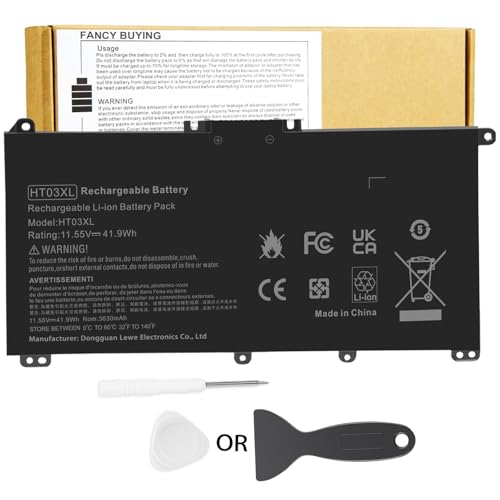
Battery Model: HT03XL ,Battery Type: Polymer. Voltage: 11.55V Capacity: 41.9WH ; Cells: 3-cell; Color: Black, Packages includes: 1x HT03XL battery , with two auxiliary installation tool and user manual;ht03xl for l11119-855 hp battery,for hp spare l11119-855 battery,for hp pavilion 15 battery replacement

Package Contents and Policies: HT03XL Battery, 2 Screwdrivers, User Manual for L11119-855 battery. For assistance with the HTO3XL Hp Laptop Battery or the hp ht03xl rechargeable li-ion battery, please visit our product detail page. Note: Both HT03XL and HW03XL are compatible with HP Pavilion 15 17 Series. But HT03XL Battery is not compatible with HW03XL

Voltage: 14.8V Cells: 4-cell Grade A cells ensure fast charges and low power consumption; Built-in circuit protection ensures both safety and stability.
Daily Battery Life Checklist
Use this simple routine when you want better battery life without changing how you work too much:
- Lower screen brightness to the lowest comfortable level.
- Turn on battery saver when you are away from a charger.
- Close apps and browser tabs you are not using.
- Keep the laptop on a hard, flat surface for airflow.
- Pause cloud syncing when battery is low.
- Disconnect unused USB devices and accessories.
- Use Wi-Fi and Bluetooth only when you need them.
- Keep your operating system, apps, and drivers updated.
These small steps can add up, especially during travel, classes, meetings, or work sessions away from an outlet.
Related Guides
Frequently Asked Questions
How long should I charge my laptop for optimal battery health?
For daily use, try to keep your laptop between about 20% and 80% when practical. Charge to 100% when you need maximum runtime. You do not need to unplug the second it reaches full, but avoid storing it hot and fully charged for long periods.
Can I use my laptop while it’s charging?
Yes, you can use your laptop while it is charging. This is normal. Just watch the heat, especially during gaming, video editing, or other demanding work. Keep the laptop on a hard, flat surface so vents stay clear.
What is the best temperature for laptop battery storage?
A cool, dry, room-temperature place is best for laptop battery storage. Avoid hot cars, direct sunlight, freezing spaces, and damp areas. If storing the laptop for a long time, leave the battery partly charged rather than completely full or empty.
Does using a laptop on a soft surface affect battery life?
Yes. A soft surface can block airflow, trap heat, and make the cooling system work harder. That extra heat can reduce performance and add battery stress. Use a desk, table, lap desk, or cooling stand when possible.
How often should I calibrate my laptop battery?
Calibrate your laptop battery only occasionally, such as every few months or when the battery percentage seems inaccurate. Do not fully drain the battery often as a routine, because deep discharges can add wear.
Is it bad to leave my laptop plugged in all day?
Leaving a modern laptop plugged in all day is usually safe, but it may not be ideal for long-term battery health if the laptop stays hot and fully charged. Use a battery health mode or charge limit if your laptop supports one.
Why does my laptop battery drain while sleeping?
Your laptop may drain during sleep because of background syncing, connected devices, network wake settings, or modern standby features. Turn off unnecessary wake options, disconnect accessories, and use hibernate or shutdown for longer breaks.
Conclusion
In the quest for a longer laptop battery lifespan, remember that small habits add up. Smart charging, cooler operating temperatures, lower screen brightness, fewer background apps, and built-in battery saver modes can make a real difference.
You do not need to follow strict rules every minute. Instead, avoid the biggest battery stressors: heat, repeated deep drains, unnecessary background activity, and poor ventilation.
With regular maintenance and mindful usage, your laptop can run longer between charges and keep better battery health over time. Start with the easy settings first, then consider hardware upgrades or battery replacement if your laptop still drains too quickly.

1 thought on “Laptop Battery Lifespan: What Affects It and How to Extend It”