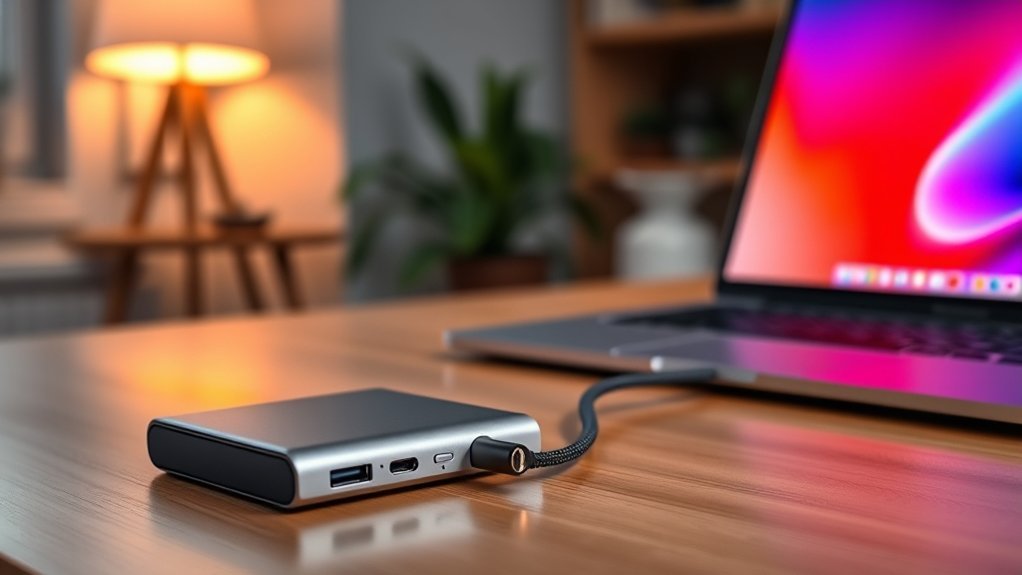
If you’re considering charging your laptop via USB-C, first confirm that the laptop actually accepts power through that USB-C port. The connector shape alone does not guarantee charging support. You also need a USB Power Delivery charger that can provide the wattage your laptop requires and a USB-C cable rated for that power level. When the laptop, charger, cable, and charging port all match, USB-C charging can be fast, convenient, and safe for everyday use.
Last updated: September 19, 2026. USB-C charging guidance was re-checked against current USB-IF, Apple, and Microsoft documentation.
Quick Answer
Yes, you can charge many modern laptops via USB-C if the laptop supports USB-C power input, the charger provides enough USB Power Delivery wattage, and the cable supports that power level. A lower-wattage charger may charge slowly, maintain the battery only during light use, or fail to keep up under load. A USB-C port that does not accept power input will not charge the laptop at all.
Key Takeaways
- USB-C describes the connector. Your laptop’s documentation must confirm USB-C charging, USB Power Delivery, or another supported USB-C power-input mode.
- Match the charger to the laptop’s recommended wattage. A charger that is too weak may charge slowly or fail to keep up while the laptop is working.
- Current USB-IF certified USB-C-to-USB-C cable power markings are 60W or 240W. For charging above 60W, choose a 240W-marked certified cable or a manufacturer-approved cable specified for the required power.
- On multi-port chargers, check the output available from the exact USB-C port you use. Connecting another device can reduce the wattage available to the laptop.
- If your laptop will not charge, verify the charging-capable port, charger output, cable rating, firmware, connector condition, and the manufacturer’s power requirements.
USB-C Charging Compatibility Check
| Laptop Port | Manufacturer specifications should confirm USB-C charging, Power Delivery input, or supported USB-C power input. |
| Charger | Use a compatible USB-C PD charger that meets the laptop manufacturer’s recommended wattage. |
| Cable | Use a cable rated for the required power. Current USB-IF certified USB-C cable power markings are 60W and 240W. |
| Multi-Port Output | Check the charger’s per-port power table because total advertised wattage may be shared when several devices are connected. |
| Expected Result | Full-speed charging requires the laptop, charger, cable, and active charger port to support the power level the laptop needs. |
Deal tip: Need a charger that can top up a laptop and a phone at once? The Anker 67W 3-port charger is in our early October Prime Day tech deals.
Understanding USB-C Technology
USB-C is a compact, reversible connector that can carry power, data, audio, or video depending on the device, port, and cable. That flexibility lets many modern laptops, phones, tablets, docks, monitors, and accessories use the same connector shape, but identical-looking USB-C ports do not necessarily have identical capabilities.
USB Power Delivery, or USB PD, is the charging protocol that allows compatible USB-C devices to negotiate higher power levels. USB PD 3.1 introduced Extended Power Range, raising the USB-C power ceiling from 100W to as much as 240W. USB-IF’s Power Delivery guidance lists fixed EPR levels including 140W, 180W, and 240W. USB-IF now publishes USB Power Delivery 3.2, while the practical rule for laptop users remains the same: the laptop, charger, and cable must all support the required power level.
The critical detail is that USB-C describes the connector, not every feature behind it. Two USB-C ports can look identical while one accepts laptop charging and the other handles only data or display functions. Always confirm charging support in the laptop’s manual or official specifications before relying on USB-C as the primary power input.
USB-C is the connector. USB Power Delivery is the charging protocol that lets compatible laptops, chargers, and cables negotiate supported power levels.
Compatibility: Is Your Laptop USB-C Ready?
To determine whether your laptop can charge over USB-C, verify the exact port rather than relying on its shape. Some laptops have several USB-C ports but accept charging through only one side or one specific port.
A USB-C connector alone does not prove that a laptop accepts charging through that port. Confirm power-input support in the manufacturer’s documentation.
- Charging support: Look in the specifications for terms such as USB-C charging, USB Power Delivery, PD input, or USB-C power input.
- Port labeling: A battery, plug, or power symbol may help identify a charging-capable port, but symbols vary by manufacturer and should not replace the documentation check.
- Required wattage: Compare the laptop’s official power requirement with the charger’s supported output.
- Available ports: If the laptop has several USB-C ports, confirm whether all of them or only selected ports accept charging.
If your laptop came with a barrel-style or proprietary charger, it may still accept USB-C charging, but you should not assume that it does. Some performance laptops accept USB-C power only at a lower limit than their main adapter, which may be enough for light work but not enough for full CPU or GPU performance.
Note: Thunderbolt, USB4, and USB-C ports can share the same physical connector. A high-speed data or display feature does not by itself tell you how much charging power the laptop will accept.
Once the charging-capable port and the laptop’s power requirement are confirmed, you can match the charger and cable to those requirements.
Types of USB-C Cables and Their Differences
Not every USB-C cable supports the same charging power, data speed, or display features. A cable may physically connect to your laptop but still limit charging if its supported power is below what the charger and laptop can use.
For current USB-IF certified USB-C-to-USB-C cables, the consumer-facing power markings are 60W or 240W. USB-IF requires these power-capability labels for cables going through its current compliance program. If your laptop needs more than 60W, a 240W-marked certified cable is the simplest current label to look for. Older manufacturer-approved high-current cables can also be suitable when they are explicitly specified for the required charging power.
Higher-power USB-C cables use electronic identification so the connected equipment can determine what the cable safely supports. The charger cannot deliver a high-power mode through a cable that does not advertise the necessary capability, so an unsuitable cable can cause the system to fall back to a lower power level.
Choose undamaged cables from reputable manufacturers and check the stated power capability rather than assuming every USB-C cable is interchangeable. For current certification details, see the USB-IF cable and connector guidance.
Power Delivery: What You Need to Know
Power Delivery matters because it allows a compatible charger, cable, and laptop to agree on an appropriate power level before high-power charging begins. Charger wattage alone does not determine the result; the laptop must support that input level and the cable must support the negotiated power.
Understanding Power Delivery
USB Power Delivery is a protocol for negotiating power over compatible USB connections. Instead of a charger simply forcing its maximum wattage into a device, the source advertises supported power options and the receiving device requests a level it is designed to accept.
This negotiation is why a compatible 100W or 140W USB-C charger does not automatically force 100W or 140W into a laptop that requires less. The laptop draws within the power modes both sides support.
What matters most:
- Supported power: The laptop, charger, and cable must share a compatible charging mode.
- Negotiation: USB PD devices communicate before using higher voltage and power levels.
- Versatility: One compatible USB-C PD charger can power different device categories at the power each device supports.
- Safety: Standards-based negotiation helps prevent unsupported high-power modes from being applied blindly.
Compatible Devices Overview
USB-C Power Delivery appears across laptops, tablets, phones, monitors, docks, and other electronics, but support varies by model. Major laptop brands including Apple, Dell, HP, Lenovo, ASUS, Acer, Microsoft, and Samsung sell devices that support USB-C charging, while other models from those same brands may use different charging arrangements.
Do not treat brand name or connector shape as a compatibility guarantee. Check the exact model’s charging specifications, required wattage, and supported charging port before choosing an adapter.
Charging Speed Factors
Charging speed depends on both the power available from the charger and the amount of power the laptop is using at the same time.
- Charger wattage: The charger must provide a compatible output high enough for the laptop’s requirement.
- Per-port output: On multi-port chargers, the wattage available to one USB-C port may drop when another device is connected.
- Cable capability: The cable must support the negotiated power level.
- Laptop input limit: A laptop will not exceed the charging power its hardware and firmware support.
- System load: Gaming, rendering, video editing, and other heavy workloads leave less incoming power available for replenishing the battery.
- Battery state and temperature: Charging may slow near a high state of charge or when the system is outside its preferred charging temperature range.
How to Check Your Laptop’s USB-C Charging Requirements
Before buying a charger or cable, confirm both USB-C charging support and the laptop’s recommended power. This prevents slow charging and avoids spending money on hardware that cannot deliver the expected performance.
- Check the original charger: Find the output rating printed on the adapter. It may show watts directly or list volts and amps.
- Calculate watts if necessary: Multiply volts by amps. For example, 20V × 3.25A equals 65W.
- Check the laptop manual or support page: Search for “USB-C charging,” “USB Power Delivery,” “PD input,” or “power adapter requirements.”
- Identify the charging-capable USB-C port: Do not assume every USB-C port accepts input power.
- Match the recommended wattage: Choose a compatible charger that meets the manufacturer’s requirement. A higher-capacity USB PD charger is generally fine because the laptop negotiates the power it accepts.
- Check the charger’s per-port specification: If it has several outputs, confirm how much power the laptop port provides when other ports are occupied.
Pro Tip: If your laptop’s official recommendation is 65W, start with a reputable USB-C PD charger that can provide at least 65W from the port you plan to use. A 30W phone charger may physically fit but can be too weak to keep up with the laptop.
How to Charge Your Laptop via USB-C
Once compatibility is confirmed, charging a laptop through USB-C is straightforward:
- Confirm the port accepts power: Use the laptop’s official specifications to identify a charging-capable USB-C port.
- Choose the correct charger: Use a USB-C PD charger that meets the laptop manufacturer’s recommended wattage.
- Choose the correct cable: Use a cable rated for the required power. For a current certified setup above 60W, look for a 240W USB-C power marking.
- Connect the charger and laptop: Plug the charger into AC power and connect it to the laptop’s charging-capable USB-C port.
- Verify the result: Check the battery icon or operating-system charging message. If you see “Slow Charger,” “Low Power Charger,” or the battery continues to fall during use, re-check the charger’s active-port wattage and cable capability.
If your laptop uses a high-power proprietary adapter, USB-C may be supported only as a secondary or reduced-power charging method. In that case, USB-C can be useful for travel or light workloads while the original adapter remains necessary for maximum performance.
Benefits of Charging Your Laptop via USB-C
USB-C can reduce the number of different charging connectors you need because one compatible charger may work across several devices. That is useful when traveling or moving between home, school, and work.
USB-C Power Delivery can also provide high charging power when the laptop, charger, and cable support the same power level. The reversible connector is easy to insert, and compatible higher-capacity chargers can serve lower-power devices through USB PD negotiation.
Depending on the laptop, dock, and cable, the same USB-C connection may also carry data or video while the laptop receives power. Those capabilities are not guaranteed by the connector alone, so verify the port’s data, display, and charging specifications when building a one-cable desk setup.
Common Misconceptions About USB-C Charging
Several USB-C assumptions lead to slow charging or incompatible setups:
- All USB-C cables are the same: They can differ in supported power, data speed, and display capability.
- Every USB-C port charges a laptop: Some ports support data or display functions without accepting charging input.
- A higher-wattage charger forces too much power: With compatible USB PD equipment, the laptop negotiates the supported power it accepts.
- A USB-C phone charger will always charge a laptop normally: It may be too weak for the laptop, especially during active use.
- A charger advertised as 100W always gives the laptop 100W: Multi-port chargers can divide their total output between connected devices.
- USB-C charging is always slower than a proprietary adapter: Charging speed depends on the specific laptop and supported USB-C power level.
The safest approach is to compare the laptop’s official charging requirement with the charger’s actual port output and the cable’s supported power.
How to Choose a USB-C Charger for Your Laptop
Choose a charger from the laptop’s power requirement outward rather than shopping by connector shape or laptop screen size. The most important figures are the manufacturer’s recommended charging wattage and the power available from the exact USB-C output you plan to use.
Power Output Ratings
Wattage is the charger’s maximum power capability, not a promise that every connected laptop will receive that amount. A compatible laptop requests a supported level from the charger.
- Match the official requirement: Use the wattage recommended by your laptop manufacturer as the starting point.
- Higher-capacity can be acceptable: A compatible higher-wattage USB PD charger does not force its maximum output into a lower-power laptop.
- Lower wattage can limit performance: The laptop may charge slowly, show a warning, maintain its current level, or continue losing charge under heavy use.
- Above 100W requires extra compatibility checks: The laptop, charger, and cable must all support the appropriate Extended Power Range mode.
For example, Microsoft currently publishes different minimum and recommended wattages across Surface models rather than using one universal USB-C value. Its guidance also warns that an underpowered charger may charge slowly or not at all. See Microsoft’s USB-C and fast-charging guidance.
Compatibility Checklist
Before choosing a charger, compare these specifications:
| What to Check | Why It Matters |
|---|---|
| USB-C charging support | A USB-C port that does not accept power cannot charge the laptop. |
| Recommended laptop wattage | This is the target the charger should meet for normal operation. |
| USB-C port output on the charger | The port you use must provide enough power, especially on multi-port chargers. |
| Cable power rating | The cable must support the negotiated charging power. |
| USB PD / EPR support | Higher-power modes require compatible support from the laptop, charger, and cable. |
Apple likewise states that supported Mac laptops can use USB-C power adapters with higher or lower wattage, while an underpowered charging solution can trigger a “Slow Charger” indication. Always apply manufacturer guidance to the exact laptop rather than assuming one charger works identically with every USB-C computer.
Portability and Design
Once electrical compatibility is confirmed, practical design features can help you choose between otherwise suitable chargers.
- Compact size: Easier to pack for commuting and travel.
- Reasonable weight: Useful if the charger stays in your everyday bag.
- Durable construction: Important for equipment that is plugged and unplugged frequently.
- Foldable prongs: Can reduce snagging and scratching inside a bag.
- Multiple ports: Useful for a laptop, phone, and accessories, but check how power is redistributed when several ports are active.
- Clear power labeling: Look for the output supported by each port rather than only the charger’s total wattage.
Electrical compatibility comes first. Size, weight, and extra ports matter only after the charger can reliably provide the power your laptop needs.
Using USB-C Power Banks and Docks
You can charge compatible laptops from USB-C power banks, docks, monitors, and hubs when their specifications include sufficient USB Power Delivery output. Check the host charging output, not merely a product’s USB-C input or advertised total power.
A lower-output power bank may still charge a laptop during sleep or light use but fail to keep up during heavier work. The same issue applies to docks: a dock may accept a high-wattage power adapter yet reserve some power for itself and connected accessories before passing the remainder to the laptop.
Warning: Do not assume a USB-C dock, hub, monitor, or power bank can charge your laptop just because it has a USB-C connector. Its specifications must list USB Power Delivery output or host-charging output high enough for your laptop.
Troubleshooting USB-C Charging Issues
If your laptop won’t charge through USB-C, start with compatibility rather than assuming the port or battery has failed. Confirm that you are using a charging-capable USB-C port, a USB PD charger with sufficient output, and a cable rated for that power.
Next, inspect the cable and connectors for obvious damage or debris, try another compatible charger or cable if available, and check the operating system for a slow-charger warning. Firmware, BIOS, and power-management updates can also affect charging behavior on some laptops, so use the laptop manufacturer’s support page for updates and model-specific troubleshooting.
Quick Troubleshooting Checklist
- Try another wall outlet to rule out a power-source problem.
- Confirm the USB-C port accepts charging rather than data or video only.
- Test another compatible USB-C cable rated for the required power.
- Test another USB-C PD charger that meets the laptop manufacturer’s wattage requirement.
- Check per-port wattage if you are using a multi-port charger.
- Restart the laptop and check whether normal charging resumes.
- Look for system warnings such as “Slow Charger,” “Not Charging,” or “Low Power Charger.”
- Disconnect extra devices from a shared charger or dock while testing.
- Update BIOS, firmware, and drivers from the laptop manufacturer’s official support page.
- Inspect the port and plug for looseness, bent parts, corrosion, or packed debris. Stop using damaged hardware.
Best Practices for Maintaining USB-C Ports
USB-C ports are compact and can become unreliable when connectors are damaged, contaminated, or repeatedly stressed sideways. Simple handling habits reduce avoidable problems.
Protect the connector from debris, moisture, sharp cable strain, and physical force; those basics matter more than frequent cleaning.
- Inspect before cleaning: Power the laptop down before dealing with visible debris around the connector.
- Avoid conductive tools and liquids: Do not scrape inside the port with metal objects or apply cleaning liquid directly into the connector.
- Use quality cables: Replace cables with damaged jackets, bent plugs, loose connectors, or abnormal heat.
- Insert the connector straight: Do not force or twist the plug if it does not seat normally.
- Avoid sharp cable bends: Tight bends close to the connector can strain both the cable and the laptop port.
- Keep liquids away: Moisture can cause corrosion, short circuits, or charging warnings.
- Get damaged ports serviced: A loose, bent, burned, or intermittently disconnecting port should be inspected rather than repeatedly forced into service.
USB-C Laptop Charging Standards in 2026
USB-C charging continues to evolve, but the connector’s appearance still tells you less than the specifications behind it. USB-IF’s document library currently lists USB Power Delivery Specification Revision 3.2 Version 1.2, dated September 14, 2026. USB PD 3.1 was the revision that introduced Extended Power Range up to 240W, and that higher-power capability remains part of today’s USB-C charging landscape.
What Changed by 2026?
The biggest practical change for buyers is clearer current cable labeling. USB-IF’s certification program uses 60W and 240W power markings for USB-C-to-USB-C cables, which makes it easier to distinguish ordinary power cables from cables intended for higher-power charging.
- 60W marking: Appropriate for compliant charging scenarios that stay within that power capability.
- 240W marking: The current high-power certified cable marking and the straightforward choice for new setups requiring more than 60W.
- USB PD negotiation: A 240W-capable charger or cable does not make every laptop draw 240W; the connected equipment must support the negotiated mode.
- Manufacturer limits still matter: Laptop makers can choose which USB-C ports accept power and how much USB-C charging power a model supports.
For the current specification library, see USB-IF USB Power Delivery specifications and the USB Type-C Cable and Connector Specification Release 2.5.
Compatibility Challenges That Still Matter
The standards are well defined, but laptops and accessories do not all implement the same capabilities. That is why two devices with identical-looking USB-C ports can behave very differently.
| Challenge | Impact |
|---|---|
| Same connector, different capabilities | A port may support charging, data, display output, or only some of those functions. |
| Different laptop power requirements | An underpowered charger may charge slowly or fail to keep up under load. |
| Different cable power capability | The cable can limit the power a compatible charger and laptop negotiate. |
| Shared-output chargers | Connecting another device can reduce the wattage available to the laptop. |
| Device-specific USB-C limits | Some high-performance laptops require another adapter for maximum performance even when USB-C charging is supported. |
The safest rule is consistent across all of these cases: verify the exact laptop’s power-input specifications, use a charger that meets them, and choose a cable rated for the required power.
Related Guides
Frequently Asked Questions
Can I charge my laptop while using USB-C peripherals?
Yes, you can charge your laptop while using USB-C peripherals if the laptop supports Power Delivery and the setup provides enough power. If you use a hub or dock, check its host-charging or pass-through output because some of the incoming power may be used by the dock and connected accessories.
Does USB-C charging affect my laptop’s battery lifespan?
USB-C charging does not inherently shorten your laptop’s battery lifespan. Battery wear is influenced more by factors such as heat, charging behavior, battery age, and how the laptop manages its battery. Use compatible, reputable charging hardware and keep the laptop adequately ventilated.
What happens if I use a lower-wattage USB-C charger?
A lower-wattage USB-C charger may charge the laptop slowly, maintain the battery only during light use, or fail to keep up while the laptop is working hard. Some laptops display a “Slow Charger” or “Low Power Charger” warning. Use the manufacturer’s recommended wattage for normal performance.
Can I use my phone’s USB-C charger for my laptop?
You can use a USB-C phone charger only if the laptop accepts USB-C charging and the charger offers a compatible USB Power Delivery output. Many phone chargers provide less power than a laptop requires, so the laptop may charge slowly or not charge effectively while in use.
Is it safe to charge a laptop overnight via USB-C?
It is generally safe to charge a compatible modern laptop overnight with reputable charging hardware that meets the manufacturer’s requirements. Keep the laptop and charger ventilated, avoid covering them with insulating materials, and stop using any charger, cable, or connector that is damaged or becomes abnormally hot.
Can any USB-C port on my laptop charge the battery?
No. USB-C describes the connector, not every supported feature. A laptop may have USB-C ports for data or display functions without accepting charging through all of them. Check the manual or official specifications to identify the charging-capable port.
Do I need a special cable for charging above 60W or up to 240W?
Yes. The cable must support the power your laptop and charger negotiate. Current USB-IF certified USB-C-to-USB-C cable power markings are 60W and 240W. For a new setup that needs more than 60W, choose a 240W-marked certified cable or another manufacturer-approved cable explicitly specified for the required power. A 240W-capable cable does not force extra power into the laptop.
Sources
- USB-IF USB Charger and USB Power Delivery — supports USB Power Delivery negotiation, Extended Power Range, and power capabilities up to 240W.
- USB-IF USB Power Delivery Specifications — current USB PD specification library, including USB Power Delivery Revision 3.2.
- USB-IF USB Type-C Cable and Connector Specification Release 2.5 — current USB Type-C cable and connector specification.
- USB-IF Cables and Connectors — supports current USB-C cable certification and 60W/240W power labeling.
- Apple Mac Laptop Charging Guidance — supports Mac charging compatibility and slow-charger guidance.
- Microsoft USB-C and Fast Charging for Surface — supports USB-C PD compatibility, recommended wattage, and lower-wattage charging behavior.
Conclusion
Yes, you can charge many laptops via USB-C, but the connector shape is only the starting point. Confirm that the laptop accepts USB-C power input, match the charger’s active-port output to the manufacturer’s recommended wattage, and use a cable rated for that power.
For a reliable setup, check those three specifications before buying or connecting anything. If charging is unexpectedly slow, the most useful checks are the exact charging port, charger wattage, per-port power sharing, cable capability, and any low-power warning shown by the laptop.

