Disclosure: As an Amazon Associate, we earn from qualifying purchases. If you click a link on this page and make a purchase, we may receive a small commission at no extra cost to you.
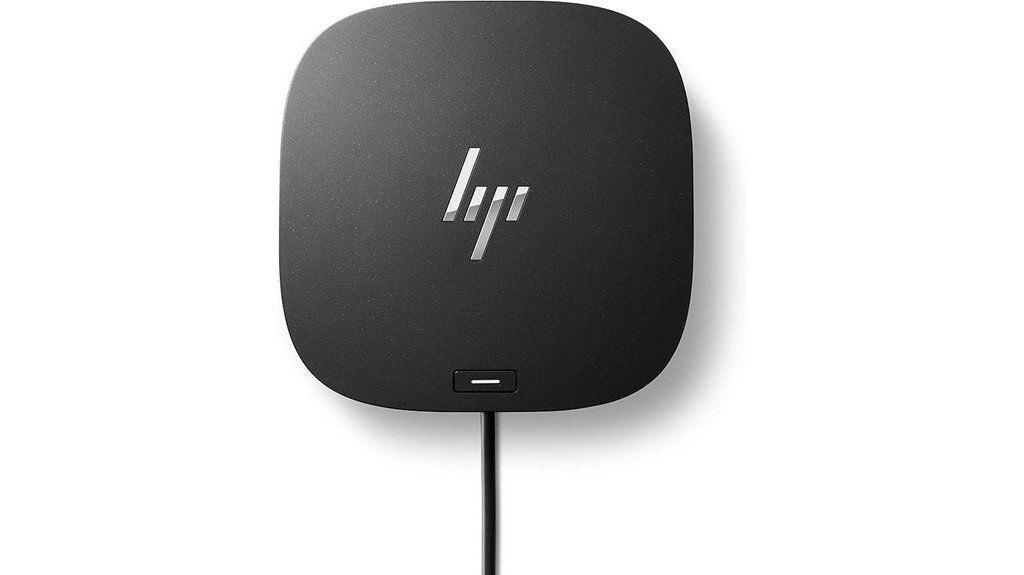
A clean desk setup can quickly become frustrating when your laptop needs power, wired internet, external monitors, and several USB accessories at the same time. The HP USB-C Dock G5 is built to solve that problem with an 11-in-1 connectivity solution for many USB-C and Thunderbolt-enabled laptops. It works best for professionals who want one cable for charging, networking, displays, and everyday peripherals, but it still depends on your laptop’s USB-C display and power support. This review explains where the dock helps most, where it has limits, and whether it makes sense for your workspace.
Quick Verdict
Rating: Recommended with caveats
Best For: Home office and business users who need a compact USB-C dock for power, displays, networking, and accessories.
Bottom Line: The HP USB-C Dock G5 is a strong choice if you want a tidy single-cable desk setup with broad device compatibility. The main tradeoff is that display output, charging, and enterprise features depend on what your laptop supports.
| Specification | Detail |
|---|---|
| Brand | HP |
| Model | HP USB-C Dock G5 |
| Product Type | USB-C docking station |
| Connectivity | 11-in-1 adapter for USB-C and Thunderbolt-enabled devices |
| Dimensions | 4.8 x 4.8 x 1.77 inches |
| Power Delivery | Up to 100W USB-C Power Delivery to the host system |
| Display Support | Supports up to three displays, including the notebook screen, depending on host support |
| Video Outputs | HDMI 2.0 and DisplayPort outputs |
| USB-A Support | Includes USB-A ports for legacy peripherals |
| Compatibility | Works with many HP and non-HP USB-C Alt Mode laptops |
| Best Use | Desk setups with monitors, wired networking, USB accessories, and laptop charging from one cable |
Overview
The HP USB-C Dock G5 is a compact docking station made for modern workspaces where one laptop needs to connect with several devices. It gives you one main USB-C connection for power, networking, data transfer, external displays, and accessories. That can make your desk easier to manage, especially if you move your laptop between home, office, and meeting spaces.
The dock measures 4.8 x 4.8 x 1.77 inches, so it takes up far less space than a row of separate adapters. Its square design is useful for small desks, shared workstations, and hybrid offices where cable clutter can become a daily problem. It also supports both HP and many non-HP devices, which makes it more flexible than a brand-locked dock.
The biggest point to understand is compatibility. Basic docking functions work across many USB-C Alt Mode laptops, but advanced features and full display support depend on the host device. Some manageability features, such as MAC Address Pass-Through, power button behavior, and Wake-on-LAN, may require HP or HP-supported systems.
Before You Buy: Check your laptop’s USB-C or Thunderbolt specifications before ordering. The dock’s charging, 4K display support, and multi-monitor setup depend on your host laptop, cables, monitors, and USB-C Alt Mode support.
What Is the HP USB-C Dock G5?
The HP USB-C Dock G5 is an 11-in-1 USB-C docking station designed to turn one compatible laptop port into a fuller desktop workstation. Instead of plugging in a charger, monitor cable, Ethernet cable, keyboard, mouse, and USB accessories one by one, you can route most of them through the dock.
It is made for users who want a cleaner workspace and faster setup each day. You connect your main desk accessories to the dock, then connect the dock to your laptop through one USB-C cable. This is especially helpful if you use your laptop as both a portable computer and a desktop replacement.
For office users, the dock can also support practical workplace needs, including wired networking, firmware management, and business-device workflows. For personal users, the main benefit is simpler connectivity for monitors, storage drives, USB-A devices, and charging.
Who Should Buy It?
Best For
- Professionals who want one cable for charging, displays, Ethernet, and USB accessories.
- Home office users who need a cleaner desk with fewer loose adapters.
- HP laptop owners who may benefit from deeper dock management features.
Skip If
- Your laptop does not support USB-C Alt Mode or USB-C charging.
- You need guaranteed multi-monitor performance without checking host compatibility.
- You only need a basic USB hub for a mouse, keyboard, and flash drive.
[Amazon Products Picked for You]

【9-in-1 USB-C Docking Station】This Acer laptop docking station includes 2 HDMI(4K@60Hz), 3 USB-A (5Gbps), 1 USB-C (5Gbps), 100W PD charging, and SD/MicroSD slots (104Mbps). 📌Note: 𝐏𝐥𝐞𝐚𝐬𝐞 𝐞𝐧𝐬𝐮𝐫𝐞 𝐲𝐨𝐮𝐫 𝐥𝐚𝐩𝐭𝐨𝐩 𝐡𝐚𝐬 𝐚 𝐔𝐒𝐁-𝐂 𝐩𝐨𝐫𝐭 𝐰𝐢𝐭𝐡 𝐯𝐢𝐝𝐞𝐨 𝐨𝐮𝐭𝐩𝐮𝐭 (𝐃𝐢𝐬𝐩𝐥𝐚𝐲𝐏𝐨𝐫𝐭 𝐀𝐥𝐭 𝐌𝐨𝐝𝐞) 𝐬𝐮𝐩𝐩𝐨𝐫𝐭.

【Complete 14-IN-1 Dock Solution】This laptop docking station 3 monitors features 2 HDMI ports, 2 DP ports, an RJ45 Ethernet port, 2 x USB-C 3.0 ports, 1 x USB-A 3.0 ports, 2 x USB-A 2.0 ports, SD/microSD slots, and a USB-C power charging port (100W Max). In addition, this USB C docking station dual monitor 𝐨𝐧𝐥𝐲 𝐜𝐨𝐦𝐩𝐚𝐭𝐢𝐛𝐥𝐞 𝐰𝐢𝐭𝐡 𝐥𝐚𝐩𝐭𝐨𝐩 𝐰𝐢𝐭𝐡 𝐓𝐡𝐮𝐧𝐝𝐞𝐫𝐛𝐨𝐥𝐭 𝟑/𝟒, 𝐅𝐮𝐥𝐥-𝐅𝐮𝐧𝐜𝐭𝐢𝐨𝐧𝐚𝐥 𝐔𝐒𝐁 𝐂 𝐩𝐨𝐫𝐭
Detailed Features
The HP USB-C Dock G5 stands out because it brings charging, networking, data transfer, and display connections into one compact dock. Its 11-in-1 adapter design gives you more connection options than a basic USB hub, while the single-cable setup keeps your desk easier to use.
For power, the dock can deliver up to 100W of USB-C Power Delivery to the host laptop. That can reduce the need to keep a separate laptop charger on your desk, as long as your laptop supports charging through USB-C and the power requirement fits within the dock’s supported output.
For displays, the dock supports multiple monitors through HDMI 2.0 and DisplayPort outputs. It is designed to support up to three displays, including the notebook screen, but the final display count and resolution depend on your laptop’s GPU, USB-C Alt Mode support, cables, and monitors.
Pro Tip: Before setting up multiple monitors, update your laptop firmware, graphics drivers, and dock firmware when available. This can help reduce display detection issues and improve stability.
Design and Build Quality
The dock’s compact 4.8 x 4.8 x 1.77-inch footprint makes it easy to place beside a monitor, behind a laptop stand, or near the edge of a desk. Its small square shape is useful if you want a clean setup without a large dock taking over your workspace.
The design works well for fixed desks because most cables can stay plugged into the dock. When you arrive at your desk, you only need to connect the dock cable to your laptop. When you leave, you unplug one cable instead of disconnecting every accessory.
The compact size is also helpful for shared workstations. If your office uses hot desks, a dock like this can make each station faster to use, especially when monitors, keyboard, mouse, Ethernet, and power are already connected.
Connectivity and Compatibility
Compatibility is one of the most important reasons to consider the HP USB-C Dock G5. It is made for USB-C and Thunderbolt-enabled devices, and it can work with many HP and non-HP laptops. This makes it more flexible than older proprietary docking stations that only fit one laptop line.
The dock includes USB-A support, which matters if you still use older accessories. Keyboards, mice, flash drives, webcams, and other USB-A peripherals can stay connected without needing extra adapters. That helps if your newer laptop has fewer full-size USB ports.
Still, not every USB-C port works the same way. Some USB-C ports handle data only. Others support charging, video output, and higher bandwidth. For the best experience, your laptop should support USB-C Alt Mode or Thunderbolt, and your monitor cables should match the display resolution you want to use.
Display Support and 4K Use
The HP USB-C Dock G5 can support high-resolution external monitors through HDMI 2.0 and DisplayPort outputs. It is designed for productivity setups where you may want one or more external screens for spreadsheets, documents, browser tabs, meetings, or creative work.
For many users, the biggest benefit is having monitors stay connected at the desk. You do not have to plug an HDMI or DisplayPort cable directly into the laptop every time. Instead, the dock becomes the main connection point.
For 4K use, your results depend on more than the dock itself. Your laptop, graphics hardware, USB-C bandwidth, monitor, cable type, refresh rate, and display settings can all affect performance. If you plan to use multiple 4K displays, check your laptop’s official external display limits first.
Power Delivery and Charging
The dock can provide up to 100W of USB-C Power Delivery to the host system. That is enough for many business laptops and productivity notebooks, but it may not replace the original charger for every high-performance workstation or gaming laptop.
If your laptop normally uses less than 100W, the dock can make your desk setup easier because one cable handles both charging and connectivity. If your laptop needs more power under heavy load, it may charge slower or need its original adapter for full performance.
This is why checking the laptop’s power requirement matters. The dock is most useful when its charging output matches your device’s needs.
Firmware and Business Features
Firmware for the dock can be delivered through HP’s management tools and pushed to the host Windows system for installation. This is useful in managed business environments where IT teams need to keep several docks updated without relying on each user to handle updates manually.
Some advanced features may work best with HP systems. These can include MAC Address Pass-Through, power button support, Wake-on-LAN, and other manageability functions. For non-HP laptops, the basic dock functions may still work, but enterprise features may be limited.
For a personal home office, this may not matter much. For a business fleet, it can be a key reason to choose an HP dock for HP laptops.
How It Performs in Real Use
For Home Office Work
In a home office, the HP USB-C Dock G5 helps keep your setup simple. You can leave your monitor, Ethernet, keyboard, mouse, webcam, and storage devices connected to the dock, then connect your laptop with one USB-C cable. This is useful if you start and end your workday with the same desk setup.
For Multi-Monitor Productivity
The dock is helpful if you work across several windows, such as email on one screen, documents on another, and video meetings on your laptop display. Its multi-display support can improve workflow, but it should be matched with a laptop that supports the monitor count and resolution you want.
For Shared Office Desks
In an office or hybrid workspace, this dock can make shared desks easier to use. A user can sit down, connect one cable, and access the desk’s monitor, network, and accessories. This can reduce setup time and make workstations feel more consistent.
For Travel Between Desk and Meetings
The dock is not mainly a travel adapter, but it helps if you move your laptop often. You can disconnect from your full workstation with one cable when you need to take your laptop to another room, then reconnect quickly when you return.
Setup Tips Before First Use
Start by connecting your external monitors, Ethernet cable, keyboard, mouse, and other accessories to the dock before connecting the dock to your laptop. This makes it easier to confirm which devices are being detected after the laptop connects.
Use quality HDMI, DisplayPort, and USB-C cables that match your display goals. A weak or older cable can cause flickering, lower resolution, or failed monitor detection, even when the dock and laptop support the setup.
After connecting the dock, check your display settings, power settings, and firmware updates. If a monitor does not appear, restart the laptop, reconnect the dock, and confirm that the laptop’s USB-C port supports video output.
Compatibility and Safety
The HP USB-C Dock G5 is an electronics accessory, so correct compatibility matters. Avoid assuming every USB-C laptop will charge and output video through the dock. Some laptops have USB-C ports that support only data transfer, while others support charging and displays.
Keep the dock in a ventilated area and avoid covering it with papers, fabric, or other desk items. Like other powered electronics, it should be used with proper cables and kept away from liquids. If you are using it in a business environment, follow your IT team’s setup guidance.
For the safest buying decision, compare the dock’s supported features with your laptop’s official specifications. This is especially important for multi-monitor setups, high-resolution displays, and laptops with higher charging needs.
Pros and Cons
Pros
- 11-in-1 docking design reduces the need for several separate adapters.
- Compact 4.8 x 4.8 x 1.77-inch footprint helps save desk space.
- Up to 100W USB-C Power Delivery can charge many compatible laptops.
- HDMI 2.0 and DisplayPort outputs support high-resolution monitor setups.
- USB-A ports help you keep using older peripherals.
Cons
- Full display support depends on your laptop’s USB-C and graphics capabilities.
- Advanced manageability features may require HP or HP-supported notebooks.
- Not ideal if you only need a low-cost basic USB hub.
Concluding Thoughts
The HP USB-C Dock G5 is a practical choice for professionals who want to reduce cable clutter and turn a compatible laptop into a full desk setup. Its compact design, broad compatibility, USB-A support, Ethernet use, external display support, and up to 100W charging make it useful for daily productivity.
Its biggest limitation is not the dock’s feature list, but the laptop you pair it with. A laptop with strong USB-C or Thunderbolt support will get more value from it than a laptop with limited USB-C functionality.
| Feature | Benefit |
|---|---|
| Universal Compatibility | Works with many HP and non-HP USB-C laptops |
| Space Efficiency | Reduces desk clutter and loose adapters |
| Multiple Displays | Improves productivity when your laptop supports the setup |
Ultimately, the HP USB-C Dock G5 provides a cleaner and more efficient way to manage your digital workspace. It is best for users who want dependable desk connectivity and are willing to confirm laptop compatibility before buying.
Is It Worth the Price?
The HP USB-C Dock G5 sits closer to the premium side compared with basic USB hubs. That higher value makes more sense if you need charging, Ethernet, display outputs, and multiple accessory connections from one dock.
It is worth considering if you use your laptop as your main work computer and connect to desk accessories every day. The time saved from plugging in one cable instead of several can be valuable over months of use.
It is not the best fit if you only need a simple hub for one or two USB devices. In that case, a smaller USB-C hub may be enough.
[Amazon Products Picked for You]

【13 in 1 Laptop Docking Station】Plug and play. With this usb c hub multiple adapter, you get 2*4K HDMI, DisplayPort, 2*USB C ports(Both support 100W Power Delivery+10Gbps Data Transfer), USB 3.1(10Gbps), 3*USB 3.0, 2*USB 2.0, 3.5mm Audio, Gigabit Ethernet port.
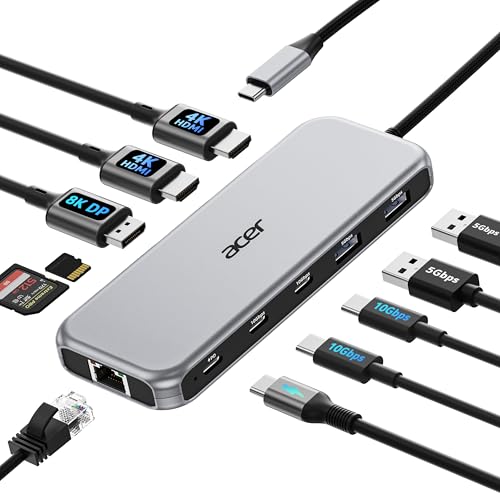
【All in one Docking Station】This Acer laptop docking station includes 2 HDMI(4K@60Hz), 1 DP(8K@30Hz), 2 USB-C (10Gbps), 2 USB-A (5Gbps), Ethernet(1 Gbps), PD charging(100W) , and SD/MicroSD slots (104Mbps)-enabling seamless multi-display setup and efficient device connectivity for work and entertainment. 📌𝐍𝐨𝐭𝐞: 𝐏𝐥𝐞𝐚𝐬𝐞 𝐞𝐧𝐬𝐮𝐫𝐞 𝐲𝐨𝐮𝐫 𝐥𝐚𝐩𝐭𝐨𝐩 𝐡𝐚𝐬 𝐚 𝐭𝐡𝐮𝐧𝐝𝐞𝐫𝐛𝐨𝐥𝐭 𝟑/𝟒/𝟓 𝐩𝐨𝐫𝐭 𝐨𝐫 𝐚 𝐟𝐮𝐥𝐥-𝐟𝐞𝐚𝐭𝐮𝐫𝐞𝐝 𝐔𝐒𝐁-𝐂 𝐩𝐨𝐫𝐭
How It Compares to Alternatives
Compared with a basic USB-C hub, the HP USB-C Dock G5 offers a fuller desktop setup with charging, networking, and display support. A basic hub may be cheaper and more portable, but it usually will not offer the same desk-focused experience.
Compared with larger Thunderbolt docks from brands like CalDigit, Plugable, or Dell, the HP USB-C Dock G5 makes the most sense if you want a compact business-friendly dock, especially for HP laptop environments. Higher-end Thunderbolt docks may be better if you need more bandwidth or demanding multi-monitor setups.
[Amazon Products Picked for You]

USB C Docking Station 8 IN 1: HoDo USB C Docking Station with Dual HDMI 4K (1*60HZ & 1* 30HZ), 1*4K@60HZ DisplayPort, 1*1080P VGA,3* USB 2.0,USB C Power Charging Port (max 100W). Please Note: on MacOS system, the screens of external monitors are the same, no matter they are displayed in mirror mode or extended mode

14-in-1 Connectivity: Bring together all your devices with a 14-in-1 solution, perfect for charging, transferring data quickly, and managing dual displays.
Related Guides
Frequently Asked Questions
Does the HP USB-C Dock G5 work with non-HP laptops?
Yes, it can work with many non-HP USB-C Alt Mode laptops. Basic features may work well, but some advanced manageability features may require HP or HP-supported systems.
How does the HP USB-C Dock G5 handle firmware updates?
Firmware for the dock can be delivered through HP’s management tools and pushed to the host Windows system for installation. This is especially useful for business users and IT-managed laptop fleets.
Is the dock compatible with older USB-A devices?
Yes. The dock includes USB-A ports, so you can connect older peripherals such as keyboards, mice, webcams, and flash drives alongside newer USB-C accessories.
Can the dock support 4K resolution on connected displays?
Yes, the dock is designed to support high-resolution external monitors through HDMI 2.0 and DisplayPort outputs. Actual 4K performance depends on your laptop, cable, monitor, refresh rate, and USB-C Alt Mode support.
What is the power output capacity of the HP USB-C Dock G5?
The dock can deliver up to 100W of USB-C Power Delivery to the host laptop. Check your laptop’s power requirements to confirm whether that is enough for your setup.
Does the dock require specific software installation?
Basic plug-and-play functions work with many USB-C Alt Mode laptops. Certain enterprise features, such as MAC Address Pass-Through, power button behavior, and advanced manageability, may require HP systems or HP software.
Who should skip the HP USB-C Dock G5?
Skip it if your laptop does not support USB-C video output or USB-C charging. It may also be more dock than you need if you only want a simple USB hub for one or two accessories.
What is the most common setup mistake?
The most common mistake is assuming every USB-C port supports charging and video. Always check your laptop’s specifications before expecting multi-monitor output or full power delivery through the dock.
The Bottom Line
The HP USB-C Dock G5 is a smart buy for professionals who want a compact single-cable desk setup with charging, Ethernet, external display support, and USB accessory connections. It is best for compatible USB-C or Thunderbolt laptops, especially HP systems, but you should skip it if your laptop has limited USB-C support or you only need a basic hub.
