Pairing a phone with a Toyota RAV4 lets you make calls and play audio through the vehicle’s multimedia system. The exact buttons and menu names depend on the RAV4’s model year and installed head unit, so this guide covers both newer Toyota Audio Multimedia systems and older Toyota interfaces.
Quick Answer
Park your RAV4, turn on Bluetooth on your phone, and open the vehicle’s Bluetooth device menu. Choose Add Device or Search for Devices, select your phone, confirm that the verification codes match, and approve contact and media permissions. Older multimedia systems may use Menu > Setup > Bluetooth > Add Device.
Key Takeaways
- Complete the initial pairing while the RAV4 is parked; many systems disable device registration while driving.
- Menu labels vary by model year, multimedia system, and software version.
- Approve contacts, calls, and media permissions if you want full hands-free and audio functionality.
- Recent RAV4 systems can store several devices and may connect two phones at the same time.
- Bluetooth audio is different from Apple CarPlay and Android Auto, even though wireless phone projection also uses Bluetooth during setup.
At a Glance
| Time Required | About 3–5 minutes |
| Difficulty | Easy |
| Tools Needed | A compatible phone and the RAV4 multimedia system |
| Cost | Free; normal phone and data charges may apply to calls, streaming, or online apps |
Warning: Park in a safe location before pairing, deleting, or configuring a phone. Hands-free controls can reduce the need to handle the phone, but calls, messages, navigation changes, and other interactions can still distract you from driving.
Benefits of Pairing Your Phone With a Toyota RAV4
A Bluetooth connection allows a compatible phone to communicate with the RAV4’s multimedia system without an audio cable. Depending on the vehicle, phone, and permissions you approve, the connection may support:
- Incoming and outgoing hands-free calls
- Access to compatible contacts and recent calls
- Music, podcast, and audiobook playback
- Steering-wheel call and volume controls
- Supported message notifications
- Automatic reconnection when the vehicle starts
Pairing can reduce the need to pick up or manually operate your phone, but it does not make phone use distraction-free. Keep conversations brief, use voice or steering-wheel controls only when traffic conditions allow, and pull over before performing a task that requires attention.
NHTSA reported that 3,208 people were killed in crashes involving distracted drivers in 2024. Hands-free technology does not replace attentive driving.
Preparing Your Phone for Bluetooth Pairing
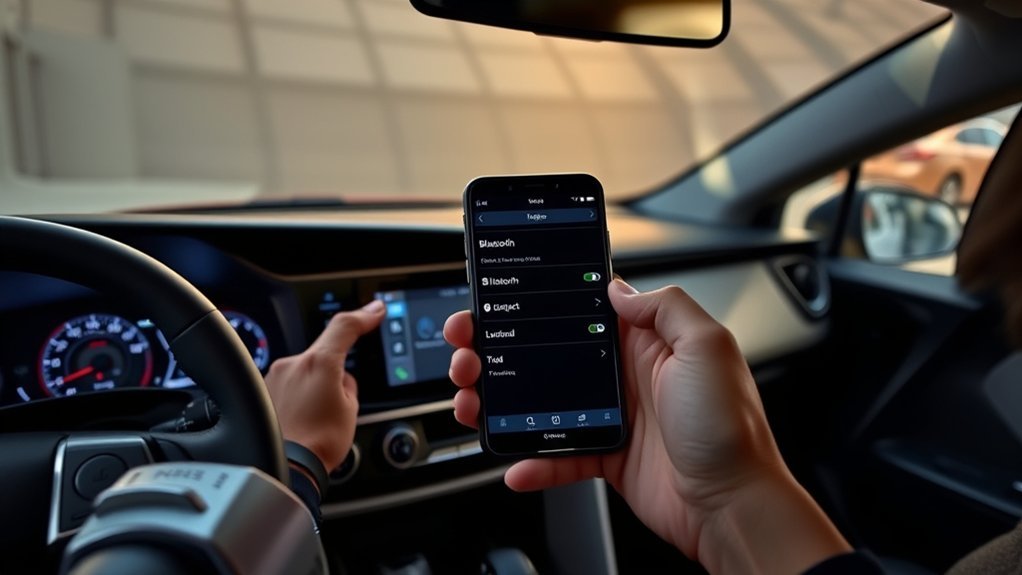
Complete these checks before opening the RAV4’s pairing menu:
| Preparation | What to Do | Why It Helps |
|---|---|---|
| Park the vehicle | Shift to Park and leave the multimedia system on. | Toyota systems may prevent device registration while the vehicle is moving. |
| Turn on Bluetooth | Open the phone’s Bluetooth settings and enable Bluetooth. | The RAV4 cannot discover or connect to a phone with Bluetooth disabled. |
| Keep the pairing screen open | Remain on the phone’s Bluetooth settings page during discovery. | Some phones are easier for the vehicle to find while this screen is visible. |
| Check for an old RAV4 entry | Leave it in place for the first attempt. Remove it only if reconnection or re-pairing fails. | Deleting a working pairing unnecessarily can create extra setup work. |
| Update the phone | Install available operating-system updates before troubleshooting persistent problems. | Updates can correct phone-side Bluetooth and projection issues. |
Note: Toyota has used different multimedia systems across RAV4 model years. Your screen may say Add Device, Add Another Device, Register Device, Search for Devices, or a similar phrase.
Step-by-Step Guide to Pairing Your Phone
1. Open the RAV4 Bluetooth Menu
Use the route that most closely matches your multimedia system:
- Recent Toyota Audio Multimedia systems: Select the Settings gear, open Bluetooth & Devices, and choose Add another device, Add a device, or Search for devices.
- Older Toyota multimedia systems: Press Menu, select Setup, choose Bluetooth, and select Add Device.
- Systems without a device already connected: Pressing or holding the steering-wheel phone or talk control may open the registration screen on some models.
Interface wording can change with model year, screen size, equipment, and software updates. Follow the on-screen instruction when it differs from the examples above.
2. Search for Your Phone
Select the option to search for nearby devices. When your phone’s name appears on the RAV4 screen, select it. If the vehicle cannot find the phone, leave the phone’s Bluetooth settings screen open and try initiating the search from the phone instead.
3. Confirm the Verification Code
A verification code should appear on the phone and vehicle display. Confirm that both codes are identical before approving the request on either device.
The matching code confirms that you are connecting the intended phone to the intended vehicle. It does not guarantee that every phone feature will be compatible.
4. Approve Phone Permissions
Your phone may request access to contacts, call history, messages, notifications, or media audio. Approve the functions you want to use:
- Contacts and call history: Needed to display names, browse contacts, and show recent calls.
- Phone calls: Needed for hands-free calling.
- Media audio: Needed to play music, podcasts, and other phone audio.
- Messages and notifications: Needed for supported message functions; availability varies by phone and multimedia system.
You can decline permissions that you do not want to share. The related feature may then be unavailable in the RAV4.
5. Finish and Test the Connection
Wait for the multimedia system to confirm that registration is complete. Test both major Bluetooth functions:
- Open the phone or contacts screen and confirm that the connected phone is shown.
- Select Bluetooth as the audio source and play a short audio track.
If calls work but audio does not, or audio works but calls do not, open the device settings in the RAV4 and make sure the phone and media functions are both enabled for that device.
Pro Tip: Give each family member’s phone a clear, unique phone name before pairing. This makes it easier to choose the correct device when several phones are stored in the vehicle.
Check Your Bluetooth PIN for the Intended Connection
The Bluetooth verification code is an important checkpoint during pairing. Do not approve the request if the numbers shown on the phone and RAV4 do not match.
If the codes differ, cancel the request on both devices and start again. Make sure you selected your own phone rather than another nearby device. After a successful match, the RAV4 should save the phone and attempt to reconnect automatically during future trips.
If a phone reports that pairing succeeded but the RAV4 does not show it as connected, delete or forget the incomplete connection on both devices, turn phone Bluetooth off for several seconds, turn it back on, and repeat the pairing process.
How to Use Hands-Free Calling in Your RAV4
Once the phone is paired for calling, the RAV4 may display compatible contacts, favorites, and recent-call information. The available controls depend on the steering wheel and multimedia system.
Make a Call
You can generally start a call in one of three ways:
- Select a contact or recent call on the multimedia screen while parked or when safe to do so.
- Press the steering-wheel talk switch and say a supported command such as “Call” followed by the contact’s name.
- Use Siri through Apple CarPlay or Google Assistant through Android Auto when phone projection is active.
Voice-recognition wording and availability vary. Say “Help” after starting the Toyota voice assistant on supported systems to hear available commands.
Answer or End a Call
When a call arrives, use the touchscreen answer control or press the steering-wheel off-hook phone button. Use the on-hook button or the touchscreen end-call control to hang up.
Do not rely on saying “answer” unless your specific multimedia system displays or documents that command. The steering-wheel and touchscreen controls are the more consistent methods across RAV4 model years.
Adjust Call Volume
Use the steering-wheel volume controls or multimedia volume knob while the call is active. Call volume may be stored separately from music volume, so adjust it during a call rather than while another audio source is playing.
Stream Music and Podcasts via Bluetooth
After pairing, select the RAV4’s audio-source menu and choose Bluetooth, Bluetooth Audio, or the connected phone’s name. Start playback from the phone or use supported vehicle controls to play, pause, and change tracks.
If the phone is connected for calls but does not appear as an audio source:
- Open the RAV4’s Bluetooth device settings and enable the media or audio function for the phone.
- On Android, open the phone’s saved Bluetooth device entry and make sure Media Audio is enabled.
- Turn the phone’s media volume up.
- Pause audio on headphones, earbuds, or another Bluetooth speaker that may still be active.
- Disconnect and reconnect the phone after changing permissions.
Bluetooth audio quality depends on the phone, source recording, supported Bluetooth profiles, vehicle speakers, signal conditions, and volume settings. Pairing does not guarantee identical sound quality with every device.
[Amazon Products Picked for You]

Add Bluetooth to Your Car: UGREEN Bluetooth receiver is designed to turn home or audio systems, or speakers into hands-free, Bluetooth-enabled devices. If you want to stream music or listen to phone conversations through car’s speakers, but your vehicle didn’t come with Bluetooth, UGREEN Bluetooth Car adapter is an effective solution.
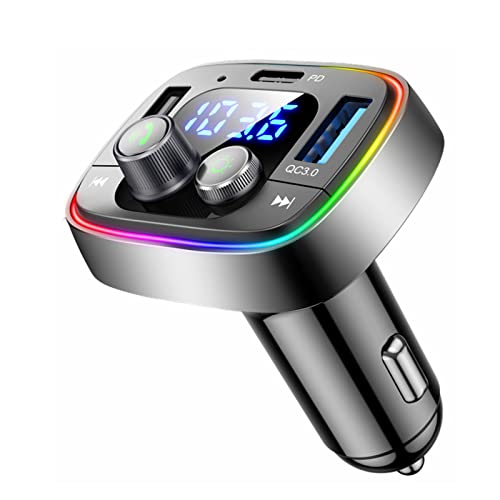
[Upgrade any non-Bluetooth or non-AUX jacks car in 30 seconds]: Turn any vehicle into a wireless Bluetooth audio system in seconds. No new stereo, No dongle hunting.

Add Bluetooth to Your Car: UGREEN aux bluetooth adapter is designed to turn home or audio systems, or speakers into hands-free, Bluetooth-enabled devices. If you want to stream music or listen to phone conversations through car’s speakers, but your vehicle didn’t come with Bluetooth, UGREEN Bluetooth 6.0 Car adapter is an effective solution.
Setting Up Apple CarPlay and Android Auto
Bluetooth calling and audio are not the same as Apple CarPlay or Android Auto. Phone projection places compatible navigation, calling, messaging, and audio apps on the RAV4 display.
All 2023 RAV4 grades introduced Toyota Audio Multimedia with standard wireless Apple CarPlay and Android Auto. Older RAV4 systems may require a data-capable USB cable, and available features can vary by trim and region.
[Amazon Products Picked for You]

Upgrade to Wireless CarPlay & Android Auto The 2 in 1 Wireless CarPlay and Android Auto Adapter converts your factory wired system into a wireless experience. It’s perfect for families using both iPhone and Android phones, allowing effortless switching without unplugging or swapping cables. This adapter is compatible with over 1,000 vehicle models—supporting 800+ with wired CarPlay and 500+ with wired Android Auto. Works with iPhone 6 or later and Android 11 or above devices.

The Ultimate Smarter Copilot: Stay on Top of Your Driving- The 3A magic link CarPlay box control everything with a word, Or a touch, Or a twist. Save your 40% of time by quick auto conn and seamless operation, such as navigation, music playing, Siri assistant, phone calls, radio etc(Our Carplay Only Compatible with wired Apple CarPlay Car systems)

💎【2-in-1 Dual Compatibility & USB-C Ready】 The ultimate solution for mixed-tech households. Fully supports both Wireless CarPlay (iOS 10+) and Wireless Android Auto (Android 11+). We include both USB-A and USB-C adapter cables, making it perfectly compatible with 2016-2026 car models, including newer vehicles equipped with Type-C ports.
Set Up Wireless Apple CarPlay
- Turn on Bluetooth, Wi-Fi, and Siri on the iPhone.
- Open the RAV4’s Bluetooth & Devices menu and add the iPhone.
- Approve the Bluetooth verification code.
- Accept the Apple CarPlay prompt on the phone and vehicle display.
- Allow CarPlay to connect automatically if you want it to launch on future trips.
For a wired connection, connect the iPhone to the RAV4’s data-capable USB port using a reliable cable. A charging-only USB port will not start CarPlay.
Set Up Wireless Android Auto
- Turn on Bluetooth and Wi-Fi on the Android phone.
- Open the RAV4’s Bluetooth & Devices menu and add the phone.
- Confirm the verification request.
- Approve the Android Auto prompts and requested permissions.
- Select Android Auto on the RAV4 display if it does not open automatically.
For vehicles or phones that require a wired connection, plug the phone into the data-capable USB port and follow the prompts. Android Auto is integrated into supported modern Android phones, although updates and additional permissions may be required.
Note: A phone can pair successfully for ordinary Bluetooth calls and audio even when Apple CarPlay or Android Auto is unavailable, disabled, or incompatible.
Use Voice Commands in Your RAV4
Depending on the system in use, the RAV4 may respond to Toyota’s built-in voice assistant, Siri through Apple CarPlay, or Google Assistant through Android Auto. Press the steering-wheel talk switch to start the active assistant.
A short or long press may activate different assistants on some systems. Follow the icon and prompt shown on the multimedia display rather than assuming every press behaves the same way.
Voice Command Navigation Control
With compatible built-in navigation, Apple CarPlay, or Android Auto, voice commands may be used to:
- Search for an address or business
- Start directions to a saved destination
- Find fuel, parking, restaurants, or other nearby places
- Cancel or change an active route
Navigation availability and online search functions depend on the multimedia system, connected phone, region, and any required service or data connection.
Hands-Free Calling Features
| Feature | Typical Method | Important Limitation |
|---|---|---|
| Call a contact | Press the talk switch and say “Call” plus the contact’s name. | The contact must be synced and pronounced in a way the active assistant recognizes. |
| Answer a call | Press the off-hook steering-wheel button or the touchscreen answer control. | A spoken answer command is not available on every system. |
| End a call | Press the on-hook button or touchscreen end-call control. | Button symbols and placement vary. |
| Read or send messages | Use a supported Toyota, Siri, or Google voice function. | Phone permissions, compatible apps, and regional restrictions apply. |
How to Troubleshoot Bluetooth Connection Issues
Start with the symptom that most closely matches your problem:
| Problem | What to Check | Recommended Fix |
|---|---|---|
| Phone does not appear | Bluetooth status, phone pairing screen, nearby active devices, and vehicle search mode | Toggle phone Bluetooth off and on, keep its Bluetooth screen open, and search again from both the RAV4 and phone. |
| PIN does not match | Whether the correct phone and vehicle entry were selected | Cancel both prompts and restart pairing. Never approve mismatched codes. |
| Calls work but music does not | Media Audio or Use for Media setting | Enable media for the saved device and select Bluetooth as the RAV4 audio source. |
| Music works but calls do not | Phone or hands-free setting and call permission | Enable phone use for the device and approve call access on the phone. |
| Contacts show numbers only | Contact-sharing permission | Allow contact access in the phone’s saved RAV4 Bluetooth entry, then reconnect. |
| Wrong phone connects first | Primary-device or driver-profile setting | Set the preferred phone as primary or disconnect the unwanted device before reconnecting yours. |
| Connection drops repeatedly | Phone software, competing connections, incomplete pairing, and multimedia stability | Restart both systems, update the phone, and delete and re-create the pairing on both sides. |
| CarPlay or Android Auto will not start | Projection setting, Wi-Fi, Siri or Google permissions, cable, and USB port | Confirm phone projection is enabled. For wireless use, turn on Wi-Fi and Bluetooth. For wired use, try a data cable and data-capable port. |
| No room for another device | Saved-device list | Forget an unused phone in the RAV4’s Bluetooth & Devices menu before adding the new one. |
[Amazon Products Picked for You]

🎵Stream Music, Podcasts, Navigation and hands-free calls in Any Car : The LIHAN Bluetooth 5.3 FM transmitter streams any audio APP from your phone through car's FM radio — no AUX port needed.

Versatile Car Phone Mount: Cell phone car mount boasts premium suction strength and an upgraded air vent clip, allowing for flexible installation options on windshields, dashboards, and air vents. Note!3M Dashboard Pad is NOT REQUIRED when using a phone holder on windshield

Never Fall Off-Metal Hook Design: Miracase car phone holder adopts simplified locking design. The steel metal hook(with silicone pad and mat) will catch one of car air vent blades and provide excellent strudiness. It will work well for your car even in extremely harsh environments. NOTE: ONLY Compatible with horizontal and vertical vents. Not suitable for round vents.
Restart the Multimedia System
If the screen or connection is unresponsive, safely park the vehicle and restart the multimedia system. On many Toyota systems, pressing and holding the power or volume knob restarts the unit. The exact operation can differ, so consult the multimedia owner’s manual if the system does not respond.
Delete and Re-Pair the Phone
- In the RAV4, open Bluetooth & Devices or Bluetooth Setup.
- Select the affected phone and choose Forget, Remove, or Delete.
- On the phone, open Bluetooth settings and forget the saved Toyota or RAV4 entry.
- Restart the phone or turn Bluetooth off for about 10 seconds.
- Repeat the pairing process and approve the needed permissions.
A phone that is set as another driver profile’s primary device may need to be unlinked from that profile before the vehicle allows it to be deleted.
Check Compatibility and Updates
Bluetooth support varies by phone hardware, operating system, carrier settings, and multimedia software. Check the correct RAV4 multimedia manual and Toyota’s phone-compatibility resources if a specific feature remains unavailable.
Use a factory or network reset only as a last resort. A phone network reset may also erase saved Wi-Fi networks, VPN settings, and other connections.
Frequently Asked Questions
Can multiple phones be paired with a Toyota RAV4?
Yes, most Bluetooth-equipped RAV4 systems can store more than one phone, although the exact limit depends on the multimedia unit. Recent Toyota Audio Multimedia systems can register up to five Bluetooth devices and may use two phones for hands-free functions when the necessary driver profile is configured. The 2023-and-newer RAV4 also supports dual Bluetooth phone connectivity.
How do I unpair a device from my RAV4?
Open Settings or Setup, select Bluetooth & Devices or Bluetooth, choose the saved phone, and select Forget, Remove, or Delete. Forget the RAV4 entry on the phone as well when you are correcting a connection problem or removing your personal data from the vehicle.
Will Bluetooth work with every phone model?
No system can guarantee every function with every phone. Basic calling or audio may work while contacts, messages, wireless projection, or voice functions remain unavailable. Compatibility depends on the phone, operating system, Bluetooth profiles, RAV4 model year, multimedia equipment, and software versions.
Can I change the Bluetooth name shown in my RAV4?
Naming options are system-dependent. Some older Toyota systems let you edit the displayed name of a saved Bluetooth device, but this may not change the phone’s actual Bluetooth name or the name broadcast by the vehicle. Newer systems may use the phone name automatically. Renaming the phone itself before pairing is the most consistent way to make it easy to identify.
What should I do if my phone does not appear in the device list?
Make sure Bluetooth is enabled, keep the phone’s Bluetooth settings page open, and start a new device search from the RAV4. Toggle Bluetooth off and on, restart the phone and multimedia system, and remove incomplete Toyota pairings before trying again. Also verify that the vehicle is parked and device registration is available.
Why do calls work when Bluetooth music does not?
Hands-free calling and media audio use separate Bluetooth functions. Open the saved-device settings in the RAV4 and phone, enable the media or audio option, select Bluetooth as the vehicle’s audio source, and disconnect any earbuds or speakers that are still receiving the phone’s audio.
Does ordinary Bluetooth require cellular data?
Bluetooth pairing, contact access, and playback of files stored on the phone do not require cellular data. Calls, online music, cloud navigation, message services, and other internet-based apps may use the phone’s voice or data plan.
Conclusion
To set up Bluetooth in a Toyota RAV4, park the vehicle, open the correct Bluetooth device menu for your multimedia system, select your phone, verify the matching code, and approve the functions you want to use. Test calling and media audio separately because each can have its own setting.
For 2023-and-newer RAV4s, also consider wireless Apple CarPlay or Android Auto when you want navigation and compatible apps on the vehicle display. When a connection fails, restart both devices, forget the pairing on both sides, and create a clean connection before attempting broader resets.
Before selling, trading, renting, or returning the RAV4, remove your phone and driver profile from the multimedia system to protect your contacts, call history, and account information.
Sources
- Toyota: How to Pair a Smartphone via Bluetooth — pairing route used by older Toyota multimedia systems
- Toyota Multimedia Owner’s Manual — Bluetooth registration, verification codes, device management, and multi-phone operation
- Toyota: 2025 RAV4 Multimedia Features — dual Bluetooth phone connectivity and wireless Apple CarPlay and Android Auto
- Apple: Connect iPhone to CarPlay — wired and wireless CarPlay requirements
- Google: Set Up Android Auto — Android Auto connection and setup guidance
- National Highway Traffic Safety Administration: Distracted Driving — distraction risks and current crash data
