Last updated: September 22, 2026
Pairing your phone with a Toyota Tundra usually takes only a few minutes, but the correct steps depend on the truck’s multimedia system. Current Toyota Audio Multimedia systems use the Bluetooth & Devices menu, older touchscreen systems use different Setup or Bluetooth menus, and some early factory systems such as the 2007 Tundra use voice prompts and physical controls.
Quick Answer
Park your Tundra, enable Bluetooth on your phone, and open the truck’s Bluetooth settings. On newer Toyota Audio Multimedia systems, choose Settings > Bluetooth & Devices. If another device is already registered, select Add another device, then Search for devices. Select your phone, confirm that the PIN shown on both devices matches, and approve the requested phone, contact, message, and media permissions.
Key Takeaways
- Use the menu labels shown on your Tundra because pairing steps vary by multimedia generation.
- Complete the setup while parked. Toyota prevents Bluetooth-device registration while driving on current systems.
- Approve phone, contact, message, and media permissions when your phone requests them.
- The 2026 Tundra multimedia system can store up to five Bluetooth devices; connection priority and simultaneous phone use depend on driver-profile settings.
- If pairing fails, delete the saved connection from both devices before pairing them again.
- Bluetooth calling and audio are not the same as Apple CarPlay or Android Auto, which have their own compatibility and connection requirements.
At a Glance
| Time Required | A few minutes for a normal pairing; longer if old pairings or permissions interfere |
| Difficulty | Easy |
| Tools Needed | A Bluetooth-enabled phone and a Tundra equipped with compatible factory or aftermarket Bluetooth hardware |
| Cost | No separate fee for Bluetooth pairing; normal phone or data charges may still apply to connected services |
Warning: Park the truck in a safe location before opening Bluetooth menus or approving prompts. Current Toyota multimedia systems do not allow new Bluetooth devices to be registered while driving.
Which Toyota Tundra Bluetooth Procedure Applies?
Start by identifying the multimedia system rather than choosing instructions only by model year. Toyota changed Bluetooth interfaces across generations, and trucks with navigation, upgraded audio, or aftermarket stereos may use different menus.
| System clue | Typical pairing route | Use this section |
|---|---|---|
| Screen shows Bluetooth & Devices | Settings > Bluetooth & Devices > Search for devices; use Add another device first when another device is already registered | Newer Toyota Audio Multimedia |
| Screen or faceplate shows SETUP, Bluetooth, Phone, or Add Device | Open the factory Setup/Bluetooth menu and register or add the phone | Older touchscreen systems |
| Early system uses off-hook/talk switches and the AUDIO/CONTROL knob | Enter Phone Setup and select or say Pair Phone | 2007 factory hands-free procedure |
| Radio has a non-Toyota brand name or aftermarket interface | Use the stereo manufacturer’s pairing instructions | Aftermarket stereo manual |
Understanding Toyota Tundra Bluetooth Features
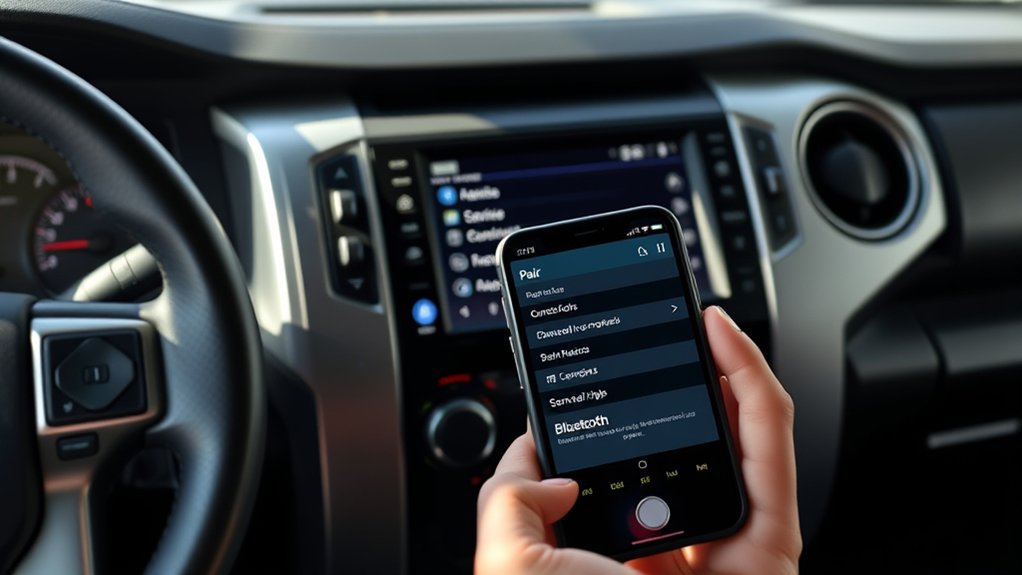
A Bluetooth-equipped Toyota Tundra can support hands-free calls, phone audio, and music streaming. Available functions depend on the truck’s model year, trim, market, multimedia unit, and the Bluetooth profiles supported by your phone.
Once paired, you may be able to make calls through the steering-wheel controls, stream music through Bluetooth Audio, and use supported voice functions. Current Toyota Audio Multimedia systems can register several devices and separately control whether a compatible device is used for phone, media, Apple CarPlay, or Android Auto.
The 2026 Tundra multimedia manual allows up to five Bluetooth devices to be registered. When a driver profile is configured, the system can support up to two hands-free phones, although connection priority and available functions depend on the device and profile configuration.
Contact and call-history synchronization is not guaranteed. Your phone must support the required Bluetooth functions, and you must approve the relevant contact, call-history, messaging, and media permissions. You can review Toyota’s pairing instructions through its official Bluetooth support.
Prepare Your Smartphone for Bluetooth Pairing
A short preparation check prevents many pairing failures. Keep your phone unlocked and close to the dashboard while completing the process.
Identify Your Tundra Multimedia System
Look at the menu names on the truck’s display before following any instructions:
- Latest Toyota Audio Multimedia: The screen shows Settings and Bluetooth & Devices.
- Older touchscreen system: The display may show Menu, Setup, Bluetooth, Phone, Registered Device, or Add New Device.
- Early factory Bluetooth system: The truck may use an off-hook phone switch, a talk switch, voice prompts, and the AUDIO/CONTROL knob.
- Aftermarket stereo: Follow the stereo manufacturer’s instructions because Toyota menu paths will not apply.
Bluetooth equipment and available functions vary by Tundra model year and installed audio system. A phone or voice-control button on the steering wheel does not by itself confirm that every modern Bluetooth feature is available.
Enable Bluetooth on Your Phone
Open your phone’s settings and turn Bluetooth on. Keep the Bluetooth settings page open while pairing if your phone does not immediately appear in the truck’s device search.
Temporarily disconnect wireless earbuds, speakers, or another vehicle if your phone keeps reconnecting to them. Modern phones normally manage discoverability automatically during Bluetooth setup, but remaining on the Bluetooth settings screen can help when a vehicle cannot initially find the device.
Check Compatibility With Your Tundra
Compatibility depends on both the phone and the installed multimedia unit. Review Toyota’s Bluetooth and multimedia support or the multimedia manual for your exact Tundra when a feature such as messaging, contact transfer, Apple CarPlay, or Android Auto is unavailable.
Place the truck in Park and turn the ignition to ACC, ON, or Ready as appropriate for your model. Confirm that the multimedia display has fully started before beginning the search.
Update Your Smartphone Software
If a previously compatible connection repeatedly fails, install available phone operating-system updates and restart the phone. Current Toyota multimedia systems may also receive software updates, so check the vehicle’s software information or Toyota support when problems persist.
Also review the phone’s permissions. Depending on the device and feature, the Toyota connection may request access to contacts, call history, messages, notifications, microphone functions, or media audio. Exact permission names differ between iPhone and Android devices.
Step-by-Step Guide to Pair Your Phone With a Toyota Tundra
Initial Pairing Steps
- Park the Tundra and leave the multimedia system on.
- Unlock your phone and turn Bluetooth on.
- Disconnect the phone from another vehicle, headset, or speaker if it keeps switching away from the truck.
- Open the Bluetooth menu on the Tundra using the instructions that match your screen.
- Select the phone and verify the pairing PIN or code.
- Approve the requested calling, contact, message, and audio permissions.
Pair a Phone With Newer Toyota Audio Multimedia
Use these steps when the display includes a Bluetooth & Devices menu:
- Touch the Settings gear on the multimedia display.
- Select Bluetooth & Devices.
- If no device is registered, continue to the device search. If another device is already registered, choose Add another device.
- Select Search for devices.
- Select your phone from the list shown on the Tundra screen.
- Check the PIN displayed on the truck and phone. Accept the pairing only when both match.
- Follow the phone and vehicle prompts to allow supported hands-free calling, media audio, contacts, messages, Apple CarPlay, or Android Auto.
The 2026 Tundra multimedia system can register up to five Bluetooth devices. If the saved-device list is full, remove an unused device before registering another one. Toyota also allows current systems to assign supported devices to phone, media, and compatible phone-projection functions.
Use Toyota’s 2026 Tundra manuals and warranties page to locate the current multimedia manual and confirm instructions for the installed system.
Pair a Phone With an Older Toyota Touchscreen
Menu labels vary by model year and factory audio/navigation unit, but many older Toyota systems use a Setup or Bluetooth registration screen:
- Press Menu, Setup, Phone, or the applicable phone button on the faceplate.
- Select Setup or Bluetooth.
- Choose the displayed option for adding or registering a Bluetooth device.
- Start the search and select your phone when its name appears, or search for the Toyota system from your phone when instructed.
- Confirm the matching PIN or enter the passkey shown by the truck.
- Approve contact and media permissions on the phone.
Because Toyota used several multimedia units during this period, follow the labels displayed in your truck rather than forcing a menu sequence from another model year.
Confirm the Connection
Do not assume the setup is complete just because “Paired” appears. Test the functions you plan to use:
- Place a short hands-free call and confirm that the truck’s microphone and speakers work.
- Select Bluetooth Audio and play a song or podcast.
- Open the phone or contacts screen and check whether the contacts you allowed are available.
- Turn the truck off and restart it to confirm that the phone reconnects automatically.
If calling works but music does not, check the media-audio permission on the phone and, on newer Toyota systems, verify that the device is enabled for media. If music works but calls do not, check the phone-call or hands-free setting on both devices.
How to Connect Bluetooth to a 2007 Toyota Tundra
Bluetooth procedures on a 2007 Tundra depend on the installed factory audio or navigation system. The steps below apply to the Toyota factory hands-free system documented with the off-hook switch, talk switch, voice prompts, and AUDIO/CONTROL knob. A 2007 Tundra with a factory navigation system may use a different touchscreen procedure, so follow its Navigation System Owner’s Manual if your controls do not match these steps.
- Park the truck, turn the ignition on, and enable Bluetooth on your phone.
- Press the off-hook phone switch to turn the hands-free system on.
- Follow the voice guidance or use the AUDIO/CONTROL knob to select Setup.
- Select Phone Setup.
- Say “Pair Phone”, or turn the AUDIO/CONTROL knob until Pair Phone appears and press the knob.
- When prompted, say a name for the phone and confirm it.
- Wait for the truck to announce and display the Bluetooth passkey.
- On your phone, select the Tundra hands-free system and enter the displayed passkey.
- Wait until the system announces that the phone is paired and ready for use.
The 2007 owner’s manual states that this hands-free system can register up to six phones. If six are already stored, delete an unused phone before trying to add another one.
Note: These steps apply to the 2007 factory hands-free system that uses the off-hook/talk switches and AUDIO/CONTROL knob. A factory navigation system or aftermarket stereo can use a different pairing procedure.
Fixing Common Bluetooth Connection Issues
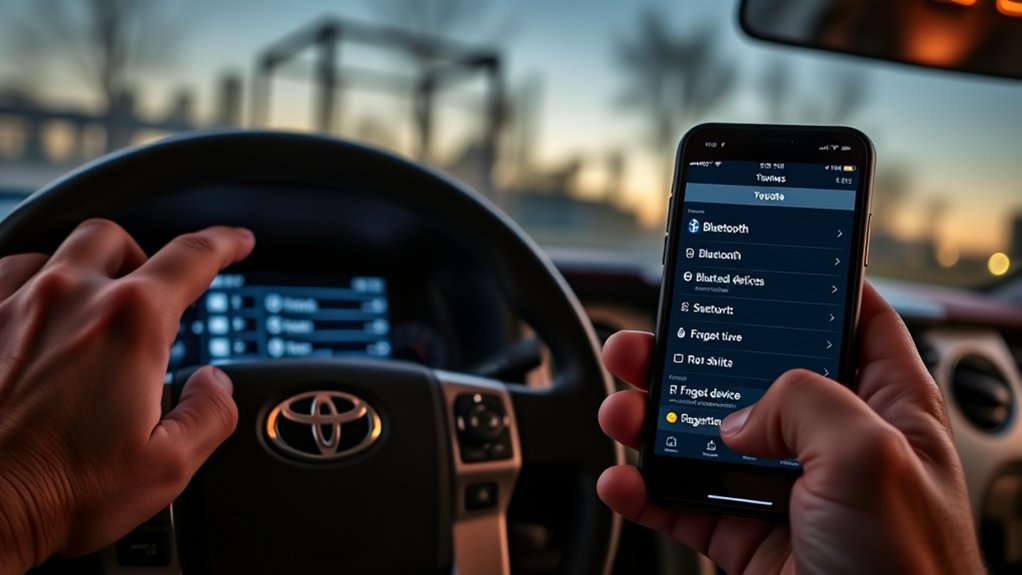
For a first pairing failure, check the items below before resetting anything. If your Tundra repeatedly drops Bluetooth, refuses to reconnect, or fails with several phones, see the dedicated Toyota Tundra Bluetooth troubleshooting guide for a deeper diagnostic sequence.
Troubleshooting Connection Issues
- Confirm that Bluetooth is enabled on the phone.
- Keep the phone unlocked and close to the multimedia display.
- Cancel connections to another vehicle, headset, or speaker.
- Restart the phone if registration does not complete.
- Check for phone and Toyota multimedia software updates if a previously working connection becomes unstable.
- Make sure the truck is parked because new-device registration is disabled while driving on current systems.
The Phone Does Not Appear in the Device List
Keep the phone’s Bluetooth settings screen open and run the vehicle search again. Toyota’s current manual also provides a reverse-registration method: put the Tundra on its Bluetooth registration screen, then search for the multimedia system from the phone.
If the Tundra has reached its registered-device limit, remove an unused device first. On the 2026 system, open Bluetooth & Devices, select the device, and use Forget.
The Pairing Codes Do Not Match
Cancel the request instead of accepting mismatched codes. Delete any incomplete connection, restart Bluetooth if necessary, and begin pairing again. Make sure the device selected on the Tundra is your phone rather than a nearby passenger’s phone.
The Phone Pairs but Calls or Music Do Not Work
Check the Toyota connection in your phone’s Bluetooth settings and make sure the needed call and media permissions are enabled. On newer Toyota Audio Multimedia systems, open the paired-device settings and verify that the device is enabled for the function you want, such as phone or media.
Contacts or Call History Will Not Sync
Unlock the phone and check for a contact-sharing or call-history permission request. If you denied it previously, open the Toyota Bluetooth entry on the phone and enable the available sharing permission. Re-pairing may be necessary if the permission prompt no longer appears.
The Wrong Phone Connects Automatically
Disconnect the unwanted device through the Tundra’s Bluetooth menu. On current systems with driver profiles, the primary and secondary device settings can affect automatic connection priority. Remove phones that are no longer used if they repeatedly take priority.
The Connection Keeps Dropping
Restart the phone and install available updates. If the problem began after a phone or multimedia update, delete the saved pairing from both devices and create a fresh connection. Persistent failures with multiple compatible phones can indicate a multimedia software or hardware issue rather than a single-phone problem.
Bluetooth Versus Apple CarPlay and Android Auto
Standard Bluetooth provides functions such as hands-free calling and audio streaming. Apple CarPlay and Android Auto project compatible phone functions onto the vehicle display and have separate vehicle, phone, and connection requirements.
Wired CarPlay or Android Auto uses a compatible data USB connection when supported. Wireless versions begin with a wireless pairing process and also use Wi-Fi. Follow the official Apple CarPlay setup guide or Google Android Auto setup guide when ordinary Bluetooth works but phone projection does not.
Tips for a Better Toyota Tundra Bluetooth Connection
- Keep only the devices you still use saved in the multimedia system.
- Give the Toyota connection permission to handle both phone calls and media audio when you want both functions.
- Set your regular phone as the primary device when your Tundra’s system and driver-profile setup support that option.
- Use steering-wheel voice and phone controls after setup instead of changing Bluetooth settings while driving.
- Keep your phone and multimedia software updated.
- Test automatic reconnection after restarting the truck.
Pro Tip: Rename your phone before pairing when several people use similar devices. A clear name such as “Family iPhone” or “Work Pixel” makes it easier to choose the correct device and manage connection priority.
What to Do If Bluetooth Problems Continue
Use a clean re-pairing process before assuming that the multimedia system has failed:
- Delete or forget the Toyota connection from your phone.
- Delete the phone from the Tundra’s saved-device list.
- Restart the phone.
- Turn the truck off, allow the multimedia system to shut down, and restart it.
- Pair the devices again while parked and approve the required permissions.
- Test calls, Bluetooth Audio, contacts, and automatic reconnection separately.
If the problem remains, compare the steps with the multimedia manual for your exact model year and head unit. Toyota provides current manuals through its Manuals and Warranties portal. You can also use our Tundra Bluetooth not connecting guide for deeper troubleshooting. A Toyota dealer can check for applicable multimedia software updates or hardware faults. Contact the stereo manufacturer instead when the original Toyota radio has been replaced.
Related Guides
Frequently Asked Questions
How do I connect Bluetooth to my Toyota Tundra?
Park the truck, enable Bluetooth on your phone, and open the Tundra’s Bluetooth settings. On newer systems, select Settings and Bluetooth & Devices. If another device is already registered, choose Add another device, then Search for devices. Select your phone, confirm the matching PIN, and approve the requested phone and media permissions.
How do I put a Toyota Tundra into pairing mode?
On a newer Toyota Audio Multimedia screen, open Settings and Bluetooth & Devices. If another device is already saved, select Add another device, then Search for devices. Older systems may instead use Setup, Bluetooth, Phone, or an Add Device option.
How do I connect Bluetooth to a 2007 Toyota Tundra?
On a 2007 Tundra with the factory hands-free system that uses the off-hook switch and AUDIO/CONTROL knob, enter Setup and Phone Setup, choose Pair Phone, name and confirm the phone, then enter the passkey displayed by the truck into your phone. A factory navigation system may use a different procedure.
How do I connect my phone to a 2014 Toyota Tundra?
On a 2014 Tundra equipped with the factory Bluetooth multimedia system, press SETUP, select Bluetooth, and begin device registration. Follow the on-screen registration prompts and confirm the pairing information on your phone. Menu details can vary by the installed factory audio or navigation unit.
Why does my Tundra pair with my phone but not play music?
Check that media audio is enabled for the Toyota connection on your phone. Then select Bluetooth Audio in the truck. On newer Toyota Audio Multimedia systems, also open the paired-device settings and confirm that the phone is enabled for media.
Why will my contacts not appear on the Tundra screen?
Your phone may not have permission to share contacts or call history. Open the Toyota Bluetooth entry on the phone, enable the available contact-sharing permission, and approve any vehicle prompt. Delete and re-pair the phone if the permission request no longer appears.
How many Bluetooth devices can a 2026 Toyota Tundra store?
Toyota’s 2026 Tundra multimedia manual states that up to five Bluetooth devices can be registered. With a driver profile configured, up to two compatible devices can be used as hands-free phones, subject to the system’s device and priority settings.
Sources
- Toyota Bluetooth Support — official Toyota pairing and Bluetooth feature guidance.
- Toyota 2026 Tundra Manuals and Warranties — current model-year owner and multimedia manual access.
- Toyota Bluetooth Pairing Guide — Toyota Audio Multimedia pairing and device-management guidance.
- 2007 Toyota Tundra Owner’s Manual — factory voice-guided Phone Setup and Pair Phone procedure.
- 2014 Toyota Tundra Owner’s Manual — factory Bluetooth registration and multimedia setup guidance.
- Apple: Connect iPhone to CarPlay — wired and wireless CarPlay setup requirements.
- Google: Set Up Android Auto — wired and wireless Android Auto setup guidance.
Conclusion
To pair Bluetooth in a Toyota Tundra, first identify the multimedia system in the truck. Current Toyota Audio Multimedia screens use Bluetooth & Devices, older touchscreen systems use Setup or Bluetooth registration menus, and some early systems use physical controls and voice prompts. A 2007 Tundra can also have different factory interfaces, so match the instructions to the installed system rather than relying on model year alone.
Complete registration while parked, confirm that the pairing PIN matches, approve the functions you need, and test calls and Bluetooth Audio before driving. If pairing succeeds but the connection repeatedly fails afterward, use the dedicated Tundra Bluetooth troubleshooting guide or the multimedia manual for your exact model year.