Focus on macOS gives you detailed control over interruptions while you work, study, play games, or take time away from notifications. You can allow or silence selected people and apps, control calls and time-sensitive alerts, create automatic schedules, filter content inside supported Apple apps, and keep Focus behavior consistent across your Apple devices.
Quick Answer
To set up Focus on a Mac, open Apple menu > System Settings > Focus, choose an existing Focus or click Add Focus, then configure people, apps, schedules, and Focus Filters. You can also turn a Focus on manually from Control Center and sync it across devices with Share Across Devices.
Key Takeaways
- Current macOS uses System Settings > Focus; older releases may use System Preferences and different menu names.
- A Focus can either allow selected people and apps or silence selected people and apps.
- Automatic schedules can use a specific time, location, or app.
- Focus Filters can change what appears in Calendar, Mail, Messages, and Safari while a Focus is active.
- Time Sensitive Notifications and Apple Intelligence’s Intelligent Breakthrough & Silencing are separate controls.
- Share Across Devices can keep Focus settings and activation consistent on Apple devices signed in to the same Apple Account.
At a Glance
| Time Required | About 5–10 minutes for a basic setup |
| Difficulty | Easy |
| Tools Needed | A Mac running a supported version of macOS; an Apple Account is useful for cross-device syncing |
| Cost | Free; Focus is built into macOS |
What Focus Mode Does on macOS
Focus on macOS creates activity-specific notification profiles for situations such as work, study, personal time, gaming, or downtime. According to Apple’s Mac User Guide, a Focus can pause or silence notifications or allow only selected notifications from people and apps.
You are not limited to a strict allowlist. For both people and apps, current macOS lets you choose whether to Allow Some or Silence Some. That makes Focus useful for both restrictive setups, such as allowing only your manager and calendar app, and lighter setups where you silence only a few distracting sources.
Focus Status can also tell supported apps that you have notifications silenced. People contacting you may see that your notifications are silenced, but they do not see the name of the Focus you are using. If the message is important, supported apps may provide a way to notify you anyway.
With Share Across Devices enabled, Focus settings can stay consistent across Apple devices signed in to the same Apple Account. Turning a Focus on or off on one device can also affect your other devices.
Note: Older macOS releases used System Preferences and, in some versions, a Notifications & Focus pane. Current Apple instructions use System Settings > Focus, so follow the wording shown on your Mac if you are using an older release.
How to Set Up Focus on macOS
For current macOS versions, open Apple menu > System Settings, then click Focus in the sidebar. Apple’s current setup instructions are available in the official Focus guide for Mac.
- Open System Settings and select Focus.
- Choose an existing Focus, such as Work or Gaming, or click Add Focus.
- For your own profile, choose Custom, enter a name, and select a color and icon.
- Configure Allowed People and Allowed Apps.
- Choose whether phone calls, repeated calls, or Time Sensitive Notifications should be allowed.
- Add a time, location, or app schedule if you want the Focus to activate automatically.
- Add Focus Filters if you want Calendar, Mail, Messages, or Safari to show different content while the Focus is active.
Apple currently documents support for creating up to ten Focus profiles. That is usually more than enough for separate Work, Study, Personal, Gaming, Reading, and other routines.
Pro Tip: Start with one Work Focus instead of creating several profiles immediately. Allow the people and apps you genuinely need, use it for a few days, and adjust the rules based on the notifications that still interrupt you or that you unexpectedly miss.
How to Turn Focus On or Off on Mac
You do not need to open System Settings every time. Apple lets you control Focus directly from Control Center.
- Click Control Center in the menu bar.
- Click the Focus section.
- Select the Focus you want to turn on.
- If available, choose a duration such as For 1 hour or until the end of a current Calendar event.
- To turn the Focus off, open the same menu and click the active Focus again.
The exact Control Center behavior is documented in Apple’s Turn a Focus on or off on Mac guide.
How to Allow Apps and People
Open System Settings > Focus, choose a Focus, then open Allowed People or Allowed Apps. Current macOS provides two useful approaches.
- Allow Some People or Apps: only the people or apps you select are allowed through under that rule.
- Silence Some People or Apps: notifications from the selected people or apps are silenced while other sources remain available.
For people, you can also control which calls are allowed. Depending on your setup, macOS can allow calls from everyone, allowed people, contacts, or favorites. There is also an Allow Repeated Calls option. Apple defines this as allowing a person who calls two or more times within three minutes to break through the Focus.
For apps, Time Sensitive Notifications can be enabled separately. These are notifications that an app marks as needing immediate attention. The app must also have permission in macOS notification settings to send them.
Warning: Do not assume Focus blocks every notification. Allowed people, allowed apps, repeated calls, Time Sensitive Notifications, and Apple Intelligence breakthrough settings can all create exceptions depending on your configuration.
Intelligent Breakthrough vs. Time Sensitive Notifications
These settings sound similar, but they are not the same.
Time Sensitive Notifications are notifications that supported apps classify as requiring prompt attention. You decide whether a particular Focus may receive them.
Intelligent Breakthrough & Silencing is an Apple Intelligence feature. When enabled, Apple Intelligence can allow notifications it determines are important and silence notifications it determines are not important. Notifications you specifically allow or silence continue to follow those explicit rules.
Apple also provides a Reduce Interruptions Focus that uses Intelligent Breakthrough & Silencing. Because Apple Intelligence availability depends on compatible hardware, macOS version, language, and region, check Apple’s current Apple Intelligence requirements rather than assuming every Mac has the feature.
[Amazon Products Picked for You]
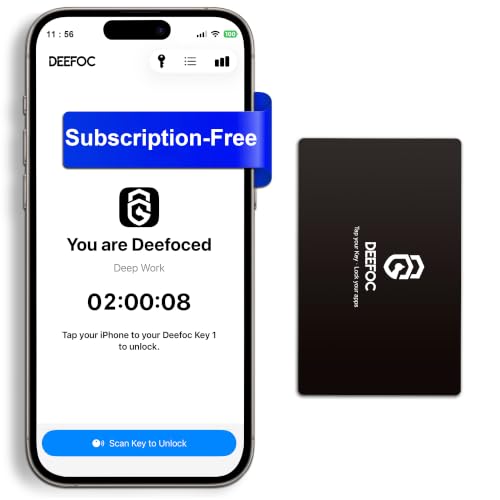
Take Back Control of Your Screen Time: Deefoc is a physical device that creates real-world friction to temporarily remove distracting apps and their notifications from your phone. When you're ready to reconnect, simply tap your phone against Deefoc to unblock and restore access. Includes 1 black Deefoc card

PHONE LOCK THAT WORKS WHEN WILLPOWER DOESN'T — Built-in screen time settings take two seconds to ignore; the Autonomous Key doesn't. Pick your most distracting apps (social media, games, news), tap your phone to the Key, and the app block stays in place behind a real-world action — a physical lock you can't swipe past. Notifications from blocked apps go quiet too. Passive NFC: no battery, no charging, ever. Works with iPhone (iOS 15+) and Android (8+).
How to Use Focus Filters on macOS
Focus Filters go beyond notification permissions. They change what selected apps show while a particular Focus is active.
- Open System Settings > Focus and select a Focus.
- Go to Focus Filters and click Add Filter.
- Choose Calendar, Mail, Messages, or Safari and configure the content you want that app to use while the Focus is active.
In Calendar, you can select which calendars are visible. In Mail, you can select which email accounts appear. In Messages, the Filter by People List setting can change which conversations are emphasized or shown according to the Focus configuration. Notification permission itself is still controlled separately under Allowed People.
In Safari, a Focus Filter can select a particular Tab Group. Apple’s Safari Focus Filter guidance also lets you choose whether external links may open inside that Focus Tab Group.
This can create a cleaner workspace. A Work Focus, for example, can show your work calendar, work mail account, work-related conversations, and a Safari Tab Group containing only the sites you use for that job.
How to Automate Focus Mode on macOS
Automatic activation makes Focus more useful because you do not have to remember to switch it on manually. Current Apple Mac guidance documents three schedule triggers: time, location, and app.
[Amazon Products Picked for You]

💻 ❌ Not for MacBook Neo or 11", 12" macbooks (see our "universal" version - it is smaller). Fit is perfect for any MacBooks Air and Pro, iMacs, and Mac Minis—regardless of CPU type or macOS version.

(3 1/4 x 3 1/4 Inch) Mac os PC Shortcuts Sticker/Excel Shortcuts Sticker-Shortcuts Stickers Compatible with 13-16 inch MacBook, 21 24 27 inch iMac, or Mac mini with apple mac os x and os 11 Big Sur. MacBook Pro 13 shortcut sticker, MacBook air 13 shortcut sticker, MacBook air 13.6 shortcut sticker,MacBook Pro 14 shortcut sticker,Macbook air 15 shortcut sticker, MacBook pro 16 shortcut sticker, MacBook pro 15 shortcut sticker, MacBook m5 stickers,MacBook m4 stickers,MacBook m3 stickers,MacBook m1 stickers,MacBook m2 stickers, iMac shortcut sticker
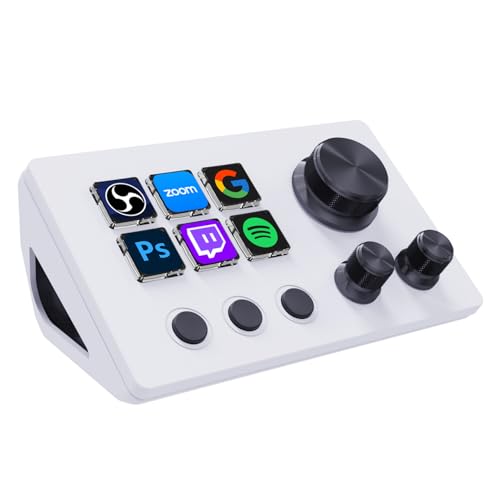
※ Customizable Visual Shortcut Keyboard※ N3 Stream Controller equipped with 12 customizable macro keys (6 visual LCD button, 3 tap button and 3 rotary button ), it lets you effortlessly trigger endless actions and take control of apps, tools, and platforms—no need to switch window to access the functions you want.
Schedule Focus by Time
Open a Focus, go to Set a Schedule, click Add Schedule, and select Time. Set the start time, end time, and days of the week.
Schedule Focus by Location
Select Location, search for the place, and choose it. The Focus can turn on when you arrive and off when you leave. Location Services must be enabled for location-based automation to work.
Schedule Focus by App
Select App and choose an application. The Focus turns on when you open that app and turns off when you close it or switch away, according to Apple’s current Mac guidance.
Note: Some Apple platforms and older documentation have used the term Smart Activation. Apple’s current Mac Focus instructions instead document explicit time, location, and app schedules, so those are the reliable options to use when configuring a current Mac.
How Gaming Focus Works on Mac
Gaming Focus deserves special mention because Apple configures it differently from a typical custom Focus. By default, the Gaming Focus can turn on when a gaming controller is connected to the Mac.
You can still choose which people and apps may notify you while Gaming Focus is active. This is separate from Game Mode, which is a performance feature for games. Gaming Focus manages interruptions; Game Mode manages game-related system performance.
How to Share Focus Across Apple Devices
If you use an iPhone, iPad, Apple Watch, or another Mac, open System Settings > Focus and check Share Across Devices. Apple says changes can then be reflected across devices signed in to the same Apple Account.
You can also open Focus Status and turn on Share Focus Status. Supported apps can then tell contacts that you have notifications silenced. The specific Focus name is not shared.
If a Focus unexpectedly turns on across several Apple devices, Share Across Devices is one of the first settings to check. Apple’s Manage Focus options on Mac guide covers both synchronization and Focus Status.
Focus vs. Do Not Disturb on Mac
Do Not Disturb is a type of Focus. It is useful when you want a fast way to reduce notifications without creating a new activity-specific profile.
Custom Focus profiles are more flexible. A Work Focus might allow coworkers, Mail, Calendar, and Slack while filtering Safari to a work Tab Group. A Personal Focus could use different people, apps, calendars, and mail accounts.
If you only need silence for an hour, Do Not Disturb from Control Center may be enough. If the same notification rules repeat every day, a dedicated Focus with schedules and filters is more useful.
How to Fix Focus Not Working on Mac
If Focus is not behaving as expected, check the settings that can create exceptions or prevent automation.
- Unexpected notifications still appear: check whether you selected Allow Some or Silence Some, then review Time Sensitive Notifications, repeated calls, and Intelligent Breakthrough & Silencing.
- A location schedule does not activate: confirm Location Services is enabled in Privacy & Security settings.
- A time schedule stopped working: open the schedule and make sure the Schedule control is still enabled.
- An app schedule turns off unexpectedly: an app-based Focus may turn off when the selected app closes or when you switch to another app.
- Focus turns on elsewhere: check Share Across Devices if other Apple devices are following the same Focus state.
- An app still shows unrelated content: notification permissions and Focus Filters are different controls; configure the appropriate Focus Filter for Calendar, Mail, Messages, or Safari.
- Apple Intelligence options are missing: verify that the Mac, macOS version, language, and region meet Apple’s current Apple Intelligence requirements.
[Amazon Products Picked for You]

1)【US Layout only】COMPATIBLE for MacBook Air 13" with Touch ID and Retina Display Early 2020 (model: A2179) and Air 13" with M1 Chip(model: A2337) 2020

【2.4G/Bluetooth Connection】Both the keyboard and mouse offer flexible connectivity with USB and Bluetooth support, enabling effortless switching between two devices and enhancing workflow efficiency. One USB receiver can connect both the keyboard and mouse, and can also be used separately, which supports plug-and-play without software installation.

Three Modes Connectivity: The mechanical keyboard supports 2.4Ghz wireless, USB-C wired, and Bluetooth 5.1 connections; Connect up to 3 devices via Bluetooth and enjoy N-key rollover (NKRO) in wired mode for conflict-free typing
Frequently Asked Questions
What should my Focus mode be?
Choose a Focus around a repeatable activity rather than trying to create one perfect profile. A Work Focus might allow coworkers, Calendar, Mail, and work apps; a Personal Focus might silence work apps; and a Study Focus might allow only essential contacts. Add schedules only after the notification rules work the way you want.
What are the first things I should do with a new MacBook?
Complete the initial macOS setup, install current software updates, sign in to your Apple Account, review privacy and security settings, configure backups and cloud services, install essential applications, learn basic keyboard shortcuts, and test any external displays or accessories. After that, setting up a Work or Personal Focus can reduce unnecessary notifications from the start.
Should you shut down a Mac every night?
A nightly shutdown is generally not required. Sleep is convenient for normal day-to-day use. Restart or shut down when macOS or an update requires it, when troubleshooting a problem, or when you will not use the Mac for an extended period. Claims that nightly shutdown automatically increases hardware lifespan are too broad to treat as a rule.
What does Focus do on a Mac?
Focus reduces interruptions by controlling notifications from people and apps. It can also control calls, allow time-sensitive notifications, activate on schedules, change what supported apps show through Focus Filters, share your Focus status, and synchronize Focus behavior across compatible Apple devices.
Does Focus block every notification on Mac?
Not necessarily. The result depends on whether you allow or silence selected people and apps. Repeated calls, Time Sensitive Notifications, and Intelligent Breakthrough & Silencing can also create exceptions if those options are enabled.
Why does Focus turn on on my other Apple devices?
Check Share Across Devices in System Settings > Focus. When it is enabled and your devices use the same Apple Account, Focus changes can be reflected on those devices.
Conclusion
Focus on macOS is most useful when it is configured around real routines instead of simply silencing everything. Start with the people and apps that should or should not interrupt you, then add call rules, schedules, Focus Filters, and cross-device behavior as needed. Apple Intelligence features such as Intelligent Breakthrough & Silencing can add another layer of filtering on eligible Macs.
University of California, Irvine has summarized Gloria Mark’s interruption research as finding that returning to the original level of concentration after an interruption can take about 23 minutes. The figure is best treated as a research-based illustration of interruption cost, not a fixed recovery time for every person or task.
That makes notification control more than a cosmetic setting. A carefully configured Work, Study, Gaming, or Personal Focus can reduce avoidable context switching while still preserving access to the people and alerts that genuinely need attention.
Sources
- Apple — Set up a Focus on Mac — setup, allowed people and apps, schedules, filters, calls, and Gaming Focus behavior.
- Apple — Turn a Focus on or off on Mac — Control Center activation and temporary Focus durations.
- Apple — Manage Focus options on Mac — Share Across Devices, Focus Status, and Focus management.
- Apple — Apple Intelligence requirements — compatible software, devices, languages, regions, and Intelligent Breakthrough availability.
- UC Irvine — Gloria Mark interruption research summary — context for the commonly cited roughly 23-minute interruption-recovery figure.
