
You rely on your data for family memories, work files, backups, and daily access. Choosing the right network-attached storage system can make recovery easier when a computer or drive fails.
This guide compares four NAS options for home backups, private cloud storage, surveillance, media sharing, and small-business file management. It also explains which systems include drives, which are diskless, and where networking or hardware limitations may affect your decision.
Quick Verdict
Choose the QNAP TS-253E when you want a powerful two-bay NAS with dual 2.5GbE, M.2 slots, surveillance features, and more room for advanced applications.
Choose the Synology DS223 when simple backups, private-cloud access, quiet operation, and an approachable software experience matter most.
Choose the Buffalo LinkStation 220 4TB when you want two drives included and prefer a basic home-backup appliance over a more complex server.
Choose the linked Synology DS1522+ bundle when you need five drive bays, substantial included storage hardware, and broader small-business server capabilities. Be prepared to install the separately supplied upgrades.
Top Picks
| Category | Product | Configuration | Best For | Amazon |
|---|---|---|---|---|
|
Best Advanced 2-Bay NAS |
Diskless, 2 bays |
2.5GbE, surveillance, M.2 cache, heavier apps |
Check Price | |
|
Best for Beginners |
Diskless, 2 bays |
Home backup, photos, private cloud, simple file sharing |
Check Price | |
|
Best Budget Bundle |
4TB, two drives included |
Basic backups, Time Machine, simple home storage |
Check Price | |
|
Best for Small Business |
Five-bay bundle with SSDs, NVMe drives, and 32GB memory |
Large storage pools, teams, backups, virtualization |
Check Price |
How We Selected These NAS Systems
We prioritized useful data-protection tools, supported RAID configurations, dependable backup software, manageable security settings, and enough hardware for each intended use. We also compared drive bays, included storage, processor capability, memory, 1GbE or 2.5GbE networking, M.2 support, and expandability.
Ease of setup also matters. A populated NAS can reduce the work required before your first backup, while a diskless NAS lets you select your own NAS-rated hard drives and storage capacity. Neither approach is automatically better for every buyer.
- Check whether the listing is diskless or includes drives.
- Calculate usable capacity after RAID, not just the raw drive total.
- Confirm that your router or switch supports 2.5GbE before paying extra for faster ports.
- Use NAS-rated drives listed as compatible by the manufacturer.
- Plan a separate backup because RAID alone does not protect against deletion, ransomware, theft, fire, or total device failure.
QNAP TS-253E: Best Advanced 2-Bay NAS
The TS-253E solves a common problem with entry-level NAS systems: limited networking and hardware headroom. Its two 2.5GbE ports can improve large-file transfers when the rest of your network also supports multi-gigabit speeds.
Two M.2 PCIe slots can support compatible NVMe SSDs for cache or other supported storage functions. The Intel processor, HDMI outputs, and QNAP application ecosystem also make this model suitable for surveillance recording, backup services, multimedia tasks, and selected virtualized workloads.
Who should buy it: Advanced home users, small offices, surveillance users, and buyers who already have or plan to install 2.5GbE networking.
Who should avoid it: Buyers who want drives included, the simplest possible interface, or a basic appliance that requires little configuration.
Important limitation: Retail descriptions may differ by hardware revision. Check the listing carefully if memory expansion is important to you.
What Buyers Should Know
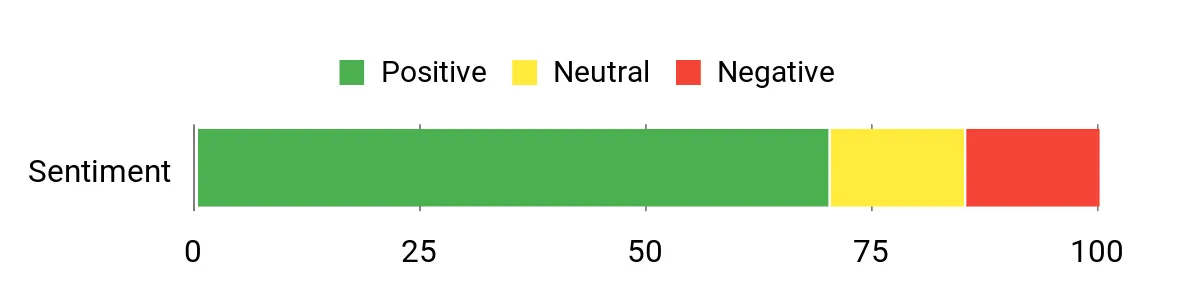
Users who choose this model often value its dual 2.5GbE ports, M.2 support, HDMI outputs, and application flexibility. However, QNAP offers many configuration choices, so setup can feel more involved than a basic home NAS.
The sentiment chart below comes from the original article’s review snapshot. Feedback and product revisions can change, so check recent Amazon reviews before purchasing.
Best Uses
|
Situation |
How It Helps |
|---|---|
|
Surveillance Recording |
Centralizes compatible camera recordings and provides stronger hardware than a basic backup-only NAS. |
|
Large File Transfers |
Dual 2.5GbE ports reduce the networking bottleneck when your switch, cabling, and client devices also support faster speeds. |
|
Media and Application Server |
The Intel processor, HDMI outputs, memory, and application catalog support more demanding home-server roles. |
|
Small Team File Sharing |
Shared folders, user permissions, backup tools, and faster networking support several active users. |
Key Benefits
- Dual 2.5GbE ports for faster compatible networks
- Two M.2 PCIe slots for supported NVMe configurations
- Intel processor with hardware-accelerated transcoding support
- Flexible surveillance, backup, media, and server applications
- Diskless design lets you choose your preferred compatible drives
Synology DS223: Best NAS for Beginners
The DS223 is designed for people who want centralized storage without turning the project into a home-server hobby. Synology DiskStation Manager provides guided tools for scheduled backups, mobile photo uploads, shared folders, remote file access, snapshots, and cloud synchronization.
Its two drive bays support RAID 1 or Synology Hybrid RAID when compatible drives are installed. This can keep the system running after one drive fails, but it reduces usable capacity and does not replace a separate backup.
Who should buy it: Families, home offices, first-time NAS buyers, and users who value polished backup and photo-management software.
Who should avoid it: Buyers who need 2.5GbE, memory upgrades, heavy virtualization, demanding video transcoding, or intensive multi-user editing.
Important limitation: It has one 1GbE network port, so network speed will be lower than multi-gigabit alternatives.
What Buyers Should Know
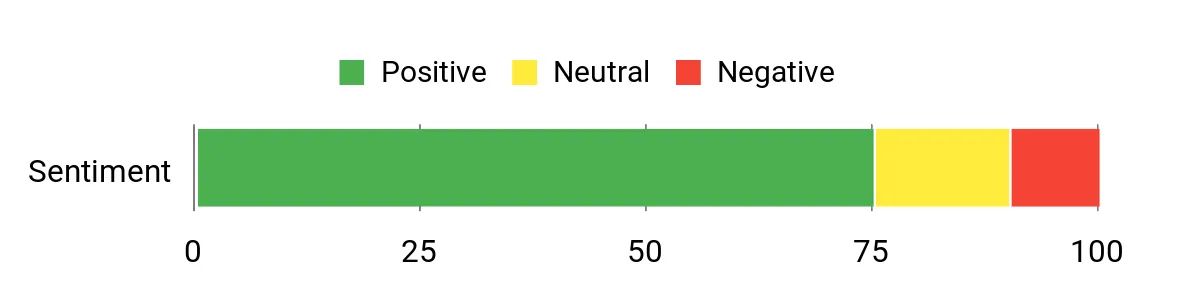
The strongest reason to choose the DS223 is its software experience. Setup, automatic backups, shared folders, photo organization, and remote access are easier to approach than on many highly configurable NAS platforms.
The sentiment chart below comes from the original article’s review snapshot. Check recent reviews for current setup, noise, application, and reliability feedback.
Best Uses
|
Situation |
How It Helps |
|---|---|
|
Family Device Backup |
Scheduled backup tools can centralize copies from household computers and mobile devices. |
|
Private Cloud Access |
Synology applications provide controlled remote access without storing every file only on a public cloud service. |
|
Photo Management |
Automatic uploads and organization tools help consolidate photos from phones and computers. |
|
Small Team Sharing |
Shared folders, permissions, and file synchronization reduce the need to email large attachments. |
Key Benefits
- Approachable Synology DSM software
- Two drive bays with RAID 1 and Synology Hybrid RAID support
- Btrfs file system and snapshot tools for easier recovery
- Useful photo, backup, file-sharing, and private-cloud applications
- Quiet and compact design for a home or small office
Buffalo LinkStation 220 4TB: Best Budget Bundle
The LinkStation 220 reduces one of the biggest barriers for first-time NAS buyers because the drives are already included. You do not need to research separate hard drives before you can begin configuring network storage.
It supports RAID 1 mirroring, which uses one drive as a copy of the other. This lowers usable capacity but provides protection against one drive failing. Confirm the selected RAID mode during setup rather than assuming that the unit arrives in your preferred configuration.
Who should buy it: Home users who want included drives, Time Machine support, simple shared folders, and basic media streaming.
Who should avoid it: Buyers who expect modern multi-gigabit networking, advanced applications, virtualization, large memory, or strong expansion options.
Important limitation: The older 1GbE hardware, 800MHz processor, and 256MB memory make it better for basic backups than demanding server workloads.
What Buyers Should Know
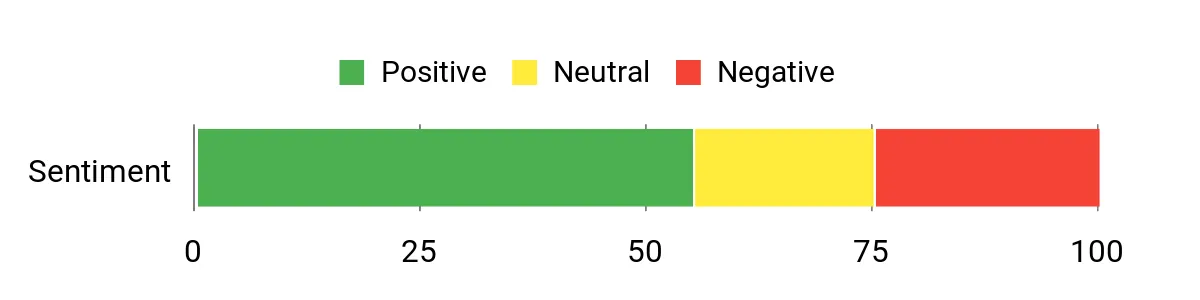
The included drives simplify purchasing, but the LinkStation platform offers less performance and application flexibility than newer diskless systems. It works best when your priority is straightforward storage rather than advanced home-lab features.
The sentiment chart below comes from the original article’s review snapshot. Check recent Amazon feedback and Buffalo support information for current firmware or macOS compatibility notes.
Best Uses
|
Situation |
How It Helps |
|---|---|
|
Mac Backups |
Time Machine support can provide scheduled network backups for compatible Mac computers. |
|
Quick Home Setup |
Included drives remove the need to buy and match separate storage before starting. |
|
Basic Media Streaming |
DLNA support can serve compatible music, photos, and videos to devices on your network. |
|
Shared Family Storage |
Central folders reduce reliance on separate USB drives and duplicate copies across computers. |
Key Benefits
- Two drives and 4TB raw capacity included
- Supports RAID 0, RAID 1, and JBOD configurations
- Time Machine support for compatible Mac backups
- DLNA media-server functionality
- Lower setup barrier than most diskless NAS systems
Synology DS1522+ Bundle: Best for Small Business
The DS1522+ is suited to buyers who have outgrown a basic two-bay NAS. Five internal bays provide more choices for capacity, redundancy, and storage-pool design, while Synology DSM supports snapshots, centralized backups, file synchronization, surveillance, and selected virtual-machine workloads.
This particular listing includes substantial memory and solid-state storage. That can reduce the need to source components separately, but it also increases setup complexity. Confirm the included brands, compatibility, warranty coverage, and installation requirements before ordering.
Who should buy it: Small businesses, technical teams, power users, and buyers who need a larger storage pool with several simultaneous services.
Who should avoid it: First-time NAS users who need a low-cost backup box, buyers who do not want to install components, or users who need built-in 10GbE without an upgrade.
Important limitation: Four 1GbE ports provide redundancy and link aggregation, but a single client does not automatically receive 4Gbps performance. Faster networking may require compatible optional hardware and network equipment.
What Buyers Should Know
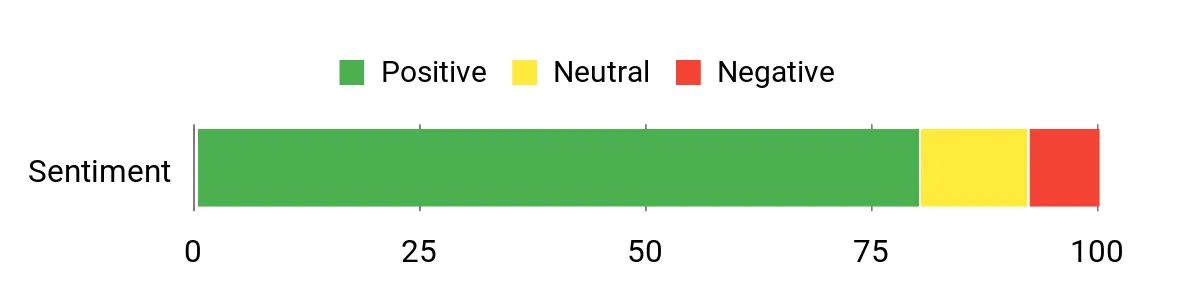
The strongest reasons to choose this bundle are its five-bay chassis, large included memory configuration, solid-state storage, and Synology’s mature backup and file-management software. The main hesitation is that it is a seller-configured package rather than a standard factory storage configuration.
The sentiment chart below comes from the original article’s review snapshot. Review the current seller, bundle contents, return terms, and recent feedback because configured bundles can vary.
Best Uses
|
Situation |
How It Helps |
|---|---|
|
Small-Business File Server |
Five bays, substantial memory, permissions, and shared folders support broader team workflows than a basic two-bay appliance. |
|
Versioned Backup Repository |
Btrfs, snapshots, and Synology backup tools can provide several recovery points for files and systems. |
|
Surveillance Management |
Surveillance Station can centralize compatible camera recordings, subject to camera-license and storage requirements. |
|
Multiple Server Applications |
The Ryzen processor and 32GB memory configuration provide more headroom for simultaneous services and selected virtual machines. |
Key Benefits
- Five internal drive bays for larger or more flexible storage pools
- AMD Ryzen R1600 processor and 32GB ECC memory in the linked bundle
- Five 2TB SSDs and two 500GB NVMe SSDs included separately
- Btrfs, snapshots, Hyper Backup, Synology Drive, and surveillance applications
- Four 1GbE ports with failover and link-aggregation support
NAS Buying Guide
Diskless NAS vs. Drives Included
A diskless NAS gives you control over drive brand, capacity, workload rating, and budget. However, you must buy compatible drives, install them, create a storage pool, and configure your preferred RAID level.
A populated NAS includes storage and can be easier for beginners. Check whether the advertised capacity is raw or usable and whether the drives can be replaced with standard compatible models later.
How Many Drive Bays Do You Need?
A two-bay NAS is usually enough for basic home backup, shared storage, and RAID 1. A four-bay or five-bay NAS provides more options for capacity, redundancy, future expansion, and workloads involving several users.
More bays also increase the total cost because you may need additional drives. Calculate the full system cost instead of comparing enclosure prices alone.
1GbE vs. 2.5GbE Networking
A 1GbE connection is adequate for ordinary documents, automatic backups, photo storage, and many home-media tasks. A 2.5GbE connection is more useful when you regularly transfer large video projects, back up several systems, or have multiple active users.
Your NAS, switch or router, computer, network adapter, and cabling must all support the faster connection. One slower component can limit the entire transfer.
RAID and Usable Capacity
RAID 1 mirrors data across two drives, so you normally receive about half the raw capacity. Other RAID levels balance capacity, redundancy, and performance differently.
A RAID array can help after a drive failure, but it does not protect against accidental deletion, ransomware, corruption copied across the array, fire, theft, or total NAS failure.
NAS Security Checklist
- Install operating-system and application updates promptly.
- Use a unique administrator password and enable multifactor authentication when available.
- Disable services and remote-access features you do not use.
- Create separate user accounts instead of sharing one administrator login.
- Keep snapshots and a separate offline or offsite backup.
- Review vendor security advisories and support status regularly.
Detailed NAS Comparison
| Product Name | Image | Drive Setup | Processor and Memory | Connectivity | Best For | Amazon |
|---|---|---|---|---|---|---|
| QNAP TS-253E-8G-US |
 |
Diskless, 2 bays, two M.2 slots | Intel Celeron J6412, 8GB DDR4; verify revision for upgrade support |
|
Surveillance, advanced apps, faster networking | Check Price |
| Synology 2-Bay NAS DS223 |
 |
Diskless, 2 bays | Realtek RTD1619B, 2GB DDR4 |
|
Beginners, private cloud, home backup, photos | Check Price |
| BUFFALO LinkStation 220 4TB |
 |
4TB raw capacity, two drives included, RAID 0/1/JBOD | 800MHz ARM, 256MB DDR3 |
|
Simple backups, Time Machine, included drives | Check Price |
| Synology DiskStation DS1522+ Bundle |
 |
Five 2TB SSDs and two 500GB NVMe SSDs included separately | AMD Ryzen R1600, 32GB ECC memory |
|
Small business, larger storage pools, multiple services | Check Price |
FAQ
How do I choose the right NAS?
Start with your main workload. A basic two-bay model is often enough for automatic backups, family photos, documents, and shared folders. Choose stronger hardware, more memory, additional bays, or 2.5GbE networking when several users, virtual machines, surveillance cameras, or large media files are involved.
Do NAS products include hard drives?
Some do and some do not. The QNAP TS-253E and Synology DS223 listings are diskless, so you must buy compatible drives. The Buffalo LinkStation listing includes two drives. The linked DS1522+ listing is a seller-configured bundle with memory, SATA SSDs, and NVMe SSDs supplied separately for installation.
Is RAID the same as a backup?
No. RAID can help the NAS continue operating after a drive failure, depending on the selected RAID level. It does not protect against accidental deletion, ransomware, theft, fire, electrical damage, or failure of the entire NAS.
For important files, follow a 3-2-1 approach: keep three copies, use two types of storage, and keep one copy offsite.
Do I need 2.5GbE for a home NAS?
You do not need it for normal documents, photo backups, and many media-streaming tasks. It becomes more useful when you transfer large files frequently or have several active users. Your computer and network equipment must also support 2.5GbE.
Can these NAS systems stream video?
They can store and serve video files, but playback performance depends on the file format, bitrate, client device, network speed, and whether live transcoding is required. Direct playback is usually easier than converting a video stream in real time.
Should I use hard drives or SSDs in a NAS?
Hard drives usually provide more capacity for the money and remain practical for backups and large media libraries. SSDs are quieter and can offer faster access, but they cost more per terabyte. Check the manufacturer’s compatibility list before installing either type.
How can I improve NAS transfer speeds?
Use wired Ethernet, compatible Cat5e or better cabling, and a switch or router that supports the NAS port speed. Check the computer’s network adapter, avoid slow Wi-Fi links for large transfers, and make sure the storage drives can sustain the required workload.
Final Recommendations
The QNAP TS-253E is the strongest two-bay option here for faster networking, surveillance, M.2 expansion, and advanced applications. It requires separate drives and more hands-on configuration.
The Synology DS223 is the easiest recommendation for first-time NAS buyers who want dependable software for backups, private cloud access, shared folders, and photo management.
The Buffalo LinkStation 220 4TB is a practical starter when included drives and simple backup features matter more than processing power or modern networking.
The linked Synology DS1522+ bundle provides the most capacity and application headroom for a small business, but it is a seller-configured package. Review the exact components, installation requirements, seller terms, and warranty coverage before purchasing.
