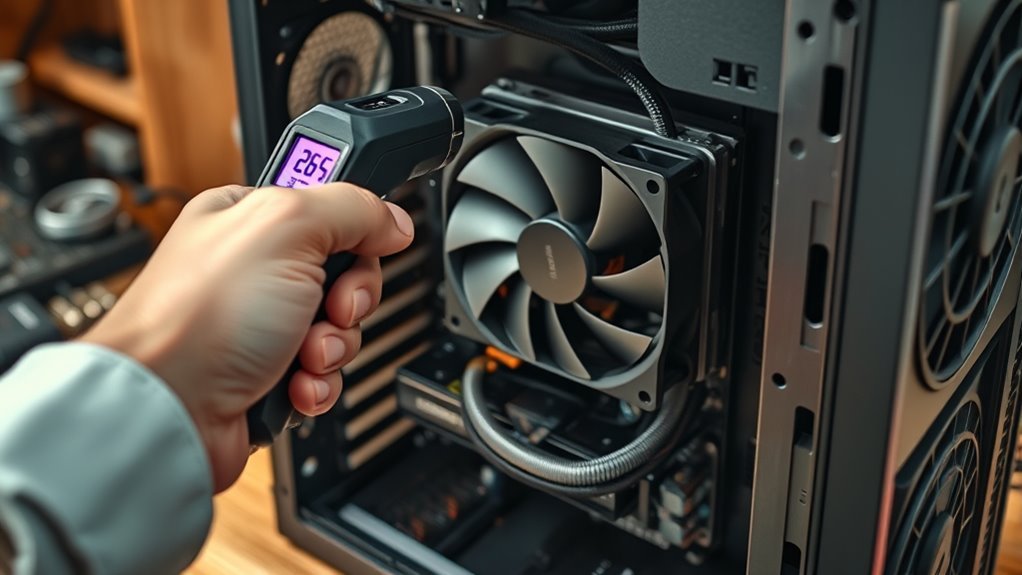
After repasting a GPU, the real test is not idle behavior but sustained load. A proper check uses a stress tool such as FurMark or AIDA64 while monitoring temperatures in HWiNFO or MSI Afterburner for 15 to 30 minutes. Stable readings under heavy load can confirm the paste job is working. But if temperatures climb too fast or remain unusually high, the issue may be deeper than the thermal paste alone.
What GPU Temperature Is Normal After Repasting?
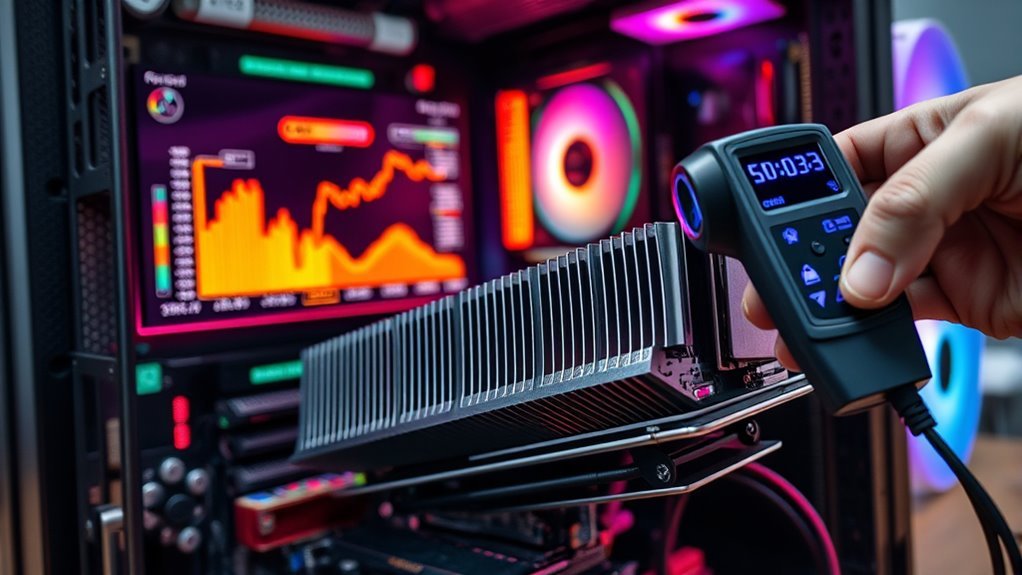
After repasting, a GPU temperature of 75-80°C under load is generally acceptable during stress testing, while idle temperatures should ideally stay below 60-65°C. This range suggests the thermal interface is performing normally, and the cooler is removing heat effectively.
After repasting, 75–80°C under load is generally acceptable, while idle temperatures should stay below 60–65°C.
For a repasted card, GPU temperature should remain stable rather than spike erratically. If idle readings stay above 65°C, the paste may be uneven, the mount pressure insufficient, or airflow restricted.
Sustained temperatures above 90°C during heavy workloads are not normal and usually indicate inadequate thermal transfer or weak cooling capacity. Ambient temperature also matters, since warmer rooms raise baseline readings.
Case airflow must support the cooler, because poor ventilation traps heat and limits performance. Monitoring with HWiNFO or OCCT gives a precise record of GPU temperature behavior and helps confirm whether the repaste restored proper thermal control.
How to Stress Test a Repasted GPU?
Stress testing a repasted GPU typically begins with tools such as FurMark or AIDA64 to drive the card to full load and expose thermal behavior under sustained demand.
Real-time monitoring with HWiNFO or MSI Afterburner is essential to track GPU temperature and confirm that load readings remain within safe limits.
A 15 to 30 minute test period provides enough time to identify temperature spikes, instability, or signs of inadequate paste application.
Stress Test Tools
A repasted GPU can be stress tested with FurMark to apply maximum load and reveal peak thermal behavior under worst-case conditions. This stress test is useful for exposing weak paste application, uneven heatsink contact, or inadequate mounting pressure.
For a more realistic workload, Heaven Benchmark simulates extended gaming scenes and helps assess sustained thermal stability without the artificial intensity of FurMark. Results are most meaningful when the system has proper case airflow and functioning cooling hardware, since poor airflow can distort readings.
During the test, temperatures should remain below 90–95°C; repeated excursions above that range usually indicate a thermal interface problem. HWiNFO or MSI Afterburner can provide live temperature tracking, giving the user practical control over the repasted GPU’s thermal limits.
Monitor GPU Temps
With the GPU under a sustained load from FurMark or Heaven Benchmark, temperature monitoring becomes the main way to judge whether the repaste is performing correctly.
During the run, operators should monitor temperatures with HWiNFO or MSI Afterburner, recording real-time core heat and fan speed without interruption.
A successful repaste typically keeps load temperatures below 90–95°C, even as utilization approaches maximum. If readings climb beyond that range, airflow, paste spread, or mounting pressure may need correction.
Ambient room temperature and case ventilation must remain consistent, since both alter results.
After the test, peak values should be compared with prior benchmarks to confirm improvement.
This method gives users clear, controlled data and the freedom to verify cooling performance on their own terms.
Which Tools Should You Use to Monitor GPU Temps?
HWiNFO provides real-time monitoring of GPU temperatures, fan speeds, and related system metrics under both idle and load conditions.
For maximum-load verification, GPU stress tests such as FurMark or AIDA64 can be used to expose peak thermal behavior while temperatures are tracked continuously.
Together, these tools give a practical view of baseline operation and thermal limits.
HWiNFO Monitoring
Monitoring GPU temperatures is most effective with HWiNFO, an extensive tool that provides real-time CPU and GPU thermal data for post-installation checks after applying new thermal paste.
Its Sensors-Only mode strips away unnecessary system details, letting the user inspect only temperature readings and critical metrics. For liberated, precise control, HWiNFO can log temperatures during workload runs, creating a clear record of thermal response over time.
Pairing it with AIDA64 or Furmark improves accuracy by exposing the GPU to sustained load while HWiNFO tracks behavior.
Idle readings should generally stay within 60–65°C, and load temperatures should remain below 90–95°C. These limits help confirm whether the thermal paste application is functioning effectively and whether cooling remains disciplined under demand.
GPU Stress Tests
GPU stress testing is most effective when temperatures are tracked continuously with HWiNFO, which provides detailed real-time sensor readings for the GPU, including fan speed and memory usage.
For GPU stress tests, Furmark is useful because it drives the card to maximum load and quickly exposes thermal limits. Heaven benchmark is better for evaluating stability in gaming-like conditions, since it mirrors real-world rendering patterns.
During either test, temperatures should generally remain around 75-80°C; sustained readings above that range can suggest poor thermal paste contact, uneven mounting pressure, or inadequate airflow.
Fan speed and memory usage should be checked alongside core temperature to separate cooling problems from workload behavior. This disciplined approach gives users direct control over thermal validation and helps guarantee a newly pasted GPU performs as intended.
How to Tell If the Paste Job Worked?
A proper paste job can be verified by monitoring CPU temperatures with tools such as HWiNFO or Core Temp, then comparing idle and load behavior against expected ranges.
The system must log idle readings that stay at or below 60-65°C and load temperatures that remain under 80-85°C, since those numbers indicate efficient heat transfer.
A controlled stress test, such as AIDA64, should then be run while observing whether the temperature stabilizes rather than climbing erratically.
If the post-application load temperature is clearly lower than the pre-application baseline, the paste job has likely worked.
Consistent cooler fan acoustics can also support the result, because steady operation often accompanies proper contact pressure.
Over a longer load period, temperatures should remain stable, with minimal fluctuation or spikes.
This method gives users direct, measurable proof that thermal paste installation is effective and that the hardware can operate with greater freedom from unnecessary thermal restraint.
What Signs Point to a Bad GPU Paste Job?
Signs of a bad GPU paste job usually appear as abnormal heat behavior under load: temperatures rising past 90°C during stress tests, sudden spikes or erratic fluctuations, and sustained instability while gaming or rendering.
A bad GPU paste job often points to poor contact between the die and heatsink, leaving heat trapped instead of released. When thermal readings jump unpredictably, air bubbles or uneven paste spread are likely.
If the card begins crashing, throttling, or freezing under load, the cooling path is failing to move heat efficiently. Loud fan noise or repeated ramping can also indicate the cooler is compensating for weak thermal transfer.
Visual clues matter too: excess paste oozing onto the PCB suggests careless application and can interfere with performance.
These signs do not imply normal wear; they indicate a compromised interface that limits the GPU’s ability to operate freely and reliably under pressure.
When Should You Reapply GPU Thermal Paste?
Thermal paste should be reapplied when the GPU consistently runs too hot under load, especially if temperatures climb above 90–95°C, since that typically indicates degraded heat transfer between the die and heatsink.
Idle readings above 60–65°C also justify inspection, because a healthy cooler should prevent heat accumulation without strain.
The question when should you reapply gpu thermal paste? is best answered by observing sustained behavior, not a single spike.
Quality compound generally lasts 1 to 2 years, though heavy workloads, dust, and warm ambient conditions can shorten that window.
Warning signs include louder fan operation, thermal throttling, and instability during demanding tasks.
Regular monitoring with HWiNFO or similar tools helps track idle, gaming, and stress-test temperatures, making replacement a deliberate act of thermal self-defense rather than a reaction to failure.
When readings remain elevated despite clean airflow, repasting restores efficient cooling and preserves performance.
Frequently Asked Questions
How to Test if You Need New Thermal Paste?
New thermal paste is needed when temperatures rise unusually at idle or under load, especially if Thermal Efficiency has dropped compared with prior readings.
The system should be monitored with HWiNFO, then stress-tested with AIDA64. If CPU or GPU temperatures exceed safe ranges, fluctuate sharply, or show no improvement after cleaning and reseating, paste replacement is justified.
Dry, cracked, or uneven residue also indicates degraded contact and reduced cooling performance.
Is 90 C Bad for CPU?
Yes—90°C is bad for a CPU, especially under sustained load.
Cool operation and scorching heat stand in stark contrast, and that difference matters for Thermal Performance. A chip at 90°C may throttle, losing speed to protect itself, and repeated exposure can shorten lifespan.
Monitoring with HWMonitor or Core Temp is practical. If this temperature appears often, the cooler, thermal paste, and case airflow should be checked promptly.
How Do I Know if My Thermal Paste Is Applied Correctly?
Correct thermal paste application is indicated by even CPU temperatures, stable load behavior, and no thermal throttling.
Effective Application Techniques produce a thin, uniform spread without excess overflow. Under stress, temperatures should generally remain below 80–85°C, with idle values below 60–65°C.
A properly seated heatsink and firm mounting pressure support efficient heat transfer.
If instability, rapid spikes, or uneven heating appear, the application should be reassessed immediately.
Is 120 F Hot for CPU?
No, 120°F is not hot for a CPU; it is comfortably safe, unless one enjoys dramatizing harmless warmth like a courtier panicking over tea.
At about 49°C, it sits well below common thermal limits. Under load, many processors tolerate 80–85°C before throttling.
Still, temperature should be monitored after new paste, and Cooling Solutions should be checked if readings climb. Specifications vary by model.
Conclusion
A newly repasted GPU should be validated under sustained load, not judged by idle alone. A 15–30 minute stress test with FurMark or AIDA64, paired with HWiNFO or MSI Afterburner, provides a reliable temperature profile. If load temperatures remain below 90–95°C and cooling behavior is stable, the paste job likely succeeded. If temperatures spike, throttle, or idle values stay high, the application may need revision. Even in this digital age, thermal discipline remains the final diagnostic.
