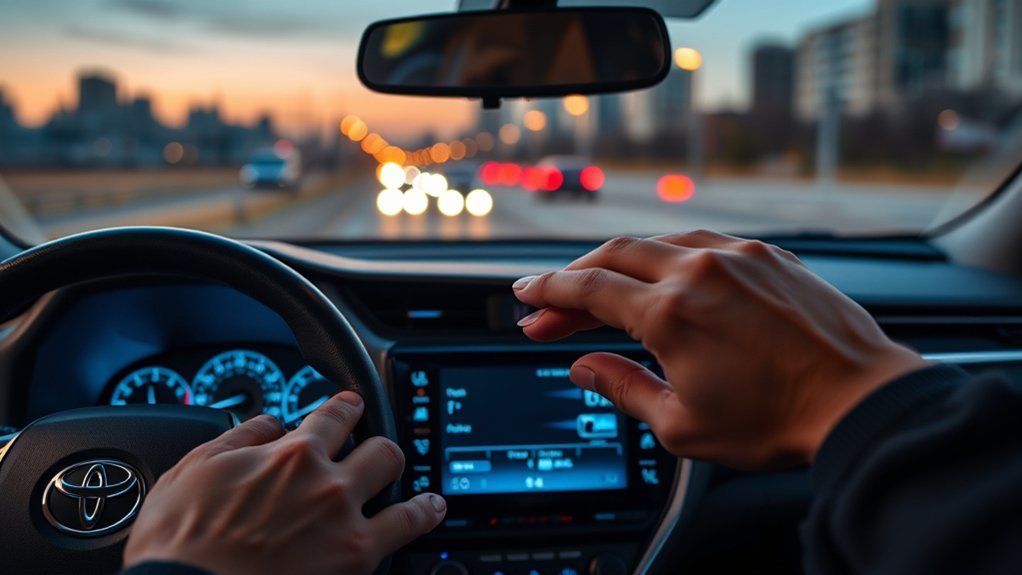
To change the 2026 RAV4 multimedia information display, the vehicle should be in Park and the system powered on. Open Settings from the home screen, then adjust display brightness, theme, widget layout, and pinned shortcuts. Audio, navigation, and phone or Bluetooth display options can also be modified in their respective menus. If voice recognition is enabled, “Hey Toyota” can make certain display changes hands-free. Additional setup steps and fixes are outlined below.
Park and Power On Your RAV4
Place the RAV4 in Park before activating the multimedia system, as full feature access is enabled only when the vehicle is safely stationary. This step establishes a controlled state, removing motion-based restrictions and allowing the operator to proceed without limitation.
With the vehicle secured in park, press the power button on the multimedia unit or use the ignition control to power on the system. Startup begins immediately and presents the initial configuration interface.
The on-screen prompts then guide the remaining steps. The operator selects a preferred language, confirms the current time, and adjusts brightness for clear visibility. Privacy preferences should also be reviewed and set during this first-use sequence to support a more individualized operating environment.
The multimedia system is structured for direct navigation, enabling efficient movement through startup options without unnecessary complexity. This process provides a clean entry point, giving the user immediate command of the system and its essential functions.
Open RAV4 Multimedia Display Settings
Within this menu, the user can customize brightness levels, select interface themes, and arrange home screen widgets for a cleaner operational layout.
Within this menu, users can refine brightness, choose interface themes, and organize home screen widgets for a cleaner layout.
For audio settings, enter the Sound section to adjust bass, treble, and balance with precision. Navigation preferences are also accessed here, including saved destinations and map display behavior.
If expanded communication functions are needed, the smartphone should first be paired through Bluetooth. Once connected, the system exposes additional options tied to calls, messages, and compatible apps.
At this stage, the objective is only to reach the correct menu and confirm access to available control categories.
See What You Can Change
The available settings generally include home screen widget and layout options, audio presets, navigation shortcuts, and connected service controls.
Profile and display adjustments may also cover personalized preferences, saved radio stations, and screen configuration for quicker access to preferred functions.
Hands-free changes can be made through “Hey Toyota,” while additional vehicle status and remote features can be managed in the Toyota App.
Available Settings
Several multimedia settings can be adjusted to match driver preferences and improve usability. Available options support home screen customization by allowing widget arrangement and favorite radio station storage for immediate access. This enables a more independent, efficient interface with fewer repeated inputs during operation.
Audio controls include sound settings such as treble and bass adjustment, permitting a tailored listening profile without external assistance.
Drivers can also configure navigation shortcuts for frequently visited destinations, reducing planning time and simplifying recurring trips. Map preferences may be refined to support preferred routing behavior, including toll avoidance or alternate path selection.
The system also permits changes to themes and touchscreen layouts, helping align interface behavior with individual habits. Together, these settings expand user control while keeping core functions direct, accessible, and operationally efficient overall.
Profile And Display
Begin by signing in with a Toyota account to create a personal driver profile that stores media preferences, navigation favorites, and voice settings for automatic recall. This profile function frees the driver from repeated setup and restores preferred conditions at startup.
Next, open the home screen and reorder widgets to surface favored apps and radio stations. Apply customization by adjusting audio parameters and assigning shortcuts for common destinations. These changes streamline access and reduce menu dependence.
Then review map preferences and align guidance behavior with established driving habits. For visual control, select alternate display themes and touchscreen layouts.
The system permits direct personalization of color, arrangement, and information hierarchy. Used correctly, profile, customization, and display settings produce a more intuitive interface that supports independent, efficient operation on every drive.
Customize the RAV4 Home Screen
Access home screen customization by selecting the Settings icon on the Toyota touchscreen, then opening the Home Screen options. From this menu, the driver can customize the home screen structure for faster multimedia access and greater control over daily functions.
Widgets can be repositioned by dragging and dropping them into preferred zones, allowing essential apps and information to surface without distraction or delay.
Reposition widgets with simple drag-and-drop control, keeping key apps and information visible for a cleaner, more responsive driving experience.
Favorite radio stations can be pinned directly to the home screen by tapping and holding a station until the system displays the add prompt. Navigation shortcuts can also be created for frequently used destinations by selecting the map icon and choosing Add to Home Screen.
The interface further allows theme and layout adjustments, enabling a display that reflects personal preference while preserving usability. This process gives the vehicle owner a cleaner, self-directed dashboard environment, reducing unnecessary steps and supporting a more liberated, efficient interaction with the RAV4 system while driving.
Change Audio Display Settings
| Control | Action | Result |
|---|---|---|
| Display | Customize album art | Cleaner visual focus |
| Track Info | Show or hide details | Less clutter |
| Sound | Adjust EQ or volume | Better audio quality |
| Favorites | Save stations or sources | Faster access |
| Voice Command | Say playlist request | Hands-free control |
To refine output further, Sound or Audio Settings allows equalizer and volume adjustments. The favorites function places preferred stations or sources on the home screen for immediate access. Voice commands, such as “Hey Toyota, play my favorite playlist,” extend control without manual input, reinforcing convenience and driver autonomy.
Change Navigation Display Settings
For route behavior, enter Routing and select a preferred method such as Fastest Route or Avoid Tolls. This defines how the system calculates travel with minimal intervention.
In Voice settings, enable or disable spoken prompts depending on whether audible direction supports or distracts from the drive.
Next, open Display Settings to refine brightness and contrast for daytime glare or low-light travel. Proper display settings improve readability, reduce strain, and make navigation output more usable across changing road and weather conditions.
Open Display Settings to improve readability, reduce strain, and support clear navigation in changing light and weather conditions.
These controls support independent, informed movement.
Change Phone and Bluetooth Settings
After navigation preferences are configured, phone connectivity can be adjusted through the RAV4 multimedia menu. Begin by enabling Bluetooth on the smartphone, then open the phone menu on the Toyota touchscreen and select the device name to start pairing. Confirm matching prompts on both screens.
Once connected, the driver gains cleaner control over calls, media, and contact access without cable dependence.
Within Bluetooth settings, paired devices can be reviewed, prioritized, renamed, or removed to eliminate unwanted links. Audio options may also be adjusted for streaming behavior and call output.
Notification preferences for incoming calls and messages can be customized to reduce distraction while preserving essential information. For reliable operation, the multimedia system should remain updated to the latest software version, improving compatibility and connection stability.
After setup, the system supports hands-free calls and contact access through built-in controls, allowing communication to remain accessible while attention stays directed toward the road ahead.
Use Voice Commands for Display Changes
Activate hands-free display control by using the “Hey Toyota” voice prompt through the RAV4 multimedia system. This method allows the driver of a Toyota RAV to modify display settings without reaching for physical controls, reducing distraction and preserving attention on the road.
Before use, voice recognition should be enabled within system settings so the assistant can process requests accurately and consistently during operation.
Enable voice recognition in system settings first, ensuring the assistant responds accurately and consistently while driving.
After activation, spoken instructions can target specific visual changes. Effective voice commands include “Change display brightness” and “Switch to night mode,” which open or adjust relevant display settings directly.
The assistant supports natural speech, so phrasing can remain intuitive rather than rigidly scripted. For greater control and independence, the user should review the multimedia user manual or Toyota app to confirm the exact command list supported by the installed system.
Familiarity with approved commands improves speed, precision, and a more liberated interaction with the interface overall.
Fix RAV4 Multimedia Display Problems
Begin by confirming that the RAV4 multimedia system is powered on and has completed its initial setup sequence, including language selection and basic display configuration. This establishes a clean baseline and frees the user from avoidable configuration conflicts.
If the screen remains frozen or unresponsive, a reset should be performed by pressing and holding the power button until the unit restarts fully.
Next, Bluetooth status should be verified on the smartphone, then pairing integrity should be checked within the vehicle menu to restore Apple CarPlay® or Android Auto™ operation.
If the driver thinks, I’m going to ignore updates, performance may remain restricted. Installing the latest software through the Toyota App can resolve something a bit unstable and improve responsiveness in a new RAV.
When faults persist after reset, pairing checks, and software updates, the recommended path is consulting the vehicle manual or contacting a Toyota dealer for model-specific diagnostics, guided support, and corrective action.
Frequently Asked Questions
How Do I Update My Toyota Multimedia System?
Update the Toyota multimedia system by connecting to Wi-Fi or installing downloaded software updates via USB, while parked and powered on. On-screen prompts guide completion, improving multimedia features, expanding connectivity options, and ensuring peak system performance.
How to Change Dashboard Display on RAV4?
To gently unshackle the RAV4 dashboard display, one opens Settings on the touchscreen, selects Display, applies dashboard customization options, makes display settings adjustments, and saves user interface preferences, including themes, widgets, brightness, and contrast.
How to Reset Toyota RAV4 Multimedia System?
To reset the Toyota RAV4 multimedia system, one accesses Settings, selects General, chooses Reset, and confirms Yes. This enables multimedia troubleshooting tips, audio settings adjustment, and a system features overview, while clearing personalized preferences.
What Infotainment System Does the 2026 Toyota RAV4 Have?
The 2026 Toyota RAV4 uses an advanced multimedia infotainment system with wireless Apple CarPlay and Android Auto. Its infotainment features include customizable widgets, navigation options, voice commands, personalized profiles, and adjustable audio settings for autonomous control.
Conclusion
Adjusting the 2026 RAV4 multimedia information display is a straightforward procedural task when approached through the correct menu sequence. By reviewing home screen, audio, navigation, and Bluetooth settings, drivers can configure the interface to match operational preferences and improve usability. This matters because AAA has reported that interacting with in-vehicle screens for just 2 seconds can considerably increase crash risk. Proper setup before driving supports safer, faster, and more efficient access to critical vehicle information.
