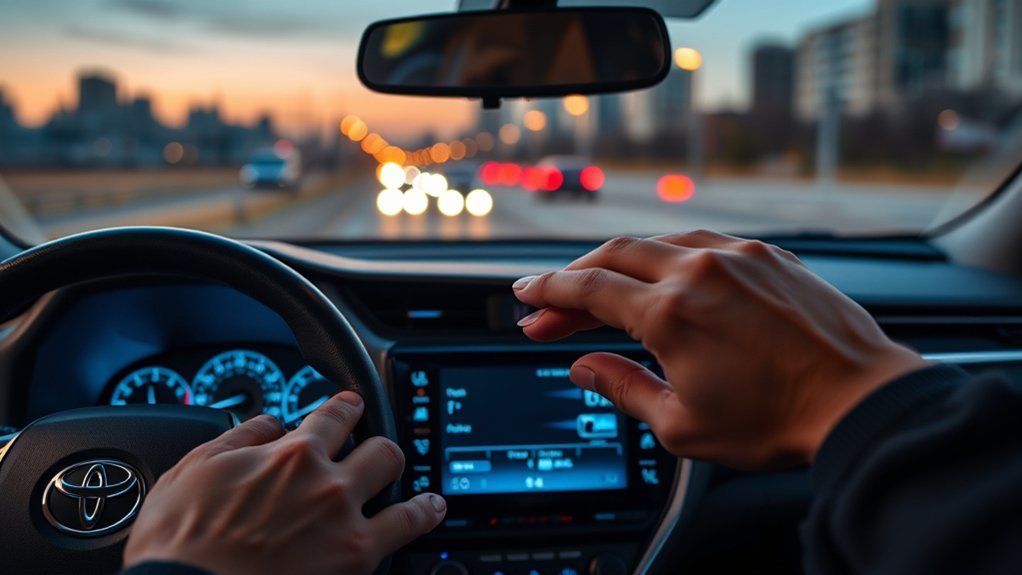
The 2026 RAV4 multimedia display lets you change screen brightness, light and dark themes, home screen widgets, audio settings, navigation preferences, and phone connections. Toyota’s redesigned system has a Quick Control Menu for common adjustments and separate settings for more detailed changes.
This guide explains the correct steps, including how to customize the digital display behind the steering wheel and fix common touchscreen problems.
Quick Answer
To change your 2026 Toyota RAV4 multimedia display, park the vehicle and tap the upper status bar to open Quick Controls for brightness and theme settings. For detailed adjustments, select the Settings icon and open Displays & Camera. To rearrange home screen widgets, press and hold a widget, change its position, and tap Done.
At a Glance
| Difficulty | Easy |
| Tools Needed | Built-in Toyota touchscreen and steering wheel controls |
| Cost | Free for built-in display customization |
Park and Power On Your RAV4
)
Before changing multimedia settings, park your RAV4 in a safe location and shift into Park. Some touchscreen functions are restricted while driving to help prevent distraction.
Follow these preparation steps:
- Secure the vehicle. Shift into Park and apply the parking brake.
- Power on the system. Turn on the vehicle or select the appropriate accessory power mode.
- Wait for the home screen. Allow the multimedia system to finish starting.
- Complete initial setup. If this is your first use, follow the displayed prompts for language, profile, and other preferences.
- Review privacy settings. Choose your preferred vehicle data-sharing and connected-service options.
The 2026 RAV4 uses Toyota’s newer Audio Multimedia interface. It has a standard 10.5-inch touchscreen or an available 12.9-inch touchscreen, depending on the vehicle’s equipment.
Both versions support home screen customization and provide a separate Quick Control Menu.
Warning: Complete detailed screen customization before driving. Do not operate complex menus while the vehicle is moving. Voice commands can also distract you, so keep your attention on the road.
Open RAV4 Multimedia Display Settings
The 2026 RAV4 offers two ways to change its screen appearance: the Quick Control Menu and the full Displays & Camera settings.
Quick Controls are best for common changes. The main Settings menu offers more detailed adjustments.
Method 1: Use the Quick Control Menu
- Touch the status bar at the top of the multimedia screen.
- Find the brightness or display theme controls.
- Move the brightness slider to your preferred level.
- Select Automatic, Light, or Dark for the screen theme.
- Touch outside the panel to close it.
The Quick Control Menu also provides access to connected Bluetooth devices, driver profiles, the clock, and other available controls.
Method 2: Use Displays & Camera
- Touch the Settings icon in the main menu.
- Select Displays & Camera from the submenu.
- Find the Display settings.
- Adjust Theme, Brightness, or Contrast.
- Review the result on the screen.
These menu names are documented in Toyota’s 2026 RAV4 Multimedia Owner’s Manual, OM0R164U.
Under Theme, the Automatic option changes between light and dark display modes based on the headlight condition. Its behavior can vary in certain situations, including parking.
The Camera settings are separate from the main display settings, so you can adjust camera brightness and contrast without changing the normal touchscreen appearance.
For an overview of the new interface, see Toyota Connected’s multimedia feature explanation.
See What You Can Change
The 2026 RAV4 multimedia system offers different controls for screen appearance, audio, navigation, communication, and driver profiles.
Knowing which menu handles each feature saves time and avoids changing unrelated settings.
Available Settings
The following table shows the main customization categories and their functions.
| Setting | What You Can Change |
|---|---|
| Display | Brightness, contrast, light or dark theme, and screen on/off |
| Home Screen | Arrangement of available widgets and information panels |
| Sound & Media | Equalizer, balance, fade, and supported media preferences |
| Navigation | Map information, route preferences, guidance volume, and saved places |
| Bluetooth & Devices | Phone pairing, device management, and connection preferences |
| General | Language, time, volume, accessibility, and Voice Assistant settings |
Available controls can depend on vehicle equipment, location, and active connected services.
Profile and Display
A Toyota driver profile can save individual multimedia preferences so another driver does not have to use your settings.
To manage profiles, open Settings and select Profile. You can choose an existing profile, add another profile, or use Guest mode.
The system supports up to three saved user profiles, as described in Toyota’s multimedia manual.
A compatible smartphone or vehicle key can also identify a driver and load the linked profile when configured.
Driver profiles can remember settings related to:
- Audio and volume preferences.
- Navigation and saved locations.
- Phone and communication preferences.
- Supported vehicle and multimedia settings.
If you share the vehicle, use separate profiles to avoid changing another driver’s preferred setup.
You can also review privacy settings through Profile > Privacy. Some connected features may become unavailable when their required data-sharing permissions are turned off.
Customize the RAV4 Home Screen
The 2026 RAV4 has a customizable home screen with widgets for functions such as navigation, audio, phone, vehicle information, and weather.
Widgets are small panels that show useful information without requiring you to open the full application.
How to Rearrange Home Screen Widgets
- Touch the Home icon on the main multimedia menu.
- Press and hold any widget, or select Customize on the right-hand page of the widget area.
- Press and hold the widget you want to move.
- Move it to your preferred position.
- Touch Done to finish arranging the widgets.
The Toyota system allows two or three widgets to appear together on each home screen page. It supports up to three pages of widgets.
You can move between these pages by swiping left or right.
Available widget categories include navigation, audio, phone, vehicle details, and weather. Weather information may depend on your region or connected-service access.
For example, keeping navigation and audio widgets together makes it easier to see route information while checking what is playing.
Pro Tip: If you are unsure how a home screen widget works, select Tips at the right edge of the widget area. Toyota includes this built-in guide to explain available home screen functions.
You can also save favorite radio stations and frequently used navigation destinations within their respective functions.
However, saving a favorite does not necessarily create a separate home screen shortcut. The 2026 system’s documented customization focuses on arranging its supported widgets.
Change Audio Display Settings
To personalize music playback, open Settings and select Sound & Media. This section controls sound adjustments and supported radio or media options.
You can adjust the equalizer, balance, and fade, while separate volume settings are available under General.
| Control | Action | Result |
|---|---|---|
| Display | View available album or media information | See what is playing |
| Track Info | Enable supported FM information | View station or broadcast details |
| Sound | Adjust equalizer, balance, and fade | Customize audio output |
| Favorites | Save preferred radio stations | Find stations faster |
| Voice Command | Request supported music or radio functions | Control audio hands-free |
Adjust the Equalizer
- Open Settings from the main menu.
- Select Sound & Media.
- Open Sound adjustments.
- Select Equalizer.
- Adjust the available frequency controls to your preference.
Depending on the audio system, the equalizer may provide bass, midrange, and treble adjustments or a more detailed frequency display.
You can also change Balance and fade to distribute sound between the left, right, front, and rear speakers.
To adjust automatic volume changes based on vehicle speed, open Settings > General > Volume and review Automatic sound leveling.
The audio screen also provides access to available sources, including radio, Bluetooth audio, and supported connected entertainment services.
Change Navigation Display Settings
The 2026 RAV4 navigation system lets you customize map details, route restrictions, and guidance settings.
Open Settings and select Navigation to find the available controls.
Change Route Preferences
- Touch Settings in the main menu.
- Select Navigation.
- Open Route.
- Choose your preferred avoidance settings.
- Return to the map when finished.
The documented route options include avoiding highways, toll roads, ferries, HOV/HOT lanes, seasonal roads, and border crossings.
For example, enabling Avoid tolls tells the navigation system to favor routes without toll roads when a suitable alternative exists.
An avoidance setting does not guarantee that every route will exclude that road type. The system may still suggest it when necessary.
Customize Map Information
Open Navigation > Map display to change which details appear on the map.
Options include:
- Stop signs and traffic lights.
- Speed limits.
- Home, Work, and favorite location markers.
- Traffic congestion and traffic incidents.
- Supported building displays.
You can also register common destinations such as Home and Work and save other favorite locations.
For spoken directions, adjust Guidance volume in Navigation settings or the Navigation guidance volume under General > Volume.
Some cloud-based navigation functions require an active Drive Connect trial or subscription.
Change Phone and Bluetooth Settings
To connect or manage a smartphone, open Settings > Bluetooth & Devices. This menu handles phone registration, connection preferences, and saved devices.
The 2026 RAV4 supports wireless Apple CarPlay and Android Auto on compatible smartphones.
Pair a New Phone
- Enable Bluetooth on your smartphone.
- On the Toyota screen, touch Settings.
- Select Bluetooth & Devices.
- Touch Add a device.
- Select your phone from the available devices.
- Check that the pairing codes match on both screens.
- Confirm the connection and complete any phone permission prompts.
Once connected, the system can provide supported hands-free calling, music playback, and phone integration.
The 2026 multimedia system can register up to five Bluetooth devices. With a configured driver profile, it can connect up to two hands-free phones and one audio device, subject to the documented connection rules.
Manage or Remove a Phone
Open Bluetooth & Devices and select the saved phone you want to manage.
To remove a connection, choose the device’s options, select Forget this device, and confirm Forget.
You can also review primary and secondary phone settings when supported.
If calls or notifications are not appearing, check the permissions on your smartphone. Contacts, messages, and notification access may need approval.
If Apple CarPlay or Android Auto does not connect, confirm that the compatible phone feature is enabled for the selected device.
Use Voice Commands for Display Changes
The 2026 RAV4 includes Toyota’s Voice Assistant, activated by saying “Hey Toyota” or using the steering wheel talk switch.
Voice control can handle supported audio, navigation, climate, and information requests. However, not every touchscreen display setting has a voice command.
Enable Toyota Voice Assistant
- Open Settings.
- Select General.
- Choose Voice Assistant.
- Enable Listen for “Hey Toyota”.
- Review Voice commands to see supported requests.
Once enabled, you can use the wake phrase followed by a supported instruction.
For example, Toyota documents voice interaction with radio stations, music selection, audio volume, climate settings, and certain information displays.
The assistant can also help open menu pages.
Commands such as “Change display brightness” or “Switch to night mode” should not be treated as guaranteed voice commands. Use the touchscreen’s Quick Control Menu for those changes.
For a list of recognized commands, say “Hey Toyota, Help” or open Voice commands in the Voice Assistant settings.
Some navigation and online information requests require active connected services.
Voice recognition can also be affected by background noise, loud music, or unclear speech.
How to Change the RAV4 Dashboard Information Display
The multimedia touchscreen and the display behind the steering wheel are two different screens.
The 2026 RAV4 has a standard 12.3-inch digital gauge cluster, also called the multi-information display (MID). It can show driving information, vehicle status, and supported navigation information.
Unlike the center touchscreen, the digital gauge cluster uses steering wheel controls for many of its customization functions.
Customize the Digital Gauge Cluster
- Park the RAV4 in a safe location.
- Locate the meter control switches on the steering wheel.
- Use the controls to select the information display area or settings menu.
- Choose an available display item or layout option.
- Confirm your selection using the meter controls.
- Check the gauge cluster to make sure the information has changed.
Available driving information can include fuel economy, hybrid energy information, trip data, vehicle warnings, and supported multimedia information.
The gauge cluster also supports integrated navigation displays. Toyota’s native navigation can show maps and turn-by-turn directions in the driver display with the required connected-service access.
The official 2026 Toyota RAV4 specifications confirm the customizable 12.3-inch digital gauge cluster and steering wheel MID controls.
Use the gauge cluster controls when you want to change information behind the steering wheel. Use Displays & Camera on the center screen when you want to change the multimedia touchscreen’s appearance.
Fix RAV4 Multimedia Display Problems
If the RAV4 multimedia screen freezes, becomes difficult to see, or stops connecting to a phone, start with the simplest checks.
Many issues can be addressed without removing vehicle parts or clearing your saved settings.
1. Check Screen Brightness and Display Mode
If the touchscreen appears dark, open Quick Controls and increase brightness.
Also confirm that Display on is enabled under Displays & Camera.
The 2026 system can turn off the screen while audio continues playing. When the display is off, touch the screen and select the central unlock button to restore it.
The screen may also turn on temporarily when you shift into Reverse or use the steering wheel talk switch.
2. Check Touchscreen Response
If the screen does not respond, remove your finger and try again.
Water, dirt, gloves, and some screen coverings can interfere with touch input.
Clean the display gently with a soft, suitable cloth. Avoid harsh chemicals or sharp objects.
You can also review the touchscreen sensitivity under Settings > General > Accessibility when the menu is responsive.
3. Restart the Multimedia System
If the system becomes unusually slow or freezes, Toyota provides a restart method using the POWER/VOLUME knob.
- Park safely.
- Press and hold the POWER/VOLUME knob for at least three seconds.
- Allow the multimedia system to restart.
- Check whether the touchscreen responds normally.
This restart is different from a factory reset and is the appropriate first step before considering changes that erase settings.
4. Check Bluetooth and Phone Connections
If the display works but phone functions do not, confirm that Bluetooth is enabled on your smartphone.
Then review the connected device in Bluetooth & Devices.
If necessary, remove the saved pairing and register the phone again.
Also verify that your smartphone supports the Apple CarPlay or Android Auto connection method you are trying to use.
5. Check for Multimedia Software Updates
Software updates can improve system operation and correct compatibility problems.
On the 2026 RAV4, open Settings and select Software update. Review available updates and follow the displayed instructions.
The system supports updates through compatible vehicle communication or Wi-Fi connections, depending on equipment and availability.
Toyota explains the supported update methods on its official Audio Multimedia software update page.
Some updates may alter saved preferences. Review your settings after an update finishes.
6. Use System Reset Only When Necessary
If problems continue, a factory reset may be considered after other troubleshooting steps fail.
The 2026 multimedia system includes System reset within its profile and system preferences.
Warning: System reset initializes multimedia data to factory settings and removes stored user profiles and personal information. This is not the same as restarting the screen. Do not perform a factory reset unless you understand the data loss involved.
If the screen remains black, repeatedly restarts, or fails after the recommended checks, contact a Toyota dealer for diagnosis.
A persistent problem may require a manufacturer-approved software repair or hardware inspection.
Frequently Asked Questions
How Do I Update My Toyota Multimedia System?
Open Settings and select Software update to check for available multimedia updates. Follow the on-screen instructions to download and install supported updates. On the 2026 RAV4, compatible over-the-air updates can use the vehicle’s communication system or Wi-Fi. Park safely whenever an update requires driver action.
How to Change Dashboard Display on RAV4?
Use the steering wheel meter control switches to change information on the 2026 RAV4’s digital gauge cluster. Select the display area or settings you want to modify, choose the available information, and confirm. The center touchscreen has separate customization options under Displays & Camera.
How to Reset Toyota RAV4 Multimedia System?
For a simple restart, press and hold the POWER/VOLUME knob for at least three seconds. If you need a factory reset, the 2026 system provides System reset in its profile and system preferences. A factory reset deletes saved profiles and personal information, so use it only when necessary.
What Infotainment System Does the 2026 Toyota RAV4 Have?
The 2026 Toyota RAV4 uses a redesigned Toyota Audio Multimedia system with a standard 10.5-inch touchscreen or an available 12.9-inch touchscreen. Features include customizable home screen widgets, wireless Apple CarPlay and Android Auto compatibility, Toyota Voice Assistant, and integrated digital gauge cluster functions.
Can I Turn Off the RAV4 Touchscreen Without Turning Off Music?
Yes. The 2026 RAV4 allows you to turn off the multimedia screen while audio continues playing. Use the screen-off control in Quick Controls or the Display on setting under Displays & Camera. To restore the screen, touch it and select the central unlock button.
Conclusion
Changing your 2026 RAV4 multimedia display is easier once you know which controls handle each feature. Use Quick Controls for brightness and themes, the Settings menu for detailed adjustments, and the home screen customization function to organize widgets.
Remember that the digital gauge cluster behind the steering wheel has its own controls. Configure both displays while parked so you can read important information without unnecessary distractions.
AAA’s research on in-vehicle distraction explains that taking your eyes off the road for just two seconds can double crash risk. Setting up your display before driving is a practical way to reduce unnecessary screen interaction.
Sources
- Toyota Connected North America — Multimedia System Overview: Supports the new 2026 RAV4 interface, Quick Controls, display sizes, widgets, voice features, and connected navigation.
- Toyota — 2026 RAV4 Specifications: Confirms the customizable digital gauge cluster and steering wheel multimedia controls.
- Toyota Owners — Audio Multimedia Software Updates: Explains supported over-the-air updates, USB updates, and dealer assistance.
- AAA — Vehicle Infotainment Distraction Research: Supports the guidance to minimize touchscreen interaction while driving.

