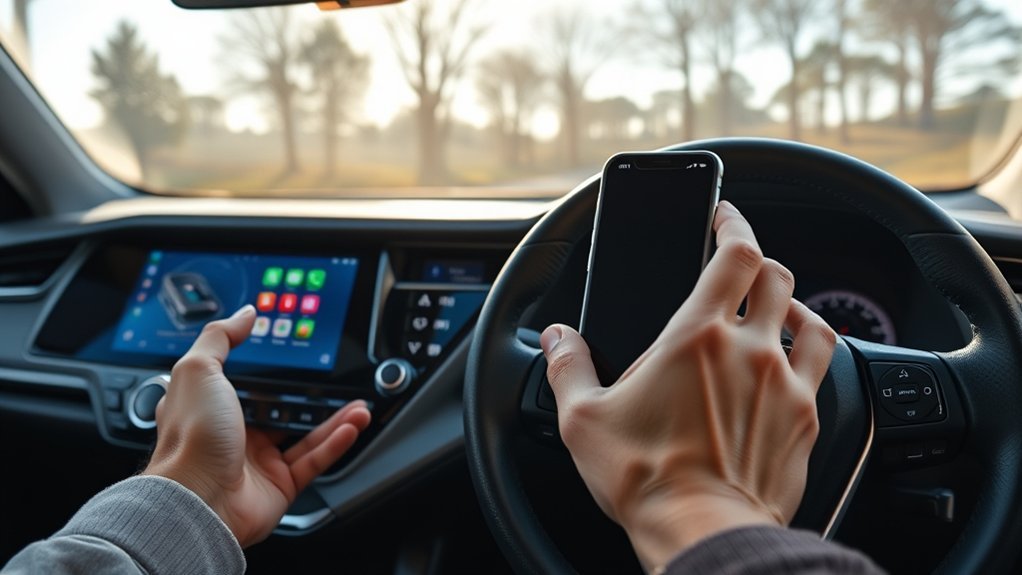
A RAV4 can connect an iPhone without a cord through wireless Apple CarPlay, if the 2025 trim and multimedia package support it, or through standard Bluetooth. The iPhone should be updated, with Bluetooth, Wi‑Fi, and Siri enabled. Pair the phone in the RAV4 Bluetooth menu, confirm the PIN, then authorize the vehicle under Settings > General > CarPlay. If setup fails, check firmware, restart both devices, and clear old pairings. Additional steps can improve reliability and reconnection.
Check if Your RAV4 Supports Wireless CarPlay
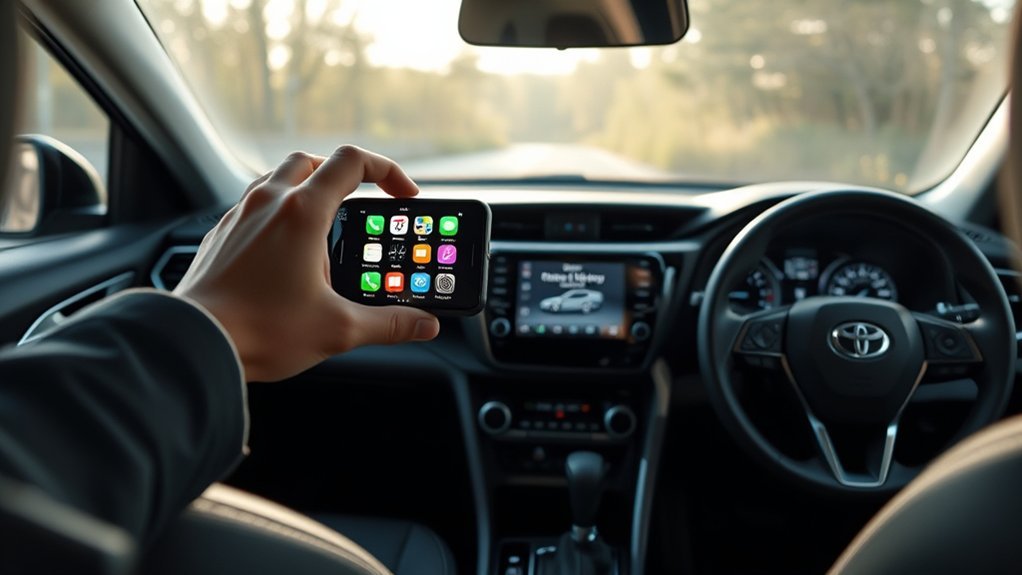
Before attempting a cord-free connection, it is necessary to confirm that the 2025 Toyota RAV4 is equipped with Wireless Apple CarPlay, a feature typically available on higher trims or through specific option packages. This first check determines whether the vehicle supports a cable-free interface or requires a different approach.
A buyer or driver seeking more freedom should review the trim sheet, package list, infotainment menu, or official Toyota documentation for explicit wireless CarPlay compatibility.
The verification process should remain strictly vehicle-focused. The most reliable method is to inspect the multimedia system settings for CarPlay options that specify wireless operation. Dealership records and the owner’s manual can also confirm feature availability with precision.
If the installed system does not list wireless capability, the limitation is hardware or package related rather than procedural. Establishing this point early prevents wasted setup attempts and gives the driver a clear, liberated path toward the correct connection method with confidence.
Get Your iPhone Ready for RAV4 CarPlay
Before pairing, the iPhone should be updated to the latest iOS version and checked to confirm that CarPlay and Siri are enabled.
Bluetooth and Wi‑Fi must also be turned on, since wireless CarPlay depends on both connections.
These settings prepare the device for the initial USB setup and the later wireless pairing process with the RAV4.
Enable Siri And CarPlay
Enable Siri and CarPlay on the iPhone to prepare it for wireless use in a RAV4. The process begins by opening Settings, then Siri & Search, and switching on “Listen for ‘Hey Siri’” to enable Siri control.
Next, under Settings > General > Apple CarPlay, the driver selects the RAV4 from detected vehicles. This step authorizes the phone for integration without surrendering convenience.
Wireless operation also depends on the vehicle side. The RAV4 multimedia unit should run the latest firmware so wireless CarPlay support is available and stable.
For initial pairing, the iPhone connects by USB, remains accessible, and stays on the Home screen. The driver then presses and holds the steering-wheel voice command button. That sequence prompts the system to establish the first wireless CarPlay link automatically.
Update iPhone Settings
Update the iPhone to the latest available iOS version, then confirm that key CarPlay settings are configured for wireless use in the RAV4. This update iphone settings step improves compatibility, stability, and feature support.
In Settings, open General > CarPlay and verify that the Toyota appears as an available vehicle. If not, pairing will not complete correctly.
Siri must also remain enabled under Settings > Siri & Search, because wireless CarPlay depends on voice services.
The vehicle side also requires preparation. The RAV4 multimedia unit should run the latest version of Toyota firmware to avoid connection faults.
Initial activation typically requires a USB connection once. After that, holding the steering wheel voice command button authorizes wireless CarPlay, allowing a cord-free setup that supports more independent, uncluttered driving.
Pair Your iPhone to RAV4 Wirelessly
Pairing an iPhone to a RAV4 wirelessly starts by verifying that Bluetooth is active on both the vehicle and the iPhone. This initial check removes unnecessary friction and prepares the system for direct pairing through the RAV4 multimedia interface.
On the vehicle display, the user selects Bluetooth, then chooses Add New Device to begin device discovery. The iPhone should appear in the list of available devices within seconds.
The next step is confirmation. A PIN appears on the RAV4 screen and on the iPhone; both codes must match before accepting the pairing request. Once approved, the connection enables practical functions such as hands-free calling and audio streaming through the vehicle speakers. This gives the driver more control with fewer cables and less clutter.
At this stage, the Bluetooth link is established and stable. Setup for wireless CarPlay is separate and follows after this basic connection has been completed successfully.
Enable Wireless CarPlay on Your RAV4
Confirm that the RAV4 supports wireless CarPlay and that the iPhone is running the latest iOS version before setup begins. This verification removes unnecessary limits and guarantees the vehicle can complete the required handshake.
The initial configuration still requires a Lightning cable, so the iPhone should be connected to the RAV4 USB port first.
After the wired link is established, press and hold the steering wheel voice command button to activate Siri and authorize Wireless CarPlay.
Then open the iPhone and go to Settings > General > CarPlay, where the RAV4 should appear as an available vehicle. Select it to complete Bluetooth pairing and finalize wireless access.
For continued operation, Bluetooth and Wi-Fi must remain enabled on the iPhone, since Wireless CarPlay depends on both radios working together.
Once configured, the system allows cord-free access to navigation, calls, messages, and media, reducing cable dependence and preserving a cleaner cabin environment overall.
Fix RAV4 Wireless CarPlay Connection Problems
When wireless CarPlay setup is complete but the RAV4 still fails to connect reliably, troubleshooting should start with the basic requirements that govern the link. A disciplined check removes guesswork and restores a cable-free system that works on command.
- Verify that the 2025 RAV4 multimedia unit is running the latest firmware. Outdated software can block wireless CarPlay stability.
- Reconnect the iPhone by USB once, then confirm wireless settings are enabled on the phone. This first wired handshake often finalizes activation.
- Confirm Siri is turned on. Without Siri, wireless CarPlay may not launch even when pairing appears successful.
- Restart both the iPhone and the vehicle multimedia system, then check Bluetooth is active and the phone remains within proper Bluetooth range.
These steps apply to iPhone or Android owners comparing connection behavior, but Apple wireless CarPlay depends specifically on iPhone settings and Toyota system readiness for consistent operation and daily driving freedom.
Stop RAV4 CarPlay From Taking Over Audio
Preventing CarPlay from overriding audio in a RAV4 starts with the multimedia source menu, where the active input should be set manually instead of allowing CarPlay to assume control automatically. This keeps the chosen audio source fixed and stops Apple CarPlay from redirecting playback when the phone connects.
If takeover continues, resetting the audio source in the vehicle’s multimedia settings often restores independent operation and cleaner control.
A stronger measure is to disable CarPlay temporarily on the iPhone. Under Settings, General, and CarPlay, selecting “Forget This Car” prevents automatic reconnection and returns authority to the RAV4’s native system.
Android Auto users can apply equivalent deactivation steps for the same result. When audio interruptions occur during a CarPlay session, performance may improve by switching internet handling away from the vehicle Wi-Fi and using the phone’s SIM-based data instead.
These adjustments give the driver freer command over playback behavior and source priority consistently.
Use Bluetooth if RAV4 Wireless CarPlay Fails
If wireless CarPlay remains unreliable after adjusting source and connection behavior, Bluetooth provides a direct fallback for restoring phone connectivity in the RAV4. This route reduces dependence on Wireless CarPlay while preserving essential hands-free calling and audio access through the iPhone.
- Verify that Bluetooth is enabled on both the RAV4 display and the iPhone before further troubleshooting.
- Restart the iPhone and the vehicle system to clear temporary faults that can interrupt discovery, pairing, or profile loading.
- Open the RAV4 Bluetooth menu, choose Add New Device, then confirm the same PIN shown on both screens to complete pairing securely.
- Inspect Settings > Screen Time > Content & Privacy Restrictions on the iPhone, then remove any block on car Bluetooth access. If pairing still fails, delete the old connection from both devices and pair again cleanly.
This method gives the driver a practical path to untethered use when Wireless CarPlay refuses to stabilize under ordinary conditions.
Make RAV4 CarPlay Reconnect Automatically
Most automatic CarPlay reconnect issues in a RAV4 trace back to iPhone permissions, wireless setup, or outdated vehicle software. Reliable Apple CarPlay startup depends on three settings: Bluetooth enabled on the iPhone, Siri turned on, and CarPlay configured to “Always Allow” under General > CarPlay.
Those permissions let the phone reconnect without repeated prompts, which removes friction and supports hands-free operation.
The vehicle side also matters. The RAV4 multimedia system should run the latest firmware because updates often improve stability and background reconnection behavior.
For first-time wireless use, an initial USB connection is required; afterward, pressing and holding the steering-wheel voice command button starts the wireless pairing process. Once paired correctly, the system should recognize the iPhone at startup and reconnect automatically.
If it fails, a restart of both the iPhone and the multimedia system often refreshes cached connections and restores dependable wireless Apple CarPlay access with minimal driver intervention.
Frequently Asked Questions
How to Hook up iPhone to RAV4?
To hook up an iPhone to a RAV4, one verifies iPhone compatibility, enables Siri and Bluetooth, adjusts RAV4 settings, initiates pairing via steering-wheel voice control, then follows touchscreen prompts; Bluetooth pairing tips improve reliable wireless CarPlay access.
How Do I Connect My Phone to My Car Without a Cord?
A driver connects a phone without a cord by enabling Bluetooth settings, initiating pairing through the car’s infotainment menu, confirming the PIN, and verifying Mobile compatibility. Wireless audio then functions independently, freeing operation from physical connection constraints.
Why Won’t My Toyota RAV4 Connect to My Phone?
A Toyota RAV4 may fail to connect due to Bluetooth issues, missing Software updates, or limited Device compatibility. Checking Siri, firmware, pairing settings, and restarting both systems typically restores wireless access and user autonomy quickly.
Why Can’t I Connect My iPhone to My Toyota?
Connection usually fails because Bluetooth settings are misconfigured, iPhone compatibility requirements are unmet, or RAV4 software is outdated. A reset, firmware update, enabled Siri, and confirmed CarPlay support typically restore independent, reliable vehicle-phone pairing.
Conclusion
Connecting an iPhone to a RAV4 without a cord is usually straightforward when wireless CarPlay is supported, the phone is updated, and Bluetooth and Wi‑Fi are configured correctly. In practice, the process works like a clean relay handoff: once paired, the system should reconnect in seconds, much like test engineers tracking sub-10-second startup targets in infotainment benchmarks. If wireless CarPlay remains unstable, switching to Bluetooth provides a practical fallback while preserving hands-free calling and audio.
