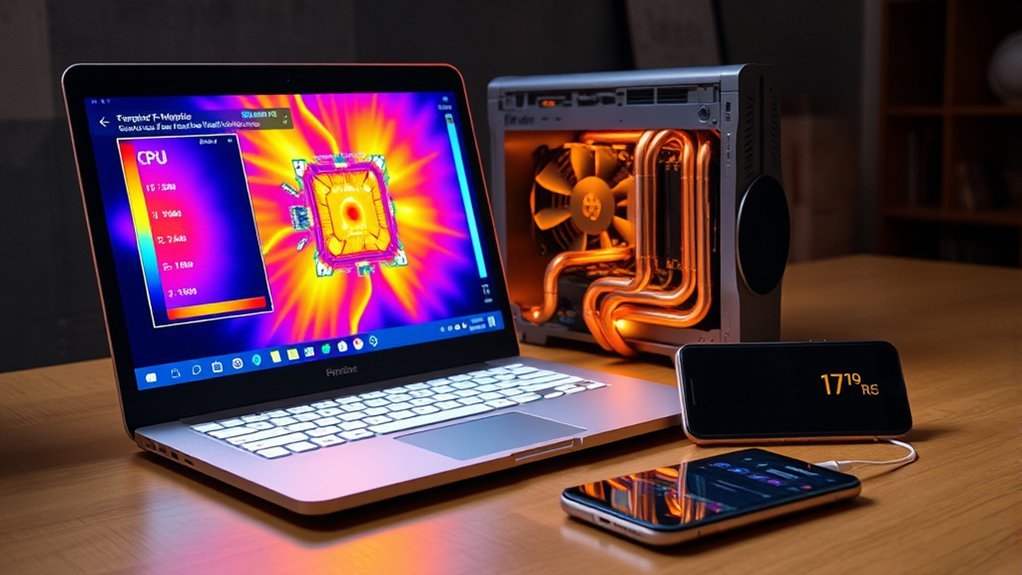
Is 163°F safe for a laptop CPU? The answer depends on what your laptop is doing, its processor model, and how well its cooling system works. A temperature that is normal during gaming could point to a problem when the computer is sitting idle.
Quick Answer
Yes. A laptop CPU at 163°F (about 73°C) is generally safe during gaming, video editing, or other demanding work. However, the same temperature may be unusually high during idle use. CPU temperature limits vary by model, so check the workload, fan behavior, and manufacturer specifications before deciding whether your laptop is overheating.
Key Takeaways
- Many laptops operate around 30–50°C at idle and 70–90°C under heavy workloads, but these are general observations rather than universal limits.
- Modern processors reduce their speed or power when they approach thermal limits. Brief temperature spikes do not automatically mean hardware damage.
- Dust, blocked vents, demanding background applications, and malfunctioning fans are common causes of unexpectedly high temperatures.
- Internal temperature monitoring is more useful than measuring the laptop’s outside surface.
- Start with airflow, software, and fan checks. Consider replacing thermal paste only when troubleshooting points to a heat-transfer problem.
Is 163°F Safe for a Laptop CPU?
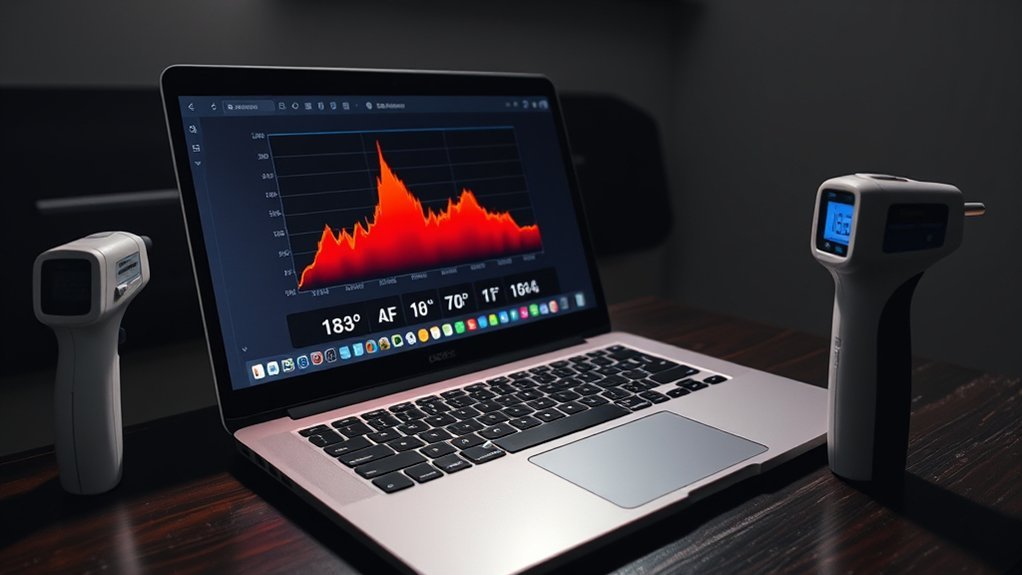
163°F (73°C) is usually a normal laptop CPU temperature under moderate or heavy load. Most modern mobile processors can operate at this temperature without reaching their built-in thermal protection limits.
The important question is whether your CPU is working hard enough to explain the heat. Gaming, compiling software, rendering video, and running demanding applications increase power use and naturally raise processor temperatures.
If the CPU reaches 73°C during those activities and the laptop performs normally, you generally do not need to intervene.
However, if your laptop remains at 73°C while no demanding applications are running, investigate background CPU usage, ventilation, and cooling performance.
Watch for these signs alongside the temperature reading:
- Fans running at high speed even during light use.
- Games or applications becoming slower after the laptop heats up.
- Unexpected shutdowns or restarts.
- A sudden increase in temperature compared with the laptop’s previous behavior.
One brief temperature spike is less useful for diagnosis than a repeated pattern. Look at how your laptop behaves over several normal workloads before deciding that something is wrong.
What’s a Normal Laptop CPU Temperature?
Normal laptop CPU temperatures vary with processor design, workload, cooling mode, and room temperature. There is no single temperature range that applies equally to every laptop.
As a practical starting point, many systems run around 30–50°C at idle and reach approximately 70–90°C during demanding tasks. Compact gaming and high-performance laptops can sometimes run hotter without indicating a fault.
Safe Temperature Ranges
The following ranges are useful reference points, not official limits for every processor.
| Range | Assessment |
|---|---|
| 30°C–50°C | Common idle-temperature range on many laptops |
| 50°C–75°C | Common during light to moderate activity and some heavier workloads |
During gaming or other sustained work, temperatures above 75°C can also be normal. The processor’s own thermal specification is more important than any general temperature chart.
For example, Intel’s official temperature guidance explains that thermal limits vary by processor. Many Intel processors have maximum junction temperatures around 100–110°C.
Tjunction Max, often written as Tjmax, is a processor’s specified maximum junction temperature. The CPU uses thermal controls to limit heat as it approaches its configured operating threshold.
A high maximum temperature is not a recommended everyday target. It simply means that a reading such as 85°C or 90°C cannot be judged without knowing the processor and laptop design.
Idle vs. Load: Why the Difference Matters
An idle laptop uses relatively little processing power. A laptop under load performs more calculations, consumes more energy, and produces additional heat.
That difference explains why 73°C can be normal in one situation and worth investigating in another.
- Idle: Many laptops operate around 30–50°C. Some remain warmer because of background tasks, fan settings, or compact construction.
- Light use: Browsing, office work, and video playback can produce temperatures around 50–70°C, depending on the system.
- Heavy use: Gaming, rendering, and demanding software may raise CPU temperatures to 70–90°C or higher.
- Brief peaks: Short temperature jumps can occur when the processor increases its clock speed to complete a task quickly.
Do not confuse an idle desktop with a truly idle processor. Windows updates, antivirus scans, browser extensions, and startup applications can keep the CPU busy even when you are not actively using the laptop.
For a useful comparison, monitor the temperature after the system settles, then compare it with the reading during your normal workload.
What Laptop CPU Temperatures Are Too High?
A laptop CPU becomes too hot when it approaches or exceeds its model-specific thermal limit, repeatedly reduces performance because of heat, or causes system instability. There is no universal rule that every laptop must remain below 80°C or 90°C.
For example, AMD lists a 100°C maximum operating temperature for the Ryzen 9 7940HX. Other processors may have different limits.
CPU temperature becomes a concern when it repeatedly causes throttling, shutdowns, or cooling problems, not simply because it crosses one universal number.
Use the following general warning signs:
- Unusually high idle temperature: Persistent readings around 75–85°C during genuinely low CPU activity deserve investigation.
- Temperature near Tjmax: The processor may reduce speed or power to manage heat. This behavior can be expected under some workloads, but frequent performance loss deserves attention.
- Frequent shutdowns: Repeated heat-related shutdowns are abnormal and require troubleshooting.
- Fan or cooling failure: A fan that does not run when expected, makes grinding noises, or reports a hardware error may need service.
Thermal throttling is a protective process that reduces CPU speed or power to control temperature. You may notice lower frame rates, stuttering, or slower processing when it occurs.
Thermal protection does not guarantee that every part of the laptop stays cool. The battery, storage, and other components have their own operating limits.
Dell’s overheating troubleshooting guidance recommends checking airflow, fan diagnostics, software load, and cooling hardware when a laptop runs unusually hot or shuts down.
If a laptop repeatedly overheats despite clear vents and normal workloads, the next step is a manufacturer diagnostic or professional inspection.
Why Is Your Laptop CPU at 163°F?
A laptop CPU may reach 163°F because of ordinary processing demands, restricted cooling, or warm surroundings. The cause depends on what the computer is doing when the reading appears.
Modern laptops have limited internal space for fans and heatsinks. Heat can therefore rise quickly during demanding tasks, especially when the CPU and graphics processor are working together.
Common cooling-related causes include:
| Factor | Mechanism | Effect |
|---|---|---|
| Dust buildup | Restricts vents, cooling fins, and fan airflow | Raises temperatures and may increase fan noise |
| Aged thermal paste | May weaken heat transfer between the processor and heatsink | Can contribute to higher temperatures under load |
| High ambient temperature | Reduces the cooling system’s ability to release heat | Raises the temperature of internal components |
Other possible causes include high background CPU usage, a blocked underside intake, an aggressive performance mode, or a fan that is not working properly.
Before changing hardware, ask three questions: Is the CPU busy? Does the temperature fall when the workload ends? Are the cooling vents clear?
Those observations can separate normal heat production from a developing cooling problem.
How Can You Check Laptop CPU Temperature?
You can monitor laptop CPU temperature using hardware-monitoring software or a manufacturer-provided system utility. The most useful readings show the current temperature, the highest recorded temperature, and how the values change with CPU activity.
Follow these steps on a compatible Windows laptop:
- Open a temperature-monitoring utility. Programs such as Core Temp and CPUID HWMonitor can display processor sensor readings. Some gaming laptops also include a manufacturer control application.
- Check the idle reading. Close demanding applications and allow background activity to settle. Record the current CPU temperature.
- Compare CPU usage. Open Windows Task Manager and review the Processes tab. Microsoft’s performance guidance explains how to identify applications consuming system resources.
- Observe a normal workload. Run a game or application you regularly use. Compare the temperature with the idle reading and note whether performance stays stable.
- Review the highest temperature. Check whether the reading was a brief spike or a sustained condition. Compare it with the manufacturer’s documented limits.
Some laptops also display CPU temperature in their BIOS or UEFI firmware menus. These readings can be useful, but not every system offers them, and the firmware environment is not identical to normal operating-system idle conditions.
An infrared thermometer can measure the laptop’s exterior surface temperature. However, surface temperature is not the same as internal CPU temperature. It cannot reliably replace the processor’s built-in thermal sensors.
If one monitoring program displays an implausible value, compare it with another supported tool before assuming the CPU is overheating.
Can Dust and Blocked Vents Raise CPU Temperature?
Yes. Dust and blocked air vents can raise laptop CPU temperatures by reducing the amount of air passing through the cooling system. They can also make fans work harder and produce more noise.
Over time, dust can collect around intake grilles, fan blades, and heatsink fins. Even a functioning fan becomes less effective when airflow is restricted.
Blocked ventilation reduces cooling efficiency. The result can be higher CPU temperatures, louder fans, and reduced performance during demanding tasks.
Soft surfaces create another problem. Using a laptop on bedding, thick fabric, or a couch cushion may block vents underneath the computer.
To reduce airflow-related overheating:
- Place the laptop on a hard, stable surface.
- Keep intake and exhaust vents unobstructed.
- Shut down and unplug the laptop before cleaning its vents.
- Follow your manufacturer’s instructions for removing dust.
- Inspect cooling performance more often if the laptop is used in a dusty environment.
HP’s official laptop overheating guide recommends cleaning vents, checking fan operation, and maintaining adequate ventilation.
Cleaning every three to six months may be reasonable in a dusty setting, but there is no universal maintenance interval. The laptop’s environment and visible dust buildup are better guides.
If the fan makes unusual mechanical noises or does not operate when expected, cleaning alone may not solve the problem.
Can Bad Thermal Paste Raise CPU Temperature?
Yes. Worn, poorly applied, or otherwise ineffective thermal paste can increase CPU temperature by reducing heat transfer between the processor and its heatsink.
Thermal paste fills tiny surface gaps between two parts. It helps heat move from the processor into the cooling assembly, where the fans can remove it.
However, a CPU temperature of 163°F does not prove that the thermal paste is bad. Heavy workloads and normal boost behavior can produce the same reading.
Dried Thermal Paste
Thermal paste may lose effectiveness as it ages or undergoes repeated heating and cooling. The rate depends on the material, application, and laptop design.
Possible signs of a thermal-interface problem include:
- Higher sustained temperatures than the laptop previously showed under similar workloads.
- Performance throttling despite clear vents and functioning fans.
- Cooling performance that remains poor after simpler causes have been ruled out.
Some manufacturers use specialized thermal compounds, phase-change materials, or liquid-metal interfaces. These systems may require different servicing methods.
There is no single replacement interval that applies to all laptops. Replacing thermal paste every five to eight years is not a universal manufacturer requirement.
For most users, inspection becomes relevant when temperature trends and other diagnostic checks suggest reduced cooling performance.
Heat Transfer Failure
When the thermal interface stops transferring heat effectively, the CPU can heat up faster than the heatsink can remove that energy. This may result in high sustained temperatures and repeated thermal throttling.
The problem can also come from an improperly seated heatsink, damaged heat pipes, or a faulty cooling assembly. Replacing paste will not fix every heat-transfer failure.
If servicing is necessary, use the procedure for your exact laptop model. The iFixit laptop thermal paste guide explains the general process and the precautions involved.
Warning: Do not open the laptop or remove its cooling assembly unless you understand the model-specific procedure and electrical safety precautions. Incorrect disassembly, poor heatsink installation, or unsuitable thermal materials can damage the computer. Consider professional service if you are unsure.
Use the same workload to compare temperatures before and after any approved repair. A stable improvement is more useful than judging the repair by a single temperature reading.
Does Room Temperature Affect CPU Temp?
Yes. Room temperature affects CPU temperature because laptop cooling systems transfer heat into the surrounding air. Warmer air generally makes that heat transfer less effective.
For example, a laptop used in a cool, ventilated room may operate at a lower temperature than the same laptop running the same workload in a hot room.
A warmer room reduces the cooling system’s thermal headroom, so the CPU may run hotter even when the workload has not changed.
A room temperature around 20–25°C is a comfortable working environment for many people and laptops. However, it is not a universal requirement for safe computer operation.
Temperatures above 30°C can make cooling more challenging, particularly during heavy workloads or when ventilation is restricted. Whether the laptop remains within its operating limits depends on the manufacturer’s specifications.
Other environmental factors matter too:
- Direct sunlight can warm the laptop’s chassis.
- Enclosed desks or cramped spaces can trap hot exhaust air.
- Blocked vents limit the cooling system’s access to fresh air.
- Nearby heat sources may increase the temperature of the air entering the laptop.
If the CPU temperature rises during hot weather, try improving room ventilation or moving the laptop to a cooler location.
A cooling pad or raised stand may also help, particularly on systems that draw air through the bottom panel.
Is 163°F Too Hot During Gaming?
No. A CPU temperature of 163°F (73°C) is generally not too hot during laptop gaming. It is well below the maximum operating temperature of many modern performance processors.
Gaming creates heat because the CPU handles game logic, physics, background activity, and other tasks. The graphics processor also produces heat, and some laptops use a shared cooling assembly.
A temperature of 73°C during sustained gameplay is therefore usually reassuring, especially when frame rates remain stable and the laptop does not shut down.
It is also normal for CPU temperatures to rise and fall as a game moves between less demanding scenes and intense action.
For context, Dell’s guidance for specific Alienware gaming laptops describes expected high-load CPU temperatures reaching approximately 95°C on some models, with thermal controls operating near 100°C.
Those values are specific to the affected systems. They are not universal recommended temperatures for all gaming laptops.
Watch for these gaming-related warning signs:
- Frame rates dropping significantly after the laptop heats up.
- CPU clock speeds repeatedly falling because of thermal limits.
- Unexpected shutdowns during games.
- Cooling fans failing to respond appropriately to load.
If a game runs smoothly at 163°F, there is usually no reason to stop playing solely because of that CPU reading.
If performance starts falling as temperatures climb, reduce game settings, check the cooling mode, and investigate airflow before considering hardware repairs.
How Can You Lower a High Laptop CPU Temperature?
The best way to lower laptop CPU temperature is to improve cooling and reduce unnecessary processor activity. Start with simple changes that do not require opening the computer.
More involved maintenance should come later, once you understand whether the problem comes from airflow, software, or hardware.
Effective laptop cooling starts with clear airflow and reasonable CPU load. Hardware repair becomes necessary only when simpler checks reveal or fail to resolve a problem.
- Improve ventilation. Place the laptop on a hard, flat surface and make sure the air intakes and exhaust vents are clear. A stand may improve airflow beneath laptops with bottom-mounted intakes.
- Clean accumulated dust. Follow the manufacturer’s vent-cleaning instructions. Avoid opening the chassis unless the procedure is approved and you are comfortable performing it.
- Reduce unnecessary background activity. Close demanding applications you are not using. Check Task Manager for processes consuming CPU resources while the laptop should be idle.
- Review the power and thermal settings. A balanced or energy-saving mode can reduce heat by limiting unnecessary performance boosts. Manufacturer cooling profiles may also offer quieter or cooler operation at the expense of performance.
- Consider a cooling pad. An external cooling pad may improve airflow and reduce temperatures on some laptops. Results vary with vent placement, fan design, and workload, so a fixed 5–10°C improvement is not guaranteed.
- Check manufacturer updates and diagnostics. Follow official instructions for supported firmware, drivers, and fan diagnostics. Do not install unrelated BIOS files or experimental thermal-control software.
- Arrange hardware service if necessary. A malfunctioning fan, damaged heatsink, or poor thermal interface may require repair. Thermal-paste replacement is best considered after other causes have been investigated.
After each change, compare temperatures under the same conditions. Record whether the CPU becomes cooler, whether fan noise improves, and whether applications run more consistently.
Pro Tip: Compare temperatures using the same application, power mode, and room conditions. This makes it easier to see whether a cooling adjustment actually helped instead of mistaking normal workload changes for an improvement.
If temperatures remain unexpectedly high during light use, or if shutdowns and thermal warnings continue, contact the laptop manufacturer or a qualified repair technician.
Frequently Asked Questions
How Hot Is Too Hot for a Laptop CPU?
A laptop CPU is too hot when it reaches its model-specific thermal limit, repeatedly throttles, or causes shutdowns. Some models can operate near 90–100°C during demanding tasks, so 90°C is not a universal failure point. Compare temperatures with your processor and laptop manufacturer’s specifications.
How Do I Fix Suspicious CPU Temperature Readings?
Check the value with a second monitoring utility and confirm that you are reading the CPU sensor, not a GPU or surface sensor. Compare idle and active temperatures. If readings remain unusually high, investigate airflow, fan behavior, and background CPU load before opening the laptop.
What Temperature Should My Laptop CPU Be in Fahrenheit?
As a rough guide, many laptops sit around 86–122°F at idle and may run around 158–194°F under demanding loads. These are examples, not universal safety limits. Your processor model, fan design, room temperature, and workload matter more than a single target.
What Is the Normal CPU Temperature Range for a Laptop?
There is no single normal range for every laptop CPU. Many systems run around 30–50°C at idle and about 70–90°C during heavy work, but short peaks can be higher. Check your device’s thermal specifications and watch for persistent high idle temperatures or performance loss.
Conclusion
A laptop CPU running at 163°F (73°C) is generally safe, especially during gaming or other demanding workloads. The temperature alone does not mean your processor is overheating or suffering damage.
Pay closer attention if the same reading persists during genuine idle conditions, performance repeatedly drops, or the laptop shuts down unexpectedly.
Start by checking CPU activity, monitoring temperature trends, and ensuring clear ventilation. If overheating symptoms continue, use your manufacturer’s diagnostic tools or seek professional service. The goal is reliable cooling and stable performance, not forcing every laptop to stay below one arbitrary temperature.
Sources
- Intel, Information about Temperature for Intel Processors: processor-specific thermal limits, throttling, and built-in protection mechanisms.
- AMD, Ryzen 9 7940HX Specifications: example of a mobile processor’s maximum operating temperature.
- Dell, How to Stop Computer and Laptop Overheating and Shut Down Issues: troubleshooting, fan problems, abnormal heat, and system instability.
- CPUID, HWMonitor: processor temperature and system sensor monitoring.
- Microsoft Support, Tips to Improve PC Performance in Windows: identifying demanding processes and managing system performance.
- HP Support, Reduce Heat Inside the Laptop to Prevent Overheating: ventilation, fan inspection, cleaning, and cooling practices.
- iFixit, How to Repaste a Laptop: thermal-interface maintenance and safe disassembly precautions.
- Dell, Resolving High CPU Temperature Issues on Alienware Laptops: model-specific high-load temperatures and thermal-management behavior.

