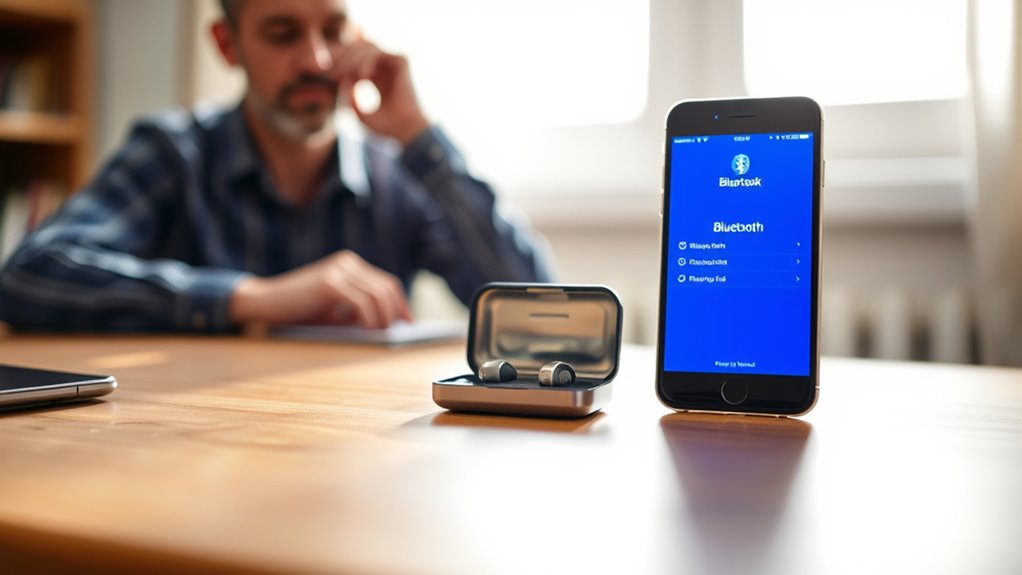
Yes. Phonak hearing aids can connect directly to an iPhone through Bluetooth, allowing call audio, music, and podcast streaming without extra accessories. Pairing typically requires Bluetooth enabled on the iPhone and the hearing aids in pairing mode, which is confirmed by a beep and device listing. When connected, iPhone supports HFP for calls and A2DP for media. Connection stability can vary, and common fixes include restarting devices, toggling Bluetooth, and resetting pairings for clearer performance.
Key Takeaways
- Yes, many Phonak hearing aids can connect directly to an iPhone using Bluetooth.
- They support streaming calls, music, and podcasts without extra accessories.
- Pairing requires turning on Bluetooth on the iPhone and putting the hearing aids in pairing mode.
- A beep and the hearing aid appearing in iPhone Bluetooth settings confirm successful pairing.
- If connection fails, restart Bluetooth, reopen the app, or unpair and pair the devices again.
Can Phonak Connect to an iPhone?
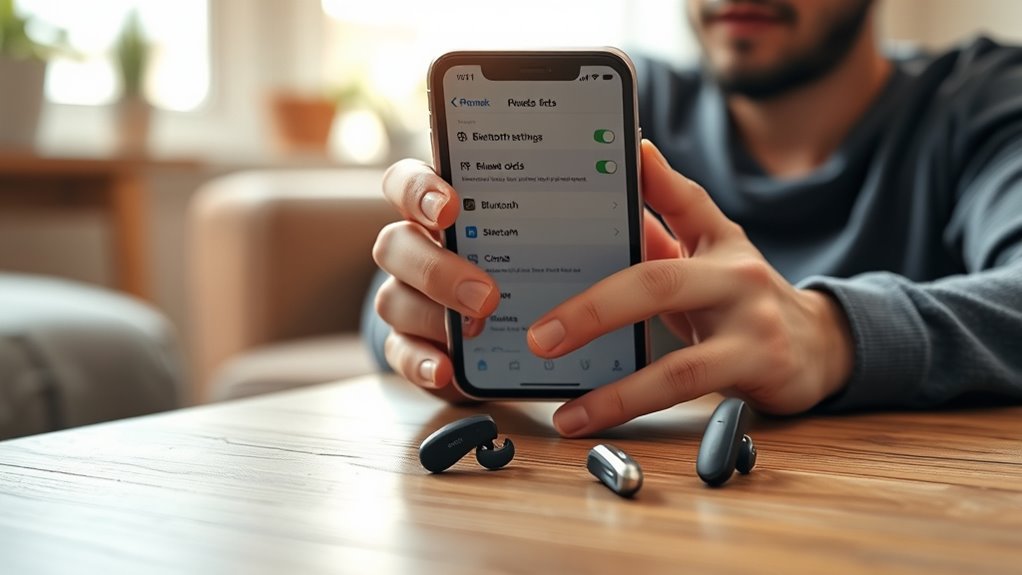
Yes—Phonak hearing aids can connect to an iPhone via Bluetooth®, enabling direct streaming of calls, music, and podcasts without additional accessories.
This capability places Phonak hearing aids among contemporary Bluetooth devices designed for integrated mobile use and efficient acoustic access. Compatibility with iPhone models supports HFP and A2DP profiles, which sustain stable voice transmission and high-quality audio playback.
Phonak hearing aids support iPhone Bluetooth connectivity with HFP and A2DP for reliable calls and quality audio playback.
In practice, the connection framework requires Bluetooth activation on the iPhone and activation of pairing mode on the hearing aids; successful registration is indicated by a beep and visible listing of the devices in iPhone Bluetooth settings.
The myPhonak app extends control, and for Infinio Ultra models it can support automatic pairing while providing additional management functions.
The result is a streamlined, clinically coherent pathway to uninterrupted communication, reduced dependence on intermediaries, and greater user autonomy in daily listening environments.
How to Pair Phonak Hearing Aids to iPhone
Pairing Phonak hearing aids to an iPhone begins in the iPhone’s Bluetooth menu: open Settings, select Bluetooth, and confirm that Bluetooth is enabled.
The process then depends on the model. For a rechargeable R-Phonak hearing aid, place each device in its charger for at least 10 seconds, remove it, and verify pairing mode by a green blink.
For battery models, open the battery doors for 5 seconds, then close them to initiate Bluetooth pairing. On the iPhone, select the hearing aids from the devices list.
- Confirm both devices are ready.
- Select the correct hearing aid name.
- Wait for the confirmation beep.
The beep indicates successful wireless connectivity for calls and streaming audio.
For Infinio Ultra and newer models, the myPhonak app may complete automatic pairing, reducing manual steps and supporting a more independent, uncluttered experience.
Which iPhone Bluetooth Features Work With Phonak?
Phonak hearing aids support key iPhone Bluetooth functions through direct wireless connectivity, allowing phone calls, music, and podcasts to stream without external accessories. In Bluetooth settings, the iPhone can pair with Phonak devices when they are in pairing mode. HFP and A2DP support enables audio streaming and phone communication with controlled signal transfer. During calls, microphone input may be switched between the hearing aids and the iPhone microphone to improve voice clarity and preserve user autonomy.
| iPhone feature | Phonak result |
|---|---|
| HFP calling | Two-way call audio |
| A2DP media streaming | Music and podcasts |
| myPhonak app | Control and connection management |
This function set is specific to Apple workflows, while Samsung Galaxy behavior follows a separate compatibility path. The myPhonak app extends access to settings without dependence on external hardware, supporting efficient use and reduced friction.
Fix MyPhonak Connection Problems
When the myPhonak app loses its connection after an update, a full reset sequence is often the most effective first intervention: close and reopen the app, toggle Bluetooth off and on, then restart both the iPhone and the hearing aids. This method addresses many connection problems without delay.
When myPhonak disconnects after an update, a full reset often restores the connection quickly.
- Verify Bluetooth settings are enabled and the hearing aids remain within range.
- If the fault persists, uninstall and reinstall the myPhonak app, then unpair the devices in Bluetooth settings.
- Restore pairing mode by restarting the hearing aids, then follow app prompts; rechargeable models use the specified button sequence, while battery models require the doors to be opened and closed.
After pairing, the Devices section should list the aids clearly. If prior pairings interfere, use “Forget my devices” to clear them.
This sequence restores functional control, reduces dependency on troubleshooting uncertainty, and supports a cleaner, more liberated listening workflow.
Why Does Phonak Bluetooth Keep Cutting Out on iPhone?
Phonak Bluetooth cutouts on iPhone are often associated with limited range, physical obstruction, and suboptimal phone placement, particularly when the device is carried away from the body or behind the user.
Signal stability may also decline in the presence of ambient interference from other Bluetooth sources, which can reduce streaming consistency.
When these factors are absent, app resets and renewed pairing may be required after iOS changes or connection faults.
Bluetooth Range And Placement
Bluetooth dropouts on iPhone often reflect range and placement limitations rather than a hardware fault. Phonak systems depend on stable Bluetooth range, and pairing alone cannot overcome poor geometry between devices Bluetooth and the hearing aids.
Effective streaming usually remains within 30 to 60 feet; beyond that, signal loss becomes likely. Placement matters: an iPhone in a pocket, especially against the body, can attenuate transmission and interrupt audio.
- Keep the iPhone in a front pocket or hand.
- Reduce distance between the phone and the hearing aids.
- Avoid walls, metal, and other obstructions.
Indoors, reflections may support streaming; outdoors, the signal can weaken. Precise positioning gives the user more control and a clearer path to uninterrupted use.
App And Pairing Fixes
Beyond range and placement, persistent audio dropouts on iPhone may also reflect software or pairing faults. Bluetooth service should be verified on the iPhone, then both devices restarted to clear transient connection issues. After iOS updates, a full reset may be required. The hearing aids can be unpaired in Bluetooth settings and re-paired through the myPhonak app, which often restores stable streaming. Keeping the myPhonak app and iPhone operating system current reduces firmware mismatch and supports reliable audio access.
| Step | Action | Effect |
|---|---|---|
| 1 | Enable Bluetooth | Confirms radio availability |
| 2 | Restart devices | Clears session faults |
| 3 | Unpair hearing aids | Removes corrupt records |
| 4 | Re-pair in myPhonak app | Rebuilds trusted link |
| 5 | Update software | Improves performance |
This sequence supports clearer, freer listening.
How to Improve Call Audio With Phonak
Ideal call audio with Phonak hearing aids depends on maintaining a strong mobile signal, minimizing physical obstructions near the phone, and confirming that call audio is actively streaming through the hearing aids by using the multi-function button to accept the call. This sequence preserves audio integrity during phone calls and reduces disruptive background noise.
- Verify signal strength before and during calls; weak reception can degrade speech transmission.
- If clarity remains limited, route the conversation through the iPhone microphone in Control Center to improve the listener’s signal.
- Use the myPhonak app to adjust ambient noise while streaming, then update the app regularly for compatibility and feature access.
Precise configuration can restore dependable communication and support a more autonomous listening experience.
When the device chain is stable, speech becomes clearer, effort decreases, and the user gains greater freedom from environmental interference.
What Are Auracast and Roger on Phonak?
Auracast and Roger™ are distinct Phonak-supported audio technologies designed to improve speech access in different listening environments.
Auracast is a Bluetooth-based broadcast system that allows one transmitter to send audio to multiple Phonak hearing aids at once. In venues such as museums, theaters, and houses of worship, it can deliver clearer sound without reliance on induction loops. Connection is typically managed through the myPhonak app, which can scan QR codes and work with smartphones that include integrated Auracast Assistants.
Roger™ uses a microphone-to-hearing-aid link to transmit speech directly, improving audibility in classrooms, restaurants, and other noisy settings. For people with hearing loss, Roger reduces background noise and supports more equitable participation in conversation and learning.
Together, Auracast and Roger expand communication access, strengthening autonomy, social inclusion, and personal well-being across varied listening environments.
Frequently Asked Questions
Why Is myPhonak Hearing Aid Not Connecting to Bluetooth?
MyPhonak hearing aid may fail to connect because of Bluetooth troubleshooting tips, Phonak compatibility issues, hearing aid settings, and common connection problems. He should verify pairing mode, restart devices, re-pair, and reset the app after iOS updates.
What Type of Bluetooth Does Phonak Use?
Phonak uses Bluetooth technology with HFP and A2DP. Significantly, direct wireless streaming can reach both ears without accessories. Phonak compatibility depends on device support for these protocols, enabling advanced hearing aid features and liberated communication.
Which Hearing Aid Works Best With an iPhone?
Phonak Paradise and Lumity generally work best with iPhone, offering strong Bluetooth compatibility, advanced hearing aid features, efficient user experience, and reasonable battery life. Their direct streaming and app integration support precise, liberated communication.
Does Phonak Work With iPhone?
Yes, Phonak works with iPhone, demonstrating strong Phonak compatibility through iPhone settings and Bluetooth features. Clinical hearing aid performance enables direct streaming, while myPhonak control supports adaptive listening, granting users greater autonomy and precise communication management.
Conclusion
In conclusion, Phonak hearing aids can interface with an iPhone through Bluetooth-compatible protocols and the MyPhonak ecosystem, provided pairing is completed correctly and device settings remain within supported parameters. When signal behavior becomes inconsistent, the issue is typically attributable to connection architecture, software state, or environmental interference rather than a complete loss of capability. With appropriate optimization, audio transmission remains functional and clinically reliable. Emerging systems such as Auracast and Roger may further refine this pathway.
