Connecting Phonak hearing aids to an iPhone can involve two different Bluetooth connections: one for audio and one for app control. The setup differs between older and newer Phonak generations. This guide shows you how to pair the devices, use myPhonak, and fix sound or connection problems.
Quick Answer
Yes. Compatible Phonak hearing aids connect directly to iPhones using Bluetooth for hands-free calls, music, and podcasts. Open iPhone Settings > Bluetooth, restart the hearing aids to activate pairing, and select their name. The myPhonak app adds sound controls; older models may need a separate Bluetooth pairing for streaming.
Key Takeaways
- The myPhonak app and call/music streaming use different Bluetooth connections on many earlier Phonak models.
- Restarting the hearing aids opens a three-minute pairing window; a beep confirms successful audio pairing.
- Infinio Ultra and newer devices can enable phone calls and streaming as part of myPhonak setup.
- For dropouts, check phone placement, interference, battery charge, and unwanted notification sounds before deleting pairings.
- Auracast requires specific newer hardware and app support; Roger uses a separate wireless microphone system.
Can Phonak Connect to an iPhone?
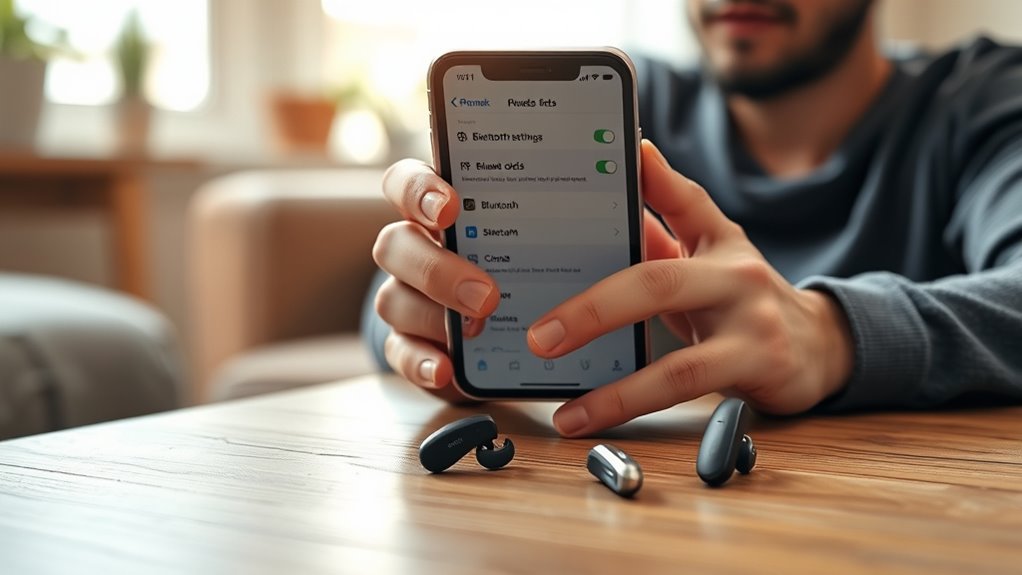
Yes, many Phonak hearing aids pair directly with an iPhone. Once connected, compatible models can stream calls, podcasts, videos, and music to your ears without an extra streaming accessory. This works through standard Bluetooth rather than requiring Apple’s Made for iPhone (MFi) hearing-device pairing screen.
Phonak supports two useful types of Bluetooth connections. Bluetooth Classic carries phone calls through the Hands-Free Profile (HFP) and music through the Advanced Audio Distribution Profile (A2DP). Bluetooth Low Energy (BLE) lets the myPhonak app change settings and communicate with each hearing aid. Phonak explains these functions in its official Bluetooth connectivity overview.
You can use supported Bluetooth audio streaming without installing myPhonak, but the app gives you more control over volume, programs, and the listening balance. Phonak’s current myPhonak requirements include iOS 16 or later and compatible hearing aids. Not every older model offers the same functions, so the exact model matters.
Audio pairing and myPhonak control are related, but on many earlier models they are not the same connection.
How to Pair Phonak Hearing Aids to iPhone
For direct calls and music, pair your hearing aids through the iPhone’s Bluetooth menu. Keep the iPhone close, make sure the hearing aids have power, and complete the process within the pairing window.
- Open Bluetooth settings. On your iPhone, go to Settings > Bluetooth and switch Bluetooth on.
- Restart rechargeable hearing aids. Put them in a powered charger for at least 10 seconds, then remove them. A green blinking light indicates that they have started. If your model supports button-based restart, follow its controls instead.
- Restart disposable-battery hearing aids. Open the battery doors for five seconds and close them again.
- Find the device name. The aids are discoverable for about three minutes. Look for R-Phonak hearing aid, L-Phonak hearing aid, or a personalized name under the iPhone’s Bluetooth device list.
- Select the hearing aid. Tap its name and accept any pairing request that appears.
- Test the connection. Listen for the confirmation beep, then play a short audio clip or make a call to check that sound reaches the aids.
Those steps follow Phonak’s iPhone audio-pairing instructions. With many earlier models, you select only one main audio device even if you wear two hearing aids; the audio then reaches both. Do not assume that every entry shown in the Bluetooth list requires separate audio pairing.
How to Pair With the myPhonak App
Use myPhonak when you want to change your listening program, adjust settings, or view device information. Its setup is slightly different from pairing directly for music and calls.
- Install myPhonak from the iPhone App Store and open it.
- On the Home screen, choose “Pair hearing aids.”
- Restart both hearing aids as prompted so the app can find them.
- Wait until both hearing aids appear, if you wear two, and tap “Pair.”
- Accept each iPhone Bluetooth pairing request.
Phonak’s myPhonak pairing guide confirms that Infinio Ultra and newer models automatically enable streaming and phone calls during app setup. Earlier models need an additional audio-pairing step, shown as “See instructions” or “Optional settings” in the app.
Which iPhone Bluetooth Features Work With Phonak?
Phone calls, media streaming, and remote adjustments are the main iPhone features available on compatible Phonak devices. The connection type determines what each feature does, so a working app does not always mean audio streaming is set up.
| iPhone feature | Phonak result |
|---|---|
| HFP calling | Two-way, hands-free phone calls through hearing aids |
| A2DP media streaming | Music, videos, audiobooks, and podcasts |
| myPhonak app (BLE) | Hearing aid programs, sound settings, and device management |
On supported models, you can answer a call with the hearing aid’s multi-function button. If a call stays on the phone, you can change the audio output from the active call screen. An iPhone and a Samsung Galaxy phone may present different controls even though both support Phonak Bluetooth audio.
One useful distinction: the iPhone’s Settings > Accessibility > Hearing Devices menu describes the MFi hearing-device workflow. For these Phonak Bluetooth pairing instructions, use Settings > Bluetooth instead.
Fix MyPhonak Connection Problems
If myPhonak stops finding your hearing aids after an iOS update, app update, or fitting change, start with a simple restart. Delete existing pairings only if those first checks fail; this prevents needless setup work.
- Close and reopen the myPhonak app.
- Turn iPhone Bluetooth off and on again.
- Restart the hearing aids, then restart the iPhone if needed.
- Check that both hearing aids are charged or have fresh batteries and are close to the iPhone.
- If the app still cannot connect, go to iPhone Settings > Bluetooth. Tap the information icon next to each Phonak entry and choose “Forget This Device.”
- Open myPhonak, go to Devices > YOUR DEVICES, and select “Forget my devices” under Product Information.
- Return to the app Home screen and repeat the pairing steps. If it still fails, reinstall myPhonak and try again.
These are the steps in Phonak’s official iPhone connection-repair guide. Forgetting devices removes saved Bluetooth pairings, so you must set them up again afterward.
Warning: Do not delete every Phonak Bluetooth entry just because the app briefly shows “Not Connected.” On many earlier models, the low-energy app entries connect when needed. Clear them only when you are deliberately resetting and re-pairing the aids.
Why Do Two or Three Phonak Devices Appear?
Earlier Phonak generations often show three entries: two app connections for the left and right hearing aids plus a separate audio connection. Infinio Ultra and newer models generally show two entries when both aids are paired. That difference is normal and can help you identify which setup you have.
Why Does Phonak Bluetooth Keep Cutting Out on iPhone?
Bluetooth audio can cut out because the iPhone is too far away, a pocket or wall weakens the signal, or nearby wireless devices cause interference. Battery level, phone settings, and an old Bluetooth connection can also affect playback.
Bluetooth Range And Placement
Bluetooth performance depends on distance and what sits between your phone and hearing aids. A 30–60-foot range is only a rough guide, not a promise: the usable distance can be much shorter in a crowded area or with the phone pressed against your body.
- Keep the iPhone close to your upper body, preferably in your hand or a front pocket.
- Move it out of a bag or back pocket if audio breaks up.
- Step away from metal barriers, thick walls, or busy wireless equipment.
- Test the same podcast indoors and outdoors to see whether surroundings are causing the dropouts.
Phonak notes that Bluetooth uses the 2.4 GHz band, so nearby wireless activity can interfere with audio. Its audio-cutout troubleshooting advice also recommends checking battery level and closing unused apps.
App And Pairing Fixes
If the sound still skips when your iPhone is close and charged, check software and the saved pairing. Work from the easiest fix to the more disruptive reset below.
| Step | Action | Effect |
|---|---|---|
| 1 | Enable Bluetooth | Restores wireless access |
| 2 | Restart devices | Clears a temporary connection fault |
| 3 | Unpair hearing aids | Removes old Bluetooth pairing records |
| 4 | Re-pair in myPhonak app | Restores app control; older models may also need audio pairing |
| 5 | Update software | Addresses possible app and iOS compatibility issues |
Also check notification and keyboard sounds if your hearing aids keep switching briefly into Bluetooth mode. You can reduce these interruptions under iPhone Sounds & Haptics and the notification settings for individual apps. If only one hearing aid keeps disconnecting, ask your hearing care professional to check its firmware and fitting.
How to Improve Call Audio With Phonak
Good Phonak call quality depends on both your phone’s mobile reception and the Bluetooth link to your hearing aids. First, make sure the call is actually playing through the aids; then decide whether the hearing aid microphones or the iPhone microphone give the other person clearer speech.
- Route the call correctly. Answer with the hearing aid’s multi-function button when that function is enabled. During a call, use the iPhone call screen’s Audio control to select the Phonak hearing aids if necessary.
- Set a default output if needed. On the iPhone, go to Settings > Accessibility > Touch > Call Audio Routing, then choose Bluetooth Headset if calls keep playing through the phone. This follows Phonak’s Bluetooth call-routing guidance.
- Check reception and microphone openings. Move somewhere with better cellular signal and less background noise. If a hearing aid microphone port is blocked, clean it only as directed for your model.
- Try the iPhone microphone. During a call, open Control Center, tap Phone Controls, choose Audio Input, and select iPhone Microphone where available. You can keep hearing the caller through your Phonak aids while speaking toward the phone, as explained in Phonak’s iPhone microphone instructions.
- Adjust the streaming balance. If your model supports it, use myPhonak to change how much surrounding sound mixes with the call or media audio.
If the problem continues on several phones or affects everyday hearing as well as calls, arrange a hearing care appointment. An audiologist can check microphone condition, firmware, and whether hands-free calling is enabled in your fitting.
Note: A Bluetooth problem does not necessarily mean your hearing aid has failed. If sound quality changes suddenly, becomes distorted without a phone connection, or one aid stops working, contact your hearing care professional rather than relying only on phone troubleshooting.
What Are Auracast and Roger on Phonak?
Auracast and Roger both send sound wirelessly to hearing aids, but they serve different needs. Auracast broadcasts audio from a shared source to compatible receivers, while Roger sends a speaker’s voice from a dedicated remote microphone.
Auracast is part of Bluetooth LE Audio. A supported venue might broadcast sound from a theater, museum, or house of worship. Phonak says its Auracast feature requires myPhonak 7.5 or newer and Phonak Audéo E, Audéo E-Sphere, or newer compatible devices; older Paradise or Lumity devices should not be assumed to support it. See Phonak’s Auracast compatibility requirements. With supported equipment, myPhonak can help you join a broadcast, including by using a venue’s QR code.
Roger uses a separate wireless microphone placed near the person you want to hear. It can make speech easier to follow in classrooms, meetings, restaurants, and other noisy spaces. Compatible Phonak devices may use RogerDirect, while some other hearing devices need a receiver or accessory. Unlike ordinary iPhone streaming, Roger requires its own microphone equipment.
Neither technology is necessary for standard Bluetooth phone calls or music on compatible Phonak hearing aids. They are optional solutions for shared audio or difficult listening environments.
Frequently Asked Questions
Why Is myPhonak Hearing Aid Not Connecting to Bluetooth?
The hearing aids may be out of pairing mode, low on power, linked to an old device, or disconnected after an update. Restart both aids and the iPhone, then reopen myPhonak. If that fails, remove the old Phonak Bluetooth entries and pair again using the app instructions.
What Type of Bluetooth Does Phonak Use?
Compatible Phonak hearing aids use Bluetooth Classic profiles such as HFP for calls and A2DP for media. The myPhonak app uses Bluetooth Low Energy to control settings. Auracast is a different Bluetooth LE Audio broadcast feature available only on supported newer devices.
Which Hearing Aid Works Best With an iPhone?
There is no single Phonak model that is best for every iPhone user. Paradise and Lumity can handle direct Bluetooth audio, while compatible Infinio Ultra and newer models simplify app and streaming setup. An audiologist can help match the hearing aid to your hearing needs and preferred phone features.
Does Phonak Work With iPhone?
Yes. Compatible Phonak hearing aids work with iPhone for phone calls and media streaming over standard Bluetooth. Many also work with the myPhonak app for sound adjustments. You do not need to find them in the iPhone’s MFi Hearing Devices menu to follow Phonak’s standard pairing method.
Do I Need the myPhonak App to Hear iPhone Calls?
No. Compatible Phonak hearing aids can pair through the iPhone Bluetooth menu for calls and media without the app. myPhonak is useful for remote controls and setup. On Infinio Ultra and newer devices, pairing with myPhonak can enable audio streaming automatically.
Why Does Only One Phonak Hearing Aid Show for Audio Pairing?
On many earlier Phonak models, one hearing aid handles the main Bluetooth audio pairing and shares sound with the other aid. The app may show separate left and right entries for settings control. If sound reaches only one ear, restart both aids and ask your hearing care professional to check the connection.
Conclusion
Many Phonak hearing aids connect directly to iPhones for calls and media through Bluetooth. Start with the phone’s Bluetooth menu, then add myPhonak if you want remote sound controls. If the connection falters, check placement and power first; reset pairings only when needed, and ask your hearing care professional for help with persistent faults.
Sources
- Phonak Bluetooth Connectivity: HFP, A2DP, BLE, Roger, and compatible-phone requirements.
- Phonak iPhone Audio Pairing: Steps for rechargeable and battery hearing aids.
- Phonak myPhonak App Pairing on iPhone: App setup and Infinio Ultra automatic streaming.
- Phonak iPhone Connection Repair: Reset and re-pairing sequence.
- Phonak Bluetooth Audio Troubleshooting: Interference, battery, placement, and choppy sound.
- Phonak Bluetooth Call Routing: iPhone call-routing and system-sound settings.
- Phonak iPhone Microphone Troubleshooting: Switching microphone input during calls.
- Phonak Auracast Compatibility: Supported devices and myPhonak requirement.