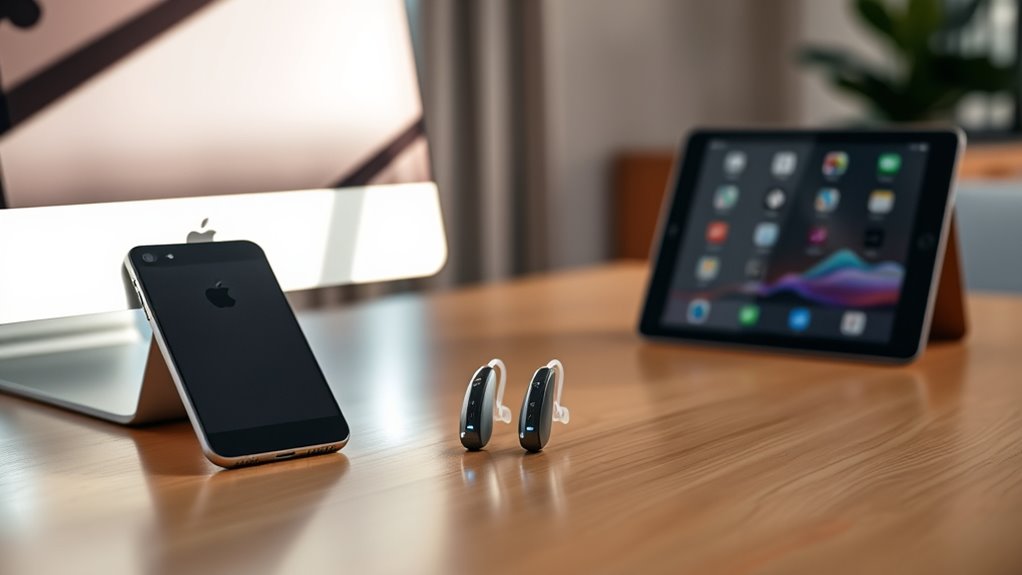
Want to connect Phonak hearing aids to an iPhone, iPad, or iMac? Bluetooth setup is straightforward with compatible models, including the Phonak Audéo P-RT. However, pairing your hearing aids, switching audio between Apple devices, and connecting the myPhonak app are slightly different tasks. Understanding those differences helps you avoid repeated disconnections and interrupted streaming.
Quick Answer
Yes, compatible Phonak hearing aids can connect to an iPhone, iPad, and iMac through Bluetooth. For rechargeable Audéo P-RT models, restart the hearing aids to enter pairing mode, then select them in the device’s Bluetooth settings. Paradise models can remember eight Bluetooth devices, with two connected simultaneously. Audio may require manual switching.
At a Glance
| Difficulty | Basic Bluetooth setup |
| Tools Needed | Compatible Phonak hearing aids and an Apple device with Bluetooth |
| Cost | No additional adapter required for compatible direct Bluetooth connections |
Key Takeaways
- Phonak Audéo Paradise hearing aids can remember up to eight Bluetooth devices, but only two can remain connected simultaneously.
- Restart rechargeable hearing aids to activate pairing mode. The Bluetooth pairing window lasts approximately three minutes.
- Bluetooth audio pairing and the myPhonak app connection are separate functions on Audéo P-RT hearing aids.
- Incoming Bluetooth calls take priority over music and other media. Playback may need to be restarted afterward.
- A Bluetooth LE entry marked Not Connected can be normal when the myPhonak app is not actively communicating.
How Do You Connect Phonak Hearing Aids to iPhone and iPad?
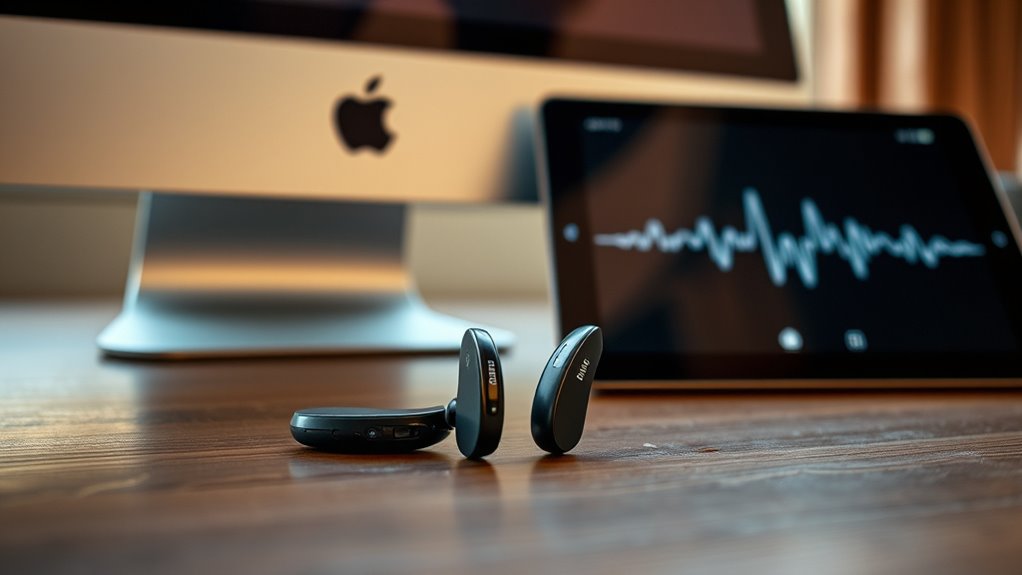
To connect Phonak Audéo P-RT hearing aids to an iPhone or iPad, turn on Bluetooth and restart your hearing aids. The restart activates pairing mode, allowing the Apple device to discover them. You can then select the hearing aids from the Bluetooth list and test audio playback.
Follow these steps for the initial connection.
Step 1: Turn On Bluetooth
- Unlock your iPhone or iPad.
- Open Settings.
- Select Bluetooth.
- Turn Bluetooth on if it is disabled.
Keep the Bluetooth settings screen open while preparing your hearing aids. If another nearby Apple device already has an active connection, you can temporarily disable its Bluetooth connection while completing the new pairing.
Step 2: Put Your Phonak Hearing Aids in Pairing Mode
The Audéo P-RT uses rechargeable batteries. You activate pairing mode by switching the hearing aids off and back on, rather than leaving a button pressed continuously.
You can restart them using either method:
- Using the charger: Place the hearing aids in their powered charger for at least 10 seconds. Remove them and wait for the green indicator light.
- Using the hearing aid button: Press the lower part of the multifunction button until the red indicator shows the hearing aid is turning off. Press it again to turn the hearing aid on, until the green indicator appears.
The hearing aids become discoverable for approximately three minutes after restarting. If that window expires, restart them again.
These methods follow the manufacturer’s official Phonak Bluetooth pairing instructions.
Step 3: Select Your Hearing Aids
- Return to the Bluetooth settings screen on your iPhone or iPad.
- Look under the available Bluetooth devices.
- Find an entry such as R-Phonak hearing aid or L-Phonak hearing aid.
- Tap the hearing aid name.
- Accept the pairing request if one appears.
- Listen for the confirmation sound from your hearing aids.
Your hearing care professional may have assigned a different Bluetooth name.
If you use two Audéo P-RT hearing aids, one Bluetooth audio pairing normally carries sound to both. You do not need to create separate audio-streaming connections for the left and right devices.
Step 4: Confirm That Audio Is Playing
Open a music app or play a short video. You should hear the audio through your hearing aids rather than the Apple device’s speakers.
If the sound comes from the iPhone or iPad speakers, open the device’s audio output controls and select the Phonak hearing aids as the playback destination.
Keep the hearing aids charged and within Bluetooth range. Once pairing is saved, the devices can reconnect without repeating the full setup, provided another connection is not preventing it.
Step 5: Pair Your Second Apple Device
If you connected your iPhone first, repeat the Bluetooth pairing process on your iPad. Restart the hearing aids to make them discoverable, then select them on the iPad.
Remember that pairing a device and actively streaming from it are different things. Your hearing aids can remember several devices even when those devices are not currently connected.
Do You Need the myPhonak App?
No. You can use direct Bluetooth pairing for calls and media streaming without installing the myPhonak app.
The app provides additional controls, including supported hearing programs, sound adjustments, and device information.
For Audéo P-RT and other earlier Phonak generations, pairing the hearing aids with the app does not replace the separate Bluetooth pairing required for calls and audio streaming.
This distinction matters because a successful app connection does not always mean music or phone audio has been routed to the hearing aids.
How Do You Connect Phonak Hearing Aids to iMac?
To connect compatible Phonak hearing aids to an iMac, use the computer’s built-in Bluetooth settings. Restart the hearing aids to activate pairing mode, then select them from the available devices. Once connected, you can use them for supported computer audio and calls.
Pairing Steps for iMac
- Turn on your iMac and open the Apple menu.
- Select System Settings, then Bluetooth. On older macOS versions, the menu may be called System Preferences.
- Make sure Bluetooth is enabled.
- Restart your Phonak hearing aids to activate pairing mode.
- Find the Phonak hearing aid in the available Bluetooth devices.
- Select the device and choose Connect if prompted.
- Wait for confirmation that the connection has been established.
Apple’s Mac Bluetooth connection guide confirms that Bluetooth audio devices can be paired through System Settings.
The following table summarizes the main connection stages.
| Step | Action | Result |
|---|---|---|
| 1 | Enable Bluetooth | iMac can search for Bluetooth devices |
| 2 | Enter pairing mode | Hearing aids become discoverable |
| 3 | Select device | Bluetooth pairing and connection begin |
How to Hear iMac Audio Through Phonak
Successful Bluetooth pairing does not always change the computer’s active sound output automatically.
If your iMac still plays sound through its speakers, follow these steps:
- Open System Settings on the iMac.
- Select Sound.
- Open the Output settings.
- Select your Phonak hearing aids from the available audio devices.
- Play audio to confirm the output works.
For supported hands-free applications, you can also check the Sound Input settings and select the hearing aids as the microphone source when that option is available.
This can help when using video-calling applications that otherwise use the iMac microphone or speakers.
What If the iMac Cannot Find Your Hearing Aids?
If the hearing aids do not appear in the Bluetooth list, first make sure they are still in pairing mode. Restart them if the discovery window has expired.
Next, temporarily disconnect a phone or tablet that may already be using an available Bluetooth connection. Then repeat the iMac pairing process.
If the hearing aids connect but produce no sound, check the iMac’s Output selection before removing the Bluetooth pairing.
How Do You Switch Phonak Hearing Aids Between Apple Devices?
Switching Phonak hearing aids between an iPhone, iPad, and iMac usually means stopping the current audio source and starting playback from another connected device. Some connections switch automatically, while others require manual selection. You generally do not need to pair the hearing aids again every time.
How Many Devices Can Stay Connected?
Phonak Audéo Paradise hearing aids support pairing with up to eight Bluetooth devices, with up to two connected simultaneously.
Phonak confirms these limits in its Bluetooth device compatibility guidance.
This means your hearing aids can remember your iPhone, iPad, and iMac. However, they cannot maintain three active Bluetooth audio-device connections at once.
Being connected to two devices also does not mean you can mix two independent media streams at the same time.
Switch From iPhone to iPad
- Pause music, video, or another active audio stream on your iPhone.
- Open Settings and Bluetooth on your iPad.
- Check whether the Phonak hearing aids are connected.
- If necessary, tap the hearing aid name to reconnect.
- Start playback on the iPad.
- Confirm that the sound is coming through the hearing aids.
If the iPhone keeps taking control of the stream, disconnect the hearing aids from the iPhone’s Bluetooth menu before trying again on the iPad.
You can follow the same general process when moving audio between an iMac and an iPhone.
What Happens When You Switch to a Third Device?
Suppose your hearing aids are connected to both your iPhone and iPad, but you now want to use your iMac.
Because the Paradise platform supports only two simultaneous Bluetooth device connections, one existing connection must become available.
Disconnect the hearing aids from the device you are not using. Then select the hearing aids from the iMac Bluetooth menu.
There is no need to delete the saved pairing simply to free a connection.
Switching the myPhonak App Between Devices
The myPhonak app uses Bluetooth Low Energy, or BLE, for hearing aid controls. This app connection is separate from the Bluetooth connection used for calls and music.
Phonak hearing aids can maintain only one active myPhonak app connection at a time.
If you use the app on two supported mobile devices, disconnect it from the first device before connecting it on the second.
Phonak recommends using Devices > Connection Management > Disconnect in the app. See its official multi-device app connection guidance.
Closing the app can sometimes help, but you do not need to close every application merely to change the Bluetooth music source.
Why Does the iPad Show Not Connected?
A Not Connected message does not always mean your hearing aids have lost their ability to stream audio.
On Audéo Paradise and similar earlier Phonak models, you may see several Bluetooth entries:
- R-Phonak or L-Phonak: The main Bluetooth connection for phone calls and media streaming.
- LE_R-Phonak: A Bluetooth Low Energy connection used by the myPhonak app for the right hearing aid.
- LE_L-Phonak: A Bluetooth Low Energy connection used by the myPhonak app for the left hearing aid.
The LE entries may display Not Connected while the app is closed. They can reconnect when the app needs to communicate with the hearing aids.
This is normal behavior described in Phonak’s Bluetooth device-entry explanation.
However, if the main Bluetooth audio connection shows Not Connected and playback fails, you may need to reconnect it manually.
Why Do Incoming Calls Stop Phonak Streaming?
Incoming calls can interrupt music or video playback because Phonak gives Bluetooth phone calls higher priority than ordinary media streaming. This helps you hear the caller rather than having music compete with the conversation.
The hearing aids use different Bluetooth audio functions for these tasks:
- A2DP: The Bluetooth audio profile commonly used for streaming music, podcasts, and videos.
- HFP: The hands-free Bluetooth profile used for phone calls.
Phonak’s wireless audio priority guidance confirms that Bluetooth phone calls have the highest priority.
What Happens During an Incoming iPhone Call?
Consider this example: you are watching a video on your iPad while your Phonak hearing aids are also connected to your iPhone.
- An incoming call reaches the iPhone.
- The hearing aids receive the incoming-call notification.
- If the call is answered through the hearing aids, phone audio takes priority over the video stream.
- The iPad’s audio may pause, stop, or lose its active streaming route.
- When the call ends, the hearing aids can return to another available audio source.
Media playback does not always resume automatically. That depends on the app, Bluetooth connection, and the device handling the audio.
If your iPad does not resume playing, restart the video or music and confirm that the hearing aids are selected as the audio output.
An incoming call does not necessarily mean the iPad’s saved Bluetooth pairing has been deleted.
How to Make iPhone Calls Play Through Phonak
If incoming calls are going to the iPhone speaker instead of your hearing aids, check the call audio route.
- Open Settings on your iPhone.
- Go to Accessibility.
- Select Touch.
- Open Call Audio Routing.
- Select Bluetooth Headset.
Phonak recommends this setting in its iPhone Bluetooth configuration instructions.
You can also change the active call route using the Audio button on the iPhone’s call screen, then selecting your hearing aids.
If your hearing aid controls support call answering, accepting the call with the hearing aid button can help direct the call through the hearing aids.
How Do You Fix Phonak Bluetooth Problems?
Most Phonak Bluetooth connection problems can be resolved by checking the active audio source, restarting the hearing aids, or reconnecting the Apple device. Start with these simple checks before deleting saved pairings.
1. Check Bluetooth and the Audio Output
Make sure Bluetooth is enabled on the Apple device. If the hearing aids are already connected, check where the device is sending its audio.
A successful Bluetooth connection does not guarantee that the hearing aids are the currently selected output.
On an iMac, check System Settings and Sound. On an iPhone or iPad, check the current audio playback destination.
2. Check the Battery and Bluetooth Range
Make sure the hearing aids have enough battery power. The Audéo P-RT is rechargeable, so check its charge rather than looking for a replaceable battery door.
Keep the hearing aids close to the Apple device while troubleshooting. Walls, distance, and nearby wireless interference can affect Bluetooth performance.
3. Restart the Hearing Aids
Turn both hearing aids off and then on again using the button or the powered charger.
Wait for them to restart, then check the Apple device’s Bluetooth menu.
This often restores a temporary connection failure without removing saved settings.
4. Reconnect Manually
If the hearing aids appear in the list of previously paired devices but are not connected, select their name to reconnect.
If the connection does not return, temporarily disconnect another Apple device that may already be using one of the available Bluetooth connections.
5. Restart the Apple Device and Update Software
Turn Bluetooth off and on again. If the problem continues, restart the iPhone, iPad, or iMac.
Check for available operating system and myPhonak app updates that are compatible with your devices.
Software changes can affect Bluetooth connections, especially after an operating system update or a change to hearing aid settings.
6. Forget and Re-Pair the Hearing Aids
If the simpler fixes do not work, remove the failed Bluetooth pairing and set it up again.
On an iPhone or iPad:
- Open Settings and select Bluetooth.
- Find the affected Phonak hearing aid entry.
- Tap the information icon beside its name.
- Select Forget This Device.
- Restart the hearing aids to activate pairing mode.
- Select the hearing aids again and complete Bluetooth pairing.
If you also have problems with myPhonak on an Audéo P-RT, a complete app reset may be needed. That can involve removing the Bluetooth audio entry and both LE entries, then forgetting the hearing aids within the app before pairing again.
Phonak explains this procedure in its official Bluetooth and app troubleshooting guide.
Only remove the LE entries when you intend to repair the app connection. Deleting them unnecessarily can interrupt myPhonak controls.
7. Check for App Compatibility Problems
If Bluetooth audio works but the myPhonak app will not connect, treat these as separate issues.
The current myPhonak app requires a compatible iPhone running iOS 16.0 or newer, according to Phonak’s app compatibility requirements.
An older iPhone may still support Bluetooth calls and music while being unable to run the current version of the app.
Also check whether both hearing aids appear in the app. If only one appears, restarting and pairing both hearing aids again may solve the issue.
Note: If Bluetooth problems continue across several compatible devices, contact your hearing care professional or Phonak support. They can check the hearing aids, fitting settings, firmware, and possible hardware problems.
Frequently Asked Questions
What Devices Are Compatible With Phonak Devices?
Bluetooth-enabled Phonak hearing aids, including Audéo Paradise models, work with many compatible iPhones, iPads, Mac computers, Windows computers, and other Bluetooth audio devices. Some TVs can also connect directly or with an accessory. Compatibility depends on the hearing aid model, supported Bluetooth functions, and device software. The current myPhonak iPhone app requires iOS 16 or newer.
Why Won’t My Hearing Aid Connect to My iPad?
Your Phonak hearing aid may not connect to your iPad because Bluetooth is disabled, pairing mode has expired, or another device is using an available connection. Low battery power and wireless interference can also cause problems. Check Bluetooth, restart the hearing aids, and reconnect manually before deleting the saved pairing.
Can Phonak Hearing Aids Connect to iPhone, iPad, and iMac at the Same Time?
Phonak Audéo Paradise hearing aids can remember all three devices, but only two Bluetooth devices can stay connected simultaneously. The hearing aids support up to eight saved Bluetooth pairings. To connect a third device when both connections are occupied, disconnect one of the active devices first.
Why Do My Phonak Hearing Aids Show LE_R or LE_L as Not Connected?
LE_R and LE_L are Bluetooth Low Energy entries used by the myPhonak app on earlier Phonak hearing aid models. They can display Not Connected when the app is closed or inactive. This does not necessarily mean music streaming has failed. Check the separate main Bluetooth audio connection if you cannot hear calls or media.
Conclusion
Compatible Phonak hearing aids can connect to an iPhone, iPad, and iMac, making it possible to use the same hearing aids across several Apple devices. For Audéo P-RT models, start with correct Bluetooth pairing, remember the two-device connection limit, and treat app connections separately from audio streaming.
If switching or streaming fails, check the audio output and active connections first. Restarting and reconnecting the hearing aids often solves the problem without a complete reset.
Sources
- Phonak — Connecting Hearing Aids to iPhone: Rechargeable pairing procedure, Bluetooth discovery, and confirmation steps.
- Apple Support — Connect a Bluetooth Device With Your Mac: macOS Bluetooth pairing, connection management, and audio input and output settings.
- Phonak — Bluetooth Device Pairing and Connection Limits: Number of saved pairings and simultaneous connections for Paradise, Lumity, Infinio, and Marvel models.
- Phonak — Using myPhonak on Multiple Devices: App connection limits and recommended connection management.
- Phonak — Understanding Bluetooth Hearing Aid Entries: Differences between audio and Bluetooth Low Energy connections and their displayed status.
- Phonak — Bluetooth Audio Priority: Priority of hands-free calls, media streaming, and other wireless signals.
- Phonak — Improving Bluetooth Performance: iPhone call audio routing and recommended Bluetooth settings.
- Phonak — Bluetooth and App Troubleshooting: Reconnection, removing failed pairings, and resetting myPhonak connections on Paradise and related hearing aids.
- Phonak — myPhonak Compatibility Requirements: Supported mobile operating system requirements for the current app.

