
A parallel text conversation on iPhone begins in Messages by tapping the compose icon and adding all recipients in the To field. From there, the phone uses iMessage when everyone has Apple devices, or SMS, MMS, or RCS when mixed platforms are involved. iMessage shows blue bubbles and encryption. SMS and MMS use green bubbles and may split replies. If group texts fail or seem incomplete, settings and contacts usually need checking, and more details can help.
Key Takeaways
- Open Messages, tap the compose icon, add all recipients in the To field, then start the group conversation.
- Choose iMessage for Apple users, or SMS/MMS/RCS when mixing devices or needing broader compatibility.
- Type your message clearly, review recipients and tone, then tap send to deliver it to everyone.
- Group iMessage keeps replies in one thread, while SMS may split replies and MMS supports media sharing.
- If messages fail or features are missing, check contact numbers, network connection, group text settings, and notifications.
How to Start a Group Text on iPhone
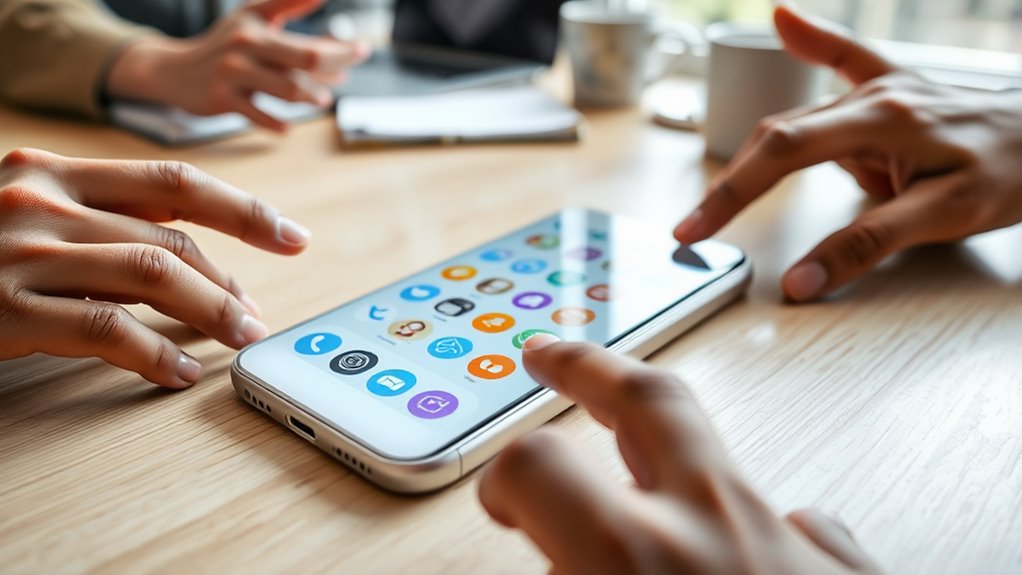
To start a group text on iPhone, one opens the Messages app and taps the compose icon in the top right corner.
In the new message field, names or phone numbers are entered in the “To” line, or the plus button is used to select contacts from the list.
All intended recipients should be added before any message is typed, preventing omissions that weaken the group conversation.
Once the participant list is complete, the message can be written and sent with the send button.
Each recipient will receive it as iMessage, shown in blue bubbles, or as MMS/SMS, shown in green bubbles, depending on the device.
This structure keeps communication direct and organized, giving users a practical way to coordinate without unnecessary barriers.
Group texts can also be muted, while replies usually remain visible to all members, unless the thread is sent as Group SMS, where responses appear individually.
Open Messages and Start a New Chat
The Messages app should be opened from the iPhone home screen to begin a new conversation.
Next, the compose icon in the top right corner should be tapped to create a fresh chat.
Recipients must then be added in the To field before any message is typed.
Open Messages App
A tap on the green Messages icon with the white speech bubble opens the app on the iPhone, where a new conversation can begin by selecting the compose icon in the top-right corner.
From there, the user enters a name or phone number in the To field to open messages app access without friction. If a group message is intended, the plus button lets contacts be chosen from the address book, enabling a parallel thread with more than one person.
This step gives direct control over who is included, supporting clear communication and personal freedom. After the recipients are added, the message is written in the text field, then the user can tap the Send command to release it.
Tap Compose Icon
With Messages open, the compose icon in the top-right corner launches a new chat. This step matters because it opens a blank thread where communication can begin without delay. The icon usually appears as a pencil inside a square. Tap it once to proceed. Then make sure the screen is ready for recipient entry before continuing. For quick reference:
| Action | Result | Purpose |
|---|---|---|
| Tap compose icon | New message view opens | Starts a fresh conversation |
| Add one contact | Single-thread messaging | Direct exchange |
| Add several contacts | Group chat possible | Coordinated messaging |
This approach supports a clear, liberated workflow. By using the compose control correctly, the user keeps the entire article’s method simple, orderly, and effective.
Add Recipients First
Once the new message view is open, the next step is to add recipients before typing anything. In Messages, the composer at the top right opens a fresh thread for a parallel text conversation.
The first contact can be entered in the To field by name or phone number, then the plus button can be used to open the contact list and add more people. Every intended recipient should be included before the message is written, so the group is formed correctly and message notifications reach everyone involved.
This practice supports group chat etiquette, protects recipient privacy, and reduces mistakes. Before sending, the recipient list should be checked carefully to confirm accuracy and avoid unintended delivery.
Add Everyone to the To Field
They begin by opening the Messages app and tapping the compose icon in the top-right corner to start a new group text. In the To field, they enter the first contact’s name or phone number, then use the plus button to add every other intended recipient. This step supports contact selection tips, group message etiquette, and recipient management strategies by preventing omissions before the message is written. All desired people should appear in the To field before any text is typed, preserving control and clarity.
| Action | Result |
|---|---|
| Add first contact | Starts the group |
| Tap plus button | Opens more contacts |
| Select or deselect names | Adjusts the roster |
| Confirm all recipients | Prepares delivery |
If someone is missing, they can be added immediately; if someone should not receive it, they can be removed before sending. Once the roster is complete, they type the message and send it to the whole group without delay.
Choose iMessage, SMS, MMS, or RCS
Next, the sender chooses the group message type based on who is in the conversation and what features are needed.
If every participant uses Apple devices, iMessage is prioritized. It delivers blue bubbles, end-to-end encryption, and full multimedia support, making the iMessage advantages clear for those who want secure, fluid communication.
When Apple-only access is not available, Group MMS becomes the fallback. It uses green bubbles, travels through carrier networks, and supports images and video, but every reply remains visible to the whole group.
Group SMS is the most basic option. It also uses green bubbles, yet it carries SMS limitations: no multimedia, and replies arrive as separate threads, preserving privacy among recipients.
In iOS 18, Group RCS expands freedom further with high-resolution media, delivery and read receipts, and typing indicators, offering stronger RCS features than legacy messaging.
Send the Group Text
The message should be typed in the text field after confirming that all intended recipients are included.
Before sending, the sender should verify the group list to avoid missing anyone.
Once the message is complete, the send button can be tapped to deliver it.
Type Your Message
After selecting the recipients in Messages, the user enters the group text by tapping into the message field and typing the desired message. This step should be treated as a deliberate act of message clarity, because every word is seen by all included contacts at once.
A concise, direct tone supports recipient etiquette and helps preserve trust across the thread. When the message is drafted with care, it can also strengthen engagement strategies by inviting timely, relevant replies without confusion.
Before proceeding, the sender should review the wording for accuracy, tone, and any unintended omissions. In a group conversation, precision matters, since one unclear line can affect every participant.
Careful composition gives the user greater control and keeps communication aligned with purpose.
Tap Send Button
Once the message is reviewed and all intended recipients appear in the “To” field, the sender taps the send button, shown as an upward arrow, to deliver the group text to everyone at the same time.
This tap send button action initiates message delivery without delay, making the exchange direct and efficient. Clear group text etiquette supports careful sending.
- Verify the text for accuracy and tone.
- Confirm every chosen contact is listed in the “To” field.
- Send with confidence, knowing the message will reach the group simultaneously.
If all recipients use Apple devices, the message appears as iMessage in a blue bubble; otherwise, it sends as MMS or SMS in green.
Precision preserves autonomy and prevents avoidable errors.
Confirm Recipients Included
Before sending, the sender confirms every intended contact appears in the “To” field, whether entered by name or chosen from the contact list. This step relies on recipient verification techniques that prevent omissions and preserve the importance of inclusivity in the conversation.
A careful review of the recipient list guarantees no ally, colleague, or family member is left out when the group text is released. If iMessage is used, each recipient should be an Apple device user to enable encryption and multimedia sharing.
For MMS or SMS threads, the sender must recognize that replies will be visible to all participants, which affects managing group dynamics. Once the message is complete, tapping Send delivers it to every included recipient.
What Makes Group iMessage Different?
Group iMessage stands apart from SMS and MMS because it uses Apple’s messaging platform, shown by blue text bubbles and protected by end-to-end encryption so that only group members can read the conversation.
This structure supports freer group dynamics, where every reply is visible to all participants and the exchange remains open, direct, and collective. Message encryption helps keep the discussion private, while multimedia sharing lets members send photos, videos, and audio without leaving the thread.
- Blue bubbles signal an iMessage-only group.
- Replies reach the whole group, not isolated individuals.
- Settings can be adjusted by naming the chat, adding or removing members, or muting alerts.
These features give participants practical control over communication.
The result is a coordinated space that favors clarity, collaboration, and mutual visibility, allowing groups to organize conversations with fewer barriers and more shared awareness.
How Group SMS, MMS, and RCS Work
When an iPhone sends a group message outside iMessage, it relies on carrier-based SMS, MMS, or, on iOS 18, RCS, and the conversation appears in green text bubbles.
These Group message types depend on the devices, settings, and network support of every participant, not on Apple servers.
SMS is the most basic route: replies are sent as separate messages, so each person cannot see the others’ responses.
MMS expands the channel with Multimedia sharing, letting photos, videos, and other attachments move through the carrier, with all members seeing the thread.
RCS further modernizes the experience by adding high-resolution media, Delivery receipts, read status, and typing indicators while still staying in green bubbles.
In contrast to blue-bubble iMessage, these carrier paths trade Apple’s encrypted group controls for broader reach.
They remain the practical option when liberation means communicating across mixed devices without requiring everyone to join the same platform or account.
Fix Common Group Text Problems
Common group text issues usually trace back to message type, device settings, or basic network problems. A disciplined approach restores reliable conversation flow and supports group chat etiquette without needless friction.
First, confirm that every participant is using iMessage; mixed SMS or MMS threads can reduce visibility and weaken feature support. On iOS 18 or iPadOS 18, check whether RCS is enabled for read receipts and typing indicators.
Confirm every participant uses iMessage; on iOS 18, enable RCS for read receipts and typing indicators.
Next, if messages fail to deliver, verify each phone number and confirm that every device has a stable connection.
Finally, if one participant receives nothing, they should inspect device settings, verify group texts are allowed, and confirm they are not blocked.
- Check message type
- Verify recipients and network
- Adjust notification management by muting the thread
These troubleshooting tips help clear common faults and keep the group conversation open, efficient, and free from avoidable interruption.
Manage Group Chat Options
After basic troubleshooting, the focus shifts to how iPhone group chats are actually configured. The device chooses iMessage, MMS, SMS, or RCS based on participants’ devices and settings, and that choice shapes the conversation’s freedom.
Blue-bubble group iMessages allow naming the thread, adding or removing members, and muting message notifications, giving users more control over group chat etiquette and privacy settings.
Green-bubble group MMS supports photos and video, but every reply is exposed to all members, so caution is required. Green-bubble group SMS is more limited: it sends replies individually and does not share multimedia, which can keep side reactions separate.
In iOS 18, RCS adds delivery receipts and typing indicators, and it can be turned on or off in Settings. Knowing these options helps users choose the least restrictive path while managing how visible, interactive, and private each group conversation should be.
Frequently Asked Questions
Why Do I Have Two Separate Conversations With the Same Person in Messages?
Two separate conversation threads usually appear because message organization splits iMessage, SMS, or MMS by device, number, or email. This complicates text management, but a unified platform restores clearer, freer communication.
Is There a Way to Separate Text Messages on iPhone?
No: iPhone settings offer no native separation, and Apple groups one contact in one thread. About 70% of users rely on Message organization workarounds—Text filtering, new group threads, muting, archiving—to reclaim control and freedom.
Can You Merge Two Text Conversations?
No, two text conversations cannot be merged on iPhone. Text merging techniques do not exist here, so conversation organization tips must rely on manual copying or messaging app alternatives for greater freedom and control.
How Is My Husband Seeing My Texts?
He is likely seeing them through a vast digital web, not magic: shared devices, iCloud syncing, or text message privacy settings may expose messages. If Apple ID sharing or forwarding exists, every word can echo elsewhere.
Conclusion
In the end, creating a parallel text conversation on iPhone is less like sending a message and more like opening a modern-day town square—where every reply, reaction, and shared photo keeps the conversation alive. With the right setup, whether iMessage, SMS, MMS, or RCS, the process is simple and manageable. When problems arise, a few quick fixes restore order. And for those who stay, group chat options make the thread feel almost timeless.
