Pairing Bose headphones with an iPhone usually takes only a few minutes, but the exact pairing control and companion app depend on your Bose model. Start with both devices charged, use the iPhone’s Bluetooth menu for the basic connection, and check your model’s Bose support page when the controls or app name differ.
Last updated: July 15, 2026
Quick Answer
To connect Bose headphones to an iPhone, charge and turn on the headphones, place them in Bluetooth pairing mode, then open Settings > Bluetooth on the iPhone. Turn Bluetooth on and tap the Bose product name when it appears. A Bose app is optional for basic audio pairing but can add updates and controls.
Key Takeaways
- Pair through Settings > Bluetooth even when you do not have a Bose app installed.
- The pairing control varies: many over-ear models use a power/Bluetooth switch, while earbuds often use a button on the charging case.
- Do not guess a PIN such as 0000 or 1234. Follow the product manual if your iPhone requests one.
- Use the Bose app, Bose Connect app, or Bose QC Earbuds app only when your specific model supports it.
- When pairing fails, charge both devices, disconnect the headphones from other devices, forget the old iPhone entry, and pair again.
At a Glance
| Time Required | About 3–5 minutes |
| Difficulty | Easy |
| Tools Needed | Charged Bose Bluetooth headphones or earbuds and a compatible iPhone |
| Cost | Free |
Before You Start: Check Compatibility and Requirements
Most Bose wireless headphones and earbuds can pair with an iPhone through standard Bluetooth. Wired-only Bose models cannot pair wirelessly, and the button sequence differs among over-ear headphones, neckband headphones, and true wireless earbuds.
Before pairing, complete these checks:
- Charge the Bose product enough for setup.
- Keep the headphones and iPhone within a few feet of each other.
- Turn off or pause Bluetooth on nearby devices that may reconnect automatically.
- Confirm that your Bose model supports Bluetooth, not only a wired audio connection.
- Check Settings > General > Software Update if the iPhone has broader Bluetooth problems.
Apple’s current instructions confirm that third-party Bluetooth accessories pair through Settings > Bluetooth. If an accessory needs a PIN, Apple advises checking the manufacturer’s manual rather than trying a generic code. See Apple’s Bluetooth pairing guide.
[Amazon Products Picked for You]

Powerful Bass: soundcore P20i true wireless earbuds have oversized 10mm drivers that deliver powerful sound with boosted bass so you can lose yourself in your favorite songs.

[Ultra-Lightweight Ear Buds Designed for Small Ears] Each earbud weighs only 3.7g and features a compact, ergonomic in-ear design made especially for small ears. Secure, low-profile, and comfortable for workouts, all-day wear or overnight sleeping.The ultra-slim profile sits flush in your ear with no hard edges poking or rubbing, so you can even sleep on your side without discomfort.

SECURE ALL-DAY FIT FOR ANY ACTIVITY — The lightweight, flexible neckband contours to your neck for a stable, slip-free fit during running, gym workouts, commuting, or all-day wear at the office. No bouncing, no readjusting — just put it on and move.
Which Bose app should you use?
You do not need an app for basic Bluetooth audio pairing. However, the correct Bose app may provide firmware updates, equalizer controls, noise-control modes, shortcuts, and device management. App support is model-specific.
| App | Typical supported products |
| Bose app | Many current QuietComfort headphones and earbuds, Bose 700 headphones, and other newer products listed by Bose |
| Bose Connect app | Older products such as QuietComfort 35 models, SoundLink Around-Ear Wireless Headphones II, and several SoundSport models |
| Bose QC Earbuds app | Bose QuietComfort Earbuds released in 2024 |
Note: Bose has changed app names and product support over time. Match the exact model name on your headphones, case, packaging, or Bose support page before installing an app.
Step 1: Turn On Bluetooth on Your iPhone
- Unlock your iPhone and open Settings.
- Tap Bluetooth.
- Turn Bluetooth on. The switch should appear enabled.
- Leave the Bluetooth screen open while you place the Bose headphones in pairing mode.
Use the Settings app for first-time pairing. Control Center can turn Bluetooth connections on or off temporarily, but the Settings screen gives you the full device list and the option to forget an old connection.

Step 2: Put Your Bose Headphones in Pairing Mode
Turn on the Bose headphones, then activate pairing mode. The exact control depends on the model:
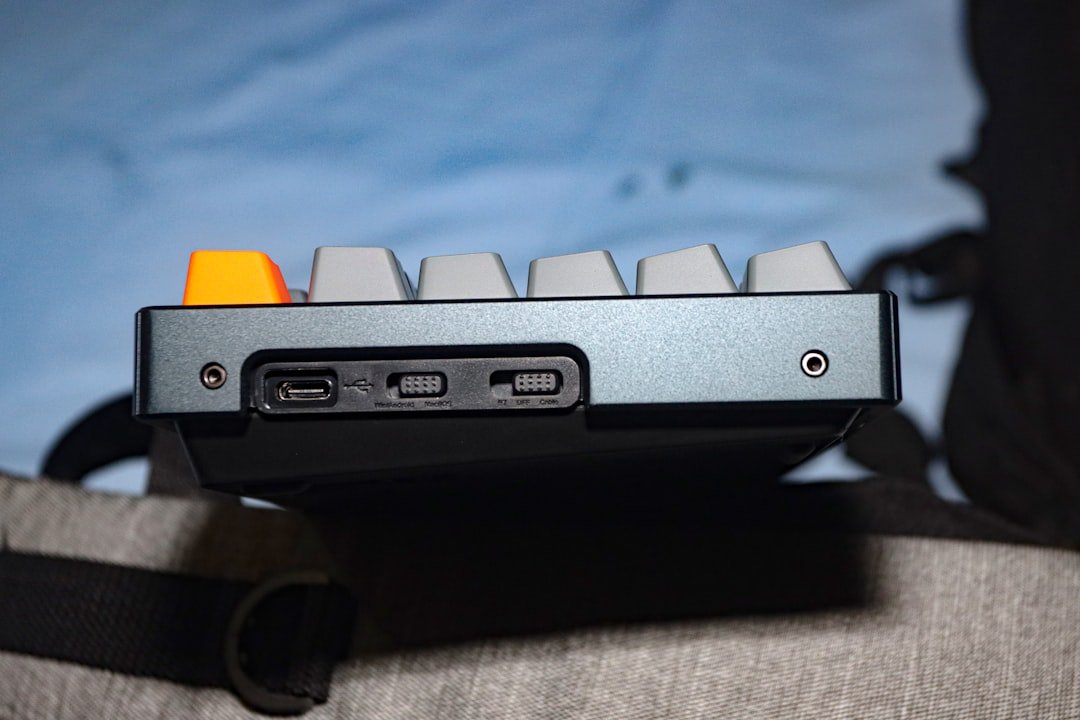
- Many Bose over-ear headphones: Move or hold the power/Bluetooth control toward the Bluetooth symbol until you hear a pairing prompt or see a blinking Bluetooth light.
- Many Bose earbuds: Place the earbuds in the open charging case, then press and hold the case’s Bluetooth or setup button until the status light indicates pairing.
- Older Bose wireless models: Press and hold the dedicated Bluetooth button according to the owner’s guide.
The product should remain discoverable long enough to appear on the iPhone. If it immediately reconnects to a laptop, tablet, television, or old phone, disconnect it from that device and try again.
Pro Tip: Listen for the spoken product name or pairing prompt. It helps you distinguish your headphones from nearby Bose speakers or another person’s device.
Step 3: Pair the Bose Headphones with Your iPhone
- Return to Settings > Bluetooth on the iPhone.
- Wait for the Bose product name to appear in the device list.
- Tap the exact Bose name once.
- Wait until the status changes to Connected or the headphones announce a successful connection.
Modern Bose headphones normally do not require you to guess a passcode. If your iPhone requests a PIN, check the owner’s guide or the model-specific page at Bose Product Support.
Warning: Do not select a nearby device only because its name contains “Bose.” Confirm the model name to avoid pairing with someone else’s headphones or speaker.
Step 4: Confirm Music, Video, and Call Audio
Play a short song or video at a low volume. If the iPhone speakers still play the sound, open Control Center, tap the audio-output control, and select the connected Bose device.
For calls, confirm that your Bose model has a microphone. Place a brief test call and check that both the call audio and microphone work. Some apps have their own audio-output control, so select the Bose device inside the app if needed.
Troubleshooting Common Connection Issues
Work through these fixes in order. Apple recommends keeping the devices close, turning the accessory off and on, checking its charge, unpairing it, returning it to discovery mode, and pairing again. See Apple’s Bluetooth troubleshooting guide.
[Amazon Products Picked for You]

NOT CHARGING? FIXED IN 15 MINUTES — SAVE $100+ VS. REPAIR SHOP — Stop paying expensive technician fees for a simple charging port failure. This exact-fit USB-C port module directly replaces the faulty port on your Sony WH-XB910N, instantly fixing: won't charge, charging LED not lighting up, loose connection, and power button failures. Your premium headphones deserve a premium fix — not the trash bin.

Exceptional Camera Optics with Stereo/2 Ear Wireless Headset Bundle: Optimized for video conferencing, always professional. Full 1080p HD quality that can zoom in up to 4x (digital). Hear every conversation clearly with high quality headset audio.
DESKTOP SIZE, FULL DRUM FEEL: Unlike flat electronic drum pads made mainly for basic tapping, the B-CORE53 NEO gives beginners a complete snare, tom, cymbal, hi-hat and kick layout for a more realistic practice experience. Compared with many tabletop drum kits, this portable electric drum set upgrades the key playing parts with an 8" dual-zone mesh snare, stabilized tom pads, full-size pedals and larger cymbals—delivering a more complete electronic drum set experience while keeping a compact desktop size.
The Bose device does not appear
- Confirm that the headphones are in pairing mode, not merely powered on.
- Charge the headphones or earbuds and their case.
- Move them close to the iPhone.
- Turn Bluetooth off on a previously connected phone, computer, tablet, or television.
- Turn the Bose product off and on, then re-enter pairing mode.
The iPhone shows “Connected,” but you hear no sound
- Raise the iPhone and headphone volume gradually.
- Pause audio on other connected devices.
- Select the Bose device from the iPhone’s audio-output menu.
- Close and reopen the music, video, meeting, or calling app.
- Disconnect and reconnect the headphones from Settings > Bluetooth.
The headphones were paired before but will not reconnect
- Open Settings > Bluetooth.
- Tap the information button beside the Bose device.
- Tap Forget This Device and confirm.
- Restart the iPhone and headphones.
- Put the Bose product back in pairing mode and pair it again.
The connection drops or audio stutters
Keep the iPhone near the headphones and remove major physical barriers. Pause other active Bluetooth audio connections. If the problem affects several accessories, install the latest iOS version available for your iPhone through Settings > General > Software Update. Apple explains the update process in its iPhone software update guide.
The Bose product keeps connecting to another device
Turn off Bluetooth on the unwanted device or disconnect the headphones from it. Some Bose models support multipoint connections, while others handle switching differently. Check the correct Bose app or owner’s guide instead of assuming every model can maintain the same number of active connections.
The app cannot find the headphones
First pair the headphones in the iPhone’s Bluetooth settings unless your model’s instructions say otherwise. Then open Settings > Privacy & Security > Bluetooth and make sure the relevant Bose app has Bluetooth permission. Reopen the app and follow its setup prompts.
Using a Bose App for Enhanced Features

A compatible Bose app can add controls beyond basic Bluetooth pairing. Depending on the model, available features may include firmware updates, equalizer adjustments, noise-control modes, shortcuts, battery information, and management of remembered devices.
Do not assume Bose Connect is the correct app for every Bose headphone. Bose currently separates products among the Bose app, Bose Connect app, and Bose QC Earbuds app. Use the official compatibility lists linked earlier to choose the right one.
Firmware updates can improve compatibility or add features, but the app should not replace the basic pairing check. When the app cannot find the product, first confirm that the iPhone itself shows the Bose device as connected.
[Amazon Products Picked for You]

Hybrid Active Noise Cancelling: 2 internal and 2 external mics work in tandem to detect external noise and effectively reduce up to 90% of it, no matter in trains or offices.
Block the World, Keep the Music: Four built-in mics work together to filter out background noise — whether you're in a packed office, on a crowded commute, or moving through a busy street — so every beat comes through clean and clear. (Not available in AUX-in mode.)

INCREDIBLE SOUND: Custom acoustic platform delivers rich, balanced audio for music, calls and everyday listening.
Enjoying High-Quality Sound on Bose Headphones
Sound quality, battery life, Bluetooth range, noise cancellation, and codec support vary by Bose model. Avoid relying on one generic specification for the entire Bose lineup. Check the exact product page or owner’s guide for your headphones.
For a better listening experience:
- Start at a moderate volume and raise it only as needed.
- Use the supported Bose app to adjust EQ or listening modes when available.
- Choose a noise-control mode that matches your surroundings.
- Keep the headphones updated if the correct Bose app offers firmware updates.
- Use Aware or transparency-style modes when you need to hear traffic, announcements, or people nearby.
A successful Bluetooth connection does not guarantee the same features on every Bose model. Pairing is universal; app controls, multipoint behavior, codecs, battery life, and noise modes are product-specific.
Conclusion and Additional Tips for Connecting Bose Headphones to iPhone
To connect Bose headphones to an iPhone, enable Bluetooth, place the headphones in pairing mode, and tap the correct Bose name in Settings > Bluetooth. If the connection fails, charge both devices, stop automatic connections to other devices, forget the old pairing, and try again.
Use the companion app that Bose lists for your exact model. The app can help with updates and settings, but it is not a substitute for confirming the basic Bluetooth connection in the iPhone’s Settings app.
Other GomyReview guides
The original article also referenced guides to mosquito repellents for outdoor dining and heat-resistant oven mitts. They are unrelated to Bluetooth setup, so they are kept here as optional site navigation rather than part of the instructions.
Frequently Asked Questions
How do I connect my Bose headphones to my iPhone?
Turn on Bluetooth under Settings > Bluetooth, place the Bose headphones in pairing mode, and tap the Bose product name when it appears. Wait for the iPhone to show that the device is connected.
Can I connect my Bose headphones to multiple devices?
It depends on the Bose model. Some models support multipoint connections and can remain connected to more than one device, while others require you to disconnect or switch manually. Check the product guide or the correct Bose app.
Do I need an app to connect Bose headphones to my iPhone?
No app is normally required for basic Bluetooth audio pairing. A supported Bose app can provide firmware updates and model-specific settings after the headphones are connected.
Which Bose app should I install?
Use Bose’s official compatibility lists. Many current products use the Bose app, older models such as QuietComfort 35 use Bose Connect, and the QuietComfort Earbuds released in 2024 use the Bose QC Earbuds app.
What should I do if my Bose headphones are not connecting?
Charge the headphones, move them close to the iPhone, disconnect them from other devices, and restart both products. If needed, forget the Bose device in iPhone settings, return the headphones to pairing mode, and pair again.
Should I enter 0000 or 1234 when the iPhone asks for a PIN?
Do not guess. Most modern Bose headphones pair without a manual PIN. If your model requests one, use the code in its owner’s guide or model-specific Bose support instructions.
Can I use Bose headphones for iPhone calls?
Yes, when the Bose model includes a microphone and supports call audio. After pairing, make a test call and select the Bose device as the audio source if the call stays on the iPhone speaker.
Sources
- Apple Support: Connect a third-party Bluetooth accessory to your iPhone or iPad — pairing steps and PIN guidance
- Apple Support: If a Bluetooth accessory won’t connect to your iPhone or iPad — troubleshooting sequence
- Apple Support: Update your iPhone or iPad — current software-update steps
- Bose: Bose app — current product compatibility and app features
- Bose: Bose Connect app — supported legacy products
- Bose: Bose QC Earbuds app — support for QuietComfort Earbuds released in 2024

1 thought on “Connecting Bose Headphones to iPhone: Easy Steps”