
To connect a BlueParrott headset to an iPhone, put the headset into pairing mode, open Settings > Bluetooth on the iPhone, turn Bluetooth on, and tap the BlueParrott model name when it appears. The exact pairing-mode button sequence varies by model, but many current BlueParrott models use the same basic method: start with the headset powered off, then hold the Multi-function button for about 6 seconds until you hear “Pair mode” and see the LED flash red and blue.
Quick Answer
To connect a BlueParrott headset to an iPhone, charge the headset, place it in pairing mode, then open Settings > Bluetooth on your iPhone. Turn Bluetooth on, tap your BlueParrott model name when it appears, and wait for the pairing confirmation. If your model asks for a PIN, use the code specified by BlueParrott for that model rather than guessing a generic code.
Last updated: September 19, 2026
BlueParrott headsets are designed for hands-free communication and are widely used by drivers, delivery workers, warehouse teams, construction crews, and other people who make calls in noisy environments. You do not need the BlueParrott app for basic iPhone Bluetooth pairing; the initial connection is handled through the iPhone’s built-in Bluetooth settings.
Battery life and features vary by model. For example, BlueParrott rates the B450-XT for up to 24 hours of talk time. Other models may differ, so check your exact model’s support page before relying on a battery-life, pairing, firmware, or multipoint specification.
Key Takeaways
- A BlueParrott headset connects to an iPhone through Settings > Bluetooth; no app is required for basic pairing.
- On the B450-XT, M300-XT, and B650-XT/S650-XT, BlueParrott documents a roughly 6-second Multi-function-button hold from power-off to enter pairing mode.
- If the headset does not appear, make sure it is actually in pairing mode and disconnect it from another phone, tablet, computer, or vehicle system that may already be using the connection.
- If a PIN is requested, use the model-specific code. For the B450-XT BPB-45020, BlueParrott specifies 0000.
- Firmware-update methods vary by model and platform, so use the support page for your exact headset before choosing an updater.
At a Glance
| Time Required | About 2 to 5 minutes |
| Difficulty | Easy |
| Tools Needed | BlueParrott headset, iPhone, and enough headset battery charge |
| Cost | No extra cost |
Before You Pair: Check These 3 Things
First, keep the headset and iPhone close together. Apple says an iPhone should be within about 33 feet (10 meters) of a Bluetooth accessory during pairing. For the initial setup, keeping them only a few feet apart removes distance as a possible cause of failure. See Apple’s Bluetooth pairing guidance.
Second, make sure the headset has enough battery power and is not already connected somewhere else. A previously paired phone, tablet, computer, or vehicle system can reconnect automatically and prevent the iPhone from seeing the headset as an available device.
Third, use the pairing sequence for your exact BlueParrott model. The table below summarizes current BlueParrott instructions for several common models. Other models can use different controls, so check BlueParrott Support if yours is not listed.
| Model | How to Enter Pairing Mode | What to Select on iPhone |
|---|---|---|
| B450-XT BPB-45020 | Start powered off. Hold the Multi-function button for about 6 seconds until the LED flashes red and blue and you hear “Pair mode.” | BlueParrott B450-XT |
| M300-XT | Start powered off. Hold the Multi-function button for about 6 seconds until the LED flashes red and blue and you hear “Pair mode.” | BlueParrott M300-XT |
| B650-XT / S650-XT | Start powered off. Hold the Multi-function button for about 6 seconds until the LED flashes red and blue and you hear “Pair mode.” | B650-XT or S650-XT |
Step-by-Step Guide to Connecting BlueParrott Headset to iPhone

Connecting a BlueParrott headset to an iPhone usually takes only a few minutes. Before you begin, give the headset enough charge to stay powered throughout setup and keep the iPhone close by.
1. Charge and Power Off the Headset if Needed
Charge your BlueParrott headset if it has not been used recently. If your model’s documented pairing process starts from the powered-off state, turn the headset off before beginning the pairing-button sequence.
2. Put the BlueParrott Headset in Pairing Mode
On common models including the B450-XT BPB-45020, M300-XT, B650-XT, and S650-XT, start with the headset powered off and press and hold the Multi-function button for about 6 seconds. Continue holding until the LED flashes red and blue and you hear “Pair mode.” The headset is then discoverable by nearby Bluetooth devices.
Pairing controls can differ on older or different BlueParrott models. If your headset does not respond to this sequence, stop and check the model-specific guide instead of repeatedly pressing different buttons.
Note: If the headset was previously connected to another phone, tablet, computer, or truck stereo, disconnect it from that device before pairing it with your iPhone.
3. Open Bluetooth Settings on Your iPhone
With the headset in pairing mode, open the Settings app on your iPhone. Tap Bluetooth, then make sure Bluetooth is turned on. Keep this screen open while the iPhone searches for nearby accessories.
4. Select Your BlueParrott Headset
When your iPhone detects the headset, its BlueParrott model name should appear in the Bluetooth device list. Tap the headset name to begin pairing.
If your iPhone asks for a PIN, use the code specified in the manual for your exact model. For the BlueParrott B450-XT BPB-45020, BlueParrott specifies 0000 if a PIN is requested. Do not keep trying unrelated generic PIN codes if your model’s documentation gives a different instruction.
5. Confirm the Connection
After pairing succeeds, your iPhone should show the headset as connected. You may also hear a voice prompt or tone through the headset. Test the connection with a short call or audio clip before relying on it for work or travel.
Pro Tip: During the first pairing attempt, keep the headset only a few feet from the iPhone and wait for “Pair mode” before looking for it in the Bluetooth list.
Tip: For more help, see Apple’s guide to connecting third-party Bluetooth accessories and BlueParrott’s official support page for model-specific instructions.
Troubleshooting Common BlueParrott iPhone Connection Problems
| Issue | Possible Cause | Solution |
|---|---|---|
| Headset not showing on iPhone | Not in pairing mode; already connected to another device | Re-enter pairing mode, disconnect competing devices, keep the headset close to the iPhone, and scan again. |
| Intermittent audio or dropouts | Distance, obstacles, metal barriers, or wireless interference | Move the iPhone closer, reduce barriers between the devices, and move away from sources of heavy wireless interference. |
| Audio routes to iPhone, not headset | iPhone is using another audio output | During a call, choose the BlueParrott headset from the audio route menu. For media, select it from the iPhone’s playback destination controls. |
| PIN prompt will not accept the code | Incorrect PIN or model-specific pairing requirement | Use the PIN stated in your model manual. For the B450-XT BPB-45020, use “0000” if requested. |
| Headset connects, then disconnects | Low battery, competing Bluetooth connection, software issue, or outdated headset firmware | Charge the headset, disconnect other paired devices, restart both devices, and check the support page for your model’s current firmware/update method. |
If your BlueParrott headset does not appear on the iPhone, first verify that the headset is actively in pairing mode. A powered-on headset is not necessarily discoverable. Look for the model’s pairing LED pattern or listen for a “Pair mode” announcement.
Next, check whether the headset has automatically reconnected to another nearby device. Turn Bluetooth off on that device temporarily or disconnect the headset there before trying the iPhone again.
If the headset still does not appear, keep it close to the iPhone, restart both devices, and try pairing again. Apple also recommends unpairing and re-pairing an accessory when a previously working Bluetooth connection fails.
[Amazon Products Picked for You]
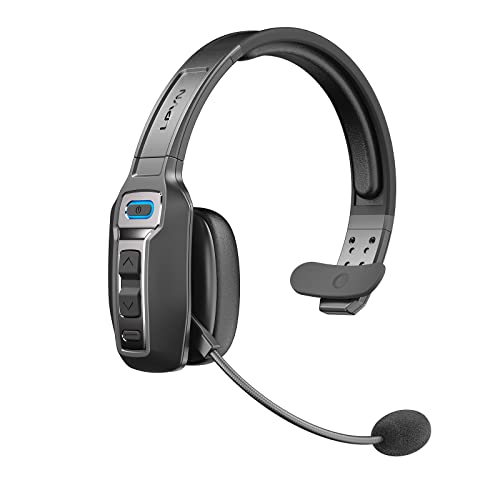
Advanced Environmental Noise Cancelling Technology: LEVN Bluetooth headset adopts unique adaptive environmental noise-cancelling chipset technology, which can identify various background noises in the monitoring environment, thereby effectively suppressing 96% of harmful interfering noises. Bluetooth headset with microphone can provide a quieter environment for listeners and improve the quality of communication even on the go
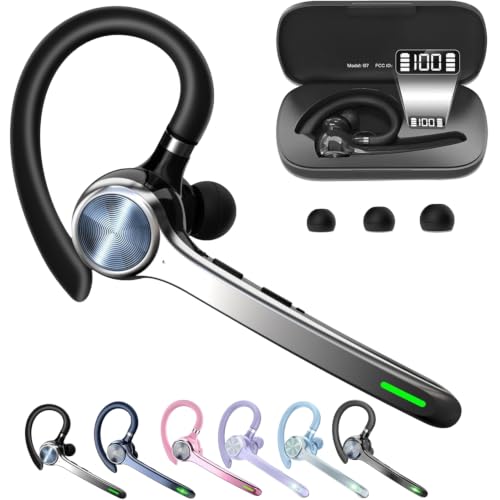
Smart Digital Display: Easy-to-read digital display shows the remaining power of the charging case for the refill in time.

Mic Noise Cancellation: Our headset blocks out an industry-leading 96% of noise, suitable for truckers, delivery drivers, RVers, farmers, landscapers, and those in high-noise environments
How to Forget and Re-Pair the Headset on iPhone
If the headset was previously paired but no longer connects correctly, open Settings > Bluetooth on your iPhone. Tap the information icon next to the BlueParrott headset, then tap Forget This Device and confirm.
Turn the headset off and restart the iPhone. Put the BlueParrott back into pairing mode, return to Settings > Bluetooth, and tap its name when it appears.
Warning: Do not try to troubleshoot Bluetooth settings while driving. Pull over safely first, or let a passenger handle the phone.
Using the BlueParrott Headset with iPhone
Once connected, a BlueParrott headset can provide hands-free calling through your iPhone. This is useful when you are working, driving, or operating in a noisy environment. Available noise-reduction performance and call controls vary by model, so do not assume every BlueParrott headset has the same features.
Many BlueParrott models also support iPhone audio such as music, podcasts, and navigation prompts. Voice-focused mono models are designed primarily for communication, so their listening experience can differ from entertainment-focused stereo headphones.
Depending on the headset, physical controls can let you answer or end calls, adjust volume, mute the microphone, or trigger a configurable function without handling the iPhone. Always follow applicable hands-free driving laws and avoid interacting with the phone while driving.
[Amazon Products Picked for You]

INCREDIBLE SOUND: Custom acoustic platform delivers rich, balanced audio for music, calls and everyday listening.

Fast and Stable Connection: With the new Bluetooth 5.4 technology, this wireless earbuds has a 30% faster transmission speed, more stable signal connection, no delay, whether you are in the gym, sports, running, yoga, you will not lose the signal or interrupt the music. Thanks to the magnetic Hall effect technology, after the first pairing, just take the Bluetooth earbuds out of the charging box to achieve an immediate connection, and the connection distance can reach up to 15m.

Hybrid Active Noise Cancelling: 2 internal and 2 external mics work in tandem to detect external noise and effectively reduce up to 90% of it, no matter in trains or offices.
How to Choose the BlueParrott Headset During a Call
If a call starts through the iPhone instead of the headset, tap the audio control on the active call screen and choose your BlueParrott headset. When listening to media, you can also change the playback destination from the Lock Screen or Control Center.
Tips for Maintaining a Stable Connection

Keep both the iPhone and headset reasonably close and avoid placing the phone behind large metal objects or inside locations that noticeably weaken the connection. If audio begins cutting out, move the devices closer together before changing advanced settings.
Keep your iPhone software current, and check BlueParrott’s support page for firmware applicable to your exact headset. Update methods are not identical across every BlueParrott model or platform. For example, BlueParrott’s current B450-XT BPB-45020 release notes list firmware version 1.10, released May 6, 2026, and specify the BlueParrott Windows Updater for that firmware.
Also remove old Bluetooth pairings you no longer use if you frequently switch the headset among phones, tablets, computers, or vehicle systems. Fewer competing automatic connections make troubleshooting easier.
- Keep your iPhone and headset close during initial pairing.
- Charge the headset before a long shift or drive.
- Restart the headset if the connection becomes unstable.
- Forget and re-pair the device if an old iPhone pairing stops working.
- Disconnect other nearby devices if the headset keeps reconnecting to them.
- Use the update method documented for your exact BlueParrott model.
- Keep the headset away from heavy moisture, dust buildup, and extreme heat when possible.
Exploring Additional Features of the BlueParrott Headset
BlueParrott features vary significantly by model. Supported headsets may offer voice controls, configurable buttons, audio streaming, or connections to more than one paired device.
The BlueParrott app is available for supported headsets and can provide customization options such as programming the BlueParrott Button, viewing headset information, and accessing support. Basic Bluetooth pairing with an iPhone does not require the app.
Some models support multipoint or other multi-device features, but the number of remembered or simultaneously connected devices is model-specific. Check your headset’s manual before relying on a particular multi-device setup.
[Amazon Products Picked for You]
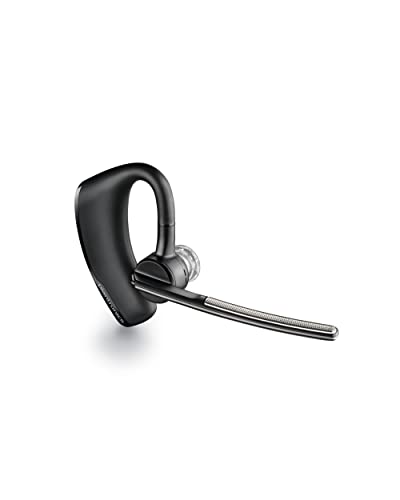
CLEAR AUDIO QUALITY: Take conversations on the go or on the road with confidence as your headset’s sophisticated noise-canceling microphones optimize your voice and minimize noise caused by wind, movement, and other background sounds.Note : If the size of the earbud tips does not match the size of your ear canals or the headset is not worn properly in your ears, you may not obtain the correct sound qualities or call performance. Change the earbud tips to ones that fit more snugly in your ears.Audio Sensitivity:80 decibels.Compatible phone models:iPhone X

Connects To: For someone that needs to take and receive calls on a mobile phone.

Voice Control Answer Call-when a call comes in, Speak ‘YES’ to accept a call and ‘NO’ to reject.
Conclusion and Final Thoughts
To connect a BlueParrott headset to an iPhone, the most important step is getting the headset into the correct pairing mode. For several common models, including the B450-XT, M300-XT, B650-XT, and S650-XT, that means starting with the headset powered off and holding the Multi-function button for about 6 seconds until “Pair mode” is announced and the LED flashes red and blue.
Then open Settings > Bluetooth on the iPhone and select the headset. If it does not appear, disconnect competing Bluetooth devices, keep the headset close to the iPhone, restart both devices, and forget/re-pair an old connection if necessary.
If a PIN is requested or the normal pairing procedure does not work, use the instructions for your exact BlueParrott model rather than trying random button combinations or generic PIN codes.
Related Guides
Frequently Asked Questions
What is a BlueParrott headset?
A BlueParrott headset is a wireless Bluetooth headset brand designed primarily for hands-free communication, including use in trucking, delivery, construction, warehousing, field service, and other noisy work environments.
How do I connect a BlueParrott headset to an iPhone?
Put the BlueParrott headset into pairing mode, then open Settings > Bluetooth on your iPhone, turn Bluetooth on, and tap the BlueParrott model name when it appears. Many current BlueParrott models enter pairing mode when you start with the headset off and hold the Multi-function button for about 6 seconds.
Do I need to install an app to connect a BlueParrott headset to an iPhone?
No. Basic pairing is handled through the iPhone’s built-in Bluetooth settings. The BlueParrott app can provide extra functions on supported models, such as button customization, headset information, support access, and some update features.
Why is my BlueParrott headset not showing up on my iPhone?
The headset may not actually be in pairing mode or may already be connected to another nearby device. Put it back into pairing mode, disconnect competing devices, keep it close to the iPhone, and scan the Bluetooth list again. If it was previously paired, forget the old connection and re-pair it.
What PIN should I use when pairing a BlueParrott headset with an iPhone?
Use the PIN specified for your exact BlueParrott model. For the BlueParrott B450-XT BPB-45020, BlueParrott specifies 0000 if a PIN is requested. Do not assume every model uses the same code.
Can I use a BlueParrott headset with devices besides an iPhone?
Yes. BlueParrott headsets can connect to compatible Bluetooth devices such as Android phones, tablets, and other supported equipment. Exact compatibility, button functions, and multi-device behavior vary by headset and device.
Can I update BlueParrott firmware from an iPhone?
Firmware-update support depends on the headset model and platform. The BlueParrott app is available on iOS, but you should check the support page for your exact headset before assuming an iPhone can install its current firmware. Some firmware releases use a computer-based updater instead.
What are the benefits of using a BlueParrott headset with an iPhone?
A compatible BlueParrott headset can provide hands-free calls, noise-reduced voice communication, physical call controls, and audio playback from an iPhone. Available features and battery life depend on the specific headset model.
Sources
- Apple Support — Connecting third-party Bluetooth accessories to an iPhone or iPad.
- Apple Support — Troubleshooting Bluetooth accessories that will not connect.
- BlueParrott Support — Model-specific manuals, pairing instructions, firmware, and troubleshooting resources.
- BlueParrott B450-XT Release Notes — Current B450-XT firmware release information and update requirements.
- BlueParrott App — Supported app features, headset compatibility, customization, and update information.
- Bluetooth SIG — General Bluetooth technology overview.

1 thought on “Connecting BlueParrott Headset to iPhone: Easy Setup Guide”