Calibrating a laptop battery can help when the battery percentage jumps, drops suddenly, stays stuck, or the laptop shuts down earlier than the displayed charge suggests. Calibration does not repair worn lithium-ion cells or restore lost capacity. Before doing a manual charge-discharge cycle, check battery health and look for your laptop manufacturer’s calibration or battery-gauge procedure because Dell, HP, Lenovo, Apple, and other manufacturers do not all use the same method.
Last updated: September 21, 2026 — reviewed against current Microsoft, Apple, Dell, HP, and Lenovo battery guidance.
Quick Answer
To calibrate a laptop battery safely, first check battery health and your laptop manufacturer’s instructions. If a manual calibration cycle is appropriate, charge the battery to the manufacturer’s specified full level, use the laptop until it reaches the specified low-battery point or shuts down or hibernates automatically, then recharge it as directed. Do not repeatedly force the battery below its normal critical-battery protection. Calibration can improve battery-percentage accuracy, but it cannot restore lost battery capacity.
Key Takeaways
- Battery calibration mainly helps when the charge gauge is inaccurate; it does not rejuvenate an old battery.
- Check battery health and the laptop manufacturer’s calibration instructions before starting a manual cycle.
- Keep normal critical-battery protection enabled and do not repeatedly restart the laptop to force a deeper discharge.
- Frequent deep discharges are unnecessary for routine lithium-ion battery care.
- If calibration does not correct the readings, investigate battery wear, firmware, charging hardware, or manufacturer diagnostics instead of repeatedly cycling the battery.
At a Glance
| Best First Step | Check battery health and your laptop manufacturer’s battery-calibration or gauge-reset instructions |
| Time Required | Usually several hours when a full calibration cycle is required |
| Difficulty | Easy, but the correct procedure depends on the laptop manufacturer |
| Tools Needed | Laptop, compatible power adapter, battery-health information, and any manufacturer diagnostic or calibration utility required for your model |
| Cost | Normally free if the battery, charger, and charging hardware are working properly |
Which Laptop Battery Calibration Method Should You Use?
The safest calibration method is the one documented for your laptop. Manufacturers use different battery firmware, charge limits, diagnostics, and critical-battery thresholds, so a single manual procedure should not be treated as universal.
| Platform / Brand | Current Guidance |
|---|---|
| Windows 11 | Microsoft recommends checking battery health and avoiding frequent deep discharge during normal use. You can generate a battery report with powercfg /batteryreport. Microsoft battery guidance. |
| Dell | Dell’s current procedure uses the manufacturer’s battery settings, a full charge, normal use until the managed critical-battery shutdown or hibernation point, and an uninterrupted recharge. Dell calibration instructions. |
| HP | HP provides battery testing and calibration through HP PC Hardware Diagnostics UEFI on supported notebooks and also documents a manual method. HP battery calibration guidance. |
| Lenovo | Lenovo documents a battery-gauge reset utility for supported IdeaPad systems and a manual method that uses a low-charge target rather than repeatedly forcing the battery beyond its normal protection. Lenovo gauge-reset guidance. |
| Mac | Apple’s current guidance focuses on Battery Health, cycle count, Optimized Battery Charging, Charge Limit on supported systems, and automatic charge management. Check those tools before attempting any manual deep-discharge routine. Apple charging guidance. |
Check Battery Health Before Calibration
Check battery health before calibrating because an inaccurate percentage gauge and a physically worn battery are different problems. Calibration can improve reporting accuracy, but it cannot restore chemical capacity that the battery has already lost.
On Windows 11, open Command Prompt or Windows Terminal and run powercfg /batteryreport. Windows saves an HTML battery report containing battery-usage and capacity information. Review the installed-battery information, recent usage, and capacity history before deciding that calibration is the right next step. Microsoft documents the command in its Windows battery-care guidance.
On macOS, hold the Option key, click the Apple menu, choose System Information, and select Power to view the cycle count. You can also open System Settings > Battery and review Battery Health. Apple uses condition messages such as Normal and Service Recommended. See Apple’s cycle-count instructions and Battery Health guidance.
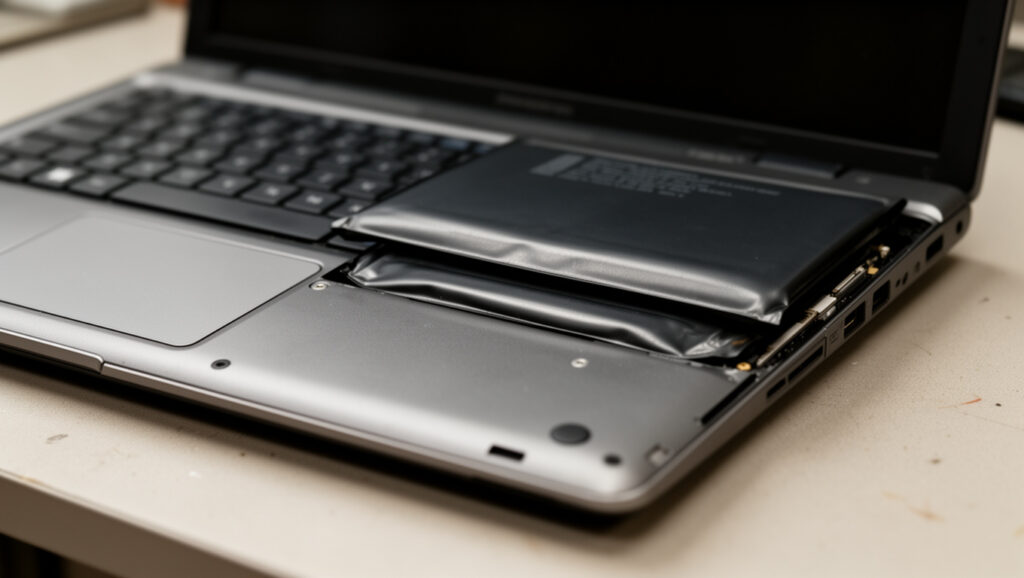
Note: If your battery is swollen, the trackpad or case is lifting, the battery is leaking or physically damaged, or the laptop becomes unusually hot, stop using it and contact the laptop manufacturer or a qualified repair provider. Do not try to calibrate a damaged battery.
Fully Charge the Battery as Your Manufacturer Directs
If your manufacturer calls for a manual calibration cycle, start with the specified full-charge step. Some procedures call for 100%, while smart-charging or charge-limit features can intentionally stop below 100% during normal use.
Use the original charger or a compatible adapter that meets the laptop manufacturer’s requirements. Keep the laptop on a stable surface with good airflow and avoid unnecessary heat while charging.
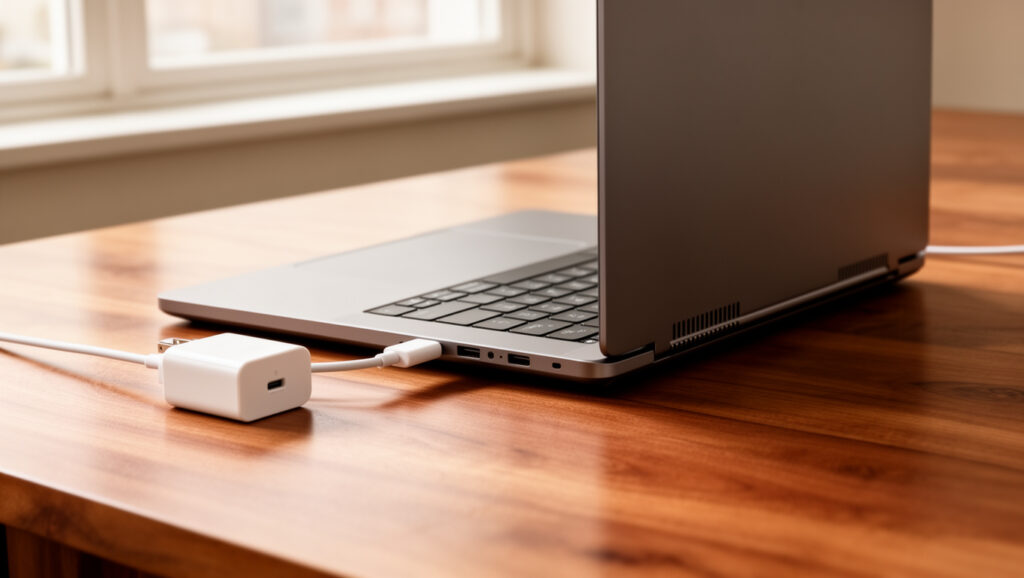
Do not assume that every laptop must remain plugged in for an extra hour after reaching 100%. Follow the procedure for your specific manufacturer or model. If smart charging intentionally limits the battery below 100%, consult the manufacturer’s instructions before changing that feature solely for calibration.
Pro Tip: Save your work before beginning the discharge stage. A calibration cycle may end with automatic hibernation or shutdown at the system’s critical-battery threshold.
Discharge the Battery Only to the Required Low-Charge Point
A calibration discharge should reach the low-charge point specified by the manufacturer, not an uncontrolled physical zero. Depending on the laptop, that may mean a percentage target, automatic hibernation, automatic shutdown, or a manufacturer diagnostic routine.
You do not need to run games, benchmarks, or other heavy workloads to drain the battery faster. Extra heat adds unnecessary stress. Use the laptop normally and follow these steps:
- Unplug the charger: Disconnect external power after the required starting charge has been reached.
- Use the laptop normally: Light or normal workloads are sufficient; there is no need to deliberately overheat or heavily load the system.
- Keep critical-battery protection enabled: Do not disable low-battery hibernation or shutdown protections simply to force a deeper discharge.
- Stop at the manufacturer’s endpoint: Let the laptop reach the specified low percentage or allow it to hibernate or shut down automatically, depending on the documented procedure.
Warning: Do not repeatedly restart the laptop after a low-battery shutdown to force the battery lower. Microsoft recommends avoiding frequent deep discharges during normal lithium-ion battery use.
Follow the Manufacturer’s Low-Battery Step
After the laptop reaches its specified low-charge point or shuts down automatically, follow the next step in the manufacturer’s procedure. A long rest period is not a universal requirement.
Do not keep trying to restart a laptop that has already reached its managed critical-battery threshold. If the manufacturer’s procedure says to reconnect the charger after shutdown, do so. If a diagnostic utility controls the discharge and recharge process, allow that utility to complete the sequence.
Recharge as Directed and Complete the Calibration Cycle
The final charge gives the battery-management system another reference point for estimating the battery’s usable range. If your manufacturer’s procedure calls for an uninterrupted recharge to 100%, reconnect the correct charger and leave it connected until that target is reached.
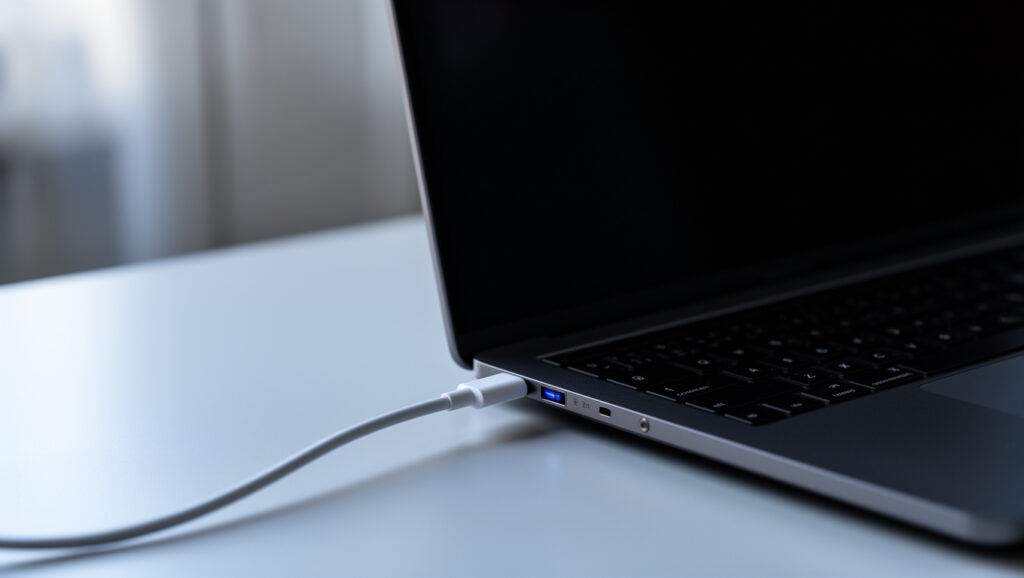
Some laptops can be used lightly while charging, while manufacturer diagnostic tools may ask you not to use the computer. Follow the instructions for your model rather than treating uninterrupted idle charging as a universal requirement.
Calibration does not create extra battery capacity. Its purpose is to improve the relationship between the displayed percentage and the battery’s actual usable charge. After the procedure finishes, restore any temporary charging or power settings you changed according to the manufacturer’s instructions.
Should You Repeat the Calibration?
Do not repeat full charge-discharge cycles simply because one cycle did not restore battery runtime. Calibration affects gauge accuracy, not chemical battery wear.
If the percentage still jumps or the laptop still shuts down unexpectedly, check the manufacturer’s instructions before performing another cycle. Some manufacturers may recommend additional calibration cycles for specific systems, while others provide a dedicated diagnostic or gauge-reset process.
If the problem remains after the recommended calibration procedure, investigate battery health, BIOS or firmware updates, power-management drivers, charger operation, charging-port problems, or battery replacement rather than repeatedly deep-discharging the battery.
When Should You Not Calibrate a Laptop Battery?
Skip calibration when the battery percentage behaves normally and the laptop has no premature-shutdown symptoms. Modern lithium-ion batteries do not need routine deep-discharge calibration simply because a calendar interval has passed.
Do not calibrate a swollen, leaking, physically damaged, or unusually hot battery. Also do not use calibration as a fix for short runtime when the battery-health data already shows substantial capacity loss. A worn battery can report its percentage accurately and still require replacement.
For everyday Windows battery care, Microsoft recommends avoiding frequent deep discharges and keeping the charge in a moderate range, roughly 20% to 80%, when practical. Smart-charging features may manage this automatically on supported devices.
Do Modern Laptops Need Battery Calibration?
Most modern laptops do not need scheduled calibration when the battery percentage is behaving normally. Calibration is mainly a troubleshooting step for symptoms such as sudden percentage changes, a meter that remains stuck, or shutdowns that occur while the displayed charge still appears significant.
Modern laptops may also include firmware, BIOS, manufacturer utilities, smart charging, or battery-health management that changes how calibration should be performed. That is why checking your manufacturer’s current instructions is more reliable than following a universal monthly or quarterly deep-discharge routine.
Is Laptop Battery Calibration Different on Windows and Mac?
Yes. Windows provides tools such as powercfg /batteryreport for viewing battery information, but the actual battery-management logic and calibration procedure can still depend on the laptop manufacturer.
On current Mac laptops, Apple provides Battery Health information, cycle-count data, Optimized Battery Charging, and Charge Limit on supported Apple-silicon systems. Apple also states that supported Macs can occasionally charge to 100% automatically to maintain accurate state-of-charge estimates. That makes a generic manual deep-discharge routine inappropriate as a default recommendation for every Mac.
What If Calibration Does Not Fix the Battery Percentage?
If calibration does not correct the readings, stop repeating full discharge cycles and troubleshoot the underlying cause. Update the operating system, install manufacturer-approved BIOS or firmware updates, and run any battery or hardware diagnostics supplied for the laptop.
On Windows, generate another battery report and compare the battery’s current capacity information with its original design information. On macOS, recheck Battery Health and cycle count. A battery with substantially reduced usable capacity may need service or replacement even when calibration is working correctly.
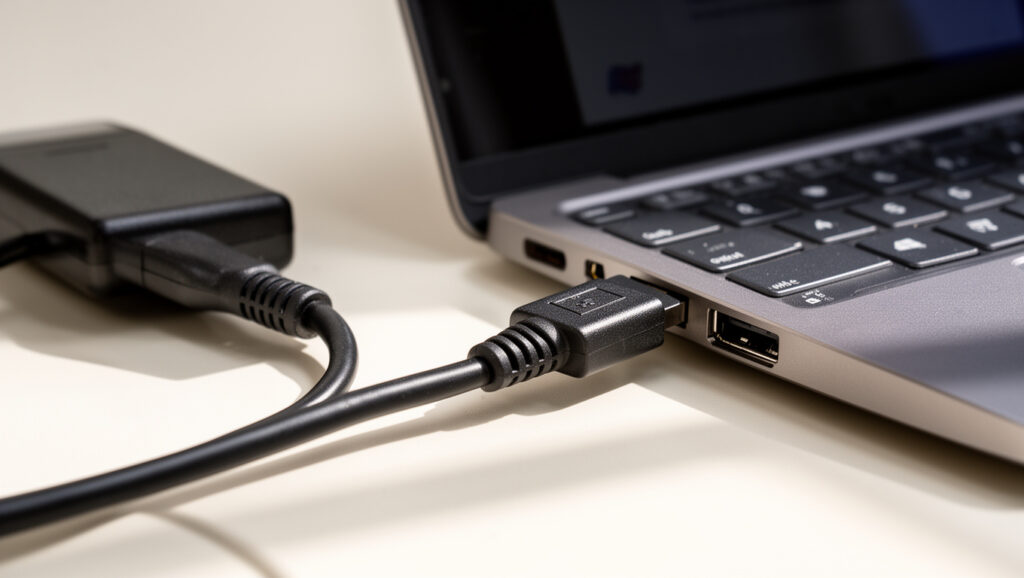
Also inspect the charger, cable, connector, and charging port for obvious problems. If the laptop continues to shut down unexpectedly or reports inconsistent battery health, contact the manufacturer or a qualified repair provider.
Frequently Asked Questions
How Often Should I Calibrate My Laptop Battery?
Calibrate a laptop battery when the percentage reading is clearly inaccurate or when the manufacturer specifically recommends a gauge-reset procedure. Do not make full discharge cycles a weekly maintenance habit because frequent deep discharges are unnecessary for normal lithium-ion battery care.
Will Calibration Improve My Battery Life?
Calibration does not restore lost chemical capacity or make an aging battery physically healthier. It can make the reported percentage and remaining-charge estimate more accurate, which may reduce unexpected shutdowns caused by an inaccurate gauge.
Can I Use My Laptop While Calibrating the Battery?
That depends on the manufacturer’s procedure. Normal use is acceptable during the discharge stage in some procedures, while diagnostic tools may require the laptop to remain unused. Follow the instructions for your model and avoid heavy workloads that create unnecessary heat.
What Tools Are Needed for Battery Calibration?
You normally need the laptop, a compatible power adapter, battery-health information, and any manufacturer diagnostic or calibration utility required for the model. Windows users can generate a battery report with powercfg /batteryreport, while Mac users can review Battery Health and cycle count.
Does Battery Calibration Affect My Warranty?
Battery calibration does not determine warranty coverage by itself. Use the manufacturer’s documented procedure and avoid opening the laptop or modifying firmware solely to calibrate it. Warranty terms vary by manufacturer and region, so check the terms for your model if service coverage is a concern.
Why Does My Laptop Shut Down Before the Battery Reaches 0%?
An early shutdown can result from an inaccurate charge estimate, battery wear, a manufacturer-defined critical-battery threshold, firmware or power-management problems, or a failing battery. Calibration may help when the gauge is inaccurate, but it cannot repair degraded cells.
Should I Let My Laptop Battery Reach 0% Every Time?
No. Frequent deep discharge is unnecessary for normal lithium-ion battery care. Let the laptop reach a very low level only when an approved calibration procedure requires it, and do not repeatedly restart the computer after its critical-battery shutdown to force the charge lower.
Do Modern Laptops Need Battery Calibration?
Most modern laptops do not need scheduled calibration when the battery meter is behaving normally. Consider calibration when the percentage is clearly inaccurate, the laptop shuts down unexpectedly with charge still displayed, or the manufacturer specifically recommends a battery-gauge reset.
Should I Calibrate a MacBook Battery Manually?
Do not assume a current MacBook needs the same manual deep-discharge procedure as a Windows laptop. Check Battery Health, cycle count, Optimized Battery Charging, and any Charge Limit setting first, then follow Apple’s current guidance for your Mac model and macOS version.
Conclusion
Calibrating a laptop battery can correct inaccurate charge readings, but the safest procedure depends on the laptop manufacturer. Start by checking battery health and looking for the manufacturer’s battery-calibration, diagnostic, or gauge-reset instructions.
If a manual cycle is appropriate, use the specified full-charge level, discharge only to the manufacturer’s low-battery endpoint, keep normal critical-battery protection enabled, and recharge as directed. If the percentage remains inaccurate afterward, investigate battery wear, firmware, charging hardware, or professional service instead of repeatedly deep-discharging the battery.

