Is a 69°C laptop temperature safe, or should you worry about overheating? The answer depends on whether your laptop is gaming, editing video, or sitting idle. CPU and GPU temperatures naturally increase under demanding workloads, but a reading that looks normal during gaming may deserve attention during light use. Understanding the difference can help you protect performance without worrying about every temperature change.
Quick Answer
Yes, 69°C is generally a safe laptop temperature during gaming, video editing, or other demanding tasks. It is usually well below the thermal limits of modern performance processors. However, 69°C during idle use may indicate background activity or a cooling issue. Always consider the CPU or GPU model, workload, and temperature trend.
Key Takeaways
- 69°C under load is usually normal. Gaming, rendering, and other intensive tasks generate significant heat.
- Idle temperature needs context. A consistent 69°C reading with little CPU activity deserves investigation.
- Thermal limits vary. There is no universal 85°C or 90°C throttling threshold for every laptop.
- Airflow affects performance. Dust, blocked vents, warm rooms, and soft surfaces can increase temperatures.
- Check temperature trends. Use monitoring software to compare idle readings, sustained loads, clock speeds, and maximum temperatures.
What Does 69°C Mean for a Laptop?
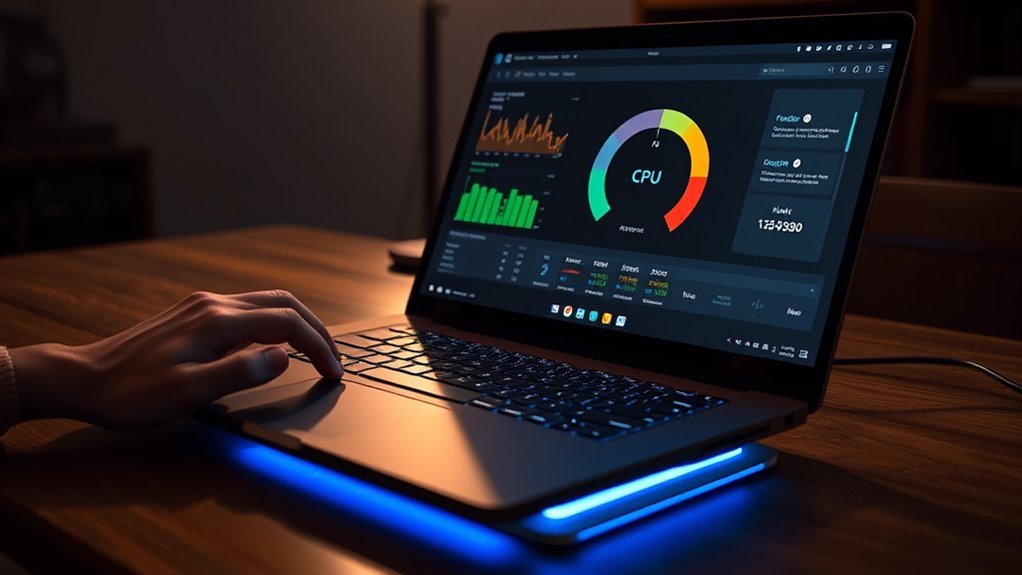
A laptop temperature of 69°C means the measured component is operating at that internal temperature. If the reading comes from the CPU or GPU during gaming, it is generally a reassuring result. The same reading during idle use deserves a closer look.
Modern processors can tolerate substantial heat, but their operating limits depend on the exact model and laptop design. A temperature reading alone cannot prove whether a cooling system is working correctly.
For example, a gaming laptop maintaining 69°C during a demanding game may have adequate cooling capacity. A laptop reaching the same temperature while doing almost nothing could have an unnecessary background workload, restricted airflow, or another issue.
Three details help explain the reading:
- Which component? CPU, GPU, storage, and motherboard sensors measure different areas.
- Which workload? Gaming and rendering produce more heat than light browsing.
- How long? A brief temperature spike differs from a sustained reading that keeps rising.
According to Intel’s processor temperature guidance, maximum operating temperatures depend on the processor and system design. Intel also explains that reaching a high temperature during demanding work does not automatically mean the processor is defective.
Therefore, 69°C is best understood as a measurement of current operating conditions, not a universal pass-or-fail temperature.
Is 69°C Safe for Gaming Laptops?
Yes, 69°C is generally safe for gaming laptops. Gaming places heavy demands on the processor and graphics chip, so higher internal temperatures are expected. A stable 69°C CPU or GPU reading is usually not an overheating warning.
Gaming laptops often operate at temperatures above this level without immediately encountering their thermal limits. Their cooling systems are designed to move heat away from components while maintaining performance.
A stable 69°C reading during gaming is generally reassuring, but temperature and performance should be evaluated together.
If your laptop maintains consistent frame rates, responds normally, and avoids unexpected shutdowns, a 69°C reading is unlikely to indicate a thermal problem.
However, temperature alone does not prove that the processor is running at its expected speed. Some systems reduce power or adjust clock speeds to meet cooling and noise targets even when temperatures are moderate.
When judging gaming performance, consider:
- Whether temperatures stabilize during a long session.
- Whether frame rates remain reasonably consistent.
- Whether the CPU or GPU slows significantly under sustained demand.
- Whether cooling fans operate normally.
- Whether changing room temperature or laptop placement affects the results.
A laptop running at 69°C with stable performance is generally in a better position than one with similar temperatures but unexplained slowdowns or failing fans.
CPU Temperatures at 69°C Under Load
A CPU temperature of 69°C under load is generally safe for a modern laptop processor. It typically leaves room below the processor’s maximum operating temperature and suggests that the system is managing its current workload.
That does not mean every laptop should reach the same temperature. A thin notebook, a workstation, and a high-performance gaming laptop may behave differently under identical tasks.
How to Interpret 69°C Under Load
When a CPU reaches 69°C during gaming, video editing, or rendering, its cooling system is removing heat while the processor performs demanding calculations.
Depending on the model and task, laptop processors may operate in the 70–85°C range or reach higher temperatures. These figures describe possible operating conditions, not fixed safety limits.
The most useful observation is whether the temperature eventually settles rather than continuing to climb.
For example, if your laptop rises to 69°C during a demanding task and remains near that level, its cooling system may be balancing heat production with heat removal.
If it continues climbing toward its model-specific thermal limit while performance falls, additional investigation is worthwhile.
Is 69°C Below the CPU’s Thermal Limit?
For many modern laptop CPUs, 69°C is comfortably below the maximum permitted junction temperature. Junction temperature refers to the internal temperature measured at the processor chip.
Intel says the maximum junction temperature of many of its processors is typically around 100–110°C, although the exact specification varies by product.
As another example, the AMD Ryzen 7 7840HS specifications list a maximum operating temperature of 100°C.
These are processor specifications, not recommended everyday targets. They also do not establish the maximum safe temperature for every laptop or every component.
To judge your own machine:
- Identify the exact CPU model.
- Find its maximum operating temperature in the manufacturer’s specifications.
- Compare the current CPU temperature with that limit.
- Check whether the laptop is reducing performance because of temperature.
For most gaming laptops, a CPU holding 69°C during demanding work does not require immediate action unless another symptom suggests trouble.
Cooling and Performance
A CPU running at 69°C can deliver strong performance when the processor has enough cooling and power available. Lower temperatures often provide additional thermal headroom, but they do not guarantee faster operation.
Thermal throttling happens when a processor reduces its operating speed or power to control heat. This protective behavior helps prevent overheating.
Thermal throttling does not begin at the same temperature on every laptop. Processor specifications, firmware, power settings, and manufacturer cooling policies affect when performance limits apply.
A laptop can also reduce its speed because of power limits rather than excessive temperature. That is why checking both temperature and clock speed provides a more complete picture.
When comparing two gaming laptops, a cooler reading is useful, but real performance and stability matter just as much.
GPU Temperatures at 69°C While Gaming
A GPU temperature of 69°C while gaming is generally normal. A dedicated graphics processor generates considerable heat while drawing game scenes, processing visual effects, and maintaining high frame rates.
At 69°C, many gaming GPUs have room below their maximum specified operating temperatures. However, the actual limit depends on the GPU model and laptop configuration.
NVIDIA’s GPU temperature guidance confirms that maximum operating temperature varies by GPU. When a GPU reaches its limit, its driver can reduce performance to lower the temperature.
To interpret a 69°C GPU reading correctly, pay attention to these details:
- GPU core temperature: The main graphics temperature reported by monitoring software.
- GPU hotspot temperature: A reading from the hottest monitored area, which may be higher than the general GPU temperature.
- GPU utilization: How much graphics work the chip is performing.
- Clock speed: Whether the GPU maintains appropriate operating speeds during a demanding game.
A GPU core temperature of 69°C and a hotspot reading of 69°C do not necessarily describe the same thermal condition. Always check which sensor the software is displaying.
It is also normal for CPU and GPU temperatures to differ. They perform different tasks and may share parts of the laptop’s cooling system.
If your GPU remains near 69°C during gaming and performance is consistent, the reading is generally reassuring.
What Raises Laptop Temperatures So Fast?
Laptop temperatures rise when internal components generate heat faster than the cooling system can remove it. Gaming, rendering, high CPU usage, blocked airflow, and warm surroundings can all contribute.
Because laptops place powerful components inside compact cases, changes in workload or ventilation can affect temperatures quickly.
High CPU and GPU Load
Demanding software increases laptop temperatures because processors require more electrical power to complete intensive work. Some of that energy becomes heat.
Common activities that raise temperatures include:
- Playing demanding games at high graphics settings.
- Rendering videos or complex 3D scenes.
- Running intensive applications or compiling large projects.
- Using high frame-rate settings that keep the GPU busy.
- Performing several demanding tasks simultaneously.
Higher CPU and GPU activity does not automatically mean overheating. It simply means the cooling system has more heat to remove.
Background applications can also increase temperatures. A laptop that appears idle may still be installing updates, scanning files, or running demanding processes.
Overclocking or aggressive performance settings can add heat by increasing operating power. Some laptops also use higher power limits while connected to their chargers.
When temperature increases match higher component activity, the behavior is often expected.
Poor Airflow and Dust
Blocked vents, accumulated dust, and soft surfaces can make a laptop run hotter by restricting cooling airflow.
Air must enter the laptop, pass through its cooling system, and leave through exhaust vents. If that path is blocked, internal heat becomes harder to remove.
| Cause | Effect |
|---|---|
| Blocked vents | Reduced airflow and heat removal |
| Dust buildup | Lower fan and heatsink cooling efficiency |
| Soft surfaces | Trapped heat and obstructed air intakes |
Other possible causes include worn thermal materials, faulty fans, incorrect cooling settings, and high room temperatures.
Dell’s overheating troubleshooting guide identifies restricted airflow, dust, fan problems, and cooling hardware faults as causes of excessive laptop heat.
A laptop should normally sit on a firm surface with enough space around its ventilation openings. This gives the built-in fans a better chance to maintain stable temperatures.
When 69°C Could Signal a Cooling Problem
A temperature of 69°C can deserve attention when a laptop reaches it during idle use, runs unusually hot compared with its previous behavior, or develops performance problems.
During gaming, 69°C is generally normal. During light browsing or after the laptop has been sitting unused, a sustained 69°C CPU temperature may justify checking what the system is doing.
Consider investigating if you notice several of these symptoms:
- The CPU remains near 69°C even when few applications are running.
- Cooling fans run at high speed during light tasks.
- The laptop has become noticeably hotter than it used to be under similar conditions.
- Temperatures keep rising during the same workload.
- Games or applications slow down unexpectedly.
- The computer freezes, restarts, or shuts down without warning.
Start by checking background CPU usage. A system update or an active application may explain the higher temperature without any cooling hardware failure.
If CPU usage is low but temperatures remain unusually high, inspect ventilation and fan behavior. Continued trouble may indicate dust accumulation, a cooling fault, or a problem with thermal contact inside the laptop.
Do not assume that 69°C itself is damaging the processor. Focus on the operating conditions, whether the reading has changed, and whether the system behaves normally.
How to Check Laptop Temperature Accurately
You can measure laptop temperatures with hardware monitoring software that reads the CPU and GPU’s built-in sensors. For useful results, compare idle conditions with a demanding workload rather than judging one reading.
Popular monitoring tools include HWMonitor, Core Temp, and MSI Afterburner. Their available readings and features differ.
- Open a monitoring application. Install a trusted tool from its official source and locate the CPU and GPU temperature readings.
- Identify the correct sensor. Look for CPU package or core temperature and GPU core temperature. Do not confuse these readings with storage or motherboard temperatures.
- Check idle behavior. Close demanding applications, allow background activity to settle, and observe the readings.
- Run a normal workload. Open a game or application you regularly use and monitor the temperatures during actual operation.
- Record sustained and peak temperatures. A maximum reading helps identify brief spikes, while sustained readings show what happens during continued use.
- Check performance. Watch for major drops in clock speed, stuttering, or signs of thermal throttling.
- Compare results. Repeat the same task under similar room temperatures, power settings, and laptop placement.
CPUID HWMonitor displays hardware information such as component temperatures, fan speeds, power readings, and utilization.
MSI Afterburner supports hardware monitoring and an on-screen display, making it useful for watching GPU-related performance information while gaming.
Core Temp is another option for monitoring CPU temperature. Depending on your laptop, BIOS or UEFI setup may also display basic thermal readings, although those readings may not match normal operating-system idle conditions.
Pro Tip: When comparing temperature results before and after a cooling change, use the same game, graphics settings, power mode, and laptop position. A cooler reading is more meaningful when the workload remains comparable.
If your monitoring software shows several CPU or GPU temperature values, check the sensor labels. Different sensors can report different temperatures without indicating a problem.
Simple Ways to Lower Laptop Heat
If your laptop runs hotter than expected, start with airflow and workload adjustments. These steps are usually easier and safer than opening the laptop or replacing internal cooling materials.
- Use a hard, flat surface. Place the laptop on a desk or sturdy stand rather than a bed, blanket, or pillow. Keep intake and exhaust vents unobstructed.
- Clean accessible ventilation openings. Shut down the laptop and disconnect external power before cleaning. Follow the manufacturer’s cleaning guidance and avoid forcing debris deeper into the device.
- Try a cooling pad or laptop stand. Additional airflow may reduce temperatures on models whose ventilation design benefits from it.
- Reduce unnecessary workload. Close demanding background applications and lower graphics settings or frame-rate targets when you do not need maximum performance.
- Check the power and thermal profile. A balanced or quieter mode may reduce heat by limiting power consumption. The available controls depend on the laptop.
- Keep the surrounding area cooler. Avoid direct sunlight, enclosed spaces, and locations where warm exhaust air cannot escape.
- Investigate persistent cooling problems. If fans malfunction or temperatures keep increasing despite basic troubleshooting, seek qualified repair assistance.
Check temperatures again after each change. This helps identify which adjustment actually improves cooling rather than guessing.
Warning: Avoid opening a laptop or replacing thermal paste unless you understand its service requirements. Incorrect disassembly, fan cleaning, or thermal material application can damage components. If the battery appears swollen or you notice a burning smell, stop using the laptop and arrange professional assistance.
Thermal paste and other internal cooling materials can deteriorate or develop contact problems over time. However, replacing them should not be the first response to an otherwise normal 69°C gaming temperature.
Should You Buy a Laptop Running at 69°C?
A laptop running at 69°C during a demanding workload can be a reasonable purchase. That temperature alone is not a reason to reject a gaming laptop or workstation.
However, one temperature reading cannot establish the quality of its cooling system, hardware condition, or long-term reliability.
Before buying, consider these checks:
- Confirm the workload. Was the laptop gaming, rendering, browsing, or sitting idle when it reached 69°C?
- Identify the component. Determine whether the reading belongs to the CPU, GPU, or another sensor.
- Check sustained performance. Look for stable performance during extended demanding tasks.
- Inspect fan behavior. Fans should operate normally without unusual mechanical noises or repeated failures.
- Consider ambient conditions. A reading recorded in a cool room may change in a warmer environment.
- Review cooling design. Vent placement, fan condition, and chassis design affect how the laptop handles sustained heat.
- Check for warning signs. Unexpected shutdowns, severe performance drops, and abnormal idle heating deserve closer attention.
Do not use 85°C as a universal maximum buying threshold. Some processors are designed to operate above that temperature, while different GPU models and laptop components may have lower limits.
If you are comparing two laptops, choose based on the overall combination of performance, temperatures, noise, and reliability rather than selecting the model with the lowest reported temperature alone.
A stable 69°C reading during genuine heavy use is generally a positive sign, provided no other symptoms suggest a cooling problem.
Frequently Asked Questions
Is 70 Degrees Celsius Too Hot for a Laptop?
No, 70°C is generally acceptable for a laptop CPU or GPU during demanding tasks. It does not automatically indicate overheating or thermal throttling. If the laptop stays at 70°C during idle use, however, check background activity, airflow, and whether its behavior has changed.
Is 72°C Too Hot for a CPU?
No, 72°C is usually safe for a modern laptop CPU under load. It is below the maximum operating temperature of many performance processors. Judge the reading using your exact CPU specifications, workload, and system behavior rather than treating one temperature as a universal safety limit.
Is 92 Degrees Hot for a CPU Laptop?
Yes, 92°C is a high CPU temperature, but it does not automatically mean a modern laptop is unsafe. Some processors can reach this level during demanding workloads. Check the CPU’s specified thermal limit and investigate sustained performance loss, excessive fan noise, or unexpected shutdowns.
Is 80°C Too Hot for a CPU Laptop?
No, 80°C is not automatically too hot for a laptop CPU during heavy work. Many modern processors can operate at this temperature without thermal throttling. The correct limit depends on the processor and laptop design, so check performance and manufacturer specifications before assuming there is a problem.
Is 69°C Too Hot for a Laptop While Idle?
A sustained 69°C CPU temperature during genuine idle use may be unusually warm and deserves investigation. Check CPU usage, background tasks, fan operation, and ventilation. A brief spike after startup or an update is different from a laptop remaining hot with little activity.
Is 69°C Safe for a Laptop GPU During Gaming?
Yes, a GPU core temperature of 69°C is generally safe during gaming. Most importantly, check that the temperature remains stable and the graphics processor maintains expected performance. GPU core, hotspot, and other sensor readings differ, so use the correct sensor and model-specific limits.
Conclusion
A 69°C laptop temperature is generally safe during gaming, video editing, and other demanding tasks. For many modern CPUs and GPUs, it is comfortably below their thermal limits.
The key is context. A stable 69°C reading under load is reassuring, while the same temperature during idle use may deserve investigation. Check the correct sensor, monitor performance, maintain airflow, and compare your readings with the hardware manufacturer’s specifications before deciding there is a problem.
Sources
- Intel — Information About Temperature for Intel Processors: Processor temperature limits, protective throttling, and temperature interpretation.
- AMD — Ryzen 7 7840HS Specifications: Processor-specific maximum operating temperature.
- NVIDIA — GPU Maximum Operating Temperature and Overheating: GPU thermal limits and protective throttling behavior.
- Dell — Laptop Overheating Troubleshooting: Airflow problems, overheating symptoms, background workloads, and cooling maintenance.
- CPUID — HWMonitor: Hardware temperature, fan, and performance monitoring features.
- MSI — Afterburner: Gaming performance monitoring and on-screen display features.

