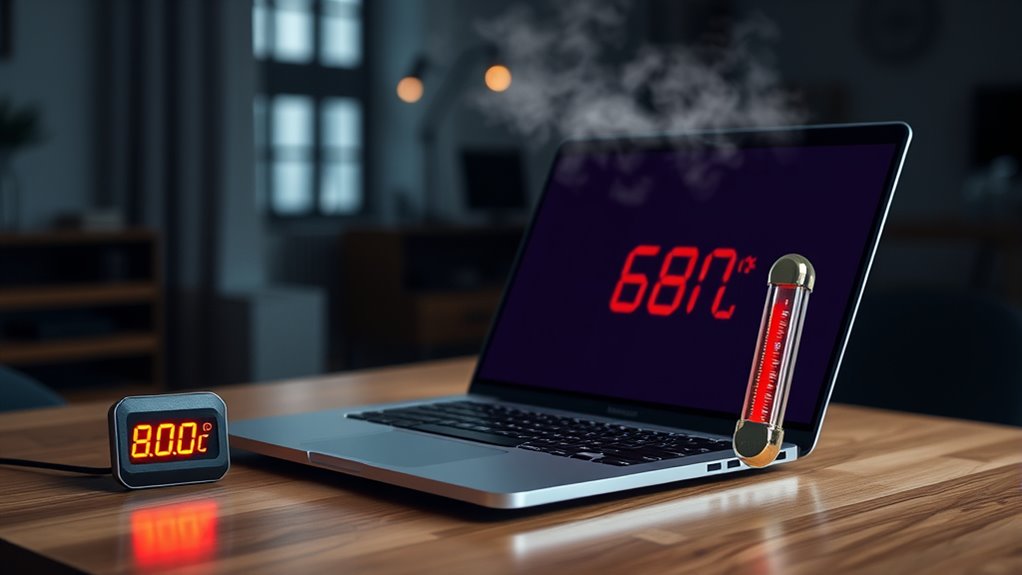
80°C is generally considered high for a notebook and signals thermal stress. Most laptops can operate safely up to about 85°C, but sustained heat near 80°C often triggers throttling, slowing the CPU and GPU to protect hardware. Common causes include heavy workloads, dust buildup, poor airflow, and background processes. Repeated exposure can accelerate battery and component wear. With proper cooling and maintenance, performance can be stabilized, and the underlying causes become easier to identify.
Key Takeaways
- 80°C is high for a notebook and means reduced thermal headroom, though many laptops can briefly tolerate it.
- At 80°C, thermal throttling may start, lowering CPU/GPU speeds and causing lag or slower app launches.
- Repeated operation near 80°C can accelerate wear on the motherboard, battery, and other components.
- Rapid heating is often caused by heavy workloads, background processes, dust buildup, or poor airflow.
- Cooling steps like cleaning vents, improving airflow, closing apps, and using a cooling pad can help lower temperatures.
Is 80°C Too Hot for a Laptop?

Yes—an internal laptop temperature of around 80°C is generally considered high and can indicate thermal stress. At this level, overheating becomes a real operational concern, and it is important to know that repeated exposure can accelerate component degradation.
Most laptops are built to function within roughly 50°C to 85°C, but sustained readings near the upper end leave little margin before damage risk rises. Battery chemistry is especially vulnerable; heat can shorten service life and, in severe cases, contribute to swelling or leakage.
Thermal throttling may also emerge as a protective response, limiting processor output to reduce heat. For users seeking autonomy over their machines, regular temperature monitoring with diagnostic software is a practical safeguard.
Proper ventilation matters: hard, open surfaces support airflow, while soft bedding or cushions can trap heat. In high-temperature environments, conservative use helps preserve hardware integrity and maintain reliable operation.
What 80°C Means for Laptop Performance
At 80°C, a laptop is likely to invoke thermal throttling, reducing CPU and GPU clock speeds to control heat output.
This protective response lowers performance and can introduce latency, instability, and reduced responsiveness under sustained load.
If the condition persists, cooling efficiency may degrade further, compounding the performance loss and increasing the risk of shutdown.
Thermal Throttling Effects
When a laptop’s CPU or GPU reaches roughly 80°C, thermal throttling often begins to limit clock speeds and power draw to prevent overheating. This control response is designed to preserve hardware integrity, but it produces immediate performance degradation.
At this threshold, some processors may cut frequencies by as much as 30%, reducing computational throughput and tightening thermal headroom. Modern notebooks usually counter with fans and adaptive power management, yet sustained heat can still overpower these defenses.
The result is measurable: increased lag, slower application launches, and intermittent stuttering under heavy workloads.
From a liberation-oriented perspective, understanding thermal throttling clarifies how heat constrains device autonomy, revealing that the machine’s output is governed not by demand alone, but by the physics of safe operation and component protection.
Performance and Stability
Once a laptop sustains temperatures near 80°C, performance often declines as thermal throttling reduces CPU and GPU clock speeds to limit further heat accumulation. This controlled slowdown preserves hardware, yet it can disrupt workloads that depend on sustained throughput, such as rendering, compilation, and gaming.
Stability also becomes fragile: elevated heat can trigger unexpected crashes, data corruption, and more frequent hardware faults. Although many modern notebooks include thermal controls, repeated operation at this level can overwhelm cooling systems and reduce efficiency.
Prolonged overheating may also accelerate wear on internal components, shortening service life. To preserve performance and stability, regular maintenance remains essential; cleaning vents and maintaining adequate airflow help the machine operate with greater freedom and less thermal constraint.
What Causes a Laptop to Heat Up So Fast?
A laptop can heat up quickly when background processes keep the CPU active, increasing power draw and internal thermal output even without obvious user activity.
Poor airflow then compounds the issue by restricting heat dissipation, especially when vents are blocked or the cooling system is impeded by dust.
Under these conditions, temperatures can rise rapidly and approach levels that affect performance.
Background Processes
Background processes often drive laptop temperatures upward by steadily increasing CPU load, even when the user is not actively running demanding software.
System updates, security scans, and indexing tasks keep background processes active, raising CPU usage and converting electrical energy into heat. When several applications remain open, processor demand rises further, compounding thermal output.
Intensive workloads such as gaming, video editing, and rendering amplify this effect by pushing both CPU and GPU toward maximum power draw, which can trigger abrupt temperature spikes.
If unmanaged, the result is persistent overheating that reduces performance and undermines user autonomy over the machine. Continuous monitoring of active tasks consequently becomes essential, since hidden activity can be as thermally consequential as visible applications.
Poor Airflow
Poor airflow is a common cause of rapid laptop heating because the cooling system depends on unobstructed intake and exhaust paths. Dust in vents and fans reduces exchange efficiency, while soft surfaces block outlets and trap heat. Demanding applications intensify the load, and high ambient humidity further limits dissipation. To resist thermal captivity, users should make sure the device rests on a hard, open surface and clean passages regularly.
| Cause | Effect | Control |
|---|---|---|
| Dust buildup | Restricts air movement | Clean vents |
| Soft surface use | Blocks intake/exhaust | Create new placement habits |
| Heat and humidity | Slows dissipation | Lower ambient load |
When airflow is restored, internal temperatures fall faster, system throttling eases, and the notebook can sustain performance with less thermal stress.
What Is a Safe Laptop Temperature Range?
Laptop operating temperatures are generally considered safe within a range of 50°C to 95°C (122°F to 203°F), although the ideal zone during heavy workloads is closer to 70°C (158°F). Within this span, silicon, batteries, and power delivery circuits can function without immediate hazard.
Once temperatures exceed 80°C (176°F), thermal throttling may begin, reducing clock speed to limit heat and preserve stability. Sustained operation above 85°C (185°F) is more consequential, because prolonged stress accelerates material fatigue and can shorten component life.
Short bursts near the upper limit are usually tolerated by design, but repeated exposure is not liberation from risk; it is a tax on durability.
I’m going to create new benchmarks for assessment: sustained idle readings near 50°C suggest healthy margins, while load temperatures around 70°C indicate efficient performance.
Hope you found this technical frame useful for judging when a notebook remains within a safe, autonomous operating range.
How to Cool a Laptop Safely
Cooling a notebook safely begins with preserving airflow and minimizing external heat load. The device should rest on hard, flat surfaces so intake and exhaust paths remain unobstructed. Soft bedding, laps, and other insulating materials trap heat and reduce cooling efficiency.
Routine hardware maintenance also matters: vents and fans should be cleared of dust, since accumulation narrows airflow and elevates operating temperature. For sustained workloads, external cooling techniques such as a cooling pad can improve heat dissipation by increasing circulation beneath the chassis.
Keep vents and fans dust-free, and use a cooling pad to improve airflow during sustained workloads.
Temperature monitoring software provides objective feedback, allowing users to verify whether thermal management remains within acceptable limits. Placement also influences performance; direct sunlight and hot rooms add unnecessary thermal stress.
In practical terms, safe cooling is not about overengineering, but about removing barriers to free airflow and letting the machine operate without needless resistance. When the system can breathe, it can work with greater stability and less waste.
When 80°C Signals a Bigger Problem
Even when airflow is improved and external heat sources are minimized, a notebook that reaches 80°C is often signaling a deeper thermal fault. At this level, thermal throttling may begin, and the CPU reduces performance to limit damage, undermining responsiveness and productivity.
Such behavior indicates that heat is no longer a transient condition but a system-level constraint. Prolonged exposure above the normal 0°C to 70°C operating band can accelerate hardware degradation, stressing the motherboard, battery, and adjacent components.
The long term effects may include unstable operation, unexpected shutdowns, and data loss or corruption if protection mechanisms intervene abruptly. In some cases, overheating damage can void warranty coverage when it is traced to thermal abuse.
User awareness matters because 80°C is not a harmless fluctuation; it is evidence that the device may be losing thermal headroom and operational integrity.
How to Prevent Laptop Overheating
Preventing notebook overheating requires controlling airflow, thermal load, and maintenance conditions. Effective laptop maintenance tips emphasize a hard, flat surface so intake and exhaust paths remain unobstructed.
Dust removal from vents and fans is essential because debris raises thermal resistance and reduces convection efficiency. CPU monitoring also matters: closing unnecessary applications lowers power draw, improves responsiveness, and preserves user autonomy from forced throttling.
- Use cooling technologies such as a cooling pad during sustained workloads.
- Clean vents and fans regularly to prevent particulate blockage.
- Update software and drivers, since manufacturers often refine thermal management.
- Inspect thermal paste during service intervals, because degraded paste impairs heat transfer.
These measures create a practical thermal discipline. By limiting heat accumulation and maintaining stable operating margins, the notebook can remain usable without surrendering performance to avoidable temperature spikes.
Frequently Asked Questions
What Is the Point of a Notebook?
A notebook enables structured note taking techniques, disciplined notebook organization, and comparison with digital notebooks. It consolidates ideas, supports memory, and strengthens comprehension, giving individuals practical autonomy over learning, reflection, and independent thought.
What Is the Best Way to Use Notebooklm?
NotebookLM works best when sources are carefully curated, then queried through its chat interface. It supports note taking techniques, digital organization, and productivity tips, enabling structured synthesis, faster recall, and more autonomous study workflows.
What Does “Compendium Notebook” Mean?
A compendium notebook denotes a curated research notebook: coincidentally organized, it aggregates sources, citations, and analysis. Its notebook features support study; notebook history traces compilation methods; notebook materials may include PDFs, articles, and videos.
What Is the One Notebook Method?
The One Notebook Method is a system of consolidating all subjects into one notebook, using note taking techniques, consistent formatting, and color codes for organizing thoughts. It supports digital vs. analog choice while reducing clutter and sharpening recall.
Conclusion
In practical terms, 80°C sits near the upper edge of a laptop’s comfortable operating range, where performance may begin to soften and thermal management becomes more visible. While not an immediate alarm, it can indicate a system working harder than ideal. With adequate airflow, clean vents, and moderate workloads, most notebooks remain stable. Persistent exposure, however, suggests underlying inefficiency that deserves careful attention before the machine starts making quieter concessions.

