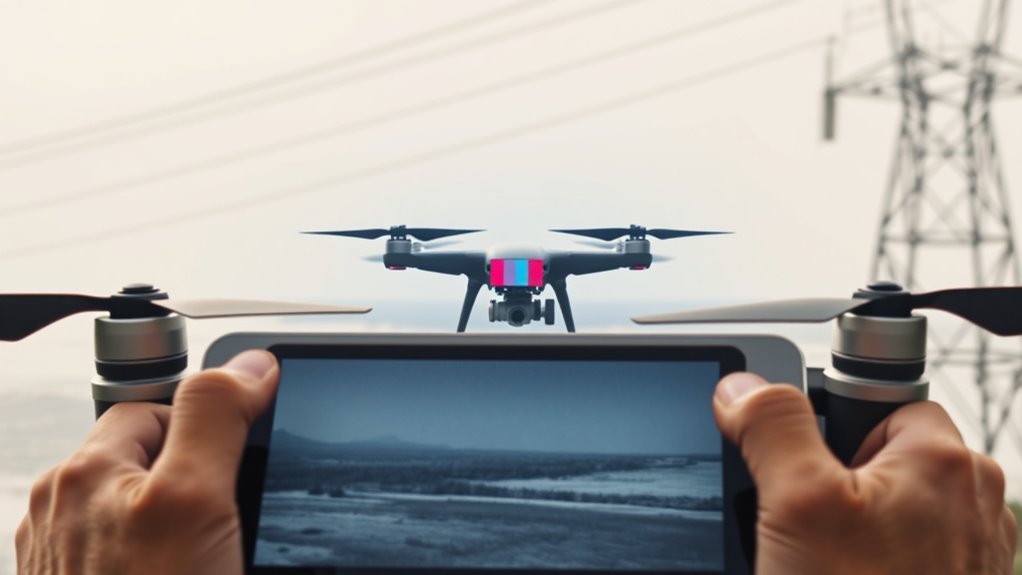
Drone video feed lag is easiest to fix when you first identify which part of the video path is failing. A frozen picture, delayed live view, black screen, and complete “signal lost” warning can come from different causes even though they look similar in flight. Test one variable at a time, starting at short range and only moving to hardware checks after the basic link is stable.
Quick Answer
Drone video feed lag or a Signal Lost warning is usually caused by RF interference, poor antenna orientation, a weak controller-to-phone connection, firmware or app mismatch, or a device struggling with the live stream. Start at close range, verify the link and cable, use automatic channel selection, then test storage and hardware if the problem remains.
Key Takeaways
- A weak live feed does not automatically mean the camera is failing; interference, antenna position, the controller-to-phone cable, firmware, and mobile-device performance can produce similar symptoms.
- Do not assume recording in 4K means the remote controller receives a 4K live stream. For example, DJI specifies a 720p/30fps live view for the Mini 2.
- Automatic channel selection is the safer starting point on supported DJI aircraft. Manually forcing 5.8GHz is not always better and may be restricted in some regions.
- Compare the live view with the file saved to the microSD card. A clean recording with a bad preview points you toward the transmission, controller, app, or display side of the system.
What Causes Drone Video Feed Lag?
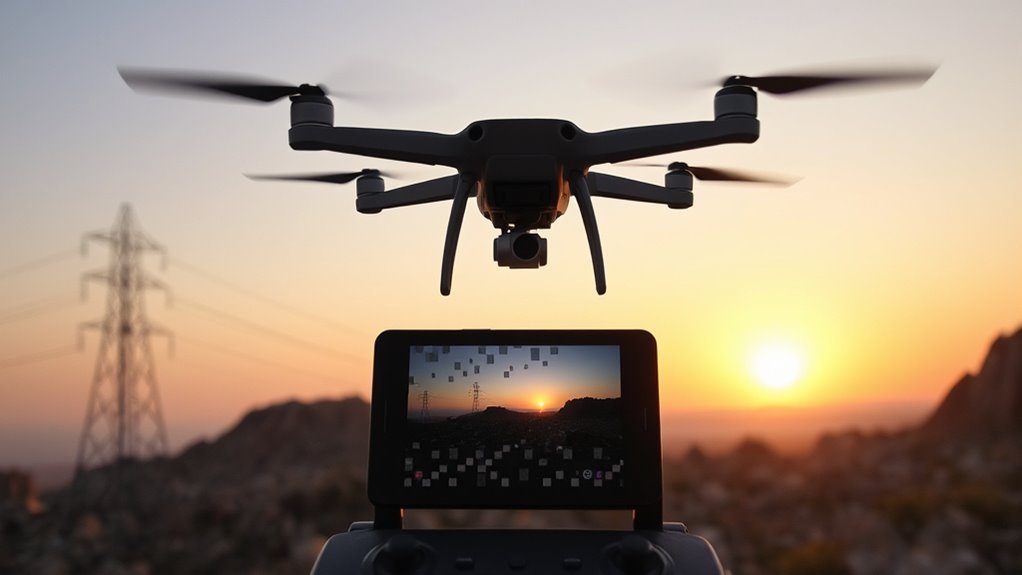
Drone video feed lag usually starts somewhere in the signal chain between the camera, aircraft transmitter, remote controller, cable, app, and display device. Radio interference, blocked line of sight, incorrect antenna orientation, firmware incompatibility, connection faults, and mobile-device problems are the first areas to check.
DJI lists firmware incompatibility, environmental signal interference, incorrect antenna orientation, microSD card problems, and unsupported mobile devices among possible causes of image-transmission faults in its image transmission troubleshooting guidance.
High-resolution recording can also add work to the camera and storage system, but it should not be confused with the resolution of the wireless live view. For example, DJI Mini 2 can record 4K while its remote-controller live view is 720p/30fps. That distinction helps you avoid blaming 4K transmission when the downlink itself is not carrying a 4K preview.
| Symptom | Check First | Useful Test |
|---|---|---|
| Lag worsens with distance | Interference, antenna orientation, obstructions | Repeat the test nearby in an open area |
| Black screen but controller still works | App, phone, cable, firmware, camera feed | Restart the app and test another cable or supported device |
| Recorded file also stutters or corrupts | microSD card or camera subsystem | Test a known-good recommended card |
| Feed fails even at close range | Cable, ports, firmware, app, hardware | Bench-test each part of the connection before flying again |
Battery condition can matter as well. Aging cells may discharge rapidly, lowering transmitter performance and degrading feed quality during flight, so an abnormal voltage drop or unusually fast discharge deserves attention.
Check the Drone Link First
Check the basic link before changing transmission settings or opening the aircraft. You want to confirm that the aircraft, controller, mobile device, and app are communicating correctly at close range.
- Power on and pair the controller correctly. Confirm the remote controller is linked to the aircraft and, where required, connected to the phone or tablet.
- Check the controller-to-phone cable. Reseat both ends and replace the cable temporarily with a known-good data cable if the connection is intermittent.
- Confirm the correct flight app. Make sure the app matches your aircraft and controller model.
- Check firmware compatibility. Aircraft and controller firmware should be compatible with the version of the flight app you are using.
- Test at short range. Keep a clear line of sight and observe whether the feed is stable before increasing distance.
If the image becomes unstable only as the aircraft moves farther away, look closely at antenna orientation, obstructions, and RF congestion. If the same fault appears while the drone is only a few feet away, a cable, app, phone, firmware, camera, or hardware fault becomes more likely.
An antenna inspection should follow if the feed remains unstable. Look for obvious physical damage or obstruction and use the orientation specified for your controller rather than assuming the antenna tips should point directly at the aircraft.
Use Auto Channel Selection Before Forcing 5.8GHz
Do not automatically force the drone to 5.8GHz whenever the picture lags. On supported DJI systems, Auto transmission mode is designed to select a better channel as conditions change, while manual band or channel selection is most useful when you have identified a specific interference problem.
DJI’s current troubleshooting guidance recommends checking the channel display and using Auto rather than Manual as the first response to environmental interference. In crowded areas, moving away from dense Wi-Fi and other RF sources can help more than repeatedly switching settings.
The DJI Mini 2 is a useful example. According to DJI Mini 2 support information, OcuSync 2.0 supports both 2.4GHz and 5.8GHz and can automatically switch to the optimal band and channel according to signal conditions. DJI also notes that 5.8GHz availability varies by region, so it should only be selected where the aircraft supports it and local rules permit it.
If 2.4GHz is visibly congested and your model allows manual selection, testing 5.8GHz may improve the feed. However, compare the actual signal quality rather than treating either band as universally better.
Fix Mobile Device Issues That Break Video Feed
A stable aircraft-to-controller radio link can still produce a poor picture if the phone, tablet, app, or USB connection cannot process the incoming video correctly. This is especially important when telemetry remains visible but the picture freezes or turns black.
Close unnecessary background apps, restart the flight app, and keep the mobile device from overheating. Power-saving features such as Low Power Mode should be disabled during troubleshooting because reduced device performance can make decoding problems harder to separate from radio-link problems.
Keep the device above 20% charge during testing. If the problem continues, compare the same controller and aircraft with another compatible phone or tablet before assuming the drone needs repair.
App Conflicts
App faults can cause lag, freezes, or connection errors even when the aircraft and controller are working normally. Start by confirming the correct app version and then reset the software side of the connection.
- Close and reopen the flight app.
- Clear unnecessary background apps.
- Update the app from the manufacturer’s official source.
- If the problem persists, delete and reinstall the app after backing up important local data.
- On Android, use USB Debugging when it is required to resolve a controller-to-phone connection problem.
DJI specifically lists mobile-device compatibility, USB connection settings, cable faults, and firmware errors among causes of controller-to-phone connection failures in its remote controller and mobile-device connection guide.
Device Power Settings
Device power settings matter most when the radio signal looks healthy but the display still stutters. A phone that is hot, heavily loaded, low on charge, or running several background tasks may struggle to render the live feed smoothly.
Disable battery-saving features during the test, close unnecessary apps, and keep the phone out of direct sun. Compatibility also matters: a device can connect physically yet perform poorly with a demanding flight application such as DJI Pilot 2.
Inspect the charging or data port as well. A stable mobile device is only useful if the cable connection to the controller remains solid throughout the flight.
Use the Right Cable and Clean the Ports
A loose, damaged, or charge-only cable can interrupt communication between the remote controller and mobile device. Reseat the connection first, then test a known-good data cable before replacing more expensive hardware.
A dedicated data cable rated for at least 480 Mbps is preferred over an unknown charging lead. Short runs, ideally 10cm to 30cm, also reduce strain and make accidental disconnection less likely.
Warning: Power off the controller and mobile device before cleaning a connector. Do not scrape contacts or soak a port with liquid. If you use isopropyl alcohol, apply only a very small amount to the swab and allow the port to dry fully before reconnecting power.
Choose a Data Cable
The controller-to-phone lead must carry data, not just power. A cable can still charge the phone while failing to maintain the data connection needed by the app.
- Select a cable intended for data transfer rather than charge-only use.
- Use a compact cable where practical to reduce tension on the controller and phone ports.
- Replace any cable that works only when bent, twisted, or held at a certain angle.
- Keep a known-good spare cable available so you can isolate the cable quickly.
A 480 Mbps or better data rating provides a clear baseline for the original troubleshooting procedure, while the more important practical test is whether the cable maintains a consistent connection with your specific controller and phone.
Clean Controller Ports
Lint, dust, wear, corrosion, or bent contacts can make an otherwise good cable behave intermittently. Inspect both the controller port and mobile-device port under good light before cleaning them.
Use compressed air first. If residue remains, the original maintenance procedure calls for a cotton swab lightly dampened with 99% isopropyl alcohol, followed by complete drying before power is restored.
Check the ports for excessive movement or misaligned contacts. The original procedure also recommends clearing port buildup every 20 flights, especially when the controller is carried in pockets, soft cases, or dusty equipment bags.
Reseat Connectors Carefully
Reseating each connection is a simple way to expose an intermittent fault. Change one connection at a time and check whether the live view improves before moving to the next part.
- Unplug and reconnect the controller-to-phone cable at both ends.
- Confirm the plug is fully seated and not blocked by a phone case.
- Test another known-good cable.
- Restart the controller and app after reconnecting.
If the feed fails whenever the plug moves, stop treating the problem as radio interference. The cable or port is the more likely fault.
Fix Firmware Mismatch Issues
Firmware incompatibility can produce a black screen, frozen live view, or image-transmission error even when the controller still communicates with the aircraft. Update the aircraft, controller, and app through the manufacturer’s supported update process before attempting deeper hardware repairs.
| Component | Action | What It Checks |
|---|---|---|
| Aircraft | Update or refresh using supported DJI software | Aircraft-side firmware corruption or mismatch |
| Remote controller | Install the compatible firmware | Controller-to-aircraft compatibility |
| Mobile app | Install the supported current build | App and operating-system compatibility |
| Complete system | Restart, reconnect, and retest nearby | Whether the update actually restored the video path |
DJI Assistant 2 can be used with supported products when the normal update path does not complete correctly. Availability of firmware refreshes or downgrades varies by aircraft and firmware release, so use only the options provided for your model rather than installing an unrelated build.
After the update, reconnect the system and verify both telemetry and live video at close range. Do not make several firmware, channel, and cable changes at the same time because you will lose the ability to identify which change fixed the fault.
Check for SD Card and Camera Slowdowns
A microSD card is more directly involved in recording than in the radio downlink, but a corrupted, incompatible, or slow card can still create camera-side problems. DJI includes microSD-card troubleshooting in its image-transmission guidance, so the card is worth testing after the link, app, and controller connection have been checked.
The best diagnostic is to compare the live preview with the recorded file. If the preview lags but the file on the card is clean, focus on the transmission or display path. If the saved footage also freezes, corrupts, or stops recording, investigate the card and camera subsystem more closely.
Slow Card Write Speeds
The card must sustain the recording bitrate required by the camera. Instead of relying only on a generic write-speed number, use a card type that the aircraft manufacturer approves for your exact model.
For DJI Mini 2, Mini 2 SE, and Mini 4K, DJI lists UHS-I Speed Grade 3 media or cards from its recommended drone storage-card list. The original troubleshooting procedure also treats cards below 30MB/s as suspect when high-bitrate recording is involved.
- Confirm the card meets the drone manufacturer’s specification.
- Back up important footage before formatting.
- Format the card using the method recommended for the aircraft.
- Test a known-good card if recording or camera faults continue.
SanDisk Extreme is one of the card families included on DJI’s recommended lists for several Mini-series capacities, but the exact supported capacity and model should still match your aircraft.
Camera Buffer Bottlenecks
A camera buffer problem becomes more likely when the saved recording is also affected. Slow storage, card corruption, high recording demand, or a camera subsystem fault can cause the recording path to fall behind.
Cards below 30 MB/s can be too slow for some high-bitrate recording tasks. A heavily used or failing card may also produce errors that disappear when you substitute a known-good card.
If the live view remains bad while the recorded file is consistently clean, do not keep blaming the storage card. Return to the radio link, app, mobile device, controller cable, or image-transmission hardware.
Check the Gimbal Ribbon Cable
A damaged gimbal ribbon cable can interrupt communication between the camera assembly and the aircraft, causing a black screen or intermittent image problems. Inspect it only when the easier external checks have failed or when the drone has suffered an impact, hard landing, or visible gimbal damage.
- Look for fraying, sharp creases, tears, or exposed conductors.
- Check whether accessible connectors appear loose or damaged.
- Watch for image dropouts that happen as the gimbal moves.
- Note abnormal gimbal vibration, startup movement, or camera errors.
If your normal maintenance routine includes an after-flight inspection, include visible ribbon-cable condition when possible. Do not dismantle a sealed camera or gimbal assembly unless the manufacturer provides a user-service procedure for your model.
If the cable is visibly damaged, replacement or professional service is usually safer than repeatedly flying with an intermittent camera connection.
Reduce Wi-Fi and RF Interference
RF interference is most likely when the feed gets worse in a particular location, around buildings, or as distance increases. Dense Wi-Fi networks, other wireless devices, physical obstructions, and poor antenna orientation can all reduce the margin of the video link.
Start with a short test in a more open area. Keep a clear line of sight, orient the controller antennas according to the manufacturer’s instructions, and avoid standing immediately beside strong wireless transmitters or clusters of active electronics.
DJI also suggests reducing nearby wireless interference and, for Mini 2, notes that 2.4GHz and 5.8GHz devices can affect reception. Turning off unused Bluetooth devices can be a useful comparison test when troubleshooting a marginal link.
If signal strength suddenly drops in flight, do not continue farther away simply to see whether it recovers. Reduce the distance, regain a clearer path, and follow the aircraft’s documented signal-loss procedure.
Know When Hardware Needs Repair
Hardware repair becomes more likely when the same fault remains at close range after you have tested interference, antenna orientation, another cable, a compatible mobile device, firmware, and a known-good storage card. Repeated blackouts after a crash or physical damage also justify a closer inspection.
- Inspect visible cables, connectors, antenna areas, and camera mounts for damage or looseness.
- Check ports for corrosion, bent contacts, or excessive movement.
- Compare live-view behavior with the footage saved to the card.
- Evaluate battery condition if the pack discharges unusually quickly or voltage behavior has changed.
An aging pack around 2.5 years old may deserve extra scrutiny if it now drains rapidly, although age alone does not prove that it is causing the video fault.
Electrical noise from ESCs can also introduce static in some systems if insulation or grounding is poor. If internal wiring, the image-transmission module, gimbal assembly, or controller hardware appears to be involved, professional diagnosis is safer than repeated disassembly.
Frequently Asked Questions
Why Does My Drone Keep Losing Signal?
Your drone may keep losing signal because of RF interference, blocked line of sight, poor antenna orientation, excessive distance, or a fault in the controller-to-aircraft link. Test it at short range in an open area first. If the connection is still unstable nearby, inspect firmware, cables, ports, antennas, and hardware.
Why Is My Video Lagging While Recording?
Video can lag while recording because the live transmission link, mobile-device decoder, camera processor, or storage path is under strain. Compare the live preview with the saved recording. If only the preview lags, focus on signal and display issues; if the recorded file also stutters, test the microSD card and camera subsystem.
Can I Shoot Down a Drone Spying on My Property?
In the United States, no. The FAA says shooting at an aircraft, including an unmanned aircraft, is illegal under federal law and can create serious safety hazards. Document the incident and contact local law enforcement if you believe a drone is being operated unsafely or unlawfully; privacy rules can also vary by state and locality.
What Happens if a DJI Drone Loses Signal?
A DJI drone follows the signal-loss behavior supported and configured for that model rather than always performing one universal sequence. DJI recommends setting Remote Controller Signal Lost to RTH on supported aircraft and confirming the RTH altitude is high enough for surrounding obstacles before flight. Some configurations may use other supported signal-loss actions.
Does Recording in 4K Mean the Drone Sends a 4K Live Feed?
No, recording resolution and live-view resolution can be different. A drone may record a high-resolution file to its storage card while sending a lower-resolution preview to the controller. DJI Mini 2, for example, supports 4K recording but specifies a 720p/30fps live view, so 4K recording does not mean the radio link is transmitting 4K video.
Conclusion
A lagging or disappearing drone feed is best treated as a signal-path problem until testing proves otherwise. Start with short-range link checks, antenna orientation, Auto channel selection, the controller-to-phone cable, firmware, and the mobile device. Then compare the live view with the saved recording before moving to the microSD card, gimbal wiring, or internal hardware.
If signal loss occurs in flight, use the aircraft’s documented failsafe behavior rather than guessing. DJI’s Flight Safety Guidelines recommend configuring supported aircraft for RTH on remote-controller signal loss and setting a safe RTH altitude for nearby obstacles.
Sources
- DJI Help Center: Image Transmission Issues: Firmware, interference, Auto channel selection, antenna, microSD, and mobile-device troubleshooting.
- DJI Mini 2 Support: 2.4GHz/5.8GHz operation, automatic frequency switching, live-view resolution, latency, and signal-reception guidance.
- DJI Help Center: Remote Controller and Mobile Device Connection Errors: Cable, port, Android USB, firmware, app, and mobile-device connection troubleshooting.
- DJI Recommended Storage Cards for Drones: Supported card classes and recommended microSD models for DJI aircraft.
- DJI Flight Safety Guidelines: Remote-controller signal-loss behavior, RTH settings, antenna orientation, and flight-safety procedures.
- Federal Aviation Administration: What To Know About Drones: U.S. guidance on unsafe drone operations, privacy jurisdiction, and shooting at unmanned aircraft.

