Apple CarPlay can disconnect in your Toyota Tundra because of a wireless pairing problem, a damaged USB data cable, an incorrect USB port, outdated software, or a disabled iPhone setting. Start by identifying whether the problem affects wireless CarPlay, wired CarPlay, or both. That one detail will help you avoid repeating fixes that do not apply to your connection.
Quick Answer
To fix Toyota Tundra Apple CarPlay disconnects, update your iPhone and multimedia system, restart both devices, confirm Siri and CarPlay are enabled, and re-pair the phone. For wireless CarPlay, check Bluetooth, Wi-Fi, and Auto-Join. For wired CarPlay, use the correct USB data port and a direct, undamaged data cable.
Key Takeaways
- Troubleshoot wireless and wired CarPlay separately because they use different connections.
- Wireless CarPlay needs Bluetooth, Wi-Fi, and the CarPlay network’s Auto-Join setting.
- Wired CarPlay needs a data-capable cable and the correct USB data port, not a charge-only port.
- Enable Siri, check Screen Time restrictions, and forget and re-add the Tundra when pairing data becomes corrupted.
- Test another cable or compatible iPhone before assuming the Tundra’s multimedia hardware has failed.
At a Glance
| Time Required | 10 to 30 minutes for basic checks |
| Difficulty | Easy |
| Tools Needed | Your iPhone, vehicle key, and a second USB data cable for wired testing |
| Cost | Usually free; approximately $15 to $35 if a replacement data cable is needed. Dealer diagnostic charges vary. |
Warning: Park the Tundra safely before changing phone, Bluetooth, Wi-Fi, USB, or multimedia settings. Do not troubleshoot with the phone in your hand while driving.
Understanding Toyota Tundra Apple CarPlay Disconnects
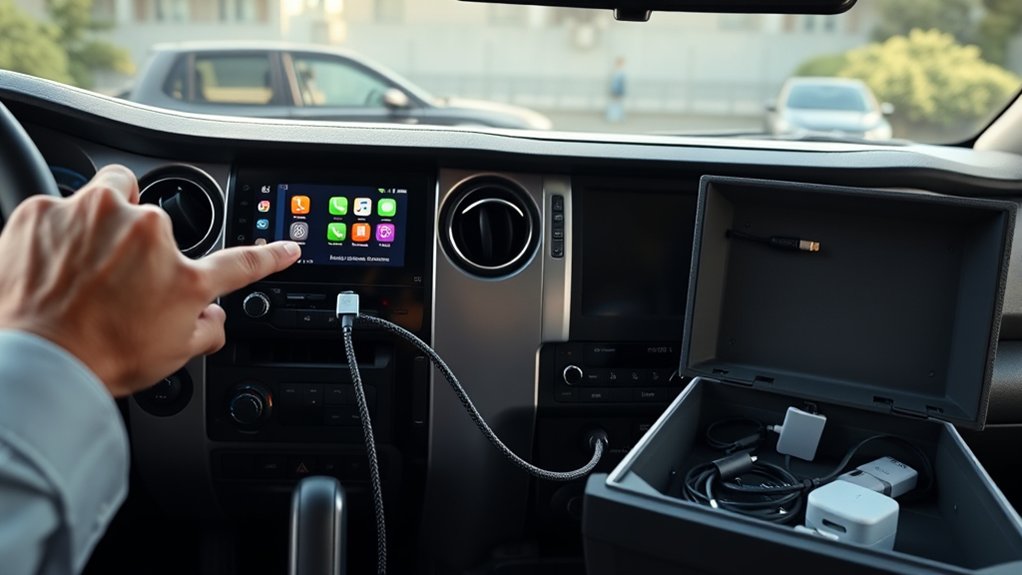
Your first step is to identify the connection type. Wireless CarPlay begins through Bluetooth and then uses Wi-Fi for the active connection. Wired CarPlay sends data through the Tundra’s USB port. A fix for one type may have no effect on the other.
Factory Apple CarPlay became available on the Tundra for the 2020 model year. The redesigned 2022 and newer Tundra uses Toyota Audio Multimedia with wireless CarPlay support. Earlier or modified trucks may have a different factory or aftermarket head unit, so menu names and capabilities can vary.
| Connection | Most Relevant Checks |
|---|---|
| Wireless only | Bluetooth, Wi-Fi, Auto-Join, phone pairing, competing devices, and wireless interference |
| Wired only | USB data cable, correct data port, loose connectors, debris, hubs, and adapters |
| Wired and wireless | iOS, Siri, Screen Time restrictions, multimedia software, phone profile, and infotainment hardware |
Essential Initial Steps for Troubleshooting CarPlay
Complete these basic checks before resetting settings or scheduling service. Test CarPlay after each step so you know which change solved the problem.
- Park and fully start the Tundra. Wait for the multimedia system to finish loading.
- Restart the iPhone. A restart can clear a temporary Bluetooth, Wi-Fi, USB, or CarPlay process error.
- Restart the vehicle. Turn the truck off, open the driver’s door, wait briefly for the multimedia system to shut down, and restart it.
- Install available updates. Check both the iPhone and Toyota multimedia system.
- Confirm Siri is enabled. CarPlay requires Siri for several functions and may not start correctly when Siri is disabled.
- Open the CarPlay icon manually. Select the CarPlay icon on the Tundra’s display if it does not open automatically.
- Identify the failing connection. Note whether the problem occurs wirelessly, through USB, or with both methods.
Check the Required iPhone Settings
Open Settings > General > Software Update and install the latest compatible iOS update. Avoid relying on a version number from an older guide because Apple releases new bug fixes and security updates regularly. You can review Apple’s current advice in its official CarPlay troubleshooting guide.
Next, confirm the following settings:
- Siri: Open Settings and verify that Siri is enabled.
- CarPlay vehicle: Open Settings > General > CarPlay and confirm that your Tundra appears.
- Screen Time: Open Settings > Screen Time > Content & Privacy Restrictions > Allowed Apps & Features, then confirm CarPlay is allowed.
- Bluetooth: Keep it enabled when using or setting up wireless CarPlay.
- Wi-Fi: Keep it enabled for wireless CarPlay, even when the iPhone is not using a normal internet network.
Verify the Apple CarPlay Setup in Your Tundra
On newer Toyota Audio Multimedia systems, open the main menu and select Settings > Bluetooth & Devices. Select your iPhone and confirm that Use for Apple CarPlay is turned on. The wording may differ on older Tundra systems.
If the phone appears more than once, or an old iPhone profile remains saved, remove unused profiles. Also check which phone is set as the primary device when several drivers have paired phones in the truck.
Note: A wireless charging pad charges the phone but does not create a wireless CarPlay connection. Wireless CarPlay still requires Bluetooth pairing and Wi-Fi.
Fixing Wireless Apple CarPlay Disconnects
Use this section when CarPlay disconnects without a USB cable or when wired CarPlay works but wireless CarPlay does not.
Verify the Bluetooth Connection
Open Bluetooth settings on the iPhone and confirm that the Tundra is listed. Then open the Tundra’s Bluetooth and device menu and confirm that the correct iPhone is selected for Apple CarPlay.
If another paired phone connects first, temporarily turn off Bluetooth on that phone or remove it from the truck while testing. This helps determine whether the multimedia system is switching between devices.
Ensure Wi-Fi and Auto-Join Are Active
Wireless CarPlay uses Wi-Fi after the initial Bluetooth handshake. On the iPhone, open Settings > Wi-Fi, tap the information button beside the CarPlay network, and confirm that Auto-Join is enabled. Apple includes this check in its CarPlay support instructions.
Do not manually disconnect from the CarPlay network simply because it does not provide normal internet access. That network carries the CarPlay connection between the phone and the truck.
Pro Tip: When wireless CarPlay fails but USB CarPlay remains stable, the problem is more likely related to wireless pairing, Wi-Fi, device priority, or interference than to the CarPlay app itself.
Fixing Wired Apple CarPlay Disconnects
Use this section when CarPlay drops while the phone is connected by USB, reconnects when the cable moves, or charges without opening CarPlay.
Inspect the USB Data Cable
Use a cable that supports both charging and data. A charging-only cable can power the phone without carrying CarPlay data. Connect the phone directly to the truck rather than through a USB hub, cable extension, or chain of adapters.
- Lightning iPhones: Use an Apple cable or an Apple MFi-certified data cable.
- USB-C iPhones: Use a reliable USB-C data cable that matches the vehicle’s data port.
- Adapters: Avoid them when a direct cable is available. Apple notes that some adapter-and-cable combinations can disrupt wired CarPlay.
- Physical damage: Replace cables with frayed insulation, bent connectors, loose ends, or intermittent charging.
Use the Correct USB Port
Connect the iPhone to the Tundra’s designated multimedia data port. A port intended only for charging cannot start wired CarPlay. Toyota also advises connecting the phone directly rather than using a hub.
If the Tundra has more than one USB port, test the port marked with a smartphone, multimedia, or data symbol. Consult the manual for your model year when the ports are not clearly labeled.
Inspect the Phone and Vehicle Ports
Check both connectors for lint, dust, moisture, or looseness. Loose debris in an iPhone port can prevent the plug from seating fully. Do not insert metal tools or apply liquid cleaner inside either port.
Test a second known-good data cable. If the connection fails whenever the plug moves inside the truck’s USB port, the vehicle port may need inspection.
Updating Your iPhone and Tundra Software
Update the iPhone and CarPlay Apps
Install the latest compatible iOS update under Settings > General > Software Update. Also update the navigation, audio, messaging, or podcast app involved when the problem occurs only inside one app.
If CarPlay disconnects only while running a specific app, test Apple Maps, Phone, or Music. A stable connection in other apps points toward an app-specific problem rather than a complete CarPlay failure.
Update the Tundra Multimedia System
The 2025 Toyota Tundra multimedia manual provides a Software Update menu that can check the installed version and available updates. Depending on the system and region, Toyota may deliver updates through the vehicle’s data connection, Wi-Fi, or a USB drive.
- Park the Tundra and leave the multimedia system on.
- Open the main menu and select Settings.
- Select Software Update.
- Choose View when an update is available.
- Read the update information and follow the on-screen instructions.
- Allow the system to restart if prompted.
You can also check Toyota’s Audio Multimedia System Updates portal for eligible USB updates.
Warning: Do not remove a USB drive or interrupt vehicle power while a USB multimedia update is installing. Follow the instructions for your exact Tundra system.
Proven Solutions for Persistent CarPlay Issues
Restart Both Systems Completely
Restart the iPhone, then shut down and restart the Tundra. If a normal vehicle restart does not help, turn off the truck, open the driver’s door, wait for the multimedia display to shut down, and then start the vehicle again.
This process is more useful than repeatedly switching Bluetooth or Wi-Fi off and on because it reloads the phone and vehicle connection services.
Forget and Reconnect the Tundra
Corrupted or outdated pairing information can cause repeated disconnects. Remove the connection from both devices before setting it up again.
- On the iPhone, open Settings > General > CarPlay.
- Select the Tundra and tap Forget This Car.
- Open Settings > Bluetooth and forget the Tundra Bluetooth entry if it remains.
- On the Toyota multimedia screen, open Settings > Bluetooth & Devices.
- Select the iPhone and delete it from the vehicle.
- Restart the iPhone and Tundra.
- Add the phone again and approve the Bluetooth, contacts, notification, and CarPlay prompts.
- Confirm Use for Apple CarPlay is enabled for that phone.
Reset iPhone Network Settings as a Last Resort
Use Reset Network Settings only after updating, restarting, checking restrictions, testing another cable, and re-pairing the vehicle.
Open Settings > General > Transfer or Reset iPhone > Reset > Reset Network Settings. This does not erase photos or apps, but it removes previously used Wi-Fi networks and certain VPN and network settings. You will need to reconnect to saved networks afterward. Apple explains the reset effects in its iPhone settings guide.
Diagnose CarPlay by the Symptom
| Symptom | Likely Area to Check | Best Test |
|---|---|---|
| Wireless disconnects, but USB remains stable | Bluetooth pairing, Wi-Fi Auto-Join, competing phones, or wireless interference | Forget and re-pair the phone; disable other paired phones during the test |
| USB disconnects when the cable moves | Damaged cable, debris, loose phone port, or loose vehicle port | Try a second direct data cable without an adapter |
| The phone charges, but CarPlay does not open | Charging-only cable, charge-only port, CarPlay setting, Siri, or Screen Time restriction | Use the multimedia data port and verify CarPlay is allowed |
| CarPlay fails during calls or audio in one app | App update, app-specific bug, audio routing, or phone software | Repeat the test with an Apple app and another audio source |
| One iPhone fails, but another works | The first iPhone’s settings, port, software, or pairing profile | Update, restart, re-pair, and inspect the affected iPhone |
| Several iPhones fail in wired and wireless modes | Toyota multimedia software, USB hardware, antenna, or head-unit fault | Check updates, record the symptoms, and arrange a dealer diagnosis |
Tracking Intermittent CarPlay Problems
Intermittent problems are difficult to diagnose because the connection may work normally during a service visit. Instead of relying on a general description such as “CarPlay sometimes disconnects,” record the conditions surrounding each failure.
Note the following details:
- The date and approximate time
- Whether the connection was wired or wireless
- The iPhone model and installed iOS version
- The Toyota multimedia software version
- Whether the failure occurred during startup, navigation, a call, or audio playback
- The app that was active
- Whether the phone continued charging
- Whether CarPlay returned by itself or required a restart
This information helps you identify a repeatable pattern and gives a Toyota technician useful evidence if professional diagnosis becomes necessary.
When to Seek Professional Help for CarPlay Problems
Contact a Toyota dealer or qualified automotive electronics technician after completing the basic software, connection, cable, and pairing checks when any of these conditions apply:
- Multiple compatible iPhones disconnect in both wired and wireless modes.
- The multimedia display freezes, restarts, or goes black.
- The USB port feels loose or loses its connection when touched.
- The truck cannot complete an available multimedia software update.
- CarPlay stopped working after other multimedia or electrical problems appeared.
- The problem returns immediately after the phone and truck are fully re-paired.
Bring your phone, the cable used during the failures, your Tundra’s VIN, the multimedia software version, and your symptom log. Ask the service adviser to check for applicable multimedia updates, service information, stored faults, USB-port damage, and head-unit communication problems.
Warranty coverage depends on the truck’s age, mileage, repair history, and the cause of the failure. Confirm coverage with the dealer before authorizing chargeable diagnostic or repair work.
Best Practices to Maintain a Stable CarPlay Connection
- Keep the iPhone and Toyota multimedia software updated.
- Use a short, direct USB data cable and avoid unnecessary adapters for wired CarPlay.
- Replace a cable as soon as it becomes loose, frayed, or intermittent.
- Remove old or unused phone profiles from the Tundra.
- Keep Bluetooth, Wi-Fi, and Auto-Join enabled for wireless CarPlay.
- Avoid repeatedly changing connection settings when the truck is starting and the multimedia system is still loading.
- Test CarPlay after each change so you can identify the actual fix.
Frequently Asked Questions
Why does my Toyota Tundra Apple CarPlay keep disconnecting?
Common causes include corrupted wireless pairing, Wi-Fi Auto-Join being disabled, another paired phone taking priority, an outdated iPhone or multimedia system, a damaged USB data cable, or use of a charge-only USB port. Identify whether the failure affects wired CarPlay, wireless CarPlay, or both before choosing a fix.
How do I keep Apple CarPlay from disconnecting?
Install current software, restart the phone and truck, enable Siri, allow CarPlay under Screen Time, and re-pair the devices. For wireless use, enable Bluetooth, Wi-Fi, and Auto-Join. For wired use, connect directly through the correct USB data port with an undamaged data cable.
How do I reset Apple CarPlay on a Toyota Tundra?
On the iPhone, open Settings > General > CarPlay, select the Tundra, and tap Forget This Car. Delete the iPhone from the Tundra’s Bluetooth and Devices menu, restart both systems, pair the phone again, and enable Use for Apple CarPlay.
Why does wired CarPlay work when wireless CarPlay does not?
That pattern usually points toward Bluetooth pairing, the CarPlay Wi-Fi network, Auto-Join, device priority, or wireless interference. Forget the vehicle on the iPhone, remove the phone from the Tundra, restart both devices, and complete a fresh wireless pairing.
Will resetting network settings fix CarPlay?
It can resolve corrupted Bluetooth or Wi-Fi settings, but it should be a late troubleshooting step. Reset Network Settings removes previously used Wi-Fi networks and certain VPN settings, so try restarting, updating, checking restrictions, and re-pairing the Tundra first.
When should a Toyota dealer inspect the CarPlay problem?
Arrange an inspection when several compatible iPhones fail, both wired and wireless connections disconnect, the multimedia display freezes or restarts, the USB port is loose, or the system cannot install an update. Bring your phone, cable, software information, and a record of when the failures occur.
Conclusion
Most Toyota Tundra Apple CarPlay disconnects can be traced to either the wireless pairing, the USB connection, an iPhone setting, or outdated multimedia software. Start with the connection type, complete one test at a time, and use another cable or iPhone to isolate the cause. When several phones fail in both wired and wireless modes, document the symptoms and have the Tundra’s multimedia system professionally inspected.
Sources
- Apple Support: If You Need Help With CarPlay — official connection, Siri, Screen Time, Auto-Join, restart, and re-pairing steps
- Apple iPhone User Guide: Connect iPhone to CarPlay — official wired and wireless setup guidance
- 2025 Toyota Tundra Multimedia Owner’s Manual — Toyota CarPlay setup, USB requirements, troubleshooting, and software-update instructions
- Toyota Audio Multimedia System Updates — official firmware eligibility and USB update portal
- Apple iPhone User Guide: Reset iPhone Settings — effects of resetting network settings