
Choosing between Focus Assist Priority Only vs Alarms Only in Windows 10 depends on which notifications you need during focused work. Both modes reduce interruptions, but they handle important messages differently. Understanding those differences helps you avoid missing essential alerts while keeping unwanted notifications off your screen.
Quick Answer
Priority Only allows notifications from selected apps, contacts, and other items on your custom priority list. Alarms Only hides all notifications except alarms, including notifications you marked as priorities. Choose Priority Only when you need important communication. Use Alarms Only when you want fewer interruptions during studying, presentations, or other focused activities.
Last checked: September 26, 2026. Dates and figures were verified against official sources.
Focus Assist Priority Only vs Alarms Only
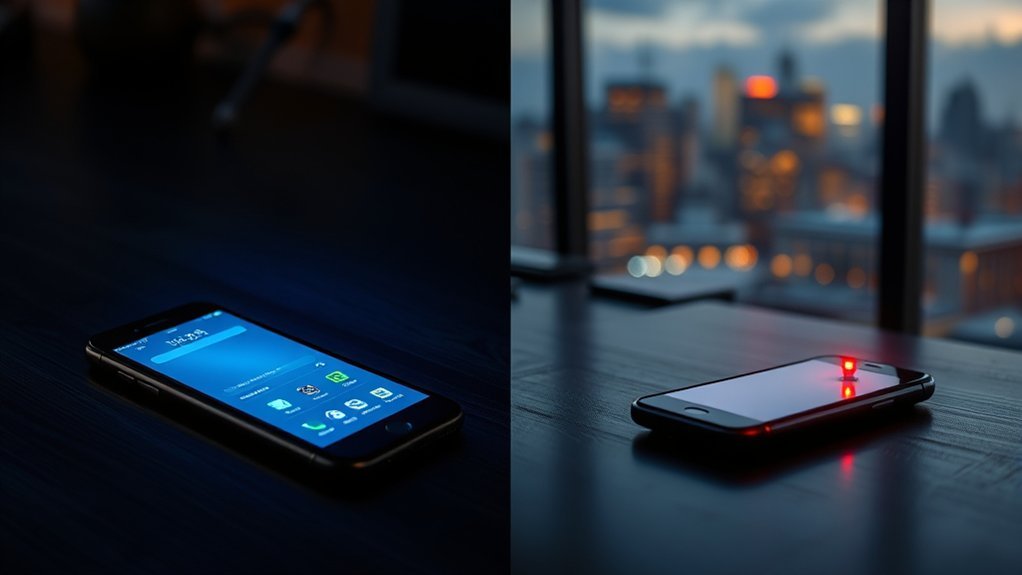
The main difference is notification control. Priority Only uses a customizable list to decide which alerts can interrupt you. Alarms Only applies a stricter filter that allows alarms but hides other notifications.
Windows 10 also provides an Off setting, which restores normal notification behavior.
| Feature | Priority Only | Alarms Only |
|---|---|---|
| Selected app notifications | Allowed through the priority list | Hidden |
| Selected contacts | Allowed when supported and configured | Hidden |
| Calls and texts | Can be allowed through supported priority settings | Hidden |
| Reminders | Can be allowed through priority settings | Hidden |
| Alarms | Allowed | Allowed |
| Automatic scheduling | Supported | Supported |
| Typical use | Work and communication | Deep work and presentations |
According to Microsoft’s Focus Assist documentation, automatic rules can activate either notification level during selected hours or activities.
Focus Assist generally redirects suppressed Windows notifications to Action Center rather than deleting them. You can review those notifications after your focused session.
What Does Priority Only Allow?
Priority Only lets selected notifications appear while suppressing other Windows alerts. You decide which apps and supported communication categories deserve attention through the custom priority list.
This mode is useful when you need to concentrate but cannot ignore every incoming message.
Allowed Apps and Contacts
You can add supported applications to your priority list so their notifications remain visible during Priority Only sessions.
For example, you might allow your work communication app while leaving routine email, shopping, and social media notifications suppressed.
The People section, where available, provides additional control over selected contacts. Contact-related options depend on the Windows configuration and supported communication features.
Adding an application to the priority list does not guarantee that it will generate notifications. The application must still have notifications enabled in Windows and within its own settings.
Reminders, Calls, and Texts
Priority Only can allow supported calls, text messages, and reminders through its communication settings. The available options depend on your Windows installation and connected applications.
The priority list may include options for incoming calls, including supported voice-over-IP calls, and reminders from applications.
If you rely on phone notifications, the phone must be connected to Windows through a supported application.
Microsoft’s Phone Link requirements and setup guide confirms that supported Android phones and iPhones can connect to Windows 10.
However, phone notification availability and priority handling depend on the device, permissions, and application settings. Connecting a phone does not automatically make every phone notification a priority notification.
For important communication, confirm that the relevant Windows application can display notifications and is included in your priority settings when needed.
Custom Priority List
The custom priority list controls which supported notifications can interrupt you while Priority Only is active.
To open it, go to Settings > System > Focus assist and select Customize your priority list.
Review the available categories:
- Calls, texts, and reminders: Configure supported communication and reminder exceptions.
- People: Add or remove supported contacts where this feature is available.
- Apps: Allow notifications from selected applications.
Choose only the items that need your immediate attention. A long priority list can defeat the purpose of filtering notifications.
You can return to the list whenever your work or communication needs change.
When Should You Use Priority Only?
Use Priority Only when you need fewer interruptions but still want important communication to reach you. It offers a middle ground between normal notifications and the stricter Alarms Only setting.
This makes it suitable for regular work, studying, and meetings where you may need to respond to selected people or applications.
When Important Apps Must Stay Available
Priority Only is useful when certain applications provide information you cannot afford to miss during a work session.
For example, a team member might need alerts from a work messaging application while keeping unrelated notifications hidden.
A practical setup is to:
- Allow your essential communication application.
- Add supported contacts whose messages need attention.
- Enable reminders if they are necessary during the session.
- Leave routine applications outside the priority list.
This approach keeps your notification stream manageable without requiring you to disable all communication.
Remember that app priority is separate from the application’s own notification settings. Both must allow the alert for it to appear.
Meetings and Presentations
Priority Only can reduce interruptions during meetings while keeping selected communication available.
Before presenting, review your allowed applications and contacts. An unnecessary priority entry can still produce a notification banner while you share your screen.
For meetings where you must remain reachable, allow only the applications that support essential communication.
For presentations where no message should appear on screen, Alarms Only provides a stricter notification filter.
Windows 10 can also activate Focus Assist automatically when you duplicate your display, making it useful for presentation setups.
When Should You Use Alarms Only?
Alarms Only is useful when you want to hide Windows notifications without blocking alarms. It suppresses ordinary application notifications and priority-list exceptions while the mode is active.
This makes it suitable for deep work, studying, gaming, and presentations where interruptions would be especially distracting.
Unlike Priority Only, it does not allow selected apps or contacts to bypass the notification filter.
Common situations include:
- Writing or studying without incoming message banners.
- Delivering a presentation with fewer unexpected pop-ups.
- Working on a task that requires sustained attention.
- Playing a game without routine Windows notification interruptions.
Alarms Only does not allow ordinary reminders as an exception. If a time-sensitive reminder must appear, consider Priority Only with the appropriate reminder setting.
Also, Focus Assist controls supported Windows notifications. It does not guarantee that every third-party application’s custom pop-up, in-app message, or sound will be suppressed.
Applications that use their own notification systems may require separate adjustments.
After your session, open Action Center to review notifications that Windows redirected while Focus Assist was active.
How to Set Focus Assist in Windows 10
You can change Focus Assist through Windows Settings or the Action Center shortcut. Both methods let you switch between Priority Only, Alarms Only, and Off.
Use Settings when you need to configure priority lists or automatic rules.
Method 1: Change Focus Assist Through Settings
- Open the Start menu.
- Select Settings.
- Open System.
- Select Focus assist.
- Choose Priority only, Alarms only, or Off.
- If you selected Priority only, open Customize your priority list to configure exceptions.
The selected mode takes effect without requiring a computer restart.
You can return to the same page whenever you need a different notification level.
Method 2: Use the Action Center Shortcut
The Action Center provides a faster way to switch modes without opening the full Settings application.
- Select the Action Center icon at the right end of the taskbar.
- Select Expand if the Focus assist tile is hidden.
- Select Focus assist to cycle through the available modes.
- Stop when the tile displays your preferred setting.
The tile cycles between Priority only, Alarms only, and Off.
You can also right-click the Action Center icon to access Focus Assist options, depending on your Windows configuration.
Microsoft documents these controls in its Windows accessibility guide for reducing distractions.
How to Customize Priority Lists and Schedules
Windows 10 lets you configure both the notifications that can interrupt you and the conditions that activate Focus Assist.
Priority lists control exceptions, while automatic rules control when a selected notification mode starts.
How to Add an Application to Your Priority List
- Open Settings > System > Focus assist.
- Select Customize your priority list.
- Find the Apps section.
- Select Add an app.
- Choose the application you want to allow.
- Confirm that Priority only is selected as your active Focus Assist mode.
Repeat the process for other essential applications.
To remove an application, return to the priority list, select its entry, and use the available removal option.
If an application does not appear in the available list, it may not support the required Windows notification integration.
How to Schedule Focus Assist Automatically
Automatic rules can activate Focus Assist during selected hours without requiring you to turn it on manually every day.
- Open Settings > System > Focus assist.
- Scroll to Automatic rules.
- Select During these times.
- Turn the rule on.
- Set the desired start time.
- Set the desired end time.
- Choose the available repeat option for daily, weekday, or weekend use.
- Select Priority only or Alarms only as the focus level.
For example, you could use Priority Only during regular working hours so essential applications remain available while other notifications stay quiet.
You could create a different setup for times when you want fewer interruptions, using Alarms Only instead.
The schedule follows your computer’s configured time and date settings.
Other Automatic Focus Assist Rules
Besides scheduled hours, Windows 10 provides automatic rules for certain activities.
These options can be enabled or disabled individually.
| Automatic Rule | When It Applies | Practical Use |
|---|---|---|
| During these times | During your configured schedule | Regular work or study periods |
| When I’m duplicating my display | When Windows duplicates the display | Presentations and external displays |
| When I’m playing a game | During supported gaming activity | Reducing gaming interruptions |
| When I’m using an app in full-screen mode | When a supported application runs full screen | Videos and full-screen applications |
Select an automatic rule to adjust its focus level and other available options.
You can also enable the setting that shows a notification in Action Center when Focus Assist activates automatically.
This is useful for understanding why notifications have suddenly become quiet.
How to Review Notifications You Missed
Focus Assist can show a summary of suppressed notifications when you return to normal notification mode.
To enable this feature:
- Open Settings > System > Focus assist.
- Find Show me a summary of what I missed while focus assist was on.
- Enable the checkbox.
Windows can then notify you about items redirected to Action Center during the focused period.
You can disable the summary if you prefer to review Action Center manually.
Why Is Focus Assist Not Working Correctly?
Focus Assist problems usually involve an incorrect mode, an automatic rule, application notification settings, or unsupported notification behavior.
Start by confirming the active mode. Then check the priority list and the settings of the application causing trouble.
Important Notifications Are Not Appearing
If an expected notification disappears during Priority Only, check whether the relevant application is allowed.
- Confirm that Focus Assist is set to Priority only rather than Alarms only.
- Open Customize your priority list.
- Check whether the required application or supported contact is included.
- Open Settings > System > Notifications & actions.
- Verify that notifications are enabled for the application.
- Check the application’s own notification settings.
If the alert comes from a connected phone, also check the phone connection and notification permissions.
Notifications Still Appear During Alarms Only
Alarms Only suppresses supported Windows notifications, but some applications use separate notification systems.
If a pop-up continues to appear, identify which application generated it.
Check whether the application displays its own in-app alerts or uses an independent notification window.
You may need to disable those alerts within the application itself.
Also confirm that Focus Assist is actually set to Alarms only and that an automatic rule has not selected a different mode.
Focus Assist Keeps Turning On Automatically
An enabled automatic rule is a common reason Focus Assist activates unexpectedly.
Open Settings > System > Focus assist and review the Automatic rules section.
Check scheduled hours, duplicated-display detection, gaming, and full-screen application settings.
Turn off rules you do not need. Alternatively, change their focus levels to match your preferred notification behavior.
If Focus Assist activates during presentations or gaming, the corresponding automatic rule may be working as configured.
Alarms Are Not Sounding
Alarms Only allows alarms through the notification filter, but that does not guarantee an alarm will sound under every device condition.
Check the alarm itself, the computer’s volume, and the device’s power state.
For Windows Clock alarms, verify that the computer remains awake when the alarm is due.
If the PC is sleeping or turned off, Focus Assist cannot make an alarm sound.
Frequently Asked Questions
Is Disabling S Mode Bad?
Not inherently, but switching out of S mode is unrelated to Focus Assist. S mode restricts app installation to Microsoft Store apps. Switching out allows other applications but is a permanent change. You do not need to disable S mode to use Priority Only or Alarms Only.
Does the Alarm Work in Focus Assist Mode?
Yes. Both Priority Only and Alarms Only allow alarms. However, the computer must be awake, and the alarm must be configured correctly. Check your Clock settings, volume, and power settings if an alarm does not sound.
Can Others Tell if I’m Using Focus Assist?
No. Windows 10 Focus Assist does not automatically announce your notification mode to other people. It controls alerts locally on your computer. However, communication applications may display separate availability indicators based on their own settings.
What Is the Purpose of Focus Assist in Windows 11?
Windows 11 uses Do not disturb and Focus to reduce distractions. Do not disturb controls notification interruptions and priority exceptions. Focus provides timed work sessions and can activate Do not disturb automatically. These settings replace the older Windows 10 Focus Assist workflow.
Are Notifications Deleted When Focus Assist Is On?
No. Focus Assist normally redirects suppressed Windows notifications to Action Center instead of deleting them. You can review available notifications afterward. However, retention depends on the application and Windows notification behavior, so Focus Assist should not replace an important application’s message history.
Conclusion
Priority Only and Alarms Only offer different levels of notification control in Windows 10. Choose Priority Only when selected communication must remain available, or Alarms Only when you want a stricter filter.
For a reliable setup, configure your priority list, test the selected mode, and review automatic rules so Focus Assist behaves as expected.
Note: Microsoft ended standard support for Windows 10 on October 14, 2025. Existing installations can still use Focus Assist, but continuing to use Windows 10 requires attention to security support. Microsoft provides information about upgrading or enrolling eligible devices in Extended Security Updates.
Sources
- Microsoft Support: Focus and Focus Assist: Official Windows 10 notification modes, automatic rules, and notification summaries.
- Microsoft Support: Make It Easier to Focus on Tasks: Action Center controls and scheduled notification settings.
- Microsoft Support: Phone Link Requirements and Setup: Android and iPhone connectivity and notification compatibility.
- Microsoft Support: Clock Alarms and Timers: Alarm operation, volume, and device power requirements.
- Microsoft Support: Windows 10 End of Support: October 14, 2025 support deadline and available options.
- Microsoft Support: Switching Out of S Mode: S mode restrictions and permanent switching behavior.
- Microsoft Support: Notifications and Do Not Disturb: Windows 11 notification management and priority exceptions.

