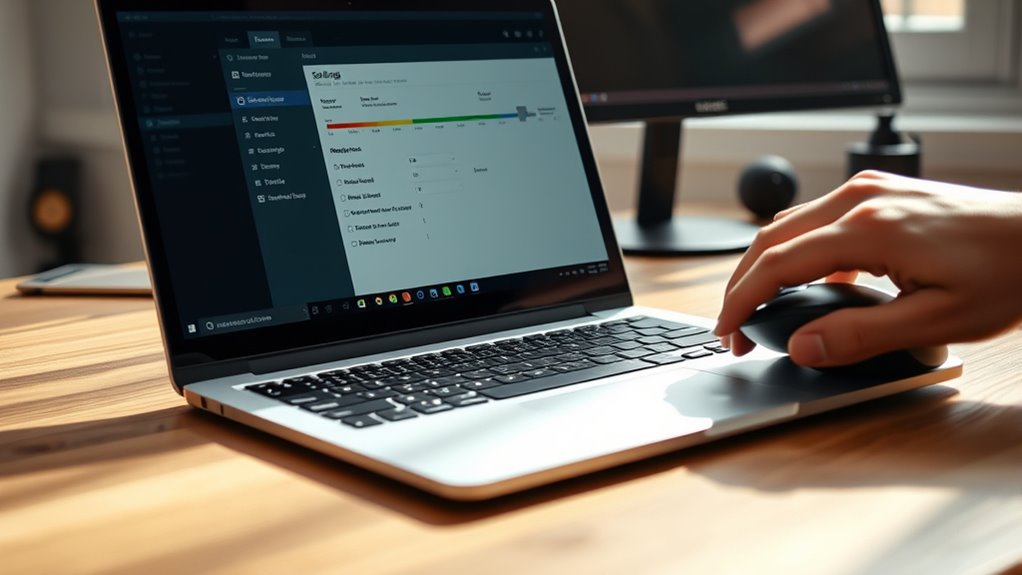
Laptop refresh rate is the number of times the screen updates each second, measured in Hz. To change it in Windows, open Settings, go to Display, then Advanced display settings, and select a supported rate under refresh rate. Higher rates like 120Hz or 144Hz improve motion smoothness and responsiveness, while lower rates can save battery. If options are missing, drivers, cables, or hardware may be limiting them, and more details can clarify the best setup.
Key Takeaways
- Refresh rate is how many times your laptop screen updates per second, usually 60Hz, 120Hz, 144Hz, or higher.
- Higher refresh rates make motion smoother and reduce blur, input lag, and screen tearing, especially in gaming.
- To change it in Windows, open Display Settings, then Advanced display settings, and select a supported refresh rate.
- If you do not see higher options, check your monitor, graphics driver, cable, and display resolution compatibility.
- Windows 11 may use Dynamic Refresh Rate to switch between smooth performance and better battery life automatically.
What Is Laptop Refresh Rate?
Laptop refresh rate is measured in hertz (Hz) and indicates how many times per second the display updates the image on screen. A refresh rate of 60Hz is common for standard use, while 120Hz, 144Hz, or more is found on laptops built for smoother motion.
This setting governs how often frames appear, so a higher refresh rate can reduce motion blur and screen tearing. The result is clearer movement in fast scenes and a more responsive gaming experience.
It also benefits browsing, drawing, and inking by making pointer motion feel fluid and less fatiguing. Users should review display settings to see which rates the panel supports.
However, the selected value must match the capabilities of the graphics hardware and the display itself. When both are configured correctly, the system can present motion with greater precision and less visual resistance.
Why Change Your Refresh Rate?
A higher refresh rate can improve gaming by reducing motion blur and input lag, producing smoother and more responsive motion.
A lower refresh rate can extend battery life during routine tasks by reducing display power demand.
Selecting the appropriate setting depends on the workload and desired balance between performance and efficiency.
Smoother Gaming
Higher refresh rates such as 120 Hz or 144 Hz can make fast-paced gaming noticeably smoother by reducing motion blur and improving clarity during rapid on-screen movement. A higher refresh rate lets a gaming monitor display more frames per second, which lowers input lag and sharpens control in action-heavy titles. For freedom in play, this means faster reactions and less visual strain.
| Benefit | Effect |
|---|---|
| Higher refresh rate | Cleaner motion |
| Lower input lag | Faster response |
| VRR support | Less tearing |
| Rapid scenes | Greater stability |
Variable refresh rate (VRR) technologies like G-Sync and FreeSync align display output with GPU frame delivery, further improving smoother gaming. On modern laptops, this setting can enhance fluidity that supports competitive performance without distraction.
Better Battery Life
Lowering the refresh rate can extend laptop battery life by reducing display power draw, since higher rates consume more energy. A 120 Hz panel usually increases power consumption versus 60 Hz, especially during web browsing and document editing.
For users seeking liberation from chargers, this simple adjustment can deliver longer sessions and fewer interruptions. Dynamic Refresh Rate (DRR) in Windows 11 refines this by shifting refresh rate automatically, preserving performance when motion demands it and saving battery life when the screen is static.
- Less drain during meetings
- More freedom on the move
- Fewer charger checks
- Longer writing sessions
- Cleaner balance between efficiency and performance
Check Your Current Refresh Rate
To check the current refresh rate on a Windows laptop, one should right-click the desktop, open Display Settings, and then select Advanced display settings. There, the current refresh rate appears in Hertz (Hz), revealing whether the panel is running at full capacity or being restrained. This insight matters for users seeking liberation from lag, stutter, and needless limitation.
| Item | Value |
|---|---|
| Menu path | Display Settings |
| Detail view | Advanced display settings |
| Metric | current refresh rate |
| Typical result | 60 Hz |
| Driver note | graphics card updated |
A slight variation, such as 59.985 Hz on a 60 Hz display, is normal and reflects technical rounding. If the refresh rate is lower than expected, manual adjustment may be required. Updated graphics card drivers help guarantee the display can reach its maximum supported refresh rate without artificial constraint.
Open Advanced Display Settings
- Precise access restores control.
- Correct selection prevents confusion.
- Visible options reduce uncertainty.
- Supported rates protect stability.
- Clear settings support freedom.
Change Refresh Rate in Windows 10
In Windows 10, the refresh rate is adjusted from Display Settings, accessed by right-clicking the desktop and selecting the option from the context menu.
From Advanced Display Settings**, the user opens Display adapter properties, then the Monitor** tab to reach the refresh rate control.
The highest supported value should be selected for best performance, and missing options may indicate a driver or hardware limitation.
Access Display Settings
Right-clicking the desktop and choosing Display Settings opens the Windows 10 display configuration panel. From there, the user can access Display Settings with minimal friction and move toward a freer, more responsive screen experience.
- Scroll to advanced display settings.
- Select the correct display from the list.
- Open display adapter properties.
- Use the monitor tab to locate refresh rate options.
- Confirm the desired output path.
This route matters because it exposes direct control over the connected display without unnecessary detours.
The interface is technical, but the steps remain orderly. Once the proper menu is reached, the system presents the refresh controls needed for precise adjustment.
The sequence is brief, efficient, and suited to users seeking autonomy over visual performance.
Adjust Refresh Rate
Once the Advanced Display Settings panel is open, the user can adjust the laptop refresh rate by selecting Display adapter properties, switching to the Monitor tab, and choosing the desired value from the Screen refresh rate dropdown.
This Change Monitor Refresh Rate step is found after Display Settings and advanced display settings are opened from the desktop menu. The chosen refresh rate should match the monitor and graphics card capabilities to prevent instability.
After selection, click OK to apply the change. If options are limited, the panel likely reflects cable, port, or hardware constraints.
Updated graphics drivers and native resolution settings improve output clarity. On systems that support variable refresh rate, available options may vary by panel and connection, yet the user retains control over motion smoothness.
Set Refresh Rate in Windows 11
- Freedom starts with control.
- Smooth motion can reduce strain.
- Better pacing supports focused work.
- Compatible settings protect stability.
- Precise choices restore visual command.
The selected refresh rate should match the current resolution; an asterisk marks unsupported rates.
After choosing a compatible option, apply the change to update the display settings.
This simple adjustment grants the user greater control over motion clarity, responsiveness, and comfort, without unnecessary complexity or delay.
Why Refresh Rate Options Are Missing?
Refresh rate options may be missing when the display driver is outdated or incompatible with the monitor, or when the connected display cannot support higher rates at the current resolution. In such cases, the system may hide valid choices from the user interface, limiting control over motion clarity and visual freedom.
| Cause | Effect |
|---|---|
| Outdated display driver | Missing refresh rate options |
| Incompatible monitor support | Restricted settings |
| Low-bandwidth cable | Limited refresh rate |
| Unsupported graphics card | Unavailable modes |
| Wrong native resolution | Fewer options |
A display should run at its native resolution whenever possible, because unsupported resolutions can reduce accessible refresh rate values. The graphics card must also support the target mode; otherwise, the setting will not appear. In practice, the issue is usually a capability mismatch between panel, cable, driver, and GPU. Understanding these constraints helps identify why refresh rate choices disappear without guessing.
Fix Low or Missing Refresh Rates
Low or missing refresh rates usually point to a capability mismatch between the display, cable, driver, or graphics hardware. To change monitor refresh rate effectively, the user should verify the panel supports the target resolution and refresh rate combination; many displays reduce options at higher resolutions.
- A missing option can signal a simple limit, not failure.
- Updated graphics card drivers may restore hidden choices.
- The wrong cable can quietly block freedom.
- External monitors may need manual settings changes.
- A restart can enable the new refresh rate.
Next, the user should inspect display settings and confirm the selected output is correct. If using external monitors, the monitor’s own menu should be checked for a higher mode or overclock-style toggle.
HDMI 1.4 may restrict performance where HDMI 2.0 or DisplayPort would not. After each adjustment, the laptop should be rebooted so changes are applied cleanly and the available refresh rate list refreshes.
Use Dynamic Refresh Rate in Windows 11
Windows 11’s Dynamic Refresh Rate (DRR) automatically shifts the screen between higher and lower refresh rates based on activity, improving smoothness during tasks like gaming and browsing while reducing power use during lighter work.
Dynamic Refresh Rate (DRR) is available only in Windows 11, so users seeking it must leave Windows 10 behind. It requires a display panel with Variable Refresh Rate (VRR) support and a minimum refresh rate of 120 Hz.
In display settings, DRR can be enabled or disabled to match workload and preserve battery life. When active, the system raises the refresh rate for responsive motion and lowers it during static work, giving a freer balance between performance and endurance.
If a game shows a restricted maximum refresh rate or behaves poorly, disabling DRR may restore normal operation. This control lets users reclaim efficiency without surrendering visual fluidity.
Choose The Best Refresh Rate For Your Laptop
For general laptop use, 60 Hz is usually the best choice because it balances smoothness with battery efficiency. This refresh rate suits browsing, streaming, and editing, while preserving freedom from unnecessary power drain.
In display settings, the ideal refresh rate should match the task and the laptop display hardware.
- 60 Hz: steady, efficient, reliable
- 120 Hz: clearer motion, faster response
- 144 Hz: strong for competitive play
- 240 Hz: elite smoothness, minimal lag
- Lower rates: longer battery life
A high refresh rate is most valuable in gaming, where 120 Hz or higher reduces motion blur and improves responsiveness. Competitive users often favor 144 Hz or 240 Hz for sharper control.
However, the laptop display and graphics card must support the selected mode, or performance can suffer. For non-intensive work, lowering the refresh rate can extend battery life and keep the system liberated from excess energy use.
Frequently Asked Questions
Should I Run 60HZ or 120HZ?
120Hz suits gaming performance, motion clarity, and reduced eye strain; 60Hz lowers power consumption and is adequate for basic use. The choice depends on whether the priority is smoother interaction or longer battery life and visual experience.
How Do I Change My Display From 60HZ to 144HZ?
A gamer switching from 60Hz to 144Hz should open Monitor settings, inspect Display adapters, select the correct display, then choose 144Hz Refresh rate and apply it. Gaming performance and Visual experience improve noticeably.
Why Is My 240HZ Monitor Only Showing 60HZ?
The 240Hz monitor is likely capped at 60Hz by cable bandwidth, port limits, display settings, or monitor compatibility. Checking GPU control panels, native resolution, and power settings improves gaming performance; these troubleshooting tips restore proper refresh rate.
Is 120HZ Better for Eyes?
A smoother pane, like a calm stream, often benefits the eyes. 120Hz can reduce screen flicker and eye strain, improving visual comfort. It may also enhance gaming performance, though sensitivity varies by user.
Conclusion
To summarize, adjusting a laptop’s refresh rate can improve visual smoothness, reduce motion blur, and optimize battery life when chosen appropriately. For example, a user switching from 60 Hz to 120 Hz on a compatible Windows 11 laptop may notice smoother scrolling and more responsive gameplay, while returning to a lower rate can extend runtime during office work. If options are missing, display drivers, cable limitations, or panel support should be checked before making changes.