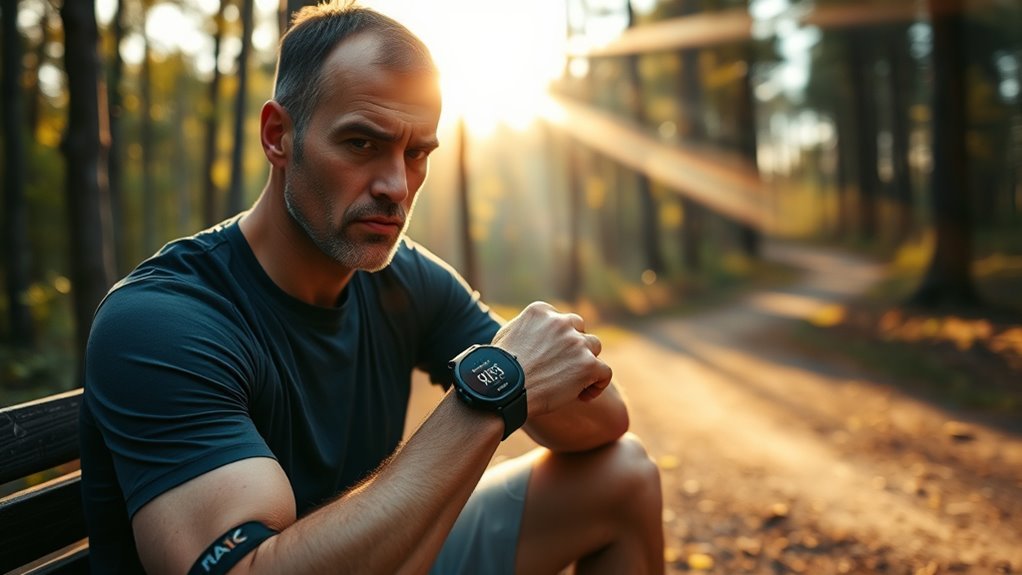
Garmin Recovery Time is the number your watch shows after a workout, estimating how long your body needs before it’s ready for another session of similar intensity. It shows up right on the post-workout summary screen and again in Garmin Connect. You don’t need to wait for it to hit zero before moving again — it’s a fatigue marker, not a locked gate. It resets and recalculates after every workout based on your training load, sleep, stress, and fitness, and it works best when you read it alongside how your body actually feels.
Quick Answer
Garmin Recovery Time estimates the hours before your body is ready for another hard workout, based on that session’s intensity, your fitness level, sleep, and stress. It tops out at 96 hours (4 days) and updates after every activity — it’s a guide for pacing hard efforts, not a rule that blocks all movement.
Key Takeaways
- Recovery Time estimates how long your body needs after a workout of similar intensity, based on training load and fitness — it maxes out at 96 hours (4 days).
- It updates after each session and folds in fatigue, sleep, stress, and your training history.
- You don’t need it to reach zero before exercising again, especially for easy or active-recovery sessions.
- It requires wrist-based or chest-strap heart rate data, and needs a few recorded activities before its estimates settle in.
- It’s most useful for pacing hard workouts — pair it with Body Battery and HRV Status, and with how you actually feel, rather than following it blindly.
What Garmin Recovery Time Means

At its core, Garmin’s Recovery Time converts the physical cost of a workout into a practical countdown: how many hours until you’re ready for another hard effort. That cost is measured through excess post-exercise oxygen consumption (EPOC) — essentially, the oxygen debt your body runs up during a hard session and has to repay afterward. The bigger the debt, the longer the number.
The estimate is personal. It factors in the workout’s intensity, your current fitness level, and your recent activity history, so two people finishing the identical workout can walk away with two very different numbers — and so can the same person on two different days.
Rather than prescribing rest, Recovery Time signals when an easier session might do you more good than another hard one. Garmin’s own logic is simple: when the gauge reads green, you’re generally considered ready for another demanding effort; a higher number just means more restraint is probably worthwhile, not that you’ve done something wrong.
Note: Recovery Time only works if your Garmin device has wrist-based heart rate or is paired with a compatible chest strap. The very first readings can look off — Garmin says the estimate needs a handful of recorded activities before it has enough data on your performance to be accurate.
How High Can Recovery Time Go?
Garmin caps Recovery Time at 96 hours — 4 days is the documented maximum on supported devices. In practice, an easy 30-minute jog might clear in a few hours, a solid tempo run or ride often lands somewhere in the 24-48 hour range, and an all-out race or a very long, hard effort can push the full way to that 96-hour ceiling. If you’re regularly maxing out after ordinary workouts, that’s usually a sign to check your heart rate accuracy and user profile settings before assuming your body is in genuinely rough shape (more on that in the troubleshooting section below).
Where to Find Garmin Recovery Time
Garmin Recovery Time appears in the end-of-workout summary on the device and in the Garmin Connect app’s Training Status glance, with the Training Readiness tile also providing a related estimate.
It’s supported on multiple model lines, including Enduro, Epix, and Fenix.
These locations let you review recovery recommendations immediately after each recorded activity.
End-of-Workout Summary
At the end of a workout, the recovery clock appears right on the summary screen, giving you a practical estimate of how long it may take before your body is ready for another similar-intensity session.
This feature translates recent performance into a usable number, drawing on workout intensity, duration, your fitness level, activity history, and training load.
On supported devices, that number can run from a couple of hours after an easy session up to the 96-hour (4-day) ceiling after something very demanding.
The display gives you a clear decision point after a session: push again soon, or let adaptation finish first. It doesn’t replace judgment, but it does hand you a data point that can support a more disciplined training decision.
Garmin Connect Glance
Recovery Time is also accessible outside the workout summary, in the Garmin Connect app’s Training Status glance and, on compatible devices, in the Training Readiness tile.
From there, it’s a live estimate built from workout intensity, recent load, and prior activity history. Each recorded activity refreshes the number automatically, so it tracks your changing fatigue without any manual input.
That makes the glance handy if you want a read on your status without waiting for a full workout review — a compact signal best read alongside your other performance data, not in isolation.
Compatible Device Models
Recovery Time appears on Garmin’s mid-range and higher running and multisport lines — Enduro, Epix, Fenix, Forerunner (265 and up), and Venu, among others — plus Edge cycling computers like the Edge 540, 840, and 1050 for recorded rides.
A couple of nuances worth knowing: entry-level watches below the Forerunner 165 tier typically support only VO2 max estimation, without Recovery Time. And the Venu series tracks Recovery Time, HRV Status, Body Battery, and Sleep Score, but doesn’t include Training Readiness or Training Load — those are reserved for Garmin’s more training-focused lines. For your specific watch, the product page or in-app feature list is the most reliable place to confirm what’s included.
Do You Have to Hit Zero?
No. Recovery Time doesn’t need to reach zero before your next workout, because it’s best read as a fatigue indicator, not a hard readiness cutoff.
It quantifies residual stress after a hard effort, but it doesn’t grant or withhold permission to train. Garmin’s own logic allows easier runs or rides while the number is still counting down — that’s active recovery, and it keeps momentum without adding real strain.
A reading of zero isn’t proof of full physiological restoration either. Readiness still depends on sleep, nutrition, soreness, and how much strain has piled up recently — things the number doesn’t fully capture.
The most useful way to treat it is as a planning input for intensity selection: should today be a push, a hold, or a pullback? That’s a decision the number can inform, not one it should make for you.
Note: If you’re sick or injured, Garmin lets you pause your training status from the Training Status glance or your Garmin Connect settings. You can still record activities, but recovery feedback and workout recommendations are put on hold until you resume — a better option than trying to interpret Recovery Time through an illness or injury it wasn’t built to account for.
When to Trust Garmin Recovery Time?
Recovery Time is most trustworthy when you treat it as a personalized estimate rather than an absolute clearance signal — it’s recalculated after each activity using training load, recent effort, sleep, and stress patterns.
In practical terms, it’s built for pacing your next hard session, not policing every movement. If you’re not fully recovered, you can still get through easy aerobic work, mobility, or light cross-training while the clock runs down.
It carries the most weight when it lines up with how tired you actually feel and what your training history looks like. It carries the least weight when it’s treated as a rigid command — especially for experienced athletes who’ve learned to read their own legs, breathing, and mood.
A number that matches how you feel is worth following. A number that contradicts it is worth questioning.
The practical approach is selective trust: let the data guide intensity, but keep the final call on whether to train, hold steady, or pull back.
Why Garmin Recovery Time Changes
Recovery Time shifts because Garmin recalculates it after each workout using the fatigue, stress, and training load from your recent sessions. It’s never fixed — the figure moves as new data comes in.
Add another hard session, and your accumulated training load can push the estimate higher, flagging greater strain on the body. String together a stretch of good recovery, and the number can fall instead, reflecting better readiness and less residual fatigue.
Garmin weighs both your acute (roughly 7-day) load and chronic (roughly 4-week) load to keep the estimate tailored to you rather than generic. That’s what makes it practical day to day — but it remains an estimate, and it’s worth treating it that way.
As the number changes, use it as one more input alongside how you’re actually feeling before deciding whether to press forward or pull back.
What Affects Garmin Recovery Time Estimates
Recovery Time estimates are driven mainly by workout load and intensity, with sessions that reach a Training Effect of 3.0 or higher typically producing longer recovery windows.
The algorithm also weighs your fitness level, training history, acute and chronic load trends, sleep quality, and stress to calibrate the guidance from your recent performance.
As new activities come in, the gauge updates continuously to reflect your current fatigue and readiness.
Workout Load and Intensity
Workout intensity is one of the biggest drivers here. Garmin’s Training Effect scale runs from 0 to 5: below 1.0 means no meaningful stimulus, 2.0-2.9 maintains your current fitness without advancing it, 3.0 and up starts genuinely improving it, 4.0 and up is “highly improving,” and a 5.0 signals overreaching that calls for extended recovery. The higher that score climbs, the longer the recovery window tends to run.
Garmin links workout load to Recovery Time by combining acute load from the last several days with chronic load built up over roughly a month, creating a context-aware estimate. When load rises suddenly, the algorithm often extends recovery time because residual fatigue and injury risk both go up. EPOC provides a measurable signal of that session’s strain, and your individual fitness and recent performance adjust the number further — so the guidance isn’t one-size-fits-all.
Fitness, Sleep, and Stress
Daily stress, sleep quality, and overall activity level all feed into the Recovery Time estimate, making it responsive to how your body is coping day to day, not just to the last workout.
Higher stress generally pushes the timer up, since your nervous system may still be carrying load from prior effort. Poor sleep can do the same, because restoration processes work less efficiently without enough of it.
Garmin blends all-day stress tracking with sleep data and daily activity metrics to refine the result. When stress is low, sleep is solid, and training load is moderate, the number often drops — a sign of better readiness for the next session.
How to Use Garmin Recovery Time in Training
Used well, Recovery Time works as a scheduling tool for balancing stress and adaptation. After each session, the gauge updates from your cumulative load, giving you a data-backed window before another hard workout. Longer recovery times generally follow higher Training Effect scores, especially efforts at 3.0 or above.
This is most useful when you are following a plan rather than running on feel. Our picks for Garmin watches by runner type show which models add structured workouts and daily suggestions on top of the countdown.
| Status | Use in training |
|---|---|
| Green | Resume higher-intensity work |
| Yellow | Keep volume moderate |
| Red | Prioritize rest or easy movement |
| Updated estimate | Recalculate next session timing |
Waiting for the gauge to turn green is the most conservative approach, but it isn’t mandatory for every session — light workouts during incomplete recovery can maintain circulation without adding much strain. Used this way, the metric helps reduce overtraining risk and space out demanding efforts according to actual readiness rather than guesswork.
Pro Tip: Don’t read Recovery Time alone. Check it against Body Battery and HRV Status before a hard session — a low Recovery Time reading paired with low Body Battery or a strained HRV Status is a stronger signal to hold back than either metric on its own.
Recovery Time vs. Training Readiness vs. Body Battery
Garmin’s ecosystem has several overlapping recovery metrics, and it’s easy to conflate them. Recovery Time is narrow by design: it’s the estimated hours until you’re ready for another hard workout, based mainly on your last session’s cost. Training Readiness is broader — a single 0-100 morning score that folds in Recovery Time itself, plus your sleep score, HRV Status, acute training load, and recent stress history, and it’s only available on higher-tier devices. Body Battery is different again: a real-time energy gauge, refreshed throughout the day from stress, sleep, naps, and activity, that can flag you’re running low even after Recovery Time has hit zero.
None of the three is “more correct” than the others — they’re answering different questions. Recovery Time asks “how hard was that workout on my body?” Training Readiness asks “how ready am I today, overall?” Body Battery asks “how much energy do I have left right now?” Checking more than one gives you a fuller picture than relying on a single number.
Limitations and Accuracy of Garmin Recovery Time
Recovery Time is genuinely useful, but it has known blind spots worth knowing before you lean on it too heavily.
Warning: Heat, dehydration, and optical heart-rate errors can all inflate your heart rate independently of how hard you actually worked — and since Recovery Time leans on heart-rate-derived data, that inflation can push the estimate higher than your real physiological state warrants. The model is also built around cardiovascular stress, so it tends to underestimate neuromuscular recovery needs after very hard races, heavy downhill running, or other high-impact, eccentric-loading efforts.
If your watch keeps landing on numbers that feel out of step with how you feel — consistently too high or suspiciously low — that’s a cue to weigh it against your own body cues rather than treat it as gospel.
Troubleshooting: Recovery Time Stuck High or Not Appearing
If Recovery Time repeatedly maxes out at 96 hours after ordinary sessions, or doesn’t show up at all, a few things are worth checking:
- Confirm your device has wrist-based heart rate turned on, or a compatible chest strap paired and connected during activities.
- Double-check your user profile — an inaccurate max heart rate setting or outdated weight/age data can skew every heart-rate-based metric, Recovery Time included.
- Give the feature time: Garmin’s own guidance is that the estimate needs several recorded activities before it has learned enough about your performance to be reliable.
- Rule out heat, dehydration, illness, or a faulty optical HR reading during the session in question — any of these can inflate the number without reflecting real training stress.
- If you’re sick or injured, pause your training status instead of trying to interpret a number the feature wasn’t designed to handle in that state.
When to Trust Your Body Instead
Recovery Time is most useful when paired with direct self-assessment, because the metric can’t fully account for individual fatigue, soreness, or how ready you feel on a given day.
Trusting your body becomes essential when your energy is low, your muscles feel heavy, or a warm-up reveals strain that seems out of proportion to the plan. Those cues often expose recovery needs more accurately than an algorithm can — especially if you’re an experienced athlete with a long track record of reading your own signals.
Newer athletes may benefit from following the recommendation more closely until they’ve learned their own baseline responses. For seasoned athletes, treating the timer as gospel can suppress productive sessions and cost you adaptation windows you didn’t need to miss.
A practical approach: compare what Garmin says with how you actually feel, then decide whether to train, scale back the intensity, or rest. That balance keeps training responsive rather than dictated by a single number.
Frequently Asked Questions
How do I interpret Garmin Recovery Time?
It’s the number of hours until similar training intensity is likely sustainable again — a data-driven estimate shaped by your recent workload, sleep quality, and fatigue. Use it to guide when to push and when to hold back, not as an absolute rule.
Is Garmin’s Recovery Time accurate?
It’s generally reliable for gauging cardiovascular stress, since the algorithm weighs training intensity and your history. It’s less reliable after heat exposure, dehydration, or an unreliable optical heart-rate reading, and it tends to underestimate neuromuscular fatigue from very hard races or heavy downhill running. Treat it as a solid estimate that sometimes deserves a second look, not an infallible number.
Why is my Garmin Recovery Time so high?
A spike usually traces back to a genuinely hard session, accumulated fatigue, poor sleep, or elevated stress — all of which the algorithm reads as reduced readiness. It can also be inflated by heat, dehydration, or a noisy heart-rate reading rather than true physiological strain. If it’s regularly maxing out at 96 hours after routine workouts, check your heart-rate accuracy and profile settings first.
How can I improve my Recovery Time on Garmin?
Prioritize sleep and hydration, manage stress, and favor easy aerobic sessions between hard efforts. Watch your Load Ratio in Garmin Connect — Garmin’s own “Optimal” range is 0.8 to 1.4, so avoid letting your short-term load spike far above your longer-term average. Use Training Status and HRV Status alongside Recovery Time to catch overtraining trends early, and let a few easy days do their job rather than immediately chasing the number back to zero.
What’s the maximum Recovery Time Garmin will show?
96 hours, or 4 days. Garmin documents this as the ceiling on supported devices — a reading at or near that maximum reflects the top end of the model’s range, not an open-ended instruction to stop training entirely.
Does Recovery Time affect Training Readiness?
Yes, on devices that support Training Readiness. It’s one of several inputs — alongside sleep score, HRV Status, acute training load, and recent stress — that Garmin combines into that single 0-100 daily score.
Conclusion
Garmin Recovery Time is best viewed as a signal, not a command. It maps your body’s stress load the way a storm radar maps weather: useful, but not absolute. When the timer drops toward zero, readiness often improves, yet fatigue, sleep, illness, and soreness can still linger beneath the numbers. The smartest approach blends the device data with real-world cues, letting Recovery Time guide decisions while your body stays the final authority.
Sources
- Garmin Owner’s Manual — Recovery Time — how the feature works and its device requirements
- Garmin Forerunner 630 Manual — Recovery Advisor — documents the 4-day (96-hour) maximum
- Garmin Forerunner 70 Manual — Acute Load & Load Ratio — source for the acute/chronic load windows and the 0.8–1.4 optimal range
- Garmin fēnix 8 Manual — About Training Effect — EPOC basis and the 0–5 Training Effect scale
- Garmin fēnix 7 Series Manual — Recovery Time & Pausing Training Status — guidance on pausing training status when sick or injured
