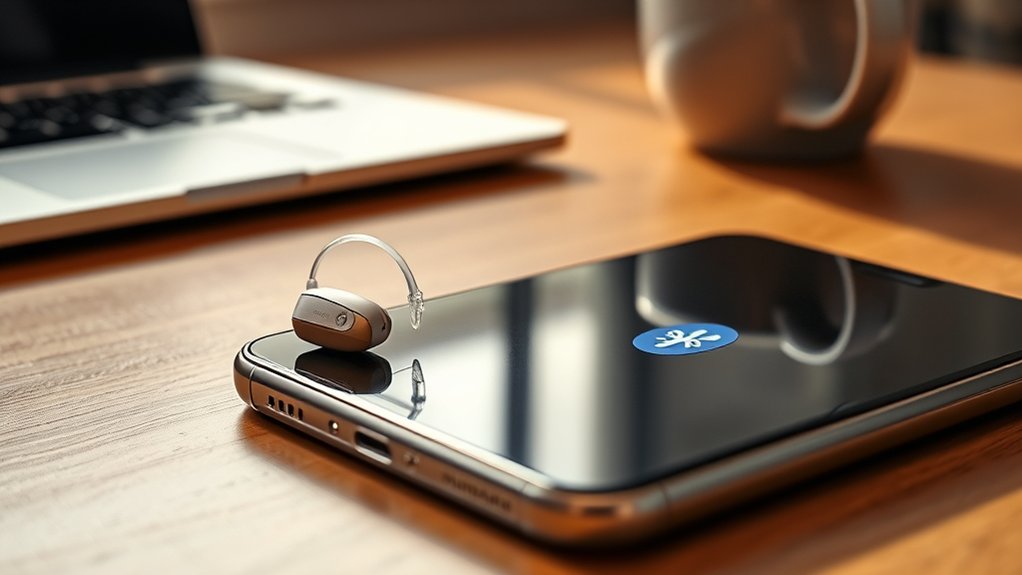
Connecting Phonak hearing aids to an iPhone lets you hear phone calls, music, videos, and other audio through compatible hearing aids. You can also use the myPhonak app to adjust listening settings without touching the hearing aids. However, Bluetooth pairing for audio and pairing with the app are not always the same process.
Quick Answer
Most Bluetooth-enabled Phonak hearing aids connect to an iPhone through Settings > Bluetooth for calls and audio streaming. The myPhonak app requires iOS 16 or newer. Recent Phonak models can remember eight Bluetooth devices and keep two connected, although only one myPhonak app connection can be active at a time.
At a Glance
| Difficulty | Beginner-friendly |
| Tools Needed | iPhone, compatible Phonak hearing aids, and optional myPhonak app |
| Cost | No additional accessory required for supported direct Bluetooth connections |
Which Phonak Hearing Aids Work With iPhone?
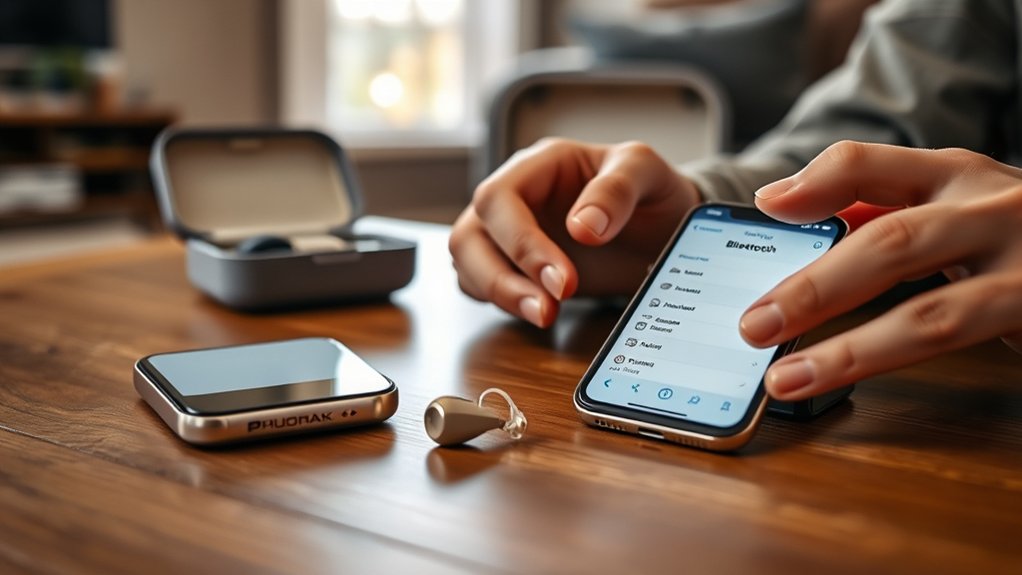
Many Phonak hearing aids work with iPhones, including models from the Audéo EON, Infinio, Lumity, Paradise, and Marvel families. The available functions depend on the hearing-aid model, firmware, and iPhone software.
Examples of compatible models include:
- Phonak Audéo EON and EON Sphere: Bluetooth-enabled hearing aids with direct smartphone connectivity and myPhonak support.
- Phonak Audéo Infinio and Sphere Infinio: Support wireless phone calls, media streaming, and compatible myPhonak controls.
- Phonak Audéo Lumity: Supports direct Bluetooth streaming and hearing-aid adjustments through myPhonak.
- Phonak Audéo Paradise: Offers Bluetooth phone and media connectivity, plus compatible app functions.
- Phonak Audéo Marvel: Supports Bluetooth audio connectivity, although its simultaneous connection capacity differs from newer generations.
Other compatible devices include selected Phonak Naída, Virto, Slim, CROS, and Terra+ models. Phonak provides a detailed list of hearing aids supported by myPhonak.
The current myPhonak app supports iPhones running iOS 16.0 or newer. It uses Bluetooth Low Energy (BLE), a wireless connection designed for communication between the app and hearing aids.
According to the official myPhonak compatibility information, the app can control supported functions such as volume, listening programs, and personalized sound adjustments.
Importantly, the iOS 16 requirement applies to the current app. Bluetooth calls and streaming use a separate connection, so older software requirements should not automatically be treated as identical.
With two compatible hearing aids fitted together, your iPhone can send audio to both ears. However, the hearing aids must support the required functions and be correctly configured by your hearing care professional.
How to Pair Phonak Hearing Aids to iPhone
To pair Phonak hearing aids with an iPhone, turn on Bluetooth and restart the hearing aids to make them discoverable. Then select the hearing-aid name in the iPhone’s Bluetooth settings. If you also want app controls, complete the myPhonak pairing process.
Step 1: Prepare Your iPhone and Hearing Aids
Make sure your hearing aids have enough battery power and are close to your iPhone. Open Settings > Bluetooth and enable Bluetooth.
If you plan to use myPhonak, ensure your iPhone meets the app’s software requirements.
Step 2: Put the Hearing Aids Into Pairing Mode
Restart the hearing aids to activate Bluetooth pairing mode.
- Rechargeable models: Place the hearing aids in their powered charger for at least 10 seconds, then remove them. On supported models, you can also use the hearing-aid buttons to turn them off and back on.
- Replaceable-battery models: Open the battery doors for approximately five seconds, then close them.
Phonak states that the hearing aids remain discoverable for approximately three minutes after entering pairing mode.
Step 3: Select the Hearing Aids on Your iPhone
- Open Settings > Bluetooth on your iPhone.
- Wait for a hearing-aid name to appear under available devices.
- Look for a name such as R-Phonak hearing aid or L-Phonak hearing aid. Your hearing care professional may have assigned a personalized name.
- Tap the appropriate hearing-aid name.
- Accept the pairing request if one appears.
- Listen for the confirmation sound from the hearing aids.
For conventional Bluetooth audio pairing, you usually select one hearing-aid entry. If your hearing aids are correctly fitted as a pair, that single audio pairing can stream sound to both ears.
These instructions follow Phonak’s official iPhone Bluetooth pairing procedure.
Step 4: Connect the myPhonak App
The myPhonak app provides remote controls for compatible hearing aids. Depending on the generation, app pairing may be separate from pairing for calls and music.
- Install myPhonak from the Apple App Store.
- Open the app and complete its initial setup.
- Select Pair hearing aids from the Home screen.
- Restart the hearing aids if the app asks you to enter pairing mode again.
- Wait until both hearing aids appear, if you wear a pair.
- Select Pair and accept the Bluetooth pairing requests for each hearing aid.
- Finish the app’s connection process.
For Infinio Ultra or newer hearing aids, pairing through myPhonak also enables calls and audio streaming automatically.
With earlier generations, the app may display See instructions or Optional settings to guide you through the additional audio pairing process.
Phonak explains both methods in its myPhonak pairing instructions for iPhone.
Step 5: Test Your Connection
Play music or a short video on your iPhone. The sound should reach your hearing aids when they are selected as the audio output.
Next, make a test phone call. Confirm that you can hear the caller and that the other person can hear your voice.
Finally, open myPhonak and try changing the volume or listening program. If music works but the app does not connect, the problem is probably with the app connection rather than the audio pairing.
What Can Phonak Hearing Aids Stream From iPhone?
Compatible Phonak hearing aids can stream phone calls, music, videos, podcasts, navigation directions, and notification sounds directly from an iPhone. Supported models also allow hands-free calls using the hearing-aid microphones.
- Phone calls: Hear the caller through your hearing aids and speak using their built-in microphones when hands-free calling is enabled.
- Music and podcasts: Listen to audio from supported iPhone apps without an additional streaming accessory.
- Videos and video calls: Hear media and compatible calling-app audio through Bluetooth.
- Notifications: Receive audible alerts for messages, calls, and supported apps when the iPhone sends those sounds through Bluetooth.
- Navigation: Hear spoken directions from compatible navigation apps.
- Siri: Use supported hearing-aid controls to interact with your iPhone’s voice assistant.
Some models offer Tap Control, which can manage calls, audio playback, or voice-assistant functions when enabled. Availability depends on the hearing-aid model and its configuration.
The myPhonak app can also adjust listening volume, programs, and sound balance. These controls affect the hearing-aid experience, but the app is not the source of the streamed audio.
During Bluetooth streaming, your hearing-aid microphones generally remain active. You may be able to adjust the balance between streamed sound and surrounding noise, depending on your hearing-aid settings.
If notification tones interrupt your music, change the corresponding notification or system-sound settings on the iPhone. Muting hearing-aid microphones in myPhonak does not necessarily silence phone alerts.
How Many Devices Can Phonak Hearing Aids Connect To?
Recent Phonak hearing aids can connect to two Bluetooth devices simultaneously, but this depends on the hearing-aid generation. The number of saved pairings is different from the number of devices that can remain connected.
For example, you may keep an iPhone and a laptop connected to compatible hearing aids. However, connecting both does not mean you can listen to two independent audio streams at the same time.
Phonak provides the following generation-specific limits:
| Phonak Generation | Saved Bluetooth Pairings | Simultaneous Bluetooth Connections |
|---|---|---|
| EON | Up to 8 | Up to 2 |
| Infinio | Up to 8 | Up to 2 |
| Lumity | Up to 8 | Up to 2 |
| Paradise | Up to 8 | Up to 2 |
| Marvel | Up to 2 | 1 |
These figures come from Phonak’s Bluetooth pairing and connection specifications.
When multiple devices are connected, incoming phone calls can interrupt other audio because calls take priority. You may need to pause media on one device before streaming from another.
How Many Bluetooth Pairings Can Phonak Save?
Phonak EON, Infinio, Lumity, and Paradise hearing aids can remember up to eight Bluetooth device pairings. This means you do not normally need to pair every device again whenever you switch between them.
However, saved Bluetooth pairings, active audio connections, and myPhonak app connections have different limits.
Saved Pairing Capacity
Pairing memory stores the information required to recognize previously connected devices. Those devices can include an iPhone, iPad, laptop, or another compatible Bluetooth device.
For instance, if you use an iPhone during the day and a computer at work, both can remain in the hearing aids’ pairing memory.
A saved pairing does not guarantee an active connection. The hearing aids and the other device must be powered on, within Bluetooth range, and available for reconnection.
Older Marvel hearing aids have a lower pairing capacity, so the eight-device figure does not apply to every Phonak product.
App Connection Limits
The myPhonak app uses Bluetooth Low Energy to communicate with hearing aids. Each hearing aid can maintain one active BLE app connection at a time.
The app can communicate with a fitted pair of hearing aids, meaning a maximum of two hearing aids can be managed together. However, the same hearing aids cannot remain actively connected to myPhonak on two separate smartphones simultaneously.
Phonak explains these restrictions in its myPhonak multi-phone connection guidance.
This also explains why two correctly fitted hearing aids can be controlled together while another phone cannot use the app connection at the same time.
A physical Phonak RemoteControl device may also compete with the app for the BLE connection. If one control method stops responding, review which device currently has the active connection.
Switching Between Devices
You can switch between previously paired devices without deleting their saved Bluetooth pairings. The exact process depends on whether you want to change the audio source or the phone controlling myPhonak.
For audio streaming:
- Pause audio on the device currently playing.
- Open the Bluetooth settings on the device you want to use.
- Select the Phonak hearing aids if they are not already connected.
- Start playing audio on the new device.
- Confirm that the sound reaches your hearing aids.
For myPhonak app control on another smartphone:
- Open myPhonak on the currently connected phone.
- Go to Devices > Connection Management.
- Use Disconnect to release the app connection.
- Open myPhonak on the other paired phone and reconnect.
Changing the app connection is not always necessary when switching only the audio source. Keeping these two connection types separate makes troubleshooting much easier.
How to Fix Phonak Hearing Aid iPhone Issues
If your Phonak hearing aids are not connecting to your iPhone, start with Bluetooth settings, battery power, and a simple restart. Then determine whether the failure affects audio streaming, myPhonak controls, or both.
1. Check Bluetooth and Battery Power
Open Settings > Bluetooth and confirm Bluetooth is enabled. Check that both hearing aids have enough battery power and are turned on.
Keep the iPhone close to the hearing aids during setup. Wireless interference, low battery power, or nearby paired devices can affect connection reliability.
2. Restart the Connection
Turn Bluetooth off and back on in iPhone settings. Restart both hearing aids and try reconnecting.
If that does not help, restart the iPhone. This can clear temporary Bluetooth communication errors.
3. Check for Software and Firmware Updates
Open Settings > General > Software Update to review available iPhone updates. Also check whether a myPhonak app update is available in the App Store.
Hearing-aid firmware can affect connection stability and compatibility. Some supported updates can be completed through myPhonak, while others may require your hearing care professional.
If you use two hearing aids, they should have compatible firmware versions and be correctly fitted together.
4. Understand Multiple Bluetooth Entries
Seeing several Phonak entries in iPhone Bluetooth settings is not necessarily a problem.
Earlier generations, including Lumity, Paradise, and non-Ultra Infinio hearing aids, commonly show three entries:
- One Bluetooth Classic connection for calls and media streaming.
- One Bluetooth Low Energy connection for the right hearing aid.
- One Bluetooth Low Energy connection for the left hearing aid.
The LE entries serve app communication. They may appear disconnected when myPhonak is not actively communicating with the hearing aids.
With Infinio Ultra and newer models, the Bluetooth list may instead show two hearing-aid entries. Do not assume that the number of listed entries equals the number of physical hearing aids or active audio sources.
5. Remove and Re-Pair the Hearing Aids
If restarting does not work, removing old Bluetooth connections and pairing again may resolve the issue. This is particularly useful after an iOS update, app update, or hearing-aid fitting change.
Warning: Forgetting Bluetooth devices removes their saved phone pairings. You must complete the connection process again afterward. Do not delete unrelated Bluetooth devices.
- Open Settings > Bluetooth on your iPhone.
- Find every entry associated with your Phonak hearing aids.
- Tap the information icon beside each entry and select Forget This Device.
- Open myPhonak and go to Devices.
- Find the hearing-aid product information and select Forget my devices, when available.
- Return to the app’s Home screen and follow the pairing instructions again.
If the app still fails, reinstalling myPhonak may help. Complete its setup and reconnect the hearing aids.
Phonak documents this recovery process in its official iPhone connection repair instructions.
6. Fix Calls That Do Not Play Through the Hearing Aids
Sometimes Bluetooth pairing works, but the iPhone sends calls through its own speaker instead.
During a phone call, tap the Audio button on the call screen and select your hearing aids as the output device.
To make supported Bluetooth hearing aids the preferred call destination, open:
Settings > Accessibility > Touch > Call Audio Routing > Bluetooth Headset
Phonak recommends this setting in its iPhone Bluetooth improvement guide.
If the caller cannot hear your voice clearly, check whether the call is using the hearing-aid microphones. Background noise, blocked microphone openings, or microphone settings can affect voice pickup.
Also check the phone’s signal strength and make sure the hearing aids remain within Bluetooth range.
7. Know When to Contact an Audiologist
If only one hearing aid appears in myPhonak, the two devices may not be properly configured as a pair. They may also have different firmware versions or a hearing-aid-specific connection problem.
A hearing care professional can check the fitting, firmware, microphone settings, and Bluetooth configuration. Remote Support may be available through myPhonak, depending on your model, provider, and country.
Note: Bluetooth troubleshooting cannot correct an unsuitable hearing-aid fitting or changes in hearing ability. If sound is uncomfortable, distorted, or consistently unclear despite a working connection, ask your audiologist to review the hearing aids and their settings.
Key Takeaways
- Bluetooth audio and myPhonak app control can use different wireless connections, especially on earlier hearing-aid generations.
- One conventional audio pairing can deliver sound to both hearing aids when the pair is correctly configured.
- Infinio Ultra and newer devices simplify setup by enabling streaming during myPhonak pairing.
- Multiple Bluetooth entries are often normal and should not be deleted unless troubleshooting requires it.
- When calls play through the iPhone speaker, check Call Audio Routing before resetting everything.
Frequently Asked Questions
Can Phonak Hearing Aids Be Connected to Multiple Devices?
Yes. Phonak EON, Infinio, Lumity, and Paradise hearing aids can store eight Bluetooth pairings and maintain two simultaneous device connections. Marvel models support two saved pairings and one active connection. However, only one myPhonak app connection can be active for each hearing aid at a time.
What Is the 5-Minute Rule for Hearing Aids?
There is no universal five-minute wearing rule for hearing aids. A short practice session may help someone who is new to amplification, but five minutes is not a standard daily target. East Sussex Healthcare NHS Trust recommends beginning in quiet surroundings and gradually increasing use while adjusting to new sounds.
What Are the Best Hearing Aids to Use With an iPhone?
Phonak Audéo Infinio Sphere, Audéo Lumity, and Audéo EON are options to consider for iPhone connectivity. They offer compatible Bluetooth calling, audio streaming, and app controls. The best choice depends on your hearing needs, preferred features, comfort, and professional fitting rather than Bluetooth compatibility alone.
Why Are myPhonak Hearing Aids Not Connecting to My iPhone?
The connection may fail because Bluetooth is disabled, the hearing aids are not in pairing mode, battery power is low, or another device holds the active app connection. Outdated software or saved pairing errors can also interfere. Restart both devices, update the app, and re-pair if necessary. Contact your audiologist if the problem continues.
Conclusion
Phonak hearing aids can provide direct iPhone calls, media streaming, and convenient app controls when the devices are compatible and paired correctly. The most important distinction is between saved Bluetooth pairings, active audio connections, and myPhonak app connections.
Start with the correct pairing method for your hearing-aid generation. If a connection fails, check Bluetooth and audio routing first, then restart or re-pair the devices. For ongoing issues, an audiologist can verify the hearing aids’ fitting and wireless settings.
Sources
- Phonak — Compatible Hearing Aids: Supported Phonak hearing-aid families and models.
- Phonak — myPhonak App: iPhone software requirements, app functions, and Remote Support availability.
- Phonak — Connecting Hearing Aids to iPhone: Bluetooth pairing mode, iPhone setup, and audio connection instructions.
- Phonak — myPhonak Pairing on iPhone: App pairing instructions and Infinio Ultra setup differences.
- Phonak — Bluetooth Pairing and Connection Limits: Saved pairings and simultaneous connections by hearing-aid generation.
- Phonak — myPhonak on Multiple Smartphones: Bluetooth LE and app connection limitations.
- Phonak — Repairing iPhone Connection Issues: Multiple Bluetooth entries, resetting pairings, and reconnecting the app.
- Phonak — Improving Bluetooth Performance: iPhone call routing and notification settings.
- East Sussex Healthcare NHS Trust — Hearing Aid Assessment and Fitting: Getting accustomed to hearing aids and gradually increasing use.