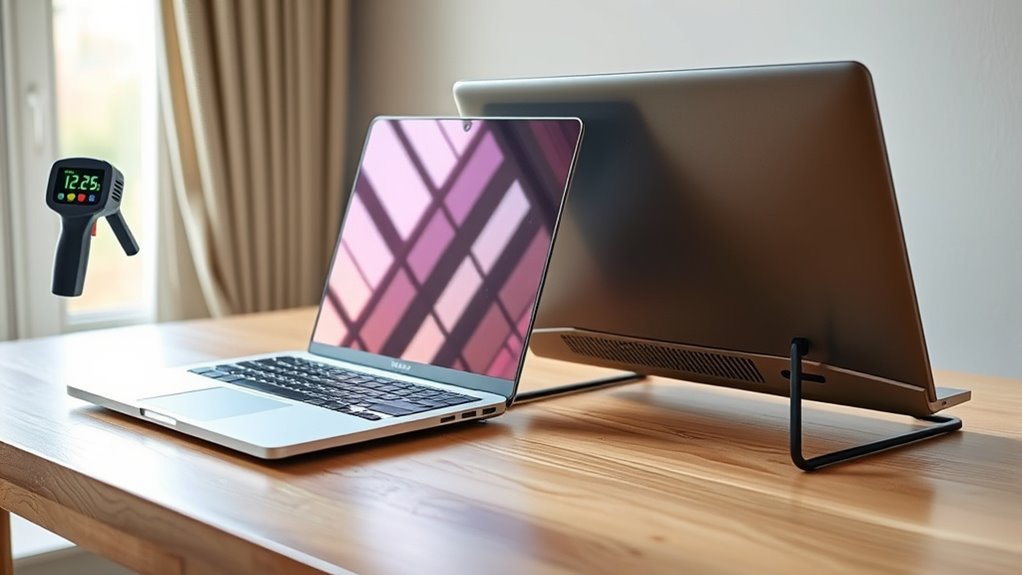
A propped-up laptop typically runs about 5 to 15°F cooler, or roughly 3 to 8°C cooler, than one sitting flat on a surface. The temperature drop comes from improved airflow beneath the chassis and less heat buildup around intake and exhaust vents. The effect can be noticeable even at idle and becomes more important under sustained workloads. When airflow remains unobstructed, thermal stability improves, and further details explain why the difference can vary.
Key Takeaways
- A propped laptop typically runs 5 to 15°F cooler, or about 3 to 8°C cooler.
- Elevating the laptop improves airflow beneath the chassis and reduces heat buildup.
- Lower temperatures can be measurable even when the laptop is idle.
- Under heavy workloads, propping helps keep performance steadier and reduces throttling.
- Cooling pads can lower temperatures further, often by 5 to 15°C, especially during gaming or editing.
How Much Cooler Is a Propped Laptop?
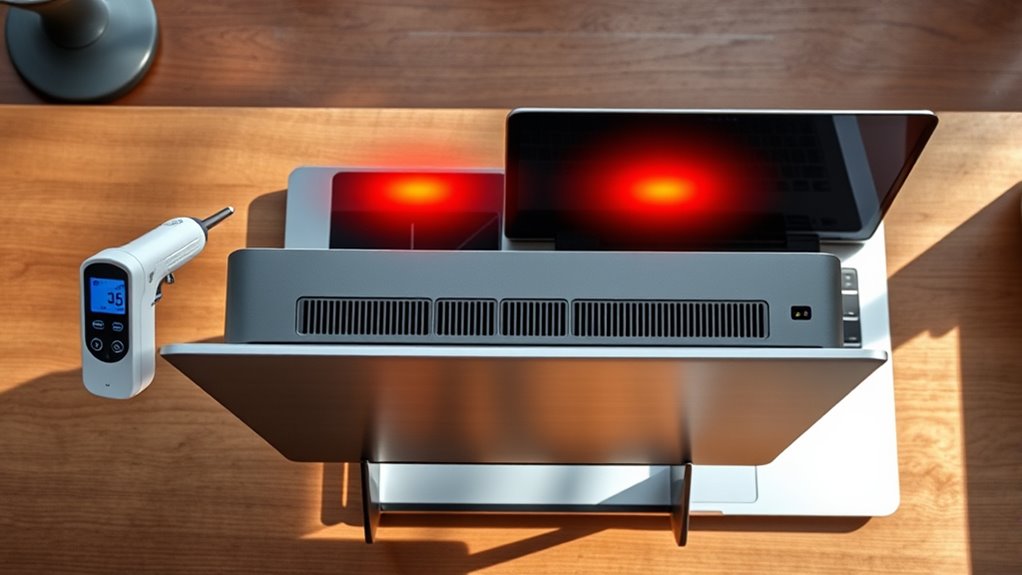
A propped laptop typically runs about 5 to 15 degrees Fahrenheit cooler, or roughly 3 to 8 degrees Celsius, because elevation improves airflow beneath the chassis and reduces heat buildup around the vents.
In practical terms, a laptop propped up on a stand or books often sustains a lower operating temperature than one placed flat on a desk. This effect is measurable even at idle, where some systems average about 5 degrees cooler than units resting on soft surfaces.
During demanding workloads, better cooling can prevent rapid thermal escalation and preserve performance stability. The underlying mechanism is straightforward: open space under the device permits ambient air to circulate, carrying heat away more efficiently.
Better cooling can prevent thermal spikes and preserve performance by allowing air to circulate freely beneath the device.
For users seeking liberation from throttling and excess thermal strain, elevation is a low-cost intervention. It does not eliminate heat, but it materially improves airflow, temperature control, and component protection over time.
Why Raising Your Laptop Lowers Heat
Raising a laptop lowers heat by improving convective airflow beneath and around the chassis, which helps internal components shed thermal energy more efficiently. In elevated positions, the base is less insulated by surfaces that block ventilation, so the device can keep a laptop cool with less thermal buildup. This laptop cooling effect is measurable, often reducing temperatures by 5-10°C during sustained load.
- Soft surfaces obstruct airflow and trap heat.
- A stand creates a gap for cooler air entry.
- Ventilation becomes more consistent under intensive tasks.
- Lower temperatures reduce long-term component stress.
Such airflow improvement is not cosmetic; it directly changes the thermal gradient across the enclosure. By preventing heat accumulation, raising the machine supports stable performance and preserves hardware longevity.
For users seeking technical control rather than passive overheating, elevated positions are a practical expression of liberation from avoidable thermal constraint.
Free Ways to Cool Your Laptop
Free cooling methods can produce measurable thermal gains without specialized hardware. For any laptop, the most direct free ways are to restore airflow beneath the chassis and keep cool by preventing vent blockage.
A few books, a small box, or a simple DIY stand can elevate the machine enough to reduce heat buildup, often yielding 5 to 15 degrees Celsius less than a flat, insulating surface. When the base is lifted, cooler ambient air reaches the intake path, and the air vents operate with less restriction.
Performance data often shows idle and gaming temperatures stabilizing about 5 to 10 degrees lower. A hard, flat support remains important because it preserves unobstructed vent access.
Temperature monitoring can verify the effect and help users reclaim thermal margin without cost, restraint, or dependence on proprietary accessories. These methods also improve posture, offering ergonomic relief during extended sessions.
Best Ways to Prop Up Your Laptop for Airflow
Improving airflow usually depends on how the laptop is propped up, since even a modest gap beneath the chassis can lower operating temperatures by about 5 to 15 degrees Fahrenheit.
A laptop stand is the most controlled method: it lifts the machine, clears the vents, and helps a hot laptop shed heat under load. For those who prefer to use tools already available, books or small boxes can create a stable incline at no cost. The angle also improves wrist and neck posture, supporting practical liberation from strain while helping keep my laptop cool.
- Raise the rear edge to open an intake path.
- Keep vent openings unobstructed on all sides.
- Use a Cooling Pad only if extra airflow is needed.
- Reposition the device regularly during intensive tasks.
Consistent elevation reduces heat buildup during gaming or video editing, when sustained airflow matters most.
The key variable is not height alone, but stable clearance beneath the chassis, which preserves circulation and performance.
When a Cooling Pad Makes the Biggest Difference
A cooling pad makes the greatest difference when a laptop is under sustained thermal load, such as during gaming, video editing, or other intensive workloads that push internal fans near their limits. In these conditions, added airflow can reduce heat by 5–15°C, and peak temperature drops may reach 20°C. A propped up chassis also keeps vents unobstructed, allowing the cooling pad to act as a direct airflow amplifier.
| Use case | Temp effect | Impact |
|---|---|---|
| Gaming | -10 to -20°C | Higher performance |
| Video editing | -5 to -15°C | Stable clocks |
| Idle use | Modest | Better baseline |
| Soft surface use | Large | More heat |
| Multi-fan pad | Strong | Faster dissipation |
Pads with multiple fans, including the ICE COOREL model, are most useful when liberation from thermal throttling matters. By preventing heat buildup, they preserve performance and extend hardware lifespan.
Frequently Asked Questions
Does Elevating a Laptop Help Cooling?
Yes. Elevating a laptop improves Laptop airflow, reducing thermal buildup. Such Cooling solutions enhance Heat management by keeping vents unobstructed; Elevation benefits typically lower temperatures several degrees, supporting stability, performance, and device longevity.
Is 72 Degrees Hot for a Laptop?
Hardly hot; 72°F sits within safe laptop temperature effects. Proper thermal management techniques still matter. Overheating signs warrant monitoring, while ideal cooling solutions, including elevation, keep performance steady—home free from unnecessary throttling.
Is 80 Degrees Too Hot for a Laptop?
80 degrees is generally not too hot for a laptop, but it approaches the upper ideal operating temperature. Laptop overheating causes include poor air circulation, and cooling pad effectiveness depends on airflow and workload conditions.
Is 70 Degrees Hot for a Laptop While Gaming?
No; 70°C while gaming is generally safe, like Icarus below the sun. Laptop overheating causes remain limited, gaming performance impact minimal, cooling pad effectiveness modest, and thermal paste application may further reduce temperatures.
Conclusion
A propped laptop typically runs a few degrees cooler, with the exact reduction depending on the device, surface, and airflow. Elevating the chassis helps the cooling system breathe more freely, lowering internal heat and reducing thermal throttling. While the effect is modest, it can improve sustained performance and component longevity. In practical terms, lifting a laptop is like opening a window in a cramped room: the extra airflow does not solve every problem, but it measurably improves conditions.

