Quick Answer
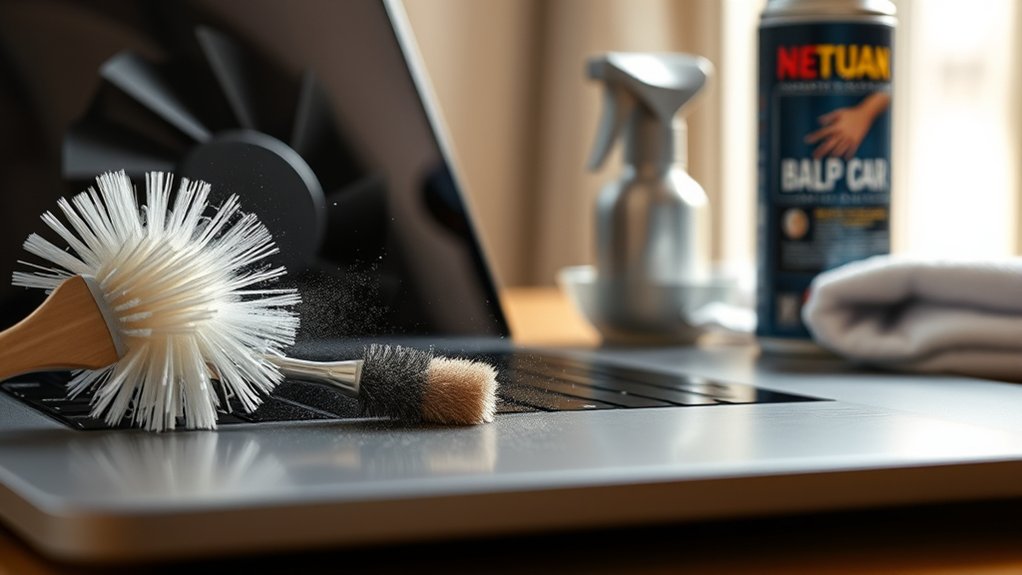
To clean your laptop fan, power off the device and unplug it completely. Use short bursts of compressed air on the intake and exhaust vents to clear dust. For deep cleaning, open the chassis only if your manual permits and gently remove dust with a soft brush or lint-free cloth.
Dust buildup inside your laptop forces the fan to work harder, which causes overheating and sluggish performance. A quick cleaning restores airflow and protects your hardware from long-term heat damage. Follow this guide to clear your fan safely and keep your system running cool.
Deal tip: If your laptop still runs hot after a cleaning, it may be time to upgrade. See our October Prime Day laptop deals for MacBook, Windows, Chromebook and gaming picks.
Why Clean Your Laptop Fan?
Dust acts as an insulator that traps heat against your processor and graphics card. When debris blocks your vents, the fan spins faster to compensate, creating loud noises and draining your battery.
Neglecting this buildup leads to thermal throttling, which slows down your computer. Regular cleaning preserves your laptop’s health and prevents expensive hardware failures.
Preparation for Cleaning
Safety comes first when working with internal electronics. Power down your laptop completely and disconnect the power adapter.
If your laptop has a removable battery, take it out to prevent accidental startups. Always work on a non-static surface, such as a wooden table, to avoid damaging sensitive components with static electricity.
Gather your supplies: a can of compressed air, a soft lint-free cloth, and the correct screwdriver for your model. Consult your user manual before you open the case, as some manufacturers void warranties if users remove the back panel.
Removing Dust Using Compressed Air
Compressed air offers the safest way to clear dust without touching fragile components. Follow these steps to get the best results:
- Ensure the laptop is powered off and unplugged.
- Hold the compressed air canister upright to prevent liquid propellant from escaping.
- Aim the nozzle at the vent ports at a slight angle.
- Use short, controlled bursts rather than one long blast to dislodge dust effectively.
If your intake vents look clogged, blow air through the exhaust vents to push the dust back out. Use caution, as excessive air pressure can spin fans too quickly and damage the motor bearings.
Disassembling the Laptop for Thorough Cleaning
Sometimes compressed air alone does not remove heavy grime. If you feel comfortable opening the chassis, keep track of every screw you remove, as they often vary in length.
Once the bottom panel is off, look for the fan assembly. Use a soft, dry brush to gently loosen dust on the blades. Wipe away the particles with a lint-free cloth.
Always consult a qualified professional if you feel uncertain about opening your laptop, as internal components are fragile and prone to damage.
Reassembly and Maintenance Tips
After you finish cleaning, replace the casing and tighten all screws securely. Listen to the fan noise once you restart the computer; it should run quieter than before.
- Check your temperature levels using system software to ensure the fans are cooling properly.
- Mark your calendar to clean the external vents every three months.
- Schedule a deeper internal cleaning once a year to prevent major buildup.
Common Questions About Laptop Fan Maintenance
How to Clean Laptop Fans Properly?
Turn off your laptop and disconnect it from all power sources. Use compressed air in short bursts on the vents, or gently brush the blades if you have access to the internal fan assembly.
Can I Clean the Fan Without Compressed Air?
It is difficult to clean internal fans without compressed air. You can use a soft, dry brush to loosen dust around the edges of the vents, but avoid using a household vacuum cleaner, as it generates static electricity that can destroy your computer’s motherboard.
Can I Clean the Fan Without Disassembly?
Yes, simply use compressed air on the external vents. This removes most surface-level dust, though it may not clear stubborn debris trapped deep inside the blades.
Conclusion
Regular fan maintenance protects your laptop from heat-related damage and helps it last for years. Set a recurring reminder to check your vents every few months to maintain peak performance. Keeping your system clean now prevents the need for costly repairs in the future.

