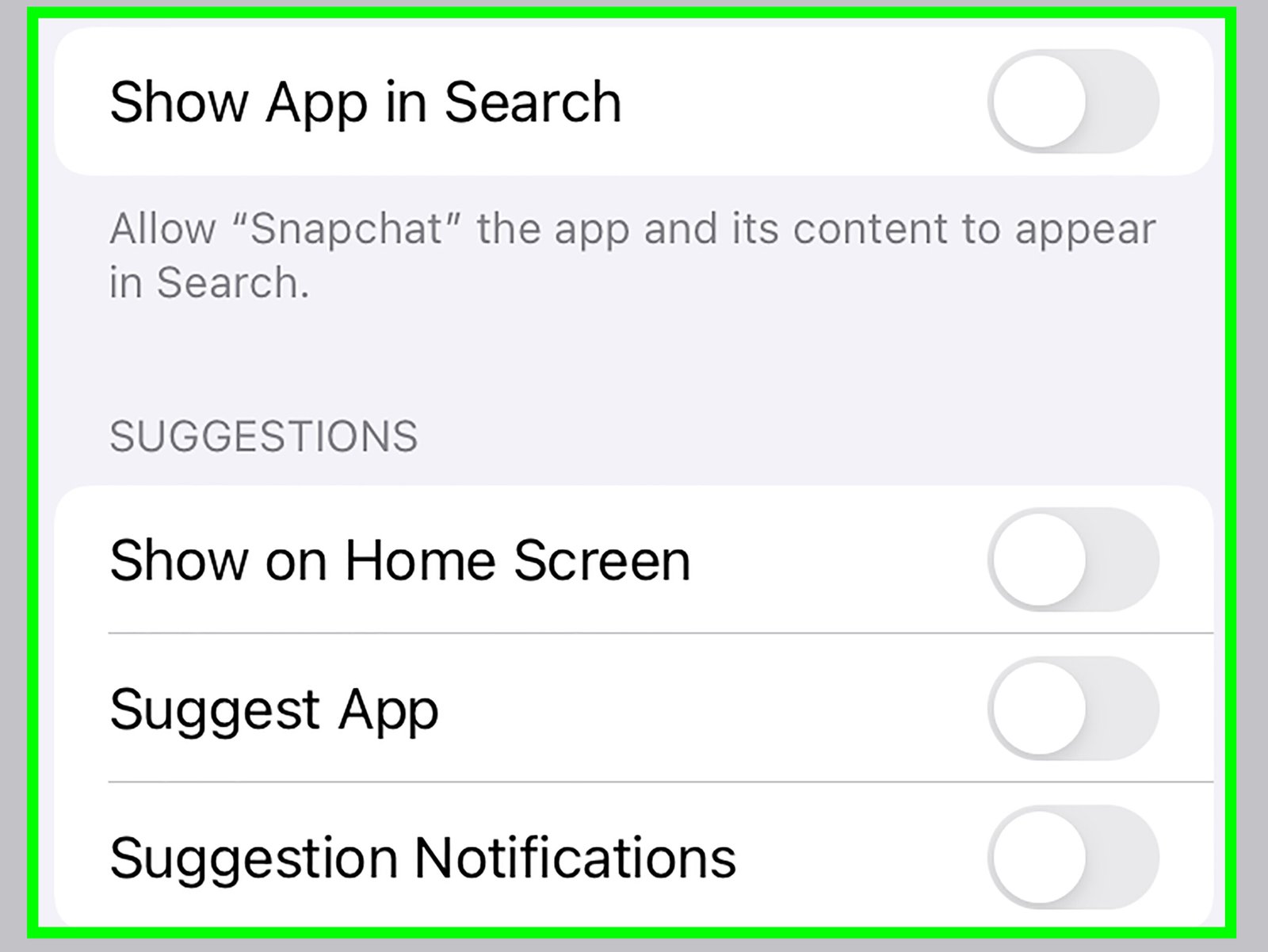
Imagine having the power to control exactly what apps are accessible on your iPhone. You want to create a digital space that aligns with your priorities, and sometimes that means blocking certain distractions like Snapchat.
But how do you do it without pulling your hair out over complicated tech jargon or endless settings menus? Luckily, you’re in the right place. You’ll discover straightforward steps to block Snapchat on your iPhone, set limits that stick, and create safer app habits for yourself or your family.
Ready to take control of your digital life and unlock a simpler, less stressful smartphone experience? Keep reading to see the easiest ways to block Snapchat on an iPhone using built-in settings, parental control apps, and network-level restrictions.
Quick Answer
To block Snapchat on an iPhone, use Screen Time. Go to Settings, tap Screen Time, choose App Limits or Content & Privacy Restrictions, and restrict Snapchat or the Social category. For a child’s phone, set a Screen Time passcode so the limit cannot be changed without permission.
Key Takeaways
- The easiest way to block Snapchat on an iPhone is through Apple’s built-in Screen Time settings.
- App Limits can reduce Snapchat access, while Content & Privacy Restrictions can make it harder to install, open, or bypass restricted apps.
- For children, always use a Screen Time passcode that only the parent or guardian knows.
- Parental control apps can add stronger monitoring, alerts, and scheduling tools when Screen Time is not enough.
- Network-level blocking can help at home, but it may not work when the iPhone switches to mobile data or another Wi-Fi network.
At a Glance
| Time Required | 5 to 15 minutes |
| Difficulty | Easy |
| Tools Needed | iPhone, Screen Time settings, optional parental control app, optional router access |
| Cost | Free with iPhone settings; optional paid parental control apps may cost extra |

Credit: www.youtube.com
Reasons To Block Snapchat
Snapchat has become popular among teenagers and young adults. Still, many people have valid reasons to block Snapchat on an iPhone. You may want fewer distractions, stronger privacy, safer app habits, or better control over a child’s screen time.
Blocking Snapchat does not have to be extreme. For some users, a daily limit is enough. For others, a full restriction works better, especially when the goal is safety, focus, or parental supervision.
Privacy Concerns
Snapchat’s temporary-message style can encourage quick sharing. That can become risky when users send photos, personal details, location updates, or private conversations without thinking through the consequences.
Blocking or limiting Snapchat can help reduce that risk. It gives you time to talk about privacy, location sharing, friend requests, screenshots, and what should never be shared online.
Time Management
Snapchat can become distracting because of notifications, streaks, messages, stories, and quick replies. A few minutes can turn into a long scrolling session before you notice it.
Blocking the app, setting a daily limit, or scheduling downtime can help you use your iPhone with more intention. It also makes it easier to focus on school, work, sleep, or family time.
Cyberbullying Prevention
Cyberbullying can happen on many social media platforms, and Snapchat is no exception. Harmful messages, screenshots, group chats, and unwanted contact can affect a young person’s confidence and mental well-being.
Blocking Snapchat can reduce exposure to harmful interactions. It can also give parents time to review what is happening, discuss safe behavior, and decide whether the app should be allowed again later.
Focus On Education
Many students struggle with phone distractions during homework, online classes, and study time. Snapchat can pull attention away from lessons because messages and notifications feel urgent.
Restricting Snapchat during school hours or homework time can improve focus. It supports better study habits without requiring you to remove every app from the phone.
Protecting Young Users
Young users may not always understand online risks. Snapchat can expose them to inappropriate content, unknown contacts, peer pressure, and privacy mistakes.
Blocking Snapchat can help protect younger users while they learn healthy digital boundaries. It also gives parents and guardians a practical way to guide app use instead of relying only on reminders.
Warning: Do not depend on one setting alone if you are protecting a child’s device. Combine Screen Time limits with a private passcode, regular conversations, and occasional checks to make sure the restriction still works.
Using Iphone Settings
Access iPhone settings to block Snapchat without extra tools. Apple’s Screen Time feature lets you view app activity, set app limits, schedule downtime, and restrict content or downloads. For most people, this is the best place to start.
Blocking Snapchat on your iPhone can help manage screen time and ensure that your phone usage aligns with your priorities. Using iPhone settings, you have built-in tools at your disposal to control app access, including Snapchat.
Accessing Screen Time
First, open the Settings app on the iPhone. Scroll down and tap Screen Time. This section shows how much time is spent on apps, including Snapchat, when Screen Time is turned on.
Have you ever wondered how much time you actually spend on Snapchat daily? Screen Time can surprise you with its insights.
Once you open Screen Time, you’ll see a summary of app usage. This is where you can start managing apps like Snapchat effectively.
- Open Settings on the iPhone.
- Tap Screen Time.
- If Screen Time is off, turn it on and follow the setup prompts.
- Choose whether this is your iPhone or your child’s iPhone.
- Review the app activity summary to confirm Snapchat usage.
Setting App Limits
To block Snapchat with a time limit, navigate to the App Limits section within Screen Time. You can add limits to specific apps or entire categories.
Tap Add Limit and choose Snapchat if it appears in the app list. You may also choose the Social category if you want to limit several social apps at the same time.
Setting a specific daily limit can help curb excessive usage. You can set a very short limit, such as one minute, to make Snapchat nearly inaccessible after the limit is reached.
- Go to Settings.
- Tap Screen Time.
- Tap App Limits.
- Tap Add Limit.
- Select Snapchat or the relevant social app category.
- Set the daily limit you want.
- Turn on Block at End of Limit when available.
- Tap Add to save the limit.
Have you ever set a timer on something and suddenly realized how much more you can get done without constant distractions? Applying app limits can be just as useful.
Once you set the limit, Snapchat will be restricted after the allowed time is used. This feature is especially handy if you want to manage your child’s phone usage.
Using A Screen Time Passcode
A Screen Time passcode helps prevent someone from changing the limits without permission. This matters most when you are setting restrictions on a child’s iPhone.
- Open Settings.
- Tap Screen Time.
- Tap Lock Screen Time Settings or Use Screen Time Passcode.
- Create a passcode that is different from the iPhone unlock passcode.
- Keep the passcode private.
Think about the peace of mind you’ll gain from knowing you or your family aren’t endlessly scrolling through Snapchat.
Pro Tip: Use a Screen Time passcode that your child does not know. If the passcode is easy to guess, the Snapchat limit may not last.
Blocking Snapchat With Content And Privacy Restrictions
App Limits reduce use, but Content & Privacy Restrictions can add another layer of control. This is helpful when you want to stop app installs, prevent account changes, or limit access to certain content.
- Open Settings.
- Tap Screen Time.
- Tap Content & Privacy Restrictions.
- Turn on Content & Privacy Restrictions.
- Review options for app installs, app deletion, account changes, and content limits.
- Adjust the settings based on your goal.
You can also restrict App Store actions so Snapchat cannot be reinstalled easily after deletion. This works best when paired with a Screen Time passcode.
Using Downtime To Block Snapchat At Certain Times
Downtime lets you schedule blocks for certain hours. This can help during school, homework, dinner, bedtime, or work sessions.
- Go to Settings.
- Tap Screen Time.
- Tap Downtime.
- Turn on Downtime and choose the schedule.
- Use Always Allowed to choose which apps can still be used.
- Keep Snapchat out of the Always Allowed list.
Downtime is useful because it blocks distracting apps during the hours you choose. You can still allow important apps like Phone, Messages, Maps, or school tools.
Deleting Snapchat After Restrictions Are Set
You can also delete Snapchat from the iPhone after setting restrictions. This removes the app from the home screen and makes access harder.
- Press and hold the Snapchat app icon.
- Tap Remove App.
- Tap Delete App.
- Confirm the deletion.
- Use Screen Time settings to restrict new app installs if needed.
This method works well when the goal is to remove Snapchat completely. For children, make sure app installation settings are restricted so the app cannot be downloaded again without permission.
Parental Control Apps
With the increasing use of social media apps like Snapchat, many parents are concerned about their children’s online safety. Parental control apps can help by giving you more ways to block, limit, schedule, or monitor app use on a child’s iPhone.
Screen Time works well for many families, but some parents want stronger tools. A parental control app may offer reports, alerts, web filtering, location features, or easier control across multiple devices.
Choosing The Right App
Finding the right parental control app might feel overwhelming because there are many options. You want something reliable, easy to use, and compatible with the iPhone.
Look for apps that offer app blocking, screen time management, activity reports, and clear parent controls. Also check whether the app works with the current iOS version on the device.
Consider user reviews and ratings. These can provide insight into real-life experiences and possible issues. Another critical aspect is compatibility. Make sure the app works smoothly with the iPhone operating system.
Some popular options include Qustodio, Norton Family, and OurPact. Each offers different features, so it is important to evaluate which one best matches your needs.
Do you want an app that alerts you about potential dangers, or one that simply restricts access? Your decision should reflect your priorities, your child’s age, and how much supervision you need.
Installing And Configuring
Once you’ve chosen an app, installing it is usually straightforward. Download the app from the App Store and follow the setup prompts. You may need to create an account or link it to your email for notifications.
Configuration is where you set the rules. Decide which apps to block and set daily screen time limits. You can often tailor restrictions based on age, which helps create a more appropriate experience.
Don’t forget to explore additional features like location tracking or instant alerts. They can offer peace of mind by keeping you informed about your child’s whereabouts and online activity.
How much control do you want to use? Balance is key. Too much restriction can cause conflict, while too little may not solve the problem.
Have you tried discussing these settings with your child? Engaging them in the conversation can foster trust and understanding. Technology should be a tool for safety, not a source of conflict.
When Parental Control Apps Make Sense
A parental control app may be useful when Screen Time is not enough. For example, you may want more detailed reports, alerts for risky behavior, or easier control across several devices.
These apps can also help when several caregivers need to stay informed. Some tools allow parents to manage rules from their own phones instead of changing settings directly on the child’s iPhone.
What To Check Before You Pay
Before paying for a parental control app, review the features carefully. Some apps advertise broad protection but limit certain iPhone controls because of iOS restrictions.
- Check whether the app can block specific iPhone apps.
- Confirm that Snapchat blocking is supported.
- Review subscription costs and renewal terms.
- Read recent reviews from iPhone users.
- Test the free version or trial if available.
- Make sure you understand what data the app collects.
:max_bytes(150000):strip_icc()/how-to-block-someone-on-snapchat-4169485-2-5b199b8b43a103003684ed8f.jpg)
Credit: www.lifewire.com
Network-level Blocking
Blocking Snapchat on an iPhone can also be done through network-level restrictions. This means you block Snapchat from connecting through your home Wi-Fi network instead of only changing settings on the phone.
Network-level blocking can be useful for households or small offices. It can help keep children focused during study time, reduce social media distractions, and add another layer of control.
However, this method has limits. If the iPhone uses mobile data or connects to another Wi-Fi network, your home router settings may no longer block Snapchat.
Router Settings
Adjusting your router settings is one way to block Snapchat. Access your router’s admin panel through a web browser. You typically need the router’s IP address, which is often printed on the router label or included in its manual.
Once logged in, look for parental controls, access controls, firewall settings, or website blocking. The exact wording depends on your router brand.
Here, you can block specific websites or services by entering domain names. For Snapchat, you may need to block domains connected to Snapchat access, such as snapchat.com. Each router brand may have a different interface, so some exploration might be necessary.
- Connect to your home Wi-Fi network.
- Open a browser and sign in to your router admin panel.
- Find parental control, firewall, or website blocking settings.
- Add Snapchat-related domains to the blocked list.
- Save the settings.
- Restart the router if needed.
- Test Snapchat on the iPhone while connected to Wi-Fi.
Note: Network-level blocking may not block Snapchat everywhere. If the iPhone switches to mobile data, a hotspot, or another Wi-Fi network, router rules from your home network may not apply.
Using Third-party Services
If router settings seem daunting, consider third-party services that simplify network-level blocking. Tools like OpenDNS or parental control apps can offer user-friendly dashboards for blocking websites and categories.
For instance, OpenDNS allows users to create custom filtering rules on a network. You can add unwanted services to a blocked list and manage access from a web dashboard.
These services often include additional benefits, such as activity reports or category filters. That can give you a clearer picture of what is happening on your network.
Have you ever tried using a third-party service to manage network traffic? It can be enlightening to see just how much control these tools offer.
Network-level blocking can be a powerful ally in managing how and when devices in your household access Snapchat. Whether you adjust your router settings or use a third-party service, taking control of your network can offer peace of mind.
Blocking Snapchat On Mobile Data
If Snapchat still works after you block it on Wi-Fi, the iPhone may be using mobile data. You can reduce this problem by turning off mobile data access for Snapchat.
- Open Settings.
- Tap Cellular or Mobile Data.
- Scroll through the app list.
- Find Snapchat.
- Turn off cellular data access for Snapchat.
This does not replace Screen Time, but it can help reduce access when Wi-Fi blocking is part of your plan.
Alternative Solutions
Blocking Snapchat on an iPhone can be useful, but sometimes you may need a softer approach. These alternative solutions focus on monitoring, communication, and healthy habits instead of only removing access.
This approach can work well when your goal is not to punish, but to build better digital behavior. It is especially useful with older children and teens who need guidance, not just restrictions.
Monitoring Usage
Parents can monitor Snapchat activity with built-in tools or third-party apps. Some tools show how long Snapchat is used each day. Others provide broader reports about app habits and screen time trends.
Consider Apple’s built-in Screen Time feature. It shows app usage and lets you set limits. You can set daily limits for Snapchat, review weekly reports, and adjust rules as habits improve.
Monitoring tools provide valuable information for responsible usage. They can help you see whether Snapchat is the main distraction or whether several apps are causing the problem.
Encouraging Healthy Habits
Talk to your child about healthy screen habits. Encourage activities away from screens, such as outdoor play, reading, hobbies, chores, sports, or family activities.
Discuss the importance of balanced screen time. Highlight offline activities that are fun and engaging. The goal is not just to block an app, but to replace the habit with something healthier.
Set family rules for screen use. Create a schedule that includes breaks from devices. Involve your child in setting these rules so they understand the reason behind them.
Encourage them to share their thoughts about Snapchat. Open discussions help build trust and awareness.
Lead by example. Show your child how to balance screen time. Practice what you preach to inspire them. Your actions can positively influence their habits.
Creating A Family Screen Time Plan
A family screen time plan can make Snapchat rules easier to follow. Instead of changing settings randomly, create a clear plan that everyone understands.
- Choose screen-free times, such as meals, homework, and bedtime.
- Decide when Snapchat is allowed and when it is blocked.
- Keep phones outside bedrooms at night if sleep is a concern.
- Review Screen Time reports once a week.
- Adjust limits when your child shows better habits.
This makes the rule feel fairer and more predictable. It also helps your child understand that restrictions are about safety and balance, not control alone.
Troubleshooting If Snapchat Is Still Working
If Snapchat still works after you set restrictions, check a few common issues. Most problems happen because the limit was not saved, the passcode is known, or Snapchat is allowed through another setting.
- Make sure Screen Time is turned on.
- Confirm the Snapchat limit is active.
- Check that Block at End of Limit is turned on when available.
- Make sure Snapchat is not listed under Always Allowed.
- Use a Screen Time passcode that the child does not know.
- Check whether Snapchat was reinstalled after deletion.
- Turn off mobile data for Snapchat if Wi-Fi blocking is not enough.
- Restart the iPhone after changing settings if restrictions do not appear right away.
These quick checks can solve most setup problems. If the issue continues, review each Screen Time setting again and make sure the restrictions match your goal.

Credit: www.youtube.com
Frequently Asked Questions
How Do I Block Snapchat From My Iphone?
Go to Settings, tap Screen Time, then App Limits. Add Snapchat and set a very short daily limit. Turn on Block at End of Limit when available. For stronger control, use a Screen Time passcode and Content & Privacy Restrictions.
Can I Block Snapchat On My Daughter’s Phone?
Yes, you can block Snapchat on your daughter’s iPhone with Screen Time. Set App Limits, enable Content & Privacy Restrictions, and create a Screen Time passcode only you know. You can also use a parental control app if you need more monitoring or reports.
How Do I Block An App On My Iphone?
To block an app on your iPhone, open Settings, tap Screen Time, then choose App Limits. Select the app, set a daily limit, and save it. You can also use Downtime and Content & Privacy Restrictions for stronger control.
How Do I Restrict Snapchat?
To restrict Snapchat, use Screen Time limits, Downtime, Content & Privacy Restrictions, or a parental control app. You can also turn off cellular data for Snapchat and block access through your home router for extra control on Wi-Fi.
Can Someone Bypass Snapchat Restrictions On Iphone?
Restrictions can be bypassed if the person knows the Screen Time passcode, can reinstall apps, or switches to another device. Use a private passcode, restrict app installs, review Always Allowed apps, and check Screen Time reports regularly.
Is Screen Time Enough To Block Snapchat?
Screen Time is enough for many users, especially when you use App Limits, Downtime, and a private passcode. If you need stronger monitoring, alerts, or reports, a parental control app may be a better fit.
Conclusion
Blocking Snapchat on an iPhone is easy when you use the right settings. Screen Time is the best starting point because it lets you set app limits, schedule downtime, and add a passcode for stronger control.
Parents can also use Content & Privacy Restrictions, parental control apps, router settings, and mobile data controls for extra protection. These options help reduce distractions, support safer app habits, and create a more focused phone experience.
Enjoy a focused environment. Remember, setting app limits is beneficial because it helps manage time better. Simple steps can lead to better digital habits.
Always stay informed about app control options. This ensures a safer and more productive phone experience. With practice, managing Snapchat access becomes second nature.
Stay tech-savvy and protect your digital space.

