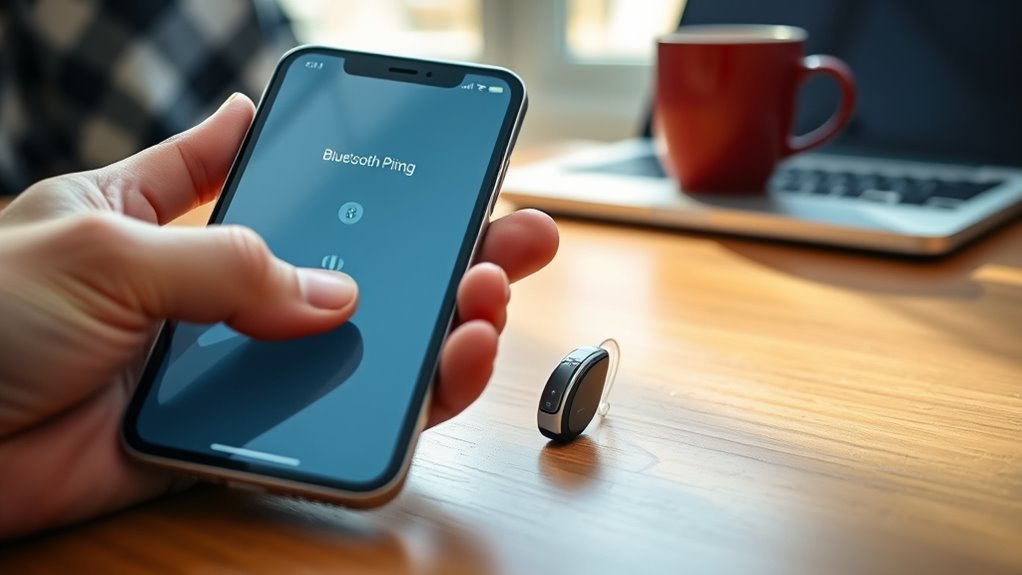
Learning how to pair Phonak hearing aids to iPhone is easier when you know which Bluetooth connection to use. Most compatible models can stream calls and audio directly, while the myPhonak app offers additional controls. The steps differ slightly between rechargeable models, battery-powered hearing aids, and newer Phonak generations.
Quick Answer
To pair Phonak hearing aids with an iPhone, open Settings > Bluetooth and turn Bluetooth on. Restart the hearing aids to enter pairing mode, then select their name within three minutes. Confirm any pairing request and listen for a beep. The restart method depends on whether your hearing aids are rechargeable or use replaceable batteries.
At a Glance
| Time Required | Allow a few minutes; the pairing window lasts three minutes after restarting. |
| Tools Needed | Bluetooth-enabled iPhone, compatible Phonak hearing aids, and their charger or working batteries |
Key Takeaways
- Phonak hearing aids generally pair for calls and media through the iPhone’s regular Bluetooth settings.
- Rechargeable hearing aids can enter pairing mode after being placed in a powered charger for at least 10 seconds.
- Models with replaceable batteries enter pairing mode after their battery doors are opened for five seconds and closed.
- Older Phonak generations may need separate Bluetooth connections for calls and the myPhonak app.
- Infinio Ultra and newer hearing aids can enable calls and streaming during myPhonak setup.
- Bluetooth device entries beginning with LE_ on older models are used for app communication, not regular call streaming.
How to Pair Phonak Hearing Aids to iPhone
You can connect compatible Phonak hearing aids to an iPhone through the phone’s Bluetooth menu. The important steps are enabling Bluetooth, restarting the hearing aids, and selecting the correct device before pairing mode ends.
This method is useful when you want to make phone calls, listen to music, watch videos, or stream other audio through your hearing aids.
Step-by-Step Bluetooth Pairing Instructions
- Open iPhone Settings. Unlock your iPhone and open the Settings app.
- Enable Bluetooth. Tap Bluetooth and switch it on. Keep this screen open.
- Restart your hearing aids. Use the charger or battery-door method described in the next sections.
- Wait for the device name. Look under the available Bluetooth devices. It may appear as R-Phonak hearing aid or L-Phonak hearing aid.
- Select the hearing aid. Tap its name when it appears in the list.
- Confirm pairing. If your iPhone displays a Bluetooth pairing request, accept it.
- Listen for confirmation. A beep from the hearing aid indicates successful pairing.
Phonak confirms this process in its official iPhone Bluetooth pairing instructions.
The hearing aids remain discoverable for three minutes after restarting. If you do not complete the process within that period, restart them and try again.
How to Check Whether Pairing Worked
After pairing, return to the iPhone Bluetooth menu and check whether the hearing aid shows a connected status. You should also hear a connection tone.
Next, play a short video or make a test phone call. If the audio reaches your hearing aids, the streaming connection is working.
When two hearing aids are fitted together, older compatible Phonak models normally require only one Bluetooth Classic connection for calls and media. Audio can still play through both hearing aids.
Do not assume that the second hearing aid has failed simply because only one regular streaming connection appears.
Pair Phonak Rechargeable Hearing Aids
Rechargeable Phonak hearing aids enter Bluetooth pairing mode when they are switched off and back on. The charger provides a simple way to restart them, provided it has power and the hearing aids’ automatic power-on feature is enabled.
Restart Rechargeable Hearing Aids With the Charger
- Connect the hearing aid charger to power, or ensure that a portable charger has sufficient battery charge.
- Place both hearing aids into their charging positions.
- Leave them in the charger for at least 10 seconds.
- Remove the hearing aids and watch for the green indicator light.
- Open Settings > Bluetooth on your iPhone.
- Select the Phonak hearing aid when it appears and confirm pairing.
Once restarted, the hearing aids remain available for Bluetooth discovery for three minutes.
This charger method depends on the hearing aids’ Auto-on setting. Phonak enables Auto-on by default on supported models, but it can be changed in the myPhonak app.
Restart Rechargeable Hearing Aids Without the Charger
On compatible models, you can also use the hearing aid’s multifunction button instead of placing it in the charger.
- Press and hold the lower part of the hearing aid button until the indicator blinks red.
- Press the button again until the indicator blinks green.
- Repeat the procedure for the other hearing aid if applicable.
- Return to your iPhone Bluetooth settings and complete the pairing process.
These button and charger methods are documented in Phonak’s rechargeable hearing aid connection guide.
If the hearing aids do not restart, confirm they have enough charge. Button behavior can vary by model, so use the instructions for your specific hearing aids if the indicator behaves differently.
Pair Phonak Battery Models to iPhone
Phonak hearing aids with replaceable batteries use their battery doors to enter pairing mode. Opening the door switches off the device, while closing it restarts the hearing aid and makes it available for Bluetooth discovery.
Steps for Models With Replaceable Batteries
- Check that each hearing aid contains a working battery.
- Open the battery door on each hearing aid.
- Leave the battery doors open for five seconds.
- Close the doors completely to restart the devices.
- Open Settings > Bluetooth on the iPhone.
- Wait for the Phonak device name to appear.
- Select the correct device and accept any pairing request.
A confirmation beep indicates that the connection has been established.
When connecting two hearing aids through myPhonak, the app should detect both devices. Its pairing process is separate from the regular audio connection on earlier Phonak generations.
Phonak provides additional instructions in its non-rechargeable hearing aid pairing guide.
What if the Hearing Aid Does Not Turn On?
First, make sure the battery door closes correctly and the battery is not depleted. Replace a weak battery before repeating the pairing process.
If the hearing aid still does not switch on, resolve the power issue before attempting another Bluetooth connection.
There is no benefit in repeatedly searching for a hearing aid that has not restarted successfully.
Connect the myPhonak App to iPhone
The myPhonak app allows you to manage supported hearing aid settings from your iPhone. Depending on your model, you may use it to adjust volume, select listening programs, and access other available controls.
Pairing with the app is not always the same as pairing for phone calls and media streaming. This distinction matters particularly with older Phonak models.
How to Set Up myPhonak
- Open the Apple App Store and search for myPhonak.
- Download and install the app.
- Enable Bluetooth in your iPhone settings.
- Open myPhonak and follow the introductory instructions.
- Complete the privacy and usage-data prompts as required.
- Go to the app’s Home section and select Pair hearing aids.
- Follow the instructions for your hearing aid’s battery type to activate pairing mode.
- Tap Continue when the devices are ready.
- Wait until both hearing aids appear if you use a pair.
- Tap the green Pair button and confirm each Bluetooth pairing request.
If only one hearing aid appears, use the app’s “I don’t see my devices” option and restart both devices before searching again.
Once pairing is complete, the app should recognize your hearing aids and provide the controls supported by your specific model.
Do You Need Another Pairing for Phone Calls?
The answer depends on which Phonak generation you own. Infinio Ultra and newer devices can enable audio streaming and phone calls automatically when paired with myPhonak.
For earlier generations, including supported Paradise, Lumity, and non-Ultra Infinio devices, another Bluetooth pairing step may be needed for calls and media.
After app setup on those models, look for See instructions or, in older app versions, Optional settings. Follow the displayed instructions to connect phone audio.
Why Are Several Phonak Devices Listed in Bluetooth?
Phonak uses different Bluetooth connections for streaming audio and communicating with the app. The entries you see depend on your hearing aid generation.
| Bluetooth Entry | Purpose |
|---|---|
| R-Phonak or L-Phonak on older models | Bluetooth Classic connection for calls and audio streaming |
| LE_R-Phonak and LE_L-Phonak on older models | Bluetooth Low Energy connections used by the myPhonak app |
| R-Phonak and L-Phonak on Infinio Ultra and newer models | Hearing aid connections established through the newer app pairing process, including supported streaming functions |
On older models, the LE_ entries may show “Not Connected” while the app is closed. This can be normal because those connections activate when the app needs to communicate with the hearing aids.
Phonak explains these differences in its guide to Bluetooth hearing aid entries.
Do not delete the LE_ entries merely because they appear disconnected. Removing them can interrupt communication with myPhonak.
Fix Phonak iPhone Pairing Issues
If Phonak hearing aids will not connect to your iPhone, start with Bluetooth, power, and pairing mode. Most connection checks can be performed without changing the hearing aid’s programmed sound settings.
Work through the following fixes in order. Try the connection again after each step before moving to a more involved reset.
1. Hearing Aids Do Not Appear in Bluetooth
If your hearing aids are missing from the Bluetooth list, they may have left pairing mode or connected to another nearby device.
- Confirm Bluetooth is enabled on the iPhone.
- Check that the hearing aids are powered on and charged or have working batteries.
- Move the hearing aids close to the iPhone.
- Temporarily disable Bluetooth on other nearby devices previously paired with the hearing aids.
- Restart both hearing aids to begin another three-minute pairing window.
- Watch the iPhone Bluetooth list for the correct device name.
Remember that older Phonak systems may show only one regular audio-streaming entry even when you wear two hearing aids.
2. Hearing Aids Are Paired but Not Connected
A device can remain saved in the Bluetooth list without having an active connection. This does not necessarily mean its pairing information has been lost.
Try tapping the saved hearing aid entry to reconnect it. If that fails, turn iPhone Bluetooth off and back on, restart the hearing aids, and restart the iPhone if needed.
For persistent problems, remove the saved connection and pair it again.
3. myPhonak Cannot Find One or Both Hearing Aids
The app may fail to reconnect after an iPhone update, app update, or change to the hearing aid fitting. A temporary Bluetooth communication issue can also prevent detection.
- Close and reopen myPhonak.
- Check that your iPhone’s Bluetooth is enabled.
- Restart both hearing aids.
- Restart the iPhone if the problem continues.
- Open myPhonak and attempt pairing again.
If these steps fail, Phonak recommends a more complete reconnection process. Its iPhone app connection repair guide covers removing old app pairings and completing setup again.
Warning: Forgetting a Bluetooth connection removes its pairing information from the iPhone. You must pair the hearing aids again afterward. Avoid removing app-related connections unless you are following a complete reconnection procedure.
4. How to Forget and Re-Pair a Phonak Hearing Aid
When the saved Bluetooth connection is faulty, removing it lets you start the pairing process again. This is best attempted after simpler fixes have failed.
- Open Settings > Bluetooth on your iPhone.
- Locate the saved hearing aid connection.
- Tap the information button beside its name.
- Select Forget This Device and confirm.
- Restart the hearing aids to activate pairing mode.
- Select the hearing aid again when it appears.
- Confirm the new pairing request.
Apple describes the general removal procedure in its Bluetooth accessory pairing and unpairing instructions.
If you are also resetting myPhonak, follow the app’s device-removal instructions so that its saved connections are restored correctly.
5. Phone Calls Do Not Play Through the Hearing Aids
If Bluetooth says Connected but the call plays through your iPhone, the problem may be the selected audio output rather than pairing itself.
- Make or receive a phone call.
- Tap Audio on the iPhone call screen.
- Select your Phonak hearing aids from the available audio options.
- Adjust the call volume using the iPhone buttons if the caller sounds too quiet.
You can also adjust the default call route through Settings > Accessibility > Touch > Call Audio Routing. Select Bluetooth Headset when you want supported Bluetooth devices to handle phone calls by default.
If the other person struggles to hear your voice, check that the hearing aid microphones are not blocked and try a quieter location. For supported iPhone and hearing aid combinations, switching to the iPhone microphone may also help.
6. The Hearing Aid Button Will Not Answer Calls
On compatible Phonak models, a short press of the multifunction button can accept an incoming call. A longer press can reject it, although button assignments may be customized.
If the button does not work, check that calls are reaching the hearing aids and that the control has not been reassigned or disabled.
On models with double-tap controls, review the call-control settings in myPhonak. Phonak explains the available checks in its hearing aid call-button troubleshooting guide.
Note: If pairing repeatedly fails, one hearing aid does not operate, or the controls do not behave as expected, contact your hearing care professional. They can check model compatibility, firmware, and hearing aid programming without unnecessary changes to your hearing settings.
How to Keep Your Phonak Bluetooth Connection Stable
After successful pairing, a few simple habits can reduce unwanted disconnections. These steps also make it easier to identify whether a problem comes from the iPhone, the app, or the hearing aids.
- Keep devices charged. Low battery power can interfere with normal operation.
- Keep the iPhone nearby. Walls, distance, and other obstacles can affect Bluetooth performance.
- Keep software compatible. Install supported iPhone and myPhonak updates when appropriate.
- Avoid unnecessary unpairing. A temporary app disconnection does not always require deleting the saved Bluetooth entries.
- Watch for competing connections. Other paired phones or computers may reconnect to the hearing aids when nearby.
If connection problems begin immediately after an update, first restart the devices and check the app connection before deleting existing pairings.
Frequently Asked Questions
What Is the Best Phone for Someone Using a Phonak Hearing Aid?
A compatible iPhone that supports your hearing aid model and the required apps is a good choice. Phonak currently lists iOS 16.0 or newer as a requirement for myPhonak. An older iPhone may support Bluetooth calls but not the current app. Check both forms of compatibility before choosing a phone.
Can I Answer the Phone Using myPhonak Hearing Aid?
Yes, compatible Phonak hearing aids can let you answer iPhone calls through their built-in controls. The aids must be paired for phone audio, and the call button must be enabled. The myPhonak app provides hearing aid controls, but older generations may require a separate Bluetooth connection for calls.
Which Hearing Aid Works Best With an iPhone?
Several Bluetooth-enabled Phonak generations, including Marvel, Paradise, Lumity, and Infinio, offer iPhone connectivity on supported models. There is no single best choice for every person. Consider your hearing needs, compatible features, phone software, and professional fitting advice instead of selecting a hearing aid based only on Bluetooth support.
How to Answer an iPhone Call With a Hearing Aid?
Answer an incoming call with a short press of the hearing aid’s multifunction button if your model supports that control. You can also answer on the iPhone and select your hearing aids from the call’s Audio menu. If the call does not transfer, check Bluetooth and Call Audio Routing settings.
Can I Use Phonak Hearing Aids Without the myPhonak App?
Yes, many compatible Phonak hearing aids support calls and audio streaming through the iPhone’s Bluetooth settings without using myPhonak. The app adds convenient adjustment features. On Infinio Ultra and newer hearing aids, however, initial pairing through myPhonak can also establish the connections needed for calls and streaming.
Conclusion
Pairing Phonak hearing aids with an iPhone starts with Bluetooth and a model-specific restart. Once connected, you can use supported hearing aids for phone calls and media streaming, with myPhonak providing additional controls.
If the connection fails, check the pairing window, Bluetooth device name, and app requirements before resetting anything. For ongoing problems, your hearing care professional can help identify a device or programming issue.
Sources
- Phonak, How to Pair Phonak Hearing Aids to iPhone for Phone Calls and Media Streaming: Bluetooth setup, restart methods, and pairing confirmation.
- Phonak, How to Pair and Connect Rechargeable Hearing Aids to myPhonak on iPhone: Charger restart, button restart, and app setup.
- Phonak, How to Pair and Connect Non-Rechargeable Hearing Aids to myPhonak on iPhone: Battery-door restart and app pairing.
- Phonak, What Hearing Aid Should Be Selected From the List on the Mobile Phone?: Bluetooth Classic and Low Energy connections.
- Phonak, How to Repair Connection Issues With the myPhonak App on iPhone: Troubleshooting and reconnection.
- Phonak, Why Can’t I Answer Calls Using the Button or Double Tap on My Phonak Hearing Aids?: Call controls and audio routing.
- Phonak, Is My Phone Compatible With the myPhonak App?: iPhone software compatibility requirements.
- Apple Support, Connect a Third-Party Bluetooth Accessory to Your iPhone or iPad: Bluetooth pairing and forgetting saved devices.

