To connect an iPhone to a 2023 Toyota RAV4, you can use wireless Apple CarPlay, a USB cable, or Bluetooth for calls and music. The RAV4 supports wireless CarPlay without an aftermarket adapter, but the setup steps differ depending on your connection method. This guide explains how to pair your iPhone, use the correct USB port, and solve common connection problems.
Quick Answer
Park your 2023 RAV4, enable Bluetooth, Wi-Fi, and Siri on your iPhone, then open Settings > Bluetooth & Devices on the Toyota screen. Select Add another device, search for your iPhone, confirm the pairing code, and allow Apple CarPlay. For a wired connection, plug your iPhone into the front USB media port using a compatible data cable.
At a Glance
| Difficulty | Easy |
| Tools Needed | Compatible iPhone; Apple-approved data USB cable for wired setup |
Check iPhone and RAV4 CarPlay Settings
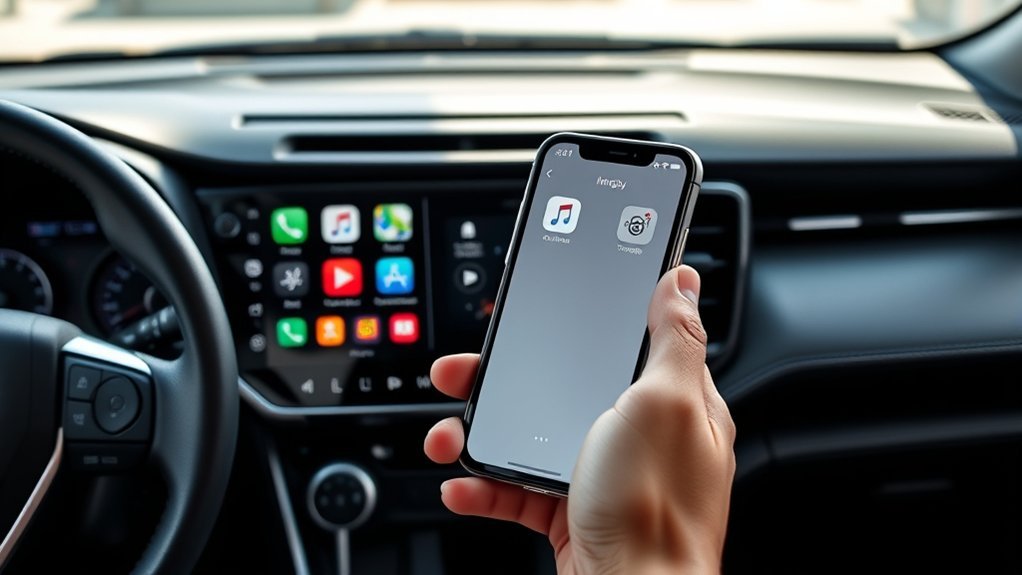
Before connecting your iPhone, check that Siri and the required wireless settings are enabled. Also, confirm that the Toyota multimedia system is ready to accept a new device. These checks help prevent pairing failures before they happen.
Warning: Complete phone pairing and multimedia setup while the RAV4 is safely parked with the transmission in Park (P). Do not attempt device registration or change connection settings while driving.
Prepare your iPhone using these steps:
- Enable Bluetooth: Open Settings > Bluetooth and turn it on.
- Enable Wi-Fi: Open Settings > Wi-Fi and make sure Wi-Fi is active. Wireless CarPlay requires both Bluetooth and Wi-Fi.
- Enable Siri: Open your iPhone’s Siri settings and confirm that Siri is enabled. The menu name may vary with your iOS version.
- Check CarPlay: Open Settings > General > CarPlay. This menu lets you view or manage vehicles paired with CarPlay.
- Update iOS if needed: Install an available supported iOS update if you have experienced connection problems.
Apple explains these requirements in its official CarPlay setup guide.
On the RAV4, the main connection controls are under Settings > Bluetooth & Devices. Once an iPhone is registered, you can choose whether it connects through Apple CarPlay or ordinary Bluetooth.
CarPlay and Bluetooth are not the same. CarPlay displays supported iPhone apps, including navigation, phone, messaging, and music. A standard Bluetooth connection handles calls and audio without showing the CarPlay interface.
Connect iPhone to RAV4 Wirelessly
The 2023 Toyota RAV4 supports wireless Apple CarPlay through its factory multimedia system. You can pair an iPhone directly from the Toyota touchscreen without plugging in a cable. Once registered, the phone can reconnect automatically on future drives.
Follow these steps to make your first wireless connection:
- Open Toyota Settings. On the RAV4 multimedia display, select the gear-shaped Settings icon.
- Open the device menu. Select Bluetooth & Devices.
- Start pairing. Select Add another device, then Search for devices. If no phone is registered, the search screen may appear automatically.
- Select your iPhone. Find your iPhone in the available-device list and select it. Keep your iPhone unlocked during initial setup.
- Confirm the pairing code. Compare the code displayed on your iPhone with the one on the RAV4 screen. If both match, approve the pairing request.
- Enable Apple CarPlay. When Toyota asks whether to enable CarPlay, select Yes. Accept the related permissions on your iPhone, including allowing CarPlay while the phone is locked if prompted.
- Open CarPlay. The CarPlay home screen should appear. If it does not, select the Apple CarPlay icon on the Toyota display.
These steps follow Toyota’s Bluetooth pairing instructions for Toyota Audio Multimedia.
If you choose No when Toyota asks to enable Apple CarPlay, your iPhone can still pair as a standard Bluetooth device for hands-free calls and music.
How to Enable CarPlay on an Already-Paired iPhone
If your iPhone already appears under Bluetooth & Devices but CarPlay will not open, you may not need to pair it again. Check the CarPlay option assigned to that device first.
- Open Settings > Bluetooth & Devices on the RAV4 screen.
- Select your registered iPhone.
- Find Use for Apple CarPlay and switch it on.
- Select Connect if the phone is not currently connected.
- Open the CarPlay icon if the interface does not launch automatically.
Toyota shows this switch in its official Apple CarPlay activation instructions.
After connecting, test a supported app such as Maps or Music. You can also use Siri through the steering-wheel voice-command control to make a call or request directions.
Connect iPhone to RAV4 With USB
To connect an iPhone to the 2023 RAV4 with USB, use a compatible data cable and the vehicle’s USB media port. This is different from a charging-only port, which cannot carry the data needed to display CarPlay.
Toyota identifies the USB media port in the front storage tray in its 2023 RAV4 equipment brochure. Other USB ports in the front center console or rear seating area may be intended only for charging.
Use the following procedure:
| Step | Required action |
|---|---|
| 1 | Connect a compatible Apple-approved data cable to the front USB media port and your iPhone. |
| 2 | Unlock your iPhone and accept any CarPlay authorization prompts on the phone and RAV4 screen. |
| 3 | Select the Apple CarPlay icon on the Toyota display if CarPlay does not open automatically. |
| 4 | If the connection fails, check Settings > General > CarPlay on the iPhone and review available software updates. |
Use a cable with connectors that match your iPhone and the vehicle’s media port. Depending on the iPhone model, the phone end may use Lightning or USB-C.
A charging cable is not always a data cable. If your iPhone charges but CarPlay does not appear, verify that you used the correct USB port and try another compatible cable.
On supported setups, connecting through USB may also offer the option to enable wireless CarPlay for future drives. Accept that option if you want to connect without a cable later.
Once CarPlay starts, you can use supported navigation, music, calling, and messaging apps through the RAV4 touchscreen. Disconnecting a wired CarPlay session normally stops that USB-based connection.
Use Bluetooth for Music and Calls
You can connect your iPhone to the 2023 RAV4 through Bluetooth without using Apple CarPlay. This gives you hands-free calling and wireless music playback through the vehicle’s speakers. It is useful if you prefer the normal Toyota multimedia interface.
To pair your iPhone for Bluetooth audio and calls:
- Enable Bluetooth on your iPhone through Settings > Bluetooth.
- Open the Settings icon on the Toyota multimedia touchscreen.
- Select Bluetooth & Devices.
- Choose Add another device and Search for devices.
- Select your iPhone from the list and confirm that the pairing codes match.
- Approve the relevant contact and calling permissions if you want the RAV4 to access them.
- When prompted about Apple CarPlay, choose No if you want only a normal Bluetooth connection.
Once pairing is complete, choose the Bluetooth audio source on the Toyota system to play music or podcasts from your iPhone.
If you can make calls but cannot hear music, check the iPhone’s device settings on the RAV4 screen. Confirm that Use for media is enabled for the correct phone.
Bluetooth vs. Apple CarPlay: Which Should You Use?
Both methods connect your iPhone wirelessly, but they provide different features. The better option depends on whether you want the iPhone’s supported apps displayed on the Toyota screen.
| Feature | Bluetooth Only | Apple CarPlay |
|---|---|---|
| Hands-free calls | Yes | Yes |
| Music streaming | Yes | Yes |
| iPhone navigation apps on Toyota screen | No | Yes, for supported apps |
| Siri integration | Limited by phone and vehicle functions | Integrated CarPlay voice control |
Choose Bluetooth for simple calling and audio. Choose CarPlay if you want compatible iPhone apps, navigation, and Siri controls available through the Toyota display.
When CarPlay is active, the phone’s separate Bluetooth audio and calling functions are managed through CarPlay rather than operating as an independent Bluetooth audio connection.
Troubleshoot RAV4 CarPlay Connection Issues
If your iPhone will not connect to the Toyota RAV4, start by identifying whether the problem affects wireless CarPlay, USB, or Bluetooth. A phone that appears in the Bluetooth device list but does not launch CarPlay often needs its CarPlay setting enabled.
Use this troubleshooting table to identify the next action.
| Check | Action |
|---|---|
| iPhone not found | Keep the iPhone unlocked, confirm Bluetooth is on, and repeat device search. |
| Wireless CarPlay does not connect | Ensure Bluetooth and Wi-Fi are on. Check that Auto-Join is enabled for the CarPlay Wi-Fi network. |
| Phone pairs but CarPlay will not start | Open Settings > Bluetooth & Devices, select your iPhone, and enable Use for Apple CarPlay. |
| USB charges but CarPlay does not open | Use the front USB media port and try another data-capable cable. |
| CarPlay unavailable on iPhone | Check Siri and any CarPlay restrictions under Screen Time. |
| Wrong phone connects | Select the intended iPhone under Bluetooth & Devices and connect it manually. |
| Persistent connection failure | Restart the iPhone and vehicle, update supported software, or remove the saved connection and pair again. |
Check Whether CarPlay Is Restricted on Your iPhone
Screen Time restrictions can prevent CarPlay from working even when Bluetooth pairing succeeds.
On your iPhone, open Settings > Screen Time > Content & Privacy Restrictions. If restrictions are enabled, check the allowed apps or features and make sure CarPlay is permitted. The exact menu wording depends on your iOS version.
Forget the Connection and Pair Again
If CarPlay previously worked but stopped connecting, remove the saved pairing and set it up again. This can help clear a broken registration between the iPhone and multimedia system.
- On your iPhone, open Settings > General > CarPlay.
- Select your Toyota RAV4 and choose Forget This Car.
- On the RAV4 touchscreen, open Settings > Bluetooth & Devices.
- Select the iPhone and choose Forget or remove the saved device.
- Register the iPhone again using the wireless pairing procedure described earlier.
Forgetting the connection removes saved pairing information. You will need to approve the connection and relevant permissions again.
Restart Devices and Check Software
If the problem remains, restart your iPhone and turn the vehicle’s multimedia system off and back on. Then check whether compatible software updates are available for your iPhone and Toyota system.
Apple provides these steps, along with cable and restriction checks, in its CarPlay troubleshooting instructions.
If the iPhone works with another compatible CarPlay system but consistently fails in the RAV4, contact Toyota Audio & Connected Services Support or your Toyota dealer for multimedia-system assistance.
Frequently Asked Questions
Why Won’t My iPhone Connect to My Toyota RAV4?
Your iPhone may not connect because Bluetooth or Wi-Fi is disabled, Siri is unavailable, CarPlay is restricted, or an old pairing has stopped working. First, check the wireless settings and the Use for Apple CarPlay option on the Toyota display. Restart both devices if necessary.
How Do I Connect My iPhone to My Toyota RAV4?
Park the RAV4, enable Bluetooth, Wi-Fi, and Siri on your iPhone, then open Settings > Bluetooth & Devices on the Toyota touchscreen. Add your iPhone, confirm the pairing code, and enable Apple CarPlay. Alternatively, connect through the front USB media port using a compatible data cable.
Why Won’t My iPhone Connect to My Car Through Bluetooth?
Bluetooth pairing can fail because the phone is not discoverable, the vehicle is not searching for devices, or an existing pairing is causing a conflict. Open the Bluetooth settings on both devices and repeat pairing. Confirm that the displayed codes match before accepting the connection.
My Toyota RAV4 Has Bluetooth That Isn’t Connecting. What Can I Do?
Open Settings > Bluetooth & Devices on the RAV4 and select your saved iPhone. Try connecting it manually. If it still fails, restart the phone and vehicle. Remove the saved Bluetooth pairing from both devices and register the iPhone again if the connection remains unsuccessful.
Does the 2023 Toyota RAV4 Have Wireless Apple CarPlay?
Yes. The U.S.-specification 2023 Toyota RAV4 includes wireless Apple CarPlay as a standard feature across its factory multimedia lineup. You can connect a compatible iPhone without using a USB cable. Feature availability may differ for vehicles sold in other markets.
Do I Need a Toyota Subscription to Use Apple CarPlay?
No. Apple CarPlay itself does not require a Toyota Connected Services subscription or Toyota app registration. A compatible iPhone is enough for the basic connection. Individual apps may still require mobile data, subscriptions, or internet access for certain features.
Conclusion
Connecting an iPhone to a 2023 Toyota RAV4 is straightforward once you choose the right connection method. Wireless CarPlay gives you supported iPhone apps on the Toyota screen, USB provides a wired alternative, and Bluetooth handles basic calls and music.
If your phone connects but CarPlay does not appear, check the Use for Apple CarPlay setting first. If that does not solve the problem, work through the connection checks before removing and registering the phone again.
Sources
- Apple, Connect iPhone to CarPlay: iPhone settings, Siri requirements, wireless and USB connection methods.
- Toyota, Bluetooth Pairing on Toyota Audio Multimedia: Bluetooth device registration, confirmation codes, and connecting saved devices.
- Toyota, Apple CarPlay and Android Auto on Toyota Audio Multimedia: CarPlay activation and the Use for Apple CarPlay setting.
- Toyota, 2023 Toyota RAV4 Brochure: factory wireless CarPlay compatibility and USB media-port location.
- Apple, If You Need Help With CarPlay: connection troubleshooting, software updates, restrictions, and resetting saved connections.
- Toyota, Apple CarPlay and Connected Services: supported CarPlay features and subscription requirements.