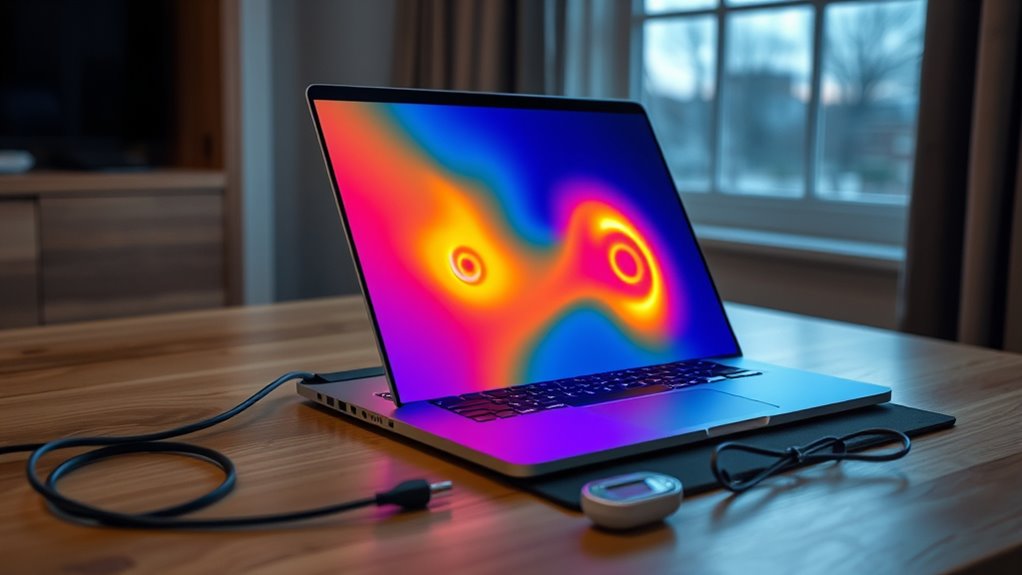
A laptop’s internal temperature is usually normal at 30–50°C when idle, 50–70°C during light tasks, and 70–85°C under heavy use. Brief spikes near 90°C can occur, especially in gaming laptops, but sustained temperatures above that may indicate throttling or poor cooling. CPU and GPU temperatures should be monitored with tools like HWiNFO or Core Temp. Proper airflow, regular cleaning, and a cooling pad can reduce heat and improve thermal stability.
Key Takeaways
- Idle laptop temperatures of 30-50°C are normal and usually indicate efficient cooling.
- Light use often runs at 50-70°C, while heavy workloads commonly reach 70-85°C.
- Brief peaks near 90°C can be acceptable, but sustained temperatures above 90°C suggest overheating.
- CPU and GPU temperatures should be monitored with tools like HWiNFO, HWMonitor, Core Temp, or MSI Afterburner.
- Improve cooling with clean vents, better airflow, elevated placement, and a cooling pad.
What Is Normal Gaming Laptop Temperature?
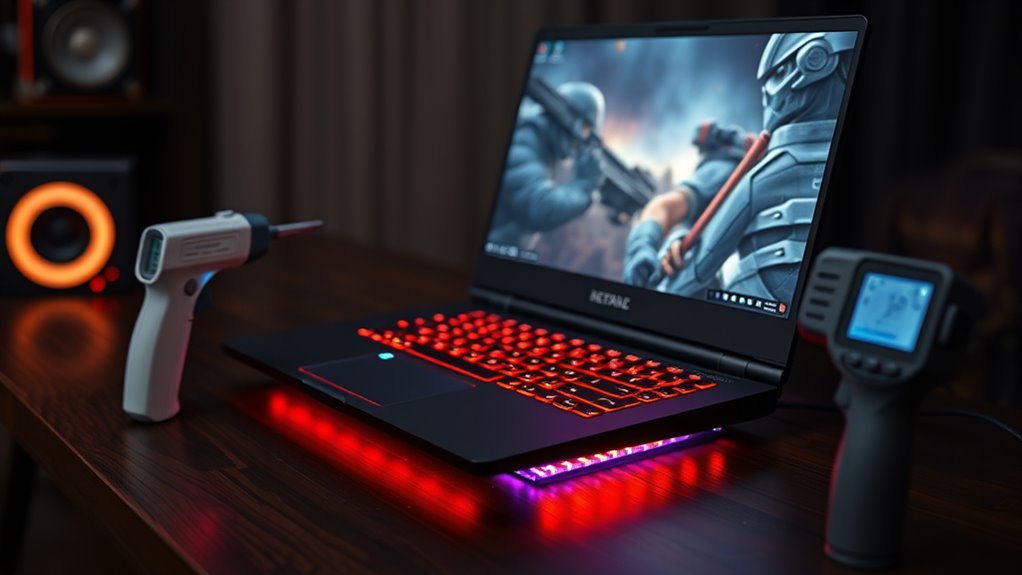
Normal gaming laptop temperatures typically range from 70 to 85°C during intense gameplay, with short peaks near 90°C considered acceptable but not ideal. This range reflects a normal laptop CPU temperature under load, where CPU temps rise as workloads intensify.
A healthy Cooling System should keep high temperatures brief and recover quickly after heavy scenes. If sustained readings remain above 90°C, the machine may be experiencing airflow limits or thermal throttling, which can reduce performance and constrain user freedom.
Idle behavior is different: 30 to 50°C usually indicates efficient heat management when the system is under little demand. Ambient conditions also matter, since warmer rooms reduce cooling headroom.
Regular fan and vent cleaning every 3 to 6 months helps preserve airflow. A cooling pad may lower readings by 5 to 10°C during extended sessions, improving stability.
Safe Laptop Temperature Ranges by Task
Idle and light-load operation generally fall within safe laptop temperature ranges of about 30-50°C and 50-70°C, respectively, reflecting normal thermal behavior under minimal processing demand.
Gaming and other heavy workloads typically raise CPU temperatures into the 70-85°C range, with brief peaks near 90°C still considered acceptable for many systems.
Sustained temperatures above 90°C indicate cooling stress and may trigger thermal throttling, which reduces performance to limit heat.
Idle And Light Load
When a laptop is sitting mostly unused, its temperature typically rests around 30–50°C, a range that suggests efficient cooling under minimal demand.
In this idle temperature band, readings are normal and usually reflect healthy airflow and sensible thermal design.
Under light workloads such as web browsing or document editing, CPU temperatures may climb to 50–70°C, yet this remains normal within accepted temperature ranges.
Ambient room temperature and chassis design can shift these values upward or downward.
Keeping light-use temperatures below 70°C supports peak performance and helps preserve component longevity.
Regular monitoring of these figures gives users practical control, allowing them to detect cooling issues early and maintain a system that operates freely, predictably, and without unnecessary thermal strain.
Gaming And Heavy Load
During gaming and other heavy workloads, laptop temperatures rise into a higher but still expected operating range, with CPU readings typically falling between 70 and 85°C and brief peaks near 90°C remaining acceptable on high-performance systems.
For a Gaming Laptop, these CPU Temperatures indicate intense processing rather than failure, provided they do not remain elevated. GPU cores commonly operate around 80 to 85°C under sustained load.
When heat persists above 90°C, thermal throttling may activate, reducing speed to protect hardware.
A Cooling Pad can improve airflow beneath the chassis, while regular dust removal and careful placement on hard, open surfaces further support thermal stability.
In well-ventilated environments, users preserve performance and maintain control over demanding applications without unnecessary overheating.
How Hot Can a Gaming Laptop CPU Get?
A gaming laptop CPU typically runs safely between 70°C and 85°C under heavy load, with brief peaks near 90°C generally considered acceptable, though not ideal.
In a laptop used for gaming, CPU temperatures in this band reflect normal thermal behavior, not failure. Sustained readings above 90°C can trigger thermal throttling, lowering clock speeds to preserve silicon and limit heat.
Idle temperatures often sit near 30°C to 50°C, varying by model and cooling design.
- Monitor temperatures with HWMonitor or MSI Afterburner.
- Clean vents regularly to preserve airflow.
- Use a cooling pad when sessions are long.
- Keep the device on a hard, open surface.
- Compare readings against the manufacturer’s thermal limits.
Precise monitoring lets users retain performance and autonomy. A well-managed gaming system stays responsive, avoids avoidable heat stress, and supports a longer service life without sacrificing mobility.
What GPU Temperatures Are Safe?
GPU temperatures are generally considered safe at 30-50°C when idle and 70-85°C under gaming or sustained load, with brief spikes near 90°C usually acceptable.
Most models can tolerate up to 90-95°C, but temperatures above 85°C for extended periods often trigger thermal throttling and reduced performance.
Warning signs of overheating include abrupt fan noise increases, clock-speed drops, stuttering, and elevated temperatures that persist despite adequate ventilation and cooling.
Safe GPU Temp Ranges
Safe operating temperatures for graphics processors vary by workload, with idle readings typically falling around 30-50°C and gaming or other heavy tasks commonly pushing them into the 70-85°C range. These safe temperature ranges reflect normal thermal behavior, not failure.
- Idle GPU temperatures near 30-50°C suggest efficient heat dissipation.
- Under load, 70-85°C is generally acceptable for most GPUs.
- A maximum safe temperature of 90-95°C exists, but it is not ideal for sustained use.
- Persistent readings above 85°C can reduce performance through throttling.
- Monitoring tools such as MSI Afterburner or HWMonitor help verify GPU temperatures and assess the cooling system.
For users seeking liberated control, precise temperature tracking supports stable performance, preserves hardware, and prevents unnecessary constraint.
GPU Overheating Warning Signs
When GPU temperatures move beyond the normal idle range of 30-50°C and approach sustained loads of 70-85°C, the focus shifts to recognizing overheating before damage occurs.
A GPU that remains near 90°C may still function, but consistent temperature above 85°C can trigger thermal throttling, limiting performance to protect silicon.
Clear warning signs include louder fan noise, sudden frame drops, unexpected shutdowns, and hot spots on the laptop surface.
Sustained readings above 95°C are unsafe and can shorten component life.
Monitoring tools help detect rising temperature trends early, giving users the freedom to act before overheating spreads.
Cleaning vents, improving airflow, and reducing load are practical responses that preserve stable GPU operation and prevent avoidable failure.
Why Gaming Laptops Overheat
Gaming laptops overheat because they pack high-performance CPUs and GPUs into compact chassis with limited space for airflow and heat dissipation. Their heat output is high, and temperatures are actually excellent at 70–85°C under demanding play, yet the same design leaves little thermal headroom.
Poor ventilation, dense internal layouts, and thin cooling systems trap energy that should escape. When frame rates rise or overclocking is enabled, sustained loads can push temperatures beyond 85°C, forcing throttling to preserve components.
- Small heatsinks reduce transfer efficiency
- Shared heat pipes saturate quickly
- Dust blocks intake and exhaust paths
- Hot rooms raise baseline chassis temperature
- Replacing thermal paste restores contact quality
Effective cooling depends on maintenance and airflow discipline. Clean vents, unobstructed surfaces, and fresh thermal paste help the system remain within controlled operating limits, supporting performance without unnecessary thermal constraint.
Signs Your Gaming Laptop Is Too Hot
Even well-designed cooling systems can be pushed beyond their limits, and the warning signs are usually visible in temperature readings, fan behavior, and system stability. A sustained average CPU Temperature above 90°C suggests cooling inefficiency and often leads to thermal throttling, reducing performance to preserve the chip.
When the chassis becomes hot to touch, especially near the keyboard or exhaust areas, internal heat is likely exceeding the normal gaming range of 70–85°C. Loud, persistent fan noise during play also indicates that the fans and heat management system is struggling to dissipate load.
More severe symptoms include sudden shutdowns near or above 100°C, which point to dangerous overheating and potential hardware damage. Regular monitoring with tools such as MSI Afterburner helps reveal unsafe trends before failure occurs.
If these signs appear, users should improve airflow, reduce obstruction, and restore thermal headroom quickly.
How to Check Laptop Temperature
To check a laptop’s temperature, the most direct method is to enter the BIOS or UEFI during startup by pressing a setup key such as Delete or F2; this typically shows the current CPU temperature but not historical trends or load-based fluctuations.
This Built-In BIOS/UEFI view is useful for a basic check laptop temperature reading, yet it cannot reveal sustained temperatures during work or play. For live monitoring, third-party tools such as Core Temp or HWiNFO provide continuous readings and can expose how background apps affect heat under load.
- Open BIOS/UEFI at boot
- Use Core Temp for real-time data
- Watch idle and load values
- Note sustained temperatures over time
- Compare readings after closing background apps
Idle temperatures often sit near 30-50°C, while demanding tasks may reach 70-85°C, with peaks near 90°C.
Reliable measurement supports informed choices and thermal freedom.
Best Ways to Cool a Gaming Laptop
Keeping a gaming laptop cool depends on improving airflow, reducing thermal resistance, and controlling heat output during sustained load. A quality cooling pad can lower temperatures by 5-10°C, giving fans less work and helping the chassis shed heat more efficiently.
Regular cleaning every 3-6 months with compressed air removes dust that would otherwise clog vents and restrict convection. Replacing aged thermal paste on the CPU and GPU improves heat transfer, which can reduce internal hot spots under heavy gaming loads.
Elevated placement on a hard surface or stand keeps intake and exhaust paths unobstructed, supporting steadier cooling without added noise. Custom fan curves add direct control, allowing the system to increase fan speed before temperatures become excessive.
Together, these measures give users more autonomy over thermals, preserving performance, reducing throttling, and making sustained play more stable and responsive.
Laptop Airflow Tips for Better Cooling
Good airflow depends on reducing obstruction at every stage of heat exchange, starting with the laptop’s placement on a hard, flat surface that leaves intake and exhaust vents unobstructed. A soft bed or lap can trap hot air and burden heat sinks, raising temperatures unnecessarily. Proper clearance around the chassis supports convection and keeps components working well under load.
- Use a laptop cooling pad to add active airflow and lower surface temperatures by 5-10°C.
- Keep vents clean with compressed air every 3-6 months to prevent dust blockage.
- Place the device in a well-ventilated area, away from direct sunlight.
- Adjust fan speeds or custom fan curves before temperatures exceed 85°C.
- Allow space behind exhaust vents so heated air exits freely.
Together, these measures reduce thermal stress, preserve performance, and give users more control over heat management without dependence on restrictive environments.
Frequently Asked Questions
How Hot Is Normal for a Laptop to Get?
A laptop normally reaches 30–50°C idle and 70–85°C under load. Above 85°C, thermal throttling and performance impact may appear; excessive fan noise and overheating signs suggest improved laptop cooling is needed.
Is 80 Degrees Too Hot for a Laptop CPU?
Yes—80°C is high, though often acceptable under load; the catch is looming thermal throttling effects and CPU performance impacts. Ideal operating temperatures sit lower, so laptop heat management and cooling solutions comparison matter greatly.
Is 72 Degrees Too Hot for a CPU?
72°C is generally not too hot for a CPU. It is usually safe, though CPU overheating risk rises with poor cooling solutions, higher ambient temperature, and possible thermal throttling, which can create performance impact.
Is 70 Degrees Hot for a Laptop While Gaming?
70°C is generally normal while gaming, like a well-tuned engine under load. It should preserve gaming performance, avoid thermal throttling, and support hardware longevity. Good cooling solutions usually keep fan noise manageable during demanding sessions.
Conclusion
To sum up, normal laptop heat depends on workload, but sustained temperatures above 90°C can indicate thermal stress, especially in gaming systems. A useful statistic to note is that many modern laptops begin throttling performance around 95°C on the CPU, which helps prevent damage but reduces speed. Proper airflow, regular cleaning, and monitoring tools remain the most effective ways to maintain safe temperatures and preserve long-term performance in demanding setups.

