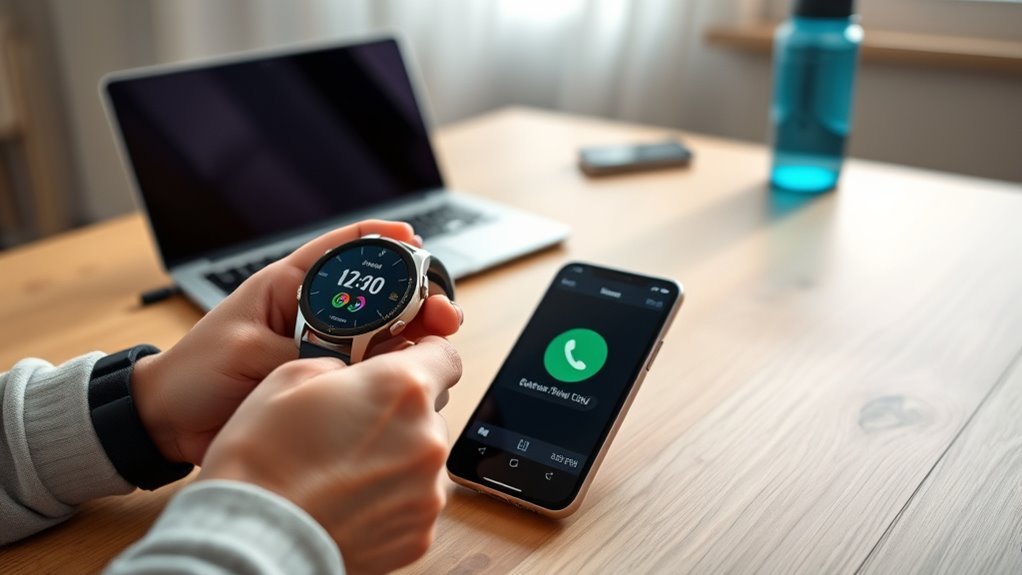
Pairing a Garmin watch with a phone links the watch to the Garmin Connect app, which is what powers notifications, activity syncing, and software updates. The exact pairing screen depends on the watch: most current Garmin watches display a scannable QR code, while some models — and any device paired without the initial setup wizard — show a six-digit numeric code instead. Either way, the watch must be paired through the Garmin Connect app itself, not through the phone’s regular Bluetooth settings menu.
Quick Answer
Install the Garmin Connect app, turn on the watch (or put it in pairing mode from its menu), then either scan the QR code or enter the six-digit code shown on the watch screen into the app to complete pairing. Always pair through Garmin Connect, not your phone’s Bluetooth settings.
Key Takeaways
Key Takeaways
- Install the Garmin Connect app and pair through it — not your phone’s system Bluetooth settings.
- Most current Garmin watches use a QR code for pairing; some models show a six-digit code instead.
- Your phone needs iOS 15.0+ or Android 7.0+ to run the Garmin Connect app.
- Keep both devices within about 10 meters (33 ft) of each other and fully charged during setup.
- If pairing or syncing fails, restart both devices, check app permissions, and confirm Bluetooth is on.
At a Glance
| Time Required | About 5–10 minutes |
| Difficulty | Beginner |
| Requirements | Garmin Connect app, iOS 15.0+ or Android 7.0+, Bluetooth enabled |
| Cost | Free |
Check Pairing Requirements
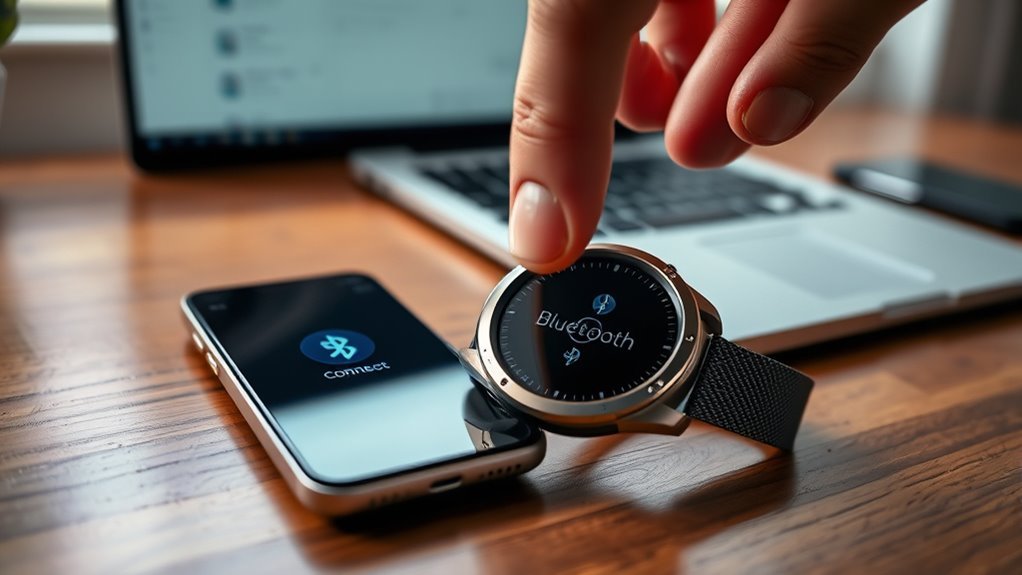
Before pairing begins, confirm the phone meets Garmin Connect’s minimum requirements: iOS 15.0 or later on iPhone, or Android 7.0 or later with native Google Play Store support on Android. Bluetooth must be enabled, and the Garmin Connect app should be installed from the App Store or Google Play Store.
The Garmin Connect app acts as the control center for pairing and watch management, so missing it can block progress. The watch should also be charged and kept within roughly 10 meters (33 ft) of the phone during setup.
The Garmin Connect app manages pairing, while pairing mode makes the watch visible to the phone.
Note: Pair the watch through the Garmin Connect app, not through your phone’s built-in Bluetooth settings menu. Connecting via system Bluetooth settings instead of the app is one of the most common reasons pairing appears to fail.
App permissions should also be reviewed, since restricted access to Bluetooth or location can interrupt setup and notifications. When each requirement is confirmed, the watch and phone are ready for the next step.
Set Up Garmin Connect
To set up Garmin Connect, download the app from the App Store or Google Play Store, then create a new account or sign in with an existing Garmin account. This lets the phone recognize the watch during pairing.
With Garmin Connect open, follow the app’s setup flow to add the watch and sync your preferences.
- Open Garmin Connect and confirm the account is active.
- Turn on the Garmin watch and keep it nearby.
- When prompted in the app, choose to add or pair a new device.
- Scan the QR code on the watch screen, or enter the numeric code if that’s what appears, then follow the app’s remaining prompts.
After pairing, the app displays the connected device and walks through a short preference setup. The watch then syncs its settings automatically.
Put Your Watch in Pairing Mode
Most Garmin watches enter pairing mode automatically the first time they’re powered on. If the watch was set up before, or pairing was skipped, you can re-enter pairing mode manually: from the watch face, hold the menu or up button and look for Settings > Connectivity > Phone > Pair Phone (exact menu wording varies slightly by model).
Depending on the watch, the screen will show either a QR code to scan with the phone’s camera inside the Garmin Connect app, or a numeric code to type into the app. Keep the watch powered on and charged, since a low battery can interrupt the connection.
If the watch doesn’t enter pairing mode, restart it — power off, turn it back on, and repeat the steps above.
Pair Your Garmin Watch With iPhone
Update the iPhone to iOS 15.0 or later in the Settings app, then install Garmin Connect from the App Store.
- Open Garmin Connect on the iPhone and sign in.
- Turn on the watch, or put it in pairing mode from its menu.
- In the app, choose to add a device, then scan the QR code shown on the watch — or enter the six-digit code if the watch displays one instead.
- Follow every on-screen prompt on both devices until pairing completes.
Once connected, the watch is ready to work with the iPhone for fitness data and notifications.
Pair Your Garmin Watch With Android
Update the Android phone to at least Android 7.0 in Settings, then install Garmin Connect from the Google Play Store.
On the Garmin watch, enter pairing mode from the main menu so the device becomes discoverable. Depending on the model, scan the QR code with the phone’s camera inside the app, or enter the six-digit code shown on the watch.
On the Garmin watch, enable pairing mode, then scan the QR code — or enter the six-digit code — on your Android phone.
If the watch doesn’t appear automatically, use Garmin Connect’s fallback: select Add Device or Browse all compatible devices and choose the correct model manually.
Confirm Settings and Sync
Bluetooth should stay enabled on the phone, and the Garmin Connect app should be updated to its latest version before syncing.
Keep the watch and phone in close range so data transfers reliably. A quick manual sync keeps health and activity records current.
- Open Garmin Connect on the phone.
- Access the watch’s connectivity or sync menu.
- Start the sync while the app stays open and active.
- Confirm that recent activity data appears in the app.
Regular syncing keeps tracking data accurate, and keeping both apps updated helps maintain compatibility over time.
Fix Pairing and Sync Issues
When pairing or syncing stalls, check the phone first: confirm Bluetooth is enabled, the Garmin Connect app is updated, and the app has permission for Bluetooth and location access.
Pairing trouble is far more common on older hardware with outdated Bluetooth. If yours predates 2020 and fights you every time, our current Garmin picks under $300 cover the affordable replacements.
If the watch still won’t connect, restart both the phone and the watch — a fresh boot resets stuck Bluetooth states.
Keep both devices close during setup, since distance and interference from other Bluetooth devices can weaken the connection.
Warning: If you’re re-pairing to a new or replacement phone, remove the watch from the old phone’s Garmin Connect account first (or unpair it from that device in the app) to avoid connection conflicts.
If the connection stays unreliable after these steps, persistent failures usually point to a device-specific issue, so Garmin’s official support resources are worth checking for model-specific guidance.
Use Garmin Connect After Pairing
Once paired, the Garmin Connect app automatically tracks steps, distance, calories, and heart rate, giving a clearer view of daily activity and training load without extra manual setup.
The app also supports quick manual syncs: bring the watch close to the phone, open Garmin Connect, and updated data appears within moments.
- Check current metrics in the app after each workout.
- Sync regularly to keep records accurate.
- Review personalized insights to refine training.
- Join in-app challenges to stay motivated.
With consistent use, Garmin Connect turns raw activity numbers into practical training guidance, and its social features can help with accountability over time.
Frequently Asked Questions
How do I put my Garmin watch in pairing mode?
Turn the watch on — it enters pairing mode automatically the first time. If it was already set up, hold the watch’s menu button and look for Settings > Connectivity > Phone > Pair Phone. Then scan the QR code, or enter the six-digit code if that’s what the watch shows, in the Garmin Connect app.
How do I connect my Garmin watch to my phone again?
Enable Bluetooth and open Garmin Connect. If the watch isn’t found automatically, put it back into pairing mode from its menu and select Add Device in the app. Restarting both devices and updating the app can also resolve reconnection issues.
How do I sync my Garmin watch and iPhone?
Open Garmin Connect, make sure Bluetooth is on, and start a manual sync from the app while the watch is nearby. If the sync stalls, restart the Garmin Connect app and try again.
Can I connect my Garmin watch to my phone?
Yes — as long as the phone meets Garmin Connect’s compatibility requirements (iOS 15.0+ or Android 7.0+) and Bluetooth is enabled. Pairing mode and either a QR code or a six-digit code complete the setup, after which notifications and activity data sync automatically.
Conclusion
Pairing a Garmin watch with a phone is usually quick: install Garmin Connect, put the watch in pairing mode, and complete the QR-code or six-digit-code prompt in the app. A missed permission or a pairing attempt through the phone’s own Bluetooth settings is the most common thing that stalls the process. Once Garmin Connect is installed, pairing mode is enabled, and settings are confirmed, the watch shifts from an isolated tracker to a connected tool — and most remaining issues are small, fixable ones like a restart or an app update away from resolved.
Sources
- Garmin Support — Pairing Your Phone — confirms pairing must be done through the Garmin Connect app rather than phone Bluetooth settings, and describes QR-code pairing on current watches
- Garmin — Bluetooth Compatibility (garmin.com/ble) — minimum iOS and Android version requirements for the Garmin Connect app
- Garmin Connect on the App Store — official app listing and current iOS compatibility
- Garmin Support Center — model-specific troubleshooting for pairing and syncing issues

